一、准备
1.1 版本
下载地址:https://cef-builds.spotifycdn.com/index.html
我使用的是:cef_binary_146.0.11+g3a0fcf1+chromium-146.0.7680.179_windows64.tar.bz2
1.2 编译示例
我使用的是visual studio 2026 社区版
进入根目录后,比如我的,ef_binary_146.0.11,执行命令生成VS的解决方案文件:
cmake -G "Visual Studio 17 2022" -A x64 -T v145 得到cef.sln
需要编译libcef_dll_wrapper和cefsimple,这是为了得到一个可以用的资源环境,
备注:
-
注意,我这里是用的调试版本, MDd链接方式,需要自己改一下;
项目属性-> c++ > 代码生成 -
库使用的UTF-8编码,需要在VS的:
项目属性-> c++ > 命令行中添加:/utf-8 -
编译我是使用的C++20标准;
项目属性-> c++ > 语言 -
编译cefsimple成功后,可以运行测试程序,那么这个
cef_binary_146.0.11\tests\cefsimple\Debug就是一个能运行的环境了;一会我们自己的程序也需要里面的动态库和资源;
因为:官方包里解开的debug里面给的不能直接运行,我也懒得追究缺啥,谁可以答复一下?
二、对话框测试程序
测试源码地址:https://github.com/robinfoxnan/cef_mfc_dialog
运行的效果如下:
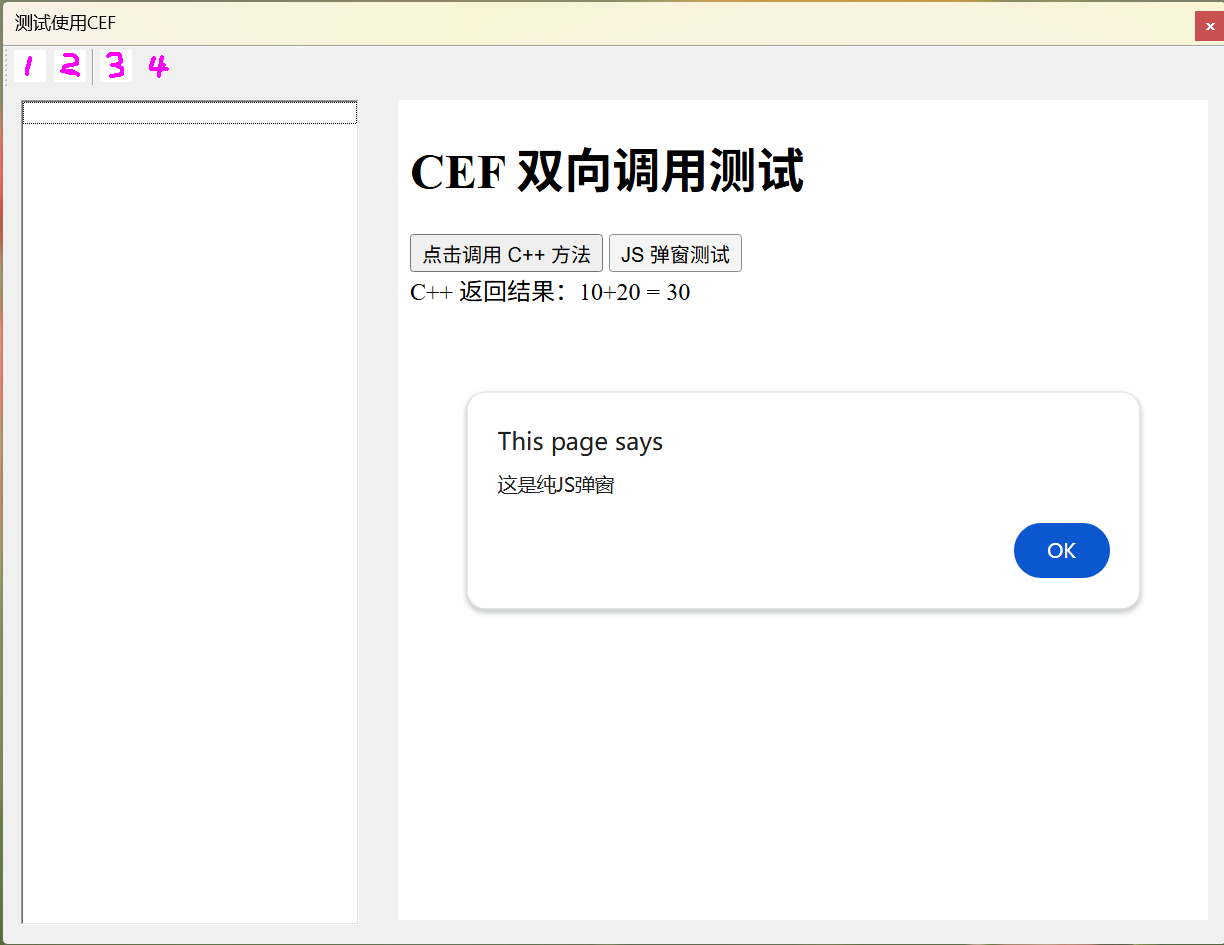
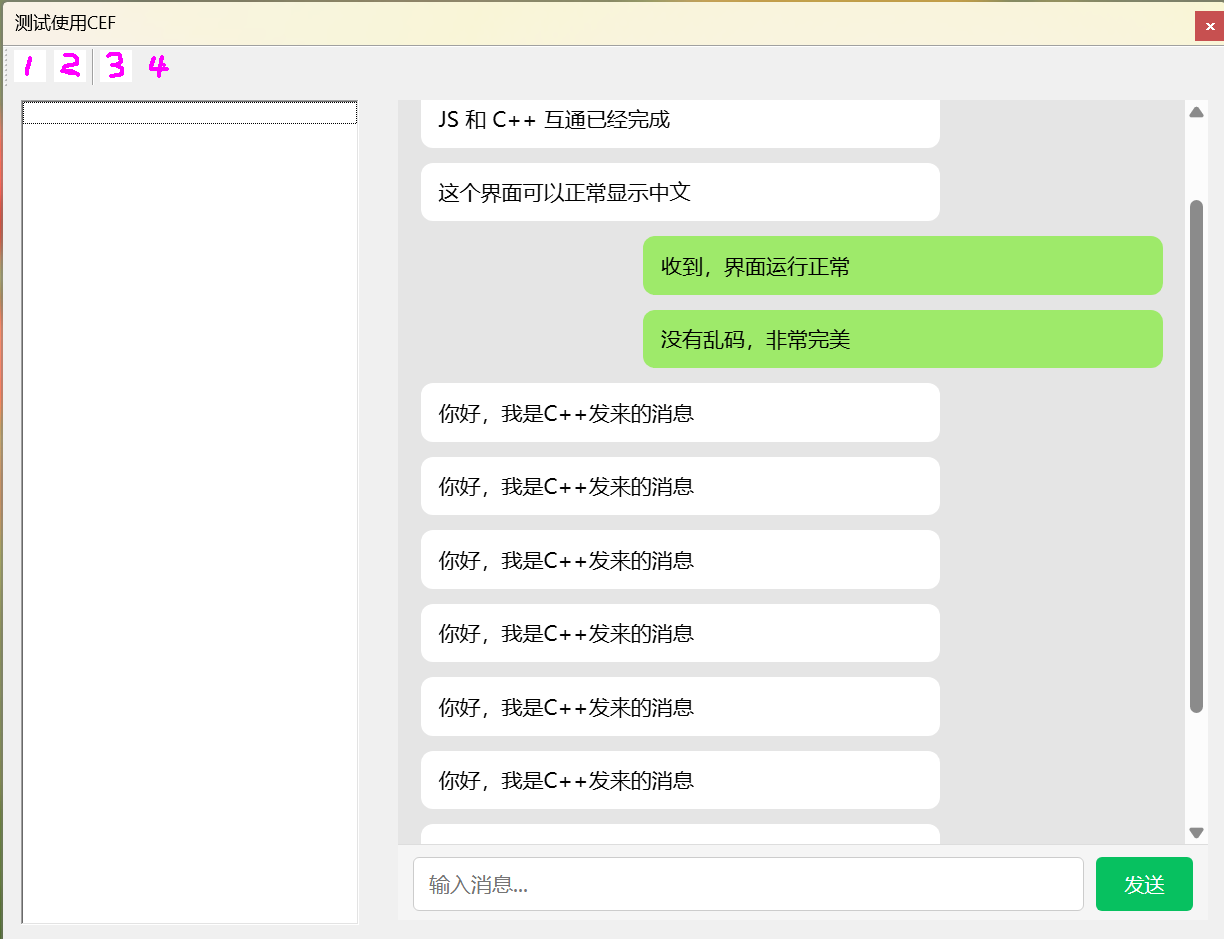
测试程序在; mfsTestCef\x64\Debug,但是DLL实在太大了,GITHUB不让传
这里需要总结几点:
-
类simple_app基本是按照示例代码改的。但是去掉了委托窗口,使用本地模式,自己创建窗口;
-
类simple_hander也是示例中改的,添加了几个基类,用于自定义右键菜单;
-
预编译文件头需要添加几行代码,否则会冲突
// 必须放在 stdafx.h 第一行! #define NOMINMAX #undef max #undef min -
程序入口处进行初始化:mfsTestCef.cpp,这里需要把对话框改为非模式框,然后启动消息循环:
BOOL CmfsTestCefApp::InitInstance() { // 如果应用程序存在以下情况,Windows XP 上需要 InitCommonControlsEx() // 使用 ComCtl32.dll 版本 6 或更高版本来启用可视化方式, //则需要 InitCommonControlsEx()。 否则,将无法创建窗口。 INITCOMMONCONTROLSEX InitCtrls; InitCtrls.dwSize = sizeof(InitCtrls); // 将它设置为包括所有要在应用程序中使用的 // 公共控件类。 InitCtrls.dwICC = ICC_WIN95_CLASSES; InitCommonControlsEx(&InitCtrls); CWinApp::InitInstance(); AfxEnableControlContainer(); // 创建 shell 管理器,以防对话框包含 // 任何 shell 树视图控件或 shell 列表视图控件。 CShellManager *pShellManager = new CShellManager; // 激活“Windows Native”视觉管理器,以便在 MFC 控件中启用主题 CMFCVisualManager::SetDefaultManager(RUNTIME_CLASS(CMFCVisualManagerWindows)); // 标准初始化 // 如果未使用这些功能并希望减小 // 最终可执行文件的大小,则应移除下列 // 不需要的特定初始化例程 // 更改用于存储设置的注册表项 // TODO: 应适当修改该字符串, // 例如修改为公司或组织名 SetRegistryKey(_T("应用程序向导生成的本地应用程序")); // ======================== 正确 CEF 初始化 ======================== HINSTANCE hInstance = AfxGetInstanceHandle(); void* sandbox_info = nullptr; CefMainArgs main_args(hInstance); // ✅ 1. 先创建 app CefRefPtr<CefCommandLine> command_line = CefCommandLine::CreateCommandLine(); command_line->InitFromString(::GetCommandLineW()); //command_line->AppendSwitch("single-process"); // 如果需要调试 command_line->AppendSwitch("no-sandbox"); command_line->AppendSwitch("disable-gpu"); command_line->AppendSwitch("disable-win32k-lockdown"); command_line->AppendSwitchWithValue("device-auth-disabled", "1"); command_line->AppendSwitchWithValue("allow-running-insecure-content", "1"); command_line->AppendSwitch("--use-alloy-style"); app = new SimpleApp(); // ✅ 2. 只调用一次 CefExecuteProcess,必须传 app!!! int exit_code = CefExecuteProcess(main_args, app, sandbox_info); if (exit_code >= 0) { return FALSE; } // CEF 设置 CefSettings settings; settings.no_sandbox = true; settings.multi_threaded_message_loop = false; settings.windowless_rendering_enabled = false; //settings.remote_debugging_port = 9222; // ✅ 3. 初始化,传入 app CefInitialize(main_args, settings, app, sandbox_info); //////////////////////////////////////////// // 3. **先创建对话框,再显示** CmfsTestCefDlg dlg; m_pMainWnd = &dlg; //dlg.MyDoModal(); //dlg.DoModal(); //MSG msg; //while (GetMessage(&msg, NULL, 0, 0)) //{ // TranslateMessage(&msg); // DispatchMessage(&msg); // // 让 CEF 跑一帧(必须加!) // CefDoMessageLoopWork(); //} dlg.Create(IDD_MFSTESTCEF_DIALOG); dlg.ShowWindow(SW_SHOW); CefRunMessageLoop(); #if !defined(_AFXDLL) && !defined(_AFX_NO_MFC_CONTROLS_IN_DIALOGS) ControlBarCleanUp(); #endif // 由于对话框已关闭,所以将返回 FALSE 以便退出应用程序, // 而不是启动应用程序的消息泵。 // ======================== CefShutdown(); // ======================== // 删除上面创建的 shell 管理器。 if (pShellManager != nullptr) { delete pShellManager; } return FALSE; } -
在对话框初始化时候,用一个static控件占位,然后在这个位置添加浏览器控件;
BOOL CmfsTestCefDlg::OnInitDialog() { CDialogEx::OnInitDialog(); // ✅✅✅ 就这三行,加在最前面!!! ModifyStyle(DS_MODALFRAME, 0); ModifyStyle(0, WS_MINIMIZEBOX | WS_MAXIMIZEBOX | WS_SYSMENU); SetWindowPos(NULL, 0, 0, 0, 0, SWP_NOMOVE | SWP_NOSIZE | SWP_NOZORDER | SWP_FRAMECHANGED); // ============================================== // ✅【必须放在第一行!】先设置样式,再初始化其他! // ============================================== //LONG_PTR style = GetWindowLongPtr(m_hWnd, GWL_STYLE); //style |= WS_SYSMENU | WS_MINIMIZEBOX | WS_MAXIMIZEBOX; //SetWindowLongPtr(m_hWnd, GWL_STYLE, style); SetWindowPos(NULL, 0, 0, 0, 0, SWP_NOMOVE | SWP_NOSIZE | SWP_NOZORDER | SWP_FRAMECHANGED); // 下面的代码 完全不动! CDialogEx::OnInitDialog(); // 【已经注释】// ModifyStyle(0, WS_CLIPCHILDREN); ASSERT((IDM_ABOUTBOX & 0xFFF0) == IDM_ABOUTBOX); ASSERT(IDM_ABOUTBOX < 0xF000); CMenu* pSysMenu = GetSystemMenu(FALSE); if (pSysMenu != nullptr) { BOOL bNameValid; CString strAboutMenu; bNameValid = strAboutMenu.LoadString(IDS_ABOUTBOX); ASSERT(bNameValid); if (!strAboutMenu.IsEmpty()) { pSysMenu->AppendMenu(MF_SEPARATOR); pSysMenu->AppendMenu(MF_STRING, IDM_ABOUTBOX, strAboutMenu); } } SetIcon(m_hIcon, TRUE); SetIcon(m_hIcon, FALSE); if (!m_wndToolBar.CreateEx(this, TBSTYLE_FLAT, WS_CHILD | WS_VISIBLE | CBRS_TOP | CBRS_GRIPPER | CBRS_TOOLTIPS | CBRS_FLYBY | CBRS_SIZE_DYNAMIC) || !m_wndToolBar.LoadToolBar(IDR_TOOLBAR1)) { TRACE0("创建工具条失败\n"); } m_wndToolBar.SetSizes(CSize(40, 40), CSize(32, 32)); m_wndToolBar.SetBarStyle(m_wndToolBar.GetBarStyle() | CBRS_TOOLTIPS | CBRS_FLYBY); RepositionBars(AFX_IDW_CONTROLBAR_FIRST, AFX_IDW_CONTROLBAR_LAST, 0); // ============ 嵌入 CEF ============ CmfsTestCefApp* app = dynamic_cast<CmfsTestCefApp*>(AfxGetApp()); if (app != NULL) { CRect rc; mContainer.GetClientRect(&rc); app->app->createWindow(mContainer.GetSafeHwnd(), rc, "d:\\obuild\\cef_test.html"); bInited = true; } return TRUE; } -
关闭时候程序的流程是这样的:
-
对话框onClose,调用hander 关闭窗口
-
hander =>doClose告诉浏览器控件发一个WM_CLOSE;
-
对话框再次回到了onClose,这次需要销毁窗口;才能退出;
-
hander => onBeforeClose 会执行退出循环;
-
然后回到主程序的代码处,销毁控件;
-
三、测试网页
我让豆包写了2个测试页面,一个是简单测试一下交互功能,另一个是简单的做一个聊天界面的直观的情况;
cef_test.html
<!DOCTYPE html>
<html>
<head>
<meta charset="utf-8">
<title>CEF JS ↔ C++ 测试</title>
</head>
<body>
<h1>CEF 双向调用测试</h1>
<button οnclick="testCallCpp()">点击调用 C++ 方法</button>
<button οnclick="showMessage()">JS 弹窗测试</button>
<div id="result"></div>
<script>
// JS 调用 C++
function testCallCpp() {
try {
// 调用 C++ 注册的方法
var ret = window.native.add(10, 20);
document.getElementById("result").innerHTML =
"C++ 返回结果:10+20 = " + ret;
} catch (e) {
document.getElementById("result").innerHTML = "错误:" + e.message;
}
}
// 普通JS方法
function showMessage() {
alert("这是纯JS弹窗");
}
// 提供给C++调用的JS方法
function showMsgFromCpp(msg) {
alert("C++ 调用 JS:" + msg);
document.getElementById("result").innerHTML =
"C++ 调用了JS方法,消息:" + msg;
}
function showMsgFromCppJson(jsonObj) {
alert("C++ 调用 JS\n姓名:" + jsonObj.name + "\n年龄:" + jsonObj.age);
document.getElementById("result").innerHTML =
"C++ 传入JSON:<br>" +
"姓名:" + jsonObj.name + "<br>" +
"年龄:" + jsonObj.age;
}
</script>
</body>
</html>
cef_chat.html
<!DOCTYPE html>
<html lang="zh-CN">
<head>
<meta charset="UTF-8">
<title>微信风格聊天界面</title>
<style>
* {
margin: 0;
padding: 0;
box-sizing: border-box;
font-family: "Microsoft YaHei", Arial, sans-serif;
}
body {
background-color: #E5E5E5;
display: flex;
flex-direction: column;
height: 100vh;
}
/* 消息区域 */
#messageArea {
flex: 1;
padding: 15px;
overflow-y: auto;
}
/* 气泡 */
.bubble {
max-width: 70%;
margin-bottom: 10px;
padding: 9px 12px;
border-radius: 8px;
font-size: 14px;
line-height: 1.5;
word-break: break-all;
}
/* 左边(别人/C++) */
.left {
background: white;
align-self: flex-start;
}
/* 右边(自己) */
.right {
background: #9EEA6A;
align-self: flex-end;
margin-left: auto;
}
/* 底部输入栏 - 强制显示 */
.inputBox {
height: 52px;
background: #F5F5F5;
display: flex;
align-items: center;
padding: 0 10px;
border-top: 1px solid #ddd;
flex-shrink: 0; /* 关键:不让输入框被挤压消失 */
}
#inputText {
flex: 1;
height: 36px;
border: 1px solid #ccc;
border-radius: 4px;
padding: 0 10px;
font-size: 14px;
outline: none;
}
#sendBtn {
width: 65px;
height: 36px;
margin-left: 8px;
background: #07C160;
color: white;
border: none;
border-radius: 4px;
cursor: pointer;
}
</style>
</head>
<body>
<div id="messageArea"></div>
<div class="inputBox">
<input type="text" id="inputText" placeholder="输入消息...">
<button id="sendBtn">发送</button>
</div>
<script>
const area = document.getElementById('messageArea');
const input = document.getElementById('inputText');
const btn = document.getElementById('sendBtn');
// 添加一条消息
function addMsg(text, side) {
let div = document.createElement('div');
div.className = 'bubble ' + side;
div.innerText = text;
area.appendChild(div);
area.scrollTop = area.scrollHeight;
}
// 供C++调用
function showMsgFromCpp(msg) {
addMsg(msg, 'left');
}
// 发送
function send() {
let txt = input.value.trim();
if (!txt) return;
addMsg(txt, 'right');
input.value = '';
// 发给C++
try {
window.native.onSendMessage(txt);
} catch (e) {}
}
btn.onclick = send;
input.onkeydown = function (e) {
if (e.key === 'Enter') send();
};
// ==============================
// 初始化默认消息
// ==============================
addMsg('你好!', 'left');
addMsg('JS 和 C++ 互通已经完成', 'left');
addMsg('这个界面可以正常显示中文', 'left');
addMsg('收到,界面运行正常', 'right');
addMsg('没有乱码,非常完美', 'right');
</script>
</body>
</html>四、完成效果与遗留的问题
4.1 功能
-
能打开网页了;
-
能实现c++给JS传递数据;
-
能实现JS调用C++功能;
-
右键菜单自己定义;
4.2 存在的问题
-
对话框的按钮被改了,不知道如何调整;
-
风格必须使用原生模式,否则不能自定义菜单;
-
原生模式无法执行调试窗口;F12没有用;