
◆ 博主名称: 晓此方-CSDN博客 大家好,欢迎来到晓此方的博客。
⭐️Linux系列个人专栏: 【主题曲】Linux
⭐️ Re系列专栏:我们思考 (Rethink) · 我们重建 (Rebuild) · 我们记录 (Record)

文章目录
- 概要&序論
- 一,pwd指令与Linux文件结构
- 二,ls指令与常用选项以及Linux中的文件
- 三,mkdir指令------新建文件夹
- 四,touch指令与时间戳
- 五,cd指令与Linux中的路径
- 六,rm删除指令与rmdir指令与通配符
-
- 6.1rm指令------一把双刃剑
- [6.2 rmdir指令------删除空目录](#6.2 rmdir指令——删除空目录)
- 6.3模糊操作------"*"通配符
- 七,Linux的操作技巧
-
-
- [技巧1: 上下键可以查找历史指令](#技巧1: 上下键可以查找历史指令)
- 技巧2:全屏/退出全屏
- 技巧3:复制粘贴
- 技巧4:光标
-
概要&序論
这里是肝了C++已经头昏眼花的此方 本文作为指令篇的第一篇,会正式带大家开始接触Linux的几个基本指令,并在学习指令的过程中了解到很多关于Linux的重要知识。

一,pwd指令与Linux文件结构
1.1pwd指令介绍
- 指令名称:pwd。(Print Working Directory)
- 使用频率:★★★★★
- 指令作用:查看当前所处工作目录。
- 指令操作:直接输入pwd+回车。
Bash
-bash-4.2# pwd
/root
-bash-4.2#
1.2Linux的文件结构
Linux的文件是一颗多叉树。如下图。
- 非叶子节点:非空目录。
- 叶子结点:空目录or普通文件。
一个用户进入的时候默认是进入该用户的家目录 (如超级用户的家目录是root)这就是上面我们输入pwd看到的是root的原因。
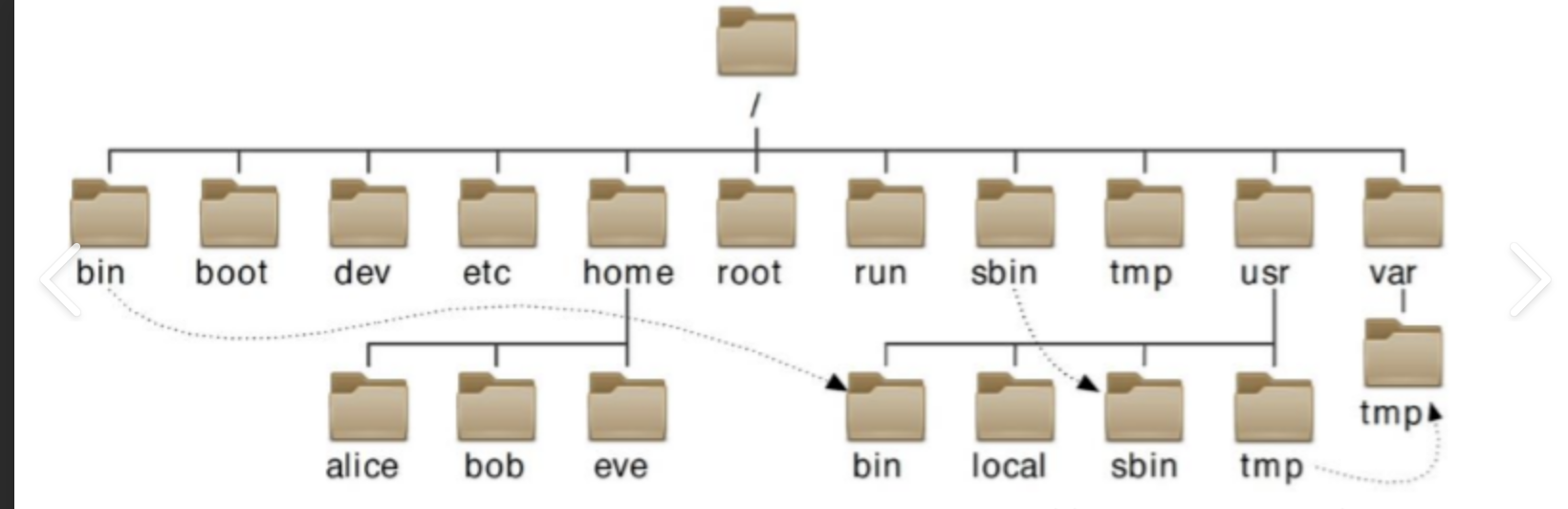
Linux的文件相关的基础知识非常丰富,我在未来的文章中会带大家逐步深入。
二,ls指令与常用选项以及Linux中的文件
2.1ls的使用与选项
- 指令名称:ls。(list)
- 使用频率:★★★★★
- 指令作用:当列出前工作目录下的文件。
- 指令操作 :ls +空格 +选项 + 目录名(没有默认为当前目录)+回车。
Bash
-bash-4.2# ls
mulu01  test01.c  test.c
选项介绍:
- -a:all,列出当前工作目录下的所有文件,包括隐藏文件。
- -l :list,列出当前工作目录下的文件的详细信息。
- -d : directory;查看目录本身。
选项组合效果速查表: (选项可以连用, 连用选项没有固定格式要求。可以写成 -a -l ; -l -a ; -al ; -la; )

选项演示:
Bash
-bash-4.2# ls -a
.  ..  .bash_history  .cache  .config  .lesshst  mulu01  test01.c  test.c
Bash
-bash-4.2# ls -l
total 12
drwxr-xr-x 4 root root 4096 Mar 31 20:24 mulu01
-rw-r--r-- 1 root root   48 Mar 31 20:05 test01.c
-rw-r--r-- 1 root root   13 Mar 31 20:06 test.c
-bash-4.2#
Bash
-bash-4.2# ls -al
total 36
drwxr-xr-x   5 root root 4096 Mar 31 20:24 .
dr-xr-xr-x. 19 root root 4096 Apr  6 15:59 ..
-rw-------   1 root root 1430 Apr  5 21:19 .bash_history
drwxr-xr-x   3 root root 4096 Mar 30 17:27 .cache
drwxr-xr-x   3 root root 4096 Mar 30 17:27 .config
-rw-------   1 root root   51 Mar 31 20:34 .lesshst
drwxr-xr-x   4 root root 4096 Mar 31 20:24 mulu01
-rw-r--r--   1 root root   48 Mar 31 20:05 test01.c
-rw-r--r--   1 root root   13 Mar 31 20:06 test.c
Bash
-bash-4.2# cd /root/mulu01
-bash-4.2# ls -d
.
-bash-4.2# ls -ld
drwxr-xr-x 4 root root 4096 Mar 31 20:24 .
-bash-4.2# ls -ald
drwxr-xr-x 4 root root 4096 Mar 31 20:24 .
ls可以指定目录:
Bash
-bash-4.2# cd /root/mulu01
-bash-4.2# ls -d
.
-bash-4.2# ls -ld
drwxr-xr-x 4 root root 4096 Mar 31 20:24 .
-bash-4.2# ls -ald
drwxr-xr-x 4 root root 4096 Mar 31 20:24 .
-bash-4.2# ls -al /root/mulu01
total 32
drwxr-xr-x 4 root root 4096 Mar 31 20:24 .
drwxr-xr-x 5 root root 4096 Mar 31 20:24 ..
drwxr-xr-x 3 root root 4096 Mar 31 20:02 mulu03
drwxr-xr-x 2 root root 4096 Mar 30 17:33 nihao01
-rw-r--r-- 1 root root 3257 Mar 31 20:17 test01
-rw-r--r-- 1 root root 4495 Mar 31 20:23 test02
-rw-r--r-- 1 root root  297 Mar 31 20:24 test03
-bash-4.2#
2.2Linux中的文件初步介绍
首先,目录就是文件夹。文件有文件名和文件属性。文件的属性有文件的名称,文件的各种时间(如修改时间,创建时间)。我们学习文件是学习对文件的内容的操作和对文件的属性的操作。
这里的ls指令就是显示文件的信息,ls只显示文件的名称,ls -l显示的是文件的详细信息(文件属性):
Bash
-bash-4.2# ls -l
total 8
drwxr-xr-x 2 root root 4096 Apr  6 16:29 mulu07
drwxr-xr-x 2 root root 4096 Mar 31 20:02 nihao01
-rw-r--r-- 1 root root 0 Mar 31 20:02 test01如上,-开头就是普通文件,d开头的就是目录 ,现在知道这点就够了,后面的文章中会补充更多。
除了这两种文件,还有一种隐藏文件:文件名以"."和". ."开头的就是隐藏文件,需要ls -a才能显示出来。任何目录下都牧人会有这两个文件(即使这个目录是空的)。有什么用?请跳转到cd指令讲解处。
Bash
total 16
drwxr-xr-x 4 root root 4096 Apr  6 16:29 .
drwxr-xr-x 3 root root 4096 Mar 31 20:02 ..
drwxr-xr-x 2 root root 4096 Apr  6 16:29 mulu07
drwxr-xr-x 2 root root 4096 Mar 31 20:02 nihao01
-rw-r--r-- 1 root root 0 Mar 31 20:02 test01我们想要查找一个文件的详细状态信息怎么办?stat指令+文件名称可以解决
Bash
-bash-4.2# stat /root/mulu01/mulu03/mulu01/test01
  File: '/root/mulu01/mulu03/mulu01/test01'
  Size: 0         	Blocks: 0          IO Block: 4096   regular empty file
Device: fd01h/64769d	Inode: 786450      Links: 1
Access: (0644/-rw-r--r--)  Uid: (    0/    root)   Gid: (    0/    root)
Access: 2026-03-31 20:02:36.075569579 +0800
Modify: 2026-03-31 20:02:36.075569579 +0800
Change: 2026-03-31 20:02:36.075569579 +0800
 Birth: -
-bash-4.2#
科普内容
这里的三个时间都是什么意思?
Access : 2026-03-31 20:02:36 (访问时间),最后一次读取文件内容的时间。
Modify: 2026-03-31 20:02:36 (修改时间),最后一次修改文件内容的时间。
Change: 2026-03-31 20:02:36 (状态改变时间),最后一次修改文件**元数据(属性)**的时间。
三,mkdir指令------新建文件夹
3.1mkdir指令的使用
- 指令名称:Make Directory
- 使用频率:★★★★★
- 指令作用:创建新的工作目录
- 指令操作:mkdir +新的工作目录名称 +回车
Bash
-bash-4.2# tree
.
|-- nihao01
|   `-- test789.txt
`-- test01

1 directory, 2 files
-bash-4.2# mkdir mulu07
-bash-4.2# tree
.
|-- mulu07//多了一个目录
|-- nihao01
|   `-- test789.txt
`-- test01

2 directories, 2 files
-bash-4.2#
3.2mkdir的常用选项
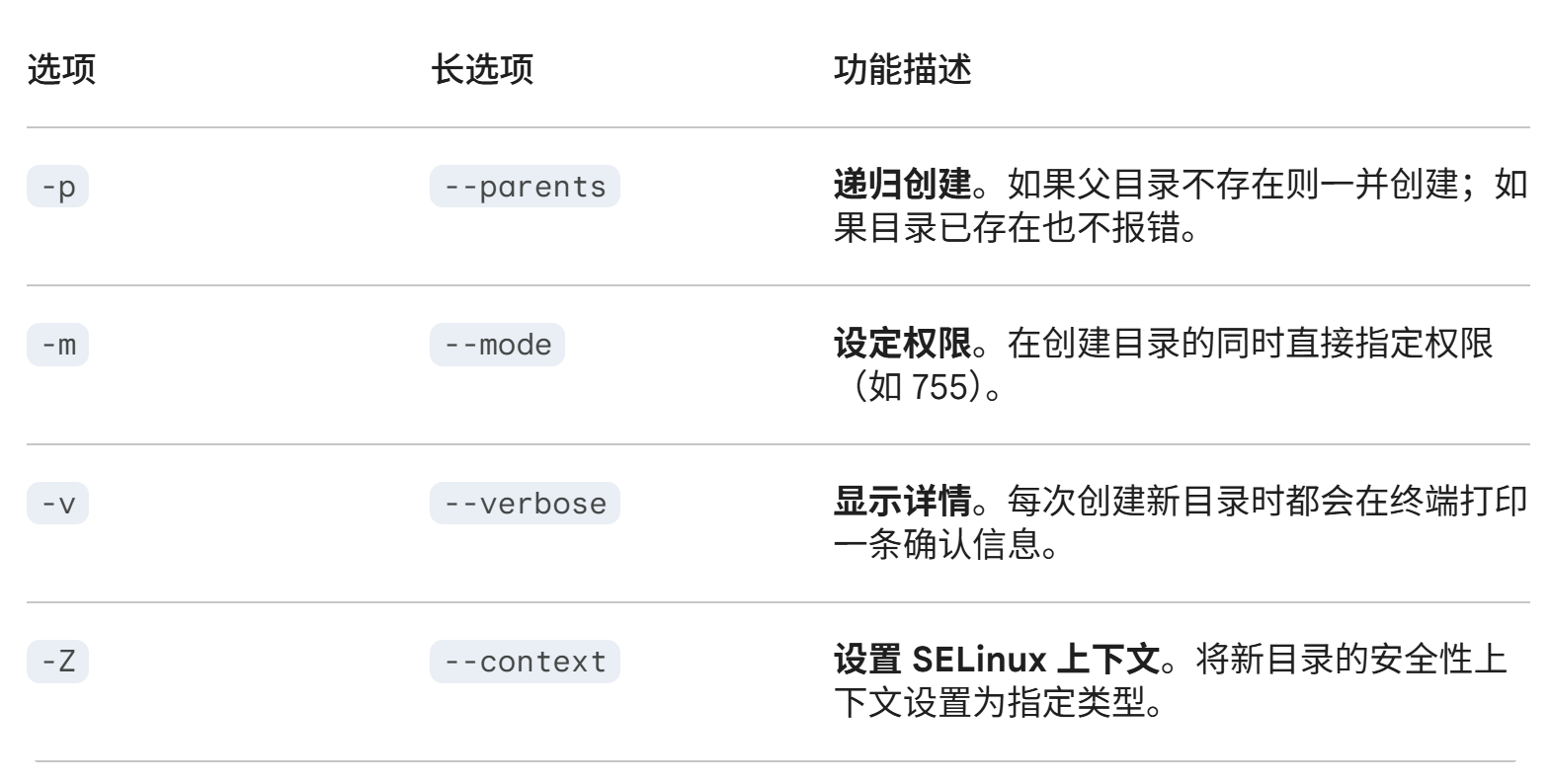
最实用的是第一个,后面几个有兴趣可以尝试以下
在使用 mkdir 命令创建新的目录时,在其父目录不存在时先创建父目录,或者可以说:"递归创建"。于是我们可以这样做:
-bash-4.2# tree
.
|-- baggage01.tgz
|-- baggage_mulu01.tgz
|-- baggage_mulu66.tgz
|-- baggage.tgz
|-- deep_file.log
|-- mulu66.tgz
|-- mulu.zip
|-- practice_lab
|   |-- big_file.bin
|   |-- mulu_deep
|   |   |-- deep_file.log
|   |   `-- inner
|   |       `-- secret.txt
|   |-- readme.txt
|   |-- script.sh
|   |-- test01
|   |-- test02
|   `-- test03
|-- test.c
`-- v

3 directories, 17 files
-bash-4.2# mkdir -p mulu01/mulu02/mulu03/mulu04/mulu05
-bash-4.2# tree
.
|-- baggage01.tgz
|-- baggage_mulu01.tgz
|-- baggage_mulu66.tgz
|-- baggage.tgz
|-- deep_file.log
|-- mulu01
|   `-- mulu02
|       `-- mulu03
|           `-- mulu04
|               `-- mulu05
|-- mulu66.tgz
|-- mulu.zip
|-- practice_lab
|   |-- big_file.bin
|   |-- mulu_deep
|   |   |-- deep_file.log
|   |   `-- inner
|   |       `-- secret.txt
|   |-- readme.txt
|   |-- script.sh
|   |-- test01
|   |-- test02
|   `-- test03
|-- test.c
`-- v

8 directories, 17 files
-bash-4.2#
四,touch指令与时间戳
4.1touch指令的使用
- 指令名称:touch(touch)
- 使用频率:★★★★★
- 指令作用:1.新建文件,2.修改文件的时间
- 指令操作:touch +文件名 +回车
4.1.1创建新文件
Bash
-bash-4.2# tree
.

0 directories, 0 files
-bash-4.2# touch file01.txt
-bash-4.2# tree
.
`-- file01.txt

0 directories, 1 file
-bash-4.2#
4.1.2修改文件的时间
Bash
-bash-4.2# stat file01.txt
  File: 'file01.txt'
  Size: 0         	Blocks: 0          IO Block: 4096   regular empty file
Device: fd01h/64769d	Inode: 786456      Links: 1
Access: (0644/-rw-r--r--)  Uid: (    0/    root)   Gid: (    0/    root)
Access: 2026-04-07 08:18:36.851113831 +0800
Modify: 2026-04-07 08:18:36.851113831 +0800
Change: 2026-04-07 08:18:36.851113831 +0800
 Birth: -
-bash-4.2# touch file01.txt
-bash-4.2# stat file01.txt
  File: 'file01.txt'
  Size: 0         	Blocks: 0          IO Block: 4096   regular empty file
Device: fd01h/64769d	Inode: 786456      Links: 1
Access: (0644/-rw-r--r--)  Uid: (    0/    root)   Gid: (    0/    root)
Access: 2026-04-07 08:23:02.769923455 +0800
Modify: 2026-04-07 08:23:02.769923455 +0800
Change: 2026-04-07 08:23:02.769923455 +0800
 Birth: -
-bash-4.2#
总结一下:
- touch后面跟的文件名存在------>修改文件的时间。(包括Access,Modify,Change)
- touch后面跟的文件名不存在------>创建新文件。
4.2时间戳的概念补充
时间戳(Timestamp)是计算机记录特定事件(如文件创建、数据修改或交易发生)发生时刻的一组数字,它像是一把数字刻度尺,通常以从"格林威治时间 1970 年 1 月 1 日 0 时 "开始计算的总秒数(即 Unix 时间戳)来表示,从而确保在不同系统、不同时区之间都能拥有一个统一、唯一且可精确比较的时间参照。
格林威治时间 1970 年 1 月 1 日 0 时 ------东八区1月1日上午8点。时间戳为0,我写这篇博客的时候的时间戳为1775527771。
五,cd指令与Linux中的路径
5.1cd指令的使用
- 指令名称:cd(Change Directory)
- 使用频率:★★★★★
- 指令作用:切换工作目录
- 指令操作:cd +空格 +路径+回车
Bash
-bash-4.2# tree
.
|-- mulu01
|   |-- mulu03
|   |   `-- mulu01
|   |       |-- nihao01
|   |       |   `-- test789.txt
|   |       `-- test01
|   |-- nihao01
|   |   `-- test789.txt
|   |-- test01
|   |-- test02
|   `-- test03
|-- test01.c
`-- test.c

5 directories, 8 files
-bash-4.2# cd /root/mulu01
-bash-4.2# pwd
/root/mulu01
5.2Linux中的路径
Linux中访问一个文件必须先找到它,找到的方法是通过路径
5.2.1相对路径和绝对路径
5.2.1.1绝对路径
Linux下的路径有两种:绝对路径和相对路径。
- 绝对路径就是从root根目录开始向下查找得到的路径。配置文件中用的多。
- 相对路径就是从当前任何目录开始查找得到的路径。在日常使用中用的多。
绝对路径举例: 假如我们现在有这么一个目录结构,
Bash
-bash-4.2# tree
.
|-- mulu01
|   |-- mulu03
|   |   `-- mulu01
|   |       |-- mulu07
|   |       |-- nihao01
|   |       |   `-- test789.txt
|   |       `-- test01
|   |-- nihao01
|   |   `-- test789.txt
|   |-- test01
|   |-- test02
|   `-- test03
|-- test01.c
`-- test.c我们在/root目录位置。现在我想要去mulu07这个目录里面去,绝对路径就是:/root/mulu01/mulu03/mulu01/mulu07 我们试一试看看:
Bash
-bash-4.2# cd /root/mulu01/mulu03/mulu01/mulu07
-bash-4.2# pwd
/root/mulu01/mulu03/mulu01/mulu07
-bash-4.2#
5.2.1.2相对路径
补充知识: 一个点和两个点。在ls指令讲解中我们提到了这个问题,一个目录中默认有两个隐藏文件"."和". ." ,"."的意思是当前工作目录。". ."的意思是上级工作目录。
还是上面的例子,我现在在mulu07了,我想要去nihao01这个目录里面,就可以走相对路径,我们来写一个相对路径:./. ./. ./. ./nihao01
Bash
-bash-4.2# cd ./../../../nihao01
-bash-4.2# pwd
/root/mulu01/nihao01
cd和相对路径有关的其他用法和一一演示
- cd -:切回到你上一次所在的目录。
- cd ~:直接飞回root目录。
- cd . .:到上级目录
Bash
-bash-4.2# cd ~
-bash-4.2# pwd
/root
-bash-4.2# cd -
/root/mulu01/nihao01
-bash-4.2# pwd
/root/mulu01/nihao01
-bash-4.2# cd ..
-bash-4.2# pwd
/root/mulu01
-bash-4.2#
绝对路径和相对路径的区别在于:是否以/为搜索起点。
5.3这个目录到底该怎么写
路径分隔符。 讲斜杠和反斜杠总有人记不住,我想用一张图就能记住:"窗户(Windows)向上看,企鹅(Linux)往下看。"

目录到底该怎么写?以/root/mulu01/mulu03/mulu01/mulu07为例子:
- 开头的 /: 必须有(除非你就在根目录下)。开头的那个/不是路径分隔符,而是根目录,根目录下面才是用户目录root。
- 中间的 /: 必须有。它是层级的分隔。
- 结尾的 /: 建议不加。
六,rm删除指令与rmdir指令与通配符
程序员中有这么一个笑话:rm-rf /,从删库到跑路。 rm指令还是比较危险的,rmdir指令会更加安全一点。
6.1rm指令------一把双刃剑
- 指令名称:rm(remove)
- 使用频率:★★★★★
- 指令作用:删除任何可以被删除的文件/目录
- 指令操作:rm +选项 +要删除的文件/目录 +回车
常用指令组合表:
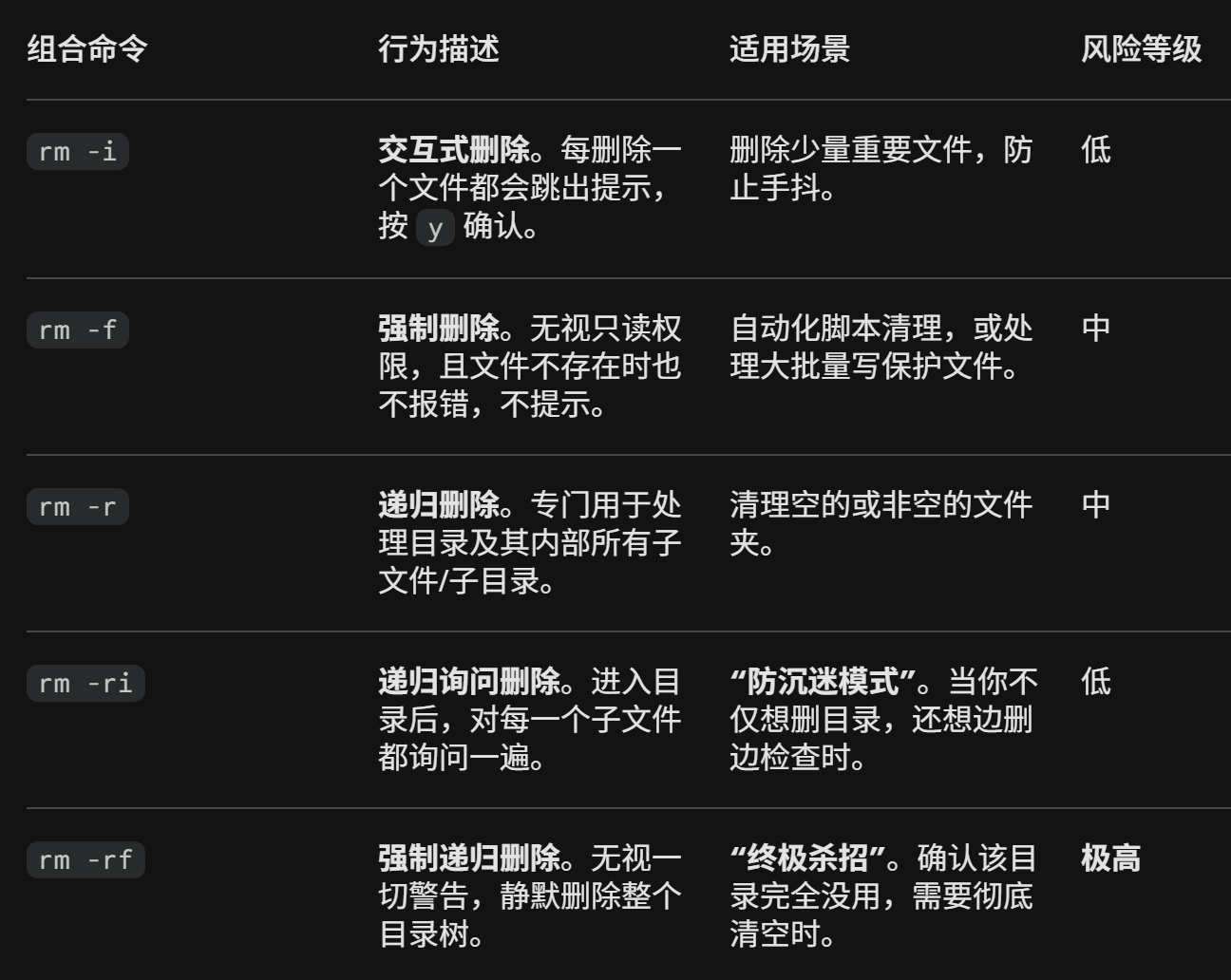
实践尝试:
Bash
-bash-4.2# cd ~
-bash-4.2# tree
.
|-- mulu01
|   |-- mulu03
|   |   `-- mulu01
|   |       |-- mulu07
|   |       |-- nihao01
|   |       |   `-- test789.txt
|   |       `-- test01
|   |-- nihao01
|   |   `-- test789.txt
|   |-- test01
|   |-- test02
|   `-- test03
|-- mulu08
|   `-- file01.txt
|-- test01.c
`-- test.c

7 directories, 9 files
-bash-4.2# rm -i /root/test01.c
rm: remove regular file '/root/test01.c'? y
-bash-4.2# tree
.
|-- mulu01
|   |-- mulu03
|   |   `-- mulu01
|   |       |-- mulu07
|   |       |-- nihao01
|   |       |   `-- test789.txt
|   |       `-- test01
|   |-- nihao01
|   |   `-- test789.txt
|   |-- test01
|   |-- test02
|   `-- test03
|-- mulu08
|   `-- file01.txt
`-- test.c

7 directories, 8 files
-bash-4.2#
Bash
-bash-4.2# rm -r /root/mulu08
-bash-4.2# tree
.
|-- mulu01
|   |-- mulu03
|   |   `-- mulu01
|   |       |-- mulu07
|   |       |-- nihao01
|   |       |   `-- test789.txt
|   |       `-- test01
|   |-- nihao01
|   |   `-- test789.txt
|   |-- test01
|   |-- test02
|   `-- test03
`-- test.c

6 directories, 7 files
-bash-4.2#
Bash
-bash-4.2# rm -rf /root/mulu01/mulu03
-bash-4.2# tree
.
|-- mulu01
|   |-- nihao01
|   |   `-- test789.txt
|   |-- test01
|   |-- test02
|   `-- test03
`-- test.c

2 directories, 5 files
-bash-4.2#
6.2 rmdir指令------删除空目录
- 指令名称:rmdir(remove directory)
- 使用频率:★★★★★
- 指令作用:删除一个空目录
- 指令操作:rm +要删除的空目录 +回车
Bash
-bash-4.2# tree
.
|-- mulu01
|   |-- nihao01
|   |   `-- test789.txt
|   |-- test01
|   |-- test02
|   `-- test03
`-- test.c

2 directories, 5 files
-bash-4.2# rmdir /root/mulu01
rmdir: failed to remove '/root/mulu01': Directory not empty
-bash-4.2# mkdir mulu02
-bash-4.2# tree
.
|-- mulu01
|   |-- nihao01
|   |   `-- test789.txt
|   |-- test01
|   |-- test02
|   `-- test03
|-- mulu02
`-- test.c

3 directories, 5 files
-bash-4.2# rmdir mulu02
-bash-4.2# tree
.
|-- mulu01
|   |-- nihao01
|   |   `-- test789.txt
|   |-- test01
|   |-- test02
|   `-- test03
`-- test.c

2 directories, 5 files
-bash-4.2#
6.3模糊操作------"*"通配符
含义: 匹配任意长度(包括零个字符)的任何字符。
-
ls *.txt:找所有以 .txt 结尾的文件(不管前面叫什么)。
-
ls mulu*:找所有以 mulu 开头的东西(比如 mulu01, mulu_backup, mulu)。
-
ls test :只要名字里带 test 四个字的,全给我翻出来。
-
rm -rf *:(死神指令) 删除当前目录下所有非隐藏内容。
七,Linux的操作技巧
- windows也支持终端+指令操作:powershell。
- Linux 支持终端+指令操作:desktop OS。
技巧1: 上下键可以查找历史指令
就你光标指在这里按上下键能够获得到你的历史命令,原理我会在下篇文章详细讲解。
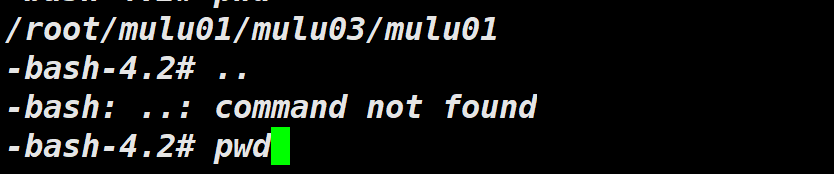
技巧2:全屏/退出全屏
Xshell可以用:Alt + Enter进行全屏、退出全屏
技巧3:复制粘贴
ctrl+shift+c/v 而不是ctrl+c/v。Xshell为了区分其他热键。
未来的文章中,此方会为大家带来更多的操作小技巧,千万不要错过。
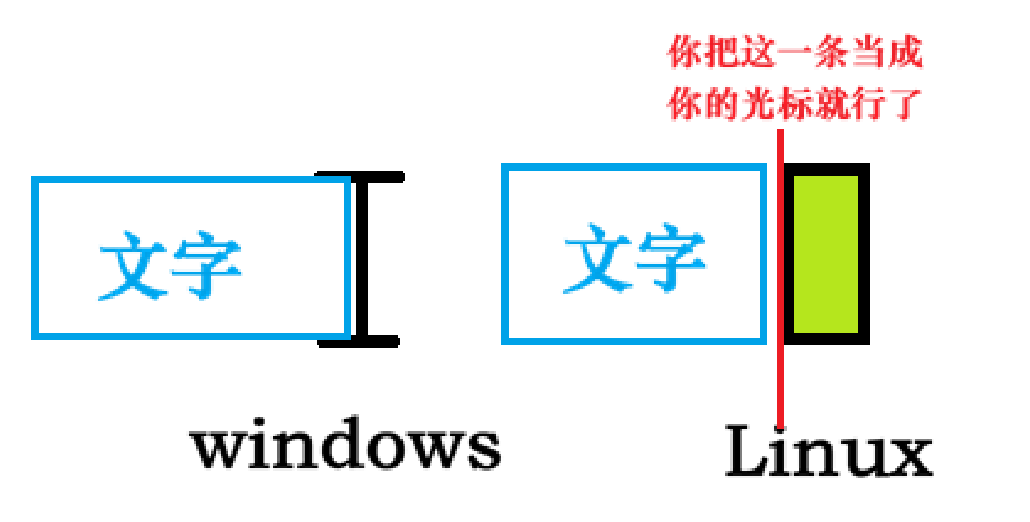
技巧4:光标
有些人刚开始接触Linux,看那个光标超级不顺眼,我叫你一招:"看左不看右"
技巧5:
好了,本期内容到此结束,我是此方,我们下期再见。バイバイ!