ArcGIS JS 基础教程(4):地图中心点定位(指定经纬度/地址)
零、写在前面
📌 本系列教程完整目录 :ArcGIS JS 系列基础教程(100个项目常用热门功能)
💡 在线示例 :完整可运行的 HTML 示例,无需任何环境配置,可直接在浏览器中打开体验
🗂️ 专栏导航 :收藏 + 关注,专栏文章第一时间送达
❤️ 一键三连:点赞(给教程充电)+ 评论(提问必回)+ 收藏(下次再看)
一、功能介绍
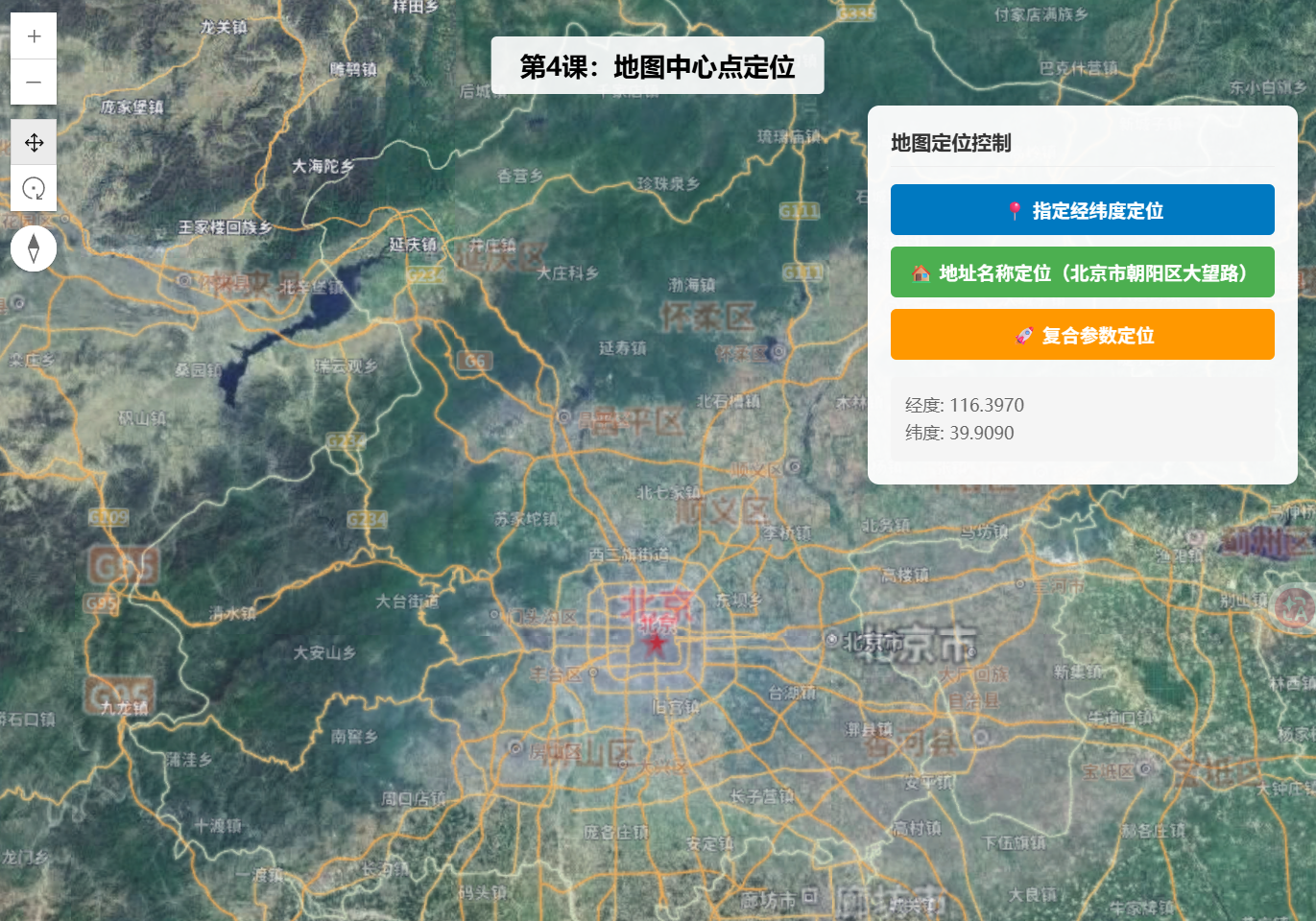
通过代码控制地图视角的中心点位置,支持指定经纬度坐标定位到指定地点,也可根据地址名称(地理编码)反查坐标后定位,同时支持定位时设置缩放级别和倾斜角度,满足各类地图导航、位置展示场景需求。
二、功能实现
SceneView 通过 center 属性直接指定经纬度数组 经度, 纬度;使用 goTo() 方法可同时设置中心点、缩放级别、倾斜角度、方位角等复合参数;地址定位通过 Locator.locationToAddress() 将文字地址转换为坐标后调用 goTo() 定位。
三、功能应用
地图应用的"跳转到指定位置"功能,如房地产项目的楼盘定位、外卖配送的骑手位置展示、智慧城市的应急指挥定位,以及用户点击列表项后地图自动飞转到对应位置。
四、核心代码
html
<!DOCTYPE html>
<html lang="zh-CN">
<head>
    <meta charset="UTF-8">
    <meta name="viewport" content="width=device-width, initial-scale=1.0">
    <title>第4课:地图中心点定位(指定经纬度/地址)</title>
    <link rel="stylesheet" href="https://js.arcgis.com/5.0/esri/themes/light/main.css">
    <script type="module" src="https://js.arcgis.com/5.0/"></script>
    <style>
        body { margin: 0; padding: 0; font-family: "Microsoft YaHei", sans-serif; }
        #mapContainer { width: 100vw; height: 100vh; }
        .page-title {
            position: absolute;
            top: 20px;
            left: 50%;
            transform: translateX(-50%);
            background: rgba(255,255,255,0.9);
            padding: 8px 20px;
            border-radius: 4px;
            font-size: 18px;
            font-weight: bold;
            z-index: 100;
        }
        .control-panel {
            position: absolute;
            top: 80px;
            right: 20px;
            background: rgba(255,255,255,0.95);
            padding: 16px;
            border-radius: 8px;
            box-shadow: 0 2px 12px rgba(0,0,0,0.15);
            z-index: 100;
            min-width: 220px;
        }
        .control-panel h3 {
            margin: 0 0 12px 0;
            font-size: 14px;
            color: #333;
            border-bottom: 1px solid #eee;
            padding-bottom: 8px;
        }
        .btn-group {
            display: flex;
            flex-direction: column;
            gap: 8px;
        }
        .btn-group button {
            padding: 8px 12px;
            border: none;
            border-radius: 4px;
            cursor: pointer;
            font-size: 13px;
            font-weight: bold;
            transition: background 0.2s;
        }
        .btn-lnglat { background: #0079c1; color: #fff; }
        .btn-lnglat:hover { background: #005a87; }
        .btn-address { background: #4caf50; color: #fff; }
        .btn-address:hover { background: #388e3c; }
        .btn-combo { background: #ff9800; color: #fff; }
        .btn-combo:hover { background: #f57c00; }
        .info-box {
            margin-top: 12px;
            padding: 10px;
            background: #f5f5f5;
            border-radius: 4px;
            font-size: 12px;
            color: #666;
            line-height: 1.6;
        }
    </style>
</head>
<body>
    <h1 class="page-title">第4课:地图中心点定位</h1>

    <div class="control-panel">
        <h3>地图定位控制</h3>
        <div class="btn-group">
            <button class="btn-lnglat" onclick="goToLngLat()">📍 指定经纬度定位</button>
            <button class="btn-address" onclick="goToAddress()">🏠 地址名称定位(北京市朝阳区大望路)</button>
            <button class="btn-combo" onclick="goToComposite()">🚀 复合参数定位</button>
        </div>
        <div class="info-box" id="infoBox">
            当前中心点将显示在这里
        </div>
    </div>

    <div id="mapContainer"></div>

    <script type="module">
        const Map = await $arcgis.import("esri/Map");
        const SceneView = await $arcgis.import("esri/views/SceneView");
        const locator = await $arcgis.import("esri/rest/locator");
        const getTianditu = await $arcgis.import("https://openlayers.vip/examples/resources/tianditu.js");

        // 加载天地图底图
        const imgLayers = getTianditu.default({ type: "img_w" });
        const map = new Map({
            basemap: { baseLayers: [imgLayers.base, imgLayers.anno] }
        });

        const view = new SceneView({
            container: "mapContainer",
            map: map,
            center: [116.397, 39.909], // 北京天安门
            zoom: 10,
            tilt: 45
        });

        // 加载天地图底图
        view.watch("center", (newCenter) => {
            const infoBox = document.getElementById("infoBox");
            if (newCenter) {
                infoBox.innerHTML = "经度: " + newCenter.longitude.toFixed(4) + "<br>纬度: " + newCenter.latitude.toFixed(4);
            }
        });

        // 方式1:直接指定经纬度
        window.goToLngLat = function() {
            view.goTo({
                center: [121.473, 31.230], // 上海
                zoom: 13
            });
        };

        // 方式2:通过地址名称定位(正向地理编码)
        window.goToAddress = function() {
            const url = "https://geocode.arcgis.com/arcgis/rest/services/World/GeocodeServer";
            locator.addressToLocations(url, {
                address: { SingleLine: "北京市朝阳区大望路" }
            }).then((candidates) => {
                if (candidates.length > 0) {
                    view.goTo({
                        target: candidates[0].location,
                        zoom: 16
                    });
                }
            }).catch((err) => {
                console.error("地址解析失败:", err);
                alert("地址解析失败,请检查地址是否正确");
            });
        };

        // 方式3:复合参数定位(中心点+缩放+倾斜+方位角)
        window.goToComposite = function() {
            view.goTo({
                center: [104.065, 30.659], // 成都
                zoom: 12,
                tilt: 60,
                heading: 45
            });
        };

        view.when(() => {
            console.log("三维地图加载完成!");
        });
    </script>
</body>
</html>
五、在线示例
🔗 在线体验地址 :https://southjor.github.io/arcgis-examples/lessons/lesson4.html
六、定位方式速查
| 定位方式 | 核心 API | 参数说明 | 适用场景 |
|---|---|---|---|
| 经纬度直接定位 | view.goTo({center:lng,lat, zoom}) | center 为经纬度数组,zoom 为缩放级别 | 已知坐标的精确定位 |
| 地址名称定位 | locator.locationToAddress(addr) | 调用 ArcGIS 世界地理编码服务 | 用户输入地址的场景 |
| 复合参数定位 | view.goTo({center, zoom, tilt, heading}) | 同时设置中心点、缩放、倾斜角、方位角 | 沉浸式视角定位 |
七、系列导航
⬅️ 上一篇 :ArcGIS JS 基础教程(3):地图缩放、平移、旋转(基础交互)
➡️ 下一篇 :ArcGIS JS 基础教程(5):弹出框与信息窗口(Popup)(待发布)