文章目录
Xshell快捷键2
- Alt+Enter 全屏/取消全屏
- Tab 进行补全
- Ctrl + a可以快速切换到命令行开始处
- Ctrl + e 切换到命令行末尾
- Ctrl + c 让当前程序终止
- Ctrl + l 清屏(或者直接输入在会话里输入:clear)
- Ctrl + r 在历史命令中查找
- Ctrl + u 删除光标所在位置之前的所有字符
- Ctrl + k 删除光标所在位置之后的所有字符
- Ctrl + w 删除光标之前的一个命令参数
- Ctrl + d 结束当前输入、退出shell
- Ctrl + s 可用来停留在当前屏
- Ctrl + q 恢复刷屏
- Ctrl +Shift+c 复制
- Ctrl + Shift+v 粘贴
- 上箭头 向上翻命令记录
- 下箭头 向下翻命令记录
man指令
man:命令说明书
man 语法 :man 选项 命令
man 作用:Linux的命令有很多参数,我们没法全部记下,这时就能通过man指令查看联机手册获取帮助
常用选项
- -k 根据关键字搜索联机帮助
- -num 只在第num章节查找
- -a 将所有章节的都显⽰出来,⽐如 man printf 它缺省从第⼀章开始搜索,知道就停⽌,⽤a选项,当按下q退出,他会继续往后⾯搜索,直到所有章节都搜索完毕
解释⼀下:man⼿册分为9章(不同系统可能会有差别,这里第4、9章就不说了)
- 1 是普通的命令
- 2 是系统调⽤,如open,write之类的(通过这个,⾄少可以很⽅便的查到调⽤这个函数,需要加什么头⽂件)
- 3 是库函数,如printf,fread4是特殊⽂件,也就是/dev下的各种设备⽂件
- 4 略
- 5 是指⽂件的格式,⽐如passwd, 就会说明这个⽂件中各个字段的含义
- 6 是给游戏留的,由各个游戏⾃⼰定义
- 7 是附件还有⼀些变量,⽐如像environ这种全局变量在这⾥就有说明
- 8 是系统管理⽤的命令,这些命令只能由root使⽤,如ifconfig
示例
注意:当查看系统调用时,若无法查询,如下
c
[root@VM-0-9-centos ~]# man 2 frok
No manual entry for frok in section 2
原因:CentOS 默认没有安装完整的 man 手册,尤其是 C 库函数的文档
解决方法:在会话中输入"yum install -y man-pages man-db"
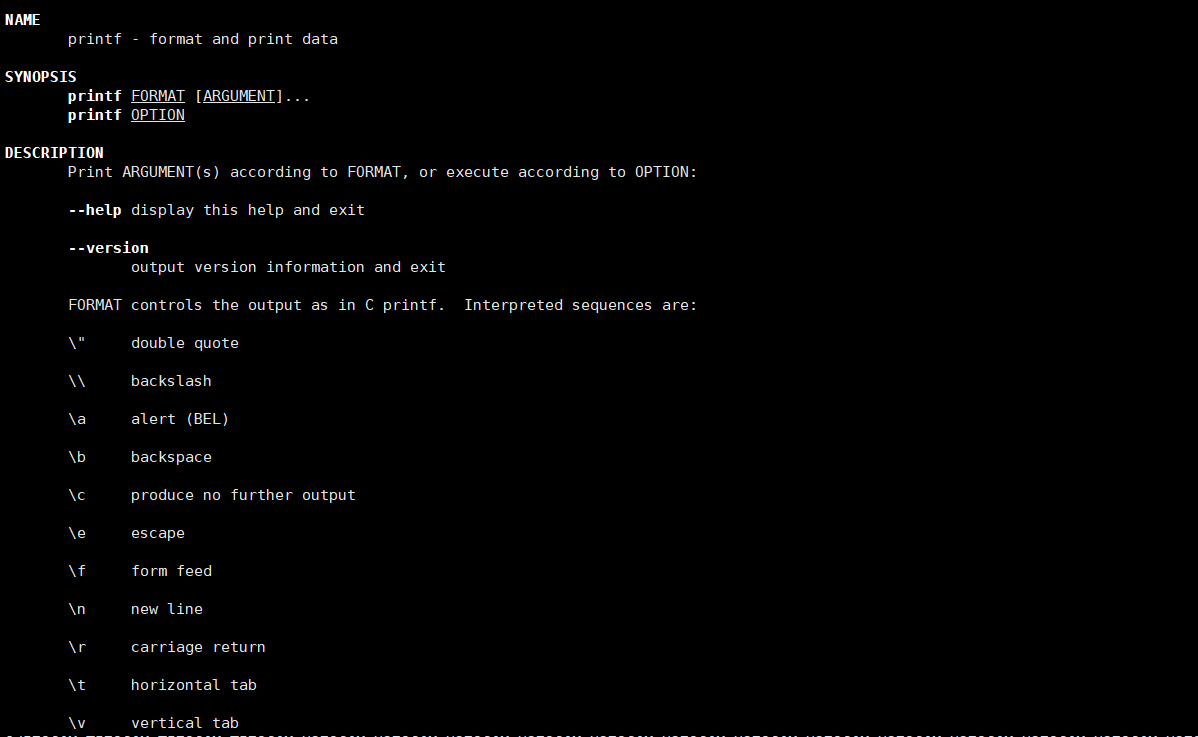
使用man指令查询printf指令(printf也是一个指令):man printf
按q就能返回输入会话中
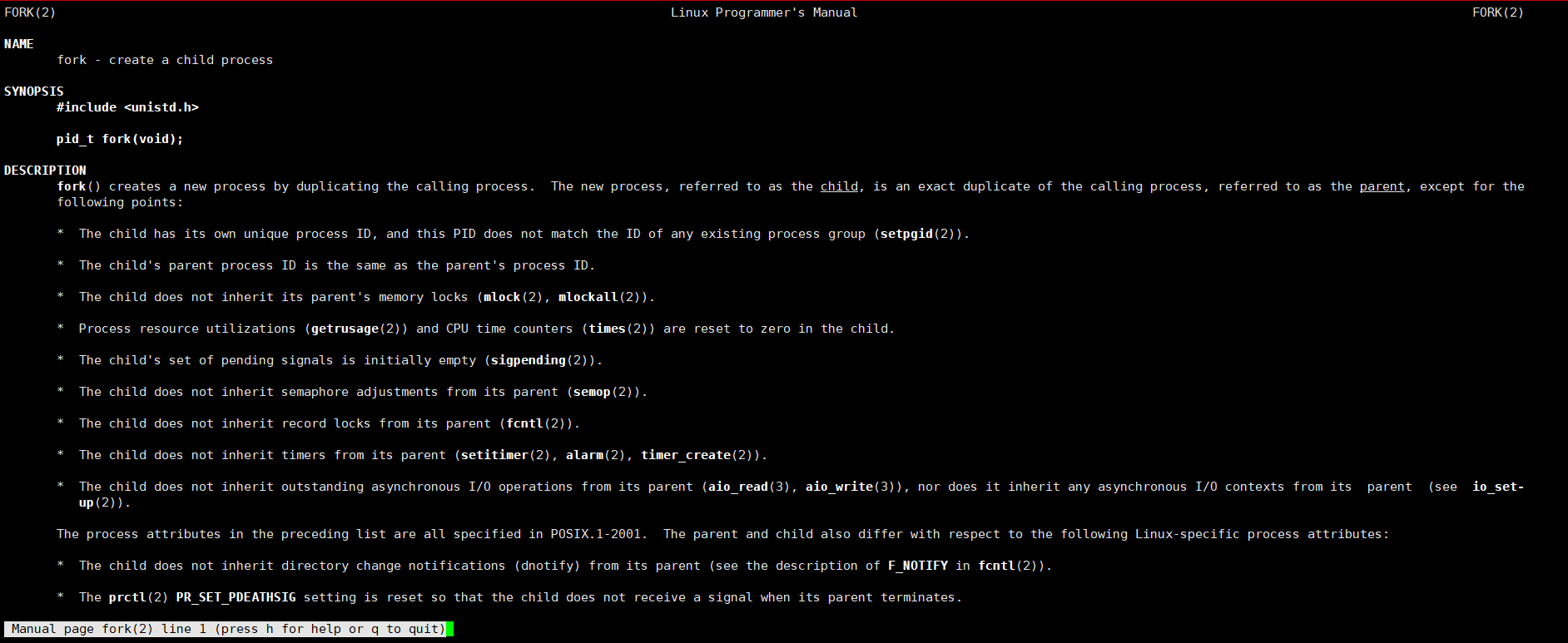
使用man指令查看系统调用: man 2 fork
按q就能返回输入会话中
cat指令
cat :查看目标文件的内容
cat 语法 :cat 选项 目标文件
常用选项:
- -b 对⾮空输出⾏编号,空⾏不做编号
- -n 对输出的所有⾏编号
- -s 不输出多⾏空⾏
示例
c
#命令行构建多行文本
[dyy@VM-0-9-centos ~]$ cnt=0; while [ $cnt -le 20 ]; do echo "hello dyy";let cnt++; done > temp.txt
c
#测试cat基本命令
[dyy@VM-0-9-centos ~]$ cat temp.txt		//查看目标文件内容
hello dyy
hello dyy
hello dyy
hello dyy
hello dyy
hello dyy
hello dyy
hello dyy
hello dyy
hello dyy
hello dyy
hello dyy
hello dyy
hello dyy
hello dyy
hello dyy
hello dyy
hello dyy
hello dyy
hello dyy
hello dyy
c
#cat 输出携带行号
[dyy@VM-0-9-centos ~]$ cat -b temp.txt
     1	hello dyy
     2	hello dyy
     3	hello dyy
     4	hello dyy
     5	hello dyy
     6	hello dyy
     7	hello dyy
     8	hello dyy
     9	hello dyy
    10	hello dyy
    11	hello dyy
    12	hello dyy
    13	hello dyy
    14	hello dyy
    15	hello dyy
    16	hello dyy
    17	hello dyy
    18	hello dyy
    19	hello dyy
    20	hello dyy
    21	hello dyy
c
#修改temp.txt,使其携带多行空行
[dyy@VM-0-9-centos ~]$ vim temp.txt
hello dyy
hello dyy
hello dyy
hello dyy
hello dyy
hello dyy
hello dyy
hello dyy
hello dyy
hello dyy
hello dyy
hello dyy
hello dyy
hello dyy
hello dyy
hello dyy
hello dyy
hello dyy
hello dyy
hello dyy
hello dyy
~
~
~
~
~
~
~
~
~
~ 补充:cat>命令(创建temp.txt)
c
[dyy@VM-0-9-centos test]$ cat>temp.txt<<EOF
> nihao
> qianyv
> haha
> xixi
> EOF
more指令
more:功能类似cat
语法: more 选项
常用选项😒
- -n:指定输出行数
- q:退出more
示例
c
# 命令行输出多行文本
[dyy@VM-0-9-centos test]$ cnt=0; while [ $cnt -le 2000 ]; do echo "hello qianyv"; let cnt++; done > temp.txt

# -n指定输出行数
[dyy@VM-0-9-centos test]$ more -10 temp.txt
hello qianyv
hello qianyv
hello qianyv
hello qianyv
hello qianyv
hello qianyv
hello qianyv
hello qianyv
hello qianyv
hello qianyv
--More--(0%)
less指令
-
less ⼯具也是对⽂件或其它输出进⾏分⻚显⽰的⼯具,应该说是linux正统查看⽂件内容的⼯具,功能极其强⼤
-
less 的⽤法⽐起 more 更加的有弹性,在 more 的时候,我们并没有办法向前⾯翻, 只能往后⾯看
-
但若使⽤了 less 时,就可以使⽤ pageup pagedown 等按键的功能来往前往后翻看⽂件,更容易⽤来查看⼀个⽂件的内容
-
除此之外,在 less ⾥头可以拥有更多的搜索功能,不⽌可以向下搜,也可以向上搜。
less:less和more类似,,但使用less可以随意浏览文件,而more仅能向前移动 ,却不能向后移动,而且less在查看之前不会加载整个文件
语法 : less 选项 文件
常用选项:
- -i:忽略搜索时的大小写
- -N:显示每行的行号
- /字符串:向下搜索"字符串"的功能
- ?字符串:向上搜索"字符串"的功能
- n:重复一个搜索(与 "/" 或 "?"有关)
- N:反向重复前一个搜索(与"/" 或"?"有关)
- q:quit
示例
c
//命令行输出多行文本
[ $cnt -le 2000 ]; do echo "hello $cnt"; let cnt++; done > temp.txt

//测试搜索和---N功能
[dyy@VM-0-9-centos test]$ less -N temp.txt
      1 hello 0
      2 hello 1
      3 hello 2
      4 hello 3
      5 hello 4
      6 hello 5
      7 hello 6
      8 hello 7
      9 hello 8
     10 hello 9
     11 hello 10
     12 hello 11
     13 hello 12
     14 hello 13
     15 hello 14
     ....
head指令
head:用来显示档案的开头至标准输出中,默认head命令打印其对应文件的开头10行
语法 :head 参数 文件
常用选项:-n显示行数
示例
c
#默认打印
[dyy@VM-0-9-centos test]$ head temp.txt
hello 0
hello 1
hello 2
hello 3
hello 4
hello 5
hello 6
hello 7
hello 8
hello 9

#打印5行:-5
[dyy@VM-0-9-centos test]$ head -5 temp.txt
hello 0
hello 1
hello 2
hello 3
hello 4
tail指令
tail 命令从指定点开始将⽂件写到标准输出.使⽤tail命令的-f选项可以⽅便的查阅正在改变的⽇志⽂件,tail -f filename会把filename⾥最尾部的内容显⽰在屏幕上,并且不断刷新,使你看到最新的⽂件内容
tail:用来显示指定文件末尾内容,不指定文件时,作为输入信息进行处理,常用查看日志文件
语法 :tail 必要参数 文件
常用选项:
- -f:循环读取
- -n:显示行数
示例
c
#基本功能演示
[dyy@VM-0-9-centos test]$ tail temp.txt
hello 1991
hello 1992
hello 1993
hello 1994
hello 1995
hello 1996
hello 1997
hello 1998
hello 1999
hello 2000

#输出末尾4行:-4
[dyy@VM-0-9-centos test]$ tail -4 temp.txt
hello 1997
hello 1998
hello 1999
hello 2000

#循环读取---模拟动态日志查看功能:-f
[dyy@VM-0-9-centos test]$ tail -f temp.txt
hello 1991
hello 1992
hello 1993
hello 1994
hello 1995
hello 1996
hello 1997
hello 1998
hello 1999
hello 2000注意:"tail -f temp.txt"这个命令是"实时跟踪文件末尾内容"模式,按"Ctrl+c"就能终止它了
c
//如何显示80-100行的内容

[dyy@VM-0-9-centos test]$ head -100 temp.txt | tail -20
hello 80
hello 81
hello 82
hello 83
hello 84
hello 85
hello 86
hello 87
hello 88
hello 89
hello 90
hello 91
hello 92
hello 93
hello 94
hello 95
hello 96
hello 97
hello 98
hello 99
date指令
date 指定格式显示时间 :date +%Y:%m:%d
date用法:date OPTION... +FORMAT
1.在显示方面,使用者可以设定想要显示的格式,格式设定为一个加号后面接数个标记,其中常用的标记列表如下:
%H:小时(00...23)
%M:分钟(00...59)
%S:秒(00...61)
%X:相当于%H%M%S
%d:日(01...31)
%m:月份(01...12)
%Y:完整年份%Y-%m-%d
2.在设定时间方面,如下:date -s //设置当前时间,只有root权限才能设置,其他只能查看。
date -s 20080523 //设置成20080523,这样会把具体时间设置成空00:00:00
date -s 01:01:01 //设置具体时间,不会对日期做更改
date -s "01:01:01 2008-05-23″ //这样可以设置全部时间
date -s "01:01:01 20080523″ //这样可以设置全部时间
date -s "2008-05-23 01:01:01″ //这样可以设置全部时间
date -s "20080523 01:01:01″ //这样可以设置全部时间
3.时间戳时间->时间戳:date +%s
时间戳->时间:date -d@1508749502
Unix时间戳(英文为Unix epoch, Unix time, POSIX time 或 Unix timestamp)是从1970年1月1日(UTC/GMT的午夜)开始所经过的秒数,不考虑闰秒。
示例
c
#显示常规时间

//年
[dyy@VM-0-9-centos test]$ date
Sat Apr 18 15:36:26 CST 2026

//年月日
[dyy@VM-0-9-centos test]$ date +%Y/%m/%d
2026/04/18

//年月日-时分秒
[dyy@VM-0-9-centos test]$ date +%Y/%m/%d-%H:%M:%S
2026/04/18-15:36:47
c
//显示时间戳:date +%s
[dyy@VM-0-9-centos test]$ date +%s
1776497927

//还原时间戳:date -d@1776497927
[dyy@VM-0-9-centos test]$ date -d@1776497927
Sat Apr 18 15:38:47 CST 2026
c
#时间戳转成可视时间

[dyy@VM-0-9-centos test]$ date +%Y/%m/%d-%H:%M:%S -d @0
1970/01/01-08:00:00

[dyy@VM-0-9-centos test]$ date +%Y/%m/%d-%H:%M:%S -d @100000
1970/01/02-11:46:40

[dyy@VM-0-9-centos test]$ date +%Y/%m/%d-%H:%M:%S -d @1000000000
2001/09/09-09:46:40