一、服务卡片概述
1.1 什么是服务卡片
服务卡片(Service Widget)是HarmonyOS系统中一种独特的原子化服务形态,它将应用的核心功能以轻量化、可视化的方式呈现于用户桌面,让用户无需打开完整应用即可快速获取信息或执行操作。作为HarmonyOS"一次开发,多端部署"理念的重要载体,服务卡片在6.0版本中实现了交互能力的全面升级,支持更深层次的卡片内交互操作,真正做到了"触手可及,一触即达"。
服务卡片的本质是应用的精简视图,它以卡片的形式悬浮或嵌入在桌面、服务中心、锁屏等位置,根据用户需求动态展示信息或响应操作。这种设计哲学源于"服务找人"的核心理念------用户无需主动寻找应用,应用的功能主动以卡片形式出现在用户的使用场景中。
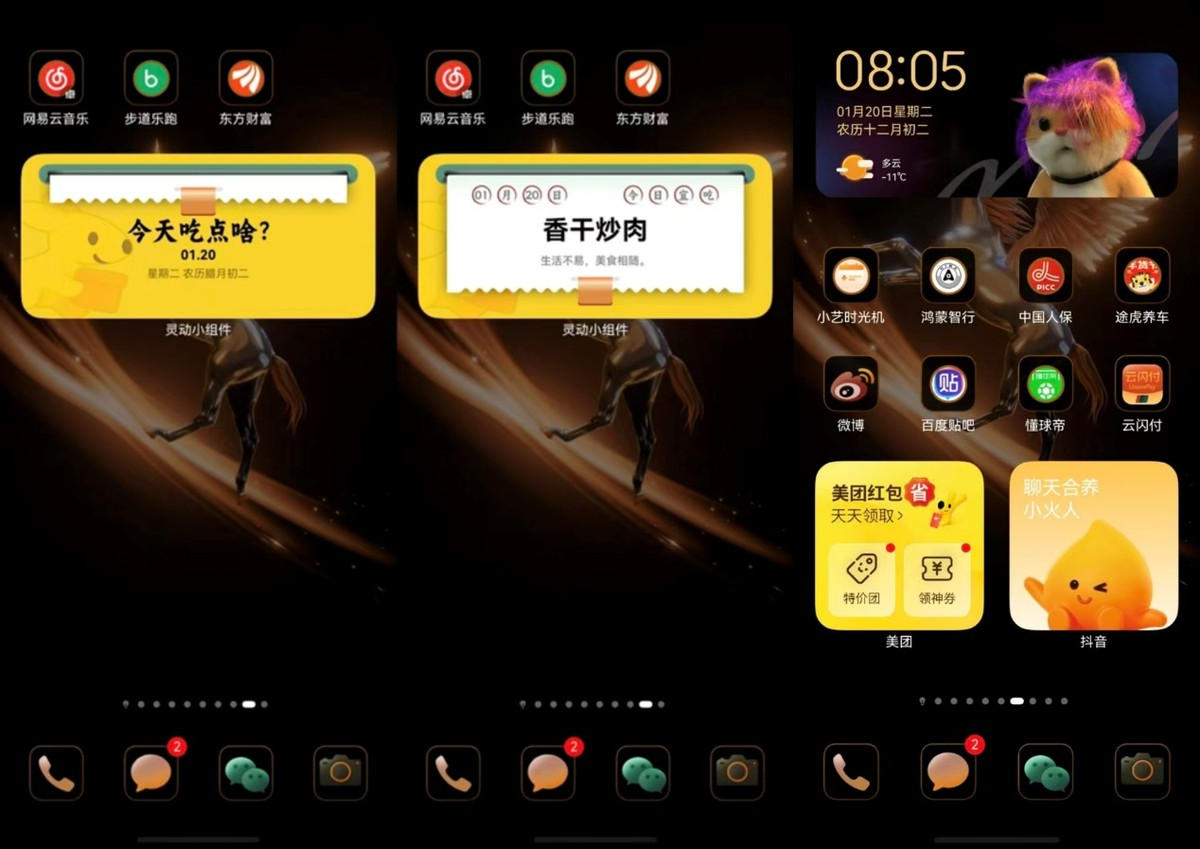
1.2 卡片形态与尺寸规范
HarmonyOS服务卡片采用标准的网格系统设计,支持多种尺寸规格以适应不同的展示场景和内容复杂度。开发者需要根据卡片功能选择合适的尺寸,避免内容堆砌或大面积空白。
| 尺寸类型 | 网格单位 | 适用场景 | 典型示例 |
|---|---|---|---|
| 1×2 | 1列2行 | 单信息展示、快捷操作 | 快捷开关、单条待办 |
| 2×2 | 2列2行 | 基础信息展示 | 天气、时间、步数 |
| 2×4 | 2列4行 | 列表型信息展示 | 日程列表、快递追踪 |
| 4×4 | 4列4行 | 复杂混合场景 | 全功能控制面板 |
不同尺寸的卡片在内容布局上需要遵循响应式设计原则,同一套代码通过条件渲染和布局适配来适配多种尺寸。例如,待办事项卡片在1×2尺寸下仅显示一条待办和勾选按钮,在2×4尺寸下则可展示多条待办事项和添加按钮。
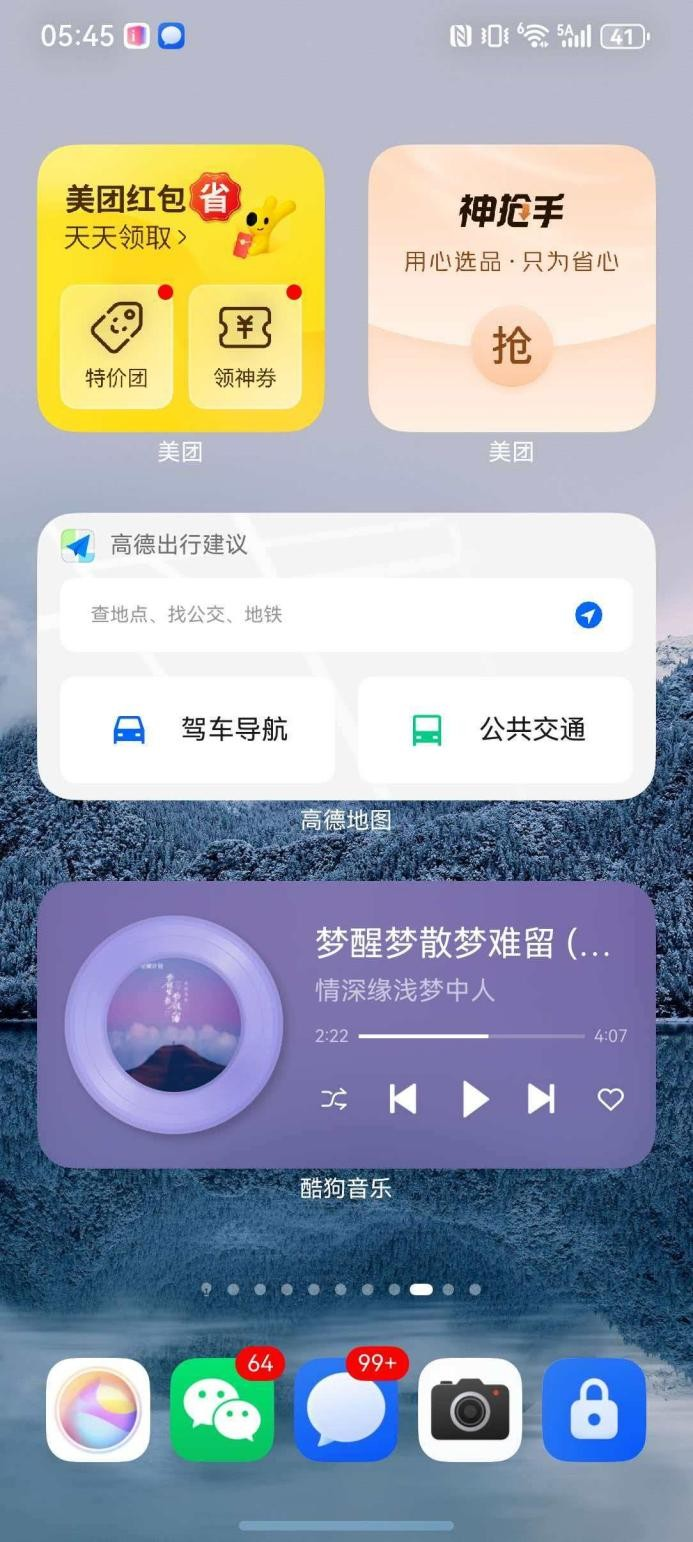
1.3 卡片宿主位置
服务卡片根据宿主位置的不同,承担着差异化的功能定位:
- 桌面卡片:作为桌面的一部分,提供高频信息的快速浏览和基础交互,是用户日常接触最频繁的卡片形态
- 服务中心卡片:通过下拉桌面或左滑进入,展示智能推荐的服务和最近使用的原子化服务
- 锁屏卡片:在锁屏界面展示关键信息如日程提醒、快递进度,保护隐私的同时确保重要信息不遗漏
- 智慧搜索建议:在搜索框输入时,根据上下文智能推荐相关服务卡片
1.4 轻量化设计的核心理念
轻量化设计是服务卡片区别于普通应用页面的根本特征,其核心在于**"少而精"**。具体体现在以下四个维度:
- 体积轻量化:单卡片资源包建议控制在500KB以内,包含图片资源的卡片不超过2MB,确保秒开体验
- 交互轻量化:单次操作路径不超过2步,核心功能一步直达,减少用户决策成本
- 信息轻量化:遵循"一卡一功能"原则,每张卡片只展示和处理一个核心任务
- 资源轻量化:采用按需加载策略,只在卡片可见时加载必要资源,可见性消失后及时释放
二、轻量化交互设计原则
2.1 信息精简原则
信息精简是服务卡片设计的首要原则。在有限的卡片空间内传递最有价值的信息,需要开发者具备信息优先级判断能力和视觉层次设计能力。
核心信息优先展示:每张卡片应明确其核心价值,将最重要的信息放在视觉焦点位置。例如,天气卡片的核心是当前温度和天气状况,次要信息如空气质量、紫外线指数等应降级展示或折叠处理。
信息层级清晰划分:通过字号、字重、颜色、间距等视觉变量建立清晰的信息层级。通常采用"标题-正文-辅助"三级结构,标题传达核心信息,正文提供详细信息,辅助内容以次要视觉权重呈现。
克制信息数量:1×2卡片建议展示1-2个信息点,2×2卡片3-5个信息点,2×4卡片5-8个信息点。避免信息过载导致用户阅读疲劳和卡片内容杂乱。
2.2 操作便捷原则
操作便捷强调零学习成本 和操作确定性。用户看到卡片应立即理解其功能,点击按钮应获得明确反馈。
操作目标明确:每个可交互元素应有明确的操作意图表达。通过图标+文字的组合形式,确保用户无需猜测即可理解操作含义。
反馈即时可见:操作后应立即在卡片上反映结果状态,如勾选完成、切换开关、显示加载等反馈都要在500ms内呈现,避免用户产生疑惑。
撤销机制设计:对于不可逆操作,建议设计确认机制或提供撤销入口,降低用户操作焦虑。
2.3 视觉轻盈原则
视觉轻盈并不意味着简单,而是通过精心设计的视觉语言传达清爽、高效的感受。
合理运用留白:留白不是空间的浪费,而是信息呼吸的保障。元素之间保持适当间距,避免拥挤感,让用户视线自然聚焦。
色彩克制使用:主色调不超过2种,辅以中性色系。色彩的主要功能是传达信息状态,而非装饰。使用品牌色的同时要注意与系统深色/浅色模式的协调。
图标风格统一:卡片内所有图标应保持统一的视觉风格(线性/填充/扁平),统一的线条粗细,统一的圆角度数。
2.4 性能优先原则
性能是服务卡片的生命线,直接影响用户体验和系统资源消耗。
首屏渲染时间<100ms:这是卡片呈现的黄金标准。采用骨架屏、资源预加载、异步渲染等技术手段确保卡片快速呈现。
内存占用<10MB:单卡片进程的内存预算应严格控制。避免在卡片内执行复杂运算,减少图片资源尺寸,谨慎使用动画效果。
功耗友好设计:避免使用CPU密集型动画,减少网络请求频率,利用系统提供的低功耗更新机制。
2.5 实时更新原则
卡片信息的时效性直接影响其使用价值,需要在更新频率和资源消耗之间取得平衡。
智能刷新策略:根据数据变化频率设置差异化的刷新周期。高频数据(如股价、赛事)可设置分钟级刷新,低频数据(如日程、提醒)可设置小时级或事件驱动刷新。
增量更新优先:优先使用增量更新而非全量刷新,减少数据传输量和渲染开销。
更新时机选择:利用系统低功耗窗口进行数据预取,在用户即将查看卡片时触发更新,提升感知时效性。
三、交互设计模式详解
3.1 信息展示型卡片
信息展示型卡片是最基础的卡片形态,其核心功能是信息聚合与呈现,用户通过卡片获取关键数据,点击后跳转到应用详情页查看完整内容。
典型应用场景:
- 天气卡片:展示当前位置的天气、温度、空气质量
- 日程卡片:展示今日重要日程安排
- 股价卡片:展示自选股实时行情
- 运动卡片:展示当日步数、运动时长、消耗卡路里
设计要点:
┌─────────────────────────────────────┐
│  核心数值大字号展示(72pt+)         │
│  单位标注小字号(28pt)              │
├─────────────────────────────────────┤
│  辅助信息中字号(32pt)              │
│  状态描述或趋势指示                  │
├─────────────────────────────────────┤
│  更新时间戳或数据来源               │
└─────────────────────────────────────┘交互设计:点击卡片主体区域触发router事件跳转到应用详情页,部分卡片支持长按进入编辑模式或调整设置。
3.2 快捷操作型卡片
快捷操作型卡片在信息展示的基础上增加了直接操作能力,用户无需进入应用即可完成特定任务。
典型应用场景:
- 音乐控制卡片:播放/暂停、切歌、音量调节
- 智能家居卡片:开关灯、调节温度、场景切换
- 支付卡片:展示付款码、收款码
- 备忘录快捷添加卡片
设计要点:
┌─────────────────────────────────────┐
│  当前状态可视化展示                  │
│  (播放中曲目、设备状态等)          │
├─────────────────────────────────────┤
│  [ ◀◀ ]  [ ▶/❚❚ ]  [ ▶▶ ]          │
│       操作按钮组(56pt触控区域)      │
├─────────────────────────────────────┤
│  进度条或状态指示                    │
└─────────────────────────────────────┘交互设计:通过call事件调用卡片提供方能力,在卡片UI内实时响应操作结果,无需跳转应用。
3.3 混合型卡片
混合型卡片是信息展示与快捷操作的有机结合,适用于需要同时呈现状态和提供操作入口的场景。
典型应用场景:
- 快递追踪卡片:展示快递进度+一键拨打电话
- 订单卡片:展示订单状态+查看物流/确认收货
- 待办卡片:展示待办事项+快速勾选/添加
- 出行卡片:展示行程信息+值机/改签操作
设计要点:
┌─────────────────────────────────────┐
│  主要信息区(占60%)                 │
│  关键数据可视化展示                   │
├─────────────────────────────────────┤
│  次要信息区(占25%)                 │
│  补充说明或进度展示                   │
├─────────────────────────────────────┤
│  操作区(占15%)                     │
│  快捷操作按钮组                       │
└─────────────────────────────────────┘交互设计:信息区点击跳转详情,操作区触发卡片内交互,操作结果实时反馈在信息区。
3.4 深度交互型卡片
深度交互型卡片是HarmonyOS 6.0重点增强的能力,支持复杂的卡片内交互,包括列表滑动、展开收起、自定义手势等。
典型应用场景:
- 股票自选卡片:支持滑动查看多只股票、展开查看分时图
- 音乐播放卡片:展开显示歌词、歌词进度跟随
- 日历卡片:左右滑动切换日期、点击日期展开日程
- 健康卡片:展开显示详细健康数据、趋势图表
技术实现:HarmonyOS 6.0的卡片框架新增了丰富的交互事件支持,包括触摸事件、滑动事件、长按事件等,配合响应式布局实现复杂交互。
设计要点:
┌─────────────────────────────────────┐
│  折叠态:核心信息概览                 │
│  ━━━━━━━━━━━●━━━━━━━━━━━━           │
│  展开指示器                           │
├─────────────────────────────────────┤
│  展开态:详细信息/列表                │
│  [ 股票1 ▼  股票2 ▼  股票3 ]          │
│  [    分时图/详细数据    ]           │
└─────────────────────────────────────┘
四、技术实现方案
4.1 卡片开发基础
4.1.1 FormExtensionAbility生命周期
服务卡片基于FormExtensionAbility扩展能力实现,其生命周期由系统统一管理:
typescript
// FormExtensionAbility生命周期管理
import FormExtensionAbility from '@ohos.app.form.FormExtensionAbility';
import formBindingData from '@ohos.app.form.formBindingData';
import FormInfo from '@ohos.app.form.FormInfo';

export default class MyFormAbility extends FormExtensionAbility {
  // 卡片创建时调用,可进行数据初始化
  onAddForm(want) {
    // want.parameters中包含卡片尺寸等配置信息
    const formId = want.parameters['ohos.extra.param.key.form_identity'];
    const formName = want.parameters['ohos.extra.param.key.form_name'];
    const dimension = want.parameters['ohos.extra.param.key.form_dimension'];

    // 初始化卡片数据
    const initialData = {
      title: '待办事项',
      items: [],
      completedCount: 0,
      totalCount: 0
    };

    return formBindingData.createFormBindingData(initialData);
  }

  // 卡片更新时调用,可刷新数据
  onUpdateForm(formId, formBindingData) {
    // 当卡片需要更新时返回新的绑定数据
    return formBindingData.createFormBindingData({
      updateTime: new Date().toLocaleString()
    });
  }

  // 卡片销毁时调用,清理资源
  onRemoveForm(formId) {
    // 清理与该卡片关联的资源和订阅
    console.info(`Form ${formId} removed`);
  }

  // 获取卡片状态
  onAcquireFormState(want) {
    // 返回卡片应处的状态
    return FormInfo.FormState.READY;
  }
}
4.1.2 卡片数据模型设计
合理的数据模型设计是卡片高效运行的基础。建议采用扁平化、轻量化的数据结构:
typescript
// 待办事项卡片数据模型
interface TodoItem {
  id: string;           // 唯一标识
  content: string;      // 待办内容
  completed: boolean;   // 完成状态
  priority: 'high' | 'medium' | 'low';  // 优先级
  dueDate?: string;     // 截止日期
}

interface TodoCardData {
  cardTitle: string;           // 卡片标题
  items: TodoItem[];           // 待办列表
  completedCount: number;     // 已完成数量
  totalCount: number;          // 总数量
  lastUpdateTime: string;      // 最后更新时间
}

// 创建默认卡片数据
function createDefaultCardData(): TodoCardData {
  return {
    cardTitle: '今日待办',
    items: [
      {
        id: '1',
        content: '完成项目文档编写',
        completed: false,
        priority: 'high'
      },
      {
        id: '2',
        content: '团队周会汇报',
        completed: false,
        priority: 'medium',
        dueDate: '2024-12-20'
      },
      {
        id: '3',
        content: '代码Review',
        completed: true,
        priority: 'low'
      }
    ],
    completedCount: 1,
    totalCount: 3,
    lastUpdateTime: new Date().toLocaleString()
  };
}
4.1.3 卡片提供方与宿主通信机制
HarmonyOS卡片采用双向通信机制,支持从应用侧推送更新到卡片,以及从卡片接收用户交互事件:
typescript
// 卡片提供方:向卡片发送数据更新
import formManager from '@ohos.app.form.formHost';
import formBindingData from '@ohos.app.form.formBindingData';

// 更新指定卡片
async function updateCard(formId: string, newData: TodoCardData) {
  try {
    const bindingData = formBindingData.createFormBindingData(newData);
    await formManager.updateForm(formId, bindingData);
    console.info('Card updated successfully');
  } catch (err) {
    console.error('Failed to update card: ${err.message}');
  }
}

// 卡片提供方:接收卡片事件
importWant(want) {
  const eventType = want.parameters['ohos.extra.param.key.form_customize_id'];
  const data = want.parameters;

  // 根据事件类型处理
  if (data.actionType === 'toggleComplete') {
    this.handleToggleComplete(data.itemId);
  } else if (data.actionType === 'addItem') {
    this.handleAddItem(data.content);
  }
}
4.2 卡片UI开发
4.2.1 ArkTS卡片UI组件
HarmonyOS 6.0采用ArkTS作为卡片UI开发语言,提供声明式UI范式:
typescript
// 卡片UI主文件:TodoCard.ets
import formBindingData from '@ohos.app.form.formBindingData';
import FormBindingData from '@ohos.app.form.formBindingData';

// 卡片入口组件
@Entry
@Component
struct WidgetCard {
  // 从数据绑定中解析数据
  @LocalStorageProp('cardData') cardData: TodoCardData = createDefaultCardData();

  build() {
    Column() {
      // 卡片头部
      this.CardHeader()

      // 待办列表
      this.TodoList()

      // 底部操作栏
      this.BottomBar()
    }
    .width('100%')
    .height('100%')
    .padding(16)
    .backgroundColor('#FFFFFF')
  }

  // 卡片头部组件
  @Builder
  CardHeader() {
    Row() {
      Column() {
        Text('待办事项')
          .fontSize(18)
          .fontWeight(FontWeight.Bold)
          .fontColor('#333333')

        Text('${this.cardData.completedCount}/${this.cardData.totalCount} 已完成')
          .fontSize(12)
          .fontColor('#999999')
          .margin({ top: 4 })
      }
      .alignItems(HorizontalAlign.Start)

      Blank()

      // 添加按钮
      Button('+')
        .width(32)
        .height(32)
        .fontSize(20)
        .fontWeight(FontWeight.Bold)
        .backgroundColor('#4A90E2')
        .borderRadius(16)
        .onClick(() => {
          postCardAction(this, {
            action: 'message',
            params: { actionType: 'addItem' }
          });
        })
    }
    .width('100%')
    .margin({ bottom: 12 })
  }

  // 待办列表组件
  @Builder
  TodoList() {
    Column() {
      ForEach(this.cardData.items, (item: TodoItem, index: number) => {
        TodoItemRow({
          item: item,
          onToggle: () => this.handleToggle(item.id)
        })

        if (index < this.cardData.items.length - 1) {
          Divider()
            .strokeWidth(0.5)
            .color('#E5E5E5')
            .margin({ left: 40 })
        }
      }, (item: TodoItem) => item.id)
    }
  }

  // 底部操作栏
  @Builder
  BottomBar() {
    Row() {
      Text('最后更新: ${this.cardData.lastUpdateTime}')
        .fontSize(10)
        .fontColor('#CCCCCC')

      Blank()

      Text('点击查看详情 >')
        .fontSize(12)
        .fontColor('#4A90E2')
        .onClick(() => {
          postCardAction(this, {
            action: 'router',
            bundleName: 'com.example.todo',
            abilityName: 'MainAbility',
            params: { page: 'detail' }
          });
        })
    }
    .width('100%')
    .margin({ top: 12 })
    .padding({ top: 12 })
    .border({ width: { top: 1 }, color: '#F0F0F0' })
  }

  // 处理勾选状态切换
  handleToggle(itemId: string) {
    postCardAction(this, {
      action: 'message',
      params: { actionType: 'toggleComplete', itemId: itemId }
    });
  }
}

// 待办项行组件
@Component
struct TodoItemRow {
  @ObjectLink item: TodoItem;
  onToggle: () => void;

  build() {
    Row() {
      // 勾选框
      Checkbox()
        .select(this.item.completed)
        .selectedColor('#4CAF50')
        .shape(CheckBoxShape.ROUNDED_SQUARE)
        .size({ width: 20, height: 20 })
        .onChange((isChecked: boolean) => {
          this.onToggle();
        })

      // 待办内容
      Text(this.item.content)
        .fontSize(14)
        .fontColor(this.item.completed ? '#CCCCCC' : '#333333')
        .decoration(this.item.completed ?
          { type: TextDecorationType.LineThrough } :
          { type: TextDecorationType.None })
        .maxLines(2)
        .textOverflow({ overflow: TextOverflow.Ellipsis })
        .margin({ left: 12 })

      // 优先级指示
      if (this.item.priority === 'high') {
        Text('!')
          .fontSize(12)
          .fontColor('#FFFFFF')
          .backgroundColor('#FF5252')
          .borderRadius(10)
          .padding({ left: 6, right: 6, top: 2, bottom: 2 })
          .margin({ left: 8 })
      }
    }
    .width('100%')
    .padding({ top: 8, bottom: 8 })
  }
}

// 创建默认数据
function createDefaultCardData(): TodoCardData {
  return {
    cardTitle: '今日待办',
    items: [],
    completedCount: 0,
    totalCount: 0,
    lastUpdateTime: ''
  };
}
4.2.2 响应式布局适配多尺寸
使用if-else和@Responsive实现单代码多尺寸适配:
typescript
// 多尺寸适配的TodoCard
@Entry
@Component
struct ResponsiveTodoCard {
  @LocalStorageProp('cardData') cardData: TodoCardData = createDefaultCardData();
  @StorageProp('currentWidth') cardWidth: number = 300;

  build() {
    Column() {
      this.CardHeader()

      // 根据卡片宽度选择布局
      if (this.cardWidth >= 400) {
        // 2×4 或 4×4 尺寸:显示完整列表
        this.FullListView()
      } else if (this.cardWidth >= 200) {
        // 2×2 尺寸:显示摘要
        this.SummaryView()
      } else {
        // 1×2 尺寸:只显示单个待办
        this.SingleItemView()
      }

      this.BottomBar()
    }
    .width('100%')
    .height('100%')
    .padding(16)
    .backgroundColor('#FFFFFF')
  }

  // 完整列表视图(适用于2×4)
  @Builder
  FullListView() {
    Column() {
      ForEach(this.cardData.items, (item: TodoItem, index: number) => {
        Row() {
          Checkbox()
            .select(item.completed)
            .onChange(() => this.handleToggle(item.id))

          Column() {
            Text(item.content)
              .fontSize(14)
              .fontColor(item.completed ? '#CCCCCC' : '#333333')

            if (item.dueDate) {
              Text(item.dueDate)
                .fontSize(10)
                .fontColor('#999999')
            }
          }
          .margin({ left: 12 })
          .layoutWeight(1)

          if (item.priority === 'high') {
            Text('高')
              .fontSize(10)
              .fontColor('#FFFFFF')
              .backgroundColor('#FF5252')
              .borderRadius(4)
              .padding({ left: 6, right: 6, top: 2, bottom: 2 })
          }
        }
        .width('100%')
        .padding({ top: 8, bottom: 8 })

        if (index < this.cardData.items.length - 1) {
          Divider().strokeWidth(0.5).color('#E5E5E5')
        }
      })
    }
    .layoutWeight(1)
  }

  // 摘要视图(适用于2×2)
  @Builder
  SummaryView() {
    Column() {
      Text('${this.cardData.completedCount} / ${this.cardData.totalCount}')
        .fontSize(32)
        .fontWeight(FontWeight.Bold)
        .fontColor('#4A90E2')

      Text('待办已完成')
        .fontSize(12)
        .fontColor('#999999')
        .margin({ top: 4 })

      // 显示未完成的前两项
      Column() {
        ForEach(
          this.cardData.items.filter(item => !item.completed).slice(0, 2),
          (item: TodoItem) => {
            Text(item.content)
              .fontSize(11)
              .fontColor('#666666')
              .maxLines(1)
              .textOverflow({ overflow: TextOverflow.Ellipsis })
              .margin({ top: 4 })
          }
        )
      }
      .margin({ top: 8 })
    }
    .width('100%')
    .layoutWeight(1)
    .justifyContent(FlexAlign.Center)
  }

  // 单项视图(适用于1×2)
  @Builder
  SingleItemView() {
    Row() {
      // 只显示第一个未完成项
      if (this.cardData.items.length > 0) {
        const firstIncomplete = this.cardData.items.find(item => !item.completed);
        if (firstIncomplete) {
          Checkbox()
            .select(false)
            .onChange(() => this.handleToggle(firstIncomplete.id))

          Text(firstIncomplete.content)
            .fontSize(12)
            .maxLines(2)
            .textOverflow({ overflow: TextOverflow.Ellipsis })
            .margin({ left: 8 })
            .layoutWeight(1)
        }
      } else {
        Text('暂无待办')
          .fontSize(12)
          .fontColor('#CCCCCC')
      }
    }
    .width('100%')
    .layoutWeight(1)
  }

  handleToggle(itemId: string) {
    postCardAction(this, {
      action: 'message',
      params: { actionType: 'toggleComplete', itemId: itemId }
    });
  }
}
4.2.3 主题适配(深色/浅色模式)
typescript
// 主题配置与使用
@Entry
@Component
struct ThemedTodoCard {
  @LocalStorageProp('cardData') cardData: TodoCardData = createDefaultCardData();

  // 颜色资源映射
  @StorageProp('sys.color.mode') colorMode: ColorMode = ColorMode.LIGHT;

  // 根据主题返回颜色
  getBackgroundColor(): string {
    return this.colorMode === ColorMode.LIGHT ? '#FFFFFF' : '#1C1C1E';
  }

  getTextPrimaryColor(): string {
    return this.colorMode === ColorMode.LIGHT ? '#333333' : '#FFFFFF';
  }

  getTextSecondaryColor(): string {
    return this.colorMode === ColorMode.LIGHT ? '#999999' : '#8E8E93';
  }

  getDividerColor(): string {
    return this.colorMode === ColorMode.LIGHT ? '#E5E5E5' : '#38383A';
  }

  build() {
    Column() {
      // 标题
      Text('待办事项')
        .fontSize(18)
        .fontWeight(FontWeight.Bold)
        .fontColor(this.getTextPrimaryColor())

      // 待办列表使用主题颜色
      List() {
        ForEach(this.cardData.items, (item: TodoItem) => {
          ListItem() {
            Row() {
              Checkbox()
                .select(item.completed)

              Text(item.content)
                .fontSize(14)
                .fontColor(item.completed ?
                  this.getTextSecondaryColor() :
                  this.getTextPrimaryColor())
                .margin({ left: 12 })
            }
          }
        })
      }
    }
    .width('100%')
    .height('100%')
    .padding(16)
    .backgroundColor(this.getBackgroundColor())
  }
}
4.3 数据更新机制
4.3.1 定时更新
通过module.json5配置定时更新周期:
json
{
  "module": {
    "extensionAbilities": [
      {
        "name": "MyFormAbility",
        "type": "form",
        "metadata": [
          {
            "name": "form_configuration",
            "value": {
              "updateDuration": 30,  // 30分钟更新一次
              "scheduledUpdateTime": "10:30",  // 指定时间更新
              "supportDimensions": ["1*2", "2*2", "2*4"],
              "defaultDimension": "2*2"
            }
          }
        ]
      }
    ]
  }
}
4.3.2 事件驱动更新
typescript
// 卡片提供方:处理来自卡片的更新请求
import formHost from '@ohos.app.form.formHost';
import formBindingData from '@ohos.app.form.formBindingData';

export default class MyFormExtensionAbility extends FormExtensionAbility {
  onFormEvent(formId, message) {
    // 解析消息
    const eventData = JSON.parse(message);

    switch (eventData.actionType) {
      case 'toggleComplete':
        this.toggleTodoComplete(formId, eventData.itemId);
        break;
      case 'addItem':
        this.addTodoItem(formId, eventData.content);
        break;
      case 'deleteItem':
        this.deleteTodoItem(formId, eventData.itemId);
        break;
    }
  }

  async toggleTodoComplete(formId: string, itemId: string) {
    // 更新数据库
    await TodoDatabase.toggleComplete(itemId);

    // 获取最新数据
    const updatedData = await TodoDatabase.getCardData();

    // 更新卡片
    const bindingData = formBindingData.createFormBindingData(updatedData);
    await formHost.updateForm(formId, bindingData);
  }

  async addTodoItem(formId: string, content: string) {
    // 添加新待办
    const newItem = await TodoDatabase.addItem(content);

    // 获取更新后的数据
    const updatedData = await TodoDatabase.getCardData();

    // 更新卡片
    const bindingData = formBindingData.createFormBindingData(updatedData);
    await formHost.updateForm(formId, bindingData);
  }

  async deleteTodoItem(formId: string, itemId: string) {
    // 删除待办
    await TodoDatabase.deleteItem(itemId);

    // 获取更新后的数据并刷新卡片
    const updatedData = await TodoDatabase.getCardData();
    const bindingData = formBindingData.createFormBindingData(updatedData);
    await formHost.updateForm(formId, bindingData);
  }
}
4.4 交互事件处理
HarmonyOS卡片支持三种核心交互事件,通过postCardAction触发:
| 事件类型 | 用途 | 触发方式 | 回调位置 |
|---|---|---|---|
| router | 跳转到应用页面 | 点击卡片/按钮 | Ability.onShowWindow |
| call | 调用应用能力 | 快捷操作 | Ability.onCommand |
| message | 卡片内部消息 | 卡片内交互 | FormAbility.onFormEvent |
typescript
// 完整的卡片交互事件处理示例
@Entry
@Component
struct InteractiveTodoCard {
  @LocalStorageProp('cardData') cardData: TodoCardData = createDefaultCardData();

  build() {
    Column() {
      // 卡片标题栏
      Row() {
        Text('待办')
          .fontSize(18)
          .fontWeight(FontWeight.Bold)

        Blank()

        // 跳转到应用详情页
        Image($r('app.media.ic_more'))
          .width(24)
          .height(24)
          .onClick(() => {
            postCardAction(this, {
              action: 'router',
              bundleName: 'com.example.todo',
              abilityName: 'MainAbility',
              params: { action: 'openDetail' }
            });
          })
      }
      .width('100%')
      .margin({ bottom: 12 })

      // 待办列表
      ForEach(this.cardData.items.slice(0, 3), (item: TodoItem) => {
        Row() {
          // 切换完成状态 - 使用message事件
          Checkbox()
            .select(item.completed)
            .onChange(() => {
              postCardAction(this, {
                action: 'message',
                params: {
                  actionType: 'toggleComplete',
                  itemId: item.id
                }
              });
            })

          Text(item.content)
            .fontSize(14)
            .margin({ left: 12 })
            .layoutWeight(1)

          // 删除按钮 - 使用call事件
          Image($r('app.media.ic_delete'))
            .width(20)
            .height(20)
            .onClick(() => {
              postCardAction(this, {
                action: 'call',
                bundleName: 'com.example.todo',
                abilityName: 'TodoServiceAbility',
                params: {
                  action: 'deleteItem',
                  itemId: item.id
                }
              });
            })
        }
        .width('100%')
        .padding({ top: 8, bottom: 8 })
      })

      // 底部统计和跳转
      Row() {
        Text('${this.cardData.completedCount}/${this.cardData.totalCount}')
          .fontSize(12)
          .fontColor('#999999')

        Blank()

        Text('查看全部')
          .fontSize(12)
          .fontColor('#4A90E2')
          .onClick(() => {
            postCardAction(this, {
              action: 'router',
              bundleName: 'com.example.todo',
              abilityName: 'MainAbility',
              params: { page: 'all' }
            });
          })
      }
      .margin({ top: 12 })
    }
    .width('100%')
    .height('100%')
    .padding(16)
  }
}
五、实战案例:待办事项服务卡片
5.1 需求分析
本案例设计一个功能完整的待办事项服务卡片,支持以下核心功能:
- 多尺寸适配:支持1×2、2×2、2×4三种尺寸自动布局
- 待办展示:显示待办事项列表,支持勾选完成状态
- 快捷操作:在卡片内直接勾选/取消待办,无需跳转
- 快速添加:一键添加新待办事项
- 实时同步:操作结果实时反映在卡片上
- 数据持久化:待办数据存储在应用侧,跨设备同步
5.2 完整代码实现
5.2.1 项目结构
entry/
├── src/main/
│   ├── ets/
│   │   ├── entryability/
│   │   │   └── EntryAbility.ets          // 应用入口
│   │   ├── formability/
│   │   │   └── TodoFormAbility.ets       // 卡片生命周期管理
│   │   ├── pages/
│   │   │   └── Index.ets                 // 应用主页面
│   │   └── widget/
│   │       ├── TodoCardMain.ets         // 卡片主组件
│   │       ├── components/
│   │       │   ├── TodoItem.ets         // 待办项组件
│   │       │   ├── TodoHeader.ets       // 卡片头部
│   │       │   └── TodoStats.ets        // 统计区域
│   │       └── data/
│   │           └── TodoCardData.ets    // 数据模型
│   └── module.json5                      // 模块配置
5.2.2 卡片FormExtensionAbility
typescript
// TodoFormAbility.ets - 卡片生命周期管理
import FormExtensionAbility from '@ohos.app.form.FormExtensionAbility';
import formBindingData from '@ohos.app.form.formBindingData';
import formHost from '@ohos.app.form.formHost';
import TodoDataManager from '../widget/data/TodoDataManager';

export default class TodoFormAbility extends FormExtensionAbility {
  private dataManager: TodoDataManager = new TodoDataManager();

  // 卡片创建
  onAddForm(want) {
    const formId = want.parameters['ohos.extra.param.key.form_identity'];
    const formName = want.parameters['ohos.extra.param.key.form_name'];
    const dimension = want.parameters['ohos.extra.param.key.form_dimension'];

    console.info(`[TodoForm] Card added: ${formId}, dimension: ${dimension}`);

    // 加载初始数据
    const initialData = this.dataManager.getCardData();

    // 注册卡片实例
    this.dataManager.registerCard(formId);

    return formBindingData.createFormBindingData(initialData);
  }

  // 卡片更新
  onUpdateForm(formId, formBindingData) {
    console.info(`[TodoForm] Card update requested: ${formId}`);

    // 获取最新数据并更新卡片
    const latestData = this.dataManager.getCardData();
    const bindingData = formBindingData.createFormBindingData(latestData);

    return bindingData;
  }

  // 卡片销毁
  onRemoveForm(formId) {
    console.info(`[TodoForm] Card removed: ${formId}`);

    // 注销卡片实例
    this.dataManager.unregisterCard(formId);
  }

  // 接收卡片事件
  onFormEvent(formId, message) {
    console.info(`[TodoForm] Event received: ${message}`);

    try {
      const event = JSON.parse(message);

      switch (event.actionType) {
        case 'toggleComplete':
          this.dataManager.toggleComplete(event.itemId);
          break;

        case 'addItem':
          this.dataManager.addItem(event.content);
          break;

        case 'deleteItem':
          this.dataManager.deleteItem(event.itemId);
          break;

        default:
          console.warn(`[TodoForm] Unknown action: ${event.actionType}`);
      }

      // 更新所有已注册的卡片
      this.broadcastUpdate();

    } catch (err) {
      console.error(`[TodoForm] Event processing error: ${err.message}`);
    }
  }

  // 广播更新到所有卡片
  private async broadcastUpdate() {
    const cardIds = this.dataManager.getAllCardIds();
    const latestData = this.dataManager.getCardData();

    for (const formId of cardIds) {
      try {
        const bindingData = formBindingData.createFormBindingData(latestData);
        await formHost.updateForm(formId, bindingData);
      } catch (err) {
        console.error(`[TodoForm] Failed to update card ${formId}: ${err.message}`);
      }
    }
  }

  // 获取卡片状态
  onAcquireFormState(want) {
    return FormInfo.FormState.READY;
  }
}
5.2.3 数据管理模块
typescript
// TodoDataManager.ets - 数据管理
import dataPreferences from '@ohos.data.preferences';

interface TodoItem {
  id: string;
  content: string;
  completed: boolean;
  priority: 'high' | 'medium' | 'low';
  createTime: number;
  dueDate?: string;
}

interface TodoCardData {
  cardTitle: string;
  items: TodoItem[];
  completedCount: number;
  totalCount: number;
  lastUpdateTime: string;
}

class TodoDataManager {
  private context: Context;
  private preferences: dataPreferences.Preferences | null = null;
  private registeredCards: Set<string> = new Set();
  private cardData: TodoCardData = {
    cardTitle: '待办事项',
    items: [],
    completedCount: 0,
    totalCount: 0,
    lastUpdateTime: ''
  };

  constructor() {
    // 将在初始化时从Ability获取context
  }

  async init(context: Context) {
    this.context = context;
    this.preferences = await dataPreferences.Preferences.getPreferences(
      this.context,
      'todo_storage'
    );
    await this.loadData();
  }

  // 从存储加载数据
  private async loadData() {
    if (!this.preferences) return;

    const storedData = await this.preferences.get('todo_data', '');
    if (storedData) {
      try {
        const parsed = JSON.parse(storedData);
        this.cardData = {
          ...this.cardData,
          ...parsed
        };
      } catch (e) {
        console.error('[TodoDataManager] Failed to parse stored data');
      }
    }
  }

  // 保存数据到存储
  private async saveData() {
    if (!this.preferences) return;

    this.cardData.lastUpdateTime = new Date().toLocaleString();
    await this.preferences.put('todo_data', JSON.stringify(this.cardData));
    await this.preferences.flush();
  }

  // 获取卡片数据
  getCardData(): TodoCardData {
    this.updateCounts();
    return { ...this.cardData };
  }

  // 更新统计数据
  private updateCounts() {
    this.cardData.totalCount = this.cardData.items.length;
    this.cardData.completedCount = this.cardData.items.filter(
      item => item.completed
    ).length;
  }

  // 切换完成状态
  toggleComplete(itemId: string) {
    const item = this.cardData.items.find(i => i.id === itemId);
    if (item) {
      item.completed = !item.completed;
      this.saveData();
    }
  }

  // 添加待办
  addItem(content: string, priority: 'high' | 'medium' | 'low' = 'medium') {
    const newItem: TodoItem = {
      id: `todo_${Date.now()}`,
      content: content,
      completed: false,
      priority: priority,
      createTime: Date.now()
    };

    this.cardData.items.unshift(newItem);
    this.saveData();
  }

  // 删除待办
  deleteItem(itemId: string) {
    const index = this.cardData.items.findIndex(i => i.id === itemId);
    if (index > -1) {
      this.cardData.items.splice(index, 1);
      this.saveData();
    }
  }

  // 注册卡片
  registerCard(formId: string) {
    this.registeredCards.add(formId);
  }

  // 注销卡片
  unregisterCard(formId: string) {
    this.registeredCards.delete(formId);
  }

  // 获取所有注册的卡片ID
  getAllCardIds(): string[] {
    return Array.from(this.registeredCards);
  }
}

export default TodoDataManager;
5.2.4 卡片UI实现
typescript
// TodoCardMain.ets - 卡片主组件
import formBindingData from '@ohos.app.form.formBindingData';

interface TodoItem {
  id: string;
  content: string;
  completed: boolean;
  priority: 'high' | 'medium' | 'low';
  dueDate?: string;
}

interface TodoCardData {
  cardTitle: string;
  items: TodoItem[];
  completedCount: number;
  totalCount: number;
  lastUpdateTime: string;
}

@Entry
@Component
struct TodoCardMain {
  // 从ArkTS卡片数据绑定获取数据
  @LocalStorageProp('title') title: string = '待办事项';
  @LocalStorageProp('items') items: TodoItem[] = [];
  @LocalStorageProp('completedCount') completedCount: number = 0;
  @LocalStorageProp('totalCount') totalCount: number = 0;
  @LocalStorageProp('lastUpdateTime') lastUpdateTime: string = '';

  // 卡片尺寸检测
  @StorageProp('width') cardWidth: number = 300;
  @StorageProp('height') cardHeight: number = 300;

  aboutToAppear() {
    // 从数据绑定中获取初始数据
    const storage = LocalStorage.GetShared();
    this.title = storage.getOrCreate('title', '待办事项') as string;
    this.items = storage.getOrCreate('items', []) as TodoItem[];
    this.completedCount = storage.getOrCreate('completedCount', 0) as number;
    this.totalCount = storage.getOrCreate('totalCount', 0) as number;
    this.lastUpdateTime = storage.getOrCreate('lastUpdateTime', '') as string;
  }

  build() {
    Column() {
      // 根据尺寸选择布局
      if (this.cardHeight > 300) {
        this.FullLayout()
      } else if (this.cardWidth > 200) {
        this.MediumLayout()
      } else {
        this.CompactLayout()
      }
    }
    .width('100%')
    .height('100%')
    .padding(16)
    .backgroundColor('#FFFFFF')
  }

  // 完整布局 - 2×4
  @Builder
  FullLayout() {
    Column() {
      // 头部
      this.Header()

      // 待办列表
      List() {
        ForEach(this.items.slice(0, 5), (item: TodoItem) => {
          ListItem() {
            this.TodoItemComponent(item)
          }
        }, (item: TodoItem) => item.id)
      }
      .layoutWeight(1)
      .divider({ strokeWidth: 0.5, color: '#E5E5E5', startMargin: 40, endMargin: 0 })

      // 底部
      this.Footer()
    }
  }

  // 中等布局 - 2×2
  @Builder
  MediumLayout() {
    Column() {
      this.Header()

      // 进度显示
      Column() {
        Text('${this.completedCount}')
          .fontSize(36)
          .fontWeight(FontWeight.Bold)
          .fontColor('#4A90E2')

        Text('/ ${this.totalCount}')
          .fontSize(20)
          .fontColor('#999999')

        Text('已完成')
          .fontSize(12)
          .fontColor('#999999')
          .margin({ top: 4 })
      }
      .layoutWeight(1)
      .justifyContent(FlexAlign.Center)

      // 快捷操作
      Row() {
        Button('添加')
          .fontSize(12)
          .height(28)
          .onClick(() => this.onAddClick())

        Button('查看')
          .fontSize(12)
          .height(28)
          .margin({ left: 8 })
          .onClick(() => this.onViewClick())
      }

      this.Footer()
    }
  }

  // 紧凑布局 - 1×2
  @Builder
  CompactLayout() {
    Row() {
      Column() {
        Text('待办')
          .fontSize(14)
          .fontWeight(FontWeight.Bold)

        Text('${this.completedCount}/${this.totalCount}')
          .fontSize(12)
          .fontColor('#4A90E2')
          .margin({ top: 4 })
      }
      .alignItems(HorizontalAlign.Start)

      Blank()

      // 快捷添加按钮
      Button('+')
        .width(28)
        .height(28)
        .fontSize(16)
        .fontWeight(FontWeight.Bold)
        .backgroundColor('#4A90E2')
        .borderRadius(14)
        .onClick(() => this.onAddClick())
    }
    .width('100%')
    .height('100%')
    .alignItems(VerticalAlign.Center)
  }

  // 头部组件
  @Builder
  Header() {
    Row() {
      Text(this.title)
        .fontSize(18)
        .fontWeight(FontWeight.Bold)
        .fontColor('#333333')

      Blank()

      Button('+')
        .width(28)
        .height(28)
        .fontSize(16)
        .fontWeight(FontWeight.Bold)
        .backgroundColor('#4A90E2')
        .borderRadius(14)
        .onClick(() => this.onAddClick())
    }
    .width('100%')
    .margin({ bottom: 12 })
  }

  // 待办项组件
  @Builder
  TodoItemComponent(item: TodoItem) {
    Row() {
      Checkbox()
        .select(item.completed)
        .selectedColor('#4CAF50')
        .shape(CheckBoxShape.ROUNDED_SQUARE)
        .size({ width: 18, height: 18 })
        .onChange((isChecked: boolean) => {
          this.onToggleComplete(item.id);
        })

      Text(item.content)
        .fontSize(14)
        .fontColor(item.completed ? '#CCCCCC' : '#333333')
        .decoration(item.completed ?
          { type: TextDecorationType.LineThrough } :
          { type: TextDecorationType.None })
        .maxLines(1)
        .textOverflow({ overflow: TextOverflow.Ellipsis })
        .margin({ left: 12 })
        .layoutWeight(1)

      if (item.priority === 'high') {
        Text('!')
          .fontSize(10)
          .fontColor('#FFFFFF')
          .backgroundColor('#FF5252')
          .borderRadius(8)
          .padding({ left: 5, right: 5, top: 2, bottom: 2 })
      }
    }
    .width('100%')
    .padding({ top: 10, bottom: 10 })
  }

  // 底部组件
  @Builder
  Footer() {
    Row() {
      if (this.lastUpdateTime) {
        Text('更新: ${this.lastUpdateTime}')
          .fontSize(10)
          .fontColor('#CCCCCC')
      }

      Blank()

      Text('详情 >')
        .fontSize(12)
        .fontColor('#4A90E2')
        .onClick(() => this.onViewClick())
    }
    .width('100%')
    .margin({ top: 8 })
    .padding({ top: 8 })
    .border({ width: { top: 1 }, color: '#F0F0F0' })
  }

  // 切换完成状态
  onToggleComplete(itemId: string) {
    postCardAction(this, {
      action: 'message',
      params: { actionType: 'toggleComplete', itemId: itemId }
    });
  }

  // 添加待办(这里模拟添加,实际通过message事件处理)
  onAddClick() {
    postCardAction(this, {
      action: 'message',
      params: { actionType: 'addItem', content: '新的待办事项' }
    });
  }

  // 查看详情
  onViewClick() {
    postCardAction(this, {
      action: 'router',
      bundleName: 'com.example.todo',
      abilityName: 'MainAbility',
      params: { page: 'detail' }
    });
  }
}
5.2.5 module.json5配置
json
{
  "module": {
    "name": "entry",
    "type": "entry",
    "description": "$string:module_desc",
    "mainElement": "EntryAbility",
    "deviceTypes": [
      "phone",
      "tablet"
    ],
    "extensionAbilities": [
      {
        "name": "TodoFormAbility",
        "icon": "$media:form_icon",
        "label": "$string:form_TodoCard",
        "description": "$string:form_TodoCard_desc",
        "type": "form",
        "metadata": [
          {
            "name": "ohos.extra.param.key.form_dimension",
            "value": "2*2"
          },
          {
            "name": "ohos.extra.param.key.form_name",
            "value": "TodoCard"
          },
          {
            "name": "ohos.extra.param.key.form_update_duration",
            "value": "30"
          },
          {
            "name": "ohos.extra.param.key.form_configability",
            "value": "ability.form.configability.dimension_customization"
          }
        ]
      }
    ],
    "abilities": [
      {
        "name": "EntryAbility",
        "srcEntry": "./ets/entryability/EntryAbility.ets",
        "description": "$string:EntryAbility_desc",
        "icon": "$media:icon",
        "label": "$string:EntryAbility_label",
        "startWindowIcon": "$media:icon",
        "startWindowBackground": "$color:start_window_background"
      }
    ]
  }
}
5.3 效果展示
完成上述代码后,待办事项服务卡片将具备以下效果:
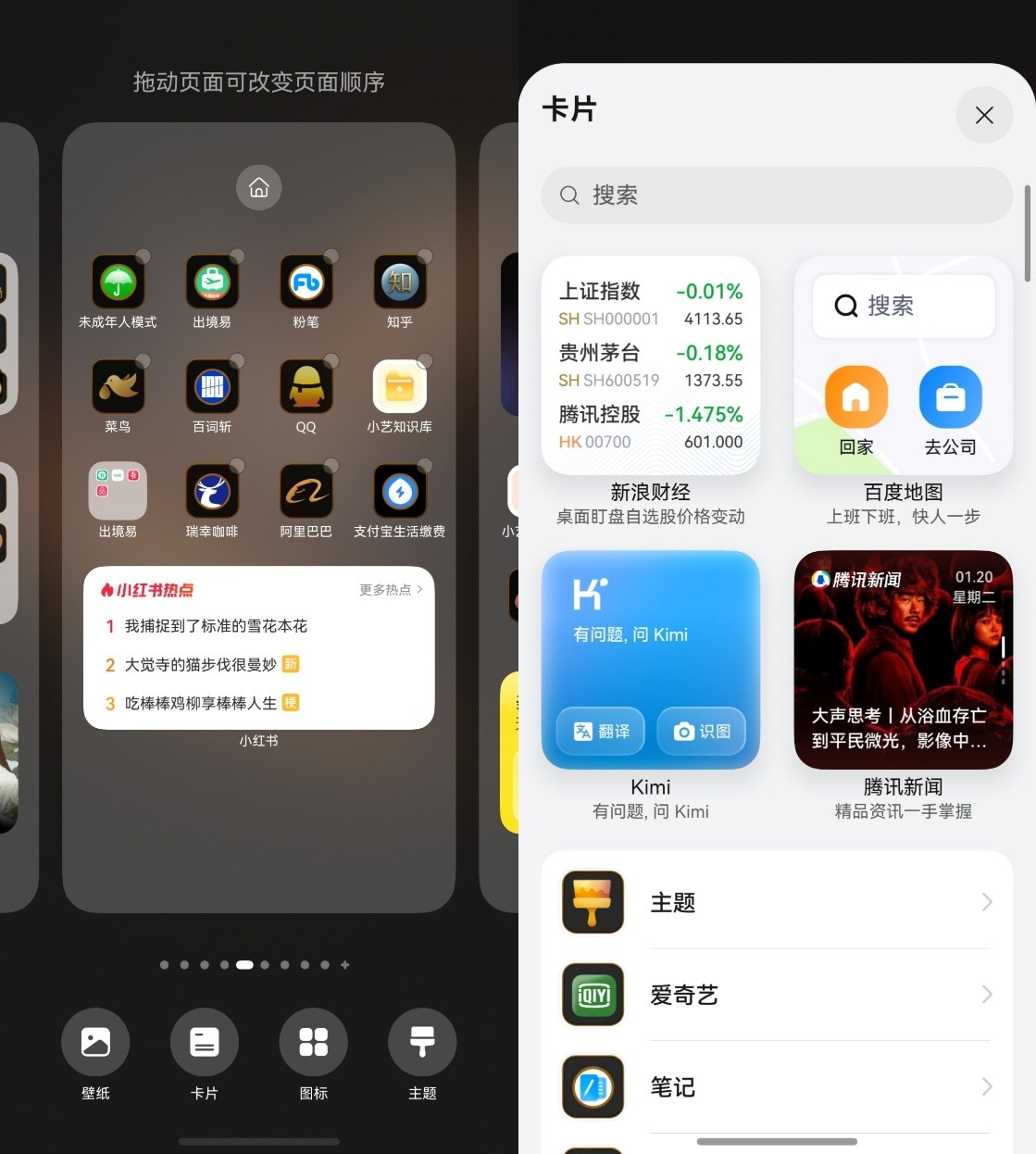
1×2尺寸(紧凑模式):
- 左侧显示待办标题和完成数量
- 右侧提供添加按钮
- 适合作为桌面快捷入口
2×2尺寸(中等模式):
- 顶部标题和添加按钮
- 中间大字号显示完成进度(如"3/5")
- 底部添加"添加"和"查看"快捷按钮
- 适合快速浏览和基础操作
2×4尺寸(完整模式):
- 顶部带标题栏
- 显示5条待办事项列表
- 每项支持勾选完成
- 高优先级项显示红色标识
- 底部显示最后更新时间
- 点击"详情"跳转到应用
六、性能优化方案
6.1 卡片内存占用控制
服务卡片运行在独立的卡片进程,其内存预算有限,需要严格控制资源使用:
typescript
// 内存优化建议
class CardPerformanceOptimizer {
  // 1. 图片资源优化
  optimizeImage() {
    // 使用WebP等压缩格式
    // 图片尺寸精确匹配显示尺寸,避免缩放
    // 使用Lazy Image加载大图
  }

  // 2. 列表渲染优化
  optimizeList(items: TodoItem[]) {
    // 使用LazyForEach替代ForEach
    // 设置合理的可见区域高度
    // 限制最大渲染项数
  }

  // 3. 状态管理优化
  optimizeState() {
    // 避免不必要的状态更新
    // 使用@ObjectLink进行细粒度更新
    // 避免在build()中执行复杂计算
  }

  // 4. 内存预算参考
  static MEMORY_BUDGET = {
    '1*2': '5MB',
    '2*2': '8MB',
    '2*4': '10MB',
    '4*4': '15MB'
  };
}
6.2 刷新频率优化
合理的刷新策略能有效降低系统资源消耗:
typescript
// 智能刷新策略
class SmartRefreshStrategy {
  // 根据数据类型选择刷新间隔
  static getRefreshInterval(dataType: string): number {
    const intervals = {
      'weather': 15,      // 天气:15分钟
      'stock': 1,         // 股价:1分钟
      'todo': 0,          // 待办:依赖事件
      'calendar': 30,      // 日程:30分钟
      'sports': 5          // 运动:5分钟
    };
    return intervals[dataType] || 30;
  }

  // 条件更新判断
  static shouldUpdate(oldData: any, newData: any): boolean {
    // 比较关键字段,避免无意义更新
    const keyFields = ['completedCount', 'totalCount', 'items'];
    return keyFields.some(field =>
      JSON.stringify(oldData[field]) !== JSON.stringify(newData[field])
    );
  }
}
6.3 其他优化建议
| 优化项 | 建议做法 | 预期收益 |
|---|---|---|
| 首屏渲染 | 使用骨架屏+渐进加载 | 感知速度提升300ms |
| 网络请求 | 合并请求+本地缓存 | 减少60%网络调用 |
| 图片加载 | 压缩格式+按需加载 | 内存降低40% |
| 动画效果 | 优先使用系统动画 | GPU占用降低50% |
| 数据结构 | 扁平化+最小化字段 | 序列化速度提升 |
七、最佳实践与规范
7.1 卡片设计规范总结
尺寸规范:
- 必须支持至少一种标准尺寸
- 优先支持2×2作为默认尺寸
- 确保各尺寸内容布局合理
色彩规范:
- 主色调使用品牌色,饱和度适中
- 确保深色/浅色模式均可读
- 避免使用单一颜色传达所有信息
字体规范:
- 正文字号不小于12fp
- 标题与正文保持2-4fp字号差
- 优先使用系统字体
间距规范:
- 内边距最小8vp
- 元素间距最小4vp
- 卡片与宿主边距由系统控制
7.2 常见问题与避坑指南
Q1: 卡片点击无响应
A: 检查postCardAction参数是否正确,bundleName和abilityName必须与应用配置一致
Q2: 卡片数据不更新
A: 确认FormExtensionAbility.onFormEvent是否正确处理事件,确认formHost.updateForm调用
Q3: 多尺寸适配效果不佳
A: 使用if-else而非媒体查询,通过@StorageProp获取卡片实际尺寸
Q4: 内存占用超标
A: 减少图片资源、限制列表渲染数量、避免在卡片内执行耗时操作
Q5: 深色模式显示异常
A: 使用@StorageProp('sys.color.mode')获取主题,使用颜色资源而非硬编码颜色
7.3 用户体验优化建议
- 渐进式披露:先展示核心信息,次要信息通过展开或滑动查看
- 状态可见性:操作后立即反馈结果,使用加载指示器避免等待焦虑
- 容错设计:网络异常时显示友好提示,提供重试机制
- 无障碍支持:确保颜色对比度符合WCAG标准,支持屏幕阅读器
八、总结
HarmonyOS 6.0的服务卡片作为原子化服务的核心载体,通过轻量化设计理念和强大的交互能力,为用户提供了"触手可及"的便捷体验。
- 轻量化是灵魂:通过精简信息、优化交互、控制资源,实现秒开体验
- 交互是核心:利用router、call、message三种事件机制,实现丰富的卡片交互
- 适配是关键:一套代码适配多种尺寸,确保卡片在各场景下均有良好体验
- 性能是底线:严格控制内存占用和刷新频率,保障系统流畅运行
随着HarmonyOS生态的持续发展,服务卡片将承担越来越重要的角色。希望本方案能为开发者提供实用的指导,助力构建更加出色的轻量化服务体验。