文章目录
卡片、列表展开一镜到底
在瀑布流或列表流布局中,当用户点击其中一个卡片或列表项时,应用将执行平滑的转场动画,引导用户从概览页面切换到详情页面。
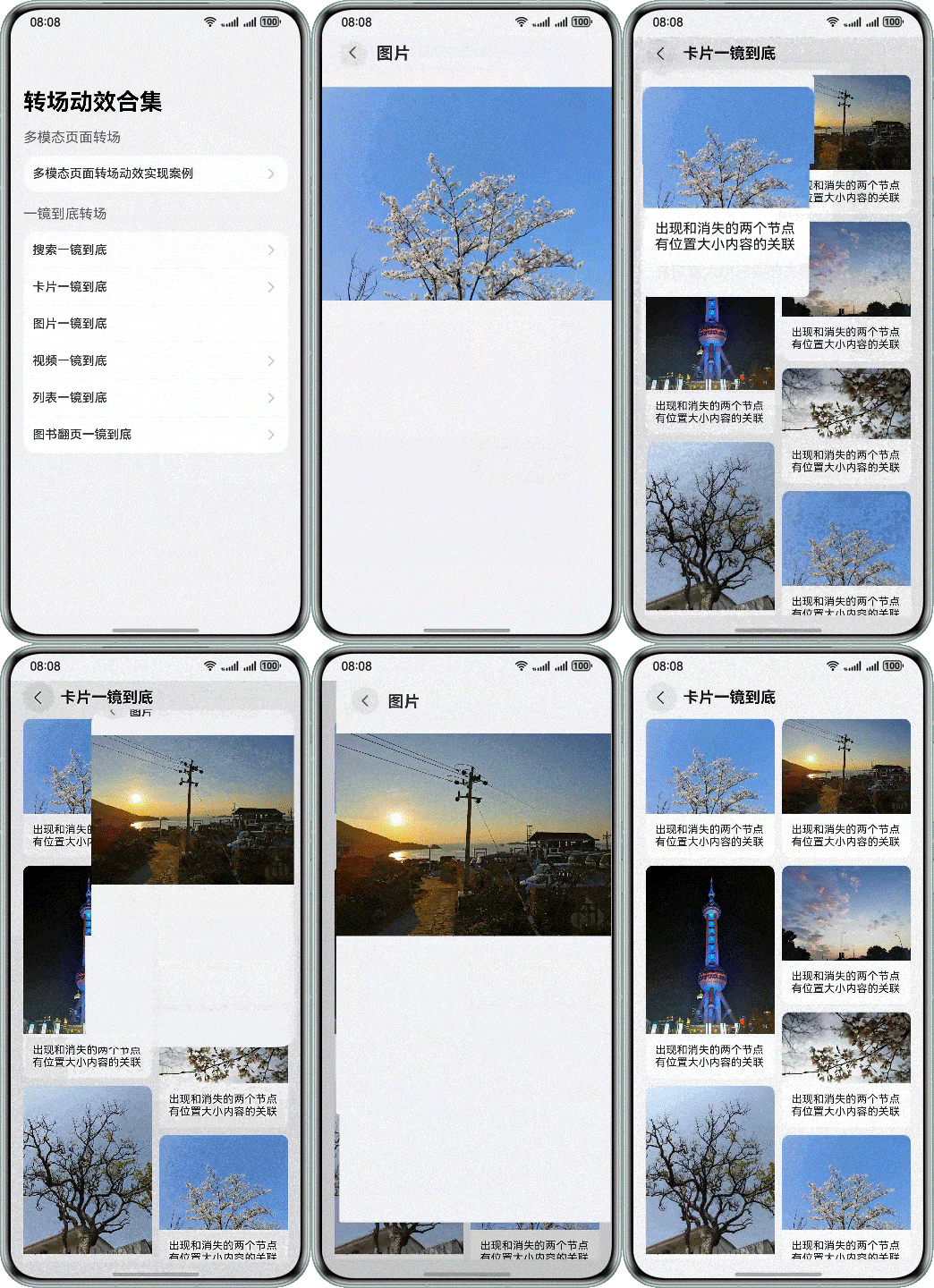
使用WaterFlow()和LazyForEach()实现卡片列表瀑布流。利用Navigation的自定义导航转场动画能力,customNavContentTransition()配置列表页与详情页的自定义导航转场动画,结合componentSnapshot()将卡片进行截图避免跳转页面白屏。
-
卡片列表页使用WaterFlow和LazyForEach实现页面布局。
typescriptprivate onColumnClicked(indexValue: string): void { let param: Record<string, Object> = {}; let clickedIndex = parseInt(indexValue); param['indexValue'] = clickedIndex; this.clickedIndex = clickedIndex; // Click the card to get the corresponding screenshot and save it. this.getUIContext() .getComponentSnapshot() .get('FlowItem_' + indexValue, (error: BusinessError, pixelMap: image.PixelMap) => { if (error) { hilog.error(0x0000, 'CardLongTakePageOne', `componentSnapshot.get error, reason: Code is ${error.code}, message is ${error.message}`); // If the screenshot fails, go to the default left/right transition. In this case, the pop-up page will not receive clickedComponentId parameter, and the registration process will not proceed. // At that time from and to the animation are undefined, will go in customNavContentTransition transitions by default. this.pageInfos.pushPath({ name: 'CardLongTakeTransitionPageTwo', param: param }); return; } else { hilog.info(0x0000, 'CardLongTakePageOne', 'componentSnapshot.get success!'); // If the screenshot is successful, then go to a custom mirror in the end transition. param['clickedComponentId'] = CardUtil.getFlowItemIdByIndex(indexValue); param['doDefaultTransition'] = () => { this.doFinishTransition(); }; SnapShotImage.pixelMap = pixelMap; this.pageInfos.pushPath({ name: 'CardLongTakeTransitionPageTwo', param: param }); this.dataSource.getData(this.clickedIndex).isVisible = Visibility.Hidden; } }) }代码逻辑走读:
- 参数解析 :
- 方法接收一个字符串参数
indexValue,表示被点击列的索引。
- 方法接收一个字符串参数
- 参数转换 :
- 将
indexValue转换为整数类型,并赋值给clickedIndex。 - 创建一个对象
param,并将clickedIndex存储在其中,键名为indexValue。
- 将
- 截图获取 :
- 使用
getUIContext().getComponentSnapshot().get方法获取指定组件的截图。 - 如果截图失败,记录错误日志,并执行默认的页面过渡逻辑(即通过
pageInfos.pushPath方法跳转到另一个页面,同时处理错误情况下的页面参数传递)。
- 使用
- 截图成功处理 :
- 如果截图成功,记录成功日志,并执行自定义的页面过渡逻辑。
- 更新
param对象,添加clickedComponentId和doDefaultTransition属性。 - 将截图结果(
pixelMap)存储到SnapShotImage.pixelMap中。 - 同样通过
pageInfos.pushPath方法跳转到另一个页面,并传递param参数。 - 隐藏当前数据源中对应索引的可见性状态。
- 参数解析 :
-
卡片详情页通过Navigation自定义动画实现一镜到底。这里套了两层Stack(),因为要放截图,以及把原来的详情页内容转移过来。缩放、translate属性设置在Stack()这层上实现边界动画,透明度属性设置在截图上实现内容过渡。在onReady()里面注册自定义动画,通过id对动画属性进行初始化。
typescript// Try to register a custom transition animation to restore the page properties to their normal state in case of an exception. tryRegisterCustomTransition(clickedCardId: string): void { try { // First initialize some transition information. this.longTakeAnimationProperties.init(clickedCardId, this.prePageDoFinishTransition); CustomTransition.getInstance().registerNavParam(this.pageId, 2000, (transitionProxy: NavigationTransitionProxy) => { this.longTakeAnimationProperties.doAnimation(transitionProxy); }); hilog.info(0x0000, 'CardLongTakePageTwo', 'register successes'); } catch (error) { let err = error as BusinessError; hilog.error(0x0000, 'CardLongTakePageTwo', `this is error:code=${err.code}, message=${err.message}`); this.longTakeAnimationProperties.setFinalStatus(); } } // ... build() { NavDestination() { // Stack needs to set the alignContent to TopStart, otherwise the screenshot and content will be repositioned with the height as it changes. Stack({ alignContent: Alignment.TopStart }) { Stack({ alignContent: Alignment.TopStart }) { // Used to display a screenshot of the card clicked on the previous page. Image(this.snapShotImage) .size(this.longTakeAnimationProperties.snapShotSize) .objectFit(ImageFit.Auto) .opacity(this.longTakeAnimationProperties.snapShotOpacity) // eslint-disable-next-line @performance/hp-arkui-image-async-load .syncLoad(true)// The position here gives the distance from the screenshot position to the expanded page image position. .position({ x: this.longTakeAnimationProperties.snapShotPositionX, y: this.longTakeAnimationProperties.snapShotPositionY }) // The pop-up page originally displays the content, adding transparency to control its display during animation. DetailPageContent({ indexValue: this.indexValue, pageInfos: this.pageInfos, onBackPressed: () => { this.onBackPressed() }, SharedComponentId: CardUtil.getPostPageImageId(this.clickedCardId) }) .size({ width: '100%', height: '100%' }) .opacity(this.longTakeAnimationProperties.postPageOpacity) } .width('100%') .position({ x: this.longTakeAnimationProperties.positionXValue, y: this.longTakeAnimationProperties.positionYValue }) } .scale({ x: this.longTakeAnimationProperties.scaleValue, y: this.longTakeAnimationProperties.scaleValue }) .translate({ x: this.longTakeAnimationProperties.translateX, y: this.longTakeAnimationProperties.translateY }) .width(this.longTakeAnimationProperties.clipWidth) .height(this.longTakeAnimationProperties.clipHeight) .borderRadius(this.longTakeAnimationProperties.radius) .expandSafeArea([SafeAreaType.SYSTEM]) .backgroundColor($r('app.color.water_flow_background_color')) .clip(true) } .backgroundColor(this.longTakeAnimationProperties.navDestinationBgColor) .GestureStyles() .hideTitleBar(true) .onReady((context: NavDestinationContext) => { this.pageInfos = context.pathStack; let param = context.pathInfo?.param as Record<string, Object>; let clickedCardId = param['clickedComponentId'] as string; this.indexValue = param['indexValue'] as number; this.prePageDoFinishTransition = param['doDefaultTransition'] as () => void; if (context.navDestinationId && clickedCardId) { this.pageId = context.navDestinationId; this.clickedCardId = clickedCardId; this.tryRegisterCustomTransition(clickedCardId); } }) .onBackPressed(() => { return this.onBackPressed(); }) .onDisAppear(() => { CustomTransition.getInstance().unRegisterNavParam(this.pageId); }) } // ...代码逻辑走读:
- tryRegisterCustomTransition 函数 :
- 尝试注册自定义过渡动画,以恢复页面属性。
- 初始化过渡信息(如动画持续时间、动画代理等)。
- 注册导航参数,通过回调函数执行动画。
- 捕获异常,记录错误信息,并设置最终状态。
- build 函数 :
- 构建页面布局,使用Stack组件嵌套,设置对齐方式为TopStart。
- 显示卡片截图,设置截图尺寸、位置、透明度等属性。
- 显示页面内容,设置内容尺寸、透明度等属性。
- 根据动画属性调整布局的缩放、位移、宽度、高度、圆角等。
- 设置导航目的地的背景颜色,隐藏标题栏。
- 在页面准备就绪时,获取页面信息、参数,并尝试注册自定义过渡动画。
- 处理返回按钮事件,在页面消失时取消注册导航参数。
- tryRegisterCustomTransition 函数 :
列表一镜到底效果图。
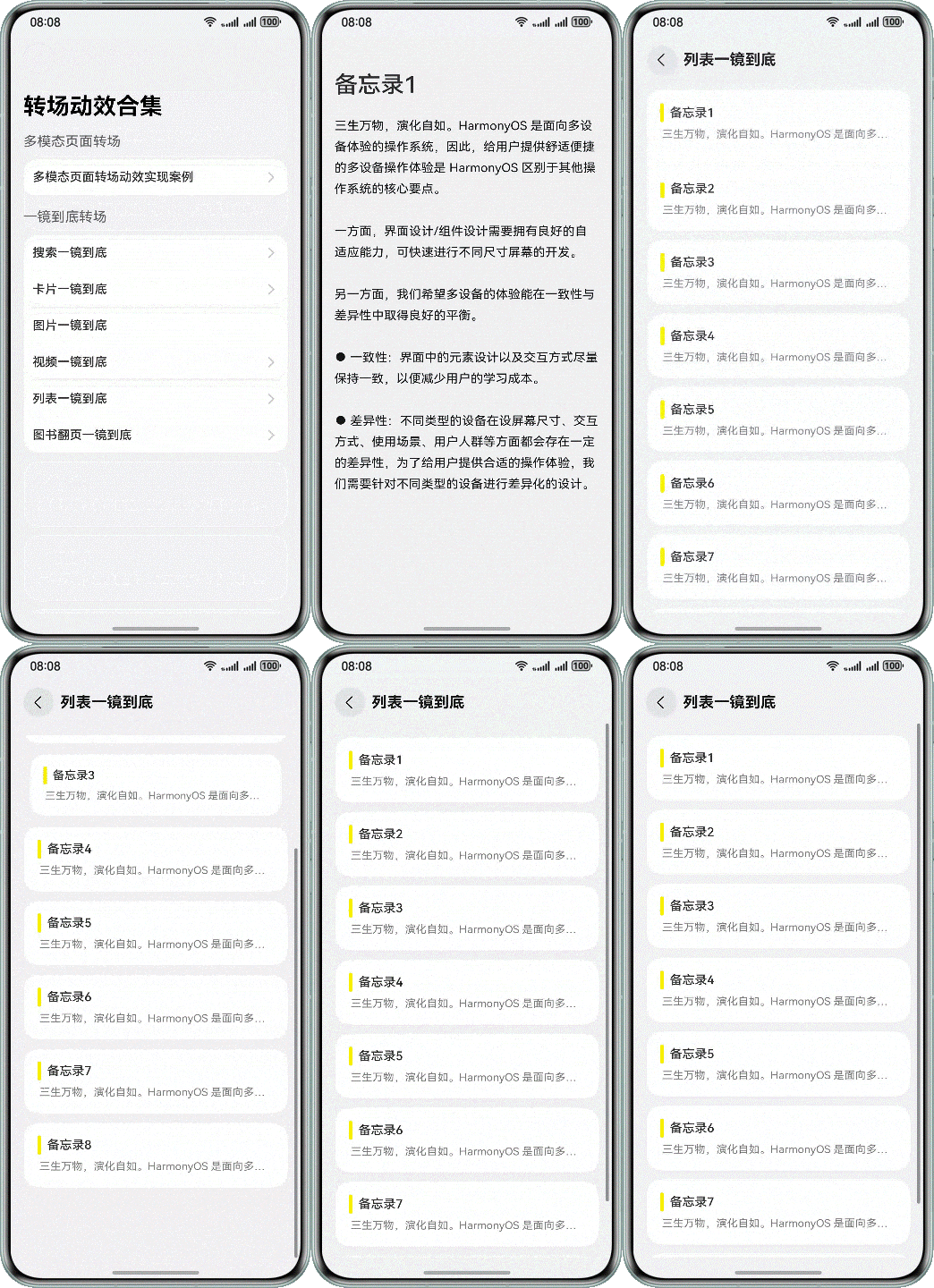
将列表项与详情页面同时设置geometryTransition属性,并绑定同一id值。每个列表项设置显式动画和transition属性的转场效果,实现列表展开的一镜到底效果。
-
列表页面中每一个列表项设置geometryTransition属性,并绑定当前列表的id值。
typescript@Component export struct MyButton { @Prop listContent: ListContent; @Prop indexValue: string; @State scaleValue: number = 1; build() { Column({ space: 10 }) { Row({ space: 5 }) { Line() .startPoint([0, 0]) .endPoint([0, 20]) .strokeWidth(5) .stroke(Color.Yellow) .strokeLineCap(LineCapStyle.Round) Text(this.listContent.title) .fontWeight(FontWeight.Medium) .fontSize(16) } Text(this.listContent.content) .fontColor(Color.Grey) .maxLines(1) .textOverflow({ overflow: TextOverflow.Ellipsis }) .fontSize(14) } .alignItems(HorizontalAlign.Start) .padding({ left: 20, right: 20, top: 20, bottom: 20 }) .width('91%') .backgroundColor(Color.White) .clip(true) .borderRadius(20) .scale({ x: this.scaleValue, y: this.scaleValue }) .geometryTransition(this.indexValue, { follow: true }) .onTouch((event?: TouchEvent) => { this.onTouchProcess(event); }) .onClick(() => { this.onButtonClicked?.(this.indexValue); }) } onButtonClicked: (index: string) => void = (_index: string) => { }; private onTouchProcess(event?: TouchEvent): void { if (!event) { return; } if (event.type === TouchType.Down) { this.getUIContext().animateTo({ curve: curves.interpolatingSpring(0, 1, 350, 35) }, () => { this.scaleValue = 0.95; }) } else if (event.type === TouchType.Up) { this.getUIContext().animateTo({ curve: curves.interpolatingSpring(0, 1, 350, 35) }, () => { this.scaleValue = 1; }) } else if (event.type === TouchType.Cancel) { this.getUIContext().animateTo({ curve: curves.interpolatingSpring(0, 1, 350, 35) }, () => { this.scaleValue = 1; }) } } }代码逻辑走读:
- 组件定义与属性声明 :
- 使用
@Component装饰器定义了一个名为MyButton的组件。 - 声明了三个属性:
listContent(类型为ListContent,用于提供按钮显示的文本内容)、indexValue(类型为string,用于标识按钮的索引)和scaleValue(类型为number,用于控制按钮的缩放比例,初始值为1)。
- 使用
- 按钮构建 :
- 在
build方法中,使用Column和Row布局组件构建按钮的外观。 Row中包含一个Line组件(绘制一条黄色的线条)和一个Text组件(显示listContent.title)。- 另一个
Text组件显示listContent.content,设置为灰色,并限制一行显示最多字符。 - 按钮的背景色为白色,支持缩放和几何变化动画。
- 在
- 触摸事件处理 :
- 使用
onTouch方法监听触摸事件,调用onTouchProcess处理具体的触摸类型。 - 在
onTouchProcess中,根据触摸类型(按下、抬起、取消)使用animateTo方法改变scaleValue,实现缩放动画效果。
- 使用
- 点击事件处理 :
- 使用
onClick方法监听按钮点击事件,调用onButtonClicked方法(默认实现为空函数),通过传递indexValue参数来标识按钮的点击事件。
- 使用
- 组件定义与属性声明 :
-
列表详情页中的容器组件Column组件设置geometryTransition属性,并绑定对应列表项的id值,完成一镜到底效果。
typescriptNavDestination() { Column({ space: 20 }) { Text(this.param.title) .fontSize(30) .fontWeight(FontWeight.Medium) Text(this.param.content) .fontColor($r('sys.color.password_icon_focus_color')) .lineHeight(28) .fontSize(16) } .alignItems(HorizontalAlign.Start) .clip(true) .size({ width: '100%', height: '100%' }) .geometryTransition(this.param.geometryId) } .padding({ top: 46, left: 16, right: 16 }) .backgroundColor(Constants.DEFAULT_BG_COLOR) .transition(TransitionEffect.OPACITY) .hideTitleBar(true) .backgroundColor(Color.Transparent) .onReady((context: NavDestinationContext) => { this.pageInfos = context.pathStack; this.param = (context.pathInfo.param as ListDetailPageExtraInfo); }) .onBackPressed(() => { this.getUIContext().animateTo({ curve: curves.interpolatingSpring(0, 1, 342, 38) }, () => { this.pageInfos.pop(false); }) return true; })代码逻辑走读:
- 组件初始化 :
- 使用
NavDestination组件作为页面容器。 - 在其中嵌套一个
Column组件,用于垂直排列子组件。
- 使用
- 文本展示 :
- 在
Column中,首先展示一个标题文本,使用Text组件,设置字体大小为30,字体粗细为中等。 - 接着展示内容文本,使用
Text组件,设置字体颜色为系统定义的密码图标焦点颜色,行高为28,字体大小为16。
- 在
- 布局设置 :
Column组件设置为左对齐,并启用裁剪。- 设置
Column的尺寸为占满父容器(宽度和高度均为100%)。 - 应用几何过渡效果,使用
geometryTransition方法,参数为this.param.geometryId。
- 样式和行为设置 :
- 设置页面的内边距,顶部为46,左右各为16。
- 设置背景颜色为默认颜色。
- 应用透明度过渡效果作为页面切换时的动画。
- 隐藏标题栏,并设置背景颜色为透明。
- 页面加载和返回处理 :
- 当页面准备好时,通过
onReady方法获取当前页面的路径栈和参数,并进行存储。 - 定义返回按钮的行为,通过
onBackPressed方法,在用户按下返回按钮时,执行自定义的动画效果,然后从路径栈中弹出当前页面。
- 当页面准备好时,通过
- 组件初始化 :
"图书"翻页展开一镜到底
阅读类应用中,点击一本"图书"的图标后,模拟图书翻页展开的效果,转场到书本内容页面,同时支持手势返回。
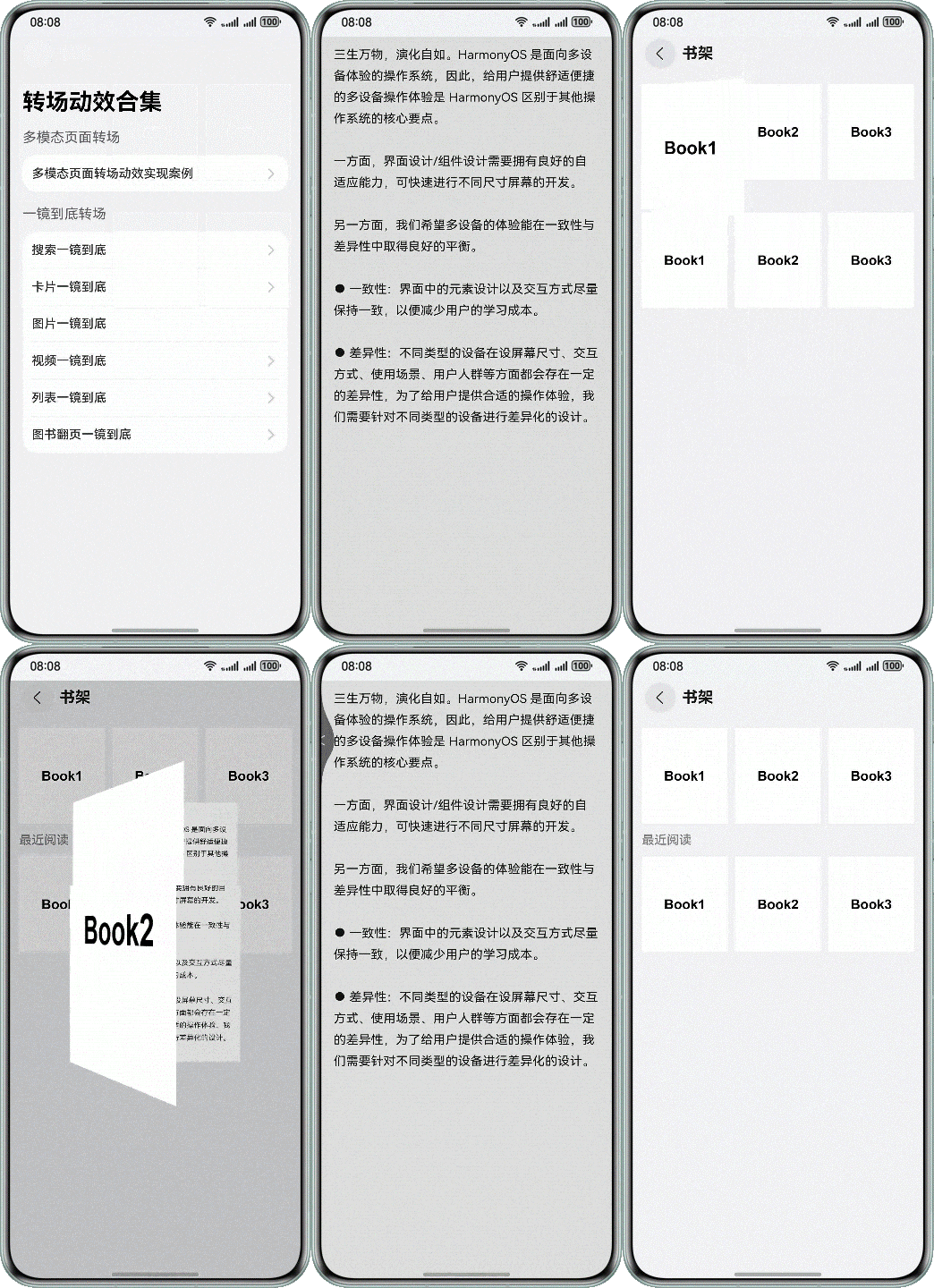
利用Navigation的自定义导航转场动画能力,通过customNavContentTransition()配置书籍页与详情页的自定义导航转场动画实现图书翻页一镜到底效果。使用rotate属性实现书籍翻页的旋转效果。
-
书架页面通过Grid组件实现书架第一行书籍布局,使用Swiper()组件实现书架第一行书籍布局。
typescriptbuild() { NavDestination() { Scroll() { Column({ space: 12 }) { // A mirror returns to the first position. Grid() { ForEach(this.dataSource, (item: BookItem, index: number) => { GridItem() { Image($r(item.coverImageUrl)) .id(item.id) .width('100%') .onClick(() => { this.onColumnClicked(item.id, item.coverImageUrl, this.dataSource[0].id, () => { this.dataSource.sort((a, b) => b.timestamp - a.timestamp); }) this.dataSource[index].timestamp = Number(new Date()); }) } .width(this.columnWidth) }, (item: BookItem) => JSON.stringify(item)) } .padding({ left: 12, right: 12, top: 12 }) .columnsTemplate(this.columnType) .columnsGap(10) .rowsGap(10) // A mirror is returned to its original position. Column({ space: 12 }) { Text('Recently read') .fontSize(16) .fontWeight(FontWeight.Medium) .fontColor(Color.Gray) Swiper(this.swiperController) { ForEach(this.recentData, (item: BookItem) => { GridItem() { Image($r(item.coverImageUrl)) .id(item.id) .onClick(() => { this.onColumnClicked(item.id, item.coverImageUrl); }) } }, (item: BookItem) => JSON.stringify(item)) } .indicator(false) .displayCount(3) .loop(false) .itemSpace(10) } .padding({ left: 12, right: 12 }) .alignItems(HorizontalAlign.Start) } } } // ... } // ... private onColumnClicked(bookId: string, bookCoverUrl: string, toBookId?: string, prePageCallback?: () => void): void { try { CustomTransition.getInstance().unRegisterNavParam(this.pageId); const fromCardItemInfo: RectInfoInPx = ComponentAttrUtils.getRectInfoById(WindowUtils.window.getUIContext(), bookId); let param: Record<string, Object> = {}; param['fromCardItemInfo'] = fromCardItemInfo; param['bookCoverUrl'] = bookCoverUrl; if (toBookId) { const toCardItemInfo: RectInfoInPx = ComponentAttrUtils.getRectInfoById(WindowUtils.window.getUIContext(), toBookId); param['toCardItemInfo'] = toCardItemInfo; } if (prePageCallback) { param['prePageCallback'] = prePageCallback; } this.pageInfos.pushPath({ name: 'BookFlipLongTakeTransitionPageTwo', param: param }); } catch (err) { let error = err as BusinessError; hilog.error(0x0000, 'BookFlipLongTakeTransitionPageOne', `onColumnClicked failed. error code=${error.code}, message=${error.message}`); } }代码逻辑走读:
- 页面构建函数 :
build()函数用于构建整个页面的UI结构。 - 导航目的地 :
NavDestination()用于定义页面的导航目的地。 - 滚动布局 :
Scroll()用于创建一个可滚动的布局,包含两个主要部分:书籍封面网格和最近阅读记录。 - 列布局 :
Column()用于垂直排列子组件,包含两个子布局:书籍封面网格和最近阅读记录。 - 书籍封面网格 :
Grid()和ForEach循环用于生成书籍封面网格,每个封面可点击。 - 点击事件处理 :
onClick事件处理用户点击封面的行为,更新数据源并触发页面跳转。 - 最近阅读记录 :
Column()和Swiper用于展示最近阅读的书籍封面,支持滑动浏览。 - 点击事件处理 :
onClick事件处理用户点击封面的行为,更新数据源并触发页面跳转。 - 页面跳转逻辑 :
onColumnClicked函数处理页面跳转时的参数传递和错误处理。
- 页面构建函数 :
-
书籍详情页通过Navigation自定义动画实现一镜到底。
typescriptNavDestination() { Stack() { Column() { Text($r('app.string.DetailPage_text')) .fontColor($r('sys.color.password_icon_focus_color')) .lineHeight(28) .fontSize(16) } .width(AppStorage.get('currentBreakpoint') === 'md' ? '75%' : '100%') .height('100%') .alignItems(HorizontalAlign.Start) .padding({ left: 16, right: 16, top: 46 }) if (!this.doDefaultTransition) { Image($r(this.bookCoverUrl)) .objectFit(ImageFit.Cover) // eslint-disable-next-line @performance/hp-arkui-image-async-load .syncLoad(true) .rotate({ x: 0, y: 1, z: 0, angle: this.bookFlipLongTakeTransitionProperties.coverRotateAngle, centerX: 0, centerY: '50%' }) .scale({ x: this.bookFlipLongTakeTransitionProperties.coverScale, centerX: 0, centerY: '50%' }) } } .scale({ x: this.bookFlipLongTakeTransitionProperties.scaleValue, y: this.bookFlipLongTakeTransitionProperties.scaleValue }) .translate({ x: this.bookFlipLongTakeTransitionProperties.translateX, y: this.bookFlipLongTakeTransitionProperties.translateY }) .width(this.bookFlipLongTakeTransitionProperties.clipWidth) .height(this.bookFlipLongTakeTransitionProperties.clipHeight) .backgroundColor('#DEDFDF') } .backgroundColor(this.bookFlipLongTakeTransitionProperties.navDestinationBgColor) .GestureStyles() .hideTitleBar(true) .onReady((context: NavDestinationContext) => { this.pageInfos = context.pathStack; let param = context.pathInfo?.param as Record<string, Object>; this.bookCoverUrl = param['bookCoverUrl'] as string; this.fromCardItemInfo = param['fromCardItemInfo'] as RectInfoInPx; this.toCardItemInfo = (param['toCardItemInfo'] || param['fromCardItemInfo']) as RectInfoInPx; this.prePageCallback = param['prePageCallback'] as () => void; if (context.navDestinationId) { this.pageId = context.navDestinationId; } CustomTransition.getInstance() .registerNavParam(this.pageId, 500, (transitionProxy: NavigationTransitionProxy) => { this.bookFlipLongTakeTransitionProperties.doAnimation(transitionProxy, this.fromCardItemInfo, this.toCardItemInfo); }, () => { this.bookFlipLongTakeTransitionProperties.onInteractiveFinish(); }, () => { this.bookFlipLongTakeTransitionProperties.onInteractive( this.fromCardItemInfo, this.toCardItemInfo); }); }) .onBackPressed(() => { return this.onBackPressed(); }) .onDisAppear(() => { CustomTransition.getInstance().unRegisterNavParam(this.pageId); })代码逻辑走读:
- 组件定义与布局 :
- 使用
NavDestination组件作为页面的根组件。 - 在
NavDestination内部使用Stack组件来堆叠布局。 Stack内部包含一个Column组件,用于垂直排列子组件。Column中包含一个Text组件,用于显示文本内容,并设置了字体颜色、行高和字体大小。
- 使用
- 布局样式与条件判断 :
Column的宽度和高度根据当前断点(currentBreakpoint)进行动态调整,如果是中等断点('md'),宽度为75%,否则为100%。Column的对齐方式为水平起始点对齐,并设置了内边距。
- 图像处理 :
- 如果
doDefaultTransition为false,则在Column中添加一个Image组件用于显示书籍封面图像。 - 图像的加载方式为同步加载,并根据
bookFlipLongTakeTransitionProperties中的旋转和缩放属性进行动画处理。
- 如果
- 页面变换处理 :
Stack和Column的变换属性(缩放、平移)由bookFlipLongTakeTransitionProperties中的相应属性控制。- 背景颜色由
bookFlipLongTakeTransitionProperties中的导航目的地背景颜色控制。
- 导航参数处理 :
- 使用
onReady生命周期钩子处理导航参数,包括路径栈、页面ID和传递的参数(如书籍封面URL、页面信息等)。 - 注册导航参数,设置动画代理、交互完成回调、交互中回调。
- 使用
- 返回按钮与页面消失事件 :
- 使用
onBackPressed处理返回按钮事件。 - 使用
onDisAppear生命周期钩子在页面消失时取消注册导航参数。
- 使用
- 组件定义与布局 :
视频展开一镜到底
视频组件从一个页面向目标页面的转场,在一镜到底的过程中,视频需要持续播放。
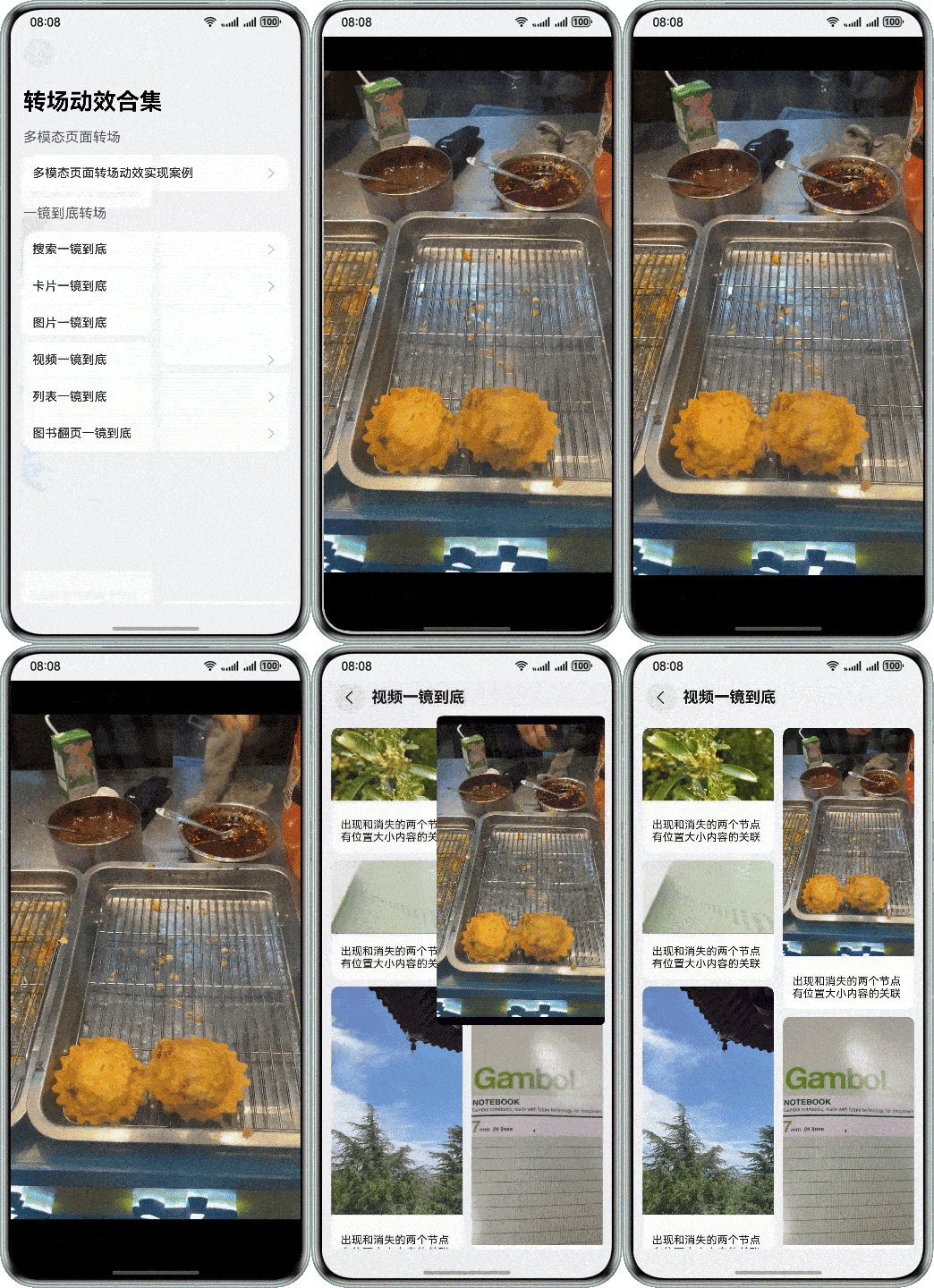
使用WaterFlow()和LazyForEach()实现卡片列表瀑布流。利用NodeController实现组件的跨节点迁移,通过customNavContentTransition配置概览页与视频详情的自定义导航转场动画,给节点的迁移过程赋予一镜到底效果。
-
创建NodeController节点类。
typescriptexport class MyNodeController extends NodeController { // ... } -
视频首页使用WaterFlow()和LazyForEach()实现页面布局,点击视频后将视频节点迁移至视频播放页面,通过Navigation自定义动画完成一镜到底的效果。
typescriptNavDestination() { WaterFlow() { LazyForEach(this.dataSource, (_: CardAttr, index: number) => { FlowItem() { VideoCardComponent({ isPlaying: false, index, onColumnClicked: (prePageCallback) => { this.onColumnClicked(`xComponent_${index}`, prePageCallback) } }) } .width('100%') .borderRadius(10) .clip(true) .id('FlowItem_' + index.toString()) }, (item: string) => item) } .edgeEffect(EdgeEffect.Spring) .onScrollIndex((first: number) => { this.scrollFirstIndex = first; }) .padding(12) .columnsTemplate(this.columnType) .columnsGap(12) .rowsGap(10) .width('100%') .height('100%') } .backgroundColor(Constants.DEFAULT_BG_COLOR) .title(getResourceString(this.getUIContext(), $r('app.string.video_title'), this)) .onReady((context: NavDestinationContext) => { this.pageInfos = context.pathStack; if (context.navDestinationId) { this.pageId = context.navDestinationId; } }) .onDisAppear(() => { CustomTransition.getInstance().unRegisterNavParam(this.pageId); })代码逻辑走读:
- 组件初始化 :
- 使用
NavDestination组件作为容器,定义了一个导航目的地。 - 在
NavDestination内部嵌套了WaterFlow组件,用于创建一个流式布局,展示多个视频卡片。
- 使用
- 数据源遍历 :
- 使用
LazyForEach组件遍历dataSource数据源,为每个数据项创建一个FlowItem。 - 每个
FlowItem内部包含一个VideoCardComponent,用于展示视频内容。
- 使用
- 视频卡片组件配置 :
- 为每个
VideoCardComponent设置初始播放状态、索引和点击事件处理函数。 - 设置视频卡片的样式,包括宽度、圆角、裁剪和唯一标识符。
- 为每个
- WaterFlow布局配置 :
- 设置
WaterFlow的边缘效果为弹性效果。 - 监听滚动事件,更新第一个可见项的索引。
- 设置布局的填充、列模板、列间距和行间距。
- 设置
- 导航目的地事件处理 :
- 在导航目的地准备就绪时,获取页面信息并设置页面ID。
- 在导航目的地消失时,注销页面ID的导航参数。
- 组件初始化 :