1.安装C++插件
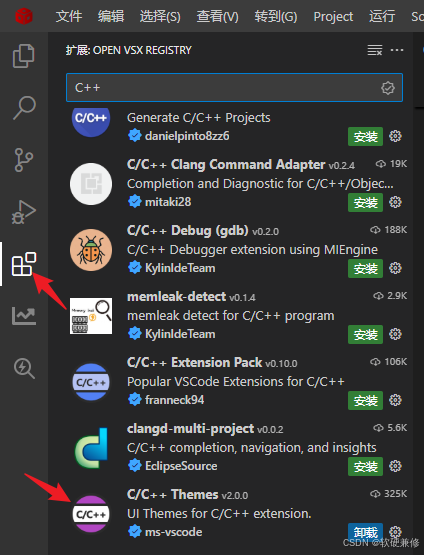
2.设置工作区
Ctrl+Shift+P → 输入 Preferences: Open Workspace Settings (JSON)
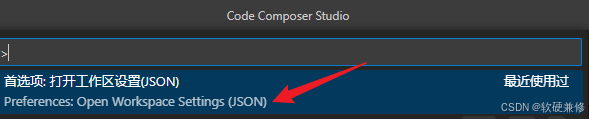
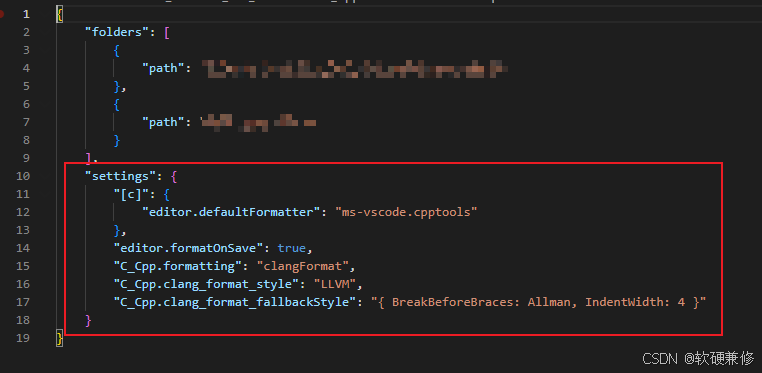
在原有代码中添加如下代码:
    "settings": {
        "[c]": {
            "editor.defaultFormatter": "ms-vscode.cpptools"
        },
        "editor.formatOnSave": false,
        "C_Cpp.formatting": "clangFormat",
        "C_Cpp.clang_format_style": "LLVM",
        "C_Cpp.clang_format_fallbackStyle": "{ BreakBeforeBraces: Allman, IndentWidth: 4 }"
    }
3.创建 .clang-format 文件
去 项目根目录,新建一个文本文件,文件名字就叫(包括后缀): .clang-format

内容复制这个(大括号换行风格):
BasedOnStyle: LLVM
IndentWidth: 4
BreakBeforeBraces: Allman
ColumnLimit: 0
IndentCaseLabels: true
4.现在测试!
在项目中找个 .c文件 粘贴下面的乱格式代码
cpp
int main(){int a;if(a>0){printf("test");}}按快捷键:Shift + Alt + F
一定会变成:
cpp
int main()
{
    int a;
    if (a > 0)
    {
        printf("test");
    }
}
5.设置只格式化框选部分代码
- 按:Ctrl + Shift + P
- 输入:
Keyboard 在下拉菜单中找到如图菜单,点击打开

打开后,把下面内容全部替换进去:(如果已经有内容,注意备份!)
[
  {
    "key": "shift+alt+f",
    "command": "editor.action.formatSelection",
    "when": "editorTextFocus && !editorReadonly"
  }
]
保存后 重启 CCS 即可。
效果
- 选中代码 → Shift+Alt+F → 只格式化选中
- 不选中 → 按了没反应