
在制作商务演示文稿时,表格是展示结构化数据的重要工具。无论是财务报表、项目进度还是对比分析,清晰规范的表格都能有效提升信息传达效率。通过 Python 自动化生成 PowerPoint 表格,可以批量处理数据、保持格式一致性,并大幅减少手动操作时间。
本文介绍如何使用 Spire.Presentation for Python 库在 PowerPoint 幻灯片中创建表格,并对表格样式、边框、单元格合并以及文本对齐等属性进行自定义设置。该方案适用于需要动态生成报表、自动化演示文稿制作或批量导出数据分析结果的场景。
环境准备
首先需要安装 Spire.Presentation for Python 库:
bash
pip install Spire.Presentation该库提供了完整的 PowerPoint 文档操作 API,支持创建、读取、修改和转换 PPT/PPTX 文件,无需安装 Microsoft PowerPoint 应用程序。
核心实现
创建表格并填充数据
创建表格的第一步是定义表格的列宽和行高,然后将其添加到幻灯片中。以下示例展示了如何创建一个包含国家信息的表格:
python
from spire.presentation.common import *
from spire.presentation import *
import math

# 创建 PowerPoint 文档
presentation = Presentation()

# 定义表格列宽和行高(单位:磅)
widths = [100, 100, 150, 100, 100]
heights = [15] * 13

# 计算表格位置(水平居中)
left = math.trunc(presentation.SlideSize.Size.Width / 2) - 275

# 在幻灯片中添加表格
table = presentation.Slides[0].Shapes.AppendTable(left, 90, widths, heights)

# 准备表格数据
dataStr = [
    ["Name", "Capital", "Continent", "Area", "Population"],
    ["Venezuela", "Caracas", "South America", "912047", "19700000"],
    ["Bolivia", "La Paz", "South America", "1098575", "7300000"],
    ["Brazil", "Brasilia", "South America", "8511196", "150400000"],
    ["Canada", "Ottawa", "North America", "9976147", "26500000"],
    ["Chile", "Santiago", "South America", "756943", "13200000"]
]

# 填充表格数据
for i in range(len(dataStr)):
    for j in range(len(dataStr[i])):
        table[j, i].TextFrame.Text = dataStr[i][j]
        # 设置字体
        table[j, i].TextFrame.Paragraphs[0].TextRanges[0].LatinFont = TextFont("Arial Narrow")

# 保存文档
presentation.SaveToFile("CreateTable.pptx", FileFormat.Pptx2010)
presentation.Dispose()
结果文档:
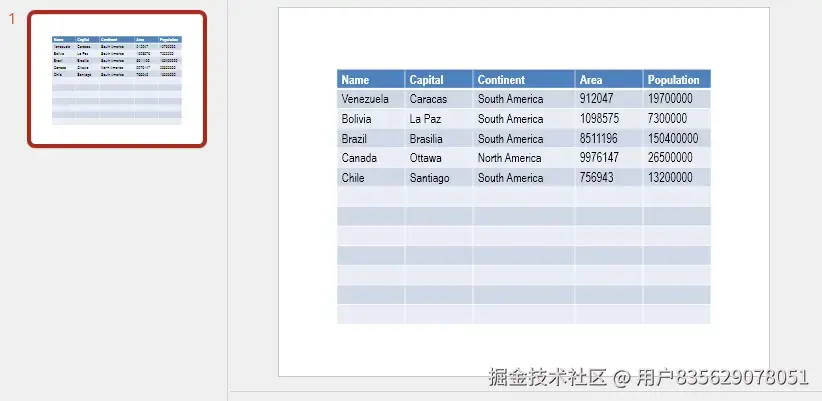
上述代码通过 AppendTable 方法在指定位置创建表格,该方法接受四个参数:左边距、上边距、列宽数组和行高数组。表格创建后,通过二维索引 [列, 行] 访问每个单元格,并使用 TextFrame.Text 属性设置单元格内容。
应用表格预设样式
Spire.Presentation 提供了多种预设表格样式,可以快速美化表格外观。预设样式包括不同的颜色主题和格式组合:
python
from spire.presentation.common import *
from spire.presentation import *

# 加载现有文档
ppt = Presentation()
ppt.LoadFromFile("CreateTable.pptx")

# 获取表格对象
table = None
for shape in ppt.Slides[0].Shapes:
    if isinstance(shape, ITable):
        table = shape
        break

if table is not None:
    # 应用预设样式
    table.StylePreset = TableStylePreset.MediumStyle1Accent2

    # 其他常用预设样式:
    # TableStylePreset.LightStyle3Accent1
    # TableStylePreset.DarkStyle1Accent2
    # TableStylePreset.MediumStyle2Accent3

# 保存文档
ppt.SaveToFile("StyledTable.pptx", FileFormat.Pptx2010)
ppt.Dispose()
结果文档:
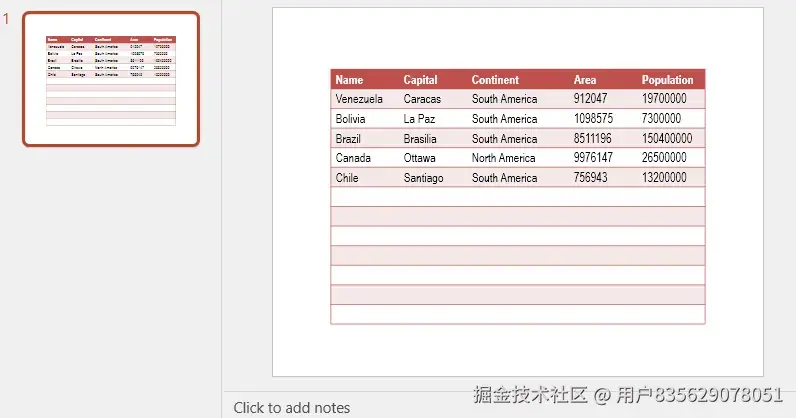
StylePreset 属性接受 TableStylePreset 枚举值,这些预设样式已经配置好了背景色、边框、字体颜色等属性。选择合适的预设样式可以快速实现专业的视觉效果。
自定义表格边框
除了使用预设样式,还可以精确控制表格边框的颜色、宽度和类型:
python
from spire.presentation.common import *
from spire.presentation import *

# 创建新文档
presentation = Presentation()

# 定义表格尺寸
tableWidth = [100, 100, 100, 100, 100]
tableHeight = [20, 20]

# 遍历所有边框类型并设置样式
for item in TableBorderType:
    # 在新幻灯片中添加表格
    itable = presentation.Slides.Append().Shapes.AppendTable(100, 100, tableWidth, tableHeight)

    # 添加示例文本
    itable.TableRows[0][0].TextFrame.Text = "Row"
    itable.TableRows[1][0].TextFrame.Text = "Column"

    # 设置边框:类型、宽度(磅)、颜色
    itable.SetTableBorder(item, 1.5, Color.get_Red())

# 保存文档
presentation.SaveToFile("CustomBorders.pptx", FileFormat.Pptx2013)
presentation.Dispose()
SetTableBorder 方法允许针对不同类型的边框(如内部横框、内部竖框、外边框等)分别设置样式。TableBorderType 枚举包含以下常用值:
InsideHorizontal:内部水平边框InsideVertical:内部垂直边框Top:顶部边框Bottom:底部边框Left:左边框Right:右边框
合并单元格
在处理复杂表格布局时,经常需要合并相邻单元格以创建标题行或分组区域:
python
from spire.presentation.common import *
from spire.presentation import *

# 加载文档
presentation = Presentation()
presentation.LoadFromFile("CreateTable.pptx")

# 获取表格
table = None
for shape in presentation.Slides[0].Shapes:
    if isinstance(shape, ITable):
        table = shape
        break

if table is not None:
    # 垂直合并:合并第一列的第2行和第3行
    table.MergeCells(table[0, 1], table[0, 2], False)

    # 水平合并:合并第5行的第4列和第5列
    table.MergeCells(table[3, 4], table[4, 4], True)

# 保存文档
presentation.SaveToFile("MergedCells.pptx", FileFormat.Pptx2010)
presentation.Dispose()
MergeCells 方法接受三个参数:起始单元格、结束单元格和合并方向标志。第三个参数为 True 时表示水平合并,False 表示垂直合并。合并后的单元格将保留起始单元格的内容和格式。
设置文本对齐方式
表格中文本的对齐方式直接影响可读性和美观度。可以同时设置水平和垂直对齐:
python
from spire.presentation.common import *
from spire.presentation import *

# 加载文档
presentation = Presentation()
presentation.LoadFromFile("CreateTable.pptx")

# 获取表格
table = None
for shape in presentation.Slides[0].Shapes:
    if isinstance(shape, ITable):
        table = shape
        break

if table is not None:
    # 水平对齐设置
    # 左对齐
    table[0, 1].TextFrame.Paragraphs[0].Alignment = TextAlignmentType.Left
    # 居中对齐
    table[0, 2].TextFrame.Paragraphs[0].Alignment = TextAlignmentType.Center
    # 右对齐
    table[0, 3].TextFrame.Paragraphs[0].Alignment = TextAlignmentType.Right
    # 两端对齐
    table[0, 4].TextFrame.Paragraphs[0].Alignment = TextAlignmentType.Justify

    # 垂直对齐设置
    # 顶部对齐
    table[1, 1].TextAnchorType = TextAnchorType.Top
    # 垂直居中
    table[1, 2].TextAnchorType = TextAnchorType.Center
    # 底部对齐
    table[1, 3].TextAnchorType = TextAnchorType.Bottom

    # 同时设置水平和垂直对齐
    table[2, 1].TextFrame.Paragraphs[0].Alignment = TextAlignmentType.Left
    table[2, 1].TextAnchorType = TextAnchorType.Top

# 保存文档
presentation.SaveToFile("AlignedTable.pptx", FileFormat.Pptx2010)
presentation.Dispose()
水平对齐通过 TextFrame.Paragraphs[0].Alignment 属性设置,接受 TextAlignmentType 枚举值。垂直对齐通过 TextAnchorType 属性设置,控制文本在单元格垂直方向的定位。
功能演示
综合示例:创建完整格式的表格
将上述功能组合使用,可以创建具有专业外观的完整表格:
python
from spire.presentation.common import *
from spire.presentation import *
import math

# 创建文档
presentation = Presentation()

# 定义表格结构
widths = [120, 100, 100, 100]
heights = [20, 18, 18, 18, 18]

# 添加表格
left = math.trunc(presentation.SlideSize.Size.Width / 2) - 210
table = presentation.Slides[0].Shapes.AppendTable(left, 80, widths, heights)

# 填充数据
headers = ["产品", "Q1", "Q2", "Q3"]
products = [
    ["产品A", "150", "180", "210"],
    ["产品B", "120", "140", "160"],
    ["产品C", "90", "110", "130"]
]

# 设置表头
for j in range(len(headers)):
    table[j, 0].TextFrame.Text = headers[j]
    table[j, 0].TextFrame.Paragraphs[0].Alignment = TextAlignmentType.Center
    table[j, 0].TextFrame.Paragraphs[0].TextRanges[0].Fill.FillType = FillFormatType.Solid
    table[j, 0].TextFrame.Paragraphs[0].TextRanges[0].Fill.SolidColor.Color = Color.get_White()

# 设置数据行
for i in range(len(products)):
    for j in range(len(products[i])):
        table[j, i + 1].TextFrame.Text = products[i][j]
        if j == 0:
            table[j, i + 1].TextFrame.Paragraphs[0].Alignment = TextAlignmentType.Left
        else:
            table[j, i + 1].TextFrame.Paragraphs[0].Alignment = TextAlignmentType.Center

# 应用样式
table.StylePreset = TableStylePreset.MediumStyle2Accent3

# 设置边框
table.SetTableBorder(TableBorderType.InsideHorizontal, 0.5, Color.get_Gray())
table.SetTableBorder(TableBorderType.InsideVertical, 0.5, Color.get_Gray())
table.SetTableBorder(TableBorderType.Top, 1.5, Color.get_DarkBlue())
table.SetTableBorder(TableBorderType.Bottom, 1.5, Color.get_DarkBlue())

# 保存文档
presentation.SaveToFile("CompleteTable.pptx", FileFormat.Pptx2010)
presentation.Dispose()
此示例综合运用了数据填充、样式应用、边框设置和对齐控制,生成了一个具有清晰层次结构的销售数据表格。表头使用白色字体突出显示,数据按类别左对齐、数值居中对齐,整体采用中等强度的强调色主题。
实用技巧
调整行高和列宽
创建表格后,可以根据内容动态调整单元格尺寸:
python
# 设置特定行的行高
table.TableRows[0].Height = 25

# 设置特定列的列宽
table.ColumnsList[0].Width = 150

# 批量设置所有行高
for row in table.TableRows:
    row.Height = 20
填充单元格背景色
可以为特定行或单元格设置背景色以突出重要信息:
python
# 为整行设置背景色
for cell in table.TableRows[1]:
    cell.Fill.FillType = FillFormatType.Solid
    cell.Fill.SolidColor.Color = Color.get_LightYellow()

# 为单个单元格设置背景色
table[0, 2].Fill.FillType = FillFormatType.Solid
table[0, 2].Fill.SolidColor.Color = Color.get_LightGreen()
识别合并单元格
在处理现有表格时,可能需要检测哪些单元格已被合并:
python
# 遍历所有单元格,识别合并状态
for i in range(table.ColumnsList.Count):
    for j in range(table.TableRows.Count):
        cell = table[i, j]
        if cell.IsMergedCell:
            print(f"单元格 [{i}, {j}] 是合并单元格")
总结
本文介绍了使用 Python 在 PowerPoint 中创建和格式化表格的完整流程,涵盖了从基础的数据填充到高级的样式定制。通过 Spire.Presentation 库,可以灵活控制表格的各个方面:
- 使用
AppendTable方法创建表格并定义尺寸 - 通过
StylePreset快速应用预设样式 - 使用
SetTableBorder精确控制边框样式 - 通过
MergeCells实现复杂的单元格布局 - 利用
Alignment和TextAnchorType优化文本排版
这些技术可以应用于自动化报表生成、批量演示文稿制作和数据可视化场景。结合其他 PowerPoint 自动化功能,如形状、图表和 SmartArt,可以构建更加丰富和专业的演示内容。