【键盘测试】05-WPF 可视化键盘布局配置 + 全局钩子按键检测实战
系列:《WPF 产线功能测试实战》第五篇
关键词:WPF 键盘测试、全局键盘钩子、ScanCode、Windows消息机制、组合键检测、产线测试
第一章:前言与应用场景
在笔记本电脑产线测试中,键盘测试是必不可少的一环。由于不同尺寸机型的按键数量差异显著(14寸通用键盘 vs 16寸带数字小键盘),同一套测试程序必须支持灵活配置------你无法为每款机型都写死一套按键列表。
更棘手的是,有些按键根本无法被标准系统 API 捕获:FN 功能键不上报给操作系统、ScreenXpert 等厂商定制键只走私有 Windows 消息通道、媒体热键只有 ScanCode 可靠......
本文介绍一套完整的 WPF 键盘测试方案:通过可视化配置界面,支持14/16寸预设模板、普通按键监听添加、ScanCode/Windows消息/组合键三种特殊键检测方式、可视化拖放排列,配置完成后一键进入测试,所有按键按下抬起即自动判定通过。
第二章:基础概念科普
在深入代码之前,先把几个容易混淆的概念说清楚。
2.1 三种按键捕获方式,各有适用场景
VirtualKey(虚拟键码) :Windows 定义的逻辑按键编号,WPF 的 Key 枚举就是对它的封装。大多数按键(字母、数字、方向键)都有对应的 VirtualKey,通过 KeyDown 事件即可获取。局限在于:FN 键、某些媒体键、厂商定制键没有 VirtualKey 定义。
ScanCode(扫描码) :硬件键盘发出的原始信号,在 VirtualKey 映射之前就存在。每个物理键位都有唯一的 ScanCode,即使 VirtualKey 相同(如小键盘的 1 和主键盘的 1),ScanCode 也不同。通过底层的 WH_KEYBOARD_LL 全局钩子可以拿到 ScanCode。
Windows 消息(WM_xxx) :某些特殊功能键(如 ScreenXpert 键)不走标准键盘通道,而是通过 SendMessage/PostMessage 发送私有 Windows 消息到特定窗口。检测这类按键需要重写窗口的 WndProc,监听特定的 msg + wParam 组合。
组合键(ComboKey):本质上是多个普通键同时按下的判断。比如 FN+F5 这样的组合,系统不上报 FN,但可以通过维护"当前已按下键集合",检测到目标键集合全部在其中时触发。
2.2 全局钩子 vs 窗口事件
WPF 的 PreviewKeyDown 只能捕获焦点在当前窗口时的事件。全局键盘钩子(WH_KEYBOARD_LL)通过 P/Invoke 调用 SetWindowsHookEx,能捕获系统范围内的所有键盘事件,无论焦点在哪------这在产线测试场景下尤为重要(测试窗口不一定始终获焦)。
第三章:方案设计与架构
3.1 整体流程
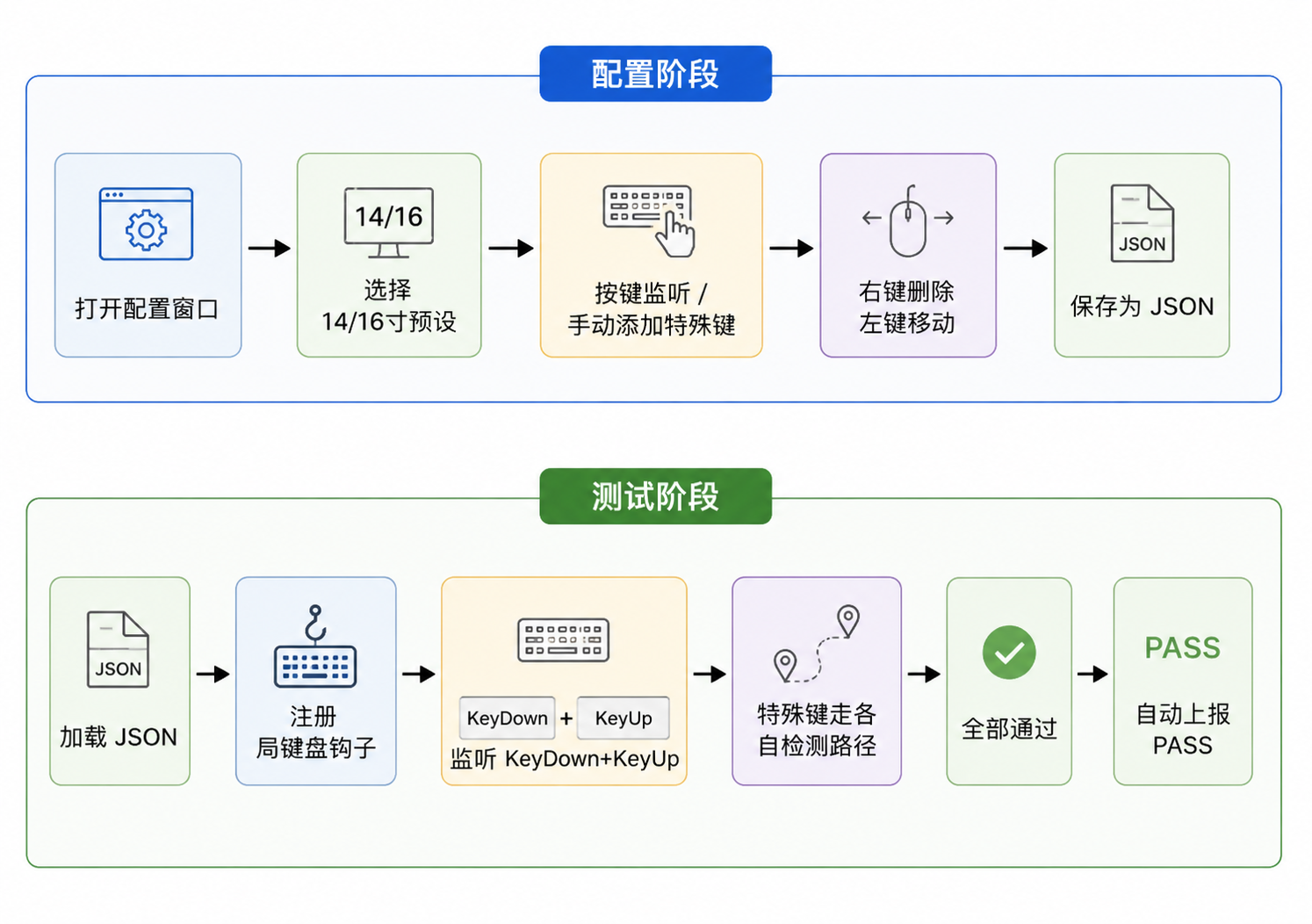
3.2 核心数据模型
KeyInfoPro(按键模型)
├── DisplayName     显示名称(如 "ESC"、"SXpert")
├── Key             WPF Key 枚举(特殊键为 Key.None)
├── KeyType         Normal / Special / Empty(占位格)
├── DetectMethod    ScanCode / WindowsMessage / ComboKey
├── ScanCode        硬件扫描码(十六进制)
├── WindowsMessageCode + MessageWParam   Windows 消息参数
├── ComboKeys       List<Key>,组合键按键列表
└── Row/Column/RowSpan/ColumnSpan  在 Grid 中的位置
3.3 MVVM 分工
| 层 | 职责 |
|---|---|
KeyInfoPro(Model) |
按键数据 + 测试状态(IsKeyDownDetected、IsPassed 等) |
MainVM(ViewModel) |
启动测试、处理钩子事件、判定全部通过 |
KeyboardConfigWindow(View) |
可视化配置界面,保存 JSON |
KeyboardHookPro(Utils) |
封装 Win32 全局钩子,对外暴露 KeyEvent 事件 |
第四章:核心代码详解
4.1 全局键盘钩子(KeyboardHookPro)
这是整个方案的感知层,同时用于配置阶段捕获按键 和测试阶段检测按键。
csharp
public class KeyboardHookPro : IDisposable
{
    private const int WH_KEYBOARD_LL = 13;    // 低级键盘钩子类型
    private const int WM_KEYDOWN    = 0x0100;
    private const int WM_KEYUP      = 0x0101;
    private const int WM_SYSKEYDOWN = 0x0104; // Alt 组合键走这个消息
    private const int WM_SYSKEYUP   = 0x0105;

    [StructLayout(LayoutKind.Sequential)]
    public class KBDLLHOOKSTRUCT
    {
        public int vkCode;    // 虚拟键码
        public int scanCode;  // 硬件扫描码 ← 特殊键检测的关键
        public int flags;
        public int time;
        public int dwExtraInfo;
    }

    private IntPtr HookCallback(int nCode, IntPtr wParam, IntPtr lParam)
    {
        if (nCode >= 0)
        {
            bool isKeyDown = (wParam.ToInt32() == WM_KEYDOWN || wParam.ToInt32() == WM_SYSKEYDOWN);
            bool isKeyUp   = (wParam.ToInt32() == WM_KEYUP   || wParam.ToInt32() == WM_SYSKEYUP);

            if (isKeyDown || isKeyUp)
            {
                var hookStruct = (KBDLLHOOKSTRUCT)Marshal.PtrToStructure(lParam, typeof(KBDLLHOOKSTRUCT));
                Key key = KeyInterop.KeyFromVirtualKey(hookStruct.vkCode);
                KeyEvent?.Invoke(this, new KeyboardHookEventArgs
                {
                    Key      = key,
                    VkCode   = hookStruct.vkCode,
                    ScanCode = hookStruct.scanCode,  // 直接透传给上层
                    IsKeyUp  = isKeyUp
                });
            }
        }
        return (IntPtr)1; // 返回非零值,阻止按键消息继续传播
    }
}
关键点 :钩子回调里将
scanCode原始透传给上层,上层再与配置的 ScanCode 比对------这就是为什么能检测到那些没有 VirtualKey 的按键。
4.2 配置界面:三种特殊键检测方式
配置窗口 KeyboardConfigWindow 是本文的核心亮点,支持三种特殊键检测方式,通过下拉框切换不同的输入面板:
csharp
private void CmbDetectMethod_SelectionChanged(object sender, SelectionChangedEventArgs e)
{
    var selected = (CmbDetectMethod.SelectedItem as ComboBoxItem)?.Content?.ToString();
    // 根据选择动态显示对应的输入区域
    PanelScanCode.Visibility = selected == "ScanCode"       ? Visibility.Visible : Visibility.Collapsed;
    PanelWinMsg.Visibility   = selected == "WindowsMessage" ? Visibility.Visible : Visibility.Collapsed;
    PanelComboKey.Visibility = selected == "ComboKey"       ? Visibility.Visible : Visibility.Collapsed;
}添加特殊键的核心逻辑(三分支处理):
csharp
private void BtnAddSpecialKey_Click(object sender, RoutedEventArgs e)
{
    var keyInfo = new KeyInfoPro { DisplayName = TxtSpecialName.Text.Trim(), Key = Key.None, KeyType = KeyType.Special };

    var selectedMethod = (CmbDetectMethod.SelectedItem as ComboBoxItem)?.Content?.ToString();

    if (selectedMethod == "ScanCode")
    {
        // 分支1:ScanCode 检测 ------ 输入十六进制扫描码,如 "64" 代表 F5
        keyInfo.DetectMethod = SpecialKeyDetectMethod.ScanCode;
        if (int.TryParse(TxtScanCode.Text.Trim(), NumberStyles.HexNumber,
            CultureInfo.InvariantCulture, out int scanCode))
            keyInfo.ScanCode = scanCode;
    }
    else if (selectedMethod == "WindowsMessage")
    {
        // 分支2:Windows 消息检测 ------ 输入 NotifyCode(wParam),如 "5F" 代表 ScreenXpert 键
        keyInfo.DetectMethod = SpecialKeyDetectMethod.WindowsMessage;
        if (int.TryParse(TxtWParam.Text.Trim(), NumberStyles.HexNumber,
            CultureInfo.InvariantCulture, out int wParam))
            keyInfo.MessageWParam = wParam;
    }
    else if (selectedMethod == "ComboKey")
    {
        // 分支3:组合键 ------ 先点「捕获」按住组合键,松开后自动识别
        if (_capturedComboKeys == null || _capturedComboKeys.Count < 2)
        { MessageBox.Show("请先捕获至少2个按键的组合键"); return; }
        keyInfo.DetectMethod = SpecialKeyDetectMethod.ComboKey;
        keyInfo.ComboKeys    = _capturedComboKeys.ToList();
    }

    ConfiguredKeys.Add(keyInfo);
}组合键捕获:点击「捕获组合键」按钮后,系统进入捕获模式,实时收集所有 KeyDown 事件,直到第一个按键抬起时结束捕获:
csharp
private void OnHookKeyEvent(object sender, KeyboardHookEventArgs e)
{
    if (_isCapturingCombo)
    {
        this.Dispatcher.BeginInvoke(new Action(() =>
        {
            if (!e.IsKeyUp)
            {
                if (!_capturedComboKeys.Contains(e.Key)) _capturedComboKeys.Add(e.Key);
                // 实时更新显示:"捕获中: L_Ctrl + F5"
                TxtComboDisplay.Text = "捕获中: " + string.Join(" + ",
                    _capturedComboKeys.Select(k => GetFriendlyKeyName(k)));
            }
            else
            {
                _isCapturingCombo = false;  // 松键即完成
                TxtComboDisplay.Text = "已捕获: " + string.Join(" + ",
                    _capturedComboKeys.Select(k => GetFriendlyKeyName(k)));
                TxtComboDisplay.Foreground = new SolidColorBrush(Colors.LimeGreen);
            }
        }));
        return;
    }
    // ... 普通键监听逻辑
}
4.3 按键位置管理:移动与删除
配置界面使用 WPF Grid 的 6×20 网格展示按键,空白格用 KeyType.Empty 占位。左键点击实现"选中→点击空白格→移动",右键弹确认对话框删除:
csharp
private void KeyPreview_LeftClick(object sender, MouseButtonEventArgs e)
{
    var clickedKey = (fe.DataContext as KeyInfoPro);

    if (clickedKey.KeyType == KeyType.Empty)
    {
        // 点击空白格 → 将已选中的按键移动过来
        if (_selectedKeyForMove != null)
            MoveSpecialKeyToEmptyCell(_selectedKeyForMove, clickedKey);
        return;
    }

    if (!clickedKey.IsFixed)
    {
        // 非固定键(特殊键、手动添加的键)可以被选中
        _selectedKeyForMove = clickedKey;
        clickedKey.IsSelectedForMove = true;  // UI 高亮显示蓝色边框
    }
}

private void MoveSpecialKeyToEmptyCell(KeyInfoPro key, KeyInfoPro emptyCell)
{
    int targetRow = emptyCell.Row, targetCol = emptyCell.Column;
    int oldRow = key.Row,         oldCol    = key.Column;

    ConfiguredKeys.Remove(emptyCell);
    ConfiguredKeys.Remove(key);

    key.Row = targetRow; key.Column = targetCol;

    // 原位置变成新的空白格
    ConfiguredKeys.Add(new KeyInfoPro { KeyType = KeyType.Empty, Row = oldRow, Column = oldCol });
    ConfiguredKeys.Add(key);
}
4.4 测试阶段:三路检测分发
测试开始后,所有按键事件统一进入 OnKeyEvent,按优先级依次匹配:
csharp
private void OnKeyEvent(object sender, KeyboardHookEventArgs e)
{
    Application.Current.Dispatcher.Invoke(() =>
    {
        // ① ScanCode 优先匹配(不受输入法影响,最可靠)
        var scanCodeMatch = KeyboardKeys.FirstOrDefault(k =>
            k.KeyType == KeyType.Special &&
            k.DetectMethod == SpecialKeyDetectMethod.ScanCode &&
            k.ScanCode == e.ScanCode && !k.IsSpecialDetected);

        if (scanCodeMatch != null) { scanCodeMatch.IsSpecialDetected = true; CheckAllKeysPassed(); return; }

        // ② 组合键检测(维护当前按下键集合)
        if (!e.IsKeyUp)
        {
            _currentlyPressedKeys.Add(e.Key);
            foreach (var comboKey in KeyboardKeys.Where(k =>
                k.KeyType == KeyType.Special &&
                k.DetectMethod == SpecialKeyDetectMethod.ComboKey &&
                !k.IsSpecialDetected))
            {
                if (comboKey.ComboKeys.All(ck => _currentlyPressedKeys.Contains(ck)))
                {
                    comboKey.IsSpecialDetected = true;
                    // 回滚组合键中已单独检测的普通键 KeyDown 状态
                    foreach (var ck in comboKey.ComboKeys) _comboConsumedKeys.Add(ck);
                    CheckAllKeysPassed(); return;
                }
            }
        }

        // ③ 普通键:需要同时检测 KeyDown + KeyUp 才算通过
        var normalKey = KeyboardKeys.FirstOrDefault(k => k.KeyType == KeyType.Normal && k.Key == e.Key);
        if (normalKey != null)
        {
            if (!e.IsKeyUp && !normalKey.IsKeyDownDetected) normalKey.IsKeyDownDetected = true;
            else if (e.IsKeyUp && normalKey.IsKeyDownDetected) normalKey.IsKeyUpDetected = true;
            CheckAllKeysPassed();
        }
    });
}
4.5 FN 键的特殊处理
FN 键不上报给操作系统,全局钩子永远捕获不到它。解决思路:检测到 F1~F12 任意一个功能键被按下时,自动将 FN 标记为已通过:
csharp
private bool IsFunctionKey(Key key) => key >= Key.F1 && key <= Key.F12;

private void MarkFnKeyAsPressed()
{
    var fnKey = KeyboardKeys.FirstOrDefault(k =>
        k.Key == Key.None && k.DisplayName == "FN" && k.KeyType == KeyType.Normal);
    if (fnKey != null && !fnKey.IsKeyDownDetected)
    {
        fnKey.IsKeyDownDetected = true;
        fnKey.IsKeyUpDetected   = true; // FN 无 KeyUp,直接标记通过
    }
}
4.6 按键颜色实时反馈
KeyInfoPro.UpdateBackground() 根据状态自动更新背景色,绑定到 UI:
| 状态 | 颜色 |
|---|---|
| 未按下 | 深灰 #2D2D2D |
| 仅 KeyDown | 橙色 Orange |
| KeyDown + KeyUp | 绿色 LimeGreen |
| 特殊键已检测 | 绿色 LimeGreen |
第五章:完整可运行 Demo
本 Demo 是上述方案的完整迷你实现,含配置界面 (监听按键、保存 JSON)和测试界面(加载 JSON、检测按下/抬起),两个页面通过 TabControl 切换------这正是实际产测工具的缩小版。
使用步骤:
- 在「配置」页开启监听,直接按 C、D、E 等按键添加,右键可删除,点「保存配置」
- 切换到「测试」页,点「加载配置并开始测试」,依次按下并抬起所有按键
- 全部变绿 → 自动弹出通过
Demo 结构
KeyboardTestDemo/
├── App.xaml + App.xaml.cs
├── MainWindow.xaml          ← 主窗口(TabControl:⚙配置 / ▶测试)
├── MainWindow.xaml.cs       ← 配置/测试全部逻辑
├── Models/
│   └── KeyInfo.cs           ← 按键数据模型(含颜色状态)
└── Utils/
    └── KeyboardHook.cs      ← 全局钩子(P/Invoke WH_KEYBOARD_LL)
依赖 :NuGet 安装
Newtonsoft.Json,目标框架 .NET Framework 4.8 + WPF
Models/KeyInfo.cs ------ 按键数据模型
csharp
using Newtonsoft.Json;
using System.ComponentModel;
using System.Windows.Input;
using System.Windows.Media;

namespace KeyboardTestDemo.Models
{
    // 仅普通键,Demo 不含 Special/ComboKey 配置(那是第四章的进阶功能)
    public class KeyInfo : INotifyPropertyChanged
    {
        // ── 持久化字段(写入 JSON)──
        public string DisplayName { get; set; }
        public Key Key { get; set; }

        // ── 运行时状态(不写入 JSON)──
        private bool _keyDown;
        [JsonIgnore]
        public bool IsKeyDownDetected
        {
            get => _keyDown;
            set { _keyDown = value; Notify(nameof(IsKeyDownDetected)); RefreshBg(); }
        }

        private bool _keyUp;
        [JsonIgnore]
        public bool IsKeyUpDetected
        {
            get => _keyUp;
            set { _keyUp = value; Notify(nameof(IsKeyUpDetected)); RefreshBg(); }
        }

        private SolidColorBrush _bg = new SolidColorBrush(Color.FromRgb(0x2D, 0x2D, 0x2D));
        [JsonIgnore]
        public SolidColorBrush Background
        {
            get => _bg;
            private set { _bg = value; Notify(nameof(Background)); }
        }

        [JsonIgnore]
        public bool IsPassed => IsKeyDownDetected && IsKeyUpDetected;

        public void Reset() { IsKeyDownDetected = false; IsKeyUpDetected = false; }

        private void RefreshBg()
        {
            if (IsKeyDownDetected && IsKeyUpDetected)
                Background = new SolidColorBrush(Colors.LimeGreen);   // 通过:绿色
            else if (IsKeyDownDetected)
                Background = new SolidColorBrush(Colors.Orange);       // 仅按下:橙色
            else
                Background = new SolidColorBrush(Color.FromRgb(0x2D, 0x2D, 0x2D)); // 未测试:深灰
        }

        public event PropertyChangedEventHandler PropertyChanged;
        private void Notify(string p) => PropertyChanged?.Invoke(this, new PropertyChangedEventArgs(p));
    }
}
Utils/KeyboardHook.cs ------ 全局键盘钩子
csharp
using System;
using System.Diagnostics;
using System.Runtime.InteropServices;
using System.Windows.Input;

namespace KeyboardTestDemo.Utils
{
    public class KeyHookEventArgs : EventArgs
    {
        public Key Key { get; set; }
        public int ScanCode { get; set; }
        public bool IsKeyUp { get; set; }
    }

    public class KeyboardHook : IDisposable
    {
        private const int WH_KEYBOARD_LL = 13;
        private const int WM_KEYDOWN = 0x0100, WM_KEYUP = 0x0101;
        private const int WM_SYSKEYDOWN = 0x0104, WM_SYSKEYUP = 0x0105;

        public event EventHandler<KeyHookEventArgs> KeyEvent;
        private IntPtr _hookId = IntPtr.Zero;
        private LowLevelKeyboardProc _proc;

        [StructLayout(LayoutKind.Sequential)]
        private class KBDLLHOOKSTRUCT { public int vkCode, scanCode, flags, time, dwExtraInfo; }
        private delegate IntPtr LowLevelKeyboardProc(int nCode, IntPtr wParam, IntPtr lParam);

        public KeyboardHook() { _proc = HookCallback; }

        public void Start()
        {
            using (var p = Process.GetCurrentProcess())
            using (var m = p.MainModule)
                _hookId = SetWindowsHookEx(WH_KEYBOARD_LL, _proc, GetModuleHandle(m.ModuleName), 0);
        }

        public void Stop()
        {
            if (_hookId != IntPtr.Zero) { UnhookWindowsHookEx(_hookId); _hookId = IntPtr.Zero; }
        }

        private IntPtr HookCallback(int nCode, IntPtr wParam, IntPtr lParam)
        {
            if (nCode >= 0)
            {
                int msg = wParam.ToInt32();
                bool down = (msg == WM_KEYDOWN || msg == WM_SYSKEYDOWN);
                bool up   = (msg == WM_KEYUP   || msg == WM_SYSKEYUP);
                if (down || up)
                {
                    var s = (KBDLLHOOKSTRUCT)Marshal.PtrToStructure(lParam, typeof(KBDLLHOOKSTRUCT));
                    KeyEvent?.Invoke(this, new KeyHookEventArgs
                    {
                        Key      = KeyInterop.KeyFromVirtualKey(s.vkCode),
                        ScanCode = s.scanCode,
                        IsKeyUp  = up
                    });
                }
            }
            return (IntPtr)1;
        }

        [DllImport("user32.dll")] static extern IntPtr SetWindowsHookEx(int id, LowLevelKeyboardProc fn, IntPtr hMod, uint threadId);
        [DllImport("user32.dll")] static extern bool UnhookWindowsHookEx(IntPtr hhk);
        [DllImport("kernel32.dll")] static extern IntPtr GetModuleHandle(string name);
        public void Dispose() => Stop();
    }
}
MainWindow.xaml ------ 双 Tab 主窗口
xml
<Window x:Class="KeyboardTestDemo.MainWindow"
        xmlns="http://schemas.microsoft.com/winfx/2006/xaml/presentation"
        xmlns:x="http://schemas.microsoft.com/winfx/2006/xaml"
        Title="键盘测试 Demo" Height="520" Width="780"
        Background="#FF1E2540" Closed="Window_Closed">
    <TabControl Margin="10" Background="#FF1E2540" BorderBrush="#FF3A4A6B"
                SelectionChanged="TabControl_SelectionChanged">

        <!-- ===== Tab 1:配置 ===== -->
        <TabItem Header="⚙  配置键盘布局" Foreground="White" Background="#FF252B47">
            <Grid Margin="12">
                <Grid.RowDefinitions>
                    <RowDefinition Height="Auto"/>
                    <RowDefinition Height="*"/>
                    <RowDefinition Height="Auto"/>
                </Grid.RowDefinitions>

                <!-- 工具栏 -->
                <StackPanel Orientation="Horizontal" Margin="0,0,0,8">
                    <ToggleButton x:Name="TglListen" Content="开启按键监听"
                                  Checked="TglListen_Checked" Unchecked="TglListen_Unchecked"
                                  Padding="12,6" Background="#FF4CAF50" Foreground="White" Margin="0,0,10,0"/>
                    <TextBlock x:Name="TxtListenStatus" Text="(未监听)"
                               Foreground="#FF8899BB" VerticalAlignment="Center" Margin="0,0,20,0"/>
                    <TextBlock Text="开启后直接按键添加 | 右键点击按键可删除"
                               Foreground="#FF64B5F6" VerticalAlignment="Center" FontStyle="Italic"/>
                </StackPanel>

                <!-- 按键预览区 -->
                <Border Grid.Row="1" Background="#FF252B47" CornerRadius="8" Padding="10">
                    <ScrollViewer VerticalScrollBarVisibility="Auto">
                        <ItemsControl x:Name="ConfigKeyList">
                            <ItemsControl.ItemsPanel>
                                <ItemsPanelTemplate><WrapPanel/></ItemsPanelTemplate>
                            </ItemsControl.ItemsPanel>
                            <ItemsControl.ItemTemplate>
                                <DataTemplate>
                                    <Border Margin="4" Padding="12,6" CornerRadius="5" Cursor="Hand"
                                            BorderBrush="#CCFFFFFF" BorderThickness="0.5"
                                            MouseRightButtonDown="ConfigKey_RightClick">
                                        <Border.Style>
                                            <Style TargetType="Border">
                                                <Setter Property="Background" Value="#FF2D3152"/>
                                                <Style.Triggers>
                                                    <Trigger Property="IsMouseOver" Value="True">
                                                        <Setter Property="Background" Value="#FFFF4444"/>
                                                    </Trigger>
                                                </Style.Triggers>
                                            </Style>
                                        </Border.Style>
                                        <TextBlock Text="{Binding DisplayName}" Foreground="White" FontSize="14"/>
                                    </Border>
                                </DataTemplate>
                            </ItemsControl.ItemTemplate>
                        </ItemsControl>
                    </ScrollViewer>
                </Border>

                <!-- 底部按钮 -->
                <StackPanel Grid.Row="2" Orientation="Horizontal"
                            HorizontalAlignment="Right" Margin="0,10,0,0">
                    <TextBlock x:Name="TxtSavePath" Foreground="#FF8899BB"
                               VerticalAlignment="Center" Margin="0,0,15,0" FontSize="11"/>
                    <Button Content="清空所有" Click="BtnClear_Click"
                            Padding="12,6" Background="#FFF44336" Foreground="White" Margin="0,0,10,0"/>
                    <Button Content="保存配置" Click="BtnSave_Click"
                            Padding="12,6" Background="#FF2196F3" Foreground="White"/>
                </StackPanel>
            </Grid>
        </TabItem>

        <!-- ===== Tab 2:测试 ===== -->
        <TabItem Header="▶  执行测试" Foreground="White" Background="#FF252B47">
            <Grid Margin="12">
                <Grid.RowDefinitions>
                    <RowDefinition Height="Auto"/>
                    <RowDefinition Height="Auto"/>
                    <RowDefinition Height="*"/>
                    <RowDefinition Height="Auto"/>
                </Grid.RowDefinitions>

                <!-- 状态提示 -->
                <TextBlock x:Name="TxtTestStatus" Grid.Row="0" FontSize="16" Foreground="DodgerBlue"
                           Text="点击下方按钮加载配置,然后依次按下所有按键" Margin="0,0,0,10"/>

                <!-- 启动按钮 -->
                <Button Grid.Row="1" x:Name="BtnStartTest" Content="加载配置并开始测试"
                        Click="BtnStartTest_Click" HorizontalAlignment="Left"
                        Padding="15,8" Background="#FF9C27B0" Foreground="White" Margin="0,0,0,10"/>

                <!-- 按键色块区 -->
                <Border Grid.Row="2" Background="#FF252B47" CornerRadius="8" Padding="10">
                    <ScrollViewer VerticalScrollBarVisibility="Auto">
                        <ItemsControl x:Name="TestKeyList">
                            <ItemsControl.ItemsPanel>
                                <ItemsPanelTemplate><WrapPanel/></ItemsPanelTemplate>
                            </ItemsControl.ItemsPanel>
                            <ItemsControl.ItemTemplate>
                                <DataTemplate>
                                    <Border Margin="4" Padding="14,8" CornerRadius="5" MinWidth="55"
                                            Background="{Binding Background}">
                                        <TextBlock Text="{Binding DisplayName}" Foreground="White"
                                                   FontSize="14" HorizontalAlignment="Center"/>
                                    </Border>
                                </DataTemplate>
                            </ItemsControl.ItemTemplate>
                        </ItemsControl>
                    </ScrollViewer>
                </Border>

                <!-- 手动按钮 -->
                <StackPanel Grid.Row="3" Orientation="Horizontal"
                            HorizontalAlignment="Right" Margin="0,10,0,0">
                    <Button Content="手动通过" Click="BtnManualPass_Click"
                            Padding="12,6" Background="#FF4CAF50" Foreground="White" Margin="0,0,10,0"/>
                    <Button Content="手动失败" Click="BtnManualFail_Click"
                            Padding="12,6" Background="#FFF44336" Foreground="White"/>
                </StackPanel>
            </Grid>
        </TabItem>
    </TabControl>
</Window>
MainWindow.xaml.cs ------ 配置 + 测试全部逻辑
csharp
using KeyboardTestDemo.Models;
using KeyboardTestDemo.Utils;
using Newtonsoft.Json;
using System;
using System.Collections.Generic;
using System.Collections.ObjectModel;
using System.IO;
using System.Linq;
using System.Windows;
using System.Windows.Controls;
using System.Windows.Input;
using System.Windows.Media;

namespace KeyboardTestDemo
{
    public partial class MainWindow : Window
    {
        // 配置页:已配置按键
        private readonly ObservableCollection<KeyInfo> _configKeys = new ObservableCollection<KeyInfo>();
        // 测试页:测试中的按键(从配置加载后重置状态)
        private readonly ObservableCollection<KeyInfo> _testKeys = new ObservableCollection<KeyInfo>();

        private KeyboardHook _hook;
        private bool _isTestRunning;

        // JSON 保存在 exe 同目录
        private static readonly string ConfigPath =
            Path.Combine(AppDomain.CurrentDomain.BaseDirectory, "keyboard_config.json");

        // 用于 JSON 序列化/反序列化的简单 DTO
        private class SavedKey { public string DisplayName { get; set; } public string KeyEnum { get; set; } }

        public MainWindow()
        {
            InitializeComponent();
            ConfigKeyList.ItemsSource = _configKeys;
            TestKeyList.ItemsSource   = _testKeys;
            TxtSavePath.Text = $"配置路径:{ConfigPath}";
        }

        // ─────────────────────────────────────────────
        // 配置 Tab
        // ─────────────────────────────────────────────

        private void TglListen_Checked(object sender, RoutedEventArgs e)
        {
            StopHook();
            _hook = new KeyboardHook();
            _hook.KeyEvent += OnConfigKeyEvent;
            _hook.Start();
            TxtListenStatus.Text       = "监听中... 直接按键盘上的按键即可添加!";
            TxtListenStatus.Foreground = new SolidColorBrush(Colors.LimeGreen);
        }

        private void TglListen_Unchecked(object sender, RoutedEventArgs e)
        {
            StopHook();
            TxtListenStatus.Text       = "(监听已关闭)";
            TxtListenStatus.Foreground = new SolidColorBrush(Color.FromRgb(0x88, 0x99, 0xBB));
        }

        private void OnConfigKeyEvent(object sender, KeyHookEventArgs e)
        {
            if (e.IsKeyUp) return;  // 只处理 KeyDown

            Dispatcher.Invoke(() =>
            {
                if (e.Key == Key.None) return;
                // 不重复添加同一个按键
                if (_configKeys.Any(k => k.Key == e.Key)) return;

                _configKeys.Add(new KeyInfo
                {
                    DisplayName = GetFriendlyName(e.Key),
                    Key         = e.Key
                });
            });
        }

        private void ConfigKey_RightClick(object sender, System.Windows.Input.MouseButtonEventArgs e)
        {
            if (sender is FrameworkElement fe && fe.DataContext is KeyInfo key)
            {
                if (MessageBox.Show($"删除按键 [{key.DisplayName}]?", "确认",
                        MessageBoxButton.YesNo) == MessageBoxResult.Yes)
                    _configKeys.Remove(key);
            }
        }

        private void BtnClear_Click(object sender, RoutedEventArgs e) => _configKeys.Clear();

        private void BtnSave_Click(object sender, RoutedEventArgs e)
        {
            if (_configKeys.Count == 0) { MessageBox.Show("至少需要配置一个按键!"); return; }

            var data = _configKeys
                .Select(k => new SavedKey { DisplayName = k.DisplayName, KeyEnum = k.Key.ToString() })
                .ToList();
            File.WriteAllText(ConfigPath, JsonConvert.SerializeObject(data, Formatting.Indented));
            MessageBox.Show($"已保存 {_configKeys.Count} 个按键。\n文件:{ConfigPath}", "保存成功");
        }

        // ─────────────────────────────────────────────
        // 测试 Tab
        // ─────────────────────────────────────────────

        private void BtnStartTest_Click(object sender, RoutedEventArgs e)
        {
            if (!File.Exists(ConfigPath))
            {
                MessageBox.Show("找不到配置文件,请先在「配置」页保存!", "提示");
                return;
            }

            try
            {
                var saved = JsonConvert.DeserializeObject<List<SavedKey>>(File.ReadAllText(ConfigPath));
                _testKeys.Clear();

                foreach (var item in saved)
                {
                    if (Enum.TryParse<Key>(item.KeyEnum, out Key key))
                        _testKeys.Add(new KeyInfo { DisplayName = item.DisplayName, Key = key });
                }

                if (_testKeys.Count == 0) { MessageBox.Show("配置文件中无有效按键!"); return; }
            }
            catch (Exception ex) { MessageBox.Show($"加载失败:{ex.Message}"); return; }

            // 启动测试钩子
            StopHook();
            _isTestRunning = true;
            _hook = new KeyboardHook();
            _hook.KeyEvent += OnTestKeyEvent;
            _hook.Start();

            TxtTestStatus.Text       = $"请依次按下并抬起全部 {_testKeys.Count} 个按键";
            TxtTestStatus.Foreground = new SolidColorBrush(Colors.DodgerBlue);
            BtnStartTest.IsEnabled   = false;
        }

        private void OnTestKeyEvent(object sender, KeyHookEventArgs e)
        {
            if (!_isTestRunning) return;

            Dispatcher.Invoke(() =>
            {
                var key = _testKeys.FirstOrDefault(k => k.Key == e.Key);
                if (key == null) return;

                if (!e.IsKeyUp && !key.IsKeyDownDetected)
                    key.IsKeyDownDetected = true;
                else if (e.IsKeyUp && key.IsKeyDownDetected && !key.IsKeyUpDetected)
                    key.IsKeyUpDetected = true;

                // 检查是否全部通过
                int passed = _testKeys.Count(k => k.IsPassed);
                if (passed == _testKeys.Count)
                {
                    _isTestRunning = false;
                    StopHook();
                    TxtTestStatus.Text       = $"✔ 测试通过!全部 {passed} 个按键验证完成";
                    TxtTestStatus.Foreground = new SolidColorBrush(Colors.LimeGreen);
                    BtnStartTest.IsEnabled   = true;
                    MessageBox.Show("所有按键测试通过!", "通过");
                }
            });
        }

        private void BtnManualPass_Click(object sender, RoutedEventArgs e)
        {
            _isTestRunning = false; StopHook(); BtnStartTest.IsEnabled = true;
            TxtTestStatus.Text = "手动通过"; TxtTestStatus.Foreground = new SolidColorBrush(Colors.LimeGreen);
        }

        private void BtnManualFail_Click(object sender, RoutedEventArgs e)
        {
            _isTestRunning = false; StopHook(); BtnStartTest.IsEnabled = true;
            TxtTestStatus.Text = "手动失败"; TxtTestStatus.Foreground = new SolidColorBrush(Colors.Red);
        }

        // ─────────────────────────────────────────────
        // 公共
        // ─────────────────────────────────────────────

        private void TabControl_SelectionChanged(object sender, SelectionChangedEventArgs e)
        {
            // 切换 Tab 时停止当前钩子,避免两个 Tab 的钩子同时运行
            StopHook();
            _isTestRunning = false;
            if (TglListen != null) TglListen.IsChecked = false;
        }

        private void StopHook() { _hook?.Stop(); _hook?.Dispose(); _hook = null; }

        private void Window_Closed(object sender, EventArgs e) => StopHook();

        private static string GetFriendlyName(Key key)
        {
            if (key >= Key.D0 && key <= Key.D9)       return ((int)key - (int)Key.D0).ToString();
            if (key >= Key.NumPad0 && key <= Key.NumPad9) return "Num" + ((int)key - (int)Key.NumPad0);
            if (key >= Key.F1 && key <= Key.F12)      return key.ToString();
            switch (key)
            {
                case Key.Space:          return "Space";
                case Key.Return:         return "Enter";
                case Key.Tab:            return "Tab";
                case Key.Escape:         return "ESC";
                case Key.Back:           return "←";
                case Key.Delete:         return "DEL";
                case Key.Insert:         return "INS";
                case Key.Home:           return "Home";
                case Key.End:            return "End";
                case Key.PageUp:         return "PgUp";
                case Key.PageDown:       return "PgDn";
                case Key.Left:           return "←";
                case Key.Right:          return "→";
                case Key.Up:             return "↑";
                case Key.Down:           return "↓";
                case Key.CapsLock:       return "CAPS";
                case Key.LeftShift:      return "L-Shift";
                case Key.RightShift:     return "R-Shift";
                case Key.LeftCtrl:       return "L-Ctrl";
                case Key.RightCtrl:      return "R-Ctrl";
                case Key.LeftAlt:        return "L-Alt";
                case Key.RightAlt:       return "R-Alt";
                case Key.LWin:           return "Win";
                case Key.OemTilde:       return "`";
                case Key.OemMinus:       return "-";
                case Key.OemPlus:        return "=";
                case Key.OemOpenBrackets:return "[";
                case Key.OemCloseBrackets:return "]";
                case Key.Oem5:           return "\\";
                case Key.OemSemicolon:   return ";";
                case Key.OemQuotes:      return "'";
                case Key.OemComma:       return ",";
                case Key.OemPeriod:      return ".";
                case Key.OemQuestion:    return "/";
                default:                 return key.ToString();
            }
        }
    }
}运行效果:
| 场景 | 颜色 |
|---|---|
| 配置页 - 鼠标悬停按键 | 变红,代表右键可删 |
| 测试页 - 未按下 | 深灰 |
| 测试页 - 仅 KeyDown | 橙色 |
| 测试页 - Down+Up 完成 | 绿色 |
第六章:总结与扩展
核心要点
- 三种特殊键检测方式互补:VirtualKey(普通键)、ScanCode(硬件无 VirtualKey 的键)、WindowsMessage(厂商私有消息键)、ComboKey(多键同按)覆盖了键盘上的所有场景
- 全局钩子(WH_KEYBOARD_LL) 是核心感知层,配置阶段用来捕获按键添加到列表,测试阶段用来检测按键通过状态
- Grid 占位格(KeyType.Empty) 实现了可视化的按键位置管理,左键移动、右键删除,交互直观
- JSON 序列化 将布局配置持久化,测试时反序列化加载,配置与测试完全解耦
- FN 键通过间接推断(按 F1~F12 任意一个即认为 FN 已按)解决了 FN 无法被系统捕获的问题
可扩展方向
-
增加 RowSpan/ColumnSpan 拖放调整:目前特殊键固定占 1×1 格,可扩展为可拉伸的大键(如 Enter、Space 的模拟)
-
多语言键名支持 :当前
GetFriendlyKeyName写死英文,可结合资源字典实现中英文切换
如有问题欢迎评论区交流。觉得有用的话点个赞和关注下,系列会持续更新 😃