目录
摘要 [1. 引言 - 为什么需要快照?](#1. 引言 - 为什么需要快照?)
[1.1 快照的作用](#1.1 快照的作用)
[1.2 快照 vs 传统选择器](#1.2 快照 vs 传统选择器)
[1.3 快照核心优势](#1.3 快照核心优势)
[2. 快照原理详解](#2. 快照原理详解)
[2.1 快照生成流程](#2.1 快照生成流程)
[2.2 快照内容结构](#2.2 快照内容结构)
[2.3 元素类型映射](#2.3 元素类型映射)
[3. 引用机制](#3. 引用机制)
[3.1 引用类型](#3.1 引用类型)
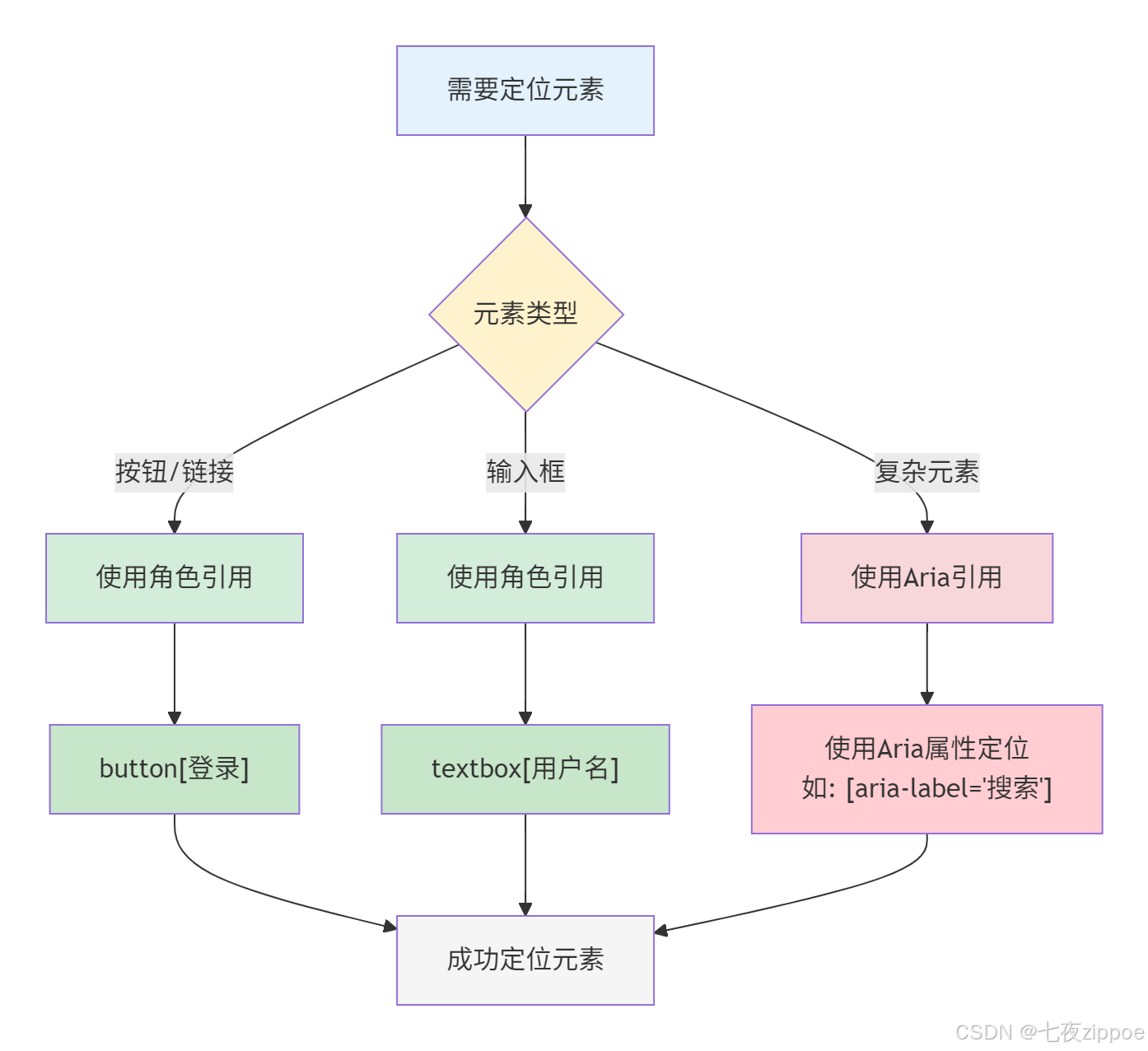
[3.2 引用选择策略](#3.2 引用选择策略)
[3.3 引用稳定性](#3.3 引用稳定性)
[4. 快照操作详解](#4. 快照操作详解)
[4.1 获取快照](#4.1 获取快照)
[4.2 快照参数](#4.2 快照参数)
[4.3 快照过滤](#4.3 快照过滤)
[5. 页面分析技巧](#5. 页面分析技巧)
[5.1 识别页面结构](#5.1 识别页面结构)
[5.2 查找特定元素](#5.2 查找特定元素)
[5.3 检测页面状态](#5.3 检测页面状态)
[6. 高级操作技巧](#6. 高级操作技巧)
[6.1 等待元素出现](#6.1 等待元素出现)
[6.2 处理动态内容](#6.2 处理动态内容)
[6.3 处理 iframe](#6.3 处理 iframe)
[6.4 处理弹窗](#6.4 处理弹窗)
[7. 实战案例](#7. 实战案例)
[7.1 案例一:复杂表单分析](#7.1 案例一:复杂表单分析)
[7.2 案例二:数据表格提取](#7.2 案例二:数据表格提取)
[7.3 案例三:多页面导航](#7.3 案例三:多页面导航)
[8. 调试与排错](#8. 调试与排错)
[8.1 常见问题](#8.1 常见问题)
[8.2 调试技巧](#8.2 调试技巧)
[9. 性能优化](#9. 性能优化)
[9.1 快照缓存](#9.1 快照缓存)
[9.2 增量快照](#9.2 增量快照)
[10. 总结](#10. 总结)
[10.1 核心要点](#10.1 核心要点)
[10.2 最佳实践清单](#10.2 最佳实践清单)
[10.3 下一步](#10.3 下一步)
参考资料
摘要
本文深入探讨 OpenClaw Browser 的快照功能。从快照原理、元素引用机制、页面分析方法到高级操作技巧,全面解析如何通过快照实现精准的页面操作。通过实际案例演示复杂页面分析、动态内容处理、多元素交互等场景,帮助开发者掌握浏览器自动化的核心技术。📸
1. 引言 - 为什么需要快照?
1.1 快照的作用
作用
说明
示例
页面理解 AI 理解页面结构
识别按钮、输入框
元素定位 精确定位操作目标
找到"提交"按钮
状态检测 检测页面状态变化
判断加载是否完成
数据提取 提取页面内容
获取商品信息
1.2 快照 vs 传统选择器
快照方式
1.3 快照核心优势
优势
说明
语义理解 AI 理解元素含义而非依赖选择器
自适应 页面结构变化时自动适应
可读性 快照内容人类可读
跨页面 相似页面可复用逻辑
2. 快照原理详解
2.1 快照生成流程
元素处理
2.2 快照内容结构
{
  "url": "https://example.com",
  "title": "Example Page",
  "elements": [
    {
      "ref": "e1",
      "type": "heading",
      "level": 1,
      "text": "Welcome"
    },
    {
      "ref": "e2",
      "type": "button",
      "text": "Submit",
      "attributes": {
        "class": "btn-primary",
        "aria-label": "Submit form"
      }
    },
    {
      "ref": "e3",
      "type": "textbox",
      "placeholder": "Enter email",
      "required": true
    }
  ]
}
2.3 元素类型映射
DOM 元素
快照类型
说明
<button>button
按钮
<input type="text">textbox
文本输入框
<input type="checkbox">checkbox
复选框
<select>combobox
下拉选择框
<a>link
链接
<h1>-<h6>heading
标题
<img>image
图片
3. 引用机制
3.1 引用类型
类型
格式
示例
简短引用 e1, e2
e1
角色引用 rolename
button登录
Aria引用 aria-ref-id
abc123
3.2 引用选择策略
3.3 引用稳定性
引用类型
稳定性
说明
简短引用 低
页面变化可能失效
角色引用 中
基于语义,较稳定
Aria引用 高
Playwright 内部ID,最稳定
4. 快照操作详解
4.1 获取快照
# 基本快照
snapshot = browser(
    action="snapshot",
    targetId="ABC123"
)

# 指定引用类型
snapshot = browser(
    action="snapshot",
    targetId="ABC123",
    refs="aria"  # 或 "role"
)

# 指定深度
snapshot = browser(
    action="snapshot",
    targetId="ABC123",
    depth=3  # DOM 深度
)
4.2 快照参数
参数
类型
说明
targetId string
标签页ID
refs string
引用类型:role/aria
depth number
DOM遍历深度
interactive boolean
只返回可交互元素
4.3 快照过滤
# 只获取可交互元素
snapshot = browser(
    action="snapshot",
    targetId="ABC123",
    interactive=True
)

# 返回示例
{
  "elements": [
    {"ref": "e1", "type": "button", "text": "Submit"},
    {"ref": "e2", "type": "textbox", "placeholder": "Email"}
    // 只包含可交互元素
  ]
}
5. 页面分析技巧
5.1 识别页面结构
def analyze_page_structure(snapshot):
    """分析页面结构"""
    structure = {
        "headings": [],
        "forms": [],
        "buttons": [],
        "links": []
    }

    for element in snapshot["elements"]:
        if element["type"] == "heading":
            structure["headings"].append(element)
        elif element["type"] == "textbox":
            structure["forms"].append(element)
        elif element["type"] == "button":
            structure["buttons"].append(element)
        elif element["type"] == "link":
            structure["links"].append(element)

    return structure
5.2 查找特定元素
def find_element(snapshot, element_type, text=None):
    """查找特定元素"""
    for element in snapshot["elements"]:
        if element["type"] == element_type:
            if text is None or text in element.get("text", ""):
                return element
    return None

# 示例:查找登录按钮
login_btn = find_element(snapshot, "button", "登录")
5.3 检测页面状态
def check_page_state(snapshot):
    """检测页面状态"""
    # 检查是否有加载指示器
    loading = find_element(snapshot, "generic", "loading")
    if loading:
        return "loading"

    # 检查是否有错误消息
    error = find_element(snapshot, "alert", "error")
    if error:
        return "error"

    return "ready"
6. 高级操作技巧
6.1 等待元素出现
def wait_for_element(target_id, element_type, timeout=10000):
    """等待元素出现"""
    start_time = time.time()

    while time.time() - start_time < timeout / 1000:
        snapshot = browser(
            action="snapshot",
            targetId=target_id,
            interactive=True
        )

        element = find_element(snapshot, element_type)
        if element:
            return element

        time.sleep(0.5)

    raise TimeoutError(f"Element {element_type} not found")
6.2 处理动态内容
def handle_dynamic_content(target_id):
    """处理动态加载内容"""
    # 初始快照
    snapshot1 = browser(action="snapshot", targetId=target_id)

    # 触发动态加载(如滚动)
    browser(action="act", kind="scroll", y=500)

    # 等待加载
    time.sleep(2)

    # 新快照
    snapshot2 = browser(action="snapshot", targetId=target_id)

    # 比较差异
    new_elements = compare_snapshots(snapshot1, snapshot2)
    return new_elements
6.3 处理 iframe
# 切换到 iframe
browser(
    action="act",
    kind="evaluate",
    fn="() => { return document.querySelector('iframe').contentDocument; }"
)

# 在 iframe 内获取快照
snapshot = browser(
    action="snapshot",
    frame="iframe-selector"
)
6.4 处理弹窗
def handle_popup(target_id):
    """处理弹窗"""
    # 获取快照检测弹窗
    snapshot = browser(action="snapshot", targetId=target_id)

    # 查找弹窗元素
    popup = find_element(snapshot, "dialog")

    if popup:
        # 处理弹窗(如点击确认)
        browser(
            action="act",
            kind="click",
            ref=popup["ref"]
        )
        return True

    return False
7. 实战案例
7.1 案例一:复杂表单分析
场景 :分析并填写复杂的注册表单
def analyze_and_fill_form(target_id, form_data):
    """分析并填写表单"""
    # 1. 获取页面快照
    snapshot = browser(
        action="snapshot",
        targetId=target_id,
        interactive=True
    )

    # 2. 分析表单结构
    form_elements = [
        e for e in snapshot["elements"]
        if e["type"] in ["textbox", "checkbox", "combobox"]
    ]

    print(f"发现 {len(form_elements)} 个表单元素")

    # 3. 匹配并填写
    for element in form_elements:
        # 根据标签或占位符匹配数据
        label = element.get("label", "")
        placeholder = element.get("placeholder", "")

        for key, value in form_data.items():
            if key in label or key in placeholder:
                if element["type"] == "textbox":
                    browser(
                        action="act",
                        kind="type",
                        ref=element["ref"],
                        text=value
                    )
                elif element["type"] == "checkbox":
                    if value:
                        browser(
                            action="act",
                            kind="click",
                            ref=element["ref"]
                        )
                elif element["type"] == "combobox":
                    browser(
                        action="act",
                        kind="select",
                        ref=element["ref"],
                        value=value
                    )
                break

    # 4. 查找并点击提交按钮
    submit_btn = find_element(snapshot, "button", "提交")
    if submit_btn:
        browser(
            action="act",
            kind="click",
            ref=submit_btn["ref"]
        )
7.2 案例二:数据表格提取
场景 :从表格中提取数据
def extract_table_data(target_id):
    """从表格提取数据"""
    # 获取快照
    snapshot = browser(action="snapshot", targetId=target_id)

    # 查找表格元素
    tables = [
        e for e in snapshot["elements"]
        if e["type"] == "table"
    ]

    data = []
    for table in tables:
        # 执行JS提取表格数据
        table_data = browser(
            action="act",
            kind="evaluate",
            fn=f"""
            () => {{
                const table = document.querySelector('[data-ref="{table["ref"]}"]');
                const rows = table.querySelectorAll('tr');
                return Array.from(rows).map(row =>
                    Array.from(row.querySelectorAll('td, th')).map(cell => cell.textContent)
                );
            }}
            """
        )
        data.extend(table_data)

    return data
7.3 案例三:多页面导航
场景 :在多个页面间导航并收集信息
def multi_page_navigation(base_url, pages):
    """多页面导航"""
    results = []

    for page in pages:
        # 打开页面
        url = f"{base_url}/{page}"
        browser(action="open", targetUrl=url)

        # 等待加载
        browser(action="act", kind="wait", timeMs=2000)

        # 获取快照
        snapshot = browser(action="snapshot")

        # 提取信息
        info = extract_page_info(snapshot)
        results.append({
            "page": page,
            "info": info
        })

    return results
8. 调试与排错
8.1 常见问题
问题
原因
解决方案
元素找不到 页面未加载完成
增加等待时间
引用失效 页面结构变化
刷新快照
操作无响应 元素不可交互
检查元素状态
快照不完整 深度不够
增加depth参数
8.2 调试技巧
def debug_snapshot(target_id):
    """调试快照"""
    # 获取详细快照
    snapshot = browser(
        action="snapshot",
        targetId=target_id,
        depth=5
    )

    # 打印所有元素
    for element in snapshot["elements"]:
        print(f"Ref: {element['ref']}")
        print(f"Type: {element['type']}")
        print(f"Text: {element.get('text', 'N/A')}")
        print("---")

    # 截图保存
    browser(
        action="screenshot",
        targetId=target_id
    )
9. 性能优化
9.1 快照缓存
class SnapshotCache:
    def __init__(self, ttl=5):
        self.cache = {}
        self.ttl = ttl

    def get(self, target_id):
        if target_id in self.cache:
            cached, timestamp = self.cache[target_id]
            if time.time() - timestamp < self.ttl:
                return cached

        # 获取新快照
        snapshot = browser(action="snapshot", targetId=target_id)
        self.cache[target_id] = (snapshot, time.time())
        return snapshot
9.2 增量快照
def incremental_snapshot(target_id, previous_snapshot):
    """增量快照 - 只获取变化的部分"""
    current = browser(action="snapshot", targetId=target_id)

    # 比较差异
    changes = compare_snapshots(previous_snapshot, current)
    return changes
10. 总结
10.1 核心要点
要点
说明
先快照后操作 操作前先获取快照
选择合适引用 根据场景选择引用类型
处理动态内容 等待加载、刷新快照
错误处理 添加重试和超时机制
10.2 最佳实践清单
10.3 下一步
第48篇:OpenClaw Browser 自动化:表单填写实战
第49篇:OpenClaw Chrome 扩展:Browser Relay 配置
参考资料