⑴
All right, so with that said, let's actually tease apart what it is we've been using underneath the hood here a little bit by returning to VS Code's interface itself. It turns out that all this time, even though I keep alluding to macOS and Windows, which like 99% of us are probably running on our laptops or desktops. there's actually other very popular operating systems in the world among which is Linux.
So Linux is a very popular operating system, the thing that turns on - - the thing that boots up when you first turn on a computer. And it's very commonly used for servers nowdays. All of CS50's own serves run some version of Linux. Those students more comfortable sometimes run Linux on their own Macs or PCs even. So Linux is a very popular operating system. And it's particularly characterized by its textual interface, its command-line interface, even though it also comes with graphical ones as well.
⑵
So again, this term we started today with, a graphical user interface is a thing with menus and buttons.
It's literally what you and I use every day on our devices, otherwise known as a GUI ( Graphical User Interface ).
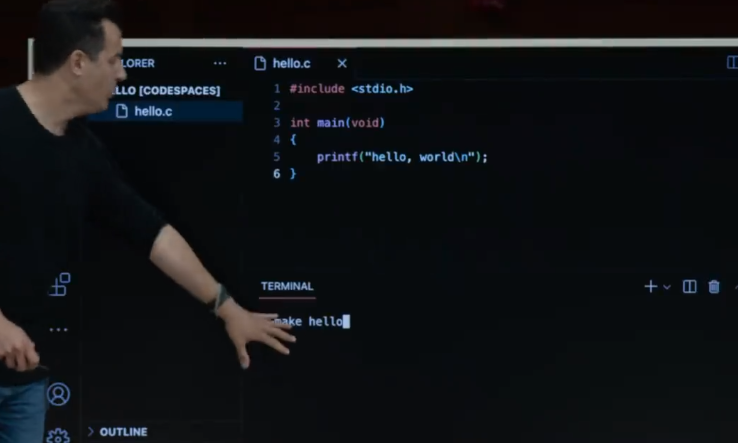
But today onward, you'll get more comfortable with and more practice with this terminal window down here, which represents a command-line interface or CLI. And just so you have a mental model of what's going on in the cloud here, when you access cs50.dev, you are accessing this version of VS Code in the cloud, a piece of software just running in a browser. But that piece of software is automatically connected to your very own personal server in the cloud, so to speak. Technically speaking it's a " docker container ". But it means that you have essentially your own mini server in the cloud that only you have access to. And that server or container is running an operating system called Linux.
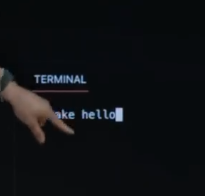
And in fact, every time I've been running a command down here, whether it's code or make or ./hello or anything else. I've been running commands from here in Sanders Theatre on a server somewhere in the cloud, my own Linux, container or server. And you'll have the same yourself. This is the thing that we have pre-configured for you by installing the compiler in so many other pieces of software, you'll soon see in the class. But underneath the hood, then, of Linux is soon-to-be familiar environment that allows you to run different types of commands.
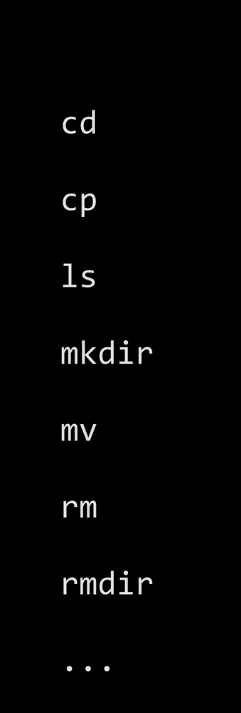
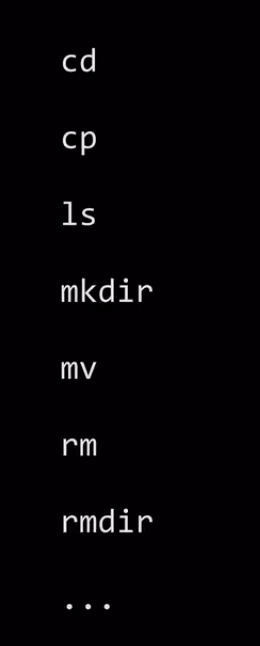
And those commands include things like this. And this is something you'll develop musle memory for over time. But I wanted to give you a sense of some of the most popular textual commands because we're essentially about to take away muscle memory you have from a GUI world and have you type out words that represent double-clicking on things, dragging on other things and other such commands that you and I take for granted. It'll be a little painful at first in the first days or weeks, but it will make you far more productive long term, so that even after CS50, if you start using your programming skills in some other domain, class or real-world job, you'll just be a lot faster at the keyboard and able to do more work more quickly.
⑶
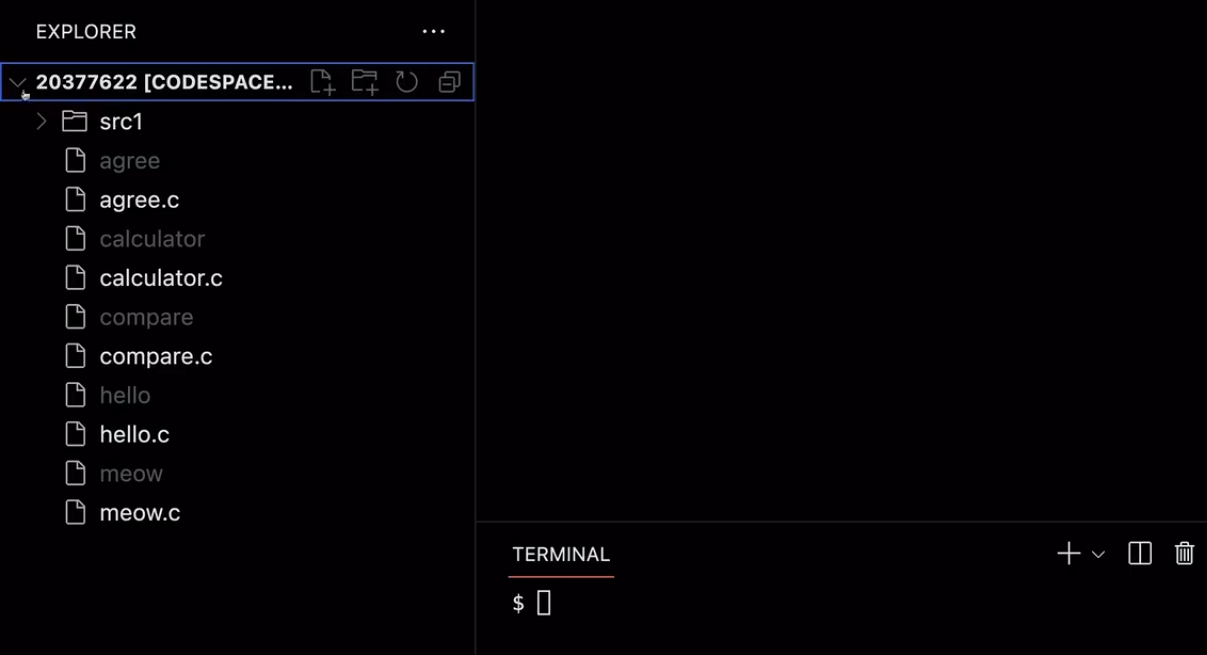
I'm going to go ahead and open up my File Explorer over here. And you'll see at left all of the files that I've created thus far in class and all of the programs that I've compiled thus far in class.
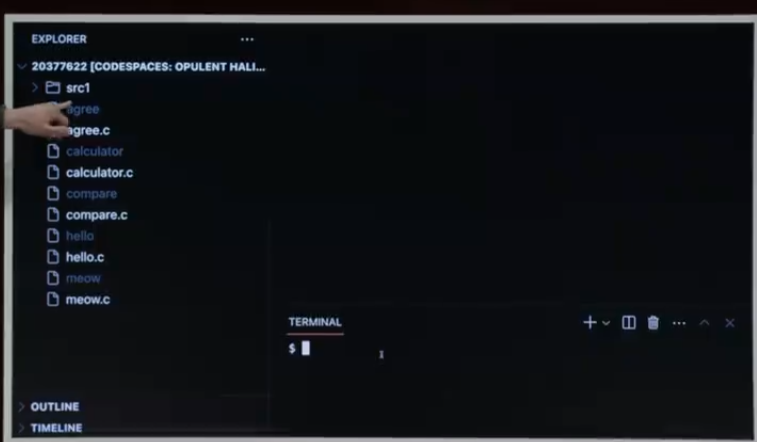
I also have this source 1 directory, which has all of today's code pre-written in advance, so you don't have to type everything that I literally type. But all of these files are things that I've created.
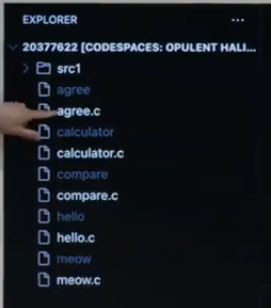
And you'll see that in white are the C files. And grayed out are actually the binary files, the machine code that I created that I was running. So you can click on any of these files in VS Code to open them.
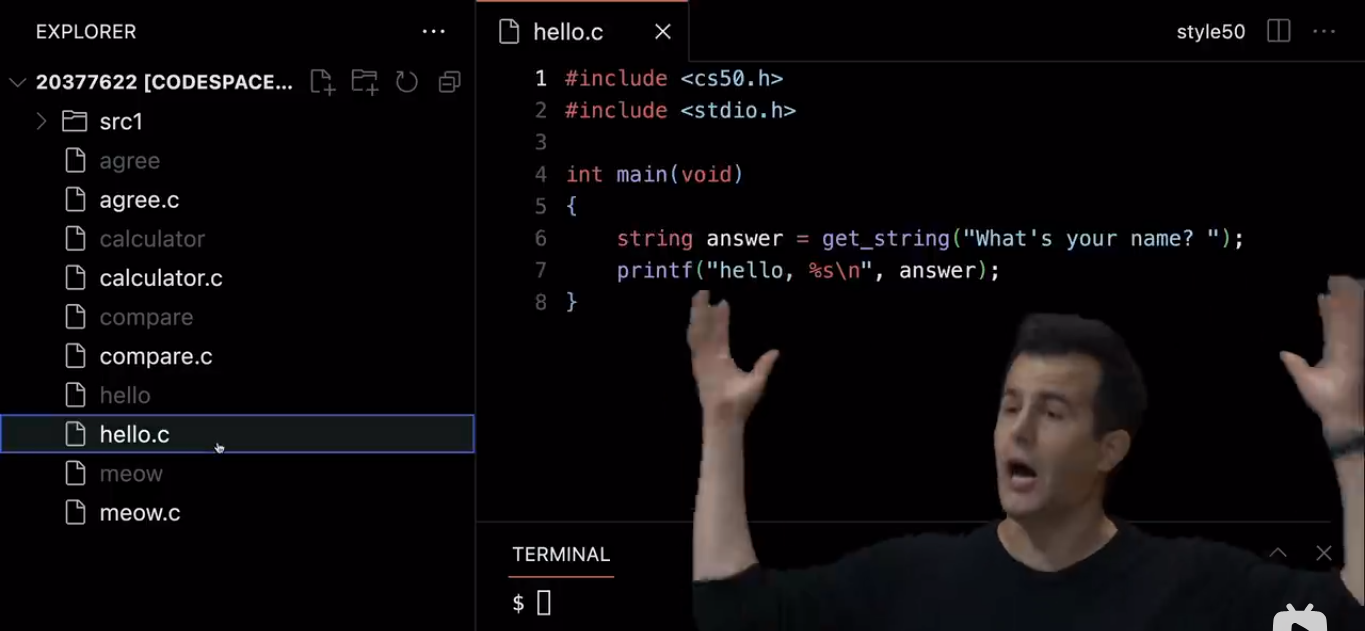
For instance, here is hello.c. And voila, it opens in the text editor.
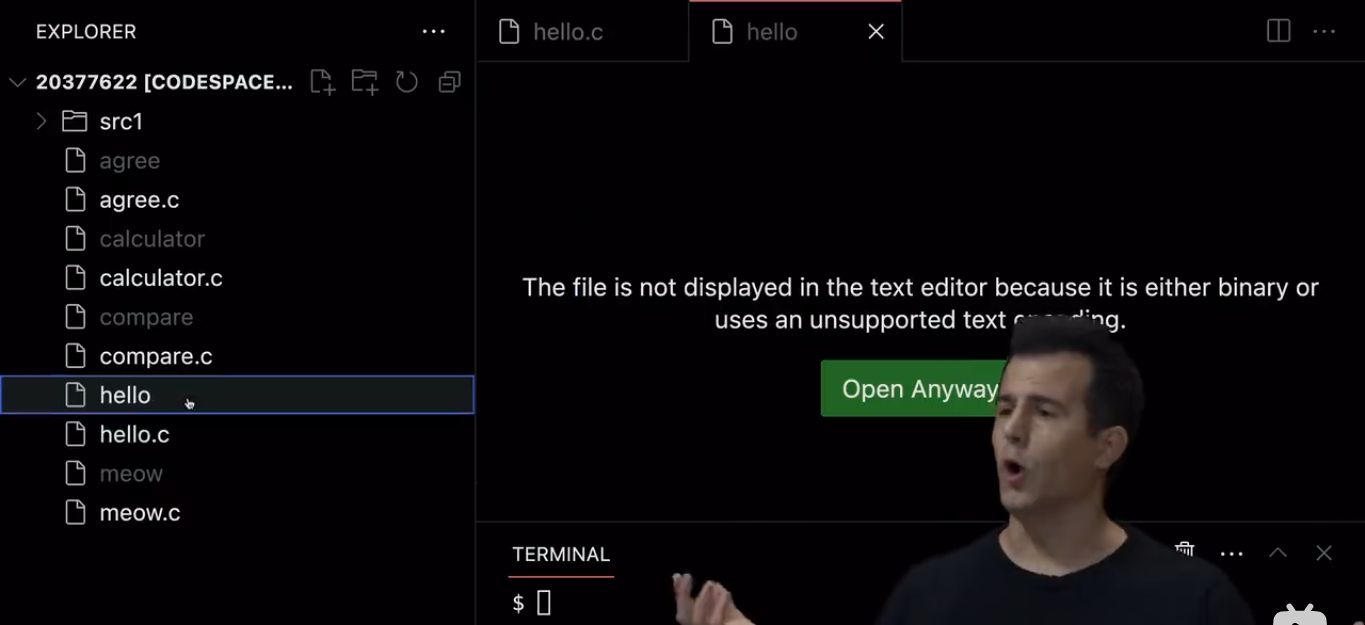
But if I try to open " hello ", that's not going to work, because that's zeros and ones. And frankly, the computer could show me all those zeros and ones but it's just not going to be useful. And honestly, it's too easy to make one mistake and break the whole thing. So instead, VS Code says that it can't display the text, because it's binary or maybe unsupported more generally. So know that you want to click on the .c files when writing C code. But let me go ahead and do something else. Suppose that I decide that we're nearing the end of class. And we're not done yet, but what if I want to change hello.c to goodbye.c or if I want to change meow.c to woof.c and turn it into a dog ?
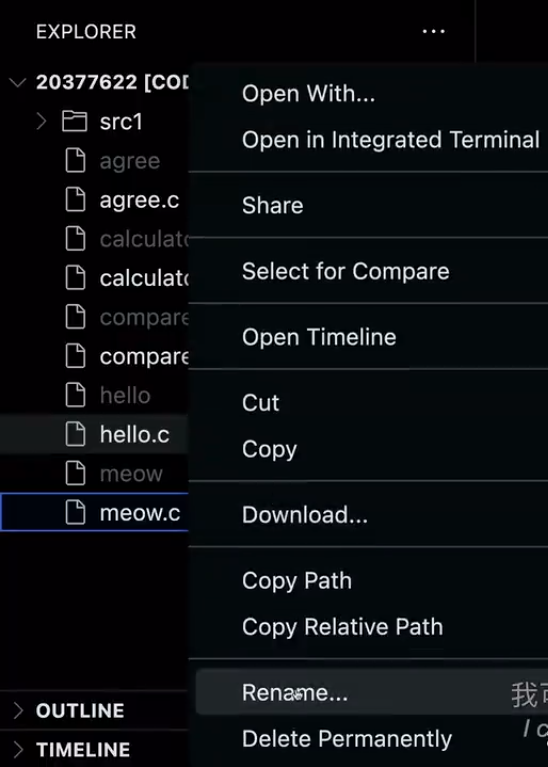
Well, let's actually do that I could go over here and right click or Control click on the file, just like on a Mac or PC. I can find the Rename option. And I can do it all via GUI.
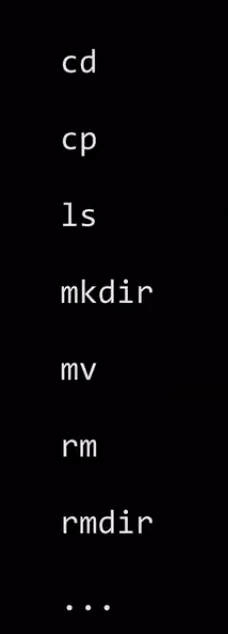
But you should get more comfortable using commands like these here. And among the commands on this list are " mv " for move, a.k.a, rename.
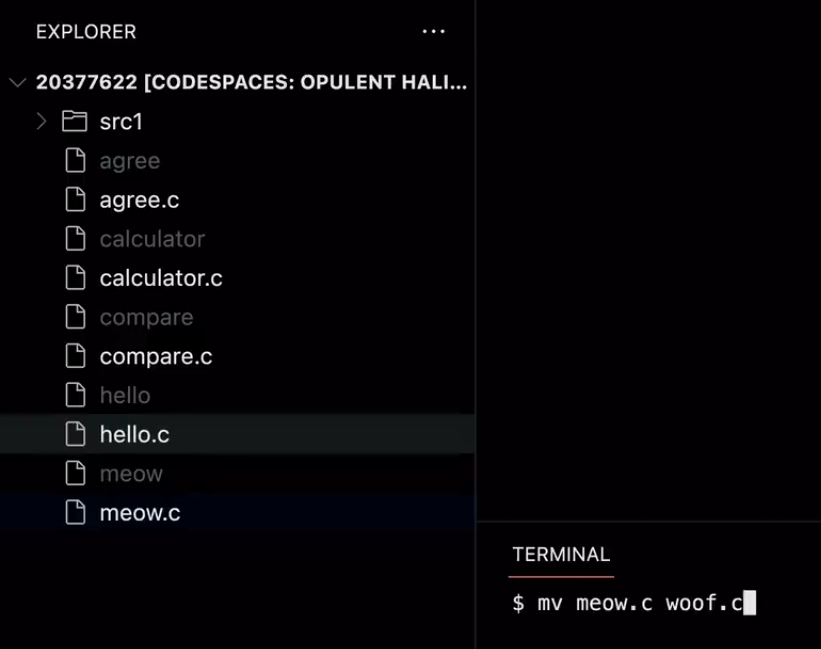
So for instance, if I want to change meow.c to be woof.c instead, I literally type " mv " space, the original file name, space, and the new file name. So this is very similar to what I've already been doing with the code program or the make program. I not only type the name of the command but also the thing that I want to code or the thing that I want to make. In this case, I type the thing that I want to move from old to new. Now, if I hit Enter in a moment, watch on the left-hand side, meow.c in the GUI should automatically change even though I'm doing this all via the command line keyboard interface.
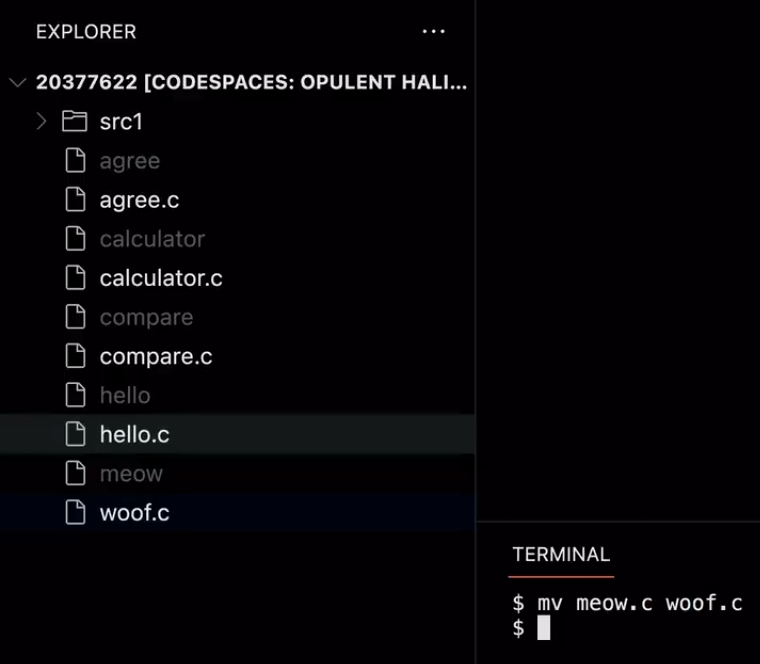
And now it becomes woof.c. I mean it's not all that exciting. But this is just to say that they are one and the same. One is a GUI, one is a CLI, but it's the same exact thing. Moreover, let me go ahead and close now the GUI at left, the so-called explorer.
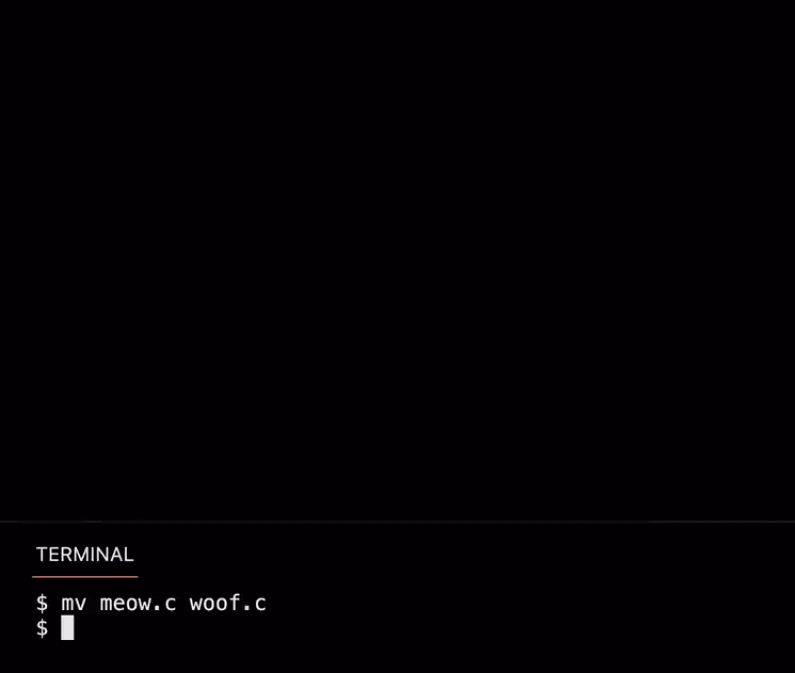
And in my terminal window alone, now I'm kind of out of my element, like wait a minute, what was the file I created earlier ?
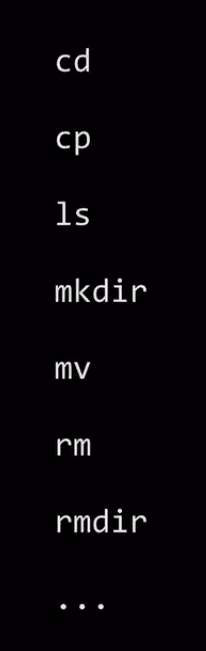
Well, there's other commands as well. On this list is, coincidentally, " ls ", which lists the file in your current folder. And as you might have gleaned here, " mv " for move, " ls " for list, CS people like to be succinct, tense, and type the minimal number of keystrokes. That's why these are all abbreviated commands instead of full words.
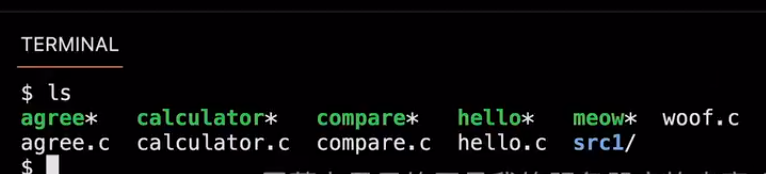
But if I go back to my terminal window and type " ls ", voila, there is exactly the same contents of my server but displayed textually. And there's some heuristics here. In green with an asterisk is all of the programs that I made with make that are executable. So the asterisks just means this is executable with ./ .
Meanwhile, the source 1 directory, which only I have because I downloaded it in advance has a slash to indicate that it's a folder instead of a file. But all of these white files ending in .c we created together here today. Now, what if I really am embarrassed by my very first program, hello.c ? Well, I can very destructively go and use the " rm " command for remove.
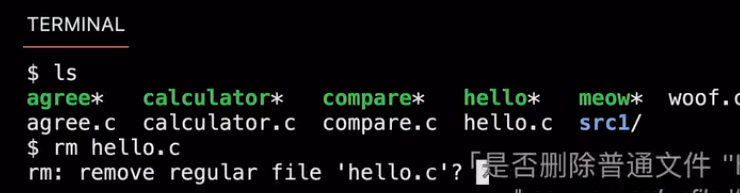
And rm hello.c is going to prompt me, a little cryptically " remove regular file ' hello.c ' " ? And amazingly, this rm program has code just like we wrote earlier for agree.c, where I can type ' y ' to delete it, I can type ' n ' not to delete it. But let's delete it.

Let's go ahead and hit ' y ', Enter. Nothing seems to happen. But in general, that's a good thing. But if I type " ls " again, notice what is now missing ? At in fact, the list is a little shorter, so it's one line instead of two, " hello.c " is now go on. Now if you do that there are no easy ways to get the file back. So don' t do that, less you really want to. But these are backups maintained of these files, as well. Well, what else is there too ?
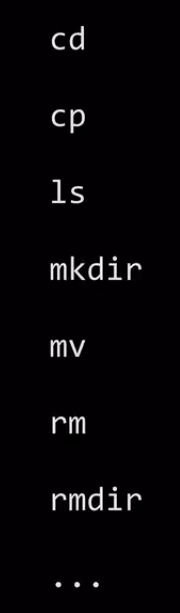
Well, there's all of these other commands. And you'll experience them over time. Like " cp " is copy, " mkdir " is make directory, " rmdir " is remove directory. And for instance, let me just show you one folder.
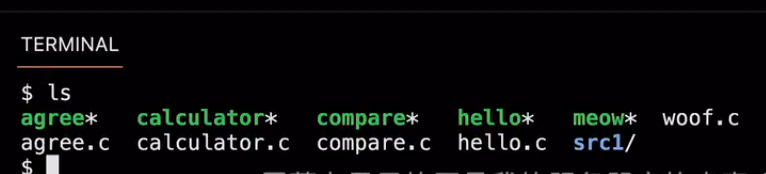
If I type " ls ", there's that source 1 folder that I claimed I downloaded in advance.
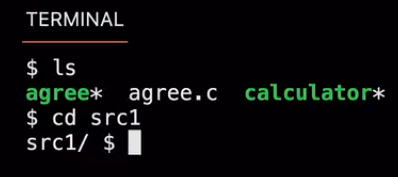
If you want to see what's there, you can type " cd " for change directory, cd src1, Enter. And voila, notice that your prompt has now changed.
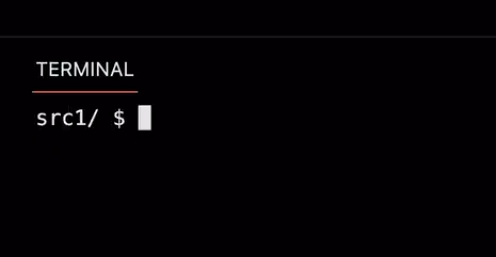
And let me clear the screen. Just as a visual reminder of where you are, you can see before the dollar sign, now the name of the folder that you're inside of. So in Mac or Windows, you'd see obviously a graphical folder. Here, you just see a little textual reminder of where you now are.
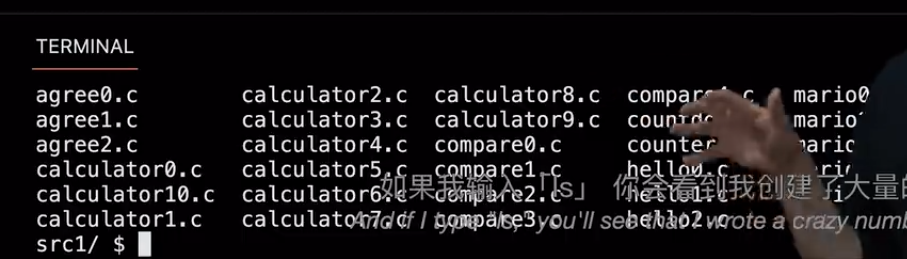
And if I type " ls ", you'll see that I wrote a crazy number of files before class and each of these represent different versions of the files that have been coding here in real time that I usually have print outs of just to go through things in series, so you have copy online as well.
So in short, all of these commands, if you've never used them before, they will soon become like muscle memory. And they do the most basic of operations. But there will be other commands that we'll see over time that do even much more than that.