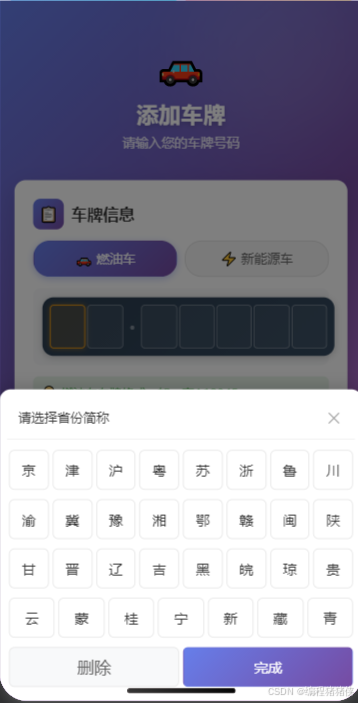
uni-app 微信小程序实现车牌号输入功能
在移动端开发中,车牌号输入是一个常见的需求。本文将介绍如何在 uni-app 微信小程序中实现一个功能完善的车牌号输入组件,支持燃油车和新能源车两种格式。
1. 实现逻辑
1.1 需求分析
车牌号输入需要考虑以下关键点:
| 需求点 | 说明 |
|---|---|
| 格式差异 | 燃油车7位,新能源车6位 |
| 字符类型 | 第1位为省份简称,第2位为字母,后续为字母或数字 |
| 自定义键盘 | 需要自定义输入键盘,按位置切换不同字符集 |
| 交互体验 | 点击输入框弹出键盘,自动跳转下一位,输入完成自动关闭 |
1.2 架构设计
┌─────────────────────────────────────────────────────────┐
│                    addCarNo 页面                         │
│  ┌──────────────────────────────────────────────────┐   │
│  │ 模式切换:燃油车 / 新能源车                        │   │
│  └──────────────────────────────────────────────────┘   │
│  ┌──────────────────────────────────────────────────┐   │
│  │           PlateInput 组件                         │   │
│  │  ┌─────────────────────────────────────────────┐  │   │
│  │  │ 车牌显示区域:京 · A · 1 · 2 · 3 · 4 · 5    │  │   │
│  │  └─────────────────────────────────────────────┘  │   │
│  │  ┌─────────────────────────────────────────────┐  │   │
│  │  │ 自定义键盘(底部弹出)                       │  │   │
│  │  │ - 省份键盘:京、津、沪、粤...                 │  │   │
│  │  │ - 字母键盘:A、B、C...Z                      │  │   │
│  │  │ - 混合键盘:1、2...0、A、B...Z               │  │   │
│  │  └─────────────────────────────────────────────┘  │   │
│  └──────────────────────────────────────────────────┘   │
└─────────────────────────────────────────────────────────┘
1.3 核心逻辑
1.3.1 键盘切换逻辑
根据输入位置自动切换键盘类型:
typescript
function updateKeyboardType(index: number) {
    switch (index) {
        case 0: // 第1位:省份简称
            keyboardType.value = 'province'
            break
        case 1: // 第2位:字母位
            keyboardType.value = 'letter'
            break
        default: // 第3位及以后:混合键盘
            keyboardType.value = 'mixed'
            break
    }
}
1.3.2 输入处理逻辑
typescript
function updatePlateNumber(char: string, index: number) {
    const maxLength = props.isElectric ? 6 : 7
    const actualIndex = getActualIndex(index)

    // 检查是否达到最大长度
    if (plateNumber.value.length >= maxLength && actualIndex >= plateNumber.value.length) {
        return
    }

    // 更新车牌号
    const currentPlate = plateNumber.value
    let newPlate = ''

    if (actualIndex < currentPlate.length) {
        // 替换已有字符
        newPlate = currentPlate.slice(0, actualIndex) + char + currentPlate.slice(actualIndex + 1)
    } else {
        // 添加新字符
        newPlate = currentPlate + char
    }

    plateNumber.value = newPlate

    // 自动跳转到下一位
    const nextIndex = findNextCharIndex(index)
    if (nextIndex !== -1) {
        activeIndex.value = nextIndex
        updateKeyboardType(nextIndex)
    }
}
1.3.3 模式切换处理
当切换燃油车/新能源车模式时,需要调整输入框位数:
typescript
watch(() => props.isElectric, (newVal) => {
    const maxLength = newVal ? 6 : 7
    // 如果当前输入超过新模式的最大长度,截断
    if (plateNumber.value.length > maxLength) {
        plateNumber.value = plateNumber.value.slice(0, maxLength)
    }
    activeIndex.value = Math.min(activeIndex.value, plateArray.value.length - 1)
})
2. 具体代码
2.1 PlateInput 组件
vue
<template>
    <view class="plate-input-container">
        <!-- 车牌号显示区域 -->
        <view class="plate-display">
            <view class="plate-input-items">
                <view v-for="(item, index) in plateArray" :key="index"
                    :class="['plate-item', { 'active': activeIndex === index, 'dot': item.type === 'dot' }]"
                    @click="focusInput(index)">
                    <template v-if="item.type === 'char'">
                        <text class="plate-char">{{ item.value || ' ' }}</text>
                    </template>
                    <template v-else>
                        <text class="dot-text">{{ item.value }}</text>
                    </template>
                </view>
            </view>
        </view>

        <!-- 自定义键盘 - 从底部弹出 -->
        <view class="keyboard-overlay" v-if="showKeyboard" @click="handleBlur">
            <view class="keyboard-container" @click.stop>
                <!-- 键盘标题 -->
                <view class="keyboard-header">
                    <text class="keyboard-title">{{ keyboardTitle }}</text>
                    <view class="keyboard-close" @click="handleBlur">✕</view>
                </view>

                <!-- 键盘内容 -->
                <view v-for="(row, rowIndex) in keyboardRows" :key="rowIndex" class="keyboard-row">
                    <view v-for="key in row" :key="key" class="keyboard-key" @click="handleKeyPress(key)">
                        <text>{{ key }}</text>
                    </view>
                </view>

                <!-- 功能键行 -->
                <view class="keyboard-row">
                    <view class="keyboard-key keyboard-key-delete" @click="handleDelete">
                        <text>删除</text>
                    </view>
                    <view class="keyboard-key keyboard-key-confirm" @click="handleConfirm">
                        <text>完成</text>
                    </view>
                </view>
            </view>
        </view>
    </view>
</template>

<script setup lang="ts">
import { ref, computed, watch } from 'vue'

const props = defineProps({
    modelValue: {
        type: String,
        default: ''
    },
    placeholder: {
        type: String,
        default: '请输入车牌号'
    },
    isElectric: {
        type: Boolean,
        default: false
    }
})

const emit = defineEmits(['update:modelValue', 'confirm'])

const plateNumber = ref(props.modelValue)
const activeIndex = ref(0)
const showKeyboard = ref(false)

// 省份键盘布局
const provinceKeyboard = [
    ['京', '津', '沪', '粤', '苏', '浙', '鲁', '川'],
    ['渝', '冀', '豫', '湘', '鄂', '赣', '闽', '陕'],
    ['甘', '晋', '辽', '吉', '黑', '皖', '琼', '贵'],
    ['云', '蒙', '桂', '宁', '新', '藏', '青']
]

// 字母键盘布局
const letterKeyboard = [
    ['A', 'B', 'C', 'D', 'E', 'F', 'G', 'H'],
    ['J', 'K', 'L', 'M', 'N', 'P', 'Q', 'R',],
    ['S', 'T', 'U', 'V', 'W', 'X', 'Y', 'Z'],
]

// 混合键盘布局(字母+数字)
const mixedKeyboard = [
    ['1', '2', '3', '4', '5', '6', '7', '8'],
    ['9', '0', 'A', 'B', 'C', 'D', 'E', 'F'],
    ['G', 'H', 'J', 'K', 'L', 'M', 'N', 'P'],
    ['Q', 'R', 'S', 'T', 'U', 'V', 'W', 'X'],
    ['Y', 'Z']
]

// 键盘类型
const keyboardType = ref('province')

// 当前键盘布局
const keyboardRows = computed(() => {
    switch (keyboardType.value) {
        case 'province':
            return provinceKeyboard
        case 'letter':
            return letterKeyboard
        case 'mixed':
            return mixedKeyboard
        default:
            return provinceKeyboard
    }
})

// 键盘标题
const keyboardTitle = computed(() => {
    switch (keyboardType.value) {
        case 'province':
            return '请选择省份简称'
        case 'letter':
            return '请选择字母'
        case 'mixed':
            return '请输入数字或字母'
        default:
            return ''
    }
})

// 车牌号数组(用于显示)
const plateArray = computed(() => {
    const plate = plateNumber.value
    const array = []
    const totalLength = props.isElectric ? 6 : 7

    for (let i = 0; i < totalLength + 1; i++) {
        if (i === 2) {
            array.push({ type: 'dot', value: '·' })
        } else if (i < 2) {
            array.push({ type: 'char', value: plate[i] || '' })
        } else {
            const actualIndex = i - 1
            if (actualIndex < totalLength) {
                array.push({ type: 'char', value: plate[actualIndex] || '' })
            }
        }
    }
    return array
})

// 监听外部传入的modelValue
watch(() => props.modelValue, (newVal) => {
    plateNumber.value = newVal
})

// 监听外部传入的isElectric变化
watch(() => props.isElectric, (newVal) => {
    const maxLength = newVal ? 6 : 7
    if (plateNumber.value.length > maxLength) {
        plateNumber.value = plateNumber.value.slice(0, maxLength)
    }
    activeIndex.value = Math.min(activeIndex.value, plateArray.value.length - 1)
})

// 监听内部plateNumber变化
watch(plateNumber, (newVal) => {
    emit('update:modelValue', newVal)
})

function focusInput(index: number) {
    if (plateArray.value[index]?.type === 'dot') {
        const nextIndex = findNextCharIndex(index)
        if (nextIndex !== -1) {
            activeIndex.value = nextIndex
        }
        return
    }

    activeIndex.value = index
    showKeyboard.value = true

    switch (index) {
        case 0:
            keyboardType.value = 'province'
            break
        case 1:
            keyboardType.value = 'letter'
            break
        default:
            keyboardType.value = 'mixed'
            break
    }
}

function handleBlur() {
    activeIndex.value = -1
    showKeyboard.value = false
}

function handleKeyPress(key: string) {
    if (activeIndex.value === -1) return
    updatePlateNumber(key, activeIndex.value)
}

function handleDelete() {
    const currentPlate = plateNumber.value
    const maxLength = props.isElectric ? 6 : 7

    if (currentPlate.length > 0) {
        const newPlate = currentPlate.slice(0, -1)
        plateNumber.value = newPlate

        if (newPlate.length > 0) {
            const newLastCharIndex = newPlate.length - 1
            let displayIndex = newLastCharIndex
            if (displayIndex >= 2) {
                displayIndex = displayIndex + 1
            }
            activeIndex.value = displayIndex
            updateKeyboardType(displayIndex)
        } else {
            activeIndex.value = 0
            updateKeyboardType(0)
        }
    }
}

function updatePlateNumber(char: string, index: number) {
    const maxLength = props.isElectric ? 6 : 7
    const actualIndex = getActualIndex(index)

    if (plateNumber.value.length >= maxLength && actualIndex >= plateNumber.value.length) {
        return
    }

    const currentPlate = plateNumber.value
    let newPlate = ''

    if (actualIndex < currentPlate.length) {
        newPlate = currentPlate.slice(0, actualIndex) + char + currentPlate.slice(actualIndex + 1)
    } else {
        newPlate = currentPlate + char
    }

    plateNumber.value = newPlate

    const nextIndex = findNextCharIndex(index)
    if (nextIndex !== -1) {
        activeIndex.value = nextIndex
        updateKeyboardType(nextIndex)
    }
}

function getActualIndex(displayIndex: number) {
    if (displayIndex < 2) {
        return displayIndex
    } else if (displayIndex > 2) {
        return displayIndex - 1
    }
    return -1
}

function updateKeyboardType(index: number) {
    switch (index) {
        case 0:
            keyboardType.value = 'province'
            break
        case 1:
            keyboardType.value = 'letter'
            break
        default:
            keyboardType.value = 'mixed'
            break
    }
}

function handleConfirm() {
    emit('confirm', plateNumber.value)
    showKeyboard.value = false
}

function findNextCharIndex(currentIndex: number) {
    for (let i = currentIndex + 1; i < plateArray.value.length; i++) {
        if (plateArray.value[i]?.type === 'char') {
            return i
        }
    }
    return -1
}
</script>

<style scoped lang="scss">
.plate-input-container {
    width: 100%;
}

.plate-display {
    width: 100%;
    background: linear-gradient(135deg, #2c3e50 0%, #34495e 100%);
    border-radius: 12px;
    padding: 16rpx;
    box-shadow: 0 4rpx 16rpx rgba(0, 0, 0, 0.2);
}

.plate-input-items {
    display: flex;
    flex-direction: row;
    align-items: center;
    justify-content: center;
    gap: 4rpx;
}

.plate-item {
    width: 72rpx;
    height: 88rpx;
    border: 2rpx solid rgba(255, 255, 255, 0.3);
    border-radius: 8rpx;
    display: flex;
    flex-direction: row;
    align-items: center;
    justify-content: center;
    background-color: rgba(255, 255, 255, 0.05);
    transition: all 0.3s ease;
}

.plate-item.active {
    border-color: #f39c12;
    background-color: rgba(243, 156, 18, 0.15);
    box-shadow: 0 0 12rpx rgba(243, 156, 18, 0.4);
}

.plate-item.dot {
    border: none;
    width: 32rpx;
    background-color: transparent;
}

.plate-char {
    font-size: 32rpx;
    font-weight: 600;
    color: #ffffff;
    font-family: 'DIN Alternate', 'Arial Black', sans-serif;
}

.dot-text {
    font-size: 28rpx;
    font-weight: bold;
    color: rgba(255, 255, 255, 0.4);
}

.keyboard-overlay {
    position: fixed;
    top: 0;
    left: 0;
    right: 0;
    bottom: 0;
    background-color: rgba(0, 0, 0, 0.5);
    z-index: 9999;
    display: flex;
    align-items: flex-end;
}

.keyboard-container {
    width: 100%;
    background-color: #ffffff;
    padding: 16rpx;
    border-top-left-radius: 24rpx;
    border-top-right-radius: 24rpx;
    max-width: 500px;
    box-shadow: 0 -8rpx 32rpx rgba(0, 0, 0, 0.15);
}

.keyboard-header {
    display: flex;
    justify-content: space-between;
    align-items: center;
    padding: 16rpx 24rpx;
    border-bottom: 1rpx solid #f0f0f0;
    margin-bottom: 16rpx;

    .keyboard-title {
        font-size: 28rpx;
        color: #333;
        font-weight: 500;
    }

    .keyboard-close {
        font-size: 32rpx;
        color: #999;
        padding: 8rpx;
    }
}

.keyboard-row {
    display: flex;
    flex-direction: row;
    justify-content: space-between;
    margin-bottom: 8rpx;
}

.keyboard-key {
    flex: 1;
    height: 80rpx;
    background-color: #ffffff;
    border-radius: 12rpx;
    display: flex;
    flex-direction: row;
    align-items: center;
    justify-content: center;
    margin: 6rpx 4rpx;
    border: 1rpx solid #e8e8e8;
    font-size: 30rpx;
    font-weight: 500;
    color: #333;
    transition: all 0.2s ease;

    &:active {
        background-color: #f0f0f0;
        transform: scale(0.95);
    }
}

.keyboard-key-delete {
    background-color: #f8f9fa;
    color: #666;
    flex: 1.2;
    font-size: 36rpx;
}

.keyboard-key-confirm {
    flex: 1.2;
    background: linear-gradient(135deg, #667eea 0%, #764ba2 100%);
    color: #ffffff;
    border-color: transparent;

    &:active {
        opacity: 0.9;
    }
}
</style>
2.2 addCarNo 页面
vue
<template>
  <view class="page-container">
    <!-- 顶部装饰区域 -->
    <view class="header">
      <view class="header-bg"></view>
      <view class="header-content">
        <view class="logo-icon">🚗</view>
        <view class="title">添加车牌</view>
        <view class="subtitle">请输入您的车牌号码</view>
      </view>
    </view>

    <!-- 车牌输入卡片 -->
    <view class="card">
      <view class="card-header">
        <view class="icon-wrapper">📋</view>
        <view class="card-title">车牌信息</view>
      </view>

      <!-- 模式切换 -->
      <view class="mode-switch">
        <view
          :class="['mode-btn', { active: !isElectric }]"
          @click="isElectric = false"
        >
          🚗 燃油车
        </view>
        <view
          :class="['mode-btn', { active: isElectric }]"
          @click="isElectric = true"
        >
          ⚡ 新能源车
        </view>
      </view>

      <view class="input-area">
        <PlateInput v-model="plateNumber" :isElectric="isElectric" />
      </view>

      <view class="tip-text">
        <text class="tip-icon">💡</text>
        <text>{{ isElectric ? '新能源车车牌格式,如:京A123456' : '燃油车车牌格式,如:京A12345' }}</text>
      </view>
    </view>

    <!-- 操作按钮 -->
    <view class="btn-area">
      <view class="submit-btn" @click="submitPlate">
        <text class="btn-icon">✓</text>
        <text>确认添加</text>
      </view>
    </view>

    <!-- 底部装饰 -->
    <view class="footer-decoration">
      <view class="deco-circle deco-1"></view>
      <view class="deco-circle deco-2"></view>
      <view class="deco-circle deco-3"></view>
    </view>
  </view>
</template>

<script setup lang="ts">
import { ref } from 'vue';
import PlateInput from '@/components/PlateInput/index.vue';

const plateNumber = ref('')
const isElectric = ref(false)

function submitPlate() {
  const requiredLength = isElectric.value ? 6 : 7

  if (!plateNumber.value) {
    uni.showToast({
      title: '请输入车牌号码',
      icon: 'none'
    })
    return
  }

  if (plateNumber.value.length !== requiredLength) {
    const typeText = isElectric.value ? '新能源车' : '燃油车'
    uni.showToast({
      title: `${typeText}车牌需输入${requiredLength}位`,
      icon: 'none'
    })
    return
  }

  uni.showToast({
    title: `车牌 ${plateNumber.value} 添加成功`,
    icon: 'success'
  })
}
</script>

<style lang="scss">
.page-container {
  min-height: 100vh;
  background: linear-gradient(135deg, #667eea 0%, #764ba2 50%, #f093fb 100%);
  padding: 0 32rpx 60rpx;
  box-sizing: border-box;
  position: relative;
  overflow: hidden;
}

.header {
  padding: 80rpx 32rpx 60rpx;
  position: relative;

  .header-bg {
    position: absolute;
    top: -100rpx;
    right: -50rpx;
    width: 400rpx;
    height: 400rpx;
    background: rgba(255, 255, 255, 0.1);
    border-radius: 50%;
    filter: blur(40px);
  }

  .header-content {
    position: relative;
    z-index: 1;
    text-align: center;
  }

  .logo-icon {
    font-size: 80rpx;
    margin-bottom: 20rpx;
    animation: bounce 2s ease-in-out infinite;
  }

  .title {
    font-size: 48rpx;
    font-weight: 700;
    color: #fff;
    margin-bottom: 12rpx;
    text-shadow: 0 4rpx 12rpx rgba(0, 0, 0, 0.2);
  }

  .subtitle {
    font-size: 28rpx;
    color: rgba(255, 255, 255, 0.85);
  }
}

.card {
  background: #fff;
  border-radius: 24rpx;
  padding: 40rpx;
  box-shadow: 0 16rpx 48rpx rgba(0, 0, 0, 0.15);
  margin-bottom: 40rpx;

  .card-header {
    display: flex;
    align-items: center;
    margin-bottom: 24rpx;
  }

  .mode-switch {
    display: flex;
    gap: 16rpx;
    margin-bottom: 24rpx;
    justify-content: center;
  }

  .mode-btn {
    flex: 1;
    height: 72rpx;
    display: flex;
    align-items: center;
    justify-content: center;
    border-radius: 36rpx;
    font-size: 28rpx;
    color: #666;
    background: #f5f5f5;
    border: 2rpx solid #e0e0e0;
    transition: all 0.3s ease;

    &.active {
      background: linear-gradient(135deg, #667eea 0%, #764ba2 100%);
      color: #fff;
      border-color: transparent;
      box-shadow: 0 4rpx 16rpx rgba(102, 126, 234, 0.4);
    }
  }

  .icon-wrapper {
    width: 64rpx;
    height: 64rpx;
    background: linear-gradient(135deg, #667eea 0%, #764ba2 100%);
    border-radius: 16rpx;
    display: flex;
    align-items: center;
    justify-content: center;
    font-size: 32rpx;
    margin-right: 16rpx;
  }

  .card-title {
    font-size: 34rpx;
    font-weight: 600;
    color: #333;
  }

  .input-area {
    padding: 20rpx;
    background: #f8f9fa;
    border-radius: 16rpx;
  }

  .tip-text {
    display: flex;
    align-items: center;
    margin-top: 24rpx;
    padding: 16rpx 20rpx;
    background: #e8f5e9;
    border-radius: 12rpx;
    font-size: 26rpx;
    color: #4caf50;

    .tip-icon {
      font-size: 28rpx;
      margin-right: 12rpx;
    }
  }
}

.btn-area {
  padding: 0 16rpx;

  .submit-btn {
    display: flex;
    align-items: center;
    justify-content: center;
    height: 96rpx;
    background: linear-gradient(135deg, #667eea 0%, #764ba2 100%);
    border-radius: 48rpx;
    box-shadow: 0 8rpx 24rpx rgba(102, 126, 234, 0.4);
    transition: all 0.3s ease;

    &:active {
      transform: scale(0.98);
      box-shadow: 0 4rpx 12rpx rgba(102, 126, 234, 0.3);
    }

    .btn-icon {
      font-size: 36rpx;
      color: #fff;
      margin-right: 12rpx;
    }

    text:last-child {
      font-size: 32rpx;
      font-weight: 600;
      color: #fff;
    }
  }
}

.footer-decoration {
  position: fixed;
  bottom: -60rpx;
  left: 0;
  right: 0;
  height: 200rpx;
  pointer-events: none;

  .deco-circle {
    position: absolute;
    border-radius: 50%;
    background: rgba(255, 255, 255, 0.08);
    filter: blur(30px);
  }

  .deco-1 {
    width: 200rpx;
    height: 200rpx;
    left: 50rpx;
    bottom: 20rpx;
  }

  .deco-2 {
    width: 150rpx;
    height: 150rpx;
    right: 100rpx;
    bottom: 40rpx;
  }

  .deco-3 {
    width: 120rpx;
    height: 120rpx;
    left: 50%;
    bottom: 0;
    transform: translateX(-50%);
  }
}

@keyframes bounce {
  0%, 100% {
    transform: translateY(0);
  }
  50% {
    transform: translateY(-20rpx);
  }
}
</style>
3. 总结
本文介绍了如何在 uni-app 微信小程序中实现车牌号输入功能,核心要点包括:
- 自定义键盘:根据输入位置动态切换省份、字母、混合三种键盘
- 格式支持:同时支持燃油车(7位)和新能源车(6位)两种格式
- 交互优化:点击输入框弹出键盘,自动跳转下一位,输入完成自动关闭
- 视觉设计 :深色车牌样式,金色高亮选中框,渐变按钮等现代化设计