UICollectionView
文章目录
前言
在 iOS 开发中,UITableView 是最常用的列表控件,但当我们需要展示更复杂的网格、瀑布流、轮播等布局时,UICollectionView 便展现出其强大的灵活性。
它比 UITableView 更灵活,可以实现九宫格,瀑布流,图片墙,横向滚动,Banner,商品列表,音乐/视频推荐页
现在大多数 App 首页基本都离不开 UICollectionView,我们仿写应用时也要使用
组成
主要由下面几个部分组成
| 组件 | 作用 |
|---|---|
| UICollectionView | 主视图 |
| UICollectionViewCell | 每个单元格 |
| DataSource | 数据源 |
| Delegate | 代理 |
| FlowLayout | 布局对象 |
UICollectionView
↓
UICollectionViewFlowLayout
↓
UICollectionViewCell
创建
- 创建布局对象
objc
UICollectionViewFlowLayout *layout = [[UICollectionViewFlowLayout alloc] init];设置布局
objc
layout.itemSize = CGSizeMake(100, 100);

layout.minimumLineSpacing = 10;

layout.minimumInteritemSpacing = 10;

layout.scrollDirection = UICollectionViewScrollDirectionVertical;| 属性 | 作用 |
|---|---|
| itemSize | cell大小 |
| minimumLineSpacing | 行间距 |
| minimumInteritemSpacing | 列间距 |
| scrollDirection | 滚动方向 |
- 创建CollectionView
objc
UICollectionView *collectionView =
[[UICollectionView alloc] initWithFrame:self.view.bounds
                   collectionViewLayout:layout];
objc
[self.view addSubview:collectionView];- 注册cell
和UITableView一样,都需要注册cell
objc
[collectionView registerClass:[UICollectionViewCell class]
forCellWithReuseIdentifier:@"cell"];-
遵守协议
@interface ViewController ()
<
UICollectionViewDataSource,
UICollectionViewDelegate
objc
collectionView.delegate = self;
collectionView.dataSource = self;//设置代理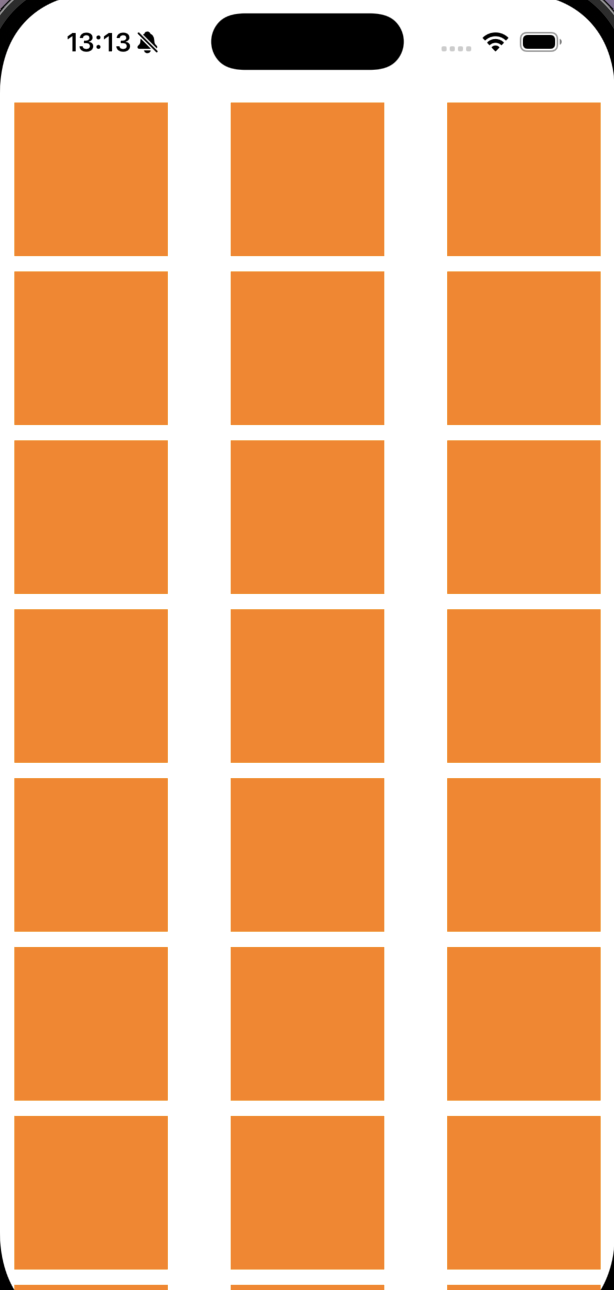
自定义cell
当然,我们通常不会使用系统cell,根据需要,我们会自定义cell
objc
@interface MusicCell : UICollectionViewCell

@property(nonatomic, strong) UIImageView *imageView;

@property(nonatomic, strong) UILabel *titleLabel;

@end
我们需要一个可以展示文字和图片的cell
objc
- (instancetype)initWithFrame:(CGRect)frame {

    self = [super initWithFrame:frame];

    if (self) {

        self.imageView = [[UIImageView alloc] initWithFrame:CGRectMake(0, 0, 100, 100)];

        [self.contentView addSubview:self.imageView];

        self.titleLabel = [[UILabel alloc] initWithFrame:CGRectMake(0, 100, 100, 20)];

        self.titleLabel.textAlignment = NSTextAlignmentCenter;

        [self.contentView addSubview:self.titleLabel];
    }

    return self;
}
因为不需要系统cell,我们需要重写初始化,才能添加自定义的布局,比如imageView,titleLabel
其余功能
- 复用机制
屏幕外的Cell会被回收
↓
新的Cell优先复用旧Cell
↓
减少内存消耗
- 点击cell触发事件
objc
- (void)collectionView:(UICollectionView *)collectionView
didSelectItemAtIndexPath:(NSIndexPath *)indexPath {

    NSLog(@"点击了 %ld", indexPath.item);//实现自己的方法
}- 横向滚动
objc
layout.scrollDirection =
UICollectionViewScrollDirectionHorizontal;
瀑布流
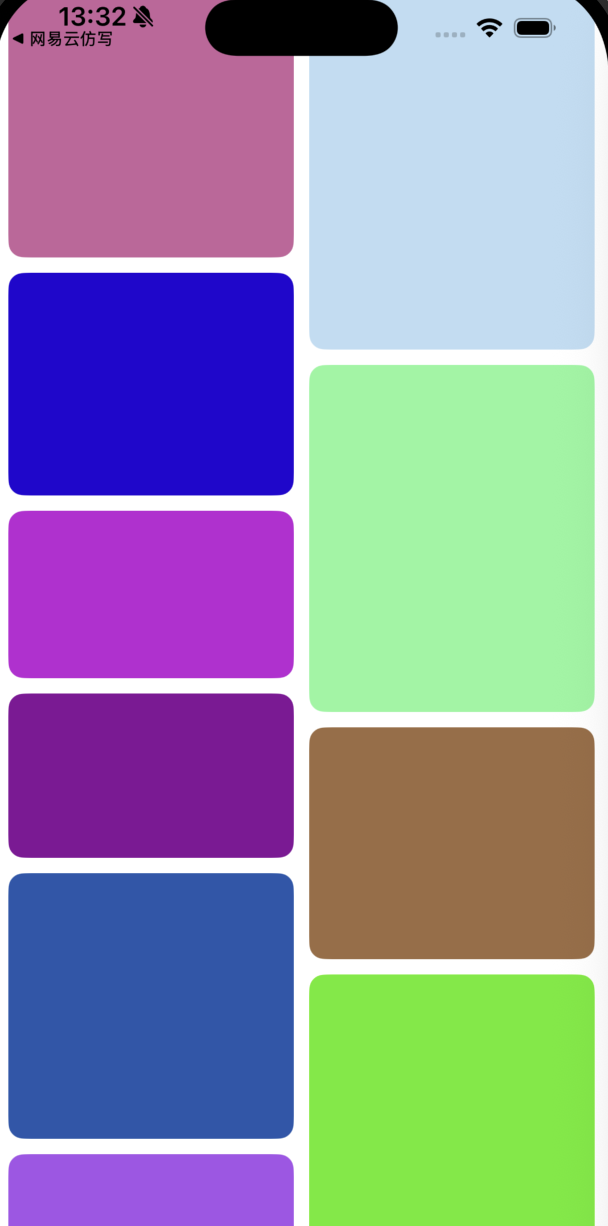
瀑布流是一种非常经典的布局方式,最大的特点就是每个cell高度不同但是排列紧凑
特点
多列容器:将展示区域划分为若干等宽的列。
逐行填充:元素(图片、卡片等)按顺序依次放置。
最短列优先:每个元素不是按行对齐,而是找当前所有列中累积高度最小的那一列,然后放在该列的底部。
动态布局:由于元素高度可能不同,最终每列的总高度可能不同,整体呈现"左侧右侧参差"的瀑布流效果。
重写方法
系统的Flow Layout默认行是优先级,从左到右摆放cell,放满后再换行,y值必须一样,所以做不了瀑布流
我们需要的瀑布流需要优先列,找到最短列,把cell放进去
- 实现prepareLayout
objc
- (void)prepareLayout {

    [super prepareLayout];
    [self.attrsArray removeAllObjects];
    [self.columnHeights removeAllObjects];
    NSInteger columnCount = 2;
    for (NSInteger i = 0; i < columnCount; i++) {
        [self.columnHeights addObject:@(0)];
    }
    NSInteger count = [self.collectionView numberOfItemsInSection:0];
    CGFloat spacing = 10;
    CGFloat cellWidth = (self.collectionView.frame.size.width - spacing * 3) / 2;
    for (NSInteger i = 0; i < count; i++) {
        NSIndexPath *indexPath = [NSIndexPath indexPathForItem:i inSection:0];
        NSInteger minColumn = 0;
        CGFloat minHeight =
        [self.columnHeights[0] floatValue];
        for (NSInteger j = 1;
             j < self.columnHeights.count; j++) {
            CGFloat currentHeight = [self.columnHeights[j] floatValue];
            if (currentHeight < minHeight) {
                minHeight = currentHeight;
                minColumn = j;
            }
        }
        CGFloat x =  spacing + minColumn * (cellWidth + spacing);
        CGFloat y = minHeight + spacing;
        CGFloat cellHeight = arc4random_uniform(150) + 100;
        CGRect frame = CGRectMake(x,y,cellWidth,cellHeight);
        UICollectionViewLayoutAttributes *attrs =
        [UICollectionViewLayoutAttributes
         layoutAttributesForCellWithIndexPath:indexPath];
        attrs.frame = frame;
        [self.attrsArray addObject:attrs];
        self.columnHeights[minColumn] = @(CGRectGetMaxY(frame));
    }
}
prepareLayout是在CollectionView之前自动调用,计算好所有cell的位置
清空旧数据
因为prepare可能调用很多次,为了避免重复布局,需要使用removeAllObjects清空旧数据
初始化列数列高
NSInteger columnCount = 2;数字是几,列数就是几
再把列高设成0
遍历cell创建indexPath,表示当前是第几个cell
之后我们要找到最短列,先遍历所有列比较高度,确定位置
计算新cell的x和y,x为一个间隔加一个cell的宽度,y就是最短列加一个间隔
然后我们就要使用随机高度,arc4random_uniform系统随机函数生成随机高度
创建attributes,它记录了cell的布局,也就是关于cell的各种属性
| 属性 | 作用 |
|---|---|
| frame | 位置大小 |
| center | 中心点 |
| size | 大小 |
| alpha | 透明度 |
| transform | 变换 |
| zIndex | 层级 |
那我们只使用frame一个属性,也不能直接使用frame,因为CollectionView只认attributes,使用它进行包装系统才能正常显示
- 实现collectionViewContentSize
objc
- (CGSize)collectionViewContentSize {

    CGFloat maxHeight = 0;
    for (NSNumber *height
         in self.columnHeights) {
        if (height.floatValue > maxHeight) {
            maxHeight = height.floatValue;
        }
    }
    return CGSizeMake(0, maxHeight + 10);
}
这个方法是得到整体高度,决定整个内容能滚多远,创建cell的时候我们要找最短列,在这个方法我们要找最高列
- 返回布局属性
objc
- (NSArray *)layoutAttributesForElementsInRect:(CGRect)rect {

    return self.attrsArray;
}
| 对比项 | UITableView | UICollectionView |
|---|---|---|
| 布局 | 单列列表 | 自由布局 |
| 排列方式 | 按行排列 | 网格/瀑布流 |
| 灵活性 | 较低 | 很高 |
| 横向滚动 | 不方便 | 原生支持 |
| 适用场景 | 设置页、聊天 | 首页、推荐页 |
| 自定义能力 | 一般 | 很强 |
| 学习难度 | 简单 | 较复杂 |
总结
UICollectionView相较于UITableView功能更强大,在App首页中有大量使用,通过学习我们能有仿写应用的能力