胖友们,跟我来简简单单让你三步搞定item:
第一步.肯定是先连接服务器喽,编写一个连接服务器的脚本(dev_server),将脚本保存在任意路径,我以~/.ssh目录为例;
脚本代码事例如下:
dev_server
bash
#!/usr/bin/expect -f

set host 192.168.1.1
set user root
set port 6025
set password root
#set timeout -1

spawn ssh $user@$host -p $port
expect "*password:"
send "$password\r"
interact
expect eof
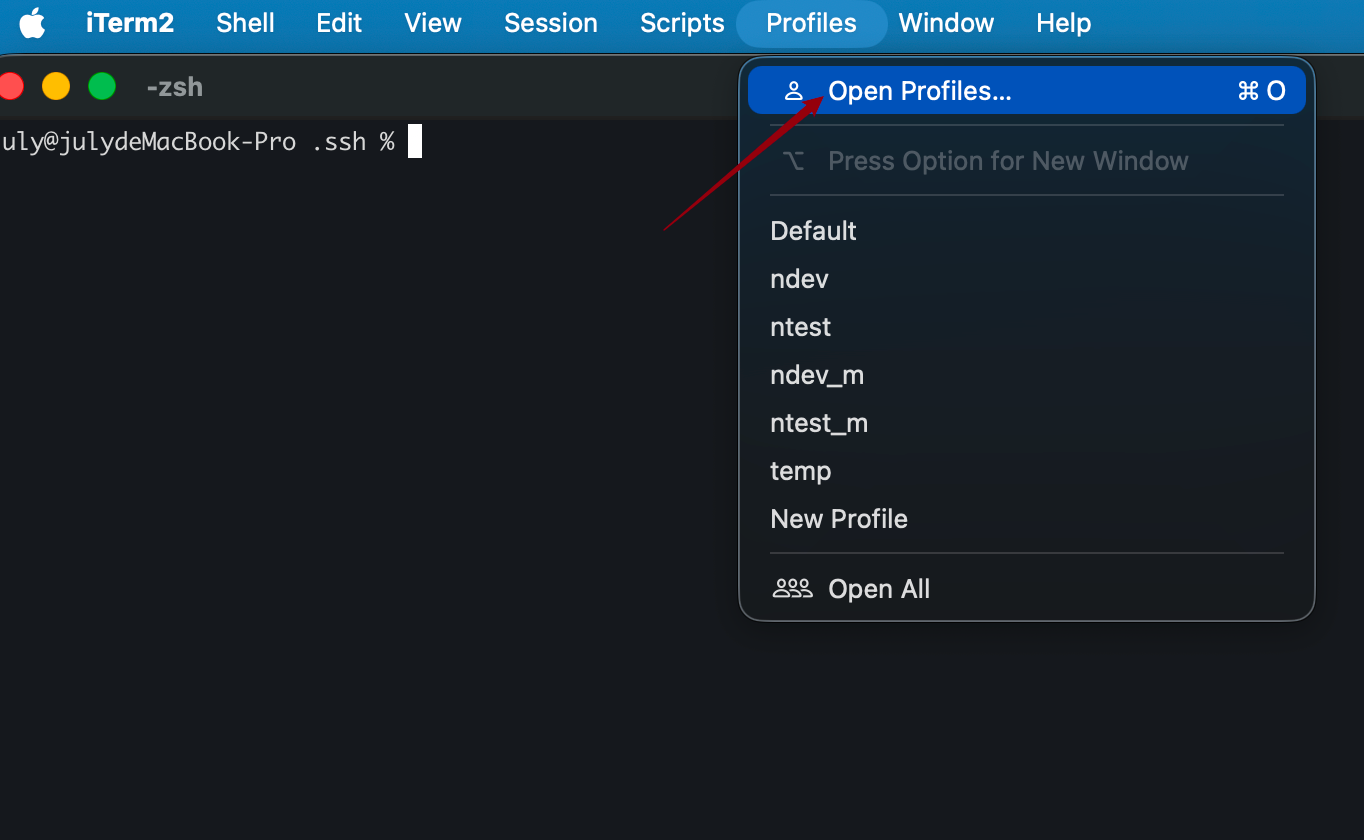
第二步:在item中配置快捷入口,找到profiles-->open profiles...-->edit profiles...
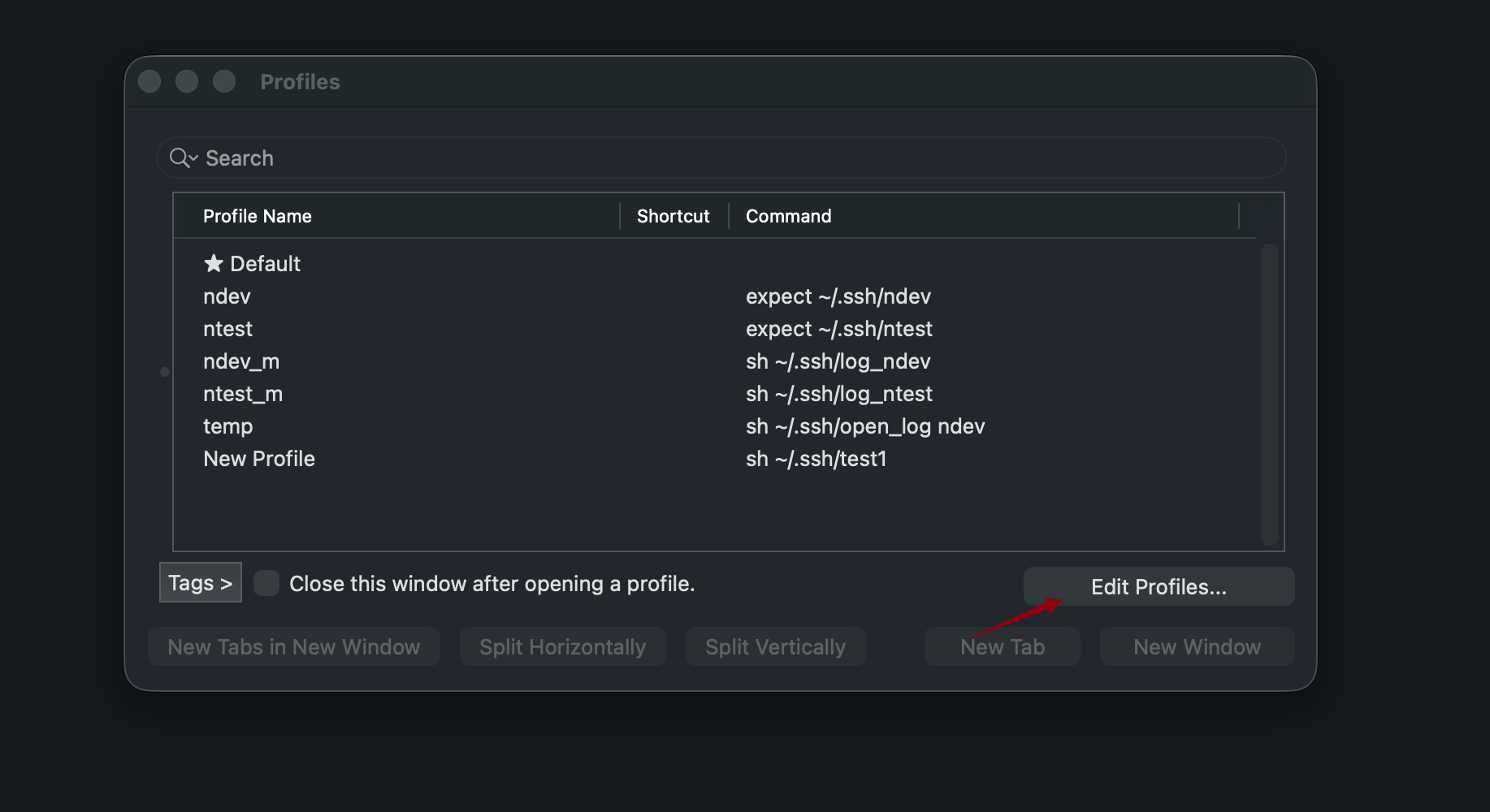
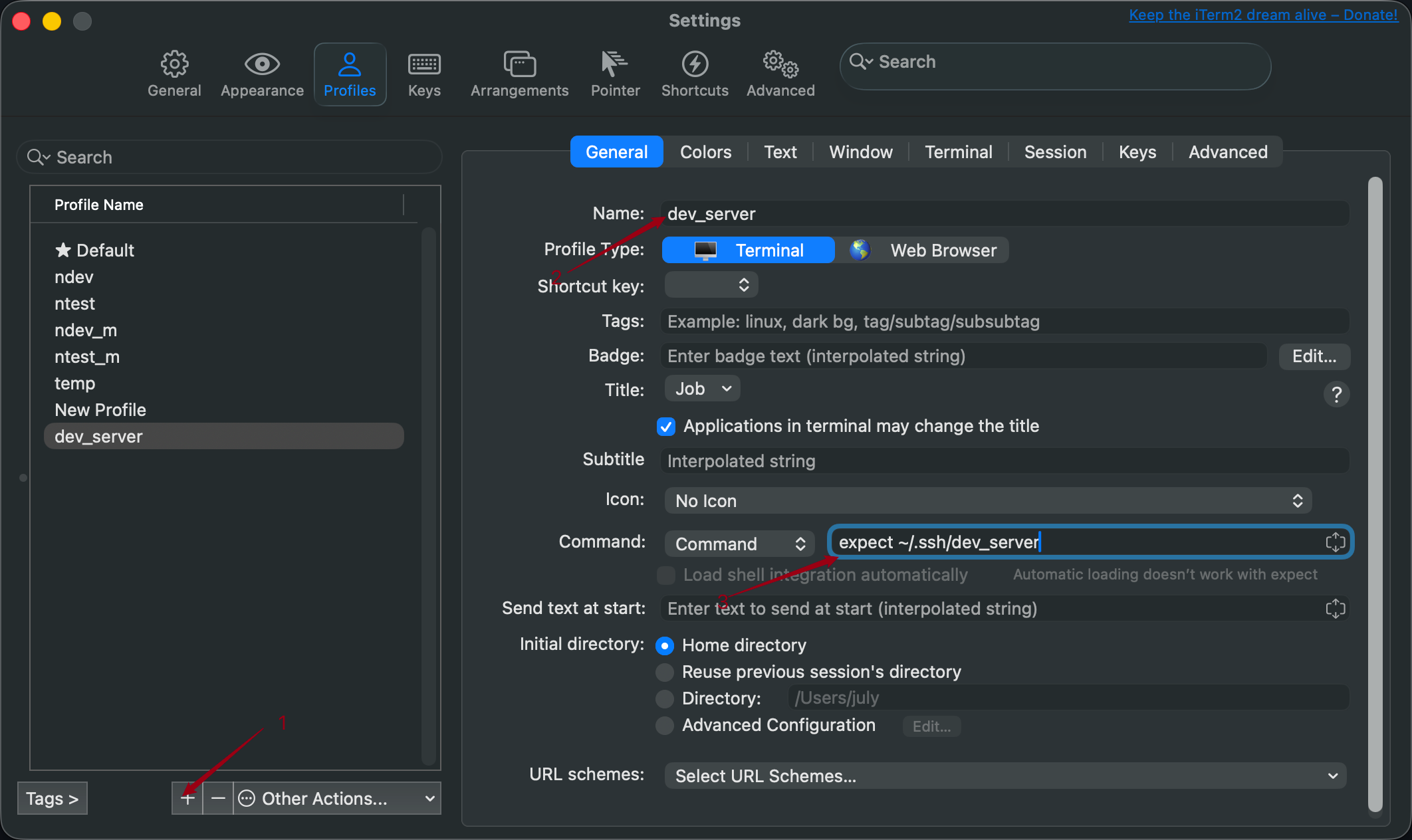
点击"+"会创建一个新窗口,修改名称name 和 执行命令command:(expect ~/.ssh/dev_server)就搞定啦,配置完成窗口可以直接关闭了
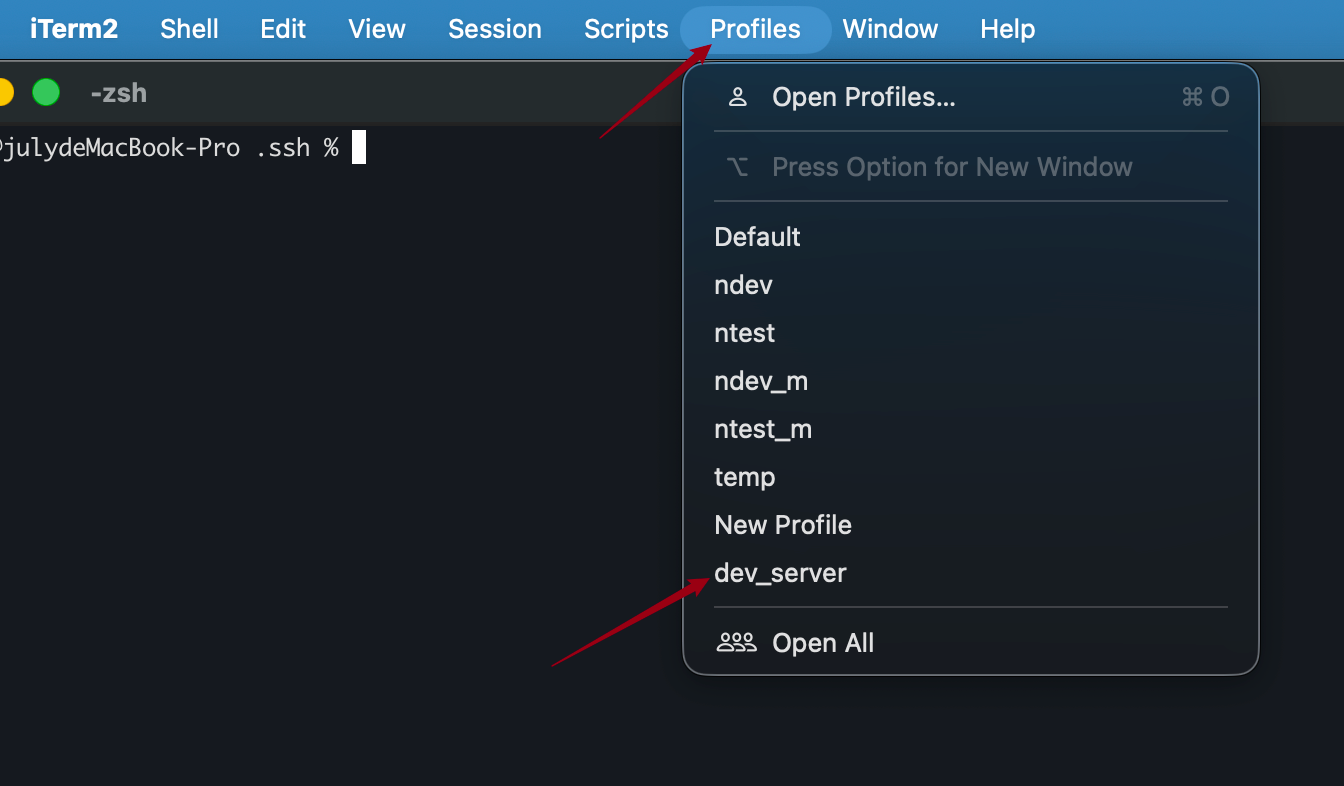
再点击profiles就能看到创建的快捷入口了.点击刚刚创建的入口就可以正常连接服务器了,轻松两步完成.至于第三步吗.想学习的胖友们可心进阶一下
第三步:很多时候我们要一起观察多台服务器的日志打印.一台一台的打开窗口输入命令又太费事.所以我们第三步就是要简化此操作.一次打开N个窗口.执行我们想要的任务.我以查看日志为例;
脚本内容很多简单,有不明白的大家自行科普,我以操作为主,这里不做过多讲解,脚本事例如下:
dev_log
bash
osascript <<EOF
tell application "iTerm"
    activate

    -- 创建窗口
    set newWindow to (create window with profile "dev_server")
    -- 主窗口还没有创建完.会报错.需等待几秒
    delay 3
    tell current session of newWindow
        write text "tail -f /data/project/logs/info.log"

        -- 第2列
        set pane2 to (split vertically with profile "dev_server")
    end tell

    tell pane2
        write text "tail -f /data/project2/logs/info.log"

        -- 第3列
        set pane3 to (split vertically with profile "dev_server")
    end tell

    tell pane3
        write text "tail -f /data/project3/logs/info.log"
    end tell

    -- 第二排(每列向下 split)

    tell current session of newWindow
        set pane4 to (split horizontally with profile "dev_server")
    end tell

    tell pane4
        write text "tail -f /data/project4/logs/info.log"
    end tell

    tell pane2
        set pane5 to (split horizontally with profile "dev_server")
    end tell

    tell pane5
        write text "tail -f /data/project5/logs/info.log"
    end tell

    tell pane3
        set pane6 to (split horizontally with profile "dev_server")
    end tell

    tell pane6
        write text "tail -f /data/project6/logs/info.log"
    end tell

end tell
EOF
此脚本会创建一个主窗口,并把窗口分隔为2*3格式的6个窗口.也就是同时查看6台服务器日志.
创建完执行脚本.然后重复第二步的操作,把执行命令改为:sh ~/.ssh/dev_log 关闭窗口搞定
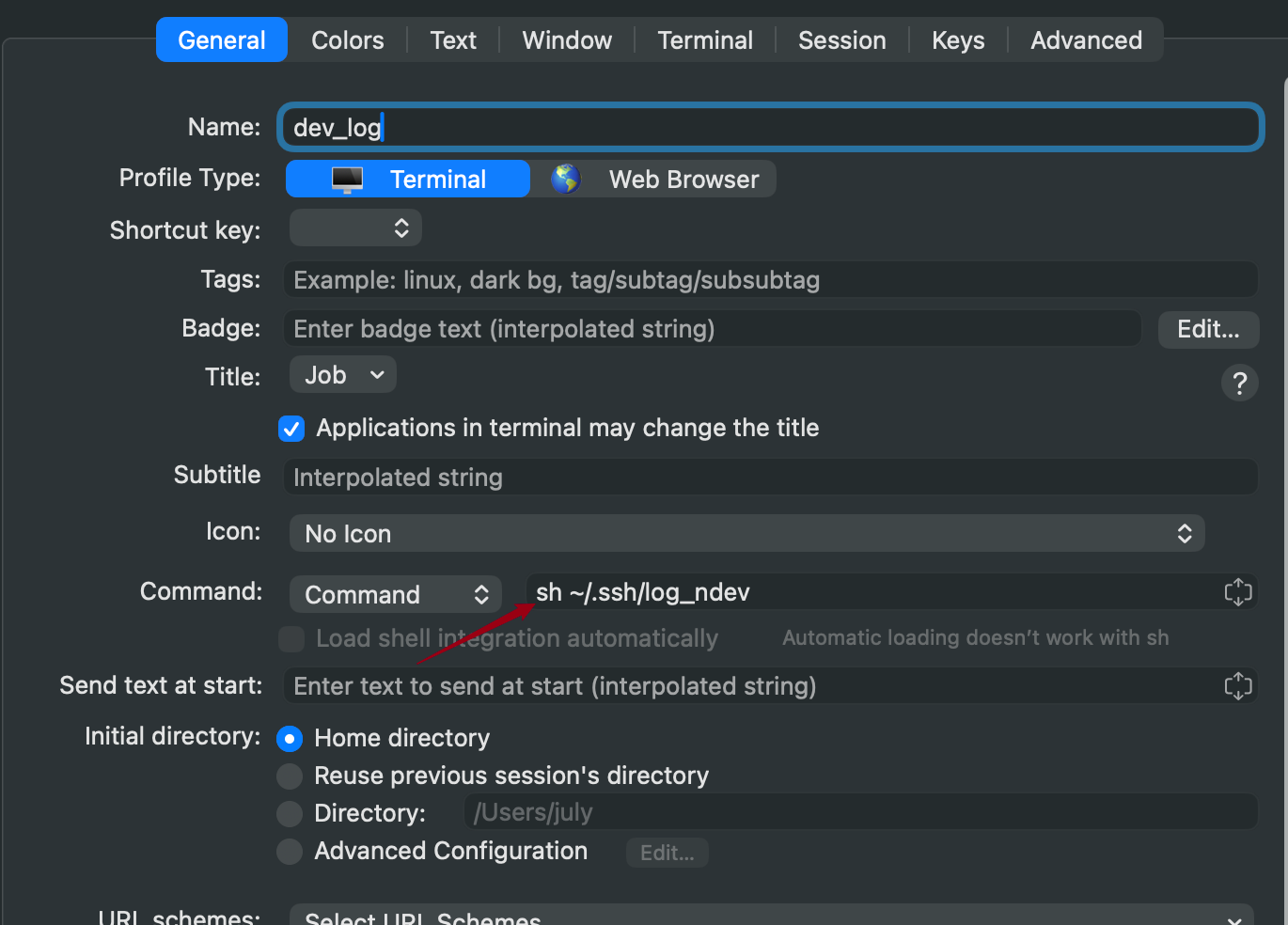
再次查看profiles你会看到dev_log快捷入口.点击会弹出一个被分隔成6等份的日志窗口:
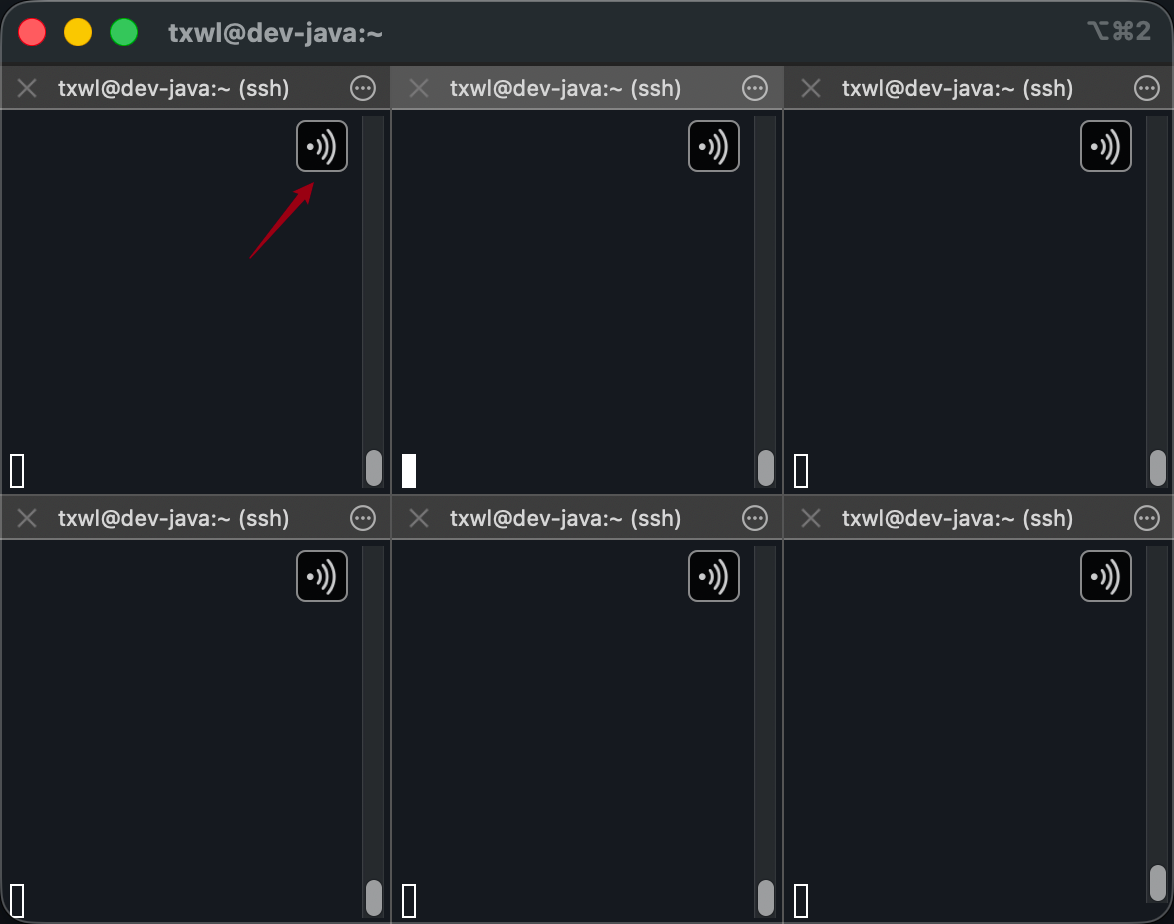
到此完美搞定.胖友们开始行动起来了.
有没有好奇我的窗口为什么会去有一个这个 标识的.有想知道的吗?见评论区解答.