前言: 本篇文章是 Godot(4.x): 游戏管理器: Excel 动态依赖注入实现-CSDN博客 中对Excel转换为指定Json注入文件的实现
在阅读本文前,可以先阅读:
1. Godot(4.x): 游戏管理器: Excel 动态依赖注入实现-CSDN博客
2. Godot(4.X): 外接Python处理Excel数据: 账号管理系统实现-CSDN博客
这两部分的内容,其中第一篇建议阅读,便于理解本文
1. Python处理Excel前简述
1.1 流程前补充
在原版Godot中并没有直接处理Excel数据的方式,所以使用Godot调用Python的方法,Python生成Json,Godot再读取Json的模式来实现Godot表注入。
Python部分的主要功能是检查Excel表格,处理表格的各项问题(表格不符合需求格式,表格数据存在空白等),最后将表格内容转换成Json放入指定目录供Godot读取
Godot中调用外置脚本的方式是通过内置的OS类来调用。OS类 是Godot中提供对常见操作系统访问功能的类 ,封装了与主机操作系统通信的最常见功能,使用 OS.execute() 调用外部 Python 脚本,系统会创建子进程执行脚本,并捕获运行返回值
本文主要是对Python部分讲解,Godot部分将会在主文章中的Godot对应部分解释
1.2 Python运行流程
1. Python被Godot调用,接收命令参数
2. Python按照Godot给定Excel路径检查Excel存在与格式错误
3. Python按照Godot所需格式生成Json文件
4. Python关闭Excel文件,停止运行
本框架Godot传入Python参数基本格式:
Python脚本路径,Python运行参数,Python注入脚本根文件绝对路径,****输出Json路径** **
Godot 需求 Json 格式**:**
{
"Server": { # 模块名
"PATH": "路径", # 模块路径
"START": true, # 模块是否启用
"EXTRA": false, # 是否有额外依赖
"AFFILIATED": null # 依赖地址
},
"Login": {
"PATH": "",
"START": true,
"EXTRA": false,
"AFFILIATED": null
}
}
其中模块名作为Json中的各自属性的键名 ,顺序任意。 其中各模块对应的属性只要提供指定的键值对即可,顺序可换,同时任何在Excel中写入的新的任何模块与其子属性都将会被自动加入Json,不影响指定模块的读取。
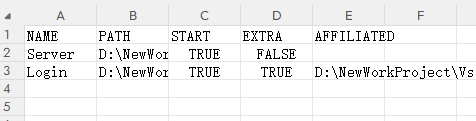
下图为正常Excel的读取格式:

2. Python处理Excel转指定Json代码实现
演示前,先给出Python代码部分的结构图:
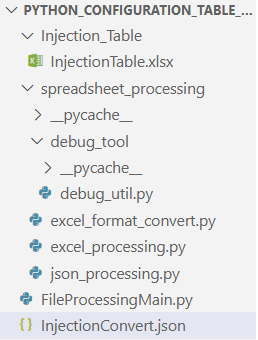
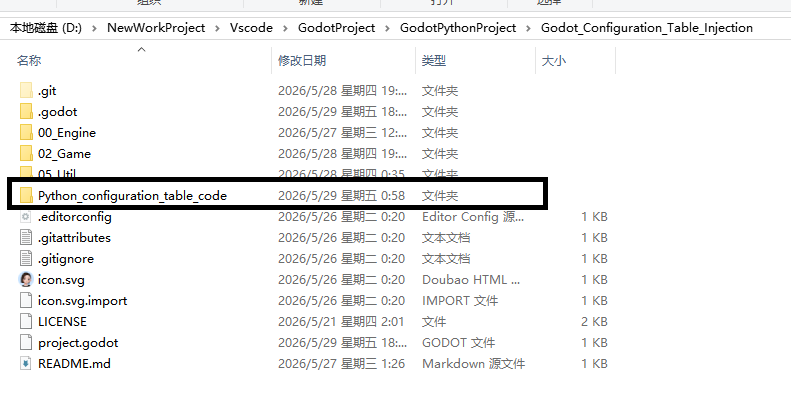
Python部分在Godot项目文件中的部分:
Python调试工具类,用于控制全局调试输出,位于 debug_util.py 中
python
class DebugTool:
    #====允许调试信息(防止 print() 输出到Godot捕获参数列表)====#
    DEBUG = True

    # 调试信息输出
    @staticmethod
    def debug_log(msg):
        """只有 DEBUG=True 时才打印,否则不输出任何东西"""
        if DebugTool.DEBUG:
            try: print(msg)
            except Exception as e:
                import sys
                sys.stderr.write(f"调试出现问题: {msg}\n")
    #====允许调试信息(防止 print() 输出到Godot捕获参数列表)====#
2.1 Excel处理部分(excel_processing)
Excel处理部分主要负责保存统一打开的Excel文件 ,存放处理Excel的工具函数
以下为演示代码:
python
#====引入的 Openpyxl 库中的工作簿,工作表,以及加载函数====#
from debug_tool.debug_util          import DebugTool        # 导入调试工具
from openpyxl.worksheet.worksheet   import Worksheet        # 工作表类
from openpyxl.workbook.workbook     import Workbook         # 工作簿类
from openpyxl                       import load_workbook    # 加载Excel函数
from typing                         import Optional         # 多类型注释,用于函数返回多类型


"""
全局Excel文件管理器
可以替换所有函数内打开Excel的操作
减少频繁打开关闭Excel的性能消耗
这里可以忽略,本文并未使用
"""
#===============全局文件管理器Excel===============#
"""
统一管理全局被打开的Excel
防止手动释放出现问题
"""
class ExcelManager:

    #==默认空表未打开Excel==#
    def __init__(self, file_path: Optional[str] = None):

        self._inner_excel_path  : Optional[str]         = file_path       # 记录Excel路径
        self._inner_excel       : Optional[Workbook]    = None            # 记录Excel文件
        #==尝试打开Excel路径==#
        if self._inner_excel_path is not None:
            try:
                read_excel: Workbook = load_workbook(
                                                    file_path,
                                                    read_only=True
                                                    )
                #==打开则记录 Excel 到当前类对象==#
                self._inner_excel = read_excel
                DebugTool.debug_log(f"Excel统一类: 初始化Excel成功")

            #=====异常处理=====#
            except Exception as e:
                DebugTool.debug_log(f"Excel统一类: 初始化失败: {e}")
        else:
            DebugTool.debug_log(f"创建空Excel统一类成功")

    #==尝试打开Excel==#
    def open_excel(self, file_path: Optional[str] = None) -> bool:
        if file_path is None:
            DebugTool.debug_log(f"Excel统一类: 没有传入打开路径")
            return False

        #==检查本对象是否已经有Excel指向==#
        if self._inner_excel:
            DebugTool.debug_log(f"Excel统一类: 打开对象已存在: {self._inner_excel}: 请手动释放")
            return False

        #==尝试读取Excel==#
        try:
            #==获取Excel,同时更新内部状态==#
            read_excel: Workbook        = load_workbook(file_path, read_only=True)
            self._inner_excel           = read_excel
            self._inner_excel_path      = file_path
            return True

        #==异常处理==#
        except Exception as e:
            DebugTool.debug_log(f"Excel统一类: 手动打开Excel发生异常: 打开失败")
            return False

    #==获得类中Excel==#
    def get_excel(self) -> Optional[Workbook]:
        #==检查本对象Excel是否已经指向==#
        if self._inner_excel:
            DebugTool.debug_log(f"Excel统一类: 成功返回Excel")
            return self._inner_excel

        #=不存在=#
        DebugTool.debug_log(f"Excel统一类: 返回excel失败,excel并未读取")
        return None

    #==获得Excel中对应表单==#
    def get_sheet(self, sheet_name: Optional[str] = None) -> Optional[Worksheet]:
        if sheet_name is None:
            DebugTool.debug_log(f"Excel统一类: 没有传入表单名称")
            return None

        #==检查Excel指向==#
        if self._inner_excel is None:
            DebugTool.debug_log(f"Excel统一类: 不存在已经打开的Excel表")
            return None

        #==返回特定表==#
        if sheet_name not in self._inner_excel.sheetnames:
            DebugTool.debug_log(f"Excel统一类: 工作表'{sheet_name}' 不存在")
            return None
        #==返回表==#
        DebugTool.debug_log(f"Excel统一类: 工作表返回成功")
        return self._inner_excel[sheet_name]

    #==关闭Excel工作簿以及停止指向==#
    def close_workbook(self) -> bool:
        #==检查Excel指向==#
        if self._inner_excel is None:
            DebugTool.debug_log(f"Excel统一类: 不存在原表,已经关闭")
            return True

        # 尝试关闭表格
        try:
            self._inner_excel.close()
            DebugTool.debug_log(f"Excel统一类: 工作簿关闭成功")
            return True

        #==表单关闭失败==#
        except Exception as e:
            DebugTool.debug_log(f"Excel统一类: 关闭excel出现异常: {e}")
            return False

        #======无论结果置空内部表格存储指向========#
        finally:
            self._inner_excel       = None
            self._inner_excel_path  = None


#===============以下所有工具使用失败均返回 -1 =============#

#==============获取去除杂乱数据后的表格的最大行数===========#
#=============即找到第一个为空的格子(行或者列)记为最大值=====#
#=======================包含开头=========================#
#===========参数: (表格,基于第几列为遍历基础) =============#
def excel_sheet_get_pure_max_row(input_sheet: Optional[Worksheet], col_index: int = 1) -> int:
    if input_sheet is None:
        DebugTool.debug_log(f"纯净最大行: 没有传入表格")
        return -1

    #=======寻找到名字中断则返回纯净最大值======#
    try:
        max_row_length: int         = input_sheet.max_row
        # 检查表格是否有表头对应表格数据
        if max_row_length < 2:
            DebugTool.debug_log(f"纯净最大行: 表格数据为空或只有标题")
            return -1

        # 验证第一个单元格是否为空,为空则认为表格不合规范
        cell_value = input_sheet.cell(row = 1, column = col_index).value
        if cell_value is None or str(cell_value).strip() == "":
            DebugTool.debug_log(f"表格第 {col_index} 列第一行为空")
            return -1

        # 遍历寻找最大值
        for index in range(2, max_row_length + 1):
            cell_value = input_sheet.cell(row = index, column = col_index).value
            # print(cell_value)
            if cell_value is None or str(cell_value).strip() == "":
                return index - 1

        # 全连续返回最大值
        return max_row_length
    except Exception as e:
        DebugTool.debug_log(f"纯净最大行: 出现未知问题: {e}")
        return -1

#===========获取去除杂乱数据后的表格的最大列数==========#
def excel_sheet_get_pure_max_col(input_sheet: Optional[Worksheet], row_index: int = 1) -> int:
    if input_sheet is None:
        DebugTool.debug_log(f"纯净最大列: 没有传入表格")
        return -1

    # 验证第一个单元格是否为空,为空则认为表格不合规范
    cell_value = input_sheet.cell(row = row_index, column = 1).value
    if cell_value is None or str(cell_value).strip() == "":
        DebugTool.debug_log(f"表格第 {row_index} 行第一列为空")
        return -1

    #=======寻找到名字中断则返回纯净最大值======#
    try:
        max_col_length: int         = input_sheet.max_column
        if max_col_length < 1:
            DebugTool.debug_log(f"纯净最大列: 表格数据没有列")
            return -1
        # 遍历寻找最大值
        for index in range(1, max_col_length + 1):
            cell_value = input_sheet.cell(row = row_index, column = index).value
            # print(cell_value)
            if cell_value is None or str(cell_value).strip() == "":
                return index - 1

        # 全连续返回最大值
        return max_col_length
    except Exception as e:
        DebugTool.debug_log(f"纯净最大列: 出现未知问题: {e}")
        return -1
2.2 Excel格式转换部分(excel_format_convert)
Excel格式转换部分主要负责将Excel读取出来的数据转化成需求字典格式提供Json转换字典
以下为演示代码:
python
#====引入的 Openpyxl 库中的工作簿,工作表,以及加载函数====#
from openpyxl.worksheet.worksheet   import Worksheet        # 工作表类
from typing                         import Optional         # 多类型注释,用于函数返回多类型

from debug_tool.debug_util          import DebugTool        # 导入调试工具
from excel_processing               import excel_sheet_get_pure_max_col
from excel_processing               import excel_sheet_get_pure_max_row

class ExcelFormatConversion:
    #====将格式转为形如 { "NAME" : {"PATH": "?"}(乱序) ...}====#
    #================可以选择表头名字, 前提存在=================#
    #====转换时主键名和附键名在同一列表,选取主键名从而建立映射表===#

    @staticmethod
    def convert_injection_dict(
        input_sheet: Optional[Worksheet],
        head_name: str = "NAME"
        ) -> dict:

        # ===================== 1. 输入校验 ===================== #

        if input_sheet is None:
            DebugTool.debug_log(f"Excel注入格式转换: 没有传入表格")
            return {}

        # ===================== 2. 获取有效数据范围 ===================== #
        # 纯数据最大行/列(遇到空行/空列自动停止)
        processed_max_row = excel_sheet_get_pure_max_row(input_sheet)
        processed_max_col = excel_sheet_get_pure_max_col(input_sheet)
        if processed_max_col == -1 or processed_max_row == -1:
            DebugTool.debug_log(f"Excel注入格式转换: 表格数据不符合规范")
            return {}

        # ===================== 3. 构建表头映射表 ===================== #
        # 映射格式为 {"model_name": index} 表头与其对应在Excel中的格式
        head_mapping: dict = {}
        for col_index in range(1, processed_max_col + 1):
            head_call_value = input_sheet.cell(row = 1, column = col_index).value

            # 空表头跳过
            if head_call_value is None:
                continue

            name_value: str = str(head_call_value).strip()

            # 重复表头停止映射,关闭程序
            if name_value in head_mapping:
                DebugTool.debug_log(f"Excel注入格式转换: 第{col_index}列表头'{name_value}'重复,停止映射")
                return {}

            head_mapping[name_value] = col_index

        # ===================== 4. 校验主键是否存在 ===================== #
        if head_name not in head_mapping:
            DebugTool.debug_log(f"Excel注入格式转换: 需求表头 {head_name} 不存在")
            return {}

        # ===================== 5. 逐行转换为字典 ===================== #
        convert_result: dict = {}
        # 填入转换字典(按照行转换),将对应的模块与其子属性对应
        # 从第2行开始遍历(第1行是表头)
        for row_index in range(2, processed_max_row + 1):
            attribute_dict: dict = {}

            # 获取表头列元素(主键)
            main_name_map_index: int = head_mapping[head_name]
            main_name = input_sheet.cell(row = row_index, column = main_name_map_index).value

            # 表头为空或者有 "\n"," " 等字符跳过
            if main_name is None or str(main_name).strip() == "":
                continue

            main_key = str(main_name).strip()

            # 将对应模块属性整理成字典(表头不一定在第一个,乱序)
            for attribute_name in head_mapping:

                # 主键本身不放入属性字典
                if attribute_name == head_name:
                    continue

                # 获取模块对应在Excel中的列索引位置,并取对应值
                attribute_index: int = head_mapping[attribute_name]
                attribute_value = input_sheet.cell(row = row_index, column = attribute_index).value

                # 空值统一转为 None
                if attribute_value is None or str(attribute_value).strip() == "":
                    attribute_value = None

                # 加入键值对(乱序)
                attribute_dict[attribute_name] = attribute_value

            # 存入最终结果
            convert_result[main_key] = attribute_dict

        DebugTool.debug_log(f"Excel注入格式转换: 注入字典转换成功")
        return convert_result
2.3 Json格式转化部分(json_processing)
Json格式转化部分主要负责将从Excel转化好的对应字典转化为Json格式供Godot使用
以下为演示代码
python
import os               # 引入 os 系统库
import json             # 引入 Json 库
from debug_tool.debug_util import DebugTool        # 导入调试工具

class JsonProcessing:

    # 字典创建JSON文件
    # 这里是将字典的数据转化为Json的
    # 传参为 (字典,Json输出路径)
    @staticmethod
    def convert_dir_to_json(out_dir: dict, json_out_path: str) -> None:
        try:
            # ============ 1. 自动创建输出文件夹 =========== #
            # 获取文件所在目录路径
            output_dir = os.path.dirname(json_out_path)
            # 如果目录不存在,则创建
            if output_dir and not os.path.exists(output_dir):
                os.makedirs(output_dir)

            # ============ 2. 字典转 JSON 字符串(格式化) ========== #
            convert_dir: str = json.dumps(
                out_dir,
                ensure_ascii=False, # 中文不转义乱码
                indent=4,           # 4格固定可读缩进
                sort_keys=False     # 保持表格顺序
                )
            # ============ 3. 写入文件(UTF-8编码) ============= #
            with open(json_out_path, "w", encoding="utf-8") as file:
                file.write(convert_dir)

            DebugTool.debug_log(f"JSON文件创建成功: {json_out_path}")

        # 异常捕获:权限、路径错误、数据格式错误等
        except Exception as e:
            DebugTool.debug_log(f"字典创建JSON失败: {str(e)}")
2.4 主程序部分(FileProcessingMain)
主程序用于接收Godot运行参数并执行对应操作(执行Excel转换等)
以下为演示代码
python
import sys                                                          # Python环境工具
from typing import Optional                                         # 引入类型标注工具
from pathlib import Path
                                         # 路径工具
# 项目根目录
ROOT_DIR = Path(__file__).parent
# 子模块目录 spreadsheet_processing 文件夹
SP_DIR = ROOT_DIR / "spreadsheet_processing"

# 加入目录搜索路径
sys.path.append(str(ROOT_DIR))
sys.path.append(str(SP_DIR))

from spreadsheet_processing.excel_format_convert            import ExcelFormatConversion         # 导入格式转换工具
from spreadsheet_processing.debug_tool.debug_util           import DebugTool                     # 导入调试工具
from spreadsheet_processing.excel_processing                import ExcelManager                  # 导入Excel管理器
from spreadsheet_processing.json_processing                 import JsonProcessing                # 导入Json处理器

#==========================默认文件路径==========================#
DEFAULT_EXCEL_PATH  : str   = "Injection_Table/InjectionTable.xlsx"
DEFAULT_JSON_PATH   : str   = "InjectionConvert.json"
#===============================================================#

#=====================Godot注入启动默认传参=======================#
DEFAULT_PARAM_NUM:          int = 4     # Godot传入参数数量
DEFAULT_PYTHON_PATH:        int = 0     # Godot传入Python路径(绝对)
DEFAULT_START_PARAM:        int = 1     # Godot传入启动参量
DEFAULT_GODOT_NORMAL_PATH:  int = 2     # Godot默认地址传参
DEFAULT_GODOT_JSON_PATH:    int = 3     # Godot默认注入Json路径
#===============================================================#

#========================Godot启动参量===========================#
START_EXCEL_CONVERT_JSON:   str = "0"

#===============================================================#


#======================默认接收全局变量===========================#
receive_param : str          = "0"              # 程序运行参数
receive_excel : Optional[ExcelManager] = None   # 程序Excel管理器
#===============================================================#


#============= 以下为统一接口调用函数 ===============#

# 加载Godot运行参数
def load_godot_arguments() -> None:
    # 主程序传参限制
    if (len(sys.argv) < DEFAULT_PARAM_NUM):
        DebugTool.debug_log(f"传参: 传参数量不足, 当前传参: {len(sys.argv)}, 程序终止")
        sys.exit()

    # 声明全局,修改全局路径
    global receive_param
    global DEFAULT_EXCEL_PATH
    global DEFAULT_JSON_PATH

    # 初始化收到参数
    receive_param       = sys.argv[DEFAULT_START_PARAM]
    godot_base_path     = sys.argv[DEFAULT_GODOT_NORMAL_PATH]
    godot_json_path     = sys.argv[DEFAULT_GODOT_JSON_PATH]


    DEFAULT_EXCEL_PATH = godot_base_path + DEFAULT_EXCEL_PATH
    DEFAULT_JSON_PATH  = godot_json_path

# 参数为 0 执行一次Excel转换Json
def injection_convert_json() -> None:
    # 声明全局,修改全局对象
    global receive_excel

    if receive_excel is None:
        DebugTool.debug_log(f"主程序: 当前Excel管理器为空")
        return

    # 转换Excel数据为Json
    sheet = receive_excel.get_sheet("InjectionTable")
    convert_dict: dict = ExcelFormatConversion.convert_injection_dict(sheet)

    JsonProcessing.convert_dir_to_json(convert_dict, DEFAULT_JSON_PATH)


"""
规定Python参数接收标准
    [
        Python路径(Godot规定必传),
        Godot运行要求指令参数,
        Python注入代码补充路径,
        注入Json文件绝对路径
    ]
"""


#=========================主程序执行=========================#
if __name__ == "__main__":
    try:
        # 初始化加载参数
        load_godot_arguments()

        # Excel管理器初始化
        receive_excel = ExcelManager(DEFAULT_EXCEL_PATH)

        #================程序执行部分================#

        # 根据参数选择执行函数
        if (receive_param == START_EXCEL_CONVERT_JSON):

            injection_convert_json()
        #================程序执行末尾================#

    except Exception as e:
        DebugTool.debug_log(f"主程序: 程序运行异常:{str(e)}")
        sys.exit()

    # 关闭Excel
    finally:
        if receive_excel is not None:
            receive_excel.close_workbook()
以上为本框架使用的Python完整代码
3. Python功能演示
Excel表格状态:
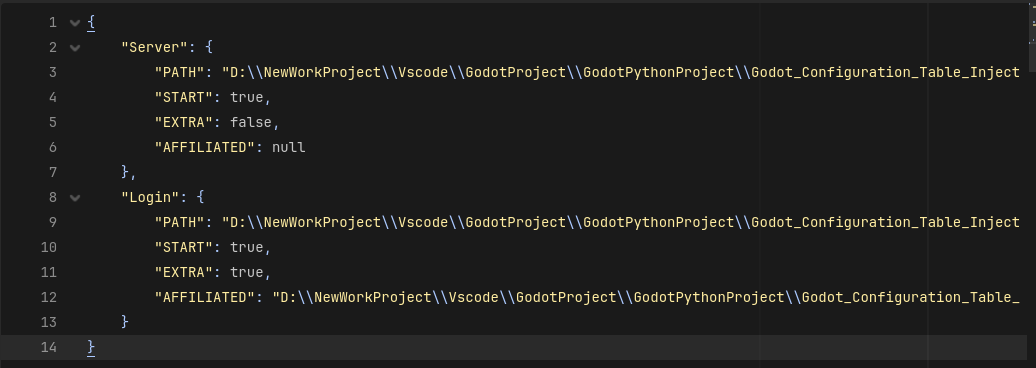
运行Godot,输出Python转换结果
-
字典转换结果

-
Json输出结果
4. 结尾与补充
本文是 Godot(4.x): 游戏管理器: Excel 动态依赖注入实现-CSDN博客 中Python处理Excel部分的实现,这里返回主文章