Currency-converter 汇率转换应用开发教程
项目介绍
项目背景
汇率转换是一个实用的金融工具应用,帮助用户在不同货币之间进行汇率换算。随着全球化的发展,跨境交易和出国旅游越来越频繁,一个方便的汇率转换工具变得非常必要。无论是出国旅游时计算外币价格,还是跨境购物时比较不同货币的商品价格,汇率转换应用都能提供极大的便利。
在现代金融环境中,汇率波动频繁,及时了解汇率变化对于投资者和旅行者都至关重要。本应用虽然使用模拟汇率数据,但提供了完整的汇率转换功能框架,开发者可以轻松接入真实的汇率API获取实时数据。
应用场景
-
出国旅游:快速计算外币价格,帮助旅行者了解当地物价水平,合理规划旅行预算。
-
跨境购物:比较不同货币的商品价格,在海淘或跨境电商购物时做出更明智的购买决策。
-
外汇交易:实时查看汇率变动,为外汇投资者提供参考信息。
-
财务管理:多币种资产管理,帮助有海外资产或收入的用户管理财务。
-
商务交流:在国际商务活动中快速进行货币换算,提高工作效率。
功能特性
-
多货币支持:支持美元、人民币、欧元、日元、英镑、韩元、港币、新台币等主流货币。
-
实时转换:输入金额即时显示转换结果,无需点击按钮即可看到结果。
-
货币切换:一键交换源货币和目标货币,方便用户快速切换。
-
汇率显示:显示当前汇率信息,帮助用户了解货币之间的兑换比例。
-
常用汇率:列表显示常用货币汇率,方便用户快速参考。
最终效果
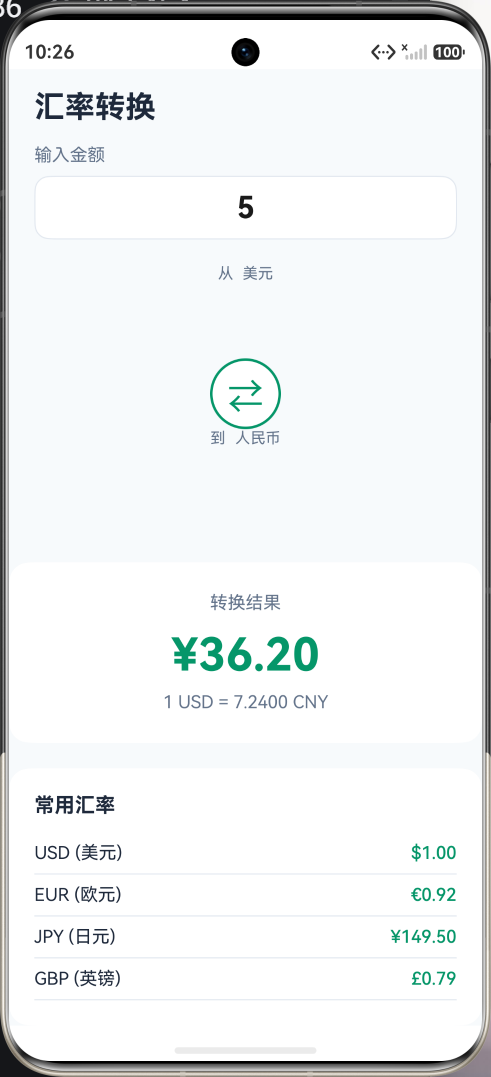
应用采用清新的绿色主题,象征着金融增长和财富。主界面包含:
- 顶部标题栏显示应用名称
- 金额输入区域,支持数字键盘输入
- 货币选择区域,带交换按钮
- 转换结果大字显示
- 常用汇率列表,显示主要货币汇率
技术栈
- 开发框架:HarmonyOS NEXT (API 20+)
- 编程语言:ArkTS
- UI框架:ArkUI 声明式 UI
- 核心组件:Column, Row, Select, TextInput, List, Button
知识点讲解
1. Record 类型数据映射
Record 是 TypeScript 中的一种工具类型,用于创建键值对映射。在汇率转换应用中,我们使用 Record 来存储货币汇率、符号和名称等信息。
typescript
// 定义汇率数据映射
// 键是货币代码,值是相对于美元的汇率
private readonly rates: Record<string, number> = {
  'USD': 1.0,      // 美元作为基准货币
  'CNY': 7.24,     // 1美元 = 7.24人民币
  'EUR': 0.92,     // 1美元 = 0.92欧元
  'JPY': 149.50,   // 1美元 = 149.50日元
  'GBP': 0.79,     // 1美元 = 0.79英镑
  'KRW': 1320.0,   // 1美元 = 1320韩元
  'HKD': 7.83,     // 1美元 = 7.83港币
  'TWD': 31.5      // 1美元 = 31.5新台币
}

// 定义货币符号映射
// 键是货币代码,值是货币符号
private readonly symbols: Record<string, string> = {
  'USD': '$',      // 美元符号
  'CNY': '¥',      // 人民币符号
  'EUR': '€',      // 欧元符号
  'JPY': '¥',      // 日元符号
  'GBP': '£',      // 英镑符号
  'KRW': '₩',      // 韩元符号
  'HKD': 'HK$',    // 港币符号
  'TWD': 'NT$'     // 新台币符号
}

// 定义货币名称映射
// 键是货币代码,值是货币中文名称
private readonly names: Record<string, string> = {
  'USD': '美元',
  'CNY': '人民币',
  'EUR': '欧元',
  'JPY': '日元',
  'GBP': '英镑',
  'KRW': '韩元',
  'HKD': '港币',
  'TWD': '新台币'
}

// 使用 Record 的示例
const rate = this.rates['CNY']      // 获取人民币汇率:7.24
const symbol = this.symbols['USD']  // 获取美元符号:$
const name = this.names['EUR']      // 获取欧元名称:欧元
Record 的优势:
- 类型安全:键和值都有明确的类型定义,编译时会进行类型检查
- 代码提示:IDE 可以提供属性和方法的自动补全,提高开发效率
- 易于维护:集中管理数据映射,修改时只需更改一处
- 访问便捷:通过键名直接访问值,代码简洁易读
2. Select 选择器组件
Select 组件用于创建下拉选择框,用户可以从预定义的选项中选择。在汇率转换应用中,我们使用 Select 来让用户选择源货币和目标货币。
typescript
// 基本用法
Select([
  { value: '选项1' },
  { value: '选项2' },
  { value: '选项3' }
])
.value('选项1')  // 设置当前选中值
.width(120)
.height(44)
.fontSize(16)
.onSelect((index: number) => {
  // 选择事件处理
  console.log(`选择了第 ${index} 项`)
})

// 动态生成选项
// 使用 Object.keys 获取所有货币代码,然后映射为 Select 选项格式
Select(Object.keys(this.rates).map(currency => ({ value: currency })))
  .value(this.fromCurrency)  // 绑定当前选中的源货币
  .width(120)
  .height(44)
  .fontSize(18)
  .fontWeight(FontWeight.Bold)
  .onSelect((index: number) => {
    // 获取所有货币代码数组
    const currencies = Object.keys(this.rates)
    // 根据索引获取选中的货币代码
    this.fromCurrency = currencies[index]
    // 重新执行转换
    this.convert()
  })
Select 常用属性:
.value():设置当前选中值.selected():设置选中项的索引.width()/.height():设置宽高.fontSize():设置字体大小.fontColor():设置字体颜色.backgroundColor():设置背景颜色.borderRadius():设置圆角.onSelect():设置选择事件处理函数
3. 数学计算与精度处理
汇率转换涉及浮点数计算,需要注意精度问题。JavaScript 的浮点数计算可能会产生精度误差,因此需要进行适当的处理。
typescript
private convert() {
  // 解析输入金额
  const amountNum = parseFloat(this.amount)

  // 验证输入是否有效
  if (isNaN(amountNum)) {
    this.result = '请输入有效金额'
    return
  }

  // 验证金额是否为正数
  if (amountNum <= 0) {
    this.result = '请输入正数金额'
    return
  }

  // 获取汇率
  const fromRate = this.rates[this.fromCurrency]
  const toRate = this.rates[this.toCurrency]

  if (fromRate && toRate) {
    // 先转换为美元(基准货币),再转换为目标货币
    // 计算公式:目标金额 = 源金额 / 源汇率 * 目标汇率
    const usdAmount = amountNum / fromRate
    const convertedAmount = usdAmount * toRate

    // 使用 toFixed 保留两位小数
    this.result = `${this.symbols[this.toCurrency]}${convertedAmount.toFixed(2)}`
  }
}
精度处理方法:
toFixed(n):保留 n 位小数,返回字符串Math.round():四舍五入取整parseFloat():解析字符串为浮点数Math.floor():向下取整Math.ceil():向上取整
4. 数组操作与映射
使用数组方法生成选项列表和处理数据。
typescript
// 获取所有货币代码
const currencies = Object.keys(this.rates)
// 结果:['USD', 'CNY', 'EUR', 'JPY', 'GBP', 'KRW', 'HKD', 'TWD']

// 映射为 Select 选项格式
const options = currencies.map(currency => ({ value: currency }))
// 结果:[{ value: 'USD' }, { value: 'CNY' }, ...]

// 在 Select 中使用
Select(Object.keys(this.rates).map(currency => ({ value: currency })))

// 使用 filter 过滤特定货币
const asianCurrencies = currencies.filter(currency =>
  ['CNY', 'JPY', 'KRW', 'HKD', 'TWD'].includes(currency)
)

// 使用 find 查找特定货币
const usdRate = Object.entries(this.rates).find(([key]) => key === 'USD')
常用数组方法:
map():映射数组元素,返回新数组filter():过滤数组元素,返回符合条件的元素find():查找第一个符合条件的元素indexOf():获取元素索引includes():检查数组是否包含某个元素reduce():累加计算
5. 条件渲染
根据条件显示不同的内容。在汇率转换应用中,我们根据转换结果显示不同的提示信息。
typescript
// 使用三元运算符
Text(this.result !== '' ? this.result : '转换结果将显示在这里')
  .fontSize(18)
  .fontColor(this.result !== '' ? '#059669' : '#64748b')

// 使用 if/else
if (this.result !== '') {
  Text(this.result)
    .fontSize(36)
    .fontWeight(FontWeight.Bold)
    .fontColor('#059669')
} else {
  Text('请输入金额并点击转换')
    .fontSize(16)
    .fontColor('#64748b')
}

// 使用 && 短路运算
{this.showError && Text('输入格式错误').fontColor('#ef4444')}
6. 事件处理
处理用户交互事件,包括输入变化、点击和选择。
typescript
// 输入变化事件
// 当用户在输入框中输入内容时触发
TextInput({ placeholder: '请输入金额', text: this.amount })
  .onChange((value: string) => {
    this.amount = value
    this.convert()  // 实时转换
  })

// 点击事件
// 当用户点击按钮时触发
Button('转换')
  .onClick(() => {
    this.convert()
  })

// 选择事件
// 当用户从下拉列表中选择选项时触发
Select(...)
  .onSelect((index: number) => {
    this.fromCurrency = Object.keys(this.rates)[index]
    this.convert()
  })
7. 样式设置
使用链式调用设置组件的各种样式属性。
typescript
Text('汇率转换')
  .fontSize(24)                    // 字体大小
  .fontWeight(FontWeight.Bold)     // 字体粗细
  .fontColor('#1e293b')            // 字体颜色
  .margin({ top: 16 })             // 外边距
  .padding({ left: 20 })           // 内边距
  .width('100%')                   // 宽度
  .textAlign(TextAlign.Center)     // 文本对齐方式

Button('转换')
  .width('90%')                    // 宽度
  .height(50)                      // 高度
  .fontSize(18)                    // 字体大小
  .fontColor('#ffffff')            // 字体颜色
  .backgroundColor('#059669')      // 背景颜色
  .borderRadius(12)                // 圆角大小

Column() {
  // 内容
}
.width('100%')                     // 宽度
.padding(20)                       // 内边距
.backgroundColor('#ffffff')        // 背景颜色
.borderRadius(16)                  // 圆角大小
.margin({ left: 20, right: 20 })   // 外边距
8. 布局组件
使用 Column 和 Row 创建垂直和水平布局。
typescript
// 垂直布局
Column() {
  Text('第一行')
  Text('第二行')
  Text('第三行')
}
.width('100%')
.padding(20)

// 水平布局
Row() {
  Text('左侧')
  Blank()  // 占据剩余空间
  Text('右侧')
}
.width('100%')
.justifyContent(FlexAlign.SpaceBetween)

// 嵌套布局
Column() {
  Row() {
    // 水平内容
  }
  .width('100%')

  Column() {
    // 垂直内容
  }
  .width('100%')
}
.width('100%')
9. 组件生命周期
组件生命周期方法用于在特定时机执行操作。
typescript
@Component
struct CurrencyConverter {
  // 组件即将出现时调用
  // 适合进行初始化操作,如加载数据、设置初始状态等
  aboutToAppear() {
    // 初始化数据
    this.convert()
  }

  // 组件即将消失时调用
  // 适合进行清理操作,如取消定时器、保存数据等
  aboutToDisappear() {
    // 清理资源
  }

  build() {
    // 构建 UI
    // 此方法会在状态变化时自动重新调用
  }
}
10. 字符串模板
使用模板字符串(反引号)格式化输出,可以在字符串中嵌入变量和表达式。
typescript
// 基本模板
const message = `当前汇率: 1 ${this.fromCurrency} = ${rate} ${this.toCurrency}`

// 格式化数字
const amount = `¥${convertedAmount.toFixed(2)}`

// 组合字符串
const displayText = `${this.symbols[this.toCurrency]}${amount}`

// 多行模板
const description = `
  源货币: ${this.fromCurrency}
  目标货币: ${this.toCurrency}
  汇率: ${rate}
`
完整代码解析
页面结构设计
┌─────────────────────────────────┐
│         顶部标题栏              │
│         [汇率转换]              │
├─────────────────────────────────┤
│         输入金额                │
│  ┌───────────────────────────┐  │
│  │          1.00             │  │
│  └───────────────────────────┘  │
├─────────────────────────────────┤
│         货币选择                │
│  从          ⇄         到      │
│ [USD ▼]              [CNY ▼]   │
│  美元                人民币      │
├─────────────────────────────────┤
│         转换结果                │
│  ┌───────────────────────────┐  │
│  │        ¥7.24              │  │
│  │                           │  │
│  │  1 USD = 7.24 CNY         │  │
│  └───────────────────────────┘  │
├─────────────────────────────────┤
│         常用汇率                │
│  USD (美元)              $1.00  │
│  EUR (欧元)              €0.92  │
│  JPY (日元)            ¥149.50  │
│  GBP (英镑)              £0.79  │
└─────────────────────────────────┘
各区域详解
1. 顶部标题栏
typescript
Row() {
  Text('汇率转换')
    .fontSize(24)
    .fontWeight(FontWeight.Bold)
    .fontColor('#1e293b')
}
.width('100%')
.padding({ left: 20, right: 20, top: 16, bottom: 16 })
2. 金额输入区域
typescript
Column() {
  Text('输入金额')
    .fontSize(14)
    .fontColor('#64748b')
    .width('100%')
    .margin({ bottom: 8 })

  TextInput({ placeholder: '请输入金额', text: this.amount })
    .width('100%')
    .height(50)
    .fontSize(24)
    .fontWeight(FontWeight.Bold)
    .textAlign(TextAlign.Center)
    .backgroundColor('#ffffff')
    .borderRadius(12)
    .borderWidth(1)
    .borderColor('#e2e8f0')
    .onChange((value: string) => {
      this.amount = value
      this.convert()  // 输入变化时实时转换
    })
}
.width('100%')
.padding({ left: 20, right: 20, bottom: 20 })
3. 货币选择区域
typescript
Row() {
  // 源货币选择
  Column() {
    Text('从')
      .fontSize(12)
      .fontColor('#64748b')
      .margin({ bottom: 4 })

    Select(Object.keys(this.rates).map(currency => ({ value: currency })))
      .value(this.fromCurrency)
      .width(120)
      .height(44)
      .fontSize(18)
      .fontWeight(FontWeight.Bold)
      .onSelect((index: number) => {
        this.fromCurrency = Object.keys(this.rates)[index]
        this.convert()
      })

    Text(this.names[this.fromCurrency])
      .fontSize(12)
      .fontColor('#64748b')
      .margin({ top: 4 })
  }
  .width('40%')
  .alignItems(HorizontalAlign.Center)

  // 交换按钮
  Button() {
    Text('⇄')
      .fontSize(28)
      .fontColor('#059669')
  }
  .width(60)
  .height(60)
  .backgroundColor('#ffffff')
  .borderRadius(30)
  .borderWidth(2)
  .borderColor('#059669')
  .onClick(() => {
    this.swapCurrencies()
  })

  // 目标货币选择
  Column() {
    Text('到')
      .fontSize(12)
      .fontColor('#64748b')
      .margin({ bottom: 4 })

    Select(Object.keys(this.rates).map(currency => ({ value: currency })))
      .value(this.toCurrency)
      .width(120)
      .height(44)
      .fontSize(18)
      .fontWeight(FontWeight.Bold)
      .onSelect((index: number) => {
        this.toCurrency = Object.keys(this.rates)[index]
        this.convert()
      })

    Text(this.names[this.toCurrency])
      .fontSize(12)
      .fontColor('#64748b')
      .margin({ top: 4 })
  }
  .width('40%')
  .alignItems(HorizontalAlign.Center)
}
.width('100%')
.padding({ left: 20, right: 20, bottom: 30 })
4. 转换结果区域
typescript
Column() {
  Text('转换结果')
    .fontSize(14)
    .fontColor('#64748b')
    .margin({ bottom: 12 })

  Text(this.result)
    .fontSize(36)
    .fontWeight(FontWeight.Bold)
    .fontColor('#059669')
    .margin({ bottom: 8 })

  Text(`1 ${this.fromCurrency} = ${(this.rates[this.toCurrency] / this.rates[this.fromCurrency]).toFixed(4)} ${this.toCurrency}`)
    .fontSize(14)
    .fontColor('#64748b')
}
.width('100%')
.padding(24)
.backgroundColor('#ffffff')
.borderRadius(16)
.margin({ left: 20, right: 20, bottom: 20 })
5. 常用汇率列表
typescript
Column() {
  Text('常用汇率')
    .fontSize(16)
    .fontWeight(FontWeight.Bold)
    .fontColor('#1e293b')
    .width('100%')
    .margin({ bottom: 12 })

  ForEach(['USD', 'EUR', 'JPY', 'GBP'], (currency: string) => {
    Row() {
      Text(`${currency} (${this.names[currency]})`)
        .fontSize(14)
        .fontColor('#1e293b')

      Blank()

      Text(`${this.symbols[currency]}${this.rates[currency].toFixed(2)}`)
        .fontSize(14)
        .fontWeight(FontWeight.Medium)
        .fontColor('#059669')
    }
    .width('100%')
    .padding({ top: 8, bottom: 8 })
    .borderWidth({ bottom: 1 })
    .borderColor('#e2e8f0')
  })
}
.width('100%')
.padding(20)
.backgroundColor('#ffffff')
.borderRadius(16)
.margin({ left: 20, right: 20 })
核心方法实现
1. 执行转换
typescript
private convert() {
  // 解析输入金额
  const amountNum = parseFloat(this.amount)

  // 验证输入是否为有效数字
  if (isNaN(amountNum)) {
    this.result = '请输入有效金额'
    return
  }

  // 验证金额是否为正数
  if (amountNum <= 0) {
    this.result = '请输入正数金额'
    return
  }

  // 获取源货币和目标货币的汇率
  const fromRate = this.rates[this.fromCurrency]
  const toRate = this.rates[this.toCurrency]

  // 确保汇率存在
  if (fromRate && toRate) {
    // 先转换为美元(基准货币),再转换为目标货币
    const usdAmount = amountNum / fromRate
    const convertedAmount = usdAmount * toRate

    // 格式化结果,保留两位小数
    this.result = `${this.symbols[this.toCurrency]}${convertedAmount.toFixed(2)}`
  }
}
2. 交换货币
typescript
private swapCurrencies() {
  // 交换源货币和目标货币
  const temp = this.fromCurrency
  this.fromCurrency = this.toCurrency
  this.toCurrency = temp

  // 重新执行转换
  this.convert()
}
3. 组件初始化
typescript
aboutToAppear() {
  // 组件出现时执行初始转换
  this.convert()
}
常见问题与解决方案
问题1:输入非数字字符时程序出错
现象:在输入框中输入字母或特殊符号时,转换结果显示错误或程序崩溃。
原因 :parseFloat() 无法解析非数字字符串,返回 NaN,后续计算会产生错误。
解决方案:
typescript
private convert() {
  const amountNum = parseFloat(this.amount)

  // 检查是否为有效数字
  if (isNaN(amountNum)) {
    this.result = '请输入有效金额'
    return
  }

  // 检查是否为正数
  if (amountNum <= 0) {
    this.result = '请输入正数金额'
    return
  }

  // 继续转换...
}
问题2:汇率精度问题
现象 :转换结果出现很长的小数位,如 7.240000000000001。
原因:JavaScript 浮点数计算存在精度误差,这是 IEEE 754 浮点数标准的固有问题。
解决方案:
typescript
// 使用 toFixed 限制小数位数
this.result = `${this.symbols[this.toCurrency]}${convertedAmount.toFixed(2)}`

// 或者使用 Math.round 进行四舍五入
const rounded = Math.round(convertedAmount * 100) / 100
this.result = `${this.symbols[this.toCurrency]}${rounded}`
问题3:交换货币后结果未更新
现象:点击交换按钮后,转换结果没有变化。
原因:交换货币后没有重新执行转换函数。
解决方案:
typescript
private swapCurrencies() {
  const temp = this.fromCurrency
  this.fromCurrency = this.toCurrency
  this.toCurrency = temp

  // 交换后必须重新转换
  this.convert()
}
问题4:选择器选项显示不全
现象:下拉选择器中的选项文字被截断,无法完整显示。
原因:选择器宽度不够,无法容纳较长的选项文字。
解决方案:
typescript
Select(...)
  .width(120)  // 增加宽度以容纳完整文字
  .height(44)
扩展学习
可添加功能
-
实时汇率
- 接入汇率 API 获取实时数据
- 定时刷新汇率信息
- 显示汇率更新时间
-
历史汇率
- 显示汇率走势图
- 查看历史数据
- 汇率变化分析
-
收藏货币
- 收藏常用货币对
- 快速切换收藏的货币
- 自定义货币列表
-
离线模式
- 缓存汇率数据
- 离线时使用缓存数据
- 显示数据更新时间
-
多币种同时转换
- 一次显示多种货币结果
- 方便比较不同货币
- 批量转换功能
优化建议
-
性能优化
- 使用防抖处理输入,减少转换次数
- 缓存计算结果,避免重复计算
- 优化列表渲染性能
-
用户体验
- 添加数字键盘,方便输入
- 支持复制结果功能
- 添加震动反馈
-
界面优化
- 添加货币图标或国旗
- 优化动画效果
- 支持深色模式
总结
通过本教程,您学会了:
-
Record 类型:如何使用 Record 创建键值对映射,管理货币汇率、符号和名称等数据。
-
Select 组件:如何创建下拉选择框,实现货币选择功能。
-
数学计算:如何进行浮点数计算和精度处理,避免精度误差。
-
数组映射:如何使用 map 方法生成选项列表。
-
实时转换:如何在输入变化时实时更新转换结果。
-
数据格式化:如何使用 toFixed 方法格式化数字显示。
这些知识点不仅适用于汇率转换应用,还可以应用于各种需要数据映射和计算的场景,如单位转换、价格计算等。