1. 前言
本文以 Windows 系统为例,介绍如何下载、安装和验证 Microsoft Visual C++ Build Tools 2026 ,并说明如何在 VS Code、CMD、PowerShell 中使用它来编译 C/C++ 项目,例如 pycdc。
Build Tools 适合以下场景:
- 不想安装完整 Visual Studio,只需要 C/C++ 编译环境;
- 使用 VS Code 编写 C/C++ 项目;
- 编译需要
cl.exe、nmake.exe、MSBuild、Windows SDK的项目; - 解决 CMake 报错:
CMAKE_C_COMPILER not set、CMAKE_CXX_COMPILER not set、nmake no such file or directory。
2. 官方下载地址
打开微软 Visual Studio 官方下载页:
text
https://visualstudio.microsoft.com/downloads/
在页面中找到:
text
Tools for Visual Studio
然后选择:
text
Build Tools for Visual Studio 2026下载得到的安装器通常类似:
text
vs_BuildTools.exe注意:建议只从微软官网下载,不建议从第三方网站下载,避免版本过旧或安装包被篡改。
或者直接打开:https://visualstudio.microsoft.com/zh-hans/visual-cpp-build-tools/

3. 系统要求
建议环境:
| 项目 | 建议配置 |
|---|---|
| 操作系统 | Windows 10 / Windows 11 64 位 |
| 内存 | 8 GB 及以上 |
| 磁盘空间 | 至少预留 10 GB |
| 网络 | 安装时需要联网下载组件 |
| 权限 | 建议使用管理员权限安装 |
4. 图形界面安装方法
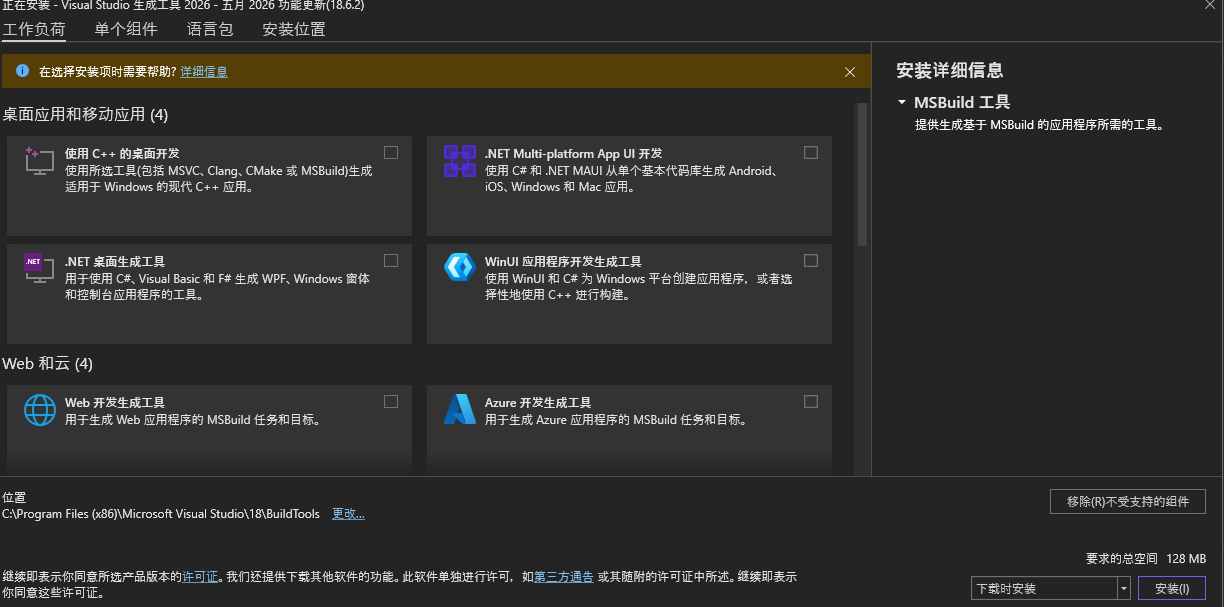
4.1 启动安装器
双击运行:
text
vs_BuildTools.exe
如果弹出 UAC 权限提示,点击:
text
是 / Yes等待 Visual Studio Installer 加载完成。
4.2 选择工作负载
进入安装界面后,勾选:
text
Desktop development with C++中文界面一般显示为:
text
使用 C++ 的桌面开发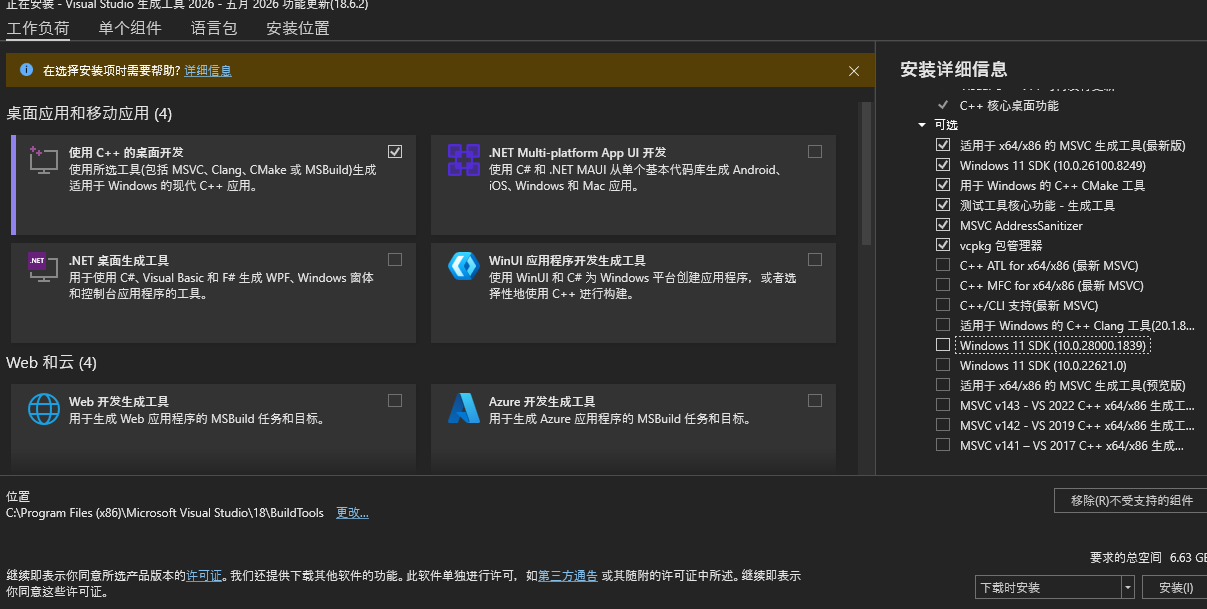
这个选项非常重要。如果不勾选,安装完成后可能没有 cl.exe、nmake.exe、Windows SDK,CMake 仍然会报错。
4.3 确认需要安装的组件
在右侧安装详情中,建议确认包含以下组件:
text
MSVC C++ build tools
Windows 10 SDK 或 Windows 11 SDK
C++ CMake tools for Windows
MSBuild
C++ ATL / MFC 可选
最少必须包含:
text
MSVC C++ build tools
Windows SDK
C++ CMake tools for Windows
如果你只是为了编译 pycdc,默认勾选 使用 C++ 的桌面开发 基本就够了。
4.4 开始安装
点击:
text
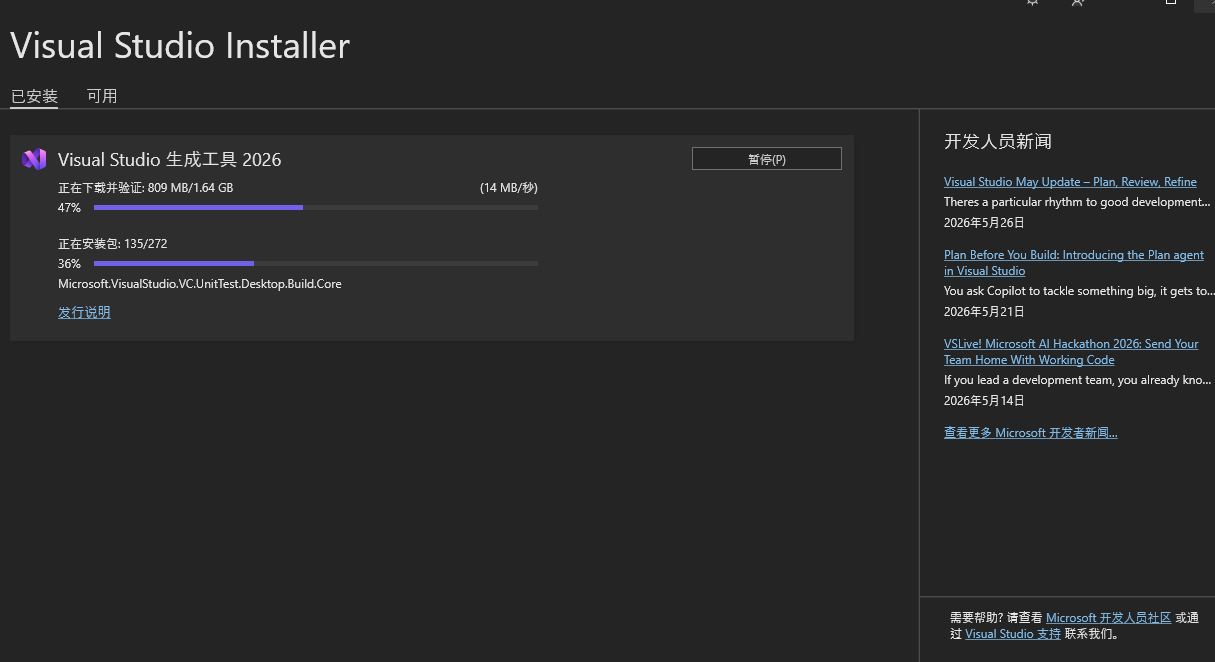
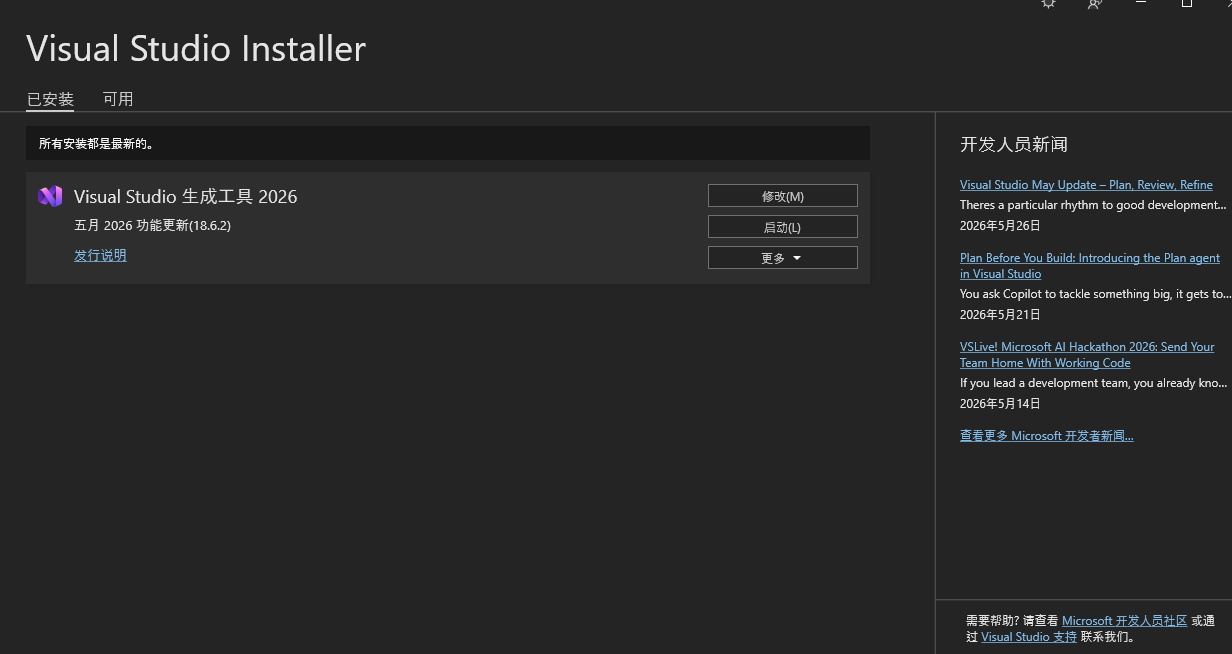
Install / 安装安装过程会联网下载组件,时间取决于网络速度。安装完成后,建议重启电脑或重新打开终端。
5. 使用 winget 命令安装
如果你的 Windows 已经安装 winget,可以用命令行安装。
先搜索:
powershell
winget search Microsoft.VisualStudio.BuildTools然后安装:
powershell
winget install Microsoft.VisualStudio.BuildTools如果你想安装后再手动选择 C++ 工作负载,直接运行安装器即可。
6. 打开正确的命令行环境
安装完成后,不建议直接用普通 CMD 编译 C++ 项目。应该使用 Visual Studio 提供的开发者命令行。
在开始菜单搜索:
text
x64 Native Tools Command Prompt for VS 2026或者:
text
Developer Command Prompt for VS 2026推荐使用:
text
x64 Native Tools Command Prompt for VS 2026它会自动配置好环境变量,让系统能够找到:
text
cl.exe
nmake.exe
msbuild.exe
link.exe
7. 验证是否安装成功
打开 x64 Native Tools Command Prompt for VS 2026 后,依次执行:
bat
cl如果安装成功,会显示 Microsoft C/C++ 编译器版本信息。

继续执行:
bat
nmake如果安装成功,会显示 NMAKE 工具信息。

再检查 CMake:
bat
cmake --version如果找不到 CMake,可以单独安装 CMake,或者在 Build Tools 安装器中补选:
text
C++ CMake tools for Windows
也可以使用:
bat
where cl
where nmake
where cmake
正常情况下会显示类似路径:
text
C:\Program Files\Microsoft Visual Studio\2026\BuildTools\VC\Tools\MSVC\...\bin\Hostx64\x64\cl.exe
C:\Program Files\Microsoft Visual Studio\2026\BuildTools\VC\Tools\MSVC\...\bin\Hostx64\x64\nmake.exe
8. 在 VS Code 中使用 Build Tools
VS Code 只是编辑器,本身不自带 MSVC 编译器。所以即使你已经安装 VS Code,也仍然需要安装 Build Tools。
方法一:从开发者命令行启动 VS Code
打开:
text
x64 Native Tools Command Prompt for VS 2026进入项目目录:
bat
cd /d D:\pycdc-master启动 VS Code:
bat
code .这样打开的 VS Code 会继承 MSVC 编译环境。
然后在 VS Code 终端中检查:
bat
where cl
where nmake
如果能找到路径,就可以正常编译。
方法二:在 VS Code 终端中手动加载环境
如果你已经打开了 VS Code,也可以在终端里手动执行:
bat
call "C:\Program Files\Microsoft Visual Studio\2026\BuildTools\VC\Auxiliary\Build\vcvars64.bat"然后检查:
bat
where cl
where nmake
如果路径不存在,说明安装位置可能不同,可以到以下目录查找:
text
C:\Program Files\Microsoft Visual Studio\2026\BuildTools\VC\Auxiliary\Build\9. 编译 pycdc 示例
假设 pycdc 源码目录为:
text
D:\pycdc-master打开:
text
x64 Native Tools Command Prompt for VS 2026执行:
bat
cd /d D:\pycdc-master
rmdir /s /q build
mkdir build
cd build
cmake .. -G "NMake Makefiles"
nmake
编译成功后,一般会生成:
text
D:\pycdc-master\build\pycdc.exe
D:\pycdc-master\build\pycdas.exe
测试命令:
bat
pycdc.exe --help
pycdas.exe --help
10. 使用 Visual Studio 2026 生成器编译
也可以不用 nmake,改用 Visual Studio 生成器:
bat
cd /d D:\pycdc-master
rmdir /s /q build
mkdir build
cd build
cmake .. -G "Visual Studio 18 2026" -A x64
cmake --build . --config Release
生成文件一般位于:
text
D:\pycdc-master\build\Release\pycdc.exe
D:\pycdc-master\build\Release\pycdas.exe
如果提示找不到生成器,执行:
bat
cmake --help在输出的 Generators 列表中查看你本机支持的生成器名称。
11. 常见错误解决
11.1 nmake 找不到
错误示例:
text
Running 'nmake' '-?' failed with:
no such file or directory
原因:
text
当前终端没有加载 Visual Studio Build Tools 环境,或者没有安装 nmake。解决方法:
- 打开
x64 Native Tools Command Prompt for VS 2026; - 重新进入项目目录;
- 删除旧的 build 目录;
- 重新执行 CMake。
命令:
bat
cd /d D:\pycdc-master
rmdir /s /q build
mkdir build
cd build
cmake .. -G "NMake Makefiles"
nmake
11.2 CMAKE_C_COMPILER not set
错误示例:
text
CMAKE_C_COMPILER not set, after EnableLanguage
CMAKE_CXX_COMPILER not set, after EnableLanguage
原因:
text
CMake 没有找到 C/C++ 编译器。解决方法:
bat
where cl如果找不到 cl.exe,说明没有进入开发者命令行,或者没有安装 C++ 工作负载。
重新打开:
text
x64 Native Tools Command Prompt for VS 2026然后重新编译。
11.3 cmake 找不到
错误示例:
text
'cmake' is not recognized as an internal or external command解决方法:
方法一:在 Build Tools 安装器中补选:
text
C++ CMake tools for Windows方法二:单独安装 CMake:
text
https://cmake.org/download/安装时勾选:
text
Add CMake to the system PATH11.4 Visual Studio 18 2026 生成器找不到
错误示例:
text
Could not create named generator Visual Studio 18 2026原因可能是:
- CMake 版本太旧;
- Build Tools 2026 没装好;
- 本机 CMake 生成器名称不同。
解决方法:
bat
cmake --help查看当前支持的生成器。如果没有 Visual Studio 18 2026,可以改用:
bat
cmake .. -G "NMake Makefiles"
nmake
12. 卸载或修改组件
打开开始菜单,搜索:
text
Visual Studio Installer找到:
text
Build Tools for Visual Studio 2026可以选择:
text
Modify / 修改用于添加组件,例如 CMake、Windows SDK、MSVC 工具集。
也可以选择:
text
Uninstall / 卸载用于删除 Build Tools。
13. 推荐安装清单
如果你的目标是编译 pycdc、C/C++ 项目、Python C 扩展,建议安装:
text
使用 C++ 的桌面开发
MSVC C++ build tools
Windows 11 SDK
C++ CMake tools for Windows
MSBuild
Git for Windows,可选
14. 快速命令汇总
检查环境
bat
where cl
where nmake
where cmake
编译 pycdc
bat
cd /d D:\pycdc-master
rmdir /s /q build
mkdir build
cd build
cmake .. -G "NMake Makefiles"
nmake
使用 Visual Studio 生成器
bat
cd /d D:\pycdc-master
rmdir /s /q build
mkdir build
cd build
cmake .. -G "Visual Studio 18 2026" -A x64
cmake --build . --config Release
15. 参考资料
- Microsoft Visual Studio Downloads:
https://visualstudio.microsoft.com/downloads/ - Visual Studio 2026 Release History:
https://learn.microsoft.com/en-us/visualstudio/releases/2026/release-history - Use the Microsoft C++ Build Tools from the command line:
https://learn.microsoft.com/en-us/cpp/build/building-on-the-command-line - NMAKE Reference:
https://learn.microsoft.com/en-us/cpp/build/reference/nmake-reference - Visual Studio 2026 System Requirements:
https://learn.microsoft.com/en-us/visualstudio/releases/2026/vs-system-requirements
16. 总结
安装 Microsoft Visual C++ Build Tools 2026 后,Windows 系统就具备了完整的 C/C++ 命令行编译环境。对于 pycdc 这类需要 CMake 编译的工具,关键是:
- 安装
使用 C++ 的桌面开发; - 使用
x64 Native Tools Command Prompt for VS 2026; - 确认
cl、nmake、cmake都能被找到; - 删除旧的 build 目录后重新执行 CMake。
只要环境配置正确,之前的 nmake no such file or directory 和 CMAKE_C_COMPILER not set 报错就可以解决。