目录
-
- 前言
- 一、项目背景与功能定位
-
- [1.1 功能概览](#1.1 功能概览)
- [1.2 技术关键词](#1.2 技术关键词)
- [1.3 时间刷新链路](#1.3 时间刷新链路)
- 二、项目目录结构分析
-
- [2.1 根目录结构](#2.1 根目录结构)
- [2.2 核心文件说明](#2.2 核心文件说明)
- [2.3 OpenHarmony 工程结构](#2.3 OpenHarmony 工程结构)
- 三、环境与依赖配置
-
- [3.1 pubspec 基础信息](#3.1 pubspec 基础信息)
- [3.2 依赖配置](#3.2 依赖配置)
- [3.3 常用命令](#3.3 常用命令)
- 四、应用入口源码拆解
-
- [4.1 main 函数](#4.1 main 函数)
- [4.2 ClockApp](#4.2 ClockApp)
- [4.3 Material 3 主题](#4.3 Material 3 主题)
- 五、页面状态设计
-
- [5.1 ClockHomePage](#5.1 ClockHomePage)
- [5.2 _ClockHomePageState](#5.2 _ClockHomePageState)
- [5.3 状态字段作用表](#5.3 状态字段作用表)
- 六、每秒刷新机制
-
- [6.1 initState 启动刷新](#6.1 initState 启动刷新)
- [6.2 _updateTime 方法](#6.2 _updateTime 方法)
- [6.3 Future.doWhile 的作用](#6.3 Future.doWhile 的作用)
- [6.4 mounted 的保护意义](#6.4 mounted 的保护意义)
- 七、时间格式化
-
- [7.1 _formatTime 方法](#7.1 _formatTime 方法)
- [7.2 padLeft 补零](#7.2 padLeft 补零)
- [7.3 时间输出示例](#7.3 时间输出示例)
- 八、日期格式化
-
- [8.1 _formatDate 方法](#8.1 _formatDate 方法)
- [8.2 星期数组](#8.2 星期数组)
- [8.3 月份数组](#8.3 月份数组)
- [8.4 日期输出示例](#8.4 日期输出示例)
- [九、页面 UI 结构](#九、页面 UI 结构)
-
- [9.1 Scaffold 骨架](#9.1 Scaffold 骨架)
- [9.2 Column 布局](#9.2 Column 布局)
- [9.3 大号时间文本](#9.3 大号时间文本)
- [9.4 日期文本](#9.4 日期文本)
- 十、世界时钟模块
-
- [10.1 模块容器](#10.1 模块容器)
- [10.2 城市配置](#10.2 城市配置)
- [10.3 模块视觉结构](#10.3 模块视觉结构)
- 十一、世界时间计算
-
- [11.1 _buildWorldClock 方法](#11.1 _buildWorldClock 方法)
- [11.2 UTC 基准](#11.2 UTC 基准)
- [11.3 城市时间格式](#11.3 城市时间格式)
- [11.4 行布局](#11.4 行布局)
- 十二、生命周期与动态刷新
-
- [12.1 为什么需要 mounted](#12.1 为什么需要 mounted)
- [12.2 刷新频率选择](#12.2 刷新频率选择)
- [12.3 与秒表项目的差异](#12.3 与秒表项目的差异)
- [十三、OpenHarmony 适配边界](#十三、OpenHarmony 适配边界)
-
- [13.1 Flutter 层职责](#13.1 Flutter 层职责)
- [13.2 平台侧文件作用](#13.2 平台侧文件作用)
- [13.3 时钟应用的适配特点](#13.3 时钟应用的适配特点)
- 十四、测试与验证
-
- [14.1 交互验证路径](#14.1 交互验证路径)
- [14.2 Widget 测试示例](#14.2 Widget 测试示例)
- [14.3 时间格式测试思路](#14.3 时间格式测试思路)
- [14.4 世界时间计算测试思路](#14.4 世界时间计算测试思路)
- 十五、常见问题解析
-
- [15.1 为什么使用 DateTime.now()](#15.1 为什么使用 DateTime.now())
- [15.2 为什么每秒刷新一次](#15.2 为什么每秒刷新一次)
- [15.3 为什么主时钟显示秒而世界时钟不显示秒](#15.3 为什么主时钟显示秒而世界时钟不显示秒)
- [15.4 为什么使用 toUtc 再加偏移](#15.4 为什么使用 toUtc 再加偏移)
- [15.5 为什么使用 monospace](#15.5 为什么使用 monospace)
- 十六、完整业务链路复盘
-
- [16.1 本地时间链路](#16.1 本地时间链路)
- [16.2 世界时钟链路](#16.2 世界时钟链路)
- [16.3 UI 渲染链路](#16.3 UI 渲染链路)
- 十七、核心源码总览
- 十八、总结
- 相关资源
前言
欢迎加入开源鸿蒙跨平台社区:https://openharmonycrossplatform.csdn.net
clock 是一个基于 Flutter 实现的 Clock 时钟应用 。项目核心代码集中在 lib/main.dart,同时保留了 ohos OpenHarmony 平台工程目录,适合用来理解 Flutter 动态时间刷新、日期格式化、世界时钟换算和 OpenHarmony 工程承载。
时钟应用看起来比天气、秒表、笔记这些项目更轻量,但它包含非常典型的工程细节:当前时间获取 、每秒刷新 、生命周期保护 、两位数补零 、英文日期格式化 、UTC 时间换算 和 世界时钟列表展示。这些点在日历、提醒、倒计时、运动记录和跨时区工具中都很常见。
本文围绕当前项目真实源码展开,重点拆解:
ClockApp如何配置应用入口和靛蓝色主题。_ClockHomePageState如何维护当前时间。_updateTime()如何通过Future.doWhile实现每秒刷新。mounted如何保护异步刷新中的setState。_formatTime()和_formatDate()如何格式化时间与日期。_buildWorldClock()如何基于 UTC 时间计算世界城市时间。
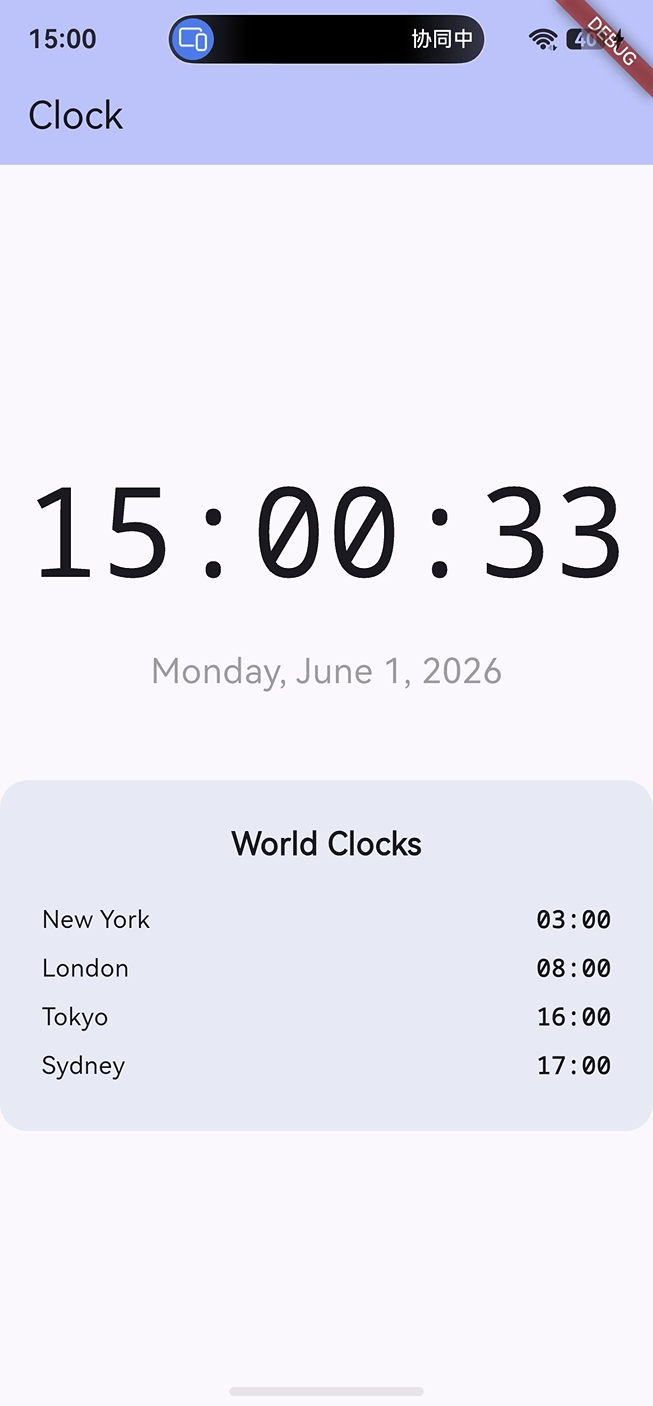
效果图如下:
一、项目背景与功能定位
1.1 功能概览
clock 是一个轻量数字时钟应用。它在页面中央展示当前本地时间和英文日期,下方展示四个世界城市的时间,包括 New York、London、Tokyo 和 Sydney。
当前项目支持以下功能:
- 展示当前本地时间。
- 时间格式为
HH:mm:ss。 - 每秒自动刷新一次。
- 展示英文日期,如
Monday, June 1, 2026。 - 使用
monospace等宽字体降低数字跳动感。 - 展示
World Clocks世界时钟模块。 - 支持 New York、London、Tokyo、Sydney 四个城市。
- 使用
_currentTime.toUtc()加小时偏移计算城市时间。 - 使用
mounted避免页面销毁后继续调用setState。
1.2 技术关键词
| 关键词 | 在项目中的作用 |
|---|---|
DateTime.now() |
获取当前本地时间 |
Future.doWhile |
构造每秒刷新循环 |
Future.delayed |
控制刷新间隔 |
mounted |
判断 State 是否仍在组件树中 |
setState |
更新时间并触发 UI 重建 |
padLeft(2, '0') |
补齐两位时间格式 |
toUtc() |
将本地时间转换为 UTC |
Duration(hours: offset) |
计算世界城市时间 |
monospace |
稳定数字字符宽度 |
1.3 时间刷新链路
#mermaid-svg-ysYjioyTbh6PZdUi{font-family:"trebuchet ms",verdana,arial,sans-serif;font-size:16px;fill:#333;}@keyframes edge-animation-frame{from{stroke-dashoffset:0;}}@keyframes dash{to{stroke-dashoffset:0;}}#mermaid-svg-ysYjioyTbh6PZdUi .edge-animation-slow{stroke-dasharray:9,5!important;stroke-dashoffset:900;animation:dash 50s linear infinite;stroke-linecap:round;}#mermaid-svg-ysYjioyTbh6PZdUi .edge-animation-fast{stroke-dasharray:9,5!important;stroke-dashoffset:900;animation:dash 20s linear infinite;stroke-linecap:round;}#mermaid-svg-ysYjioyTbh6PZdUi .error-icon{fill:#552222;}#mermaid-svg-ysYjioyTbh6PZdUi .error-text{fill:#552222;stroke:#552222;}#mermaid-svg-ysYjioyTbh6PZdUi .edge-thickness-normal{stroke-width:1px;}#mermaid-svg-ysYjioyTbh6PZdUi .edge-thickness-thick{stroke-width:3.5px;}#mermaid-svg-ysYjioyTbh6PZdUi .edge-pattern-solid{stroke-dasharray:0;}#mermaid-svg-ysYjioyTbh6PZdUi .edge-thickness-invisible{stroke-width:0;fill:none;}#mermaid-svg-ysYjioyTbh6PZdUi .edge-pattern-dashed{stroke-dasharray:3;}#mermaid-svg-ysYjioyTbh6PZdUi .edge-pattern-dotted{stroke-dasharray:2;}#mermaid-svg-ysYjioyTbh6PZdUi .marker{fill:#333333;stroke:#333333;}#mermaid-svg-ysYjioyTbh6PZdUi .marker.cross{stroke:#333333;}#mermaid-svg-ysYjioyTbh6PZdUi svg{font-family:"trebuchet ms",verdana,arial,sans-serif;font-size:16px;}#mermaid-svg-ysYjioyTbh6PZdUi p{margin:0;}#mermaid-svg-ysYjioyTbh6PZdUi .label{font-family:"trebuchet ms",verdana,arial,sans-serif;color:#333;}#mermaid-svg-ysYjioyTbh6PZdUi .cluster-label text{fill:#333;}#mermaid-svg-ysYjioyTbh6PZdUi .cluster-label span{color:#333;}#mermaid-svg-ysYjioyTbh6PZdUi .cluster-label span p{background-color:transparent;}#mermaid-svg-ysYjioyTbh6PZdUi .label text,#mermaid-svg-ysYjioyTbh6PZdUi span{fill:#333;color:#333;}#mermaid-svg-ysYjioyTbh6PZdUi .node rect,#mermaid-svg-ysYjioyTbh6PZdUi .node circle,#mermaid-svg-ysYjioyTbh6PZdUi .node ellipse,#mermaid-svg-ysYjioyTbh6PZdUi .node polygon,#mermaid-svg-ysYjioyTbh6PZdUi .node path{fill:#ECECFF;stroke:#9370DB;stroke-width:1px;}#mermaid-svg-ysYjioyTbh6PZdUi .rough-node .label text,#mermaid-svg-ysYjioyTbh6PZdUi .node .label text,#mermaid-svg-ysYjioyTbh6PZdUi .image-shape .label,#mermaid-svg-ysYjioyTbh6PZdUi .icon-shape .label{text-anchor:middle;}#mermaid-svg-ysYjioyTbh6PZdUi .node .katex path{fill:#000;stroke:#000;stroke-width:1px;}#mermaid-svg-ysYjioyTbh6PZdUi .rough-node .label,#mermaid-svg-ysYjioyTbh6PZdUi .node .label,#mermaid-svg-ysYjioyTbh6PZdUi .image-shape .label,#mermaid-svg-ysYjioyTbh6PZdUi .icon-shape .label{text-align:center;}#mermaid-svg-ysYjioyTbh6PZdUi .node.clickable{cursor:pointer;}#mermaid-svg-ysYjioyTbh6PZdUi .root .anchor path{fill:#333333!important;stroke-width:0;stroke:#333333;}#mermaid-svg-ysYjioyTbh6PZdUi .arrowheadPath{fill:#333333;}#mermaid-svg-ysYjioyTbh6PZdUi .edgePath .path{stroke:#333333;stroke-width:2.0px;}#mermaid-svg-ysYjioyTbh6PZdUi .flowchart-link{stroke:#333333;fill:none;}#mermaid-svg-ysYjioyTbh6PZdUi .edgeLabel{background-color:rgba(232,232,232, 0.8);text-align:center;}#mermaid-svg-ysYjioyTbh6PZdUi .edgeLabel p{background-color:rgba(232,232,232, 0.8);}#mermaid-svg-ysYjioyTbh6PZdUi .edgeLabel rect{opacity:0.5;background-color:rgba(232,232,232, 0.8);fill:rgba(232,232,232, 0.8);}#mermaid-svg-ysYjioyTbh6PZdUi .labelBkg{background-color:rgba(232, 232, 232, 0.5);}#mermaid-svg-ysYjioyTbh6PZdUi .cluster rect{fill:#ffffde;stroke:#aaaa33;stroke-width:1px;}#mermaid-svg-ysYjioyTbh6PZdUi .cluster text{fill:#333;}#mermaid-svg-ysYjioyTbh6PZdUi .cluster span{color:#333;}#mermaid-svg-ysYjioyTbh6PZdUi div.mermaidTooltip{position:absolute;text-align:center;max-width:200px;padding:2px;font-family:"trebuchet ms",verdana,arial,sans-serif;font-size:12px;background:hsl(80, 100%, 96.2745098039%);border:1px solid #aaaa33;border-radius:2px;pointer-events:none;z-index:100;}#mermaid-svg-ysYjioyTbh6PZdUi .flowchartTitleText{text-anchor:middle;font-size:18px;fill:#333;}#mermaid-svg-ysYjioyTbh6PZdUi rect.text{fill:none;stroke-width:0;}#mermaid-svg-ysYjioyTbh6PZdUi .icon-shape,#mermaid-svg-ysYjioyTbh6PZdUi .image-shape{background-color:rgba(232,232,232, 0.8);text-align:center;}#mermaid-svg-ysYjioyTbh6PZdUi .icon-shape p,#mermaid-svg-ysYjioyTbh6PZdUi .image-shape p{background-color:rgba(232,232,232, 0.8);padding:2px;}#mermaid-svg-ysYjioyTbh6PZdUi .icon-shape .label rect,#mermaid-svg-ysYjioyTbh6PZdUi .image-shape .label rect{opacity:0.5;background-color:rgba(232,232,232, 0.8);fill:rgba(232,232,232, 0.8);}#mermaid-svg-ysYjioyTbh6PZdUi .label-icon{display:inline-block;height:1em;overflow:visible;vertical-align:-0.125em;}#mermaid-svg-ysYjioyTbh6PZdUi .node .label-icon path{fill:currentColor;stroke:revert;stroke-width:revert;}#mermaid-svg-ysYjioyTbh6PZdUi :root{--mermaid-font-family:"trebuchet ms",verdana,arial,sans-serif;} 是
否
页面初始化 initState
_updateTime()
Future.doWhile 异步循环
Future.delayed 1 秒
mounted 是否为 true?
_currentTime = DateTime.now()
setState 触发 UI 重建
_formatTime / _formatDate 重新计算
停止循环
这条链路说明:时钟页面不是靠用户交互刷新,而是在页面生命周期内持续读取当前时间并重建 UI。
关键点:动态时钟必须处理好刷新频率和生命周期边界。
mounted的存在让异步循环在页面销毁后能够自然停止,避免无效的setState。
二、项目目录结构分析
2.1 根目录结构
项目采用 Flutter 标准目录,同时包含 OpenHarmony 平台工程。
bash
clock/
├── lib/
│   └── main.dart
├── ohos/
│   ├── AppScope/
│   └── entry/
├── test/
│   └── widget_test.dart
├── pubspec.yaml
├── analysis_options.yaml
└── README.md
2.2 核心文件说明
| 文件或目录 | 作用 | 本文重点 |
|---|---|---|
lib/main.dart |
应用入口、时间刷新、格式化和世界时钟 UI | 核心源码 |
pubspec.yaml |
项目名称、版本、依赖和 Flutter 配置 | 环境依赖 |
analysis_options.yaml |
Dart 静态分析规则 | 代码规范 |
test/ |
Flutter 测试目录 | 时间展示与页面验证 |
ohos/ |
OpenHarmony 平台工程 | 平台承载 |
2.3 OpenHarmony 工程结构
ohos 目录通常包含应用级配置、模块级配置、Ability 入口、页面入口和资源文件。当前时钟项目业务逻辑保持在 Flutter 层,OpenHarmony 层负责承载运行环境。
| OpenHarmony 文件 | 作用 |
|---|---|
AppScope/app.json5 |
应用级配置 |
entry/src/main/module.json5 |
模块级配置 |
EntryAbility.ets |
Ability 生命周期入口 |
Index.ets |
页面承载入口 |
GeneratedPluginRegistrant.ets |
插件注册入口 |
resources/base/element/string.json |
字符串资源 |
resources/base/media/icon.png |
图标资源 |
三、环境与依赖配置
3.1 pubspec 基础信息
当前项目名称是 clock,版本是 1.0.0+1,Dart SDK 约束是 ^3.9.2。
yaml
name: clock
description: "A new Flutter project."
publish_to: 'none'
version: 1.0.0+1

environment:
  sdk: ^3.9.2
publish_to: 'none' 表示这是应用工程,不会被误发布到 pub.dev。
3.2 依赖配置
项目依赖非常轻量。
yaml
dependencies:
  flutter:
    sdk: flutter

  cupertino_icons: ^1.0.8

dev_dependencies:
  flutter_test:
    sdk: flutter

  flutter_lints: ^5.0.0
当前时钟应用不需要网络、数据库、定位或传感器。核心能力来自 Flutter UI 和 Dart DateTime。
3.3 常用命令
bash
flutter pub get
flutter analyze
flutter test
flutter run| 命令 | 作用 |
|---|---|
flutter pub get |
获取项目依赖 |
flutter analyze |
执行静态分析 |
flutter test |
运行测试 |
flutter run |
启动调试运行 |
flutter build hap |
构建 OpenHarmony HAP 包 |
四、应用入口源码拆解
4.1 main 函数
Flutter 应用从 main() 函数启动。
dart
import 'package:flutter/material.dart';

void main() {
  runApp(const ClockApp());
}
runApp(const ClockApp()) 将 ClockApp 放入 Flutter 渲染树根节点。
4.2 ClockApp
ClockApp 是应用根组件,负责配置标题、主题和首页。
dart
class ClockApp extends StatelessWidget {
  const ClockApp({super.key});

  @override
  Widget build(BuildContext context) {
    return MaterialApp(
      title: 'Clock',
      theme: ThemeData(
        colorScheme: ColorScheme.fromSeed(seedColor: Colors.indigo),
        useMaterial3: true,
      ),
      home: const ClockHomePage(title: 'Clock'),
    );
  }
}
这段代码包含三个关键信息:
- 应用标题是
Clock。 - 主题色使用
Colors.indigo。 - 首页是
ClockHomePage,动态时间状态从首页 State 中维护。
4.3 Material 3 主题
dart
theme: ThemeData(
  colorScheme: ColorScheme.fromSeed(seedColor: Colors.indigo),
  useMaterial3: true,
),
useMaterial3: true 会影响 AppBar、文本、容器色彩等基础样式。时钟项目的页面元素较少,主题色主要体现在顶部应用栏和世界时钟模块的视觉氛围中。
五、页面状态设计
5.1 ClockHomePage
首页组件接收标题,并创建状态对象。
dart
class ClockHomePage extends StatefulWidget {
  const ClockHomePage({super.key, required this.title});
  final String title;

  @override
  State<ClockHomePage> createState() => _ClockHomePageState();
}
时间会每秒变化,因此页面使用 StatefulWidget。如果使用 StatelessWidget,页面就无法保存并刷新 _currentTime。
5.2 _ClockHomePageState
状态类中只维护一个核心字段。
dart
class _ClockHomePageState extends State<ClockHomePage> {
  DateTime _currentTime = DateTime.now();
}
_currentTime 是整个页面的数据源。本地时间、日期文本、世界时钟都基于它计算。
5.3 状态字段作用表
| 字段 | 类型 | 作用 |
|---|---|---|
_currentTime |
DateTime |
保存当前本地时间 |
_currentTime.hour |
int |
本地小时 |
_currentTime.minute |
int |
本地分钟 |
_currentTime.second |
int |
本地秒 |
_currentTime.toUtc() |
DateTime |
世界时钟换算基准 |
六、每秒刷新机制
6.1 initState 启动刷新
页面初始化时调用 _updateTime()。
dart
@override
void initState() {
  super.initState();
  _updateTime();
}
initState 只执行一次,适合启动页面级的异步刷新循环。
6.2 _updateTime 方法
dart
void _updateTime() {
  Future.doWhile(() async {
    await Future.delayed(const Duration(seconds: 1));
    if (mounted) {
      setState(() {
        _currentTime = DateTime.now();
      });
      return true;
    }
    return false;
  });
}
这段代码每隔 1 秒更新一次 _currentTime。只要页面仍然挂载在组件树中,循环就会继续。
6.3 Future.doWhile 的作用
Future.doWhile 会反复执行一个异步回调,直到回调返回 false。
dart
Future.doWhile(() async {
  await Future.delayed(const Duration(seconds: 1));
  return mounted;
});
当前项目在回调中加入 setState,让页面每秒刷新时间。
6.4 mounted 的保护意义
dart
if (mounted) {
  setState(() {
    _currentTime = DateTime.now();
  });
  return true;
}
return false;
mounted 表示当前 State 是否仍然在组件树中。页面销毁后,mounted 会变成 false,循环返回 false 并停止。
关键概念:异步任务中调用
setState前检查mounted,可以避免页面已经销毁后继续刷新 UI。
七、时间格式化
7.1 _formatTime 方法
当前项目使用 _formatTime() 生成 HH:mm:ss 字符串。
dart
String _formatTime() {
  return '${_currentTime.hour.toString().padLeft(2, '0')}:${_currentTime.minute.toString().padLeft(2, '0')}:${_currentTime.second.toString().padLeft(2, '0')}';
}
7.2 padLeft 补零
padLeft(2, '0') 会把一位数字补成两位。
| 原始值 | 处理后 |
|---|---|
3 |
03 |
9 |
09 |
12 |
12 |
23 |
23 |
没有补零时,时间可能显示为 8:5:3;补零后可以稳定显示为 08:05:03。
7.3 时间输出示例
dart
final hour = 8.toString().padLeft(2, '0');
final minute = 5.toString().padLeft(2, '0');
final second = 3.toString().padLeft(2, '0');
final text = '$hour:$minute:$second';
输出结果:
text
08:05:03这种格式非常适合数字时钟。
八、日期格式化
8.1 _formatDate 方法
当前项目通过英文数组拼接日期。
dart
String _formatDate() {
  final weekdays = ['Monday', 'Tuesday', 'Wednesday', 'Thursday', 'Friday', 'Saturday', 'Sunday'];
  final months = ['January', 'February', 'March', 'April', 'May', 'June', 'July', 'August', 'September', 'October', 'November', 'December'];
  return '${weekdays[_currentTime.weekday - 1]}, ${months[_currentTime.month - 1]} ${_currentTime.day}, ${_currentTime.year}';
}
8.2 星期数组
DateTime.weekday 的取值范围是 1 到 7,分别表示 Monday 到 Sunday。因此访问数组时使用 _currentTime.weekday - 1。
weekday |
数组索引 | 英文星期 |
|---|---|---|
| 1 | 0 | Monday |
| 2 | 1 | Tuesday |
| 3 | 2 | Wednesday |
| 4 | 3 | Thursday |
| 5 | 4 | Friday |
| 6 | 5 | Saturday |
| 7 | 6 | Sunday |
8.3 月份数组
DateTime.month 的取值范围是 1 到 12,因此访问月份数组时使用 _currentTime.month - 1。
dart
final months = [
  'January',
  'February',
  'March',
  'April',
  'May',
  'June',
  'July',
  'August',
  'September',
  'October',
  'November',
  'December',
];
8.4 日期输出示例
text
Monday, June 1, 2026这种英文日期格式和大号数字时间搭配,适合简洁工具类页面。
九、页面 UI 结构
9.1 Scaffold 骨架
页面主体使用 Scaffold。
dart
return Scaffold(
  appBar: AppBar(
    title: Text(widget.title),
    backgroundColor: Theme.of(context).colorScheme.inversePrimary,
  ),
  body: Center(
    child: Column(...),
  ),
);
AppBar 展示页面标题,body 使用 Center 让内容居中。
9.2 Column 布局
页面主体使用垂直布局。
dart
Column(
  mainAxisAlignment: MainAxisAlignment.center,
  children: [
    Text(_formatTime()),
    const SizedBox(height: 16),
    Text(_formatDate()),
    const SizedBox(height: 48),
    Container(...),
  ],
)
从上到下依次是大号时间、日期文本、间距和世界时钟模块。
9.3 大号时间文本
dart
Text(
  _formatTime(),
  style: const TextStyle(
    fontSize: 72,
    fontWeight: FontWeight.w200,
    fontFamily: 'monospace',
  ),
)
时间文本使用 72 号字体和较细字重,视觉上轻盈但清晰。monospace 等宽字体可以减少数字变化时的宽度跳动。
9.4 日期文本
dart
Text(
  _formatDate(),
  style: const TextStyle(
    fontSize: 20,
    color: Colors.grey,
  ),
)
日期文本字号较小,并使用灰色作为辅助信息,与主时间形成层级。
十、世界时钟模块
10.1 模块容器
世界时钟使用 Container 构建浅靛蓝色面板。
dart
Container(
  padding: const EdgeInsets.all(24),
  decoration: BoxDecoration(
    color: Colors.indigo.shade50,
    borderRadius: BorderRadius.circular(16),
  ),
  child: Column(
    children: [
      const Text(
        'World Clocks',
        style: TextStyle(
          fontSize: 18,
          fontWeight: FontWeight.bold,
        ),
      ),
      const SizedBox(height: 16),
      _buildWorldClock('New York', -4),
      _buildWorldClock('London', 1),
      _buildWorldClock('Tokyo', 9),
      _buildWorldClock('Sydney', 10),
    ],
  ),
)
这个模块包含标题和四个城市时间项。
10.2 城市配置
| 城市 | 偏移值 |
|---|---|
| New York | -4 |
| London | 1 |
| Tokyo | 9 |
| Sydney | 10 |
这里的偏移值基于 UTC 小时偏移。当前项目没有处理夏令时数据库,而是用固定偏移完成简单世界时钟展示。
10.3 模块视觉结构
#mermaid-svg-URdfZ3mCSKNEGCzs{font-family:"trebuchet ms",verdana,arial,sans-serif;font-size:16px;fill:#333;}@keyframes edge-animation-frame{from{stroke-dashoffset:0;}}@keyframes dash{to{stroke-dashoffset:0;}}#mermaid-svg-URdfZ3mCSKNEGCzs .edge-animation-slow{stroke-dasharray:9,5!important;stroke-dashoffset:900;animation:dash 50s linear infinite;stroke-linecap:round;}#mermaid-svg-URdfZ3mCSKNEGCzs .edge-animation-fast{stroke-dasharray:9,5!important;stroke-dashoffset:900;animation:dash 20s linear infinite;stroke-linecap:round;}#mermaid-svg-URdfZ3mCSKNEGCzs .error-icon{fill:#552222;}#mermaid-svg-URdfZ3mCSKNEGCzs .error-text{fill:#552222;stroke:#552222;}#mermaid-svg-URdfZ3mCSKNEGCzs .edge-thickness-normal{stroke-width:1px;}#mermaid-svg-URdfZ3mCSKNEGCzs .edge-thickness-thick{stroke-width:3.5px;}#mermaid-svg-URdfZ3mCSKNEGCzs .edge-pattern-solid{stroke-dasharray:0;}#mermaid-svg-URdfZ3mCSKNEGCzs .edge-thickness-invisible{stroke-width:0;fill:none;}#mermaid-svg-URdfZ3mCSKNEGCzs .edge-pattern-dashed{stroke-dasharray:3;}#mermaid-svg-URdfZ3mCSKNEGCzs .edge-pattern-dotted{stroke-dasharray:2;}#mermaid-svg-URdfZ3mCSKNEGCzs .marker{fill:#333333;stroke:#333333;}#mermaid-svg-URdfZ3mCSKNEGCzs .marker.cross{stroke:#333333;}#mermaid-svg-URdfZ3mCSKNEGCzs svg{font-family:"trebuchet ms",verdana,arial,sans-serif;font-size:16px;}#mermaid-svg-URdfZ3mCSKNEGCzs p{margin:0;}#mermaid-svg-URdfZ3mCSKNEGCzs .label{font-family:"trebuchet ms",verdana,arial,sans-serif;color:#333;}#mermaid-svg-URdfZ3mCSKNEGCzs .cluster-label text{fill:#333;}#mermaid-svg-URdfZ3mCSKNEGCzs .cluster-label span{color:#333;}#mermaid-svg-URdfZ3mCSKNEGCzs .cluster-label span p{background-color:transparent;}#mermaid-svg-URdfZ3mCSKNEGCzs .label text,#mermaid-svg-URdfZ3mCSKNEGCzs span{fill:#333;color:#333;}#mermaid-svg-URdfZ3mCSKNEGCzs .node rect,#mermaid-svg-URdfZ3mCSKNEGCzs .node circle,#mermaid-svg-URdfZ3mCSKNEGCzs .node ellipse,#mermaid-svg-URdfZ3mCSKNEGCzs .node polygon,#mermaid-svg-URdfZ3mCSKNEGCzs .node path{fill:#ECECFF;stroke:#9370DB;stroke-width:1px;}#mermaid-svg-URdfZ3mCSKNEGCzs .rough-node .label text,#mermaid-svg-URdfZ3mCSKNEGCzs .node .label text,#mermaid-svg-URdfZ3mCSKNEGCzs .image-shape .label,#mermaid-svg-URdfZ3mCSKNEGCzs .icon-shape .label{text-anchor:middle;}#mermaid-svg-URdfZ3mCSKNEGCzs .node .katex path{fill:#000;stroke:#000;stroke-width:1px;}#mermaid-svg-URdfZ3mCSKNEGCzs .rough-node .label,#mermaid-svg-URdfZ3mCSKNEGCzs .node .label,#mermaid-svg-URdfZ3mCSKNEGCzs .image-shape .label,#mermaid-svg-URdfZ3mCSKNEGCzs .icon-shape .label{text-align:center;}#mermaid-svg-URdfZ3mCSKNEGCzs .node.clickable{cursor:pointer;}#mermaid-svg-URdfZ3mCSKNEGCzs .root .anchor path{fill:#333333!important;stroke-width:0;stroke:#333333;}#mermaid-svg-URdfZ3mCSKNEGCzs .arrowheadPath{fill:#333333;}#mermaid-svg-URdfZ3mCSKNEGCzs .edgePath .path{stroke:#333333;stroke-width:2.0px;}#mermaid-svg-URdfZ3mCSKNEGCzs .flowchart-link{stroke:#333333;fill:none;}#mermaid-svg-URdfZ3mCSKNEGCzs .edgeLabel{background-color:rgba(232,232,232, 0.8);text-align:center;}#mermaid-svg-URdfZ3mCSKNEGCzs .edgeLabel p{background-color:rgba(232,232,232, 0.8);}#mermaid-svg-URdfZ3mCSKNEGCzs .edgeLabel rect{opacity:0.5;background-color:rgba(232,232,232, 0.8);fill:rgba(232,232,232, 0.8);}#mermaid-svg-URdfZ3mCSKNEGCzs .labelBkg{background-color:rgba(232, 232, 232, 0.5);}#mermaid-svg-URdfZ3mCSKNEGCzs .cluster rect{fill:#ffffde;stroke:#aaaa33;stroke-width:1px;}#mermaid-svg-URdfZ3mCSKNEGCzs .cluster text{fill:#333;}#mermaid-svg-URdfZ3mCSKNEGCzs .cluster span{color:#333;}#mermaid-svg-URdfZ3mCSKNEGCzs div.mermaidTooltip{position:absolute;text-align:center;max-width:200px;padding:2px;font-family:"trebuchet ms",verdana,arial,sans-serif;font-size:12px;background:hsl(80, 100%, 96.2745098039%);border:1px solid #aaaa33;border-radius:2px;pointer-events:none;z-index:100;}#mermaid-svg-URdfZ3mCSKNEGCzs .flowchartTitleText{text-anchor:middle;font-size:18px;fill:#333;}#mermaid-svg-URdfZ3mCSKNEGCzs rect.text{fill:none;stroke-width:0;}#mermaid-svg-URdfZ3mCSKNEGCzs .icon-shape,#mermaid-svg-URdfZ3mCSKNEGCzs .image-shape{background-color:rgba(232,232,232, 0.8);text-align:center;}#mermaid-svg-URdfZ3mCSKNEGCzs .icon-shape p,#mermaid-svg-URdfZ3mCSKNEGCzs .image-shape p{background-color:rgba(232,232,232, 0.8);padding:2px;}#mermaid-svg-URdfZ3mCSKNEGCzs .icon-shape .label rect,#mermaid-svg-URdfZ3mCSKNEGCzs .image-shape .label rect{opacity:0.5;background-color:rgba(232,232,232, 0.8);fill:rgba(232,232,232, 0.8);}#mermaid-svg-URdfZ3mCSKNEGCzs .label-icon{display:inline-block;height:1em;overflow:visible;vertical-align:-0.125em;}#mermaid-svg-URdfZ3mCSKNEGCzs .node .label-icon path{fill:currentColor;stroke:revert;stroke-width:revert;}#mermaid-svg-URdfZ3mCSKNEGCzs :root{--mermaid-font-family:"trebuchet ms",verdana,arial,sans-serif;} World Clocks Container
Title: World Clocks
New York Row
London Row
Tokyo Row
Sydney Row
City Name + HH:mm
世界时钟模块在主时间下方,不抢占主时钟视觉焦点,同时提供跨时区信息。
十一、世界时间计算
11.1 _buildWorldClock 方法
每个城市时间由 _buildWorldClock() 构建。
dart
Widget _buildWorldClock(String city, int offset) {
  final utcTime = _currentTime.toUtc();
  final cityTime = utcTime.add(Duration(hours: offset));
  final cityHour = cityTime.hour.toString().padLeft(2, '0');
  final cityMinute = cityTime.minute.toString().padLeft(2, '0');

  return Padding(
    padding: const EdgeInsets.symmetric(vertical: 4),
    child: Row(
      mainAxisAlignment: MainAxisAlignment.spaceBetween,
      children: [
        Text(city),
        Text(
          '$cityHour:$cityMinute',
          style: const TextStyle(
            fontFamily: 'monospace',
            fontWeight: FontWeight.bold,
          ),
        ),
      ],
    ),
  );
}
这个方法同时完成城市时间计算和 UI 构建。
11.2 UTC 基准
dart
final utcTime = _currentTime.toUtc();
final cityTime = utcTime.add(Duration(hours: offset));
先把本地时间转成 UTC,再按城市偏移计算城市时间。这样比直接在本地时间上加减小时更清晰。
11.3 城市时间格式
dart
final cityHour = cityTime.hour.toString().padLeft(2, '0');
final cityMinute = cityTime.minute.toString().padLeft(2, '0');
世界时钟只显示小时和分钟,不显示秒。这样视觉更简洁,也能降低列表的动态变化感。
11.4 行布局
dart
Row(
  mainAxisAlignment: MainAxisAlignment.spaceBetween,
  children: [
    Text(city),
    Text('$cityHour:$cityMinute'),
  ],
)城市名在左,时间在右,spaceBetween 让两端对齐,符合列表型信息的阅读习惯。
十二、生命周期与动态刷新
12.1 为什么需要 mounted
异步循环和页面生命周期不是完全同步的。页面可能已经关闭,但 Future.delayed 的回调随后才执行。如果此时继续调用 setState,就可能引发异常。
当前项目通过 mounted 判断状态是否有效。
dart
if (mounted) {
  setState(() {
    _currentTime = DateTime.now();
  });
  return true;
}
return false;
12.2 刷新频率选择
当前时钟显示到秒,因此 1 秒刷新一次即可。
| 显示精度 | 刷新间隔 |
|---|---|
| 分钟级 | 60 秒 |
| 秒级 | 1 秒 |
| 毫秒级 | 小于 1 秒 |
clock 显示 HH:mm:ss,所以 Duration(seconds: 1) 与 UI 精度一致。
12.3 与秒表项目的差异
| 项目 | 时间来源 | 刷新频率 | 核心用途 |
|---|---|---|---|
| 秒表 | Stopwatch.elapsed |
10ms | 记录经过时间 |
| 时钟 | DateTime.now() |
1s | 展示当前时间 |
秒表关注流逝时间,时钟关注系统当前时间。二者都需要动态刷新,但时间源和刷新精度不同。
十三、OpenHarmony 适配边界
13.1 Flutter 层职责
当前时钟应用的业务逻辑全部在 Flutter 层完成。
text
Flutter 层:
ClockApp
ClockHomePage
_ClockHomePageState
DateTime.now
Future.doWhile
_formatTime
_formatDate
_buildWorldClock

OpenHarmony 层:
AppScope
entry
EntryAbility
Index
resources
Flutter 层负责时间获取、格式化、刷新和页面渲染;OpenHarmony 层负责应用启动、模块配置和资源承载。
13.2 平台侧文件作用
| 层级 | 文件 | 作用 |
|---|---|---|
| 应用级 | AppScope/app.json5 |
描述应用整体信息 |
| 模块级 | entry/src/main/module.json5 |
描述模块入口和页面 |
| Ability | EntryAbility.ets |
应用启动入口 |
| 页面 | Index.ets |
承载 Flutter 页面 |
| 资源 | resources/base |
图标、字符串和配置资源 |
| 插件 | GeneratedPluginRegistrant.ets |
插件注册入口 |
13.3 时钟应用的适配特点
clock 当前不需要网络、定位、数据库、文件读写或传感器权限。它主要验证 Flutter 页面在 OpenHarmony 容器中的动态刷新和文本布局表现。
十四、测试与验证
14.1 交互验证路径
时钟应用没有复杂用户输入,主要验证展示和自动刷新:
- 启动应用,标题显示
Clock。 - 主时间显示为
HH:mm:ss。 - 等待 1 秒,确认秒数更新。
- 日期显示英文星期、月份、日和年。
World Clocks面板正常展示。- New York、London、Tokyo、Sydney 四个城市正常显示。
- 世界时钟时间为
HH:mm格式。 - 页面在前后台切换后仍能继续刷新。
14.2 Widget 测试示例
下面的测试验证应用启动后能看到标题和世界时钟模块。
dart
testWidgets('shows clock page title and world clocks', (WidgetTester tester) async {
  await tester.pumpWidget(const ClockApp());

  expect(find.text('Clock'), findsOneWidget);
  expect(find.text('World Clocks'), findsOneWidget);
  expect(find.text('New York'), findsOneWidget);
  expect(find.text('London'), findsOneWidget);
  expect(find.text('Tokyo'), findsOneWidget);
  expect(find.text('Sydney'), findsOneWidget);
});
14.3 时间格式测试思路
_formatTime() 是私有方法,直接测试时可以把等价格式化逻辑抽出来验证。
dart
test('formats time with two digits', () {
  final hour = 8.toString().padLeft(2, '0');
  final minute = 5.toString().padLeft(2, '0');
  final second = 3.toString().padLeft(2, '0');

  expect('$hour:$minute:$second', '08:05:03');
});
14.4 世界时间计算测试思路
dart
test('calculates city time from utc offset', () {
  final utc = DateTime.utc(2026, 6, 1, 12, 30);
  final tokyo = utc.add(const Duration(hours: 9));
  final hour = tokyo.hour.toString().padLeft(2, '0');
  final minute = tokyo.minute.toString().padLeft(2, '0');

  expect('$hour:$minute', '21:30');
});
这些测试覆盖了页面基础展示、两位数补零和 UTC 偏移计算。
十五、常见问题解析
15.1 为什么使用 DateTime.now()
时钟应用展示的是系统当前时间。DateTime.now() 能直接获取本地时间,适合数字时钟场景。
dart
_currentTime = DateTime.now();15.2 为什么每秒刷新一次
页面展示精度是秒级,刷新频率与展示精度保持一致即可。如果每 10ms 刷新一次,会造成不必要的重建;如果每分钟刷新一次,秒数就不会准确变化。
15.3 为什么主时钟显示秒而世界时钟不显示秒
主时钟是页面核心,展示到秒可以体现动态刷新。世界时钟是辅助信息,只显示小时和分钟可以降低视觉噪声,让列表更稳定。
15.4 为什么使用 toUtc 再加偏移
世界时间换算以 UTC 为基准更直观。先把本地时间转为 UTC,再加目标城市偏移,可以让计算逻辑保持一致。
dart
final utcTime = _currentTime.toUtc();
final cityTime = utcTime.add(Duration(hours: offset));
15.5 为什么使用 monospace
数字时钟每秒变化,如果数字宽度不同,文本会出现轻微跳动。等宽字体能让每个数字占据相同宽度,视觉上更稳定。
十六、完整业务链路复盘
16.1 本地时间链路
- 页面创建
_currentTime = DateTime.now()。 initState()调用_updateTime()。Future.doWhile启动异步循环。- 每次循环等待 1 秒。
- 检查
mounted。 - 页面仍然有效时调用
setState。 _currentTime更新为新的DateTime.now()。_formatTime()生成主时钟文本。_formatDate()生成日期文本。- 页面重新渲染。
16.2 世界时钟链路
_buildWorldClock(city, offset)接收城市和 UTC 偏移。_currentTime.toUtc()得到 UTC 时间。utcTime.add(Duration(hours: offset))得到城市时间。- 小时和分钟分别使用
padLeft补齐。 Row左侧展示城市名。Row右侧展示城市时间。
16.3 UI 渲染链路
| 数据来源 | 格式化方法 | 展示位置 |
|---|---|---|
_currentTime.hour/minute/second |
_formatTime() |
主时钟 |
_currentTime.weekday/month/day/year |
_formatDate() |
日期文本 |
_currentTime.toUtc() |
_buildWorldClock() |
世界时钟 |
widget.title |
直接展示 | AppBar |
十七、核心源码总览
下面集中展示当前项目中最关键的时间刷新与格式化代码。
dart
class _ClockHomePageState extends State<ClockHomePage> {
  DateTime _currentTime = DateTime.now();

  @override
  void initState() {
    super.initState();
    _updateTime();
  }

  void _updateTime() {
    Future.doWhile(() async {
      await Future.delayed(const Duration(seconds: 1));
      if (mounted) {
        setState(() {
          _currentTime = DateTime.now();
        });
        return true;
      }
      return false;
    });
  }

  String _formatTime() {
    return '${_currentTime.hour.toString().padLeft(2, '0')}:${_currentTime.minute.toString().padLeft(2, '0')}:${_currentTime.second.toString().padLeft(2, '0')}';
  }

  String _formatDate() {
    final weekdays = ['Monday', 'Tuesday', 'Wednesday', 'Thursday', 'Friday', 'Saturday', 'Sunday'];
    final months = ['January', 'February', 'March', 'April', 'May', 'June', 'July', 'August', 'September', 'October', 'November', 'December'];
    return '${weekdays[_currentTime.weekday - 1]}, ${months[_currentTime.month - 1]} ${_currentTime.day}, ${_currentTime.year}';
  }
}
这段代码体现了时钟应用的主干:以 DateTime.now() 作为时间源,通过异步循环每秒更新,并把结果格式化为可读文本。
十八、总结
clock 是一个结构简洁但知识点清晰的 Flutter 时钟应用。它使用 DateTime.now() 获取系统当前时间,通过 Future.doWhile 和 Future.delayed 构造每秒刷新循环,再用 setState 驱动页面重建。mounted 的加入让异步刷新与页面生命周期保持安全边界。
从源码结构看,项目的关键点集中在三条线:_currentTime 承载当前时间,_formatTime() 和 _formatDate() 负责本地时间展示,_buildWorldClock() 负责基于 UTC 偏移计算世界城市时间。UI 则通过大号等宽时间文本、灰色日期文本和浅靛蓝世界时钟面板形成清晰层级。
从 OpenHarmony 适配角度看,当前项目业务逻辑保持在 Flutter 层,ohos 目录负责平台工程承载。时钟应用没有复杂权限,但具备持续刷新特征,适合验证 Flutter 页面在 OpenHarmony 容器中的动态文本更新与布局稳定性。
如果这篇文章对你有帮助,欢迎点赞、收藏、关注。你的支持是我持续创作 Flutter 与 OpenHarmony 实战内容的动力!
相关资源
- Flutter 官方文档:https://docs.flutter.dev/
- Dart 官方文档:https://dart.dev/guides
- Flutter Widget 目录:https://docs.flutter.dev/ui/widgets
- Flutter 测试文档:https://docs.flutter.dev/testing
- Dart
DateTimeAPI:https://api.dart.dev/stable/dart-core/DateTime-class.html - Dart
DurationAPI:https://api.dart.dev/stable/dart-core/Duration-class.html - Dart
FutureAPI:https://api.dart.dev/stable/dart-async/Future-class.html - Material Design 3:https://m3.material.io/
- pub.dev:https://pub.dev/
- OpenHarmony 官网:https://www.openharmony.cn/
- OpenHarmony Gitee 组织:https://gitee.com/openharmony
- 开源鸿蒙跨平台社区:https://openharmonycrossplatform.csdn.net