近段时间会用得到ocr,在其他项目中发现了这个Umi-ocr,感觉还可以,所以想起来了这个,看看如何进行部署。
主要是参照:https://github.com/hiroi-sora/Umi-OCR_runtime_linux/blob/main/README-docker.md这个文档。
并且尽量的使用国内的环境,防止出现下载中断、更新过慢、Qt启动异常等问题。
总体的目录结构,只说关键文件,其他不适用的不说,Linux中容器化部署Umi-ocr:
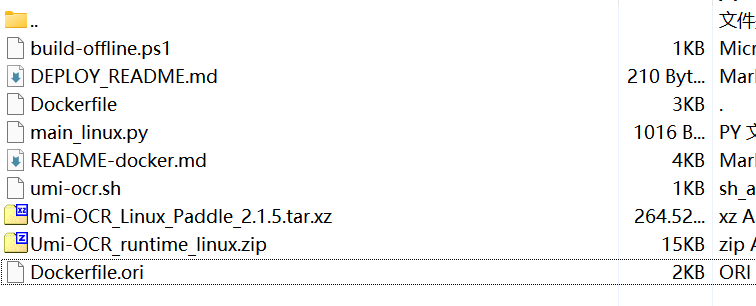
Dockerfile是主构建文件,已修复了离线和镜像问题
Dockerfile.ori是仅修复离线的构建文件
1、项目下载文件:
Umi-OCR_Linux_Paddle_2.1.5.tar.xz
地址如下:
bash
https://github.com/hiroi-sora/Umi-OCR/releaseshttps://github.com/hiroi-sora/Umi-OCR_runtime_linux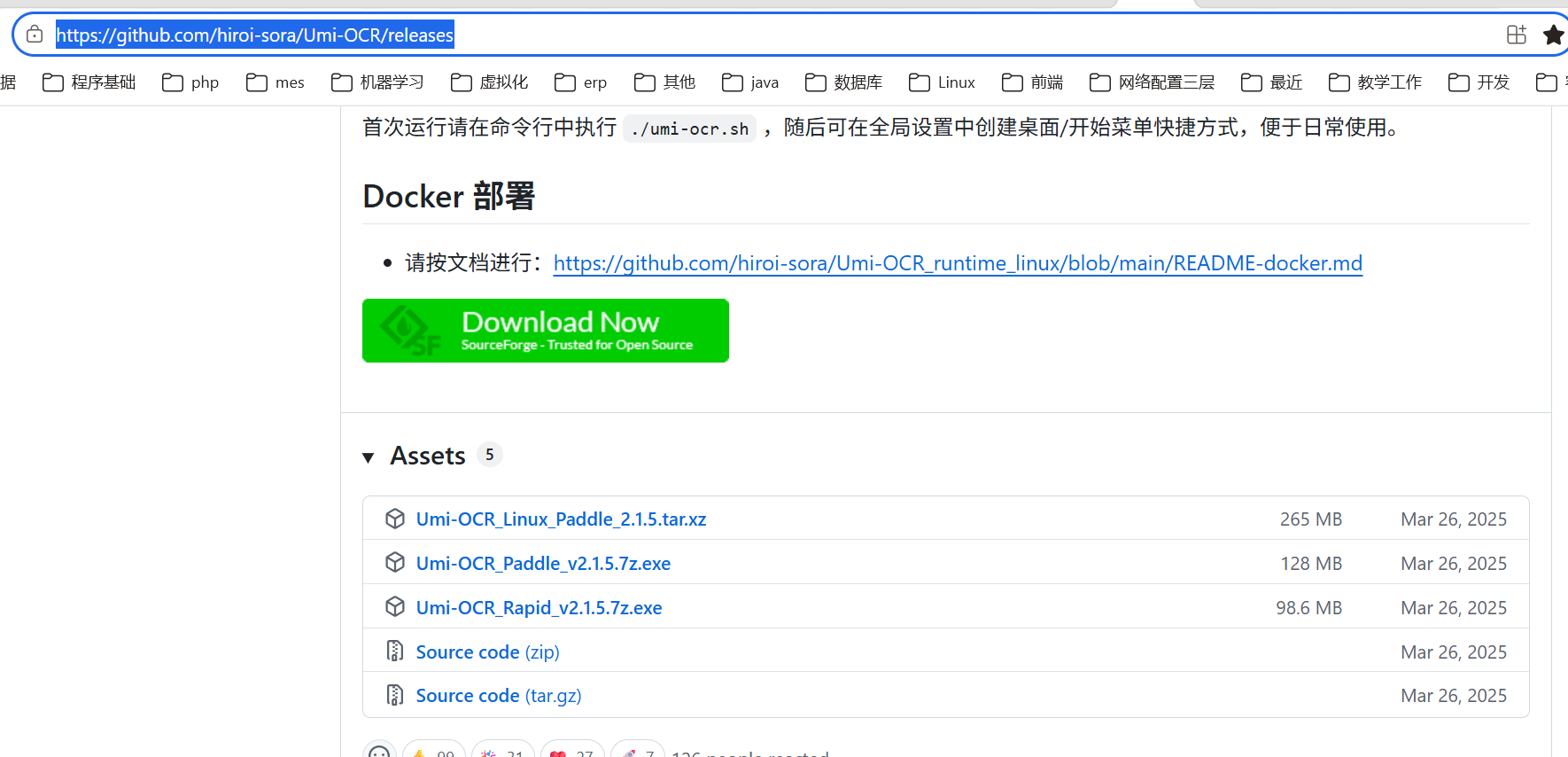
2、环境支撑下载文件:
bash
https://github.com/hiroi-sora/Umi-OCR_runtime_linux3、改造过的Dockerfile,添加了国内镜像,并且修正了必须使用git的问题
bash
# Umi-OCR Docker
# https://github.com/hiroi-sora/Umi-OCR
# https://github.com/hiroi-sora/Umi-OCR_runtime_linux

FROM debian:11-slim

ARG APT_MIRROR=http://mirrors.tuna.tsinghua.edu.cn/debian
ARG APT_SECURITY_MIRROR=http://mirrors.tuna.tsinghua.edu.cn/debian-security

LABEL app="Umi-OCR-Paddle"
LABEL maintainer="hiroi-sora"
LABEL version="2.1.5"
LABEL description="OCR software, free and offline."
LABEL license="MIT"
LABEL org.opencontainers.image.source="https://github.com/hiroi-sora/Umi-OCR_runtime_linux"

# 安装所需工具和 QT 依赖库
# 可在构建时通过 --build-arg APT_MIRROR / APT_SECURITY_MIRROR 指定 Debian 镜像源。
# 这里要求传入完整基础地址,例如:
#   http://mirrors.tuna.tsinghua.edu.cn/debian
#   http://mirrors.tuna.tsinghua.edu.cn/debian-security
# 也支持传入 https 地址。构建时会先用 http 引导安装 ca-certificates,再切回正式源。
RUN APT_MIRROR_CLEAN="${APT_MIRROR%/}" && \
    APT_SECURITY_MIRROR_CLEAN="${APT_SECURITY_MIRROR%/}" && \
    case "${APT_MIRROR_CLEAN}" in \
        https://*) APT_BOOTSTRAP_MIRROR="http://${APT_MIRROR_CLEAN#https://}" ;; \
        *) APT_BOOTSTRAP_MIRROR="${APT_MIRROR_CLEAN}" ;; \
    esac && \
    case "${APT_SECURITY_MIRROR_CLEAN}" in \
        https://*) APT_BOOTSTRAP_SECURITY_MIRROR="http://${APT_SECURITY_MIRROR_CLEAN#https://}" ;; \
        *) APT_BOOTSTRAP_SECURITY_MIRROR="${APT_SECURITY_MIRROR_CLEAN}" ;; \
    esac && \
    printf "deb %s bullseye main\n\
deb %s bullseye-security main\n\
deb %s bullseye-updates main\n" \
    "${APT_BOOTSTRAP_MIRROR}" \
    "${APT_BOOTSTRAP_SECURITY_MIRROR}" \
    "${APT_BOOTSTRAP_MIRROR}" > /etc/apt/sources.list && \
    apt-get update && apt-get install -y --no-install-recommends ca-certificates && \
    printf "deb %s bullseye main\n\
deb %s bullseye-security main\n\
deb %s bullseye-updates main\n" \
    "${APT_MIRROR_CLEAN}" \
    "${APT_SECURITY_MIRROR_CLEAN}" \
    "${APT_MIRROR_CLEAN}" > /etc/apt/sources.list && \
    apt-get update && apt-get install -y --no-install-recommends \
    xz-utils ttf-wqy-microhei xvfb \
    libglib2.0-0 libgssapi-krb5-2 libgl1-mesa-glx libfontconfig1 \
    libfreetype6 libxcb-icccm4 libxcb-image0 libxcb-keysyms1 \
    libxcb-render-util0 libxcb-render0 libxcb-shape0 libxcb-xkb1 \
    libxcb-xinerama0 libxkbcommon-x11-0 libxkbcommon0 libdbus-1-3 \
    && rm -rf /var/lib/apt/lists/*

# 工作目录
WORKDIR /app

# 将离线包和本地运行脚本复制到构建上下文中。
COPY Umi-OCR_Linux_Paddle_2.1.5.tar.xz /tmp/
COPY umi-ocr.sh /app/umi-ocr.sh
COPY main_linux.py /tmp/main_linux.py

# 解压离线发行包,并写入 Linux 运行时入口和预配置项。
RUN tar -xf /tmp/Umi-OCR_Linux_Paddle_2.1.5.tar.xz -C /tmp && \
    cp -a /tmp/Umi-OCR_Linux_Paddle_2.1.5/. /app/ && \
    cp /tmp/main_linux.py /app/UmiOCR-data/main_linux.py && \
    chmod +x /app/umi-ocr.sh && \
    printf "\
[Global]\n\
server.host=0.0.0.0\n\
ui.fontFamily=WenQuanYi Micro Hei\n\
ui.dataFontFamily=WenQuanYi Micro Hei\n\
" > /app/UmiOCR-data/.settings && \
    rm -rf /tmp/Umi-OCR_Linux_Paddle_2.1.5 /tmp/Umi-OCR_Linux_Paddle_2.1.5.tar.xz /tmp/main_linux.py


# 运行指令
ENTRYPOINT ["/app/umi-ocr.sh"]
4、仅修正了不再访问github的问题Dockerfile.ori
bash
# Umi-OCR Docker
# https://github.com/hiroi-sora/Umi-OCR
# https://github.com/hiroi-sora/Umi-OCR_runtime_linux

FROM debian:11-slim

LABEL app="Umi-OCR-Paddle"
LABEL maintainer="hiroi-sora"
LABEL version="2.1.5"
LABEL description="OCR software, free and offline."
LABEL license="MIT"
LABEL org.opencontainers.image.source="https://github.com/hiroi-sora/Umi-OCR_runtime_linux"

# 安装所需工具和 QT 依赖库
# 注意:这里仍然需要访问 Debian 软件源;应用本体本身已改为离线导入。
RUN apt-get update && apt-get install -y \
    xz-utils ttf-wqy-microhei xvfb \
    libglib2.0-0 libgssapi-krb5-2 libgl1-mesa-glx libfontconfig1 \
    libfreetype6 libxcb-icccm4 libxcb-image0 libxcb-keysyms1 \
    libxcb-render-util0 libxcb-render0 libxcb-shape0 libxcb-xkb1 \
    libxcb-xinerama0 libxkbcommon-x11-0 libxkbcommon0 libdbus-1-3 \
    && rm -rf /var/lib/apt/lists/*

# 工作目录
WORKDIR /app

# 将离线包和本地运行脚本复制到构建上下文中。
COPY Umi-OCR_Linux_Paddle_2.1.5.tar.xz /tmp/
COPY umi-ocr.sh /app/umi-ocr.sh
COPY main_linux.py /tmp/main_linux.py

# 解压离线发行包,并写入 Linux 运行时入口和预配置项。
RUN tar -xf /tmp/Umi-OCR_Linux_Paddle_2.1.5.tar.xz -C /tmp && \
    cp -a /tmp/Umi-OCR_Linux_Paddle_2.1.5/. /app/ && \
    cp /tmp/main_linux.py /app/UmiOCR-data/main_linux.py && \
    chmod +x /app/umi-ocr.sh && \
    printf "\
[Global]\n\
server.host=0.0.0.0\n\
ui.fontFamily=WenQuanYi Micro Hei\n\
ui.dataFontFamily=WenQuanYi Micro Hei\n\
" > /app/UmiOCR-data/.settings && \
    rm -rf /tmp/Umi-OCR_Linux_Paddle_2.1.5 /tmp/Umi-OCR_Linux_Paddle_2.1.5.tar.xz /tmp/main_linux.py


# 运行指令
ENTRYPOINT ["/app/umi-ocr.sh"]5、主启动文件,其实是复制的:umi-ocr.sh
bash
#!/bin/bash
set -e

cd "$(dirname "${BASH_SOURCE[0]}")"
current_dir="$(pwd)"
export UMI_APP_PATH="$(realpath "${BASH_SOURCE[0]}")"

if [ -f "UmiOCR-data/.embeddable/activate.sh" ]; then
    cd UmiOCR-data/.embeddable
    . ./activate.sh
    cd "$current_dir"
    echo "Use the Python embeddable environment."
elif [ -f "UmiOCR-data/.venv/bin/activate" ]; then
    . UmiOCR-data/.venv/bin/activate
    echo "Use the Python virtual environment."
else
    echo "Use the default Python environment."
fi

echo "pwd: $(pwd)"

if [ "${HEADLESS:-}" = "true" ]; then
    echo "Use headless mode."
    # In headless mode, prefer Qt's offscreen backend so the app does not rely
    # on an X server and the xcb plugin chain inside the container.
    export QT_QPA_PLATFORM="${QT_QPA_PLATFORM:-offscreen}"
    export QT_QUICK_BACKEND="${QT_QUICK_BACKEND:-software}"
    export LIBGL_ALWAYS_SOFTWARE="${LIBGL_ALWAYS_SOFTWARE:-1}"
else
    echo "Use GUI mode."
    if [ -z "${DISPLAY:-}" ]; then
        echo "Error: \$DISPLAY is not set."
        exit 1
    fi
fi

exec python3 UmiOCR-data/main_linux.py "$@"
6、linux中的docker入口:main_linux.py
bash
"""
Minimal Linux entrypoint for Umi-OCR in Docker.
"""

import os
import sys
import traceback


def message_box(msg: str, type_: str = "error") -> int:
    prefix = "Umi-OCR Message"
    if type_ == "error":
        prefix = "[Error] Umi-OCR Error"
    elif type_ == "warning":
        prefix = "[Warning] Umi-OCR Warning"
    print(prefix, "\n", msg)
    return 0


os.MessageBox = message_box


def init_runtime_environment() -> None:
    script = os.path.abspath(__file__)
    os.chdir(os.path.dirname(script))


if __name__ == "__main__":
    try:
        init_runtime_environment()
    except Exception:
        err = traceback.format_exc()
        message_box("Failed to initialize runtime environment.\n\n" + err)
        sys.exit(0)

    try:
        app_path = os.getenv("UMI_APP_PATH", "")
        from py_src.run import main

        main(app_path=app_path)
    except Exception:
        err = traceback.format_exc()
        message_box("Failed to start the main program.\n\n" + err)
        sys.exit(0)
7、构建
bash
#普通构建
docker build -t umi-ocr-paddle .
#无缓存构建
docker build --no-cache -t umi-ocr-paddle .
8、无头启动,这个也修正一些Qt启动问题
bash
#强制使用Qt offscreen平台及显式镜像
docker run -d --name umi-ocr \
  -e HEADLESS=true \
  -e QT_QPA_PLATFORM=offscreen \
  -e QT_QUICK_BACKEND=software \
  -e LIBGL_ALWAYS_SOFTWARE=1 \
  -p 1224:1224 \
  umi-ocr-paddle
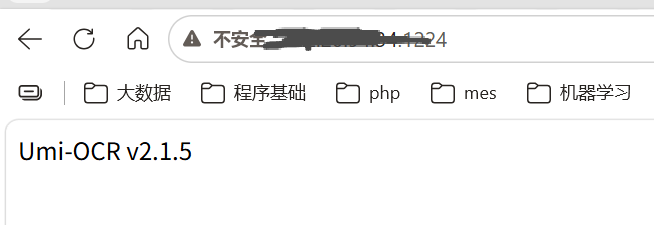
基本就OK了。
9、再加一些文档,这是官方的