前言
设置页很容易被写成一条长列表。账号、通知、权限、缓存、关于应用,全都从上到下排。手机外屏上这么写没有太大问题,用户打开设置页以后,从顶部一路往下找,看到需要的设置项就点进去。设置项数量不多时,单列列表甚至是最省事的写法。
我把同样的设置页放到 Pura X Max 展开态里看时,第一眼注意到的是设置项被拉得太长。左侧是设置标题,右侧是开关、状态或者跳转入口,中间被屏幕宽度拉开了一大段。用户看相机权限时,视线要从左侧标题扫到右侧状态;看版本号时,也要在一条很长的横向区域里找到对应值。单个设置项还能读,整页的分组关系却变弱了。
设置页和搜索页、列表页的使用方式不一样。搜索页会频繁调整条件,列表页主要用来浏览内容;设置页更像一个低频但要快速定位的功能入口集合。用户不一定每天打开设置页,但一旦打开,通常是带着明确目的进来的,比如改通知、看权限、清理缓存、查看版本、打开某个开关。这个时候,分类定位比单纯把列表拉宽更有价值。
这类设置页通常会包含几组内容。
- 基础设置,比如显示方式、通知提醒、自动保存
- 权限设置,比如相机、相册、麦克风、通知权限
- 数据设置,比如缓存、同步、导入导出
- 关于应用,比如版本号、隐私协议、用户协议、反馈入口
Pura X Max 展开态空间足够把设置页拆成左侧分类和右侧设置项,外屏和较窄窗口继续保留单列设置列表。鸿蒙里的全屏、分屏、自由窗口都会改变应用可用宽度,设置页如果只把手机端长列表拉宽,很快会遇到分类弱、行距远、定位慢这些问题。
我这次用一个设置页示例来验证这种改法。页面包含基础设置、权限设置、关于应用三个分类。小屏下仍然按分组从上到下展示;展开态下左侧显示分类卡片,右侧只展示当前分类下的设置项。这样用户在大屏里可以先选分类,再看具体设置,不需要在一条很长的设置列表里不断向下扫。

一、设置页不能只拉宽
1.1 外屏单列适合连续浏览
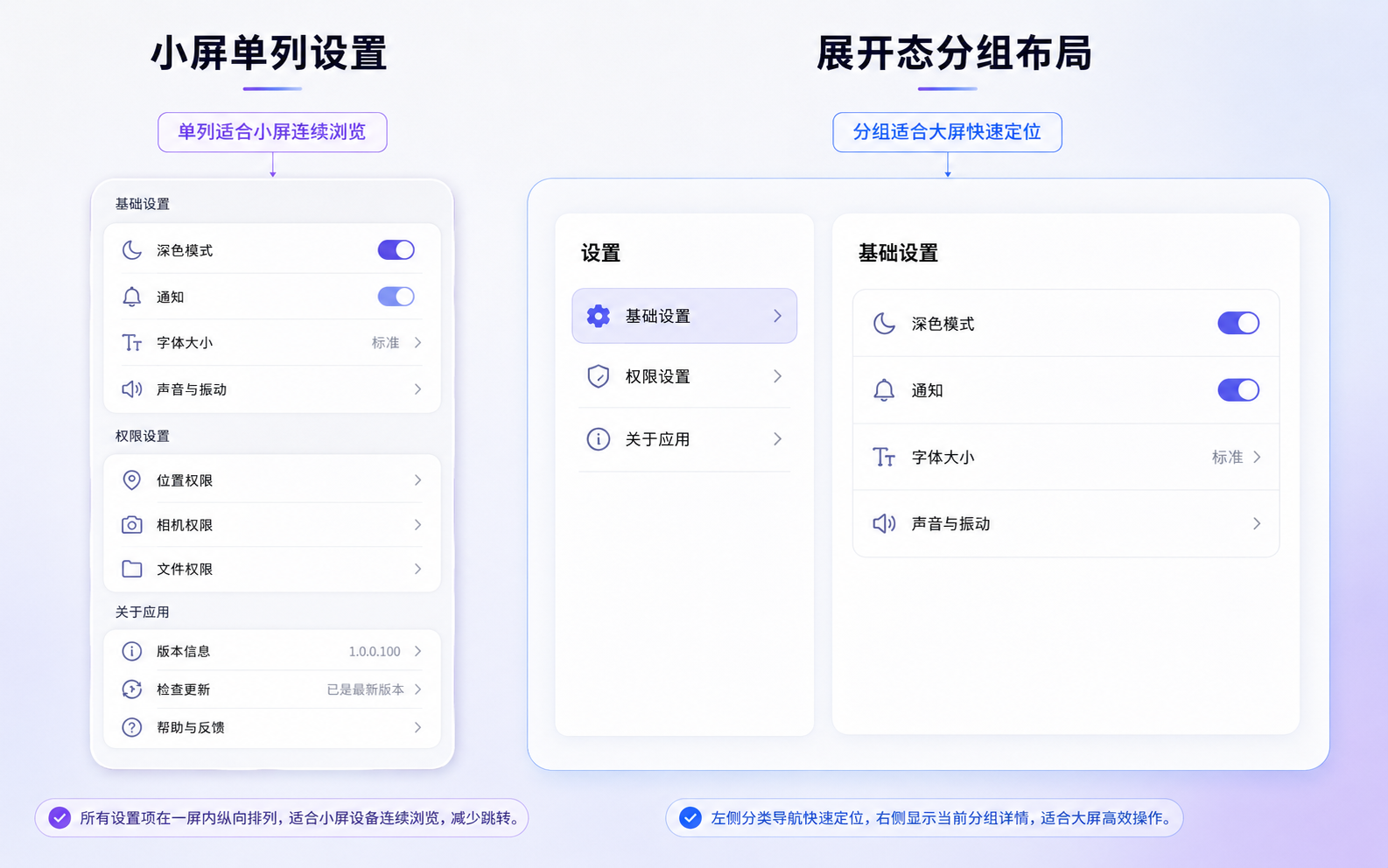
外屏下,设置页用单列结构是合理的。设置项按分组向下排列,用户进入页面以后,从顶部看到基础设置,再往下看到权限设置、关于应用。屏幕窄,单列列表能保证每个设置项都有足够的横向空间,标题、说明、右侧状态或开关都能放得下。
最常见的写法是这样的。
arkts
Column() {
  this.SettingSection('基础设置')
  this.SettingSection('权限设置')
  this.SettingSection('关于应用')
}
.width('100%')
这个结构维护起来也简单。每个分组是一段列表,新增设置项时继续往对应分组里加。手机外屏上,用户滚动一下就能看到所有设置内容,页面也不会被左右拆开。
我以前做手机端设置页时,也会先用这种结构。设置页不是高频操作页,单列列表的可理解性很好。只要分组标题明确,设置项说明写得具体,小屏体验通常不会出大问题。这个时候没有必要为了大屏思维提前把页面拆复杂。
1.2 展开态单列会拉长信息路径
展开态里继续使用单列,问题会换一种方式出现。每一行设置项被拉得很宽,右侧开关或状态离左侧标题很远。用户看通知提醒时,标题在左,开关在右;看缓存清理时,说明在左,操作入口在右。单行看起来没有错,但整页的阅读路径被横向拉长了。
设置页在大屏里更需要分类定位。用户进来以后,应该先看到基础设置、权限设置、关于应用这些方向,再进入某一组具体设置。比如我想检查相机权限,就不该从通知提醒、自动保存、深色模式一路扫过去;我想看版本和隐私协议,也不需要穿过所有基础设置。
我会把大屏设置页拆成三个区域关系进行分析。
| 区域 | 小屏处理 | 展开态处理 | 主要目的 |
|---|---|---|---|
| 设置分类 | 作为分组标题嵌在列表中 | 固定在左侧 | 先定位方向 |
| 设置项列表 | 所有分组连续排列 | 只展示当前分类 | 减少纵向寻找 |
| 状态与操作 | 跟在每一行右侧 | 保留在右侧列表内 | 保持原有设置行为 |
这个表格能帮我避免一个误区。展开态不一定要展示更多设置项,它更应该把设置项的组织关系摆出来。左侧分类不是装饰,它承担的是入口定位;右侧设置项才是具体操作区域。
二、先拆分类,再拆设置项
2.1 分类要从标题变成入口
在单列设置页里,基础设置、权限设置、关于应用只是分组标题。它们帮助用户理解下面的设置项属于哪一类,但不会参与交互。到了展开态,这些分组标题可以升级成左侧分类导航。用户点击左侧分类,右侧切换对应设置项。
这个变化不只是把 UI 从上下结构改成左右结构,还牵涉到一个基础的状态设计。当前选中的设置分类要放在页面层,因为左侧分类和右侧设置项都要读取它。左侧需要知道哪个分类高亮,右侧需要知道展示哪组设置项。
示例里用 selectedGroupId 保存当前分类。
arkts
@State private selectedGroupId: number = 1;这个状态不能放在左侧分类组件里。左侧分类只是触发切换的入口,右侧内容也需要它。把状态放在页面层以后,外屏和展开态都能读同一份当前分类状态,窗口宽度变化时也不会重置。
这里其实是一个很常见的编程常识:当两个区域都依赖同一个状态时,状态应该提升到它们共同的父级。设置页左右分栏只是一个具体场景,列表详情、搜索筛选、图片预览里的左右区域也会遇到同样的问题。
2.2 设置项要用同一套数据
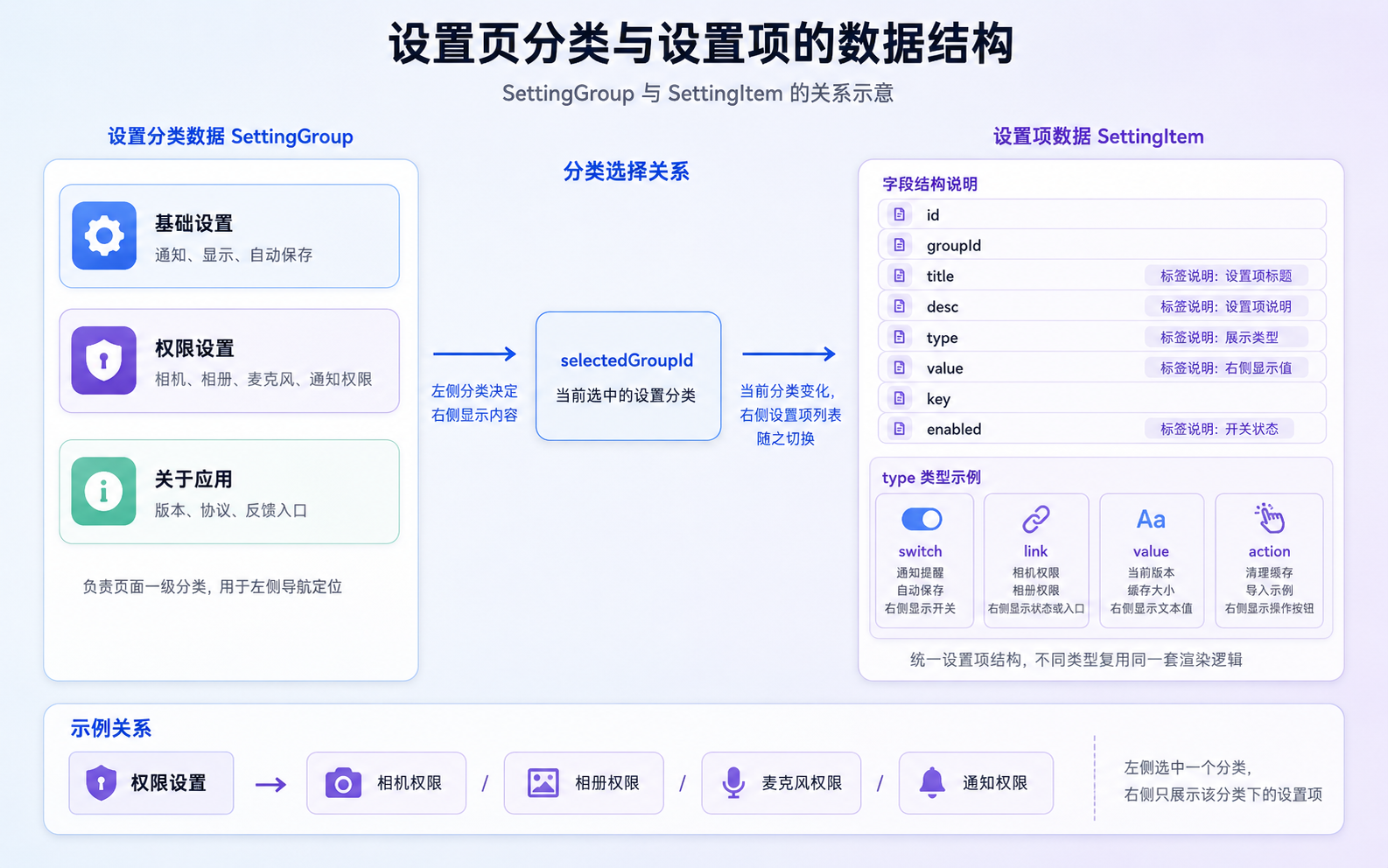
我不建议为基础设置、权限设置、关于应用分别写三套 UI。它们的业务含义不同,但展示结构很接近:标题、说明、右侧内容、类型和状态。这样就可以抽成统一的设置项数据,再根据 type 决定右侧展示开关、文本、按钮还是跳转状态。
设置项可以先按这样的结构理解。
| 设置项类型 | 页面表现 | 示例 |
|---|---|---|
switch |
右侧显示开关 | 通知提醒、自动保存 |
link |
右侧显示状态或入口 | 相机权限、相册权限 |
value |
右侧显示文本值 | 版本号、缓存大小 |
action |
右侧显示操作按钮 | 清理缓存、导入示例 |
不同类型的设置项,可以走同一个 SettingRow(),再根据 type 决定右侧展示什么。这个写法比每个分组手写一堆 Row 更适合维护。后面新增数据同步、订阅管理、隐私协议、实验功能这些内容时,也只是新增数据,不需要改布局结构。
这里还要留意设置项说明的长度。说明文字太长,小屏里会把行高撑得过高,展开态里也会让右侧列表变得松散。设置项说明只解释当前设置的影响就够了,完整帮助文档不要放进设置行。
三、分栏前先保住右侧
3.1 分类栏不能抢设置项宽度
设置页的左侧分类栏不需要太宽,但右侧设置项列表必须能读。展开态分栏如果只看窗口是否超过某个阈值,可能会出现左侧分类栏出现了,右侧设置项却被压得很窄。标题、说明、开关、状态挤在一行里,页面看起来进入了大屏结构,实际操作并没有变轻松。
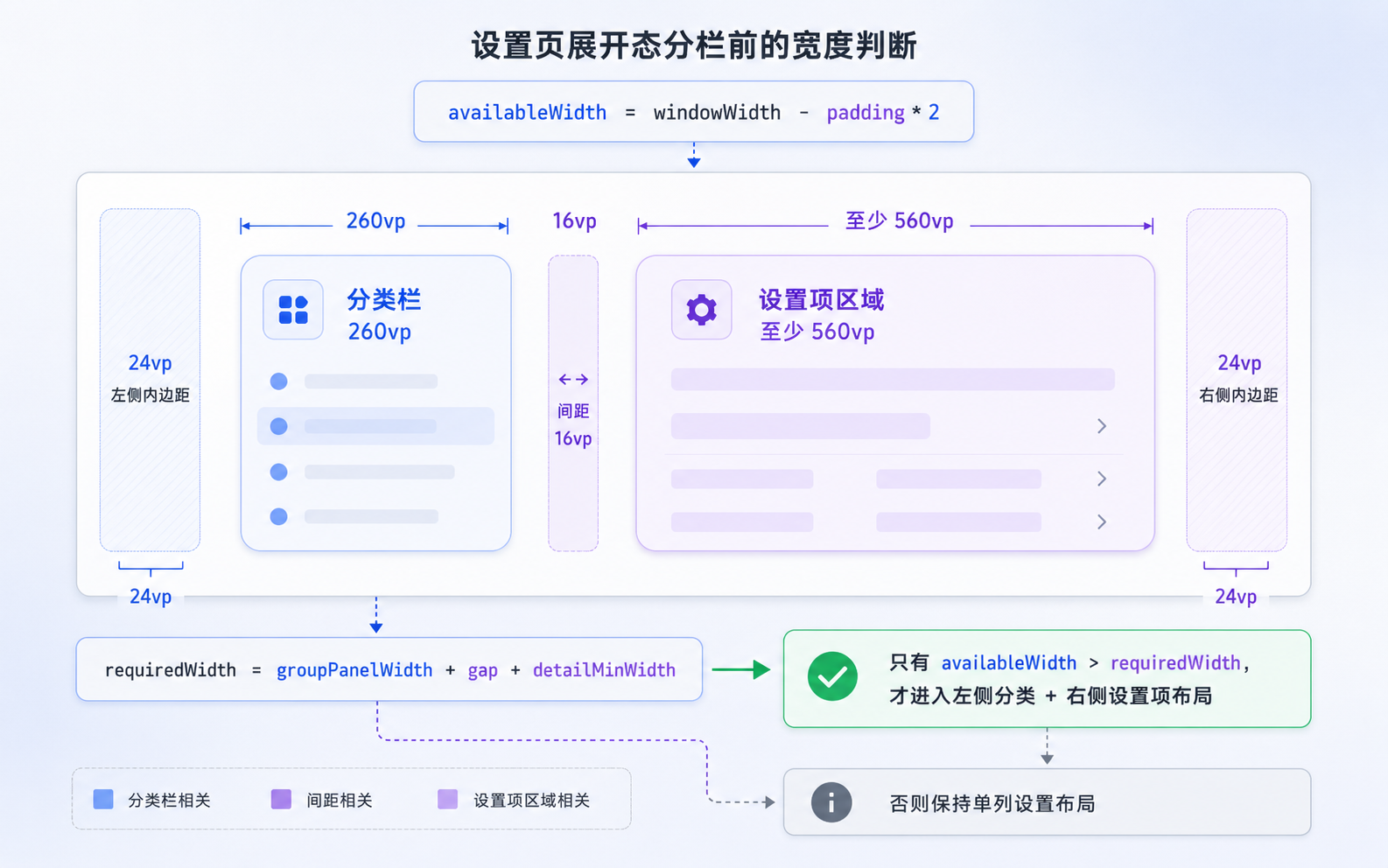
我会先给左侧分类栏和右侧设置项列表分别留宽度。示例里左侧分类栏是 260vp,右侧设置项列表至少保留 560vp,中间间距是 16vp。进入双栏前,先计算这些区域是否真的放得下。
arkts
private readonly groupPanelWidth: number = 260;
private readonly detailMinWidth: number = 560;
private readonly twoColumnGap: number = 16;
这些数字不用照搬。设置项比较短时,右侧 520vp 也可以;如果设置项说明更多,或者右侧同时出现开关、状态、按钮,右侧最小宽度就要提高。大屏适配不该看到宽度变大就马上分栏,分栏前要先确认主操作区域还能正常阅读和点击。
3.2 可用宽度比屏幕宽度更有用
示例里的判断会先扣掉左右 padding,再计算左侧分类栏、右侧详情区和中间间距。
arkts
private canUseSplitSettings(): boolean {
  const width = this.getEffectiveWidth();
  const availableWidth = width - this.getPagePadding() * 2;
  const requiredWidth = this.groupPanelWidth + this.twoColumnGap + this.detailMinWidth;

  return width >= this.expandedThreshold && availableWidth >= requiredWidth;
}
这里有个常见误区,很多布局判断会直接拿窗口宽度和阈值比较。这个写法短期能用,但只要页面加了左右 padding、卡片间距、侧栏宽度,就容易在中间尺寸出问题。设置页这种页面尤其容易被忽略,因为它看起来只是普通列表,实际右侧每一行都有标题、说明、开关或状态,不能被压得太窄。
我会把 canUseSplitSettings() 放在页面层。页面层负责判断采用单列还是双栏;左侧分类组件只负责分类展示;右侧设置项列表只负责当前分类的设置项。这样组件职责会更清楚,后面新增设置分类时,也不会影响断点逻辑。
四、实际运行结果
4.1 外屏先保留单列列表
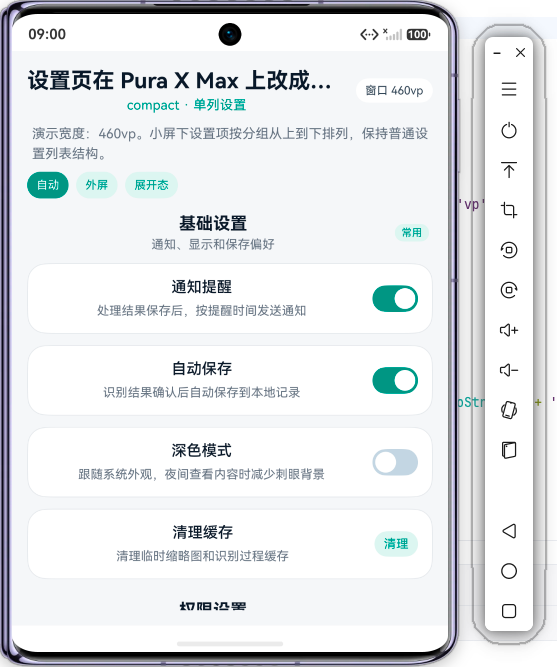
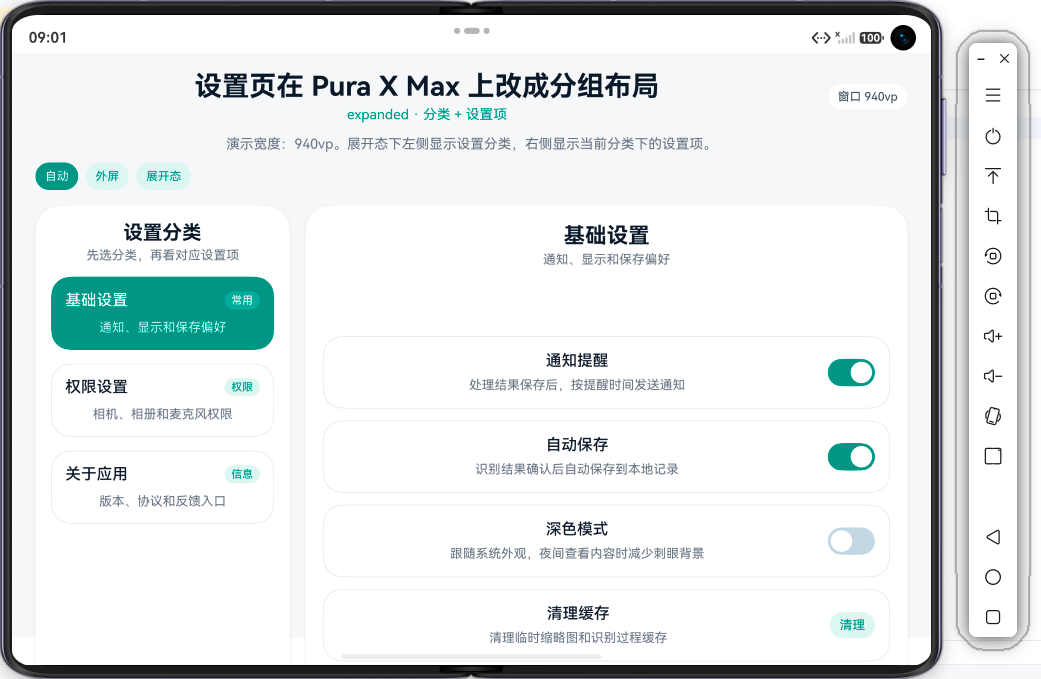
这个示例会模拟一个设置页。小屏下,基础设置、权限设置、关于应用三个分组按顺序排列,用户从上往下滚动。展开态下,左侧显示三个设置分类,右侧显示当前分类下的设置项。点击左侧分类时,右侧内容切换。
小屏状态下,我会继续保留单列列表。原因很直接:设置项虽然多,但屏幕宽度有限,强行做左右结构会让两边都很窄。用户在小屏里从上往下浏览,不会因为多一次滚动就失去方向。只要分组标题足够清楚,单列结构可以继续使用。
4.2 展开态再把分类放左侧
展开态截图要看左侧分类和右侧设置项之间的关系。左侧分类高亮当前分类,右侧只显示当前分类下的设置项。这样用户不需要在长列表里继续寻找权限、关于应用或者缓存设置。
这个示例里还保留了几个开关状态,比如通知提醒、自动保存、深色模式。真实项目里,这些状态可以来自本地持久化配置;权限类设置则要来自系统权限状态;关于应用里的版本号、协议入口、反馈入口可以来自应用配置。
五、真实项目时怎么处理
5.1 分类和设置项最好来自配置
示例里的设置组和设置项写在页面里,是为了让代码可以直接运行。真实项目里,设置项通常会随着版本持续增加,比如订阅、数据同步、隐私、缓存、实验功能。继续把所有设置行写死在页面里,后面会越来越难维护。
我会把设置页拆成配置数据:
- 分类配置负责标题、说明、图标和排序
- 设置项配置负责标题、说明、类型、右侧文案、点击动作
- 页面状态负责当前选中分类和开关状态
- 具体业务逻辑交给对应服务处理
这样设置页的 UI 结构会更稳定。新增一个设置项时,优先改配置;新增一个业务动作时,再补对应处理函数。页面本身不需要因为每个设置项都去加一段重复代码。
5.2 权限设置要接真实状态
权限设置是设置页里比较特殊的一类。示例里用去开启、已授权这类文案模拟状态,真实项目里要接系统权限查询结果。相机、相册、麦克风、通知这些权限,用户可能在系统设置里改掉,回到应用后页面要能刷新状态。
这个地方不能只靠本地开关模拟。权限状态应该来自系统能力或应用启动后的检查结果,设置页只负责展示和跳转。比如用户点击相机权限,页面可以跳到授权引导或系统权限设置;用户返回后,再刷新当前权限状态。
5.3 关于应用单独成组
关于应用这类信息经常被随手放到设置页底部。手机上这么放可以接受,展开态里如果继续和基础设置混在一起,用户会在通知开关、自动保存、缓存清理这些设置项之间找版本号和协议入口。
我会把关于应用单独做成一个分类。版本号、隐私政策、用户协议、反馈入口、开发者信息,都放到同一个分类下。这样右侧区域展示时也更清楚,用户不会在一条很长的设置列表里找这些低频但重要的入口。
总结
设置页在 Pura X Max 展开态里,不一定要继续做成长单列。外屏下,单列设置列表适合连续浏览;展开态里,把分类放到左侧、设置项放到右侧,用户更容易先定位方向,再处理具体设置。
我后面处理设置页时,会先把内容按这几类拆开:
- 基础设置放常用开关,比如通知、自动保存、深色模式。
- 权限设置放相机、相册、麦克风、通知权限,并接真实权限状态。
- 关于应用放版本号、协议、反馈和开发者信息。
- 数据和缓存类设置可以单独成组,不要混在基础设置里。
- 展开态是否分栏,要先确认右侧设置项区域还有足够宽度。
真实项目里,设置页会随着版本持续增长。分类和设置项最好配置化,页面层只负责选中分类、布局判断和状态分发。这样外屏单列、展开态双栏都能读同一套数据,后面新增设置项时,也不会把页面写成越来越长的一整段 UI。
附:完整代码
arkts
interface SettingGroup {
  id: number;
  title: string;
  desc: string;
  badge: string;
}

interface SettingItem {
  id: number;
  groupId: number;
  title: string;
  desc: string;
  type: string;
  value: string;
  key: string;
}

@Entry
@Component
struct Index {
  // 页面真实宽度,由 onAreaChange 写入
  @State private pageWidth: number = 0;

  // 演示宽度,只用于在同一个模拟器里观察外屏和展开态
  @State private previewWidth: number = 0;

  // 展开态左侧选中的设置分类
  @State private selectedGroupId: number = 1;

  // 模拟几个设置项状态,真实项目里可以来自持久化配置或系统权限查询
  @State private notifyEnabled: boolean = true;
  @State private autoSaveEnabled: boolean = true;
  @State private darkModeEnabled: boolean = false;
  @State private cacheClearedCount: number = 0;

  private readonly expandedThreshold: number = 860;
  private readonly groupPanelWidth: number = 260;
  private readonly detailMinWidth: number = 560;
  private readonly twoColumnGap: number = 16;

  private readonly groups: SettingGroup[] = [
    {
      id: 1,
      title: '基础设置',
      desc: '通知、显示和保存偏好',
      badge: '常用'
    },
    {
      id: 2,
      title: '权限设置',
      desc: '相机、相册和麦克风权限',
      badge: '权限'
    },
    {
      id: 3,
      title: '关于应用',
      desc: '版本、协议和反馈入口',
      badge: '信息'
    }
  ];

  private readonly items: SettingItem[] = [
    {
      id: 1,
      groupId: 1,
      title: '通知提醒',
      desc: '处理结果保存后,按提醒时间发送通知',
      type: 'switch',
      value: '',
      key: 'notify'
    },
    {
      id: 2,
      groupId: 1,
      title: '自动保存',
      desc: '识别结果确认后自动保存到本地记录',
      type: 'switch',
      value: '',
      key: 'autoSave'
    },
    {
      id: 3,
      groupId: 1,
      title: '深色模式',
      desc: '跟随系统外观,夜间查看内容时减少刺眼背景',
      type: 'switch',
      value: '',
      key: 'darkMode'
    },
    {
      id: 4,
      groupId: 1,
      title: '清理缓存',
      desc: '清理临时缩略图和识别过程缓存',
      type: 'action',
      value: '清理',
      key: 'cache'
    },
    {
      id: 5,
      groupId: 2,
      title: '相机权限',
      desc: '用于拍摄通知、票据和白板照片',
      type: 'link',
      value: '去开启',
      key: 'camera'
    },
    {
      id: 6,
      groupId: 2,
      title: '相册权限',
      desc: '用于从相册选择已有图片进行整理',
      type: 'link',
      value: '已授权',
      key: 'album'
    },
    {
      id: 7,
      groupId: 2,
      title: '麦克风权限',
      desc: '用于后续语音整理和会议内容识别',
      type: 'link',
      value: '去开启',
      key: 'microphone'
    },
    {
      id: 8,
      groupId: 2,
      title: '通知权限',
      desc: '用于发送待办提醒和处理结果提醒',
      type: 'link',
      value: '已授权',
      key: 'push'
    },
    {
      id: 9,
      groupId: 3,
      title: '当前版本',
      desc: '查看当前安装的应用版本',
      type: 'value',
      value: '1.0.0',
      key: 'version'
    },
    {
      id: 10,
      groupId: 3,
      title: '隐私政策',
      desc: '查看数据存储、权限使用和第三方服务说明',
      type: 'link',
      value: '查看',
      key: 'privacy'
    },
    {
      id: 11,
      groupId: 3,
      title: '用户协议',
      desc: '查看应用使用条款和免责声明',
      type: 'link',
      value: '查看',
      key: 'terms'
    },
    {
      id: 12,
      groupId: 3,
      title: '问题反馈',
      desc: '提交使用过程中遇到的问题或建议',
      type: 'link',
      value: '反馈',
      key: 'feedback'
    }
  ];

  // Demo 中优先使用演示宽度,真实项目里可以直接返回 pageWidth
  private getEffectiveWidth(): number {
    if (this.previewWidth > 0) {
      return this.previewWidth;
    }

    return this.pageWidth;
  }

  private getPagePadding(): number {
    if (this.getEffectiveWidth() >= this.expandedThreshold) {
      return 24;
    }

    return 16;
  }

  // 分栏前先确认左侧分类栏、间距和右侧设置项区域都能放下
  private canUseSplitSettings(): boolean {
    const width = this.getEffectiveWidth();
    const availableWidth = width - this.getPagePadding() * 2;
    const requiredWidth = this.groupPanelWidth + this.twoColumnGap + this.detailMinWidth;

    return width >= this.expandedThreshold && availableWidth >= requiredWidth;
  }

  private isExpanded(): boolean {
    return this.canUseSplitSettings();
  }

  private getContentWidth(): Length {
    if (this.previewWidth > 0) {
      return this.previewWidth;
    }

    return '100%';
  }

  private getTitleSize(): number {
    return this.isExpanded() ? 28 : 23;
  }

  private getModeText(): string {
    return this.isExpanded() ? 'expanded · 分类 + 设置项' : 'compact · 单列设置';
  }

  private getModeDesc(): string {
    if (this.isExpanded()) {
      return '展开态下左侧显示设置分类,右侧显示当前分类下的设置项。';
    }

    return '小屏下设置项按分组从上到下排列,保持普通设置列表结构。';
  }

  private setPreview(width: number) {
    this.previewWidth = width;
  }

  private getSelectedGroup(): SettingGroup {
    const found = this.groups.find((item: SettingGroup) => item.id === this.selectedGroupId);
    return found ? found : this.groups[0];
  }

  private getItemsByGroup(groupId: number): SettingItem[] {
    return this.items.filter((item: SettingItem) => item.groupId === groupId);
  }

  private isSwitchOn(key: string): boolean {
    if (key === 'notify') {
      return this.notifyEnabled;
    }

    if (key === 'autoSave') {
      return this.autoSaveEnabled;
    }

    if (key === 'darkMode') {
      return this.darkModeEnabled;
    }

    return false;
  }

  private toggleSwitch(key: string) {
    if (key === 'notify') {
      this.notifyEnabled = !this.notifyEnabled;
    } else if (key === 'autoSave') {
      this.autoSaveEnabled = !this.autoSaveEnabled;
    } else if (key === 'darkMode') {
      this.darkModeEnabled = !this.darkModeEnabled;
    }
  }

  private handleAction(key: string) {
    if (key === 'cache') {
      this.cacheClearedCount += 1;
    }
  }

  @Builder
  private PreviewButton(text: string, width: number) {
    Text(text)
      .fontSize(12)
      .fontColor(this.previewWidth === width ? '#FFFFFF' : '#2F8F83')
      .textAlign(TextAlign.Center)
      .padding({ left: 10, right: 10, top: 7, bottom: 7 })
      .backgroundColor(this.previewWidth === width ? '#2F8F83' : '#E6F4F1')
      .borderRadius(999)
      .onClick(() => {
        this.setPreview(width);
      })
  }

  @Builder
  private HeaderPanel() {
    Column({ space: 10 }) {
      Row({ space: 10 }) {
        Column({ space: 4 }) {
          Text('设置页在 Pura X Max 上改成分组布局')
            .fontSize(this.getTitleSize())
            .fontWeight(FontWeight.Bold)
            .fontColor('#111827')
            .maxLines(1)
            .textOverflow({ overflow: TextOverflow.Ellipsis })

          Text(this.getModeText())
            .fontSize(14)
            .fontColor('#2F8F83')
            .maxLines(1)
            .textOverflow({ overflow: TextOverflow.Ellipsis })
        }
        .layoutWeight(1)

        Text('窗口 ' + Math.round(this.pageWidth).toString() + 'vp')
          .fontSize(12)
          .fontColor('#374151')
          .padding({ left: 10, right: 10, top: 6, bottom: 6 })
          .backgroundColor('#FFFFFF')
          .borderRadius(999)
      }
      .width('100%')

      Text('演示宽度:' + Math.round(this.getEffectiveWidth()).toString() + 'vp。' + this.getModeDesc())
        .fontSize(14)
        .fontColor('#6B7280')
        .lineHeight(21)
        .maxLines(2)
        .textOverflow({ overflow: TextOverflow.Ellipsis })

      Row({ space: 8 }) {
        this.PreviewButton('自动', 0)
        this.PreviewButton('外屏', 430)
        this.PreviewButton('展开态', 1040)
      }
      .width('100%')
    }
    .width('100%')
  }

  @Builder
  private GroupBadge(text: string, selected: boolean) {
    Text(text)
      .fontSize(11)
      .fontColor(selected ? '#FFFFFF' : '#2F8F83')
      .padding({ left: 7, right: 7, top: 3, bottom: 3 })
      .backgroundColor(selected ? '#33FFFFFF' : '#E6F4F1')
      .borderRadius(999)
  }

  @Builder
  private GroupCard(item: SettingGroup) {
    Column({ space: 8 }) {
      Row() {
        Text(item.title)
          .fontSize(16)
          .fontWeight(FontWeight.Medium)
          .fontColor(this.selectedGroupId === item.id ? '#FFFFFF' : '#111827')
          .maxLines(1)
          .textOverflow({ overflow: TextOverflow.Ellipsis })

        Blank()

        this.GroupBadge(item.badge, this.selectedGroupId === item.id)
      }
      .width('100%')

      Text(item.desc)
        .fontSize(13)
        .fontColor(this.selectedGroupId === item.id ? '#DFF5F1' : '#6B7280')
        .lineHeight(19)
        .maxLines(2)
        .textOverflow({ overflow: TextOverflow.Ellipsis })
    }
    .width('100%')
    .padding(14)
    .backgroundColor(this.selectedGroupId === item.id ? '#2F8F83' : '#FFFFFF')
    .borderRadius(20)
    .border({
      width: 1,
      color: this.selectedGroupId === item.id ? '#2F8F83' : '#E5E7EB'
    })
    .onClick(() => {
      this.selectedGroupId = item.id;
    })
  }

  @Builder
  private GroupPanel() {
    Column({ space: 14 }) {
      Column({ space: 4 }) {
        Text('设置分类')
          .fontSize(20)
          .fontWeight(FontWeight.Bold)
          .fontColor('#111827')

        Text('先选分类,再看对应设置项')
          .fontSize(13)
          .fontColor('#6B7280')
      }
      .width('100%')

      ForEach(this.groups, (item: SettingGroup) => {
        this.GroupCard(item)
      }, (item: SettingGroup) => item.id.toString())
    }
    .width('100%')
    .height('100%')
    .padding(16)
    .backgroundColor('#FFFFFF')
    .borderRadius(26)
    .shadow({
      radius: 12,
      color: '#10000000',
      offsetX: 0,
      offsetY: 4
    })
  }

  @Builder
  private SwitchView(key: string) {
    Row() {
      if (this.isSwitchOn(key)) {
        Blank()

        Circle()
          .width(22)
          .height(22)
          .fill('#FFFFFF')
          .margin({ right: 3 })
      } else {
        Circle()
          .width(22)
          .height(22)
          .fill('#FFFFFF')
          .margin({ left: 3 })

        Blank()
      }
    }
    .width(48)
    .height(28)
    .backgroundColor(this.isSwitchOn(key) ? '#2F8F83' : '#CBD5E1')
    .borderRadius(14)
    .onClick(() => {
      this.toggleSwitch(key);
    })
  }

  @Builder
  private RightContent(item: SettingItem) {
    if (item.type === 'switch') {
      this.SwitchView(item.key)
    } else if (item.type === 'action') {
      Text(item.value)
        .fontSize(13)
        .fontColor('#2F8F83')
        .padding({ left: 10, right: 10, top: 6, bottom: 6 })
        .backgroundColor('#E6F4F1')
        .borderRadius(999)
        .onClick(() => {
          this.handleAction(item.key);
        })
    } else {
      Text(item.value)
        .fontSize(13)
        .fontColor(item.type === 'value' ? '#6B7280' : '#2F8F83')
        .maxLines(1)
        .textOverflow({ overflow: TextOverflow.Ellipsis })
    }
  }

  @Builder
  private SettingRow(item: SettingItem) {
    Row({ space: 12 }) {
      Column({ space: 4 }) {
        Text(item.title)
          .fontSize(16)
          .fontWeight(FontWeight.Medium)
          .fontColor('#111827')
          .maxLines(1)
          .textOverflow({ overflow: TextOverflow.Ellipsis })

        Text(item.desc)
          .fontSize(13)
          .fontColor('#6B7280')
          .lineHeight(20)
          .maxLines(this.isExpanded() ? 2 : 3)
          .textOverflow({ overflow: TextOverflow.Ellipsis })
      }
      .layoutWeight(1)

      this.RightContent(item)
    }
    .width('100%')
    .padding(15)
    .backgroundColor('#FFFFFF')
    .borderRadius(20)
    .border({
      width: 1,
      color: '#E5E7EB'
    })
  }

  @Builder
  private SettingSection(group: SettingGroup) {
    Column({ space: 12 }) {
      Row() {
        Column({ space: 4 }) {
          Text(group.title)
            .fontSize(18)
            .fontWeight(FontWeight.Bold)
            .fontColor('#111827')

          Text(group.desc)
            .fontSize(13)
            .fontColor('#6B7280')
        }
        .layoutWeight(1)

        this.GroupBadge(group.badge, false)
      }
      .width('100%')
      .padding({ left: 4, right: 4 })

      ForEach(this.getItemsByGroup(group.id), (item: SettingItem) => {
        this.SettingRow(item)
      }, (item: SettingItem) => item.id.toString())
    }
    .width('100%')
  }

  @Builder
  private DetailPanel() {
    Column({ space: 14 }) {
      Row() {
        Column({ space: 4 }) {
          Text(this.getSelectedGroup().title)
            .fontSize(22)
            .fontWeight(FontWeight.Bold)
            .fontColor('#111827')
            .maxLines(1)
            .textOverflow({ overflow: TextOverflow.Ellipsis })

          Text(this.getSelectedGroup().desc)
            .fontSize(13)
            .fontColor('#6B7280')
            .maxLines(1)
            .textOverflow({ overflow: TextOverflow.Ellipsis })
        }
        .layoutWeight(1)

        if (this.cacheClearedCount > 0) {
          Text('清理 ' + this.cacheClearedCount.toString() + ' 次')
            .fontSize(12)
            .fontColor('#6B7280')
        }
      }
      .width('100%')
      .padding({ left: 4, right: 4 })

      Scroll() {
        Column({ space: 12 }) {
          ForEach(this.getItemsByGroup(this.selectedGroupId), (item: SettingItem) => {
            this.SettingRow(item)
          }, (item: SettingItem) => item.id.toString())
        }
        .width('100%')
        .padding({ bottom: 24 })
      }
      .layoutWeight(1)
      .width('100%')
      .edgeEffect(EdgeEffect.Spring)
    }
    .width('100%')
    .height('100%')
    .padding(18)
    .backgroundColor('#FFFFFF')
    .borderRadius(26)
    .shadow({
      radius: 12,
      color: '#10000000',
      offsetX: 0,
      offsetY: 4
    })
  }

  @Builder
  private CompactSettingsList() {
    Scroll() {
      Column({ space: 22 }) {
        ForEach(this.groups, (group: SettingGroup) => {
          this.SettingSection(group)
        }, (group: SettingGroup) => group.id.toString())
      }
      .width('100%')
      .padding({ bottom: 24 })
    }
    .layoutWeight(1)
    .width('100%')
    .edgeEffect(EdgeEffect.Spring)
  }

  @Builder
  private MainContent() {
    if (this.isExpanded()) {
      Row({ space: this.twoColumnGap }) {
        Column() {
          this.GroupPanel()
        }
        .width(this.groupPanelWidth)
        .height('100%')
        .flexShrink(0)

        Column() {
          this.DetailPanel()
        }
        .layoutWeight(1)
        .height('100%')
      }
      .width('100%')
      .height('100%')
    } else {
      this.CompactSettingsList()
    }
  }

  build() {
    Column() {
      Column({ space: 16 }) {
        this.HeaderPanel()
        this.MainContent()
      }
      .width(this.getContentWidth())
      .height('100%')
      .padding({
        left: this.getPagePadding(),
        right: this.getPagePadding(),
        top: 18,
        bottom: 16
      })
    }
    .width('100%')
    .height('100%')
    .alignItems(HorizontalAlign.Center)
    .backgroundColor('#F6F7F9')
    .onAreaChange((_: Area, newValue: Area) => {
      const width = Number(newValue.width);
      if (!Number.isNaN(width) && width > 0) {
        this.pageWidth = width;
      }
    })
  }
}