鸿蒙Next实战开发(四):个人中心与系统设置页面开发
系列第四篇,我们来实现"智慧生活"App的最后两个页面------个人中心和数据设置页。包含头像卡片、数据统计、功能菜单、Toggle开关、字体选择、AlertDialog弹窗等交互。
一、页面概览
本篇覆盖两个页面:
| 页面 | 文件 | 用途 |
|---|---|---|
| 👤 个人中心 | Index.ets 中 ProfileContent |
用户信息、数据统计、功能入口 |
| ⚙️ 系统设置 | SettingsPage.ets |
显示/通知/数据设置、关于信息 |
二、个人中心模块
个人中心是 Tabs 底部导航的第四个 Tab,作为用户个人信息的聚合入口。
2.1 整体布局
┌─────────────────────────┐
│        👤               │  ← 头像
│    HarmonyOS 开发者       │  ← 昵称
│  探索智慧生活,连接无限可能  │  ← 签名
├──────┬──────┬──────────┤
│ 📝   │ ✅   │ 📅      │  ← 数据统计
│ 5    │ 6    │ 7天     │
│ 笔记  │ 待办  │ 连续    │
├──────┴──────┴──────────┤
│  功能设置                │
│ 🌙 深色模式    跟随系统  ›│  ← 菜单列表
│ 🔔 消息通知    已开启   ›│
│ 🔒 隐私设置            ›│
│ ⚙️ 系统设置            ›│  ← 可跳转
│ 📖 使用帮助            ›│
│ ℹ️ 关于应用    v1.0.0  ›│
└─────────────────────────┘
2.2 头像与个人信息
使用 emoji 做轻量头像(避免加载图片资源的复杂性):
typescript
// 头像
Column() {
  Text('👤').fontSize(52);
}
.width(80).height(80)
.backgroundColor('#FFE8F0FE')
.borderRadius(40)
.alignItems(HorizontalAlign.Center)
.justifyContent(FlexAlign.Center);

Text('HarmonyOS 开发者')
  .fontSize(18).fontWeight(FontWeight.Bold)
  .fontColor($r('app.color.text_primary'));

Text('探索智慧生活,连接无限可能')
  .fontSize(14)
  .fontColor($r('app.color.text_tertiary'));
2.3 数据统计三卡片
通过 @Builder buildStatCard 复用卡片样式:
typescript
@Builder
buildStatCard(icon: string, label: string, value: string) {
  Column({ space: 6 }) {
    Text(icon).fontSize(24);
    Text(value)
      .fontSize(18).fontWeight(FontWeight.Bold)
      .fontColor($r('app.color.text_primary'));
    Text(label)
      .fontSize(12)
      .fontColor($r('app.color.text_tertiary'));
  }
  .layoutWeight(1).padding(16)
  .backgroundColor($r('app.color.card_background'))
  .borderRadius(16)
  .shadow({ radius: 4, color: '#0A000000', offsetY: 1 })
  .alignItems(HorizontalAlign.Center);
}
使用:
typescript
Row({ space: 12 }) {
  this.buildStatCard('📝', '笔记', '5');
  this.buildStatCard('✅', '待办', '6');
  this.buildStatCard('📅', '连续', '7天');
}
.width('100%')
.padding({ left: 16, right: 16 });
2.4 功能菜单列表
在 ArkTS 中,我们可以编写多个 @Builder 来处理不同类型的菜单项:
普通菜单项(仅展示):
typescript
@Builder
buildMenuItem(icon: string, label: string, detail: string) {
  Row() {
    Text(icon).fontSize(22);
    Text(label)
      .fontSize(16)
      .fontColor($r('app.color.text_primary'))
      .margin({ left: 12 })
      .layoutWeight(1);
    if (detail.length > 0) {
      Text(detail)
        .fontSize(14)
        .fontColor($r('app.color.text_tertiary'));
    }
    Text('›')
      .fontSize(22)
      .fontColor($r('app.color.text_tertiary'))
      .margin({ left: 8 });
  }
  .width('100%')
  .padding({ top: 14, bottom: 14 });
}带路由跳转的菜单项:
typescript
@Builder
buildMenuLinkItem(icon: string, label: string, detail: string) {
  Row() {
    Text(icon).fontSize(22);
    Text(label)
      .fontSize(16)
      .fontColor($r('app.color.text_primary'))
      .margin({ left: 12 })
      .layoutWeight(1);
    if (detail.length > 0) {
      Text(detail)
        .fontSize(14)
        .fontColor($r('app.color.text_tertiary'));
    }
    Text('›')
      .fontSize(22)
      .fontColor($r('app.color.text_tertiary'))
      .margin({ left: 8 });
  }
  .width('100%')
  .padding({ top: 14, bottom: 14 })
  .onClick(() => {
    router.pushUrl({ url: 'pages/SettingsPage' });
  });
}
为什么拆分两个 Builder?因为 ArkTS 的 @Builder 函数不支持条件判断路由跳转------如果点击事件需要区分不同行为,要么拆分 Builder,要么传入回调函数。
使用方式:
typescript
Column({ space: 1 }) {
  this.buildMenuItem('🌙', '深色模式', '跟随系统');
  this.buildMenuItem('🔔', '消息通知', '已开启');
  this.buildMenuItem('🔒', '隐私设置', '');
  this.buildMenuLinkItem('⚙️', '系统设置', '');
  this.buildMenuItem('📖', '使用帮助', '');
  this.buildMenuItem('ℹ️', '关于应用', 'v1.0.0');
}
.width('100%')
.backgroundColor($r('app.color.card_background'))
.borderRadius(16)
.shadow({ radius: 4, color: '#0A000000', offsetY: 1 })
.padding({ left: 16, right: 16 });
三、系统设置页面
3.1 功能清单
系统设置页是独立路由页面,通过 router.pushUrl 跳转进入,包含:
| 区域 | 功能 | 交互组件 |
|---|---|---|
| 显示设置 | 深色模式 | Toggle 开关 |
| 显示设置 | 字体大小(小/中/大) | 点击选择 |
| 通知设置 | 消息通知 | Toggle 开关 |
| 通知设置 | 声音提醒 | Toggle 开关 |
| 通知设置 | 震动反馈 | Toggle 开关 |
| 数据存储 | 自动同步 | Toggle 开关 |
| 数据存储 | 清除缓存 | AlertDialog 确认 |
| 数据存储 | 导出数据 | 点击 |
| 关于 | 应用版本/构建版本/开源许可 | 展示 |
3.2 顶部导航栏
typescript
Row() {
  Text('← 返回')
    .fontSize(16)
    .fontColor($r('app.color.primary_color'))
    .onClick(() => { router.back(); });

  Blank();

  Text('系统设置')
    .fontSize(18).fontWeight(FontWeight.Bold)
    .fontColor($r('app.color.text_primary'));

  Blank();
  Row().width(50);  // 占位保持对称
}
3.3 Toggle 开关组件
鸿蒙的 Toggle 组件支持三种类型:Switch、Checkbox、Button。
构建可复用的开关行:
typescript
@Builder
buildToggleItem(
  icon: string,
  label: string,
  checked: boolean,
  onChange: (value: boolean) => void
) {
  Row() {
    Text(icon).fontSize(22);
    Text(label)
      .fontSize(16)
      .fontColor($r('app.color.text_primary'))
      .margin({ left: 12 })
      .layoutWeight(1);
    Toggle({ type: ToggleType.Switch, isOn: checked })
      .onChange((value: boolean) => { onChange(value); });
  }
  .width('100%')
  .padding({ top: 10, bottom: 10 });
}
使用:
typescript
this.buildToggleItem('🌙', '深色模式', this.darkMode, (value: boolean) => {
  this.darkMode = value;
});
this.buildToggleItem('🔔', '消息通知', this.notificationEnabled, (value: boolean) => {
  this.notificationEnabled = value;
});
3.4 字体大小选择
使用三个标签按钮实现单选效果:
typescript
@Builder
buildSizeOption(label: string, value: number) {
  Text(label)
    .fontSize(12)
    .fontColor(this.fontSize === value ? Color.White : $r('app.color.text_primary'))
    .backgroundColor(this.fontSize === value
      ? $r('app.color.primary_color')
      : '#FFF3F4F6')
    .padding({ left: 12, right: 12, top: 4, bottom: 4 })
    .borderRadius(12)
    .onClick(() => { this.fontSize = value; });
}
使用:
typescript
Row({ space: 4 }) {
  this.buildSizeOption('小', 0);
  this.buildSizeOption('中', 1);
  this.buildSizeOption('大', 2);
}
3.5 AlertDialog 确认弹窗
当用户点击"清除缓存"时,弹出确认对话框:
typescript
this.buildClickItem('🗑️', '清除缓存', '12.5 MB', () => {
  AlertDialog.show({
    title: '清除缓存',
    message: '确定要清除所有缓存数据吗?',
    primaryButton: {
      value: '取消',
      action: () => {}
    },
    secondaryButton: {
      value: '确定',
      action: () => {
        // 执行清除操作
      }
    },
    cancel: () => {}
  });
});
AlertDialog.show 的参数配置:
| 参数 | 类型 | 说明 |
|---|---|---|
title |
string | 弹窗标题 |
message |
string | 弹窗内容 |
primaryButton |
object | 主按钮(左侧) |
secondaryButton |
object | 次按钮(右侧) |
cancel |
function | 点击遮罩层或按返回键的回调 |
3.6 可点击的菜单项
typescript
@Builder
buildClickItem(
  icon: string,
  label: string,
  detail: string,
  onClick: () => void
) {
  Row() {
    Text(icon).fontSize(22);
    Text(label)
      .fontSize(16)
      .fontColor($r('app.color.text_primary'))
      .margin({ left: 12 })
      .layoutWeight(1);
    if (detail.length > 0) {
      Text(detail)
        .fontSize(14)
        .fontColor($r('app.color.text_tertiary'))
        .margin({ right: 8 });
    }
    Text('›')
      .fontSize(22)
      .fontColor($r('app.color.text_tertiary'))
      .margin({ left: 4 });
  }
  .width('100%')
  .padding({ top: 14, bottom: 14 })
  .onClick(() => { onClick(); });
}
3.7 信息展示项
typescript
@Builder
buildInfoItem(icon: string, label: string, value: string) {
  Row() {
    Text(icon).fontSize(22);
    Text(label)
      .fontSize(16)
      .fontColor($r('app.color.text_primary'))
      .margin({ left: 12 })
      .layoutWeight(1);
    Text(value)
      .fontSize(14)
      .fontColor($r('app.color.text_tertiary'));
  }
  .width('100%')
  .padding({ top: 14, bottom: 14 });
}
3.8 分区布局
设置页面按功能分区组织,每个分区有标题和卡片容器:
typescript
// 显示设置
Text('显示设置').fontSize(16).fontWeight(FontWeight.Medium);
Column({ space: 0 }) {
  this.buildToggleItem('🌙', '深色模式', this.darkMode, ...);
  this.buildDivider();
  // 字体大小行
}
.backgroundColor($r('app.color.card_background'))
.borderRadius(16)
.padding({ left: 16, right: 16 });

// 分割线
@Builder
buildDivider() {
  Row().width('100%').height(1)
    .backgroundColor($r('app.color.divider_color'));
}
每个分区间的 Text 标题 + Column 卡片容器 构成清晰的视觉分组。
四、状态管理:多个 @State 变量协
设置页有 6 个 @State 变量管理不同的设置项:
typescript
@State darkMode: boolean = false;
@State notificationEnabled: boolean = true;
@State soundEnabled: boolean = true;
@State vibrationEnabled: boolean = true;
@State autoSync: boolean = false;
@State fontSize: number = 1;
每个 Toggle 组件的 onChange 回调直接更新对应的 @State 变量,ArkUI 框架会自动追踪变化并触发重新渲染。
这种模式称为 "状态驱动UI"------开发者只管理状态,UI 由框架自动更新。
五、@Builder 传回调函数模式
本篇文章中多次使用了 传入回调函数 的 Builder 模式,这是 ArkTS 中实现组件复用和交互分离的关键技巧:
typescript
// 定义:接收 onChange 回调
@Builder
buildToggleItem(
  icon: string,
  label: string,
  checked: boolean,
  onChange: (value: boolean) => void  // ← 回调函数类型
) {
  Toggle({ type: ToggleType.Switch, isOn: checked })
    .onChange((value: boolean) => { onChange(value); });
}

// 使用:传入具体的回调实现
this.buildToggleItem('🌙', '深色模式', this.darkMode, (value: boolean) => {
  this.darkMode = value;  // 更新状态变量
});
这种模式的好处:
- Builder 无状态:它不知道也不关心状态如何变化
- 调用者控制逻辑:由使用方决定回调中做什么
- 高度复用:同一个 Builder 可以在不同场景使用
六、本篇小结
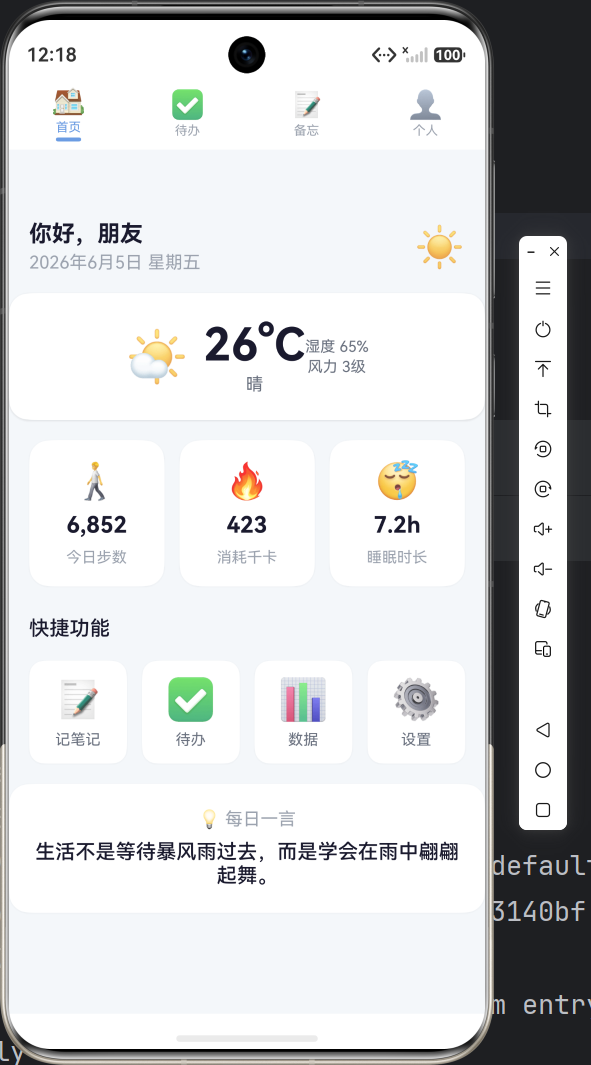
本篇我们实现了:
- ✅ 个人中心页面:头像 + 统计卡片 + 功能菜单列表
- ✅ 系统设置页面:Toggle 开关 + 字体选择 + 分区布局
- ✅ AlertDialog 弹窗:清除缓存确认交互
- ✅ @Builder 回调模式:实现 UI 与逻辑分离
- ✅ 多状态变量管理:6 个 @State 协同工作
下篇将是本系列的收官之作------编译调试、打包发布与常见问题总结,涵盖清除缓存构建、HAP 打包、签名配置、模拟器/真机调试等实用内容。