📡 零基础学 ArkUI 传感器(专题二):从加速度计到指南针,玩转硬件能力
博主说: 你的手机里藏着十几个传感器------加速度计、陀螺仪、地磁、光线、距离、气压......在 ArkUI 中调用它们只需要几行代码!今天这篇专题带你一次摸透 HarmonyOS 的传感器全家桶,并实战做一个「水平仪」和「电子罗盘」。
📱 传感器能做什么?
| 传感器 | 检测什么 | 应用场景 |
|---|---|---|
加速度计 ACCELEROMETER |
三轴加速度 | 计步器、摇一摇、屏幕旋转 |
陀螺仪 GYROSCOPE |
角速度 | VR 头显、体感游戏 |
地磁 MAGNETIC_FIELD |
磁场强度 | 电子罗盘、指南针 |
环境光 AMBIENT_LIGHT |
光照强度 lux | 自动亮度调节 |
距离 PROXIMITY |
物体靠近 | 通话熄屏 |
气压 BAROMETER |
大气压力 | 海拔测量 |
心率 HEART_RATE |
心跳 | 健康监测 |
⚙️ 运行环境要求
| 项目 | 要求 |
|---|---|
| 设备要求 | 真机!(模拟器不支持传感器) |
| DevEco Studio | 5.0.3.800+ |
| HarmonyOS SDK | API 12+ |
| 核心 API | @ohos.sensor |
🛠️ 4 个实战案例
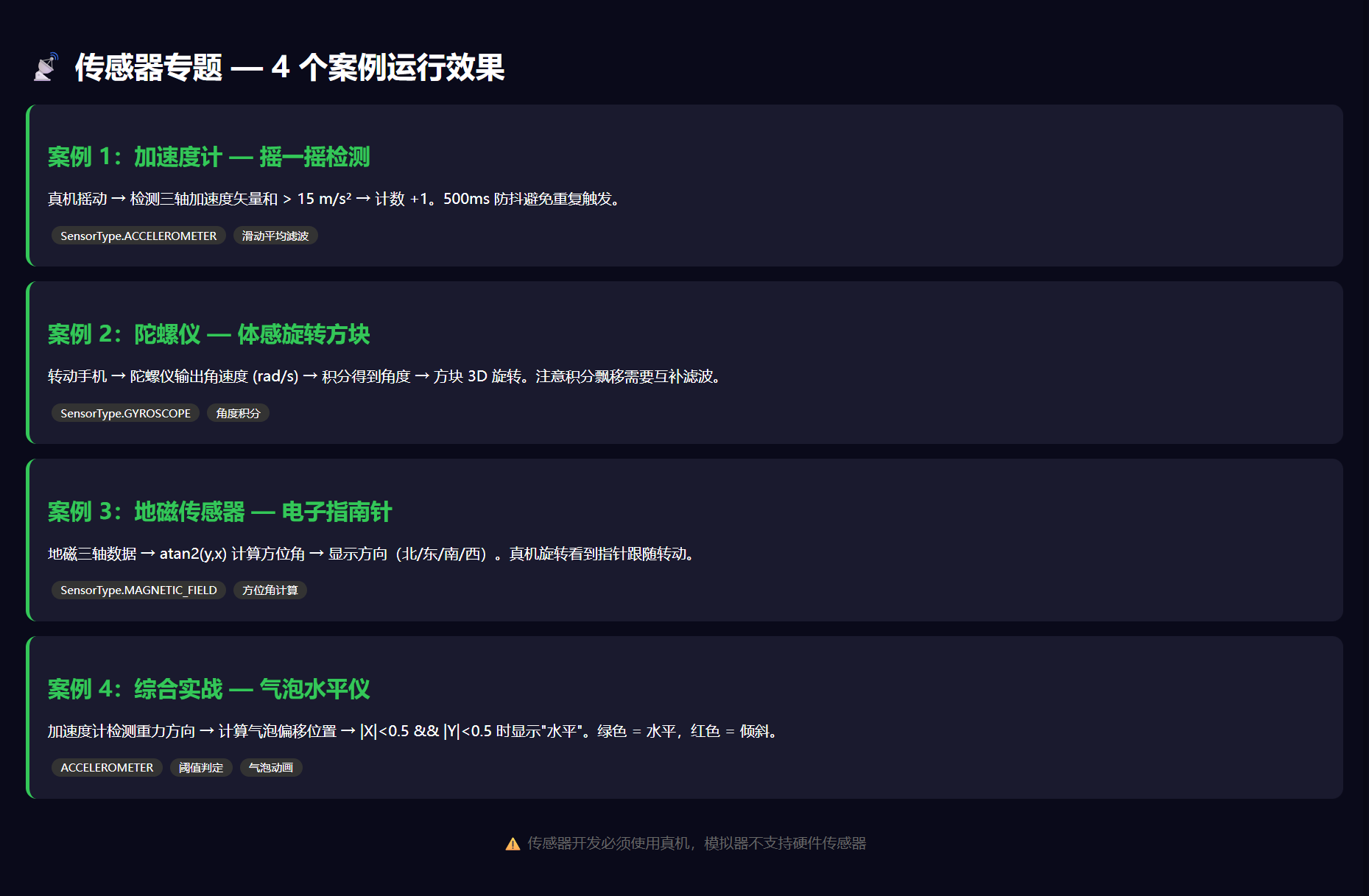
🎯 案例 1:加速度计 --- 做一个「摇一摇」检测
typescript
import sensor from '@ohos.sensor';

@Entry
@Component
struct ShakeDetector {
  @State shakeCount: number = 0;
  @State lastShakeTime: number = 0;
  @State isShaking: boolean = false;

  aboutToAppear() {
    this.startListening();
  }

  startListening() {
    sensor.on(sensor.SensorType.ACCELEROMETER, (data) => {
      // 计算三轴加速度的矢量和
      const x = data.x;
      const y = data.y;
      const z = data.z;
      const magnitude = Math.sqrt(x*x + y*y + z*z);

      // 加速度 > 15 m/s² 视为一次摇动(重力 ≈ 9.8)
      if (magnitude > 15) {
        const now = Date.now();
        if (now - this.lastShakeTime > 500) { // 500ms 内只算一次
          this.lastShakeTime = now;
          this.shakeCount++;
          this.isShaking = true;
          // 300ms 后取消摇动状态
          setTimeout(() => { this.isShaking = false; }, 300);
        }
      }
    });
  }

  build() {
    Column() {
      Text(this.isShaking ? '📳 正在摇动!' : '📱 摇动手机')
        .fontSize(24).fontWeight(FontWeight.Bold)
        .fontColor(this.isShaking ? '#FF3B30' : '#333')

      Text(`已摇动 ${this.shakeCount} 次`)
        .fontSize(16).fontColor('#888').margin({ top: 12 })

      Button('重置计数')
        .margin({ top: 20 }).backgroundColor('#E5E5EA').fontColor('#333')
        .onClick(() => { this.shakeCount = 0; })
    }
    .width('100%').height(200).justifyContent(FlexAlign.Center)
  }
}
核心 API 说明:
typescript
// 订阅传感器数据(持续监听)
sensor.on(SensorType.ACCELEROMETER, callback);

// 取消订阅
sensor.off(SensorType.ACCELEROMETER, callback);

// 单次读取
sensor.once(SensorType.ACCELEROMETER, (data) => { });
真机运行:用力摇动手机,屏幕显示摇动次数。
🎯 案例 2:陀螺仪 --- 体感控制的旋转方块
typescript
import sensor from '@ohos.sensor';

@Entry
@Component
struct GyroCube {
  @State rotateX: number = 0;
  @State rotateY: number = 0;
  @State rotateZ: number = 0;

  aboutToAppear() {
    sensor.on(sensor.SensorType.GYROSCOPE, (data) => {
      // 积分角速度得到角度
      this.rotateX += data.x * 0.1;
      this.rotateY += data.y * 0.1;
      this.rotateZ += data.z * 0.1;
    });
  }

  build() {
    Column() {
      Column() {
        Text('3D').fontSize(32).fontColor('#fff').fontWeight(FontWeight.Bold)
      }
      .width(120).height(120)
      .backgroundColor('#007AFF')
      .borderRadius(16)
      .rotate({ x: 1, angle: this.rotateX })
      .rotate({ y: 1, angle: this.rotateY })

      Text('转动手机控制方块旋转')
        .fontSize(14).fontColor('#999').margin({ top: 20 })
    }
    .width('100%').height(300).justifyContent(FlexAlign.Center)
  }
}
🎯 案例 3:地磁传感器 --- 电子指南针
typescript
import sensor from '@ohos.sensor';

@Entry
@Component
struct Compass {
  @State heading: number = 0; // 0~360 度

  aboutToAppear() {
    sensor.on(sensor.SensorType.MAGNETIC_FIELD, (data) => {
      // 根据地磁三轴数据计算方位角
      const heading = Math.atan2(data.y, data.x) * 180 / Math.PI;
      this.heading = (heading + 360) % 360; // 转为 0~360
    });
  }

  getDirection(degree: number): string {
    if (degree < 22.5 || degree >= 337.5) return '北 ↑';
    if (degree < 67.5) return '东北 ↗';
    if (degree < 112.5) return '东 →';
    if (degree < 157.5) return '东南 ↘';
    if (degree < 202.5) return '南 ↓';
    if (degree < 247.5) return '西南 ↙';
    if (degree < 292.5) return '西 ←';
    return '西北 ↖';
  }

  build() {
    Column() {
      // 指南针表盘
      Circle()
        .width(200).height(200)
        .fill('#F0F4FF')
        .stroke('#007AFF').strokeWidth(3)

      Text('N')
        .fontSize(18).fontWeight(FontWeight.Bold).fontColor('#FF3B30')
        .position({ x: 100, y: 10 })

      // 指针
      Column()
        .width(4).height(80)
        .backgroundColor('#FF3B30')
        .borderRadius(2)
        .rotate({ angle: this.heading })

      // 度数显示
      Text(`${Math.round(this.heading)}°`)
        .fontSize(36).fontWeight(FontWeight.Bold)
        .fontColor('#333').margin({ top: 20 })

      Text(this.getDirection(this.heading))
        .fontSize(18).fontColor('#007AFF').margin({ top: 8 })
    }
    .width('100%').height(400).justifyContent(FlexAlign.Center)
  }
}
🎯 案例 4:综合实战 --- 水平仪 App
结合加速度计和陀螺仪,做一个气泡水平仪。
typescript
import sensor from '@ohos.sensor';

@Entry
@Component
struct BubbleLevel {
  @State bubbleX: number = 0;
  @State bubbleY: number = 0;
  @State isLevel: boolean = true;

  aboutToAppear() {
    sensor.on(sensor.SensorType.ACCELEROMETER, (data) => {
      // 手机平放时,重力在 Z 轴 = 9.8,X/Y ≈ 0
      // X/Y 偏离 0 说明手机倾斜
      const threshold = 0.5;
      this.bubbleX = Math.max(-40, Math.min(40, -data.x * 8));
      this.bubbleY = Math.max(-40, Math.min(40, data.y * 8));
      this.isLevel = Math.abs(data.x) < threshold && Math.abs(data.y) < threshold;
    });
  }

  build() {
    Column() {
      Text(this.isLevel ? '✅ 水平' : '❌ 倾斜')
        .fontSize(32).fontWeight(FontWeight.Bold)
        .fontColor(this.isLevel ? '#34C759' : '#FF3B30')

      // 水平仪容器
      Stack() {
        // 外圈
        Circle().width(200).height(200)
          .fill('#F0F4FF').stroke('#007AFF').strokeWidth(2)

        // 十字线
        Divider().vertical(true).height(180).color('#E0E0E0')
        Divider().width(180).color('#E0E0E0')

        // 气泡
        Circle().width(24).height(24)
          .fill('#007AFF').opacity(0.7)
          .translate({ x: this.bubbleX, y: this.bubbleY })
      }
      .width(220).height(220)
      .margin({ top: 20 })

      Text(`偏移: X=${this.bubbleX.toFixed(1)}  Y=${this.bubbleY.toFixed(1)}`)
        .fontSize(14).fontColor('#999').margin({ top: 16 })
    }
    .width('100%').height(400).justifyContent(FlexAlign.Center)
  }
}
📊 传感器数据对比表
| 传感器 | 回调频率 | 数据维度 | 坐标系 |
|---|---|---|---|
| ACCELEROMETER | 50~200Hz | x, y, z (m/s²) | 设备坐标系 |
| GYROSCOPE | 50~200Hz | x, y, z (rad/s) | 设备坐标系 |
| MAGNETIC_FIELD | 10~50Hz | x, y, z (μT) | 设备坐标系 |
| AMBIENT_LIGHT | 1~10Hz | intensity (lux) | 单值 |
| PROXIMITY | 1~5Hz | distance (cm) | 单值 |
⚠️ 避坑指南
| 坑 | 原因 | 正确做法 |
|---|---|---|
| 模拟器传感器没数据 | 模拟器没有硬件 | 必须用真机调试 |
| 传感器不触发回调 | 忘了 sensor.on() 订阅 |
在 aboutToAppear 中订阅 |
| 数据跳变太大 | 原始传感器噪声大 | 用滑动平均滤波(取最近 5 次均值) |
| 陀螺仪角度飘移 | 积分累积误差 | 用地磁 + 加速度计做互补滤波 |
| 耗电快 | 传感器回调频率太高 | 不需要高频率时用 sensor.once() |
| 后台不工作 | 传感器在后台被暂停 | 申请后台任务权限 |
🔥 最佳实践
- 滤波处理:原始传感器噪声大,用低通滤波或滑动平均
- 频率控制 :不需要高频率时用
setInterval节流回调 - 真机调试:传感器开发必须真机,模拟器不支持
- 性能优化 :
aboutToDisappear中取消订阅,防止内存泄漏 - 权限申明 :部分传感器(心率等)需要
health权限 - 传感器融合:结合加速度 + 陀螺仪 + 地磁得到更准确的姿态
🚀 扩展挑战
- 计步器:用加速度计检测步行步态(峰值检测算法)
- 手势识别:用陀螺仪识别「画圈」「挥动」等手势
- AR 水平仪:结合相机预览 + 水平仪做装修辅助工具
- 磁力计标定:用「画 8 字」方法校准地磁传感器
官方文档: HarmonyOS 应用开发文档
- 开发者社区: 华为开发者论坛
- 欢迎加入开源鸿蒙跨平台社区: https://openharmonycrossplatform.csdn.net/