在设计专业的 PDF 文档时,背景设置是一项重要的视觉元素。通过添加合适的背景颜色或背景图片,可以增强文档的品牌识别度、提升阅读体验,或者为特定类型的文档(如证书、邀请函、宣传册)增添视觉效果。无论是企业报告、营销材料还是个性化文档,恰当的背景设计都能让内容更加引人注目。
本文将详细介绍如何使用 Spire.PDF for Python 库为 PDF 页面设置背景色或背景图。我们将涵盖纯色背景设置、平铺背景图片、以及多种实用的背景处理技巧,帮助你构建完整的 PDF 背景管理解决方案。
环境准备
在开始之前,你需要安装 Spire.PDF for Python 库。可以使用 pip 命令进行安装:
bash
pip install Spire.PDF安装完成后,你就可以在 Python 项目中使用该库来操作 PDF 文档并设置页面背景了。
PDF 背景的应用场景
在实际工作中,PDF 背景设置有多种典型应用场景:
- 品牌文档:使用企业标准色或 Logo 作为背景,强化品牌形象
- 证书和奖状:添加装饰性背景图案,提升正式感和美观度
- 营销材料:使用渐变或图片背景吸引读者注意力
- 分类标识:通过不同背景色区分文档类型或章节
- 水印效果:使用半透明背景图片防止文档被滥用
- 主题定制:为不同客户或项目创建具有独特背景的模板
Spire.PDF for Python 提供了两种主要的背景设置方法:通过 BackgroundColor 属性设置纯色背景,以及使用画布绘制功能添加图片背景。这两种方式可以满足不同的设计需求。
设置纯色背景
最简单的背景设置是为 PDF 页面添加纯色背景。以下示例展示了如何在创建新 PDF 时为不同页面设置不同的背景颜色:
python
from spire.pdf.common import *
from spire.pdf import *

def SetSolidBackgroundColor():
    """为 PDF 页面设置纯色背景"""
    outputFile = "/SolidBackground.pdf"

    # 创建 PDF 文档对象
    doc = PdfDocument()

    # 设置页面边距
    unitCvtr = PdfUnitConvertor()
    margin = PdfMargins()
    margin.Top = unitCvtr.ConvertUnits(
        2.54, PdfGraphicsUnit.Centimeter, PdfGraphicsUnit.Point)
    margin.Bottom = margin.Top
    margin.Left = unitCvtr.ConvertUnits(
        3.17, PdfGraphicsUnit.Centimeter, PdfGraphicsUnit.Point)
    margin.Right = margin.Left

    # 添加第一页并设置背景色为巧克力色
    page1 = doc.Pages.Add(PdfPageSize.A4(), margin)
    page1.BackgroundColor = Color.get_Chocolate()

    # 添加第二页并设置背景色为珊瑚色
    page2 = doc.Pages.Add(PdfPageSize.A4(), margin)
    page2.BackgroundColor = Color.get_Coral()

    # 添加第三页(A3 横向)并设置背景色为浅粉色
    page3 = doc.Pages.Add(
        PdfPageSize.A3(),
        margin,
        PdfPageRotateAngle.RotateAngle180,
        PdfPageOrientation.Landscape
    )
    page3.BackgroundColor = Color.get_LightPink()

    # 定义文本笔刷
    brush = PdfSolidBrush(PdfRGBColor(Color.get_Black()))

    # 定义字体
    font = PdfTrueTypeFont("Arial", 16.0, PdfFontStyle.Bold, True)

    for i, page in enumerate([page1, page2, page3]):
        # 设置文本内容
        text = f"Page {i + 1} - Background Color Example"

        # 设置文本位置并绘制
        position = PointF(50.0, 50.0)
        page.Canvas.DrawString(text, font, brush, position)

    # 保存文档
    doc.SaveToFile(outputFile)
    doc.Close()

if __name__ == "__main__":
    SetSolidBackgroundColor()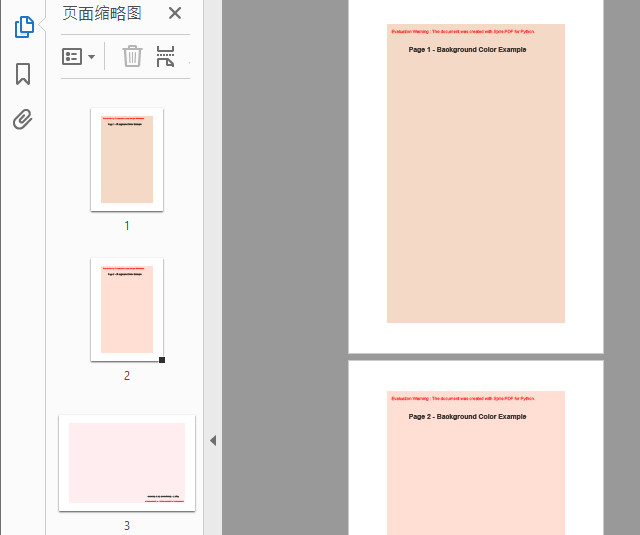
在这个示例中,关键的一步是通过 page.BackgroundColor 属性设置页面的背景颜色。Color 类提供了多种预定义的颜色选项,如 get_Chocolate()、get_Coral()、get_LightPink() 等。你可以为每个页面设置不同的背景色,实现丰富的视觉效果。
这种方法特别适合用于创建具有色彩编码的文档,例如用不同颜色区分不同章节、部门或优先级。背景色会在整个页面范围内自动填充,无需手动绘制矩形。
使用平铺图片作为背景
对于需要更复杂视觉效果的场景,可以使用图片作为背景。以下示例展示了如何将图片以平铺方式添加到 PDF 页面的背景中:
python
from spire.pdf.common import *
from spire.pdf import *

doc = PdfDocument()
doc.LoadFromFile("/示例文档.pdf")

# 在外层创建流,保持其在 Save 期间处于存活状态
img_stream = Stream("/background1.png")

for i in range(doc.Pages.Count):
    page = doc.Pages.get_Item(i)
    page.BackgroundImage = img_stream

doc.SaveToFile("/背景图像.pdf")

# 保存后再关闭流和文档
img_stream.Close()
doc.Close()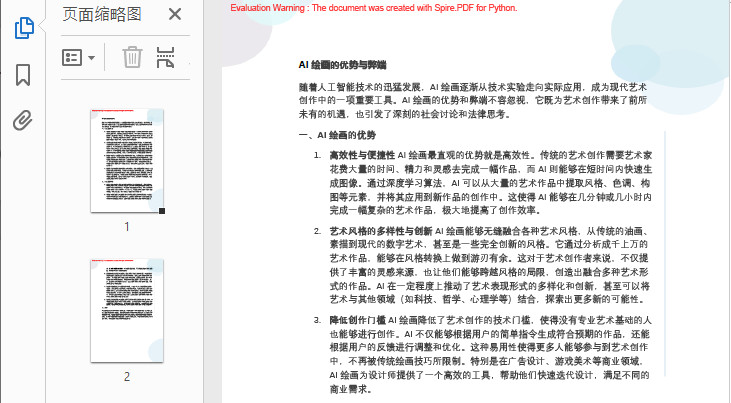
这个示例展示了如何使用 PdfTilingBrush 创建平铺背景。关键步骤包括:
- 创建
PdfTilingBrush对象,指定单个平铺单元的大小 - 通过
SetTransparency()设置透明度,确保背景不会遮挡前景内容 - 在画刷的 Graphics 上绘制图片
- 使用画刷在整个页面上绘制矩形,实现平铺效果
这种方法非常适合用于添加水印、公司 Logo 或装饰性图案作为背景。通过调整平铺大小和透明度,可以控制背景的密度和可见度。
实用技巧与高级应用
封装背景管理工具类
在实际项目中,你可能需要灵活地应用不同的背景设置。以下是一个实用的工具类,展示了如何封装这些功能:
python
from spire.pdf.common import *
from spire.pdf import *
import os

class PDFBackgroundManager:
    """PDF 背景管理器"""

    def __init__(self, input_file=None):
        """初始化"""
        self.doc = PdfDocument()
        if input_file:
            self.doc.LoadFromFile(input_file)
            self.input_file = input_file
        else:
            self.input_file = None

    def create_new_document(self):
        """创建新文档"""
        self.input_file = None

    def set_solid_background(self, page_index, color):
        """为指定页面设置纯色背景"""
        if 0 <= page_index < self.doc.Pages.Count:
            page = self.doc.Pages[page_index]
            page.BackgroundColor = color
            print(f"页面 {page_index + 1} 已设置为纯色背景")
            return True
        return False

    def set_all_pages_solid_background(self, color):
        """为所有页面设置相同的纯色背景"""
        count = 0
        for i in range(self.doc.Pages.Count):
            if self.set_solid_background(i, color):
                count += 1
        print(f"共 {count} 个页面已设置为纯色背景")
        return count

    def set_gradient_background(self, page_index, color1, color2,
                               direction="vertical"):
        """为指定页面设置渐变背景"""
        if 0 <= page_index < self.doc.Pages.Count:
            page = self.doc.Pages[page_index]

            # 创建渐变画刷
            if direction == "vertical":
                rect = RectangleF(
                    PointF(0, 0),
                    SizeF(page.Canvas.Size.Width, page.Canvas.Size.Height)
                )
            else:  # horizontal
                rect = RectangleF(
                    PointF(0, 0),
                    SizeF(page.Canvas.Size.Width, page.Canvas.Size.Height)
                )

            brush = PdfLinearGradientBrush(
                rect,
                PdfRGBColor(color1),
                PdfRGBColor(color2),
                PdfLinearGradientMode.Vertical if direction == "vertical"
                else PdfLinearGradientMode.Horizontal
            )

            # 绘制渐变矩形作为背景
            page.Canvas.DrawRectangle(brush, rect)

            print(f"页面 {page_index + 1} 已设置为渐变背景")
            return True
        return False

    def add_tiling_image_background(self, image_path, opacity=0.3,
                                   tile_width_ratio=3, tile_height_ratio=5,
                                   page_indices=None):
        """添加平铺图片背景"""
        if not os.path.exists(image_path):
            print(f"图片文件不存在: {image_path}")
            return 0

        # 加载图片
        image = PdfImage.FromFile(image_path)

        # 确定要处理的页面
        if page_indices is None:
            page_indices = range(self.doc.Pages.Count)

        applied_count = 0
        for i in page_indices:
            if 0 <= i < self.doc.Pages.Count:
                page = self.doc.Pages[i]

                # 创建平铺画刷
                tilingSize = SizeF(
                    page.Canvas.Size.Width / float(tile_width_ratio),
                    page.Canvas.Size.Height / float(tile_height_ratio)
                )
                brush = PdfTilingBrush(tilingSize)

                # 设置透明度
                brush.Graphics.SetTransparency(opacity)

                # 绘制图片
                brush.Graphics.DrawImage(
                    image,
                    PointF(
                        (brush.Size.Width - image.Width) / float(2),
                        (brush.Size.Height - image.Height) / float(2)
                    )
                )

                # 应用平铺背景
                page.Canvas.DrawRectangle(
                    brush,
                    RectangleF(PointF(0.0, 0.0), page.Canvas.Size)
                )

                applied_count += 1

        print(f"已在 {applied_count} 个页面上添加平铺图片背景")
        return applied_count

    def add_full_page_image_background(self, image_path, opacity=0.5,
                                      page_indices=None):
        """添加全页图片背景(拉伸填充)"""
        if not os.path.exists(image_path):
            print(f"图片文件不存在: {image_path}")
            return 0

        # 加载图片
        image = PdfImage.FromFile(image_path)

        # 确定要处理的页面
        if page_indices is None:
            page_indices = range(self.doc.Pages.Count)

        applied_count = 0
        for i in page_indices:
            if 0 <= i < self.doc.Pages.Count:
                page = self.doc.Pages[i]

                # 保存当前图形状态
                state = page.Canvas.Save()

                # 设置透明度
                page.Canvas.SetTransparency(opacity)

                # 绘制全页图片
                page.Canvas.DrawImage(
                    image,
                    RectangleF(PointF(0, 0), page.Canvas.Size)
                )

                # 恢复图形状态
                page.Canvas.Restore(state)

                applied_count += 1

        print(f"已在 {applied_count} 个页面上添加全页图片背景")
        return applied_count

    def add_color_background_by_condition(self, condition_func, color_map):
        """根据条件为页面设置不同颜色的背景"""
        applied_count = 0

        for i in range(self.doc.Pages.Count):
            page = self.doc.Pages[i]

            # 调用条件函数获取页面分类
            category = condition_func(i, page)

            # 根据分类获取对应的颜色
            if category in color_map:
                page.BackgroundColor = color_map[category]
                applied_count += 1

        print(f"已根据条件为 {applied_count} 个页面设置背景色")
        return applied_count

    def save(self, output_file):
        """保存文档"""
        self.doc.SaveToFile(output_file, FileFormat.PDF)
        self.doc.Close()
        print(f"文件已保存至: {output_file}")

def main():
    # 示例 1: 创建带纯色背景的新文档
    manager = PDFBackgroundManager()
    manager.create_new_document()

    # 添加几个页面
    unitCvtr = PdfUnitConvertor()
    margin = PdfMargins()
    margin.Top = unitCvtr.ConvertUnits(2.54, PdfGraphicsUnit.Centimeter, PdfGraphicsUnit.Point)
    margin.Bottom = margin.Top
    margin.Left = unitCvtr.ConvertUnits(2.0, PdfGraphicsUnit.Centimeter, PdfGraphicsUnit.Point)
    margin.Right = margin.Left

    for _ in range(3):
        manager.doc.Pages.Add(PdfPageSize.A4(), margin)

    # 为不同页面设置不同颜色
    manager.set_solid_background(0, Color.get_LightBlue())
    manager.set_solid_background(1, Color.get_LightGreen())
    manager.set_solid_background(2, Color.get_LightYellow())

    manager.save("./Output/SolidBackground.pdf")

    # 示例 2: 为现有文档添加平铺背景
    manager2 = PDFBackgroundManager("./Demos/Data/Sample.pdf")
    manager2.add_tiling_image_background(
        "./Demos/Data/Watermark.png",
        opacity=0.2,
        tile_width_ratio=2,
        tile_height_ratio=3
    )
    manager2.save("./Output/TilingBackground.pdf")

    # 示例 3: 根据条件设置背景色
    manager3 = PDFBackgroundManager("./Demos/Data/MultiPage.pdf")

    # 定义条件函数:偶数页和奇数页使用不同颜色
    def page_category(index, page):
        return "even" if index % 2 == 0 else "odd"

    # 定义颜色映射
    color_map = {
        "even": Color.get_Lavender(),
        "odd": Color.get_MintCream()
    }

    manager3.add_color_background_by_condition(page_category, color_map)
    manager3.save("./Output/ConditionalBackground.pdf")

if __name__ == "__main__":
    main()
这个工具类封装了多种背景设置功能,包括纯色背景、渐变背景、平铺图片背景和全页图片背景。通过实例化这个类,你可以轻松地在项目中复用这些功能,并根据实际需求选择合适的背景策略。
常见应用场景示例
场景 1:企业报告模板
python
def CreateCorporateReport():
    """创建企业报告模板"""
    manager = PDFBackgroundManager()
    manager.create_new_document()

    # 添加章节页面
    unitCvtr = PdfUnitConvertor()
    margin = PdfMargins()
    margin.Top = unitCvtr.ConvertUnits(2.54, PdfGraphicsUnit.Centimeter, PdfGraphicsUnit.Point)
    margin.Bottom = margin.Top
    margin.Left = unitCvtr.ConvertUnits(2.0, PdfGraphicsUnit.Centimeter, PdfGraphicsUnit.Point)
    margin.Right = margin.Left

    chapters = ["引言", "市场分析", "财务数据", "战略规划", "总结"]
    for _ in chapters:
        manager.doc.Pages.Add(PdfPageSize.A4(), margin)

    # 为不同章节设置不同的主题色
    chapter_colors = [
        Color.get_LightSteelBlue(),   # 引言
        Color.get_LightCoral(),       # 市场分析
        Color.get_LightGreen(),       # 财务数据
        Color.get_Khaki(),            # 战略规划
        Color.get_Plum()              # 总结
    ]

    for i, color in enumerate(chapter_colors):
        manager.set_solid_background(i, color)

    manager.save("./Output/CorporateReport.pdf")
场景 2:证书批量生成
python
def GenerateCertificates():
    """批量生成带背景图的证书"""
    manager = PDFBackgroundManager()
    manager.create_new_document()

    # 添加证书页面
    for _ in range(5):
        unitCvtr = PdfUnitConvertor()
        margin = PdfMargins()
        margin.Top = unitCvtr.ConvertUnits(1.0, PdfGraphicsUnit.Inch, PdfGraphicsUnit.Point)
        margin.Bottom = margin.Top
        margin.Left = unitCvtr.ConvertUnits(1.0, PdfGraphicsUnit.Inch, PdfGraphicsUnit.Point)
        margin.Right = margin.Left
        manager.doc.Pages.Add(PdfPageSize.A4(), margin)

    # 为所有证书页面添加装饰性背景
    manager.add_full_page_image_background(
        "./Templates/Certificate_Background.png",
        opacity=0.4
    )

    manager.save("./Output/Certificates.pdf")
场景 3:水印保护文档
python
def AddWatermarkProtection():
    """为敏感文档添加水印保护"""
    manager = PDFBackgroundManager("./Confidential/Report.pdf")

    # 添加半透明的"机密"水印作为背景
    manager.add_tiling_image_background(
        "./Watermarks/Confidential_Watermark.png",
        opacity=0.15,  # 非常低的透明度,不影响阅读但能防止滥用
        tile_width_ratio=2,
        tile_height_ratio=2
    )

    manager.save("./Output/Protected_Report.pdf")
背景设计的最佳实践
颜色选择建议
- 商务文档:使用浅色中性色调(浅灰、米色、淡蓝),保持专业性
- 营销材料:可以使用鲜艳的色彩或渐变色吸引注意力
- 教育文档:使用柔和的色彩,避免分散读者注意力
- 对比度考虑:确保背景色与文本颜色有足够的对比度
图片背景注意事项
- 文件大小:优化背景图片的分辨率和压缩率,避免 PDF 文件过大
- 版权问题:确保使用的背景图片有合法的使用权限
- 透明度设置:通常设置在 0.1-0.3 之间,既能看到背景又不影响内容阅读
- 平铺间距:根据图片大小和内容密度调整平铺单元的大小
性能优化建议
- 批量处理:对于多页文档,尽量在一次加载中完成所有背景设置
- 图片复用:如果多个页面使用相同的背景图片,只需加载一次
- 及时释放资源 :操作完成后调用
Close()方法释放内存
常见问题与解决方案
问题 1:背景覆盖了文本内容
解决方案:降低背景图片或颜色的不透明度,或者先设置背景再添加文本内容。
问题 2:平铺背景出现明显的接缝
解决方案:使用无缝平铺的图片,或者调整平铺单元的大小使其更好地适配页面。
问题 3:PDF 文件体积过大
解决方案:压缩背景图片,降低图片分辨率,或者使用纯色背景代替图片背景。
总结
综上所述,使用 Spire.PDF for Python 为 PDF 自定义纯色或平铺图片背景,并灵活控制其透明度与应用范围,是提升文档视觉效果的专业手段。在实际应用中,只要合理把握背景设计的对比度与文件大小,并将其封装为工具类进行批量处理,就能高效赋能企业模板、证书、营销材料及水印保护等多元场景,让你的 PDF 文档兼具专业度与视觉吸引力。