引言
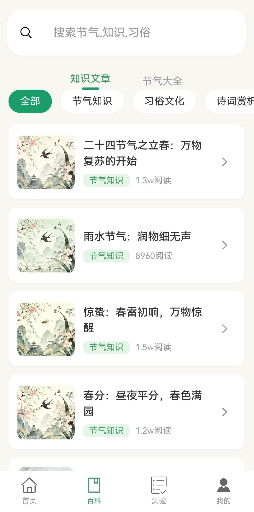
分类网格组件是应用中常见的UI元素,用于展示各种分类选项。本文将介绍如何封装一个CategoryGrid组件,用于展示分类列表。通过组件封装,可以:
- 统一分类展示风格
- 支持选中状态管理
- 支持多种布局模式
- 提高代码复用性
通过本文,你将掌握如何封装高质量的分类网格组件。
学习目标
完成本文后,你将能够:
- ✅ 理解分类网格组件的设计原则
- ✅ 封装CategoryGrid组件
- ✅ 添加选中状态管理
- ✅ 支持多种布局模式
- ✅ 处理分类点击事件
需求分析
组件功能设计
| 功能 | 描述 | 技术要点 |
|---|---|---|
| 分类图标 | 展示分类图标 | Image组件 |
| 分类名称 | 展示分类名称 | Text组件 |
| 选中状态 | 显示选中效果 | 颜色变化、边框高亮 |
| 点击事件 | 处理分类选择 | 状态回调 |
| 布局模式 | 支持多种布局 | 网格、列表、横向滚动 |
核心实现
步骤1: 组件接口定义
typescript
// components/CategoryGrid.ets

/**
 * 分类网格组件
 */
@Component
export struct CategoryGrid {
  // 分类列表
  @Prop categories: Category[] = [];

  // 选中的分类ID
  @Prop selectedId: string = '';

  // 布局模式
  @Prop layoutMode: LayoutMode = 'grid';

  // 列数(网格模式)
  @Prop columns: number = 4;

  // 点击事件
  @Prop onSelect: (id: string) => void = () => {};

  /**
   * 构建UI
   */
  build() {
    if (this.layoutMode === 'horizontal') {
      this.buildHorizontalLayout();
    } else if (this.layoutMode === 'list') {
      this.buildListLayout();
    } else {
      this.buildGridLayout();
    }
  }
}

type LayoutMode = 'grid' | 'horizontal' | 'list';

interface Category {
  id: string;
  name: string;
  icon: string | Resource;
  badge?: number;
}设计要点:
- 支持三种布局模式:grid(网格)、horizontal(横向滚动)、list(列表)
- 支持选中状态管理
- 支持徽章显示
步骤2: 网格布局模式
typescript
/**
 * 构建网格布局
 */
@Builder
buildGridLayout(): void {
  Grid() {
    ForEach(this.categories, (category: Category) => {
      GridItem() {
        this.buildCategoryItem(category)
      }
    }, (category: Category) => category.id)
  }
  .columnsTemplate(this.getColumnTemplate())
  .rowsGap(16)
}

/**
 * 获取列模板
 */
private getColumnTemplate(): string {
  return Array(this.columns).fill('1fr').join(' ');
}

/**
 * 构建分类项
 */
@Builder
buildCategoryItem(category: Category): void {
  const isSelected = this.selectedId === category.id;

  Column({ space: 8 }) {
    // 图标区域
    Stack({ alignContent: Alignment.Center }) {
      Circle()
        .width(48)
        .height(48)
        .fillColor(isSelected ? '#4A9B6D' : '#F5F5F5')

      Image(typeof category.icon === 'string' ? $r('app.media.' + category.icon) : category.icon)
        .width(24)
        .height(24)
        .fillColor(isSelected ? '#FFFFFF' : '#666666')

      // 徽章
      if (category.badge && category.badge > 0) {
        Stack({ alignContent: Alignment.Center }) {
          Circle()
            .width(18)
            .height(18)
            .fillColor('#FF5252')

          Text(category.badge.toString())
            .fontSize(10)
            .fontColor('#FFFFFF')
        }
        .position({ right: -6, top: -6 })
      }
    }

    // 名称
    Text(category.name)
      .fontSize(13)
      .fontColor(isSelected ? '#4A9B6D' : '#666666')
      .fontWeight(isSelected ? FontWeight.Medium : FontWeight.Normal)
  }
  .width('100%')
  .alignItems(HorizontalAlign.Center)
  .onClick(() => {
    this.onSelect(category.id);
  })
}设计要点:
- 圆形图标背景
- 选中状态颜色变化
- 徽章显示(右上角小红点)
步骤3: 横向滚动布局
typescript
/**
 * 构建横向滚动布局
 */
@Builder
buildHorizontalLayout(): void {
  Scroll({ scrollX: true, scrollBar: BarState.Off }) {
    Row({ space: 16 }) {
      ForEach(this.categories, (category: Category) => {
        this.buildHorizontalItem(category)
      }, (category: Category) => category.id)
    }
    .padding({ left: 16, right: 16 })
  }
  .width('100%')
}

/**
 * 构建横向布局的分类项
 */
@Builder
buildHorizontalItem(category: Category): void {
  const isSelected = this.selectedId === category.id;

  Column({ space: 6 }) {
    Stack({ alignContent: Alignment.Center }) {
      Circle()
        .width(56)
        .height(56)
        .fillColor(isSelected ? '#4A9B6D' : '#FFFFFF')
        .stroke(isSelected ? '#4A9B6D' : '#EEEEEE', 1)

      Image(typeof category.icon === 'string' ? $r('app.media.' + category.icon) : category.icon)
        .width(28)
        .height(28)
        .fillColor(isSelected ? '#FFFFFF' : '#666666')
    }

    Text(category.name)
      .fontSize(13)
      .fontColor(isSelected ? '#4A9B6D' : '#666666')
  }
  .width(80)
  .alignItems(HorizontalAlign.Center)
  .onClick(() => {
    this.onSelect(category.id);
  })
}设计要点:
- 横向滚动容器
- 卡片式布局
- 选中状态边框高亮
步骤4: 列表布局模式
typescript
/**
 * 构建列表布局
 */
@Builder
buildListLayout(): void {
  Column({ space: 0 }) {
    ForEach(this.categories, (category: Category) => {
      this.buildListItem(category)
    }, (category: Category) => category.id)
  }
}

/**
 * 构建列表项
 */
@Builder
buildListItem(category: Category): void {
  const isSelected = this.selectedId === category.id;

  Row({ space: 12 }) {
    // 图标
    Stack({ alignContent: Alignment.Center }) {
      Circle()
        .width(40)
        .height(40)
        .fillColor(isSelected ? '#E8F5E9' : '#F5F5F5')

      Image(typeof category.icon === 'string' ? $r('app.media.' + category.icon) : category.icon)
        .width(20)
        .height(20)
        .fillColor(isSelected ? '#4A9B6D' : '#666666')
    }

    // 名称
    Text(category.name)
      .fontSize(15)
      .fontColor(isSelected ? '#4A9B6D' : '#333333')
      .flexGrow(1)

    // 选中标记
    if (isSelected) {
      Image($r('app.media.ic_check'))
        .width(20)
        .height(20)
        .fillColor('#4A9B6D')
    }

    // 箭头
    Image($r('app.media.ic_arrow_right'))
      .width(16)
      .height(16)
      .fillColor('#CCCCCC')
  }
  .width('100%')
  .height(56)
  .padding({ left: 16, right: 16 })
  .backgroundColor('#FFFFFF')
  .onClick(() => {
    this.onSelect(category.id);
  })
}设计要点:
- 列表布局
- 左侧图标+中间文字+右侧箭头
- 选中状态勾选标记
步骤5: 使用CategoryGrid组件
typescript
// 在页面中使用CategoryGrid组件

@Entry
@Component
struct CategoryPage {
  @State selectedCategory: string = '';

  @State categories: Category[] = [
    { id: 'all', name: '全部', icon: 'ic_all' },
    { id: 'solar', name: '节气', icon: 'ic_solar', badge: 24 },
    { id: 'article', name: '文章', icon: 'ic_article', badge: 128 },
    { id: 'quiz', name: '测验', icon: 'ic_quiz', badge: 12 },
    { id: 'recipe', name: '食谱', icon: 'ic_recipe' },
    { id: 'health', name: '养生', icon: 'ic_health' },
    { id: 'custom', name: '习俗', icon: 'ic_custom' },
    { id: 'poem', name: '诗词', icon: 'ic_poem' }
  ];

  build() {
    Column({ space: 16 }) {
      // 网格布局示例
      Text('网格布局')
        .fontSize(16)
        .fontWeight(FontWeight.Bold)
        .padding({ left: 16 })

      CategoryGrid({
        categories: this.categories,
        selectedId: this.selectedCategory,
        layoutMode: 'grid',
        columns: 4,
        onSelect: (id: string) => {
          this.selectedCategory = id;
        }
      })

      // 横向滚动布局示例
      Text('横向滚动布局')
        .fontSize(16)
        .fontWeight(FontWeight.Bold)
        .padding({ left: 16 })

      CategoryGrid({
        categories: this.categories,
        selectedId: this.selectedCategory,
        layoutMode: 'horizontal',
        onSelect: (id: string) => {
          this.selectedCategory = id;
        }
      })
    }
    .width('100%')
    .backgroundColor('#F8F7F2')
  }
}

interface Category {
  id: string;
  name: string;
  icon: string | Resource;
  badge?: number;
}设计要点:
- 在页面中使用不同布局模式
- 绑定选中状态
- 处理分类选择事件
本章小结
核心知识点
本文完成了CategoryGrid组件的封装:
1. 组件属性设计
- categories: 分类列表
- selectedId: 选中的分类ID
- layoutMode: 布局模式(grid/horizontal/list)
- columns: 列数(网格模式)
- onSelect: 点击事件回调
2. 三种布局模式
- 网格布局:适合首页快速浏览
- 横向滚动布局:适合分类导航
- 列表布局:适合设置页面
3. 选中状态管理
- 颜色变化
- 边框高亮
- 勾选标记
下一步预告
CategoryGrid组件已经完成!在下一篇文章中,我们将学习:
- HolidayCard组件封装
- 节日卡片展示
- 日期高亮
- 节日类型标识
节气通应用已发布上线,可在应用市场下载体验
相关链接
- 项目源码 : Atomgit仓库