我的模块实现流程操作指南
我的页面
一、模块概述
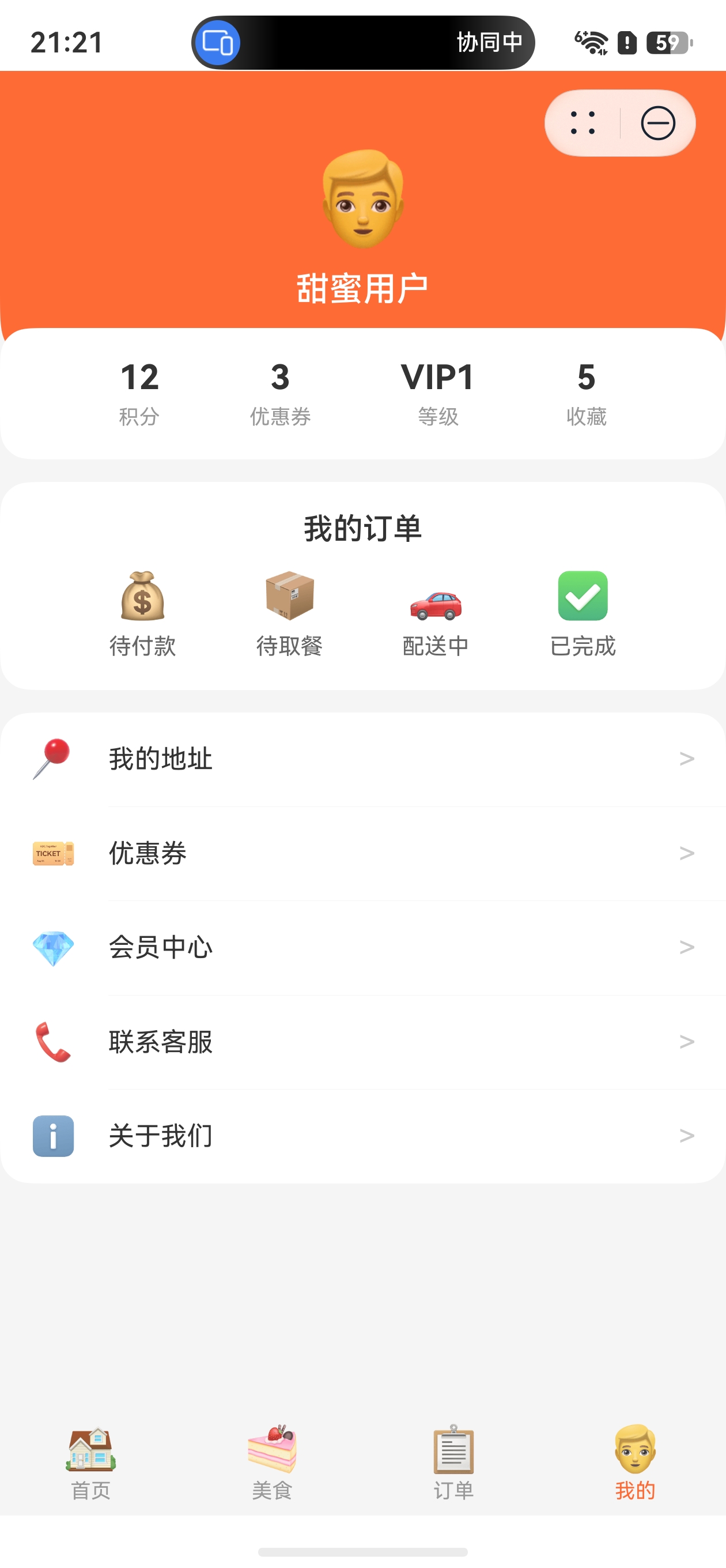
我的模块(Mine)是蛋糕美食元服务的用户中心模块,提供用户信息管理、会员体系展示、订单快捷入口和功能菜单等功能。该模块界面设计注重品牌感,使用渐变色头部区域突出用户身份。
二、模块职责
| 职责 | 说明 |
|---|---|
| 用户信息 | 头像、昵称、登录状态管理 |
| 会员统计 | 积分、优惠券、等级、收藏数量展示 |
| 订单快捷入口 | 待付款/待取餐/配送中/已完成 4个快捷入口 |
| 功能菜单 | 我的地址、优惠券、会员中心、联系客服、关于我们 |
三、实现流程
步骤1:创建页面结构
typescript
@Component
export struct Mine {
  @State isLogin: boolean = false
  @State userName: string = ''

  private menuList: string[] = ['我的地址', '优惠券', '会员中心', '联系客服', '关于我们']
  private menuIcons: string[] = ['📍', '🎫', '💎', '📞', 'ℹ️']

  build() {
    Column() {
      Scroll() {
        Column() {
          // 用户头部区域
          // 统计卡片
          // 订单快捷入口
          // 功能菜单列表
        }
      }
    }
  }
}
步骤2:实现用户头部区域
使用品牌色背景 + 用户信息居中展示:
typescript
Column() {
  Stack() {
    Column() {
      Text('👨').fontSize(48)
      Text(this.isLogin ? this.userName : '点击登录')
        .fontSize(18)
        .fontWeight(FontWeight.Medium)
        .fontColor(Color.White)
        .margin({ top: 10 })
      if (!this.isLogin) {
        Text('登录享受更多会员权益')
          .fontSize(12)
          .fontColor('#FFFFFFAA')
      }
    }
    .alignItems(HorizontalAlign.Center)
  }
  .padding({ top: 40, bottom: 30 })
}
.backgroundColor('#FF6B35')
.borderRadius({ bottomLeft: 24, bottomRight: 24 })
.onClick(() => {
  if (!this.isLogin) {
    this.isLogin = true
    this.userName = '甜蜜用户'
  }
})设计要点:
- 使用品牌橙色
#FF6B35作为头部背景色 - 底部圆角与内容区域自然过渡
- 点击触发模拟登录(实际项目集成 AccountKit)
步骤3:实现统计卡片
统计卡片使用负margin上移,与头部区域形成层叠效果:
typescript
@Builder
statItem(value: string, label: string) {
  Column() {
    Text(value)
      .fontSize(18)
      .fontWeight(FontWeight.Bold)
      .fontColor('#333333')
    Text(label)
      .fontSize(11)
      .fontColor('#999999')
      .margin({ top: 4 })
  }
}

// 使用
Row() {
  this.statItem('12', '积分')
  this.statItem('3', '优惠券')
  this.statItem('VIP1', '等级')
  this.statItem('5', '收藏')
}
.justifyContent(FlexAlign.SpaceEvenly)
.backgroundColor(Color.White)
.borderRadius(16)
.margin({ top: -20, left: 16, right: 16 })  // 负margin层叠
步骤4:实现订单快捷入口
4个订单状态快捷入口,点击切换到订单Tab:
typescript
@Builder
orderShortcut(icon: string, label: string) {
  Column() {
    Text(icon).fontSize(24)
    Text(label).fontSize(12).margin({ top: 6 })
  }
  .onClick(() => {
    AppStorage.setOrCreate('selectedIndex', 2)  // 切换到订单Tab
  })
}

// 使用
Row() {
  this.orderShortcut('💰', '待付款')
  this.orderShortcut('📦', '待取餐')
  this.orderShortcut('🚗', '配送中')
  this.orderShortcut('✅', '已完成')
}
.justifyContent(FlexAlign.SpaceEvenly)
步骤5:实现功能菜单列表
使用 ForEach + Divider 渲染菜单项:
typescript
Column() {
  ForEach(this.menuList, (item: string, index: number) => {
    Row() {
      Text(this.menuIcons[index]).fontSize(20).width(32)
      Text(item)
        .fontSize(14)
        .fontColor('#333333')
        .margin({ left: 10 })
        .layoutWeight(1)
      Text('>')
        .fontSize(16)
        .fontColor('#CCCCCC')
    }
    .height(50)
    .padding({ left: 16, right: 16 })

    if (index < this.menuList.length - 1) {
      Divider()
        .color('#F5F5F5')
        .margin({ left: 58 })  // 分割线缩进对齐
    }
  })
}
.backgroundColor(Color.White)
.borderRadius(16)设计要点:
- 分割线使用
margin({ left: 58 })实现左侧缩进,与图标对齐 - 最后一项不显示分割线
- 右箭头
>使用浅灰色#CCCCCC
四、界面布局结构
┌──────────────────────────────┐
│        👨                     │  ← 品牌色背景
│    甜蜜用户 / 点击登录        │
│   登录享受更多会员权益        │
├──────────────────────────────┤
│ ┌────────────────────────┐   │  ← 统计卡片(负margin上移)
│ │ 12积分 │ 3优惠券│VIP1级│ 5收藏 │
│ └────────────────────────┘   │
│                              │
│ ┌────────────────────────┐   │  ← 订单快捷入口
│ │ 💰待付款 │📦待取餐│🚗配送│✅已完成│
│ └────────────────────────┘   │
│                              │
│ ┌────────────────────────┐   │  ← 功能菜单
│ │ 📍 我的地址          > │   │
│ │ ───────────────────── │   │
│ │ 🎫 优惠券            > │   │
│ │ ───────────────────── │   │
│ │ 💎 会员中心          > │   │
│ │ ───────────────────── │   │
│ │ 📞 联系客服          > │   │
│ │ ───────────────────── │   │
│ │ ℹ️ 关于我们          > │   │
│ └────────────────────────┘   │
└──────────────────────────────┘
五、扩展建议
5.1 集成华为账号登录
实际项目中可使用 AccountKit 实现华为ID登录:
typescript
// 导入认证模块
import { authentication } from '@kit.AccountKit'

// 创建登录请求
const request = new authentication.HuaweiIDProvider().createLoginWithHuaweiIDRequest()
// 执行登录
const controller = new authentication.AuthenticationController()
controller.executeRequest(request)
5.2 集成扫码功能
在菜单中添加扫码入口,用于扫描门店二维码快速选店:
typescript
import { scanBarcode } from '@kit.ScanKit'

// 启动扫码
const result = await scanBarcode.startScanForResult()
// 解析二维码内容(门店名称)
const shop = getShopByName(result.originalValue)
六、注意事项
- 登录状态使用
@State管理,实际项目应持久化到 Preferences - 统计数据(积分、优惠券等)目前为静态值,实际项目需从后端API获取
- 订单快捷入口通过修改
AppStorage('selectedIndex')切换到订单Tab - 菜单点击事件可扩展为跳转到对应的详情页面
- 头部区域的
bottomLeft/bottomRight圆角与卡片区域的borderRadius保持视觉一致