在大多数业务场景中,文本打印已经能够覆盖核心需求。但在实际落地过程中,很快会遇到一些无法回避的场景:
- 回单需要打印签字图片
- 单据需要展示公司 Logo
- 业务要求打印盖章或二维码图片
相比文本,图片打印的复杂度会显著提升。
需要先建立一个关键认知:
打印机并不认识"图片",它只认识"点"。
打印机如何理解图片
热敏打印机的本质,是一排密集排列的加热点阵列。以常见 58mm 打印机为例:
- 打印宽度:通常为 384 点
- 每一行:384 个独立加热点
- 每个点状态:
- 加热 → 黑点
- 不加热 → 白点
👉 换句话说:
打印图片,本质是逐行描述:哪些点需要打印
黑白点阵模型
假设一行 8 像素宽的图像:
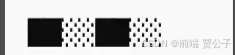
每个像素的状态可以抽象为可以抽象为:
1 1 0 0 1 1 0 0其中:
- 1 = 打印(加热)
- 0 = 不打印
这组 0/1 数据,就是所谓的黑白点阵。
为什么 8 个像素 = 1 字节
-
1字节 = 8 位二进制
-
每一位对应一个像素
11001100 → 0xCC
这也是核心位运算的来源:
byte |= (0x80 >> bit);含义:
- 从高位开始写入
- 每一位映射一个像素点
获取图片像素数据
在小程序中,图片通常来源于:
- Canvas(签名)
- 本地图片
- 网络图片
统一方式是通过 Canvas 获取像素数据::
/**
 * 选择并打印图片的主逻辑
 * 流程:
 * 1. 验证设备连接状态
 * 2. 选择本地图片 (uni.chooseImage)
 * 3. 获取图片尺寸并等比缩放(限制宽度为 384px 以适配标准 58mm 纸张)
 * 4. 更新 canvas 尺寸后,在 canvas 上绘制图片
 * 5. 通过 uni.canvasGetImageData 提取 RGBA 像素数据
 * 6. 执行灰度及二值化处理,生成光栅图字节流
 * 7. 拼接 ESC/POS 打印命令,调用 BLE 分包队列发送
 */
const printImage = () => {
  if (!activeDeviceId.value || !activeServiceId.value || !activeWriteCharId.value) {
    uni.showToast({
      title: "请先连接打印设备",
      icon: "none"
    })
    return
  }

  uni.chooseImage({
    count: 1,
    success: res => {
      const tempFilePath = res.tempFilePaths[0]
      uni.showLoading({
        title: "处理图片中..."
      })

      uni.getImageInfo({
        src: tempFilePath,
        success: imageInfo => {
          // 384 像素宽是 58mm 热敏打印机的标准可打印宽度
          const printWidth = 384
          const printHeight = Math.round((imageInfo.height * printWidth) / imageInfo.width)

          // 动态调整 canvas 组件大小以匹配缩放后的图片
          canvasWidth.value = printWidth
          canvasHeight.value = printHeight

          // 延迟 100ms 确保 Vue 完成 DOM 更新,让 canvas 以新的宽高渲染后再进行绘制
          setTimeout(() => {
            const ctx = uni.createCanvasContext("printCanvas", instance)
            ctx.drawImage(tempFilePath, 0, 0, printWidth, printHeight)
            ctx.draw(false, () => {
              uni.canvasGetImageData(
                {
                  canvasId: "printCanvas",
                  x: 0,
                  y: 0,
                  width: printWidth,
                  height: printHeight,
                  success: resImageData => {
                    try {
                      // 将 RGBA 像素数据转换为 ESC/POS 格式的位图光栅数据
                      const raster = convertImageToRaster(resImageData, printWidth, printHeight)
                      // 构造标准 ESC/POS 图片打印命令
                      const imgCmd = buildImageCommand(raster, printWidth, printHeight)

                      // 最终指令流:初始化 + 图片打印数据 + 换行切纸
                      const command = new Uint8Array(2 + imgCmd.length + 4)

                      // 1. 初始化打印机命令: ESC @ [0x1b, 0x40]
                      command.set([0x1b, 0x40], 0)
                      // 2. 写入图片光栅打印命令
                      command.set(imgCmd, 2)
                      // 3. 走纸换行并切纸命令: LF (0x0a) + 切纸命令 GS V 1 (0x1d, 0x56, 0x01)
                      command.set([0x0a, 0x1d, 0x56, 0x01], 2 + imgCmd.length)

                      // 切分为蓝牙单包传输大小 (通常 20 字节) 的数据包列表
                      const packets = splitIntoPackets(command)
                      // 利用写入队列逐包发送,避免瞬间高频写入造成打印机丢包或卡死
                      const queue = new BLEPacketQueue(
                        activeDeviceId.value,
                        activeServiceId.value,
                        activeWriteCharId.value
                      )
                      queue.addPackets(packets)

                      uni.hideLoading()
                      uni.showToast({
                        title: "图片已发送打印",
                        icon: "success"
                      })
                    } catch (err) {
                      uni.hideLoading()
                      uni.showModal({
                        title: "错误",
                        content: "图片转换失败: " + err.message,
                        showCancel: false
                      })
                    }
                  },
                  fail: err => {
                    uni.hideLoading()
                    uni.showModal({
                      title: "错误",
                      content: "获取图片数据失败: " + JSON.stringify(err),
                      showCancel: false
                    })
                  }
                },
                instance
              )
            })
          }, 100)
        },
        fail: err => {
          uni.hideLoading()
          uni.showModal({
            title: "错误",
            content: "获取图片信息失败: " + JSON.stringify(err),
            showCancel: false
          })
        }
      })
    }
  })
}
此时得到的 data 是一个 RGBA 像素数组, 每个像素由 4 个字节组成(R、G、B、A),取值范围均为 0-255。
像素转换:彩色 → 黑白
现实中的图片是 RGB 彩色图,而打印机只能打印黑色。所以我们必须把:彩色像素 → 黑或白
这就需要两步:
- 灰度化:把彩色图片变成亮度图。
- 二值化: 把亮度图变成黑白图。
最终的黑白图本质上就是:
每个像素是否打印的布尔矩阵。
而这个布尔矩阵,就是点阵数据。
灰度化
灰度表示:
这个像素"亮"还是"暗"
一个灰度值通常在: 0 ~ 255,0 = 黑,255 = 白。
图像处理标准处理公式如下:
/**
 * 将 RGB 像素转换为灰度值,并支持透明通道混合
 * @param {number} r - 红色通道值 (0-255)
 * @param {number} g - 绿色通道值 (0-255)
 * @param {number} b - 蓝色通道值 (0-255)
 * @param {number} [a] - 透明通道值 (0-255)
 * @returns {number} 灰度值 (0-255)
 */
function rgbToGray(r, g, b, a) {
  // 支持透明通道混合:将透明像素同白色背景(255, 255, 255)进行混合,防止 PNG 透明底部分变黑
  if (a !== undefined) {
    const alpha = a / 255
    r = Math.round(r * alpha + 255 * (1 - alpha))
    g = Math.round(g * alpha + 255 * (1 - alpha))
    b = Math.round(b * alpha + 255 * (1 - alpha))
  }
  // 使用心理学加权平均法(Luma 公式)计算灰度值
  return Math.round(r * 0.299 + g * 0.587 + b * 0.114)
}
为什么是这个比例?因为:
- 人眼对绿色最敏感
- 对红色次之
- 对蓝色最不敏感
所以不是简单平均 (r + g + b)/3,而是加权平均。
// 红色 灰度化
(255, 0, 0) --> 255 * 0.299 ≈ 76

// 蓝色 灰度化
(0, 0, 255) --> 255 * 0.114 ≈ 29
所以蓝色会更"暗"。
二值化处理
灰度化之后,我们得到了一个亮度值:0 ~ 255,但打印机不能打印"灰色"。它只能:
-
打印
-
不打印
if (gray < threshold) {
// 打印
} else {
// 不打印
}
这一步叫:
二值化(Binary Thresholding)
最终:灰度图 → 黑白图
常见算法对比
| 方法 | 特点 | 适用场景 |
|---|---|---|
| 固定阈值 | 简单快速 | Logo / 二维码 |
| OTSU | 自动阈值 | 通用图片 |
| Floyd-Steinberg | 抖动优化 | 提升细节表现 |
/**
 * OTSU (大津法) 自适应二值化阈值算法
 * 通过最大化前景与背景的类间方差,自动计算出最佳的黑白分割阈值
 * @param {number[]} grayData - 灰度像素数组
 * @returns {number} 最佳二值化分割阈值 (0-255)
 */
function otsuThreshold(grayData) {
  const histogram = new Array(256).fill(0)
  const len = grayData.length
  // 1. 统计灰度直方图
  for (let i = 0; i < len; i++) {
    histogram[grayData[i]]++
  }

  // 计算所有像素的总灰度累加和
  let sum = 0
  for (let i = 0; i < 256; i++) {
    sum += i * histogram[i]
  }

  let sumB = 0     // 背景灰度总和
  let wB = 0       // 背景像素个数
  let wF = 0       // 前景像素个数
  let maxVar = 0   // 最大类间方差
  let threshold = 127 // 默认分割阈值

  // 2. 遍历所有可能的灰度级做分割,寻找类间方差最大的阈值
  for (let i = 0; i < 256; i++) {
    wB += histogram[i]
    if (wB === 0) continue
    wF = len - wB
    if (wF === 0) break

    sumB += i * histogram[i]
    const mB = sumB / wB           // 背景平均灰度
    const mF = (sum - sumB) / wF   // 前景平均灰度

    // 类间方差公式: wB * wF * (mB - mF)^2
    const varBetween = wB * wF * (mB - mF) * (mB - mF)
    if (varBetween > maxVar) {
      maxVar = varBetween
      threshold = i
    }
  }

  return threshold
}
转换为点阵
经过灰度 + 二值化后,每个像素变成:
1 = 打印
0 = 不打印
例如一行 8 像素:
灰度:  30  80  210 220  60  40  200  190
结果:   1   1    0   0   1   1    0    0
这就是:黑白点阵,然后:
- 每 8 个像素
- 压缩成 1 个字节
- 按行发送给打印机
打印机就会:
- 第1行按位加热
- 第2行按位加热
于是图片就"被打印出来"了。
生成点阵数据
/**
 * 将 RGBA 格式的原始图片像素数组转换成 ESC/POS 打印机所需的单色光栅字节流
 * @param {Object} imageData - uni.canvasGetImageData 返回的数据对象
 * @param {number} width - 图像宽度
 * @param {number} height - 图像高度
 * @returns {Uint8Array} 单色位图光栅数据流
 */
function convertImageToRaster(imageData, width, height) {
  const { data } = imageData
  const bytesPerLine = Math.ceil(width / 8) // 每行像素打包成字节,每字节包含 8 个像素的黑白状态
  const raster = new Uint8Array(bytesPerLine * height)

  const grayData = new Array(width * height)

  // 1. 将 RGBA 格式数据进行灰度化处理
  for (let i = 0, j = 0; i < data.length; i += 4, j++) {
    grayData[j] = rgbToGray(data[i], data[i + 1], data[i + 2], data[i + 3])
  }

  // 2. 利用 OTSU 算法获取自适应的黑白分割阈值
  const threshold = otsuThreshold(grayData)

  // 3. 将灰度数据进行二值化,并按位打包进字节数组中 (1 表示黑色有墨,0 表示白色无墨)
  for (let y = 0; y < height; y++) {
    for (let x = 0; x < bytesPerLine; x++) {
      let byte = 0

      for (let bit = 0; bit < 8; bit++) {
        const px = x * 8 + bit // 当前像素的 x 坐标

        if (px < width) {
          const idx = y * width + px
          // 灰度值小于阈值表示偏深色,判定为黑色 (在热敏字节中,1 表示黑色有墨,这里使用按位或及移位拼接字节)
          if (grayData[idx] < threshold) {
            byte |= 0x80 >> bit
          }
        }
      }

      raster[y * bytesPerLine + x] = byte
    }
  }

  return raster
}
图片宽度对齐与补零处理
在生成点阵数据时,有一个非常重要的规则:
图片宽度必须按 8 像素对齐
原因
- 1 字节 = 8 位
- 每位对应一个像素
因此每一行必须是完整的字节数据。
不对齐的后果
如果宽度不是 8 的倍数:
- 数据错位
- 行解析错误
- 图片打印异常(偏移、乱码)
处理方式
在每一行末尾补 0(白点)
例如:
原始:10 像素
补齐:16 像素(补 6 个 0)
代码中通过以下逻辑天然实现:
const bytesPerLine = Math.ceil(width / 8);

if (px < width) {
  // 原始像素
} else {
  // 自动补 0(白点)
}
ESC/POS 图片指令
最常用指令 GS v 0:
/**
 * 封装 ESC/POS 规范中的 GS v 0 (光栅图像打印) 头部和位图数据
 * 指令格式: GS v 0 m xL xH yL yH d1...dk
 * @param {Uint8Array} raster - 单色光栅字节流
 * @param {number} width - 图像宽度
 * @param {number} height - 图像高度
 * @returns {Uint8Array} ESC/POS 单色位图打印指令流
 */
function buildImageCommand(raster, width, height) {
  const bytesPerLine = Math.ceil(width / 8)

  // GS v 0 0 命令头部定义
  const header = [
    0x1d, // GS
    0x76, // v
    0x30, // 0
    0x00, // m: 0 表示正常模式 (非倍宽倍高)
    bytesPerLine & 0xff,        // xL: 水平方向字节数低位
    (bytesPerLine >> 8) & 0xff, // xH: 水平方向字节数高位
    height & 0xff,              // yL: 垂直方向像素数低位
    (height >> 8) & 0xff        // yH: 垂直方向像素数高位
  ]

  const result = new Uint8Array(header.length + raster.length)
  result.set(header)
  result.set(raster, header.length)

  return result
}本质仍然是:一段 ESC/POS 字节流
BLE 图片打印注意事项
在实际使用中,图片打印相比文本更容易出现失败或效果不佳,主要需要注意以下几点:
- 控制图片尺寸
- 图片宽度不要超过打印机最大宽度(58mm 机型通常为 384px)
- 图片越大,数据量越大,传输时间越长,失败概率也越高
- 简化图片内容
- 尽量使用黑白图
- 减少灰度和细节
- 避免复杂图案或高精度图片
- 控制发送节奏
- 单包数据不超过 20 字节
- 发送间隔建议 ≥ 30ms
- 必须按顺序逐包发送,避免并发写入
- 做好数据缓存
- 对于固定图片(如 Logo、二维码),建议提前转换为点阵数据
- 避免每次打印都重复处理图片
- 合理评估使用场景
- BLE 图片打印更适合:小尺寸图片、简单标识或二维码
- 不适合:大图、长图、高精度图片、高频连续打印场景
八、总结
本文围绕小程序 + BLE + 便携打印机的方案,从技术选型、GATT 通信模型、连接生命周期管理,到 ESC/POS 指令构建、分包传输与图片打印,完整梳理了移动端蓝牙打印的工程链路与关键实践,为类似场景下的实现提供参考。
希望本文的实践经验,能对你在 BLE 蓝牙打印的探索之路上提供些许帮助。
完整代码如下
<template>
  <view>
    <scroll-view scroll-y class="box">
      <view class="item" v-for="item in blueDeviceList" :key="item.deviceId" @click="connectBluetooth(item.deviceId)">
        <view>
          <text>id: {{ item.deviceId }}</text>
        </view>
        <view>
          <text>name: {{ item.name }}</text>
        </view>
      </view>
    </scroll-view>
    <button @click="resetBluetoothAdapter">重置蓝牙</button>
    <button @click="openBluetoothAdapter">1 初始化蓝牙</button>
    <button @click="startBluetoothDevicesDiscovery">2 搜索附近蓝牙设备</button>
    <button @click="releaseBluetoothResources">销毁</button>
    <button @click="testFn">测试</button>
    <button @click="printOrder">打印测试页</button>
    <button @click="printImage">选择并打印图片</button>

    <!-- 用于图片灰度与二值化处理的画布 -->
    <canvas
      canvas-id="printCanvas"
      :style="
        'width:' +
        canvasWidth +
        'px; height:' +
        canvasHeight +
        'px; position: absolute; left: -9999px; visibility: hidden;'
      "
    ></canvas>
  </view>
</template>

<script setup>
import { onMounted, ref, getCurrentInstance } from "vue" // 补上了 ref 的引入
import { ESCPOSGenerator } from "./printers/escposCommandBuilder"

const testFn = () => {
  // 创建配送回单打印任务
  const printJob = new ESCPOSGenerator()
  const printData = printJob
    .init() // 初始化打印机
    .text("配送回单", { bold: true, size: 2, align: "center" }) // 文本
    .newline(2) // 空两行
    .cut() // 切纸
    .build() // 构建字节流

  console.log(`打印数据大小: ${printData.length} 字节`)
}
let timeoutId = null
const timeout = 5000

// 搜索到的蓝牙设备列表
const blueDeviceList = ref([])

// 新增:全局记录当前连接的设备 ID
const activeDeviceId = ref("")
const activeServiceId = ref("")
const activeWriteCharId = ref("")

const instance = getCurrentInstance()
const canvasWidth = ref(384)
const canvasHeight = ref(384)

onMounted(() => {
  uni.onBluetoothAdapterStateChange(res => {
    console.log("uni.onBluetoothAdapterStateChange", res)

    const { available } = res

    if (!available) {
      uni.showModal({
        title: "提示",
        content: "系统蓝牙未开启"
      })
    }
  })

  uni.onBluetoothDeviceFound(res => {
    res.devices.forEach(device => {
      device.name && blueDeviceList.value.push(device)
    })
  })
})

const openBluetoothAdapter = () => {
  return new Promise((resolve, reject) => {
    uni.openBluetoothAdapter({
      success() {
        resolve()
      },
      fail(err) {
        if (err.errCode === 10001) {
          uni.showToast({
            title: "蓝牙未开启",
            icon: "none"
          })
        }

        reject(err)
      }
    })
  })
}

const startBluetoothDevicesDiscovery = () => {
  return new Promise((resolve, reject) => {
    uni.startBluetoothDevicesDiscovery({
      allowDuplicatesKey: false, // 是否允许重复上报同一设备, true 表示允许
      interval: 0, // 搜索间隔 (1000ms ~ 120000ms)
      success() {
        timeoutId = setTimeout(() => {
          resolve()
          stopBluetoothDevicesDiscovery()
          clearTimeout(timeoutId)
        }, timeout)
      },
      fail(err) {
        reject(err)
      }
    })
  })
}

const stopBluetoothDevicesDiscovery = () => {
  return new Promise((resolve, reject) => {
    uni.stopBluetoothDevicesDiscovery({
      success() {
        resolve()
      },
      fail(err) {
        reject(err)
      }
    })
  })
}
const closeBluetoothAdapter = () => {
  return new Promise((resolve, reject) => {
    uni.closeBluetoothAdapter({
      success() {
        resolve()
      },
      fail(err) {
        reject(err)
      }
    })
  })
}
const resetBluetoothAdapter = async () => {
  // 清空搜索到的蓝牙设备列表
  blueDeviceList.value = []
  // 清空当前连接的 ID
  activeDeviceId.value = ""
  activeServiceId.value = ""
  activeWriteCharId.value = ""
  // 清除定时器
  clearTimeout(timeoutId)
  // 停止搜索附近蓝牙设备
  await stopBluetoothDevicesDiscovery()
  // 关闭蓝牙模块
  await closeBluetoothAdapter()
  // 等待系统释放资源(非常重要)
  await new Promise(resolve => setTimeout(resolve, 300))

  // 重新初始化蓝牙模块
  await openBluetoothAdapter()

  uni.showToast({
    title: "蓝牙已重置",
    icon: "success"
  })
}
const connectBluetooth = async deviceId => {
  uni.createBLEConnection({
    deviceId,
    success() {
      console.log("设备连接成功")
      // 核心改动:连接成功后保存当前设备 ID
      activeDeviceId.value = deviceId
      activeServiceId.value = ""
      activeWriteCharId.value = ""

      // 连接成功后立即停止扫描,避免干扰后续操作
      stopBluetoothDevicesDiscovery()
      // 获取服务列表
      getDeviceServices(deviceId)
    },
    fail(err) {
      console.error("连接失败", err)
    }
  })
}
function getDeviceServices(deviceId) {
  uni.getBLEDeviceServices({
    deviceId,
    success(res) {
      console.log("Services列表:", res.services)
      // 通常打印服务使用自定义 UUID
      const services = res.services.sort((a, b) => getServicePriority(a.uuid) - getServicePriority(b.uuid))
      const printService = services.find(service => service.uuid.includes("FF00") || service.isPrimary)
      if (printService) {
        getServiceCharacteristics(deviceId, printService.uuid)
      }
    },
    fail(err) {
      console.error("获取服务失败", err)
    }
  })
}

function getServiceCharacteristics(deviceId, serviceId) {
  console.log("deviceId", deviceId)
  console.log("serviceId", serviceId)
  uni.getBLEDeviceCharacteristics({
    deviceId,
    serviceId,
    success(res) {
      console.log("Characteristics列表:", res.characteristics)
      let writeCharId = null
      let notifyCharId = null
      res.characteristics.forEach(c => {
        if (c.properties.write || c.properties.writeWithoutResponse) {
          writeCharId = c.uuid
        }
        if (c.properties.notify || c.properties.indicate) {
          notifyCharId = c.uuid
        }
      })
      console.log("writeCharId", writeCharId)
      console.log("notifyCharId", notifyCharId)
      activeServiceId.value = serviceId
      activeWriteCharId.value = writeCharId || ""
      // 保存特征值 ID,启用 Notify
      enableNotify(deviceId, serviceId, notifyCharId)
    },
    fail(err) {
      console.error("获取特征值失败", err)
    }
  })
}
function enableNotify(deviceId, serviceId, characteristicId) {
  uni.notifyBLECharacteristicValueChange({
    deviceId,
    serviceId,
    characteristicId,
    state: true, // 启用 notify
    success() {
      console.log("Notify 已启用")
      // 监听特征值变化事件
      uni.onBLECharacteristicValueChange(res => {
        const hexStr = res.value // 返回 hex 字符串
        console.log("Notify 收到数据", hexStr)
      })
    },
    fail(err) {
      console.error("启用 Notify 失败", err)
    }
  })
}
const getServicePriority = uuid => {
  const u = uuid.toLowerCase()

  // 提取短 UUID(如 0000fff0)
  const shortUUID = u.startsWith("0000") ? u.slice(4, 8) : ""

  // 1. 标准服务(最低优先级)
  const standardServices = ["1800", "1801", "180a", "180f"]
  if (standardServices.includes(shortUUID)) {
    return 100
  }

  // 2. 打印透传服务(最高优先级)
  if (shortUUID.startsWith("ff")) {
    return 0
  }

  // 3. 纯 128 位厂商 UUID(中优先级,需验证)
  if (!u.includes("0000-1000-8000-00805f9b34fb")) {
    return 50
  }

  // 4. 其他标准扩展服务
  return 60
}

// 核心改动:修改后的资源清理方法
const releaseBluetoothResources = () => {
  // 1. 停止搜索设备(如果还在搜索中)
  stopBluetoothDevicesDiscovery()

  // 2. 断开与当前已连接蓝牙设备的连接
  if (activeDeviceId.value) {
    uni.closeBLEConnection({
      deviceId: activeDeviceId.value,
      success: () => {
        console.log("成功断开设备连接")
      },
      fail: err => {
        console.error("断开设备连接失败", err)
      }
    })
  }

  // 3. 最后,关闭蓝牙适配器,彻底释放系统资源
  closeBluetoothAdapter()
    .then(() => {
      console.log("蓝牙适配器已关闭,资源已释放")
      // 重置所有连接相关状态
      activeDeviceId.value = ""
      activeServiceId.value = ""
      activeWriteCharId.value = ""
      blueDeviceList.value = []
    })
    .catch(err => {
      console.error("关闭蓝牙适配器失败", err)
    })
}
class BLEPacketQueue {
  constructor(deviceId, serviceId, characteristicId) {
    this.queue = []
    this.isSending = false
    this.deviceId = deviceId
    this.serviceId = serviceId
    this.characteristicId = characteristicId
  }

  // 添加分包到队列
  addPackets(packets) {
    this.queue.push(...packets)
    if (!this.isSending) {
      this.sendNext()
    }
  }

  // 发送下一包
  sendNext() {
    if (this.queue.length === 0) {
      this.isSending = false
      console.log("所有分包发送完成")
      return
    }

    this.isSending = true
    const packet = this.queue.shift()
    console.log("packet: ", packet)

    uni.writeBLECharacteristicValue({
      deviceId: this.deviceId,
      serviceId: this.serviceId,
      characteristicId: this.characteristicId,
      value: packet,
      success: () => {
        // 发送成功后延时 15-20ms,再发送下一包
        setTimeout(() => this.sendNext(), 20)
      },
      fail: err => {
        console.error("分包发送失败", err)
        // 可在此处实现重试逻辑
        this.queue.unshift(packet) // 放回队列头部
        setTimeout(() => this.sendNext(), 50)
      }
    })
  }
}

// 将完整指令流切分为 20 字节的分包
function splitIntoPackets(command) {
  let bytes
  if (command instanceof ArrayBuffer) {
    bytes = new Uint8Array(command)
  } else if (Array.isArray(command)) {
    bytes = new Uint8Array(command)
  } else if (command && command.buffer instanceof ArrayBuffer) {
    bytes = new Uint8Array(command.buffer, command.byteOffset, command.byteLength)
  } else {
    bytes = new Uint8Array()
  }

  const packets = []
  for (let i = 0; i < bytes.length; i += 20) {
    packets.push(bytes.slice(i, i + 20).buffer)
  }
  return packets
}

function waitForPrintComplete() {
  return new Promise(resolve => setTimeout(resolve, 500))
}

const printTestPage = () => {
  try {
    const generator = new ESCPOSGenerator()
    return generator
      .init()
      .lineText("蓝牙打印机测试页", { align: "center", bold: true, size: 2 })
      .separator()
      .lineText("设备 MAC: " + activeDeviceId.value)
      .lineText("测试文本: ABCDefgh12345")
      .lineText("样式测试 - 居左粗体", { align: "left", bold: true })
      .lineText("样式测试 - 居中大小2", { align: "center", size: 2 })
      .lineText("样式测试 - 居右正常", { align: "right" })
      .separator()
      .newline(3)
      .cut()
      .build()
  } catch (e) {
    console.log(e)
    return new Uint8Array()
  }
}

async function printOrder() {
  if (!activeDeviceId.value || !activeServiceId.value || !activeWriteCharId.value) {
    uni.showToast({
      title: "请先连接打印设备",
      icon: "none"
    })
    return
  }

  // 1. 构建指令流
  const command = printTestPage()

  // 2. 分包
  const packets = splitIntoPackets(command)
  console.log("command: ", command)
  console.log("packets: ", packets)

  // 3. 队列发送
  const queue = new BLEPacketQueue(activeDeviceId.value, activeServiceId.value, activeWriteCharId.value)
  queue.addPackets(packets)

  // 4. 等待完成通知
  await waitForPrintComplete()

  uni.showToast({
    title: "已发送测试打印",
    icon: "success"
  })
}
/**
 * 选择并打印图片的主逻辑
 * 流程:
 * 1. 验证设备连接状态
 * 2. 选择本地图片 (uni.chooseImage)
 * 3. 获取图片尺寸并等比缩放(限制宽度为 384px 以适配标准 58mm 纸张)
 * 4. 更新 canvas 尺寸后,在 canvas 上绘制图片
 * 5. 通过 uni.canvasGetImageData 提取 RGBA 像素数据
 * 6. 执行灰度及二值化处理,生成光栅图字节流
 * 7. 拼接 ESC/POS 打印命令,调用 BLE 分包队列发送
 */
const printImage = () => {
  if (!activeDeviceId.value || !activeServiceId.value || !activeWriteCharId.value) {
    uni.showToast({
      title: "请先连接打印设备",
      icon: "none"
    })
    return
  }

  uni.chooseImage({
    count: 1,
    success: res => {
      const tempFilePath = res.tempFilePaths[0]
      uni.showLoading({
        title: "处理图片中..."
      })

      uni.getImageInfo({
        src: tempFilePath,
        success: imageInfo => {
          // 384 像素宽是 58mm 热敏打印机的标准可打印宽度
          const printWidth = 384
          const printHeight = Math.round((imageInfo.height * printWidth) / imageInfo.width)

          // 动态调整 canvas 组件大小以匹配缩放后的图片
          canvasWidth.value = printWidth
          canvasHeight.value = printHeight

          // 延迟 100ms 确保 Vue 完成 DOM 更新,让 canvas 以新的宽高渲染后再进行绘制
          setTimeout(() => {
            const ctx = uni.createCanvasContext("printCanvas", instance)
            ctx.drawImage(tempFilePath, 0, 0, printWidth, printHeight)
            ctx.draw(false, () => {
              uni.canvasGetImageData(
                {
                  canvasId: "printCanvas",
                  x: 0,
                  y: 0,
                  width: printWidth,
                  height: printHeight,
                  success: resImageData => {
                    try {
                      // 将 RGBA 像素数据转换为 ESC/POS 格式的位图光栅数据
                      const raster = convertImageToRaster(resImageData, printWidth, printHeight)
                      // 构造标准 ESC/POS 图片打印命令
                      const imgCmd = buildImageCommand(raster, printWidth, printHeight)

                      // 最终指令流:初始化 + 图片打印数据 + 换行切纸
                      const command = new Uint8Array(2 + imgCmd.length + 4)

                      // 1. 初始化打印机命令: ESC @ [0x1b, 0x40]
                      command.set([0x1b, 0x40], 0)
                      // 2. 写入图片光栅打印命令
                      command.set(imgCmd, 2)
                      // 3. 走纸换行并切纸命令: LF (0x0a) + 切纸命令 GS V 1 (0x1d, 0x56, 0x01)
                      command.set([0x0a, 0x1d, 0x56, 0x01], 2 + imgCmd.length)

                      // 切分为蓝牙单包传输大小 (通常 20 字节) 的数据包列表
                      const packets = splitIntoPackets(command)
                      // 利用写入队列逐包发送,避免瞬间高频写入造成打印机丢包或卡死
                      const queue = new BLEPacketQueue(
                        activeDeviceId.value,
                        activeServiceId.value,
                        activeWriteCharId.value
                      )
                      queue.addPackets(packets)

                      uni.hideLoading()
                      uni.showToast({
                        title: "图片已发送打印",
                        icon: "success"
                      })
                    } catch (err) {
                      uni.hideLoading()
                      uni.showModal({
                        title: "错误",
                        content: "图片转换失败: " + err.message,
                        showCancel: false
                      })
                    }
                  },
                  fail: err => {
                    uni.hideLoading()
                    uni.showModal({
                      title: "错误",
                      content: "获取图片数据失败: " + JSON.stringify(err),
                      showCancel: false
                    })
                  }
                },
                instance
              )
            })
          }, 100)
        },
        fail: err => {
          uni.hideLoading()
          uni.showModal({
            title: "错误",
            content: "获取图片信息失败: " + JSON.stringify(err),
            showCancel: false
          })
        }
      })
    }
  })
}

/**
 * 将 RGB 像素转换为灰度值,并支持透明通道混合
 * @param {number} r - 红色通道值 (0-255)
 * @param {number} g - 绿色通道值 (0-255)
 * @param {number} b - 蓝色通道值 (0-255)
 * @param {number} [a] - 透明通道值 (0-255)
 * @returns {number} 灰度值 (0-255)
 */
function rgbToGray(r, g, b, a) {
  // 支持透明通道混合:将透明像素同白色背景(255, 255, 255)进行混合,防止 PNG 透明底部分变黑
  if (a !== undefined) {
    const alpha = a / 255
    r = Math.round(r * alpha + 255 * (1 - alpha))
    g = Math.round(g * alpha + 255 * (1 - alpha))
    b = Math.round(b * alpha + 255 * (1 - alpha))
  }
  // 使用心理学加权平均法(Luma 公式)计算灰度值
  return Math.round(r * 0.299 + g * 0.587 + b * 0.114)
}

/**
 * OTSU (大津法) 自适应二值化阈值算法
 * 通过最大化前景与背景的类间方差,自动计算出最佳的黑白分割阈值
 * @param {number[]} grayData - 灰度像素数组
 * @returns {number} 最佳二值化分割阈值 (0-255)
 */
function otsuThreshold(grayData) {
  const histogram = new Array(256).fill(0)
  const len = grayData.length
  // 1. 统计灰度直方图
  for (let i = 0; i < len; i++) {
    histogram[grayData[i]]++
  }

  // 计算所有像素的总灰度累加和
  let sum = 0
  for (let i = 0; i < 256; i++) {
    sum += i * histogram[i]
  }

  let sumB = 0     // 背景灰度总和
  let wB = 0       // 背景像素个数
  let wF = 0       // 前景像素个数
  let maxVar = 0   // 最大类间方差
  let threshold = 127 // 默认分割阈值

  // 2. 遍历所有可能的灰度级做分割,寻找类间方差最大的阈值
  for (let i = 0; i < 256; i++) {
    wB += histogram[i]
    if (wB === 0) continue
    wF = len - wB
    if (wF === 0) break

    sumB += i * histogram[i]
    const mB = sumB / wB           // 背景平均灰度
    const mF = (sum - sumB) / wF   // 前景平均灰度

    // 类间方差公式: wB * wF * (mB - mF)^2
    const varBetween = wB * wF * (mB - mF) * (mB - mF)
    if (varBetween > maxVar) {
      maxVar = varBetween
      threshold = i
    }
  }

  return threshold
}

/**
 * 将 RGBA 格式的原始图片像素数组转换成 ESC/POS 打印机所需的单色光栅字节流
 * @param {Object} imageData - uni.canvasGetImageData 返回的数据对象
 * @param {number} width - 图像宽度
 * @param {number} height - 图像高度
 * @returns {Uint8Array} 单色位图光栅数据流
 */
function convertImageToRaster(imageData, width, height) {
  const { data } = imageData
  const bytesPerLine = Math.ceil(width / 8) // 每行像素打包成字节,每字节包含 8 个像素的黑白状态
  const raster = new Uint8Array(bytesPerLine * height)

  const grayData = new Array(width * height)

  // 1. 将 RGBA 格式数据进行灰度化处理
  for (let i = 0, j = 0; i < data.length; i += 4, j++) {
    grayData[j] = rgbToGray(data[i], data[i + 1], data[i + 2], data[i + 3])
  }

  // 2. 利用 OTSU 算法获取自适应的黑白分割阈值
  const threshold = otsuThreshold(grayData)

  // 3. 将灰度数据进行二值化,并按位打包进字节数组中 (1 表示黑色有墨,0 表示白色无墨)
  for (let y = 0; y < height; y++) {
    for (let x = 0; x < bytesPerLine; x++) {
      let byte = 0

      for (let bit = 0; bit < 8; bit++) {
        const px = x * 8 + bit // 当前像素的 x 坐标

        if (px < width) {
          const idx = y * width + px
          // 灰度值小于阈值表示偏深色,判定为黑色 (在热敏字节中,1 表示黑色有墨,这里使用按位或及移位拼接字节)
          if (grayData[idx] < threshold) {
            byte |= 0x80 >> bit
          }
        }
      }

      raster[y * bytesPerLine + x] = byte
    }
  }

  return raster
}

/**
 * 封装 ESC/POS 规范中的 GS v 0 (光栅图像打印) 头部和位图数据
 * 指令格式: GS v 0 m xL xH yL yH d1...dk
 * @param {Uint8Array} raster - 单色光栅字节流
 * @param {number} width - 图像宽度
 * @param {number} height - 图像高度
 * @returns {Uint8Array} ESC/POS 单色位图打印指令流
 */
function buildImageCommand(raster, width, height) {
  const bytesPerLine = Math.ceil(width / 8)

  // GS v 0 0 命令头部定义
  const header = [
    0x1d, // GS
    0x76, // v
    0x30, // 0
    0x00, // m: 0 表示正常模式 (非倍宽倍高)
    bytesPerLine & 0xff,        // xL: 水平方向字节数低位
    (bytesPerLine >> 8) & 0xff, // xH: 水平方向字节数高位
    height & 0xff,              // yL: 垂直方向像素数低位
    (height >> 8) & 0xff        // yH: 垂直方向像素数高位
  ]

  const result = new Uint8Array(header.length + raster.length)
  result.set(header)
  result.set(raster, header.length)

  return result
}
</script>

<style>
.box {
  width: 98%;
  height: 400rpx;
  box-sizing: border-box;
  margin: 0 auto 20rpx;
  border: 2px solid dodgerblue;
}
.item {
  box-sizing: border-box;
  padding: 10rpx;
  border-bottom: 1px solid #ccc;
}
button {
  margin-bottom: 20rpx;
}

.msg_x {
  border: 2px solid seagreen;
  width: 98%;
  margin: 10rpx auto;
  box-sizing: border-box;
  padding: 20rpx;
}

.msg_x .msg_txt {
  margin-bottom: 20rpx;
}
</style>