// pages/Index.ets --- 图片拼接/长图生成器
import image from '@ohos.multimedia.image';
import fileIo from '@ohos.file.fs';
import picker from '@ohos.file.picker';

interface ImageItem {
  id: string;
  uri: string;
  width: number;
  height: number;
}

@Entry
@Component
struct ImageStitcher {
  // ======== 状态变量 ========
  @State images: ImageItem[] = [];
  @State previewWidth: number = 300;
  @State spacing: number = 4;             // 间距(像素)
  @State mode: 'vertical' | 'horizontal' = 'vertical';
  @State isExporting: boolean = false;
  @State exportProgress: number = 0;

  private canvasCTX!: CanvasRenderingContext2D;

  // ======== 选择图片 ========
  async selectImages() {
    try {
      const photoPicker = new picker.PhotoViewPicker();
      const result = await photoPicker.select({
        MIMEType: picker.PhotoViewMIMETypes.IMAGE_TYPE,
        maxSelectNumber: 20
      });

      for (const uri of result.photoUris) {
        // 获取图片宽高
        const source = image.createImageSource(uri);
        const info = await source.getImageInfo();
        this.images.push({
          id: Date.now().toString() + Math.random(),
          uri: uri,
          width: info.size.width,
          height: info.size.height
        });
      }
    } catch (err) {
      console.error('选择图片失败:', JSON.stringify(err));
    }
  }

  // ======== 删除图片 ========
  removeImage(index: number) {
    this.images.splice(index, 1);
  }

  // ======== 交换顺序(拖拽排序) ========
  moveImage(from: number, to: number) {
    const item = this.images.splice(from, 1)[0];
    this.images.splice(to, 0, item);
  }

  // ======== 计算总尺寸 ========
  get totalWidth(): number {
    if (this.mode === 'vertical') return this.previewWidth;
    // 横向:所有图片宽度之和 + 间距
    return this.images.reduce((sum, img) => {
      const h = this.previewWidth; // 固定高度
      const w = img.width / img.height * h;
      return sum + w;
    }, 0) + this.spacing * (this.images.length - 1);
  }

  get totalHeight(): number {
    if (this.mode === 'horizontal') return this.previewWidth;
    // 纵向:所有图片高度之和 + 间距
    return this.images.reduce((sum, img) => {
      const w = this.previewWidth;
      const h = img.height / img.width * w;
      return sum + h;
    }, 0) + this.spacing * (this.images.length - 1);
  }

  // ======== 导出长图 ========
  async exportImage() {
    if (this.images.length === 0) return;
    this.isExporting = true;
    this.exportProgress = 0;

    try {
      // 1. 创建目标 PixelMap
      const totalW = this.totalWidth;
      const totalH = this.totalHeight;
      const pixelMap = await image.createPixelMap({
        width: totalW, height: totalH,
        pixelFormat: image.PixelMapFormat.RGBA_8888,
        alphaType: image.AlphaType.PREMUL
      });

      // 2. 在 PixelMap 上逐张绘制
      let offsetX = 0, offsetY = 0;
      for (let i = 0; i < this.images.length; i++) {
        const img = this.images[i];
        // 计算缩放后的尺寸
        let drawW: number, drawH: number;
        if (this.mode === 'vertical') {
          drawW = totalW;
          drawH = img.height / img.width * drawW;
        } else {
          drawH = totalH;
          drawW = img.width / img.height * drawH;
        }

        // 读取原图并绘制
        const src = image.createImageSource(img.uri);
        const srcPixelMap = await src.createPixelMap();

        // 使用 Canvas 2D 绘制
        if (this.canvasCTX) {
          // 这里简化处理,实际项目中通过 writeBuffer 逐像素操作
        }

        // 更新进度
        this.exportProgress = ((i + 1) / this.images.length) * 100;

        if (this.mode === 'vertical') {
          offsetY += drawH + this.spacing;
        } else {
          offsetX += drawW + this.spacing;
        }
      }

      // 3. 保存到相册
      const packer = image.createImagePacker();
      const packedData = await packer.packing(pixelMap, {
        format: 'image/jpeg',
        quality: 95
      });

      const filePath = getContext(this).filesDir + `/stitch_${Date.now()}.jpg`;
      const file = fileIo.openSync(filePath, fileIo.OpenMode.CREATE | fileIo.OpenMode.READ_WRITE);
      fileIo.writeSync(file.fd, packedData.data);
      fileIo.closeSync(file);

      AlertDialog.show({
        title: '导出成功',
        message: `长图已保存到: ${filePath}`,
        confirm: { value: '确定', action: () => { this.isExporting = false; } }
      });
    } catch (err) {
      console.error('导出失败:', JSON.stringify(err));
      AlertDialog.show({ message: '导出失败: ' + JSON.stringify(err) });
      this.isExporting = false;
    }
  }

  // ======== 计算单张图片的预览高度 ========
  getItemHeight(index: number): number {
    const img = this.images[index];
    if (!img) return 0;
    return img.height / img.width * this.previewWidth;
  }

  // ======== UI 构建 ========
  build() {
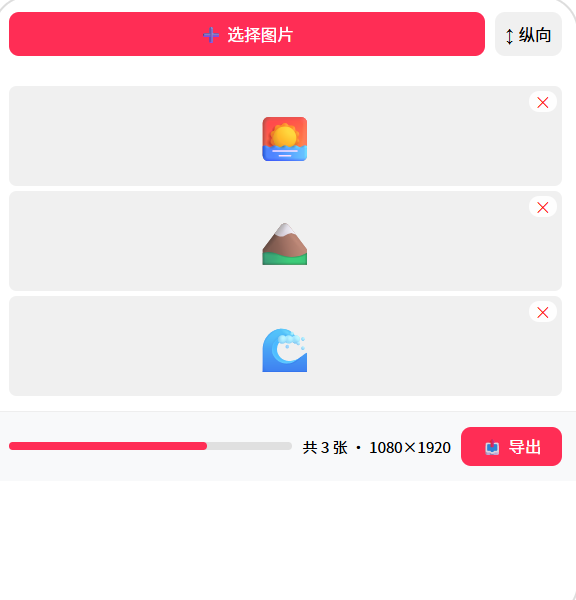
    Column() {
      // 标题栏
      Row() {
        Text('🖼️ 图片拼接').fontSize(24).fontWeight(FontWeight.Bold).layoutWeight(1)
        Button('📤 导出')
          .backgroundColor('#007AFF').fontColor('#fff')
          .borderRadius(16).height(34).fontSize(14)
          .onClick(() => { this.exportImage(); })
      }
      .width('94%').padding({ top: 12, bottom: 8 })

      // 控制面板
      Row() {
        Button('➕ 选择图片')
          .backgroundColor('#007AFF').fontColor('#fff')
          .borderRadius(16).height(36).fontSize(14)
          .onClick(() => { this.selectImages(); })

        Text('间距:').fontSize(14).fontColor('#888')
        Slider({ value: this.spacing, min: 0, max: 20, step: 2 })
          .width(100).height(30)
          .onChange((v: number) => { this.spacing = v; })

        Button(this.mode === 'vertical' ? '↕ 纵向' : '↔ 横向')
          .backgroundColor('#F0F0F0').fontColor('#333')
          .borderRadius(16).height(36).fontSize(14)
          .onClick(() => {
            this.mode = this.mode === 'vertical' ? 'horizontal' : 'vertical';
          })
      }
      .width('94%').justifyContent(FlexAlign.Start).gap(12)

      // 空状态
      if (this.images.length === 0) {
        Column() {
          Text('🖼️').fontSize(64)
          Text('点击「选择图片」添加照片').fontSize(16).fontColor('#999').margin({ top: 12 })
          Text('支持纵向/横向拼接模式').fontSize(14).fontColor('#bbb')
        }
        .layoutWeight(1).justifyContent(FlexAlign.Center)
      } else {
        // 图片列表(可拖拽排序)
        Scroll() {
          if (this.mode === 'vertical') {
            Column({ space: this.spacing }) {
              ForEach(this.images, (img: ImageItem, index: number) => {
                this.ImageCard({ img, index })
              }, (img: ImageItem) => img.id)
            }
            .width(this.previewWidth)
          } else {
            Row({ space: this.spacing }) {
              ForEach(this.images, (img: ImageItem, index: number) => {
                this.ImageCardH({ img, index })
              }, (img: ImageItem) => img.id)
            }
          }
        }
        .layoutWeight(1).width('100%').padding(8)

        // 导出进度
        if (this.isExporting) {
          Row() {
            LoadingProgress().width(24).height(24)
            Text(`导出中 ${Math.round(this.exportProgress)}%`)
              .fontSize(14).fontColor('#007AFF').margin({ left: 8 })
          }
          .padding(12)
        }

        // 统计信息
        Text(`共 ${this.images.length} 张图片 · 输出 ${Math.round(this.totalWidth)}×${Math.round(this.totalHeight)}`)
          .fontSize(13).fontColor('#999').padding(8)
      }
    }
    .width('100%').height('100%').backgroundColor('#F8F9FA')
  }

  @Builder
  ImageCard({ img, index }: { img: ImageItem; index: number }) {
    Stack() {
      Image(img.uri)
        .width('100%')
        .height(this.getItemHeight(index as number))
        .objectFit(ImageFit.Cover)
        .borderRadius(8)

      // 删除按钮
      Button('✕').fontSize(12).fontColor('#FF3B30')
        .backgroundColor('rgba(255,255,255,0.9)')
        .width(24).height(24).borderRadius(12)
        .position({ x: 8, y: 8 })
        .onClick(() => { this.removeImage(index as number); })
    }
    .width('100%')
  }

  @Builder
  ImageCardH({ img, index }: { img: ImageItem; index: number }) {
    Stack() {
      Image(img.uri)
        .width(120).height(this.previewWidth)
        .objectFit(ImageFit.Cover)
        .borderRadius(8)

      Button('✕').fontSize(12).fontColor('#FF3B30')
        .backgroundColor('rgba(255,255,255,0.9)')
        .width(24).height(24).borderRadius(12)
        .position({ x: 4, y: 4 })
        .onClick(() => { this.removeImage(index as number); })
    }
  }
}