Python Matplotlib数据可视化实战
一、Matplotlib简介
Matplotlib是Python最流行的2D绘图库,可以绘制折线图、柱状图、散点图、饼图、热力图等各种图表。
二、环境配置
python
pip install matplotlib seaborn
import matplotlib.pyplot as plt
import numpy as np
plt.rcParams['font.sans-serif'] = ['SimHei', 'Arial Unicode MS']
plt.rcParams['axes.unicode_minus'] = False
三、基本绑图流程
python
fig, ax = plt.subplots(figsize=(10, 6))
x = np.linspace(0, 10, 100)
y = np.sin(x)
ax.plot(x, y, label='sin(x)', color='#2E86AB', linewidth=2)
ax.set_xlabel('X轴', fontsize=12)
ax.set_ylabel('Y轴', fontsize=12)
ax.set_title('正弦函数曲线', fontsize=14, fontweight='bold')
ax.legend()
plt.tight_layout()
plt.savefig('sin_curve.png', dpi=150)
plt.show()
四、常见图表类型
1. 柱状图
python
fig, ax = plt.subplots(figsize=(10, 6))
languages = ['Python', 'Java', 'JavaScript', 'C++', 'Go']
popularity = [30.5, 17.2, 8.9, 7.3, 6.5]
colors = ['#3498db', '#e74c3c', '#f39c12', '#27ae60', '#9b59b6']
bars = ax.bar(languages, popularity, color=colors)
for bar, val in zip(bars, popularity):
    ax.text(bar.get_x() + bar.get_width()/2, bar.get_height() + 0.5, f'{val}%', ha='center')
plt.tight_layout()
plt.savefig('bar_chart.png', dpi=150)
plt.show()
2. 散点图
python
fig, ax = plt.subplots(figsize=(10, 6))
np.random.seed(42)
x = np.random.randn(100) * 50 + 170
y = np.random.randn(100) * 15 + 65
scatter = ax.scatter(x, y, c=y, cmap='viridis', alpha=0.7, s=80)
plt.colorbar(scatter, label='体重 (kg)')
ax.set_xlabel('身高 (cm)')
ax.set_ylabel('体重 (kg)')
plt.tight_layout()
plt.savefig('scatter_plot.png', dpi=150)
plt.show()
3. 饼图
python
fig, ax = plt.subplots(figsize=(10, 8))
categories = ['销售部', '技术部', '市场部', '人事部', '财务部']
budgets = [350000, 280000, 180000, 80000, 110000]
colors = ['#FF6B6B', '#4ECDC4', '#45B7D1', '#96CEB4', '#FFEAA7']
wedges, texts, autotexts = ax.pie(budgets, labels=categories, colors=colors, autopct='%1.1f%%', shadow=True)
plt.tight_layout()
plt.savefig('pie_chart.png', dpi=150)
plt.show()
4. 热力图
python
import seaborn as sns
fig, ax = plt.subplots(figsize=(10, 8))
np.random.seed(42)
data = np.random.rand(8, 8)
sns.heatmap(data, annot=True, fmt='.2f', cmap='YlOrRd', ax=ax)
plt.tight_layout()
plt.savefig('heatmap.png', dpi=150)
plt.show()
五、多子图布局
python
fig, axes = plt.subplots(2, 2, figsize=(14, 10))
x = np.arange(12)
y1 = np.random.randint(50, 100, 12)
axes[0, 0].plot(x, y1, marker='o', color='#3498db')
axes[0, 1].bar(['A', 'B', 'C', 'D'], [75, 90, 60, 85])
axes[1, 0].pie([25, 35, 20, 20], labels=['甲', '乙', '丙', '丁'], autopct='%1.1f%%')
axes[1, 1].hist(np.random.randn(1000), bins=30, color='#9b59b6', alpha=0.7)
plt.suptitle('数据分析仪表盘', fontsize=16, fontweight='bold')
plt.tight_layout()
plt.savefig('dashboard.png', dpi=150)
plt.show()
六、实验结果
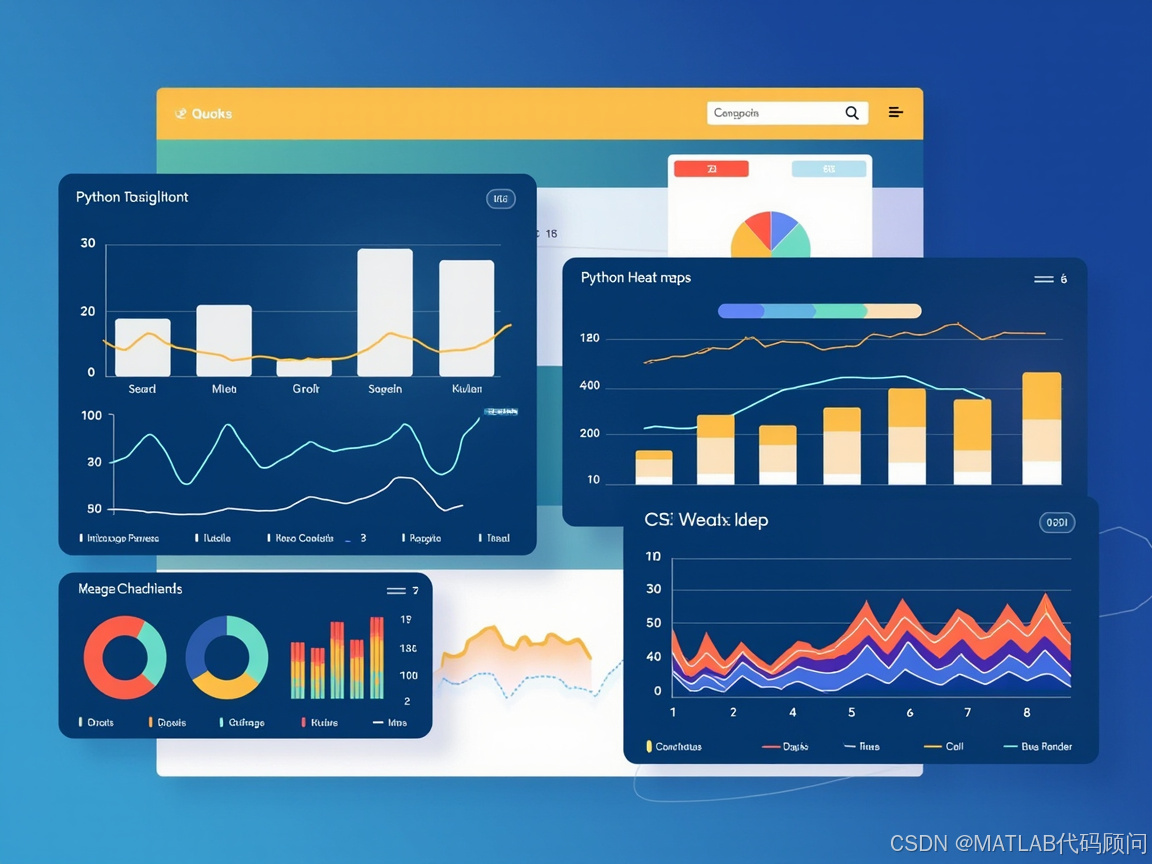
不同图表类型适用场景:
| 图表类型 | 适用场景 | 特点 |
|---|---|---|
| 折线图 | 趋势变化 | 清晰展示时间序列变化 |
| 柱状图 | 对比分析 | 直观比较不同类别数值 |
| 散点图 | 相关分析 | 发现变量间关系 |
| 饼图 | 占比展示 | 显示部分与整体比例 |
| 热力图 | 矩阵数据 | 展示二维数据的数值分布 |
七、总结
Matplotlib是Python可视化的基础库,通过合理选择图表类型和精心设计样式,可以制作出专业的数据分析报告。
标签: Python | Matplotlib | Seaborn | 数据可视化 | 图表