(OC)UI学习------网易云仿写
文章目录
对于网易云的仿写主要是对首页与我的页面及设置界面仿写,其中较为新颖的就是黑夜模式的实现
首页
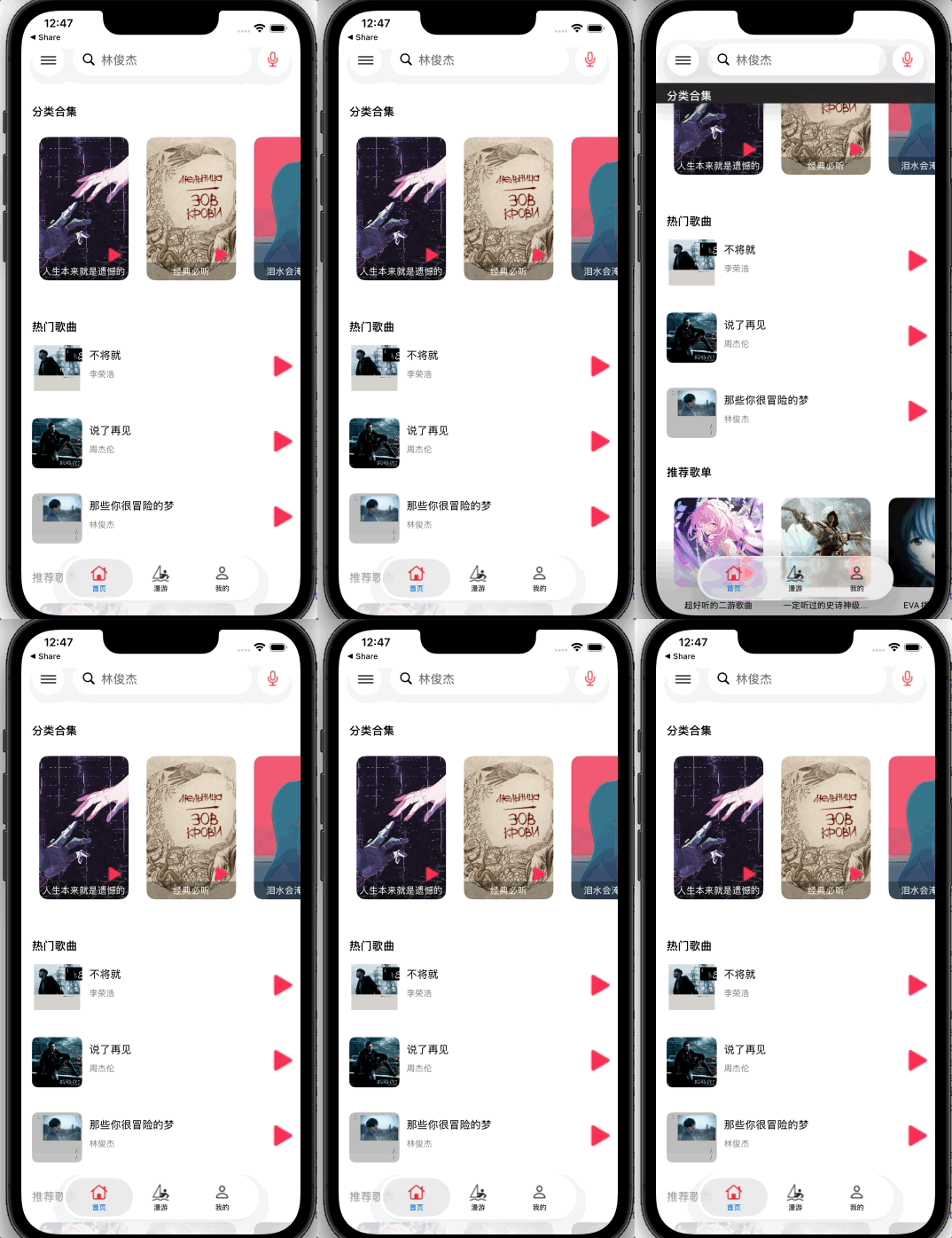
首页效果如下:
导航栏
对于搜索框有UISearchBar控件,将其加在导航控制栏的中间即可,左右是常规的导航控制栏的左右按钮
代码如下:
objc
		self.searchBar = [[UISearchBar alloc] init];
    self.searchBar.placeholder = @"林俊杰";
    self.searchBar.barStyle = UIBarStyleDefault;
    self.searchBar.frame = searchc.bounds;
    self.searchBar.delegate = self;
    [self.searchBar setReturnKeyType:UIReturnKeySearch];
    [searchc addSubview:self.searchBar];
    self.navigationItem.titleView = searchc;
    //左三
    UIBarButtonItem* tan = [[UIBarButtonItem alloc] initWithImage:[UIImage systemImageNamed:@"line.horizontal.3"] style:UIBarButtonItemStylePlain target:self action:@selector(tanchu)];
    self.navigationItem.leftBarButtonItem = tan;
    //右听歌识曲
    UIButton *rightBtn = [UIButton buttonWithType:UIButtonTypeCustom];
    rightBtn.frame = CGRectMake(0, 0, 35, 35);
    UIImage* sing = [UIImage imageNamed:@"sing"];
   [rightBtn setImage:sing forState:UIControlStateNormal];
	 UIBarButtonItem *rightItem = [[UIBarButtonItem alloc] initWithCustomView:rightBtn];
    self.navigationItem.rightBarButtonItem = rightItem;
主视图
下方三个部分是在一个自定义tableView,每一个cell一个部分
而在下方三个自定义cell中,分类合集与推荐歌曲的实现逻辑一样,是在一个scrollView中添加图片
对于热门歌曲部分则是自定义collectionView
自定义collection
objc
- (instancetype)initWithFrame:(CGRect)frame {
    self = [super initWithFrame:frame];
    if (self) {
        [self setupUI];
        self.contentView.backgroundColor = [UIColor systemBackgroundColor];
    }
    return self;
}
- (void)setupUI {
    // 封面图
    _coverImg = [[UIImageView alloc] init];
    _coverImg.layer.cornerRadius = 8;
    _coverImg.clipsToBounds = YES;
    _coverImg.backgroundColor = [UIColor lightGrayColor];
    [self.contentView addSubview:_coverImg];

    // 标题
    _titleLab = [[UILabel alloc] init];
    _titleLab.font = [UIFont systemFontOfSize:15];
    _titleLab.textColor = [UIColor labelColor];

    [self.contentView addSubview:_titleLab];

    // 副标题
    _subLab = [[UILabel alloc] init];
    _subLab.font = [UIFont systemFontOfSize:12];
    _subLab.textColor = [UIColor grayColor];
    [self.contentView addSubview:_subLab];

    //按钮
    _btn = [UIButton buttonWithType:(UIButtonTypeCustom)];
    [_btn setImage:[UIImage imageNamed:@"play"] forState:(UIControlStateNormal)];
    [_btn addTarget:self action:@selector(change:) forControlEvents:(UIControlEventTouchDown)];
    [self.contentView addSubview:_btn];
    _btn.imageView.contentMode = UIViewContentModeScaleAspectFit;
    _btn.contentHorizontalAlignment = UIControlContentHorizontalAlignmentFill;
    _btn.contentVerticalAlignment = UIControlContentVerticalAlignmentFill;
    [_btn mas_makeConstraints:^(MASConstraintMaker *make) {
        make.right.equalTo(self.contentView).offset(-10);
        make.centerY.equalTo(self.contentView);
        make.width.equalTo(@30);
        make.height.equalTo(@30);
    }];
}
添加自定义collection的自定义cell
objc
- (instancetype)initWithStyle:(UITableViewCellStyle)style reuseIdentifier:(NSString *)reuseIdentifier {
    self = [super initWithStyle:style reuseIdentifier:reuseIdentifier];
    if (self) {
        self.selectionStyle = UITableViewCellSelectionStyleNone;
        [self setupUI];
        self.contentView.backgroundColor = [UIColor systemBackgroundColor];
    }
    return self;
}
- (void)setupUI {
    UICollectionViewFlowLayout *layout = [[UICollectionViewFlowLayout alloc] init];
    layout.scrollDirection = UICollectionViewScrollDirectionHorizontal;
    layout.minimumLineSpacing = 10;
    layout.minimumInteritemSpacing = 0;

    self.collectionView = [[UICollectionView alloc] initWithFrame:CGRectZero collectionViewLayout:layout];
    self.collectionView.backgroundColor = [UIColor systemBackgroundColor];
    self.collectionView.dataSource = self;
    self.collectionView.delegate = self;
    self.collectionView.pagingEnabled = YES;
    self.collectionView.showsHorizontalScrollIndicator = NO;
    [self.collectionView registerClass:[PageItemCell class] forCellWithReuseIdentifier:@"PageItemCell"];

    [self.contentView addSubview:self.collectionView];
}

- (void)setPageDataArray:(NSArray<NSDictionary *> *)pageDataArray {
    _pageDataArray = pageDataArray;

    // 拆分成每页最多3条数据
    NSMutableArray *pages = [NSMutableArray array];
    NSInteger pageSize = 3;
    for (NSInteger i = 0; i < pageDataArray.count; i += pageSize) {
        NSRange range = NSMakeRange(i, MIN(pageSize, pageDataArray.count - i));
        NSArray *subArray = [pageDataArray subarrayWithRange:range];
        [pages addObject:subArray];
    }
    self.pages = pages;

    [self.collectionView reloadData];
}
- (NSInteger)numberOfSectionsInCollectionView:(UICollectionView *)collectionView {
    return self.pages.count; // 每页一个 section
}

- (NSInteger)collectionView:(UICollectionView *)collectionView numberOfItemsInSection:(NSInteger)section {
    return 3; // 每页行数
}

- (__kindof UICollectionViewCell *)collectionView:(UICollectionView *)collectionView cellForItemAtIndexPath:(NSIndexPath *)indexPath {
    PageItemCell *cell = [collectionView dequeueReusableCellWithReuseIdentifier:@"PageItemCell" forIndexPath:indexPath];
    NSDictionary *data = self.pages[indexPath.section][indexPath.item];
    cell.coverImg.image = [UIImage imageNamed:data[@"image"]];
    cell.titleLab.text = data[@"title"];
    cell.subLab.text = data[@"subTitle"];
    return cell;
}


- (CGSize)collectionView:(UICollectionView *)collectionView layout:(UICollectionViewLayout*)collectionViewLayout sizeForItemAtIndexPath:(NSIndexPath *)indexPath {
    CGFloat w = collectionView.bounds.size.width; // 一行铺满
    CGFloat h = 90; // 每行高度
    return CGSizeMake(w, h);
}

- (CGFloat)collectionView:(UICollectionView *)collectionView layout:(UICollectionViewLayout*)collectionViewLayout minimumLineSpacingForSectionAtIndex:(NSInteger)section {
    return 10; // 行间距
}

- (CGFloat)collectionView:(UICollectionView *)collectionView layout:(UICollectionViewLayout*)collectionViewLayout minimumInteritemSpacingForSectionAtIndex:(NSInteger)section {
    return 0;
}
另外两个自定义cell较为常规不过多赘述
Setting页面
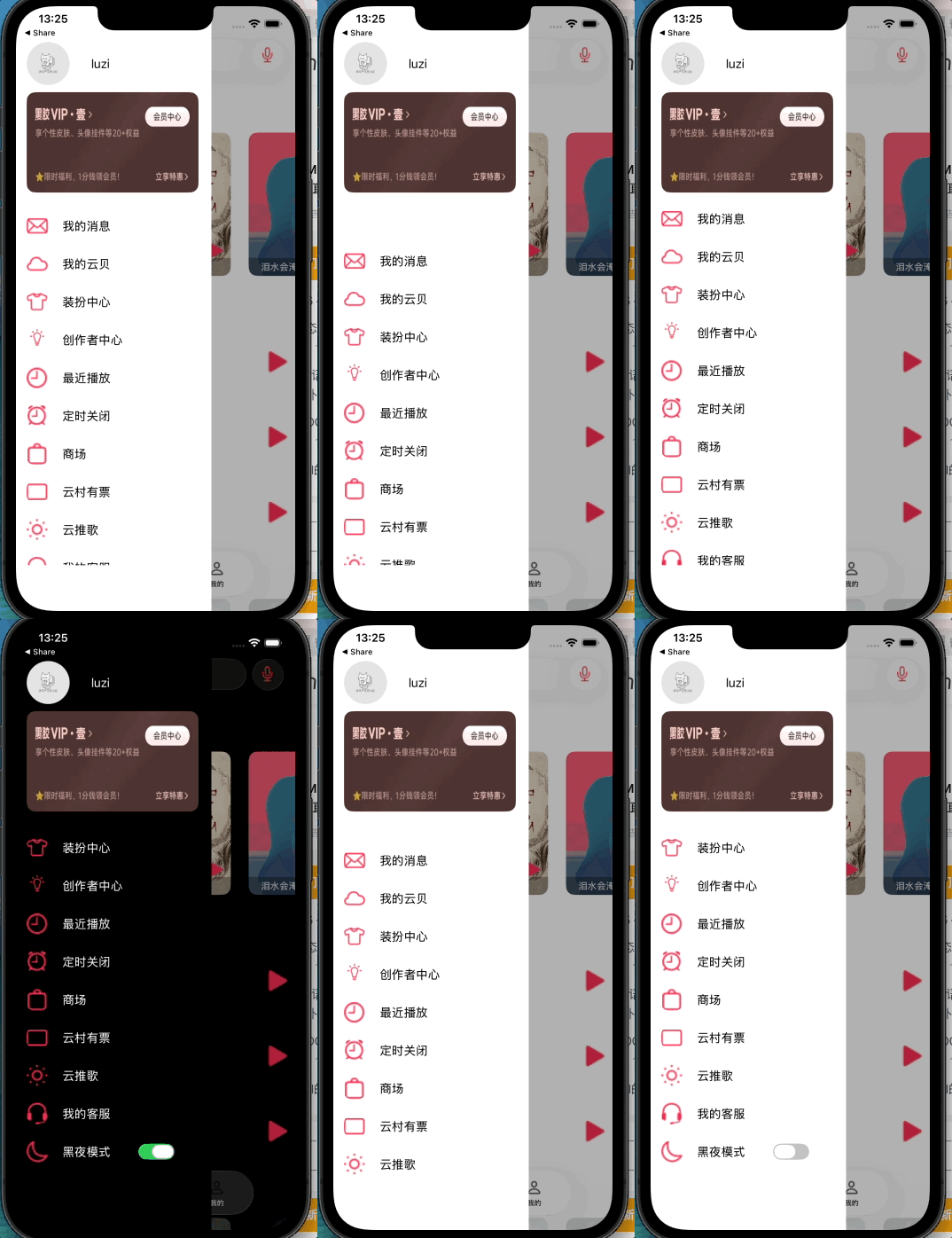
对于设置页面的弹出我使用的是抽屉视图
抽屉视图
一个页面先弹出,为透明灰暗色,用以实现遮罩视觉效果;
另一个则是主界面用以承载诸多控件视图,要设置其弹出动画与遮盖大小,实现侧边栏弹出效果
弹出
objc
- (void)show {
    UIWindow *topWin = [UIApplication sharedApplication].keyWindow;

    // 半透明背景
    self.bgMask = [[UIView alloc] initWithFrame:topWin.bounds];
    self.bgMask.backgroundColor = [[UIColor blackColor] colorWithAlphaComponent:0.3];
    [topWin addSubview:self.bgMask];

    // 给 window 加点击
    UITapGestureRecognizer *tap = [[UITapGestureRecognizer alloc] initWithTarget:self action:@selector(hide)];
    [self.bgMask addGestureRecognizer:tap];

    CGFloat w = topWin.bounds.size.width * 0.7;//这里设置宽带
    CGFloat h = topWin.bounds.size.height;

    self.view.frame = CGRectMake(-w, 0, w, h);
    self.view.backgroundColor = [UIColor systemBackgroundColor];
    [topWin addSubview:self.view];

    [topWin.rootViewController addChildViewController:self];
    [self didMoveToParentViewController:topWin.rootViewController];

    // 滑入动画
    [UIView animateWithDuration:0.3 animations:^{
        self.view.frame = CGRectMake(0, 0, w, h);
    }];
}
收起
objc
- (void)hide {
    CGFloat w = self.view.frame.size.width;

    [UIView animateWithDuration:0.3 animations:^{
        self.view.frame = CGRectMake(-w, 0, w, self.view.frame.size.height);
        self.bgMask.alpha = 0;
    } completion:^(BOOL finished) {
        [self.view removeFromSuperview];
        [self.bgMask removeFromSuperview];

        [self removeFromParentViewController]; // 移除自己
    }];
}
主视图
主视图则是头部一个图片与UILabel展示个人信息,下方跟一个UIImageView会员,设置选项则是自定义cell的UITableView,不同的是最下方黑夜模式选项右侧多一个UISwitch控件
普通自定义cell
objc
-(instancetype)initWithStyle:(UITableViewCellStyle)style reuseIdentifier:(NSString *)reuseIdentifier
{
    self = [super initWithStyle:style reuseIdentifier:reuseIdentifier];
    if(self){
        [self setupUI];
        self.contentView.backgroundColor = [UIColor systemBackgroundColor];
    }
    return self;
}

-(void)setupUI
{
    //图片
    _leftImg = [[UIImageView alloc] init];
    [self.contentView addSubview:_leftImg];
    [_leftImg mas_makeConstraints:^(MASConstraintMaker *make) {
        make.centerY.equalTo(self.contentView);
        make.left.equalTo(@15);
        make.width.height.equalTo(@30);
    }];
    _leftImg.layer.cornerRadius = 10;
    _leftImg.contentMode = UIViewContentModeScaleAspectFit;
    _leftImg.clipsToBounds = YES;

    //文字
    _label = [[UILabel alloc]init];
    [self.contentView addSubview:_label];
    [_label mas_makeConstraints:^(MASConstraintMaker *make) {
        make.centerY.equalTo(self.contentView);
        make.left.equalTo(_leftImg).offset(50);
    }];
    _label.textColor = [UIColor labelColor];

}
黑夜模式的自定义cell只需在右侧添加switch控件即可
实现
objc
//viewDidLoad
_set = [[UITableView alloc]initWithFrame:CGRectMake(0, 280, 240, 500) style:(UITableViewStylePlain)];
    _set.delegate = self;
    _set.dataSource = self;
    _set.backgroundColor = [UIColor systemBackgroundColor];
    _arrI = @[@"letter",@"cloud",@"cloth",@"lamp",@"timer",@"alarm",@"bag",@"ticket",@"fire",@"buds"];
    _arrL = @[@"我的消息",@"我的云贝",@"装扮中心",@"创作者中心",@"最近播放",@"定时关闭",@"商场",@"云村有票",@"云推歌",@"我的客服"];
    _set.separatorStyle = UITableViewCellSeparatorStyleNone;
    [_set registerClass:[SetCell class] forCellReuseIdentifier:@"setcell"];
    [_set registerClass:[black class] forCellReuseIdentifier:@"blackcell"];
    _set.showsVerticalScrollIndicator = NO;
    [self.view addSubview:_set];
- (NSInteger)numberOfSectionsInTableView:(UITableView *)tableView
{
    return 1;
}

- (NSInteger)tableView:(UITableView *)tableView numberOfRowsInSection:(NSInteger)section
{
    return _arrI.count + 1;
}

- (UITableViewCell *)tableView:(UITableView *)tableView cellForRowAtIndexPath:(NSIndexPath *)indexPath
{
    if (indexPath.row < _arrI.count) {
            NSString* str = @"setcell";
            SetCell* cell = [tableView dequeueReusableCellWithIdentifier:str];
            if(cell == nil){
                cell = [[SetCell alloc]initWithStyle:(UITableViewCellStyleDefault) reuseIdentifier:str];
            }
            cell.leftImg.image = [UIImage imageNamed:_arrI[indexPath.row]];
            cell.label.text = _arrL[indexPath.row];
            return cell;
        }
    else if (indexPath.row == 10) {
        NSString* str = @"blackcell";
        black* cell = [tableView dequeueReusableCellWithIdentifier:str];
        if(cell == nil){
            cell = [[black alloc]initWithStyle:(UITableViewCellStyleDefault) reuseIdentifier:str];
        }
        cell.selectionStyle = UITableViewCellSelectionStyleNone;
        cell.leftImg.image = [UIImage imageNamed:@"black"];
        cell.label.text = @"黑夜模式";
        cell.swV.userInteractionEnabled = YES;
        cell.swV.transform = CGAffineTransformMakeScale(0.8, 0.8);

        BOOL isDarkModeOn = [[NSUserDefaults standardUserDefaults] boolForKey:@"DarkModeEnabled"];
        cell.swV.on = isDarkModeOn;
        cell.switchValueChanged = ^(BOOL isOn) {
            [[NSUserDefaults standardUserDefaults] setBool:isOn forKey:@"DarkModeEnabled"];
            [[NSUserDefaults standardUserDefaults] synchronize];
            if (isOn) {
                self.view.window.overrideUserInterfaceStyle = UIUserInterfaceStyleDark;
            } else {
                self.view.window.overrideUserInterfaceStyle = UIUserInterfaceStyleLight;
            }
        };

        return cell;
        }
    return nil;
}

- (void)tableView:(UITableView *)tableView didSelectRowAtIndexPath:(NSIndexPath *)indexPath
{
    if(indexPath.row < _arrI.count){
        [_set deselectRowAtIndexPath:indexPath animated:YES];
    }
}
漫游
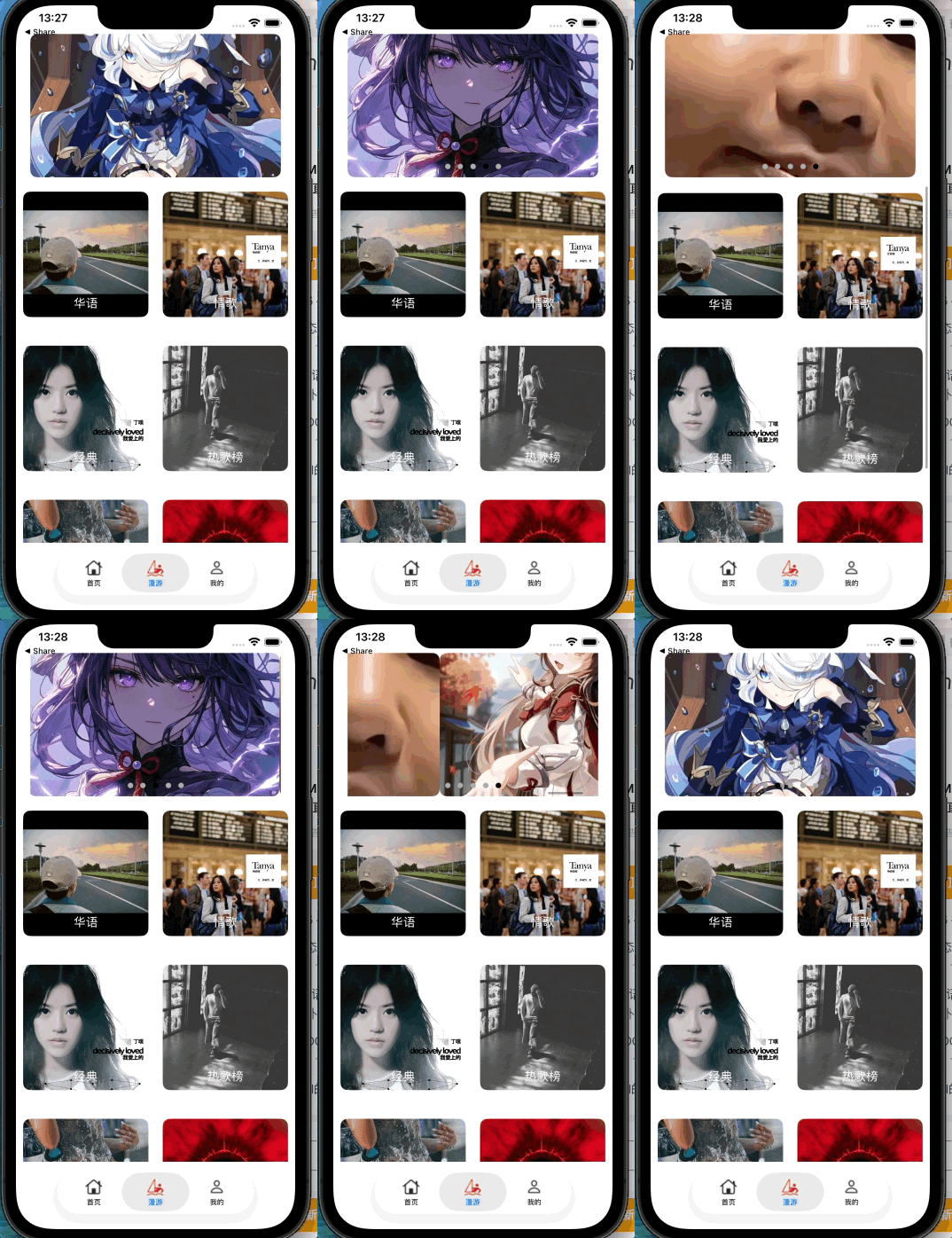
漫游界面就比较简单了,我是用以练习无限轮播图与collectionView
objc
UICollectionViewFlowLayout* layout = [[UICollectionViewFlowLayout alloc]init];
    layout.itemSize = CGSizeMake(170, 170);
    layout.minimumLineSpacing = 40;
    layout.minimumInteritemSpacing = 20;
    layout.sectionInset = UIEdgeInsetsMake(10, 10, 10, 10);
    layout.scrollDirection = UICollectionViewScrollDirectionVertical;

    UICollectionView* collectionView = [[UICollectionView alloc]initWithFrame:CGRectZero collectionViewLayout:layout];
    [self.view addSubview:collectionView];

    [collectionView registerClass:[cover class] forCellWithReuseIdentifier:@"covercell"];
    collectionView.delegate = self;
    collectionView.dataSource = self;

    _arrI = @[@"ch",@"lo",@"ji",@"hot",@"we",@"say"];
    _arrL = @[@"华语",@"情歌",@"经典",@"热歌榜",@"欧美",@"说唱"];

    [collectionView mas_makeConstraints:^(MASConstraintMaker *make) {
        make.top.equalTo(sv.mas_bottom).offset(10);
        make.centerX.equalTo(self.view);
        make.width.mas_equalTo(self.view);
        make.height.equalTo(@500);
    }];
- (NSInteger)numberOfSectionsInCollectionView:(UICollectionView *)collectionView
{
    return 1;
}

- (NSInteger)collectionView:(UICollectionView *)collectionView numberOfItemsInSection:(NSInteger)section
{
    return 6;
}

- (__kindof UICollectionViewCell *)collectionView:(UICollectionView *)collectionView cellForItemAtIndexPath:(NSIndexPath *)indexPath
{
    cover* cell = [collectionView dequeueReusableCellWithReuseIdentifier:@"covercell" forIndexPath:indexPath];
    cell.img.image = [UIImage imageNamed:_arrI[indexPath.row]];
    cell.lab.text = _arrL[indexPath.row];
    return cell;
}

- (CGSize)collectionView:(UICollectionView *)collectionView layout:(UICollectionViewLayout *)collectionViewLayout sizeForItemAtIndexPath:(NSIndexPath *)indexPath {

    // 整个屏幕宽度
    CGFloat screenWidth = self.view.bounds.size.width;

    // 左右间距 + 中间间距
    CGFloat paddingLeft = 15;    // 左边距
    CGFloat paddingRight = 15;   // 右边距
    CGFloat space = 10;          // 两个 cell 中间的间距

    // 计算每个 cell 的宽度
    CGFloat width = (screenWidth - paddingLeft - paddingRight - space) / 2.0;

    // 高度
    CGFloat height = width;

    return CGSizeMake(width, height);
}
我的
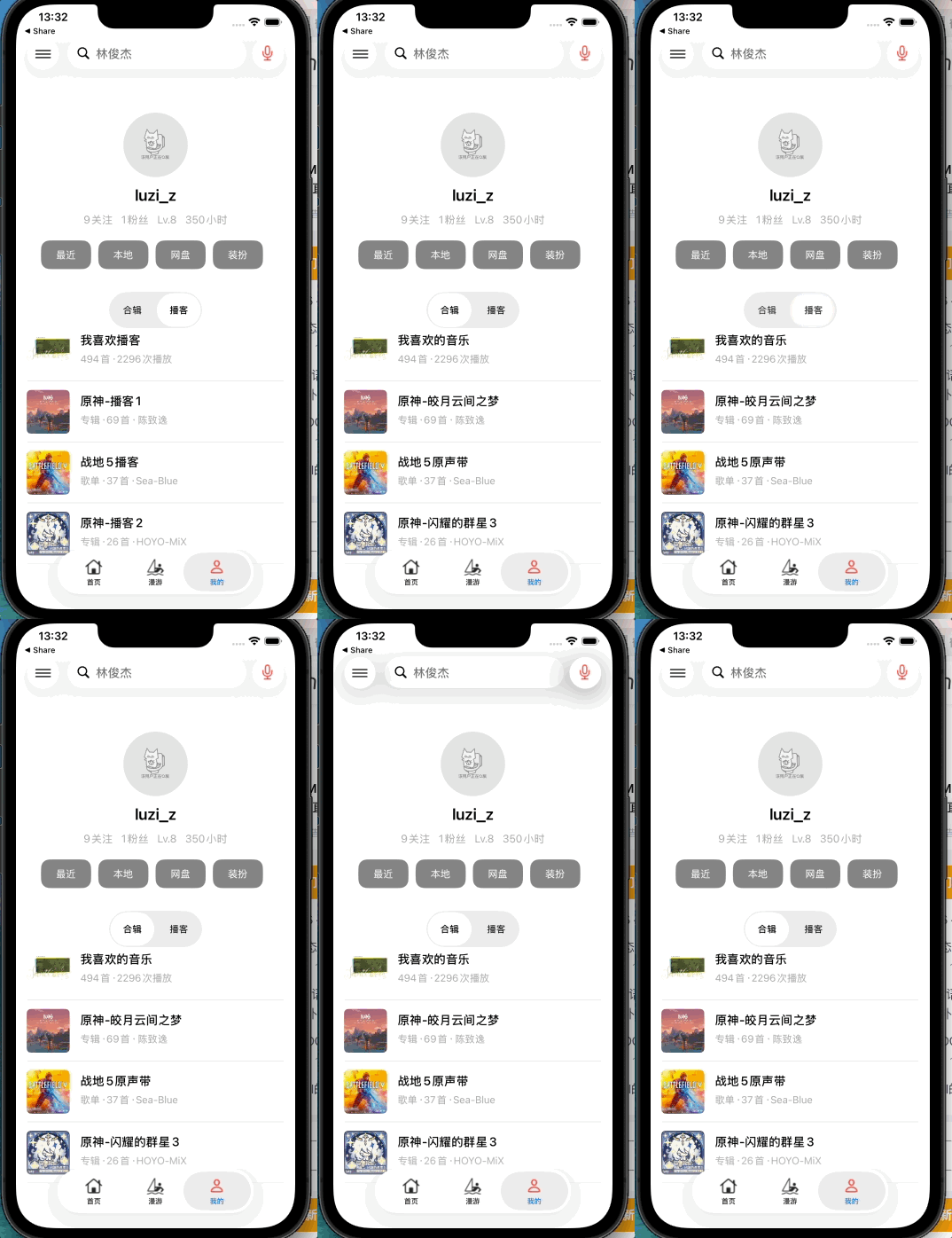
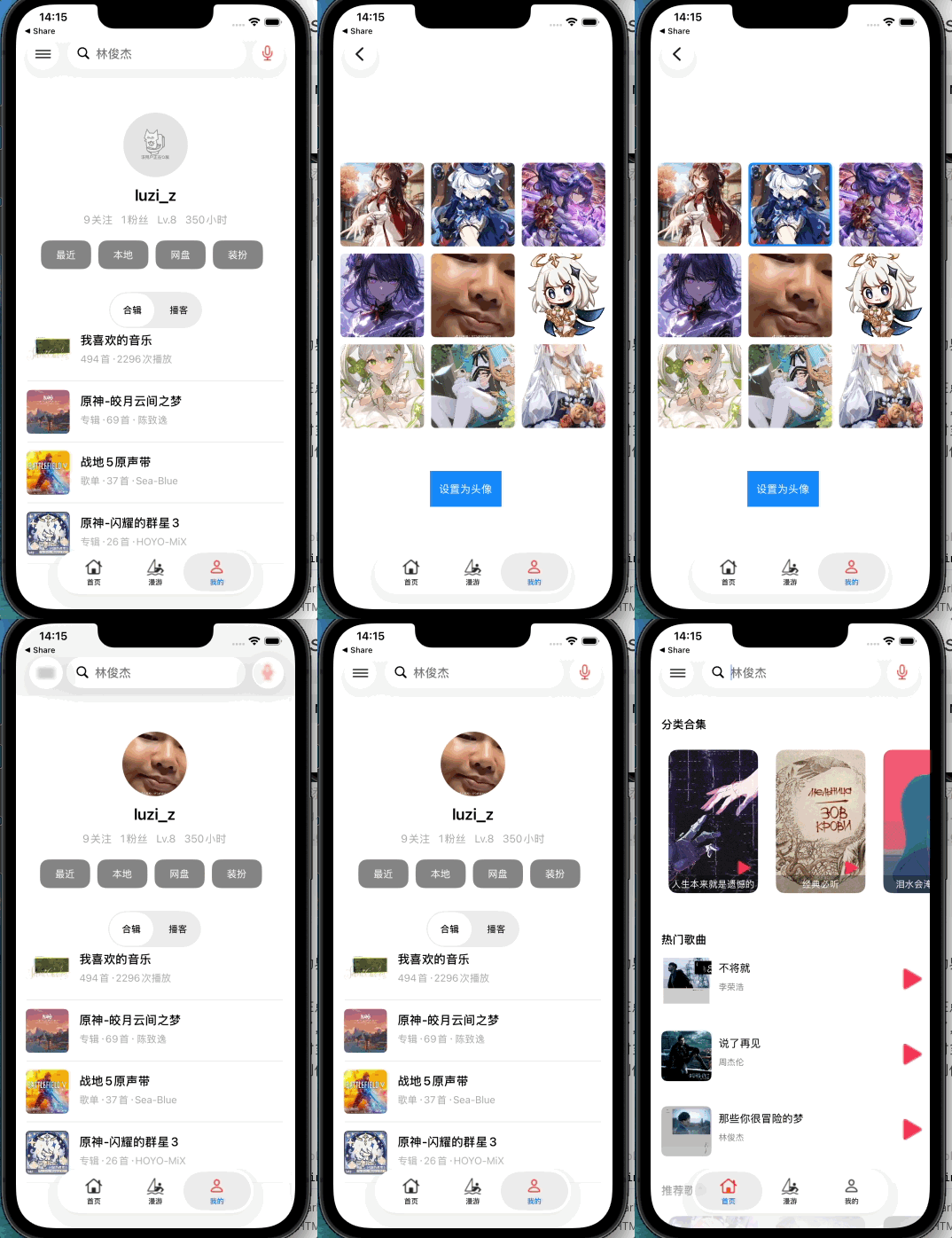
我的界面也较为常规,如上图,不多赘述;
但在点击头像后进入头像更改界面,这时候就涉及到多界面传值了,有头像出现的除了我的界面外还有setting界面,这时为一对多传值我们便使用通知传值,我这里多创建了一个单例参与到传值中
objc
+ (instancetype)sharedManager {
    static AvatarManager *instance;
    static dispatch_once_t onceToken;
    dispatch_once(&onceToken, ^{
        instance = [[self alloc] init];
    });
    return instance;
}

//setting页面
[[NSNotificationCenter defaultCenter] addObserver:self selector:@selector(updateAvatar) name:@"AvatarChanged" object:nil];

    UIImageView* myI = [[UIImageView alloc] initWithImage:[AvatarManager sharedManager].avatarImage ?:[UIImage imageNamed:@"king"]];

- (void)updateAvatar {
    UIImageView *avatarIV = [self.view viewWithTag:888];
    avatarIV.image = [AvatarManager sharedManager].avatarImage;
}
//我的页面
		_Myimg.image = [AvatarManager sharedManager].avatarImage ?: [UIImage imageNamed:@"king"];
		[[NSNotificationCenter defaultCenter] addObserver:self selector:@selector(updateAvatar) name:@"AvatarChanged" object:nil];
- (void)updateAvatar {
    _Myimg.image = [AvatarManager sharedManager].avatarImage;
}
黑夜模式
黑夜模式的实现要将所有的backgroundcolor更改,且判断是否是黑夜模式亦要看switch的状态,但在上文我并未详细说明switch,此时若按常规来说switch按钮的状态是不会保存的,在每一次关闭弹出setting界面其状态是会重置的,此时我们用到NSUserDefaults来存储状态
objc
//setting.m
BOOL isDarkModeOn = [[NSUserDefaults standardUserDefaults]boolForKey:@"DarkModeEnabled"];
cell.swV.on = isDarkModeOn;
        cell.switchValueChanged = ^(BOOL isOn) {
            [[NSUserDefaults standardUserDefaults] setBool:isOn forKey:@"DarkModeEnabled"];
            [[NSUserDefaults standardUserDefaults] synchronize];
            if (isOn) {
              //此处实现黑夜模式
                self.view.window.overrideUserInterfaceStyle = UIUserInterfaceStyleDark;
            } else {
              //白天模式
                self.view.window.overrideUserInterfaceStyle = UIUserInterfaceStyleLight;
            }
        };
//black.h
@property (nonatomic, copy) void (^switchValueChanged)(BOOL isOn);
//black.m
[_swV addTarget:self action:@selector(swChanged:) forControlEvents:UIControlEventValueChanged];

- (void)swChanged:(UISwitch *)sender {
    if (self.switchValueChanged) {
        self.switchValueChanged(sender.isOn);
    }
}
若要使眼色更改还需将所有的颜色改变
objc
self.view.backgroundColor = [UIColor systemBackgroundColor];
_label.textColor = [UIColor labelColor];
简言之所有backgroundColor设置为systemBackgroundColor,所有textColor设置为labelColor