一、应用概述
买菜计算器小应用是一款基于HarmonyOS ArkUI框架开发的基础四则运算计算器工具。在日常生活中,无论是买菜算账、计算折扣、还是简单的加减乘除运算,都需要一个便捷的计算工具。虽然手机自带计算器功能强大,但往往界面复杂、操作繁琐。本应用旨在提供一个简洁、直观、易用的计算器解决方案,让用户能够快速完成日常计算需求。
1.1 应用定位
买菜计算器定位于"实用主义"工具应用,核心设计理念是"简单高效"。应用专注于最基础的四则运算功能,摒弃了复杂的科学计算、历史记录等功能,让用户可以在最短时间内完成计算操作。这种设计理念使得应用界面清晰、操作直观,特别适合老年人群体和追求效率的用户。
1.2 目标用户群体
- 家庭主妇:买菜时快速计算总价、比较价格
- 老年人群体:大字体显示、简单操作、无需学习成本
- 学生群体:快速验证简单计算结果
- 上班族:日常工作中快速计算数据
1.3 核心功能特性
| 功能模块 | 功能描述 | 技术实现 |
|---|---|---|
| 数字显示 | 大屏幕实时显示输入和结果 | Text组件 + @State状态 |
| 数字输入 | 支持0-9和小数点输入 | Grid + Button组件 |
| 四则运算 | 加减乘除四种基本运算 | switch语句处理 |
| 清除功能 | 一键清除所有输入 | 状态重置方法 |
| 等号计算 | 执行运算并显示结果 | calculate方法 |
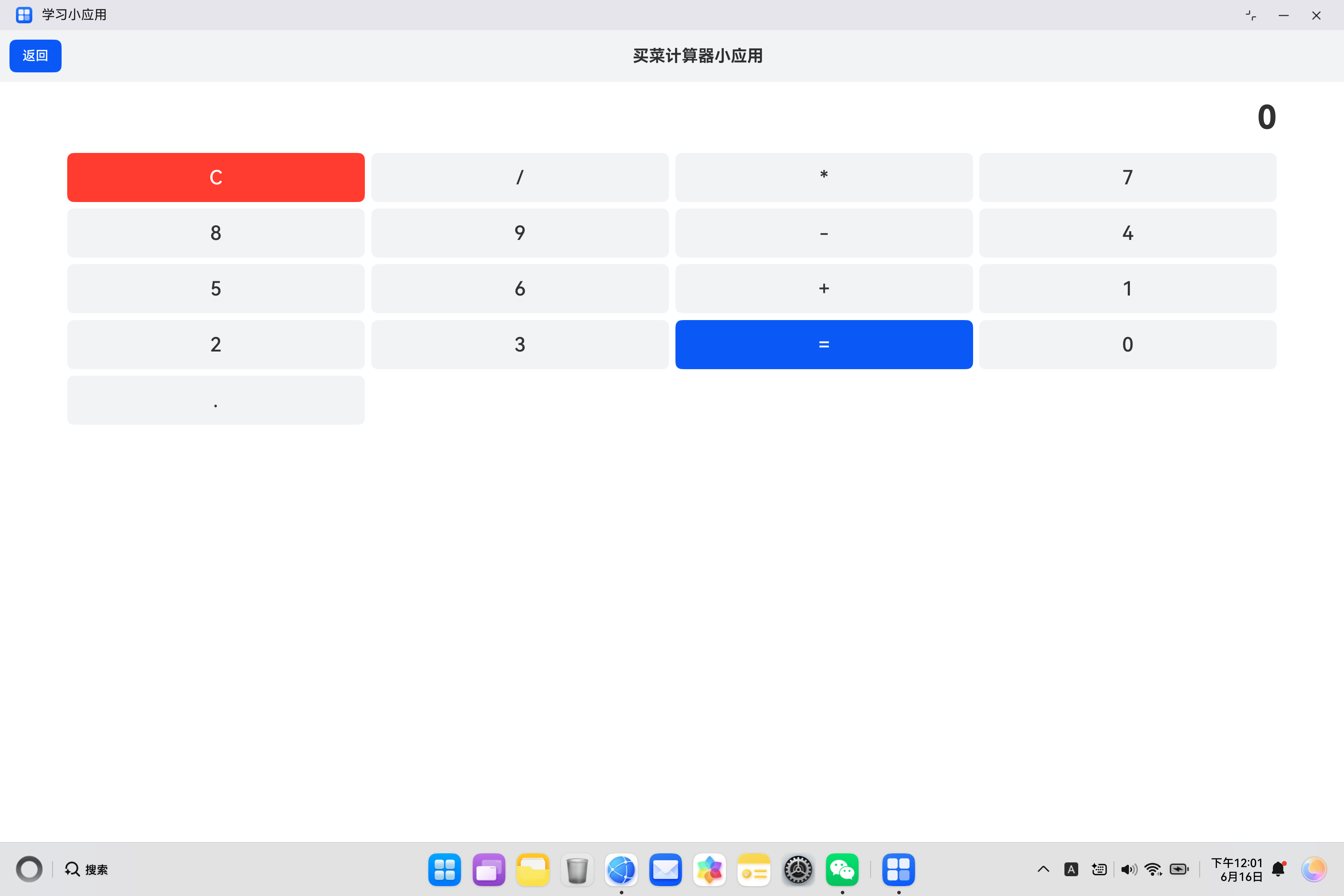
1.4 应用界面预览
应用界面采用经典的计算器布局结构:
- 顶部导航栏:包含返回按钮和应用标题
- 显示区域:大字体显示当前输入和计算结果
- 按钮区域:4x5网格布局的数字和运算符按钮
二、技术架构设计
2.1 整体架构图
┌─────────────────────────────────────────────────────────────┐
│                    CalculatorApp 组件                        │
├─────────────────────────────────────────────────────────────┤
│  ┌─────────────────────────────────────────────────────┐   │
│  │              状态管理层 (@State)                      │   │
│  │  ┌──────────────┐  ┌──────────────┐  ┌────────────┐ │   │
│  │  │  display_1   │  │  firstNum_1  │  │ operator_1 │ │   │
│  │  │  (显示内容)   │  │  (第一操作数) │  │  (运算符)  │ │   │
│  │  └──────────────┘  └──────────────┘  └────────────┘ │   │
│  │  ┌────────────────────────────────────────────────┐ │   │
│  │  │          waitingForSecond_1 (等待第二操作数)    │ │   │
│  │  └────────────────────────────────────────────────┘ │   │
│  └─────────────────────────────────────────────────────┘   │
│                            ↓                                │
│  ┌─────────────────────────────────────────────────────┐   │
│  │              业务逻辑层 (方法)                        │   │
│  │  ┌──────────────┐  ┌──────────────┐  ┌────────────┐ │   │
│  │  │ appendNumber │  │ setOperator  │  │ calculate  │ │   │
│  │  │  (追加数字)   │  │  (设置运算符) │  │  (计算)    │ │   │
│  │  └──────────────┘  └──────────────┘  └────────────┘ │   │
│  │  ┌────────────────────────────────────────────────┐ │   │
│  │  │              clear_1 (清除所有状态)             │ │   │
│  │  └────────────────────────────────────────────────┘ │   │
│  └─────────────────────────────────────────────────────┘   │
│                            ↓                                │
│  ┌─────────────────────────────────────────────────────┐   │
│  │              视图层 (build方法)                       │   │
│  │  ┌───────────────────────────────────────────────┐  │   │
│  │  │  Row (导航栏)                                  │  │   │
│  │  │  ├── Button (返回)                            │  │   │
│  │  │  └── Text (标题)                              │  │   │
│  │  └───────────────────────────────────────────────┘  │   │
│  │  ┌───────────────────────────────────────────────┐  │   │
│  │  │  Column (内容区)                               │  │   │
│  │  │  ├── Text (显示屏)                             │  │   │
│  │  │  └── Grid (按钮网格)                           │  │   │
│  │  │      └── ForEach → GridItem → Button           │  │   │
│  │  └───────────────────────────────────────────────┘  │   │
│  └─────────────────────────────────────────────────────┘   │
└─────────────────────────────────────────────────────────────┘
2.2 数据流设计
本应用采用状态驱动的数据流架构,用户操作触发状态更新,进而驱动视图刷新:
点击数字按钮 → appendNumber方法 → 更新display_1状态 → 显示屏刷新
                                              ↓
点击运算符按钮 → setOperator方法 → 保存firstNum_1和operator_1 → 设置等待标志
                                              ↓
点击等号按钮 → calculate方法 → 执行运算 → 更新display_1 → 显示结果
                                              ↓
点击清除按钮 → clear方法 → 重置所有状态 → 显示屏显示0
2.3 计算器状态机
计算器的核心逻辑可以抽象为一个状态机,包含以下状态:
| 状态 | 说明 | 触发条件 |
|---|---|---|
| 输入第一操作数 | 用户正在输入第一个数字 | 初始状态或清除后 |
| 等待运算符 | 第一操作数已输入,等待选择运算符 | 输入数字后 |
| 输入第二操作数 | 用户正在输入第二个数字 | 选择运算符后 |
| 显示结果 | 计算完成,显示运算结果 | 点击等号后 |
2.4 组件层级关系
typescript
Column (根容器)
├── Row (导航栏容器)
│   ├── Button (返回按钮)
│   └── Text (应用标题)
└── Column (内容容器)
    ├── Text (显示屏组件)
    └── Grid (按钮网格容器)
        └── ForEach (循环渲染)
            └── GridItem (网格项容器)
                └── Button (按钮组件)
2.5 技术选型说明
| 技术点 | 选择方案 | 选择理由 |
|---|---|---|
| 开发语言 | ArkTS | HarmonyOS官方推荐,强类型支持,编译时检查 |
| UI框架 | ArkUI声明式 | 代码简洁,状态驱动,易于维护 |
| 状态管理 | @State装饰器 | 轻量级,适合简单应用,自动触发UI刷新 |
| 按钮布局 | Grid组件 | 规则网格排列,适合计算器按钮布局 |
| 循环渲染 | ForEach组件 | 简洁高效,自动遍历数组生成组件 |
三、核心组件详解
3.1 Grid组件深度解析
Grid组件是本应用的核心布局组件,用于实现计算器按钮的规则网格排列。
3.1.1 Grid基础用法
typescript
Grid() {
  ForEach(['C', '/', '*', '7', '8', '9', '-', '4', '5', '6', '+', '1', '2', '3', '=', '0', '.'], (btn_1: string) => {
    GridItem() {
      Button(btn_1)
        .width('100%')
        .height(60)
        .fontSize(24)
        .backgroundColor(btn_1 === '=' ? '#0A59F7' : btn_1 === 'C' ? '#FF3B30' : '#F1F3F5')
        .fontColor(btn_1 === '=' || btn_1 === 'C' ? '#FFFFFF' : '#333333')
        .onClick(() => {
          // 点击事件处理
        })
    }
  })
}
.columnsTemplate('1fr 1fr 1fr 1fr')  // 4列等宽布局
.columnsGap(8)                        // 列间距8vp
.rowsGap(8)                           // 行间距8vp
.width('90%')
.margin({ top: 20 })
3.1.2 Grid属性详解表
| 属性名 | 类型 | 默认值 | 说明 |
|---|---|---|---|
| columnsTemplate | string | - | 列布局模板,如'1fr 1fr 1fr 1fr'表示4列等宽 |
| rowsTemplate | string | - | 行布局模板,如'1fr 1fr 1fr'表示3行等高 |
| columnsGap | Length | 0 | 列间距 |
| rowsGap | Length | 0 | 行间距 |
| width | Length | - | Grid宽度 |
| height | Length | - | Grid高度 |
| scrollBar | BarState | Off | 滚动条状态 |
| layoutDirection | GridDirection | Row | 布局方向 |
3.1.3 Grid布局模板详解
Grid的columnsTemplate和rowsTemplate属性使用类似CSS Grid的模板语法:
typescript
// 4列等宽布局
.columnsTemplate('1fr 1fr 1fr 1fr')

// 3行等高布局
.rowsTemplate('1fr 1fr 1fr')

// 不等宽布局:第一列占50%,其余各占25%
.columnsTemplate('2fr 1fr 1fr 1fr')

// 固定宽度列:第一列固定100vp,其余自适应
.columnsTemplate('100vp 1fr 1fr 1fr')

// 混合布局:第一列固定,第二列自适应,第三列占2份
.columnsTemplate('100vp auto 2fr')
3.1.4 GridItem组件
GridItem是Grid的子组件,用于包裹每个网格项的内容:
typescript
GridItem() {
  // 网格项内容
  Button('按钮文本')
    .width('100%')
    .height(60)
}
// GridItem可选属性
.rowStart(0)    // 起始行索引
.rowEnd(1)      // 结束行索引
.columnStart(0) // 起始列索引
.columnEnd(1)   // 结束列索引
3.2 Button组件深度解析
Button组件是计算器按钮的核心交互组件,每个按钮承担不同的功能。
3.2.1 按钮样式动态配置
typescript
Button(btn_1)
  .width('100%')
  .height(60)
  .fontSize(24)
  // 根据按钮类型动态设置背景色
  .backgroundColor(btn_1 === '=' ? '#0A59F7' : btn_1 === 'C' ? '#FF3B30' : '#F1F3F5')
  // 根据按钮类型动态设置文字颜色
  .fontColor(btn_1 === '=' || btn_1 === 'C' ? '#FFFFFF' : '#333333')
  .onClick(() => {
    // 根据按钮类型执行不同操作
    if (btn_1 === 'C') {
      this.clear_1();
    } else if (btn_1 === '=') {
      this.calculate_1();
    } else if (['+', '-', '*', '/'].includes(btn_1)) {
      this.setOperator_1(btn_1);
    } else {
      this.appendNumber_1(btn_1);
    }
  })
3.2.2 Button属性详解表
| 属性名 | 类型 | 默认值 | 说明 |
|---|---|---|---|
| label | string | - | 按钮显示文本 |
| width | Length | - | 按钮宽度 |
| height | Length | - | 按钮高度 |
| backgroundColor | ResourceColor | - | 背景颜色 |
| fontColor | ResourceColor | - | 文字颜色 |
| fontSize | Length | - | 字体大小 |
| fontWeight | FontWeight | Normal | 字体粗细 |
| borderRadius | Length | - | 圆角半径 |
| type | ButtonType | Capsule | 按钮类型 |
| stateEffect | boolean | true | 是否开启按压效果 |
3.2.3 按钮类型与功能映射
| 按钮文本 | 按钮类型 | 背景色 | 功能说明 |
|---|---|---|---|
| C | 清除按钮 | #FF3B30 | 清除所有输入,重置计算器 |
| = | 等号按钮 | #0A59F7 | 执行运算,显示结果 |
| + | 加法运算符 | #F1F3F5 | 设置加法运算 |
| - | 减法运算符 | #F1F3F5 | 设置减法运算 |
| * | 乘法运算符 | #F1F3F5 | 设置乘法运算 |
| / | 除法运算符 | #F1F3F5 | 设置除法运算 |
| 0-9 | 数字按钮 | #F1F3F5 | 输入数字 |
| . | 小数点按钮 | #F1F3F5 | 输入小数点 |
3.3 Text组件深度解析
Text组件用于显示计算器的显示屏,实时显示用户输入和计算结果。
3.3.1 显示屏实现
typescript
Text(this.display_1)
  .fontSize(40)                    // 大字体便于阅读
  .fontWeight(FontWeight.Bold)     // 粗体显示
  .width('90%')                    // 占据90%宽度
  .textAlign(TextAlign.RIGHT)      // 右对齐显示
  .margin({ top: 20 })             // 顶部间距
3.3.2 Text属性详解表
| 属性名 | 类型 | 默认值 | 说明 |
|---|---|---|---|
| content | string | - | 显示文本内容 |
| fontSize | Length | - | 字体大小 |
| fontWeight | FontWeight | Normal | 字体粗细 |
| fontColor | ResourceColor | - | 文字颜色 |
| textAlign | TextAlign | Start | 文本对齐方式 |
| maxLines | number | - | 最大行数限制 |
| textOverflow | TextOverflow | Clip | 文本溢出处理 |
3.3.3 TextAlign对齐方式
typescript
// 左对齐
Text('内容')
  .textAlign(TextAlign.Start)

// 居中对齐
Text('内容')
  .textAlign(TextAlign.Center)

// 右对齐(计算器常用)
Text('内容')
  .textAlign(TextAlign.End)
3.4 ForEach组件深度解析
ForEach用于循环渲染Grid中的按钮组件,简化代码结构。
3.4.1 ForEach基础语法
typescript
ForEach(
  ['C', '/', '*', '7', '8', '9', '-', '4', '5', '6', '+', '1', '2', '3', '=', '0', '.'],  // 数据源数组
  (btn_1: string) => {                    // item生成函数
    GridItem() {
      Button(btn_1)
        // 按钮样式和事件
    }
  },
  (btn_1: string, index_1: number) => {   // key生成函数(可选)
    return 'btn_' + index_1;
  }
)
3.4.2 ForEach参数说明
| 参数 | 类型 | 必填 | 说明 |
|---|---|---|---|
| arr | Array | 是 | 数据源数组 |
| itemGenerator | (item: any, index?: number) => void | 是 | 组件生成函数 |
| keyGenerator | (item: any, index?: number) => string | 否 | 键值生成函数 |
四、状态管理详解
4.1 @State装饰器原理
本应用使用四个@State装饰的状态变量来管理计算器的核心状态:
typescript
@State display_1: string = '0';           // 显示屏内容
@State firstNum_1: number = 0;            // 第一个操作数
@State operator_1: string = '';           // 当前运算符
@State waitingForSecond_1: boolean = false; // 是否等待输入第二操作数
4.2 状态变量详解
4.2.1 display_1状态
typescript
// display_1存储当前显示屏的内容
// 初始值为'0',表示显示屏初始显示0
@State display_1: string = '0';

// 状态更新示例
this.display_1 = '123';      // 显示数字123
this.display_1 = '45.67';    // 显示小数45.67
this.display_1 = '0';        // 重置显示
4.2.2 firstNum_1状态
typescript
// firstNum_1存储第一个操作数(运算前的数字)
// 用于在点击运算符后保存当前显示的数字
@State firstNum_1: number = 0;

// 状态更新示例
this.firstNum_1 = parseFloat(this.display_1);  // 将显示内容转为数字保存
4.2.3 operator_1状态
typescript
// operator_1存储当前选择的运算符
// 支持'+', '-', '*', '/'四种运算符
@State operator_1: string = '';

// 状态更新示例
this.operator_1 = '+';  // 加法运算
this.operator_1 = '-';  // 减法运算
this.operator_1 = '*';  // 乘法运算
this.operator_1 = '/';  // 除法运算
this.operator_1 = '';   // 清除运算符
4.2.4 waitingForSecond_1状态
typescript
// waitingForSecond_1标记是否正在等待输入第二个操作数
// true表示已输入运算符,等待输入第二个数字
// false表示正在输入第一个数字或已完成计算
@State waitingForSecond_1: boolean = false;

// 状态更新示例
this.waitingForSecond_1 = true;   // 设置等待状态
this.waitingForSecond_1 = false;  // 清除等待状态
4.3 状态管理流程图
┌───────────────────────────────────────────────────────────────┐
│                      计算器状态流程                             │
├───────────────────────────────────────────────────────────────┤
│                                                                │
│  初始状态                                                       │
│  display_1 = '0'                                               │
│  firstNum_1 = 0                                                │
│  operator_1 = ''                                               │
│  waitingForSecond_1 = false                                    │
│                                                                │
│              ↓                                                 │
│                                                                │
│  输入数字(appendNumber)                                        │
│  display_1 = '123'                                             │
│  waitingForSecond_1 = false                                    │
│                                                                │
│              ↓                                                 │
│                                                                │
│  选择运算符(setOperator)                                        │
│  firstNum_1 = 123                                              │
│  operator_1 = '+'                                              │
│  waitingForSecond_1 = true                                     │
│                                                                │
│              ↓                                                 │
│                                                                │
│  输入第二数字(appendNumber)                                     │
│  display_1 = '456'                                             │
│  waitingForSecond_1 = false                                    │
│                                                                │
│              ↓                                                 │
│                                                                │
│  点击等号(calculate)                                           │
│  result = firstNum_1 + parseFloat(display_1)                   │
│  display_1 = '579'                                             │
│  operator_1 = ''                                               │
│                                                                │
└───────────────────────────────────────────────────────────────┘
4.4 状态更新最佳实践
typescript
// ✅ 推荐:使用方法封装状态更新逻辑
appendNumber_1(num_1: string) {
  if (this.waitingForSecond_1) {
    this.display_1 = num_1;
    this.waitingForSecond_1 = false;
  } else {
    this.display_1 = this.display_1 === '0' ? num_1 : this.display_1 + num_1;
  }
}

// ✅ 推荐:状态更新后立即清除相关标志
calculate_1() {
  // ...计算逻辑
  this.display_1 = String(result_1);
  this.operator_1 = '';  // 清除运算符
}

// ✅ 推荐:重置方法统一处理所有状态
clear_1() {
  this.display_1 = '0';
  this.firstNum_1 = 0;
  this.operator_1 = '';
  this.waitingForSecond_1 = false;
}
五、业务逻辑实现详解
5.1 数字追加方法
appendNumber_1方法是处理数字输入的核心方法,负责将用户点击的数字追加到显示屏。
typescript
appendNumber_1(num_1: string) {
  if (this.waitingForSecond_1) {
    // 如果正在等待第二操作数,直接替换显示内容
    this.display_1 = num_1;
    this.waitingForSecond_1 = false;
  } else {
    // 如果正在输入第一操作数或继续输入第二操作数
    if (this.display_1 === '0') {
      // 如果当前显示0,直接替换
      this.display_1 = num_1;
    } else {
      // 否则追加数字
      this.display_1 = this.display_1 + num_1;
    }
  }
}
5.1.1 方法逻辑流程图
用户点击数字按钮
        ↓
判断waitingForSecond_1状态
        ↓
┌───────┴───────┐
│               │
│ true          │ false
│               │
↓               ↓
直接替换显示    判断display_1是否为'0'
                ↓
        ┌───────┴───────┐
        │               │
        │ 是'0'         │ 不是'0'
        │               │
        ↓               ↓
        直接替换        追加数字
        │               │
        └───────┬───────┘
                ↓
        更新display_1状态
5.1.2 方法调用示例
typescript
// 初始状态:display_1 = '0'
this.appendNumber_1('7');  // display_1 = '7'
this.appendNumber_1('8');  // display_1 = '78'
this.appendNumber_1('9');  // display_1 = '789'

// 选择运算符后:waitingForSecond_1 = true
this.appendNumber_1('4');  // display_1 = '4'(替换)
this.appendNumber_1('5');  // display_1 = '45'(追加)
5.2 运算符设置方法
setOperator_1方法负责保存第一个操作数和运算符,并设置等待第二操作数的标志。
typescript
setOperator_1(op_1: string) {
  // 将当前显示内容转换为数字并保存为第一操作数
  this.firstNum_1 = parseFloat(this.display_1);

  // 保存运算符
  this.operator_1 = op_1;

  // 设置等待第二操作数标志
  this.waitingForSecond_1 = true;
}
5.2.1 方法逻辑说明
| 步骤 | 操作 | 说明 |
|---|---|---|
| 1 | parseFloat转换 | 将字符串显示内容转为数字 |
| 2 | 保存firstNum_1 | 存储第一操作数供后续计算使用 |
| 3 | 保存operator_1 | 存储运算符供后续计算使用 |
| 4 | 设置等待标志 | 标记等待输入第二操作数 |
5.2.2 方法调用示例
typescript
// 输入第一个数字
this.appendNumber_1('1');
this.appendNumber_1('2');
this.appendNumber_1('3');  // display_1 = '123'

// 选择加法运算符
this.setOperator_1('+');
// firstNum_1 = 123, operator_1 = '+', waitingForSecond_1 = true
5.3 计算方法
calculate_1方法是执行运算的核心方法,根据运算符执行相应的计算并显示结果。
typescript
calculate_1() {
  // 获取第二操作数
  let secondNum_1: number = parseFloat(this.display_1);

  // 初始化结果变量
  let result_1: number = 0;

  // 根据运算符执行相应计算
  switch (this.operator_1) {
    case '+':
      result_1 = this.firstNum_1 + secondNum_1;
      break;
    case '-':
      result_1 = this.firstNum_1 - secondNum_1;
      break;
    case '*':
      result_1 = this.firstNum_1 * secondNum_1;
      break;
    case '/':
      result_1 = this.firstNum_1 / secondNum_1;
      break;
  }

  // 将结果转换为字符串并显示
  this.display_1 = String(result_1);

  // 清除运算符
  this.operator_1 = '';
}
5.3.1 switch语句详解
typescript
// switch语句用于多分支条件判断
switch (this.operator_1) {
  case '+':
    // 加法运算
    result_1 = this.firstNum_1 + secondNum_1;
    break;  // 必须使用break跳出switch

  case '-':
    // 减法运算
    result_1 = this.firstNum_1 - secondNum_1;
    break;

  case '*':
    // 乘法运算
    result_1 = this.firstNum_1 * secondNum_1;
    break;

  case '/':
    // 除法运算
    result_1 = this.firstNum_1 / secondNum_1;
    break;

  // default分支可选,处理未匹配的情况
  default:
    result_1 = 0;
    break;
}
5.3.2 计算示例
typescript
// 示例:计算 123 + 456
// firstNum_1 = 123, operator_1 = '+', display_1 = '456'
this.calculate_1();
// secondNum_1 = 456
// result_1 = 123 + 456 = 579
// display_1 = '579', operator_1 = ''

// 示例:计算 100 - 30
// firstNum_1 = 100, operator_1 = '-', display_1 = '30'
this.calculate_1();
// result_1 = 100 - 30 = 70
// display_1 = '70'

// 示例:计算 12 * 5
// firstNum_1 = 12, operator_1 = '*', display_1 = '5'
this.calculate_1();
// result_1 = 12 * 5 = 60
// display_1 = '60'

// 示例:计算 100 / 4
// firstNum_1 = 100, operator_1 = '/', display_1 = '4'
this.calculate_1();
// result_1 = 100 / 4 = 25
// display_1 = '25'
5.4 清除方法
clear_1方法负责重置所有状态变量,将计算器恢复到初始状态。
typescript
clear_1() {
  // 重置显示屏显示为0
  this.display_1 = '0';

  // 重置第一操作数为0
  this.firstNum_1 = 0;

  // 清除运算符
  this.operator_1 = '';

  // 清除等待标志
  this.waitingForSecond_1 = false;
}
5.4.1 清除操作流程
点击清除按钮(C)
        ↓
调用clear_1方法
        ↓
┌───────┴───────┐
│               │
│ 重置display_1 │ → '0'
│               │
│ 重置firstNum_1 │ → 0
│               │
│ 清除operator_1 │ → ''
│               │
│ 清除等待标志  │ → false
│               │
└───────┬───────┘
        ↓
计算器恢复初始状态
六、UI布局实现详解
6.1 整体布局结构
typescript
Column() {
  // 导航栏
  Row() {
    Button('返回')
      .onClick(() => router.back())
    Text('买菜计算器小应用')
      .fontSize(20)
      .fontWeight(FontWeight.Bold)
      .layoutWeight(1)
      .textAlign(TextAlign.Center)
  }
  .width('100%')
  .padding(12)
  .backgroundColor('#F1F3F5')

  // 内容区域
  Column() {
    // 显示屏
    Text(this.display_1)
      .fontSize(40)
      .fontWeight(FontWeight.Bold)
      .width('90%')
      .textAlign(TextAlign.RIGHT)
      .margin({ top: 20 })

    // 按钮网格
    Grid() {
      ForEach(['C', '/', '*', '7', '8', '9', '-', '4', '5', '6', '+', '1', '2', '3', '=', '0', '.'], (btn_1: string) => {
        GridItem() {
          Button(btn_1)
            .width('100%')
            .height(60)
            .fontSize(24)
            .backgroundColor(btn_1 === '=' ? '#0A59F7' : btn_1 === 'C' ? '#FF3B30' : '#F1F3F5')
            .fontColor(btn_1 === '=' || btn_1 === 'C' ? '#FFFFFF' : '#333333')
            .onClick(() => {
              if (btn_1 === 'C') {
                this.clear_1();
              } else if (btn_1 === '=') {
                this.calculate_1();
              } else if (['+', '-', '*', '/'].includes(btn_1)) {
                this.setOperator_1(btn_1);
              } else {
                this.appendNumber_1(btn_1);
              }
            })
        }
      })
    }
    .columnsTemplate('1fr 1fr 1fr 1fr')
    .columnsGap(8)
    .rowsGap(8)
    .width('90%')
    .margin({ top: 20 })
  }
  .width('100%')
  .layoutWeight(1)
}
.width('100%')
.height('100%')
.backgroundColor('#FFFFFF')
6.2 按钮网格布局详解
6.2.1 按钮排列顺序
计算器按钮按照标准计算器布局排列:
┌─────┬─────┬─────┬─────┐
│  C  │  /  │  *  │     │  第1行:清除、除法、乘法
├─────┼─────┼─────┼─────┤
│  7  │  8  │  9  │  -  │  第2行:7、8、9、减法
├─────┼─────┼─────┼─────┤
│  4  │  5  │  6  │  +  │  第3行:4、5、6、加法
├─────┼─────┼─────┼─────┤
│  1  │  2  │  3  │  =  │  第4行:1、2、3、等号
├─────┼─────┼─────┼─────┤
│  0  │  .  │     │     │  第5行:0、小数点
└─────┴─────┴─────┴─────┘
6.2.2 按钮数组定义
typescript
const buttons: string[] = [
  'C', '/', '*',      // 第1行(缺少第4个按钮)
  '7', '8', '9', '-', // 第2行
  '4', '5', '6', '+', // 第3行
  '1', '2', '3', '=', // 第4行
  '0', '.'            // 第5行(缺少第3、4个按钮)
];
6.2.3 Grid布局参数
typescript
Grid() {
  // ...
}
.columnsTemplate('1fr 1fr 1fr 1fr')  // 4列等宽
.columnsGap(8)                        // 列间距8vp
.rowsGap(8)                           // 行间距8vp
6.3 布局属性详解
6.3.1 尺寸属性
| 属性 | 类型 | 说明 | 示例 |
|---|---|---|---|
| width | Length | 组件宽度 | .width('90%') |
| height | Length | 组件高度 | .height(60) |
6.3.2 间距属性
| 属性 | 类型 | 说明 | 示例 |
|---|---|---|---|
| margin | Margin | 外边距 | .margin({ top: 20 }) |
| padding | Padding | 内边距 | .padding(12) |
| columnsGap | Length | Grid列间距 | .columnsGap(8) |
| rowsGap | Length | Grid行间距 | .rowsGap(8) |
6.3.3 权重属性
typescript
// layoutWeight用于分配剩余空间
Row() {
  Button('返回')
    // 固定宽度
  Text('标题')
    .layoutWeight(1)  // 占据剩余空间
}
七、样式定制详解
7.1 颜色规范
| 用途 | 颜色值 | 说明 |
|---|---|---|
| 主色调 | #0A59F7 | HarmonyOS主题蓝,用于等号按钮 |
| 危险操作 | #FF3B30 | 红色,用于清除按钮 |
| 普通按钮 | #F1F3F5 | 浅灰色,用于数字和运算符按钮 |
| 背景色 | #FFFFFF | 白色,主内容区背景 |
| 导航栏背景 | #F1F3F5 | 浅灰色,区分导航区域 |
| 文字主色 | #333333 | 深灰色,普通按钮文字 |
| 文字辅色 | #FFFFFF | 白色,特殊按钮文字 |
7.2 字体规范
typescript
// 显示屏字体
Text(this.display_1)
  .fontSize(40)                    // 大字体便于阅读
  .fontWeight(FontWeight.Bold)     // 粗体显示

// 按钮字体
Button(btn_1)
  .fontSize(24)                    // 中等字体
7.3 按钮样式动态配置
typescript
Button(btn_1)
  .backgroundColor(
    btn_1 === '=' ? '#0A59F7' :    // 等号按钮蓝色
    btn_1 === 'C' ? '#FF3B30' :    // 清除按钮红色
    '#F1F3F5'                      // 其他按钮灰色
  )
  .fontColor(
    btn_1 === '=' || btn_1 === 'C' ? '#FFFFFF' : '#333333'
  )
7.4 间距规范
| 元素 | margin | padding | 说明 |
|---|---|---|---|
| 导航栏 | - | 12 | 导航栏内边距 |
| 显示屏 | top: 20 | - | 显示屏顶部间距 |
| 按钮网格 | top: 20 | - | 网格顶部间距 |
| 按钮间距 | columnsGap: 8, rowsGap: 8 | - | 按钮行列间距 |
八、完整代码示例
8.1 完整源代码
typescript
import { router } from '@kit.ArkUI';

@Entry
@Component
struct CalculatorApp {
  // 状态变量:显示屏内容
  @State display_1: string = '0';

  // 状态变量:第一个操作数
  @State firstNum_1: number = 0;

  // 状态变量:运算符
  @State operator_1: string = '';

  // 状态变量:是否等待第二操作数
  @State waitingForSecond_1: boolean = false;

  // 追加数字方法
  appendNumber_1(num_1: string) {
    if (this.waitingForSecond_1) {
      this.display_1 = num_1;
      this.waitingForSecond_1 = false;
    } else {
      this.display_1 = this.display_1 === '0' ? num_1 : this.display_1 + num_1;
    }
  }

  // 设置运算符方法
  setOperator_1(op_1: string) {
    this.firstNum_1 = parseFloat(this.display_1);
    this.operator_1 = op_1;
    this.waitingForSecond_1 = true;
  }

  // 计算方法
  calculate_1() {
    let secondNum_1: number = parseFloat(this.display_1);
    let result_1: number = 0;
    switch (this.operator_1) {
      case '+':
        result_1 = this.firstNum_1 + secondNum_1;
        break;
      case '-':
        result_1 = this.firstNum_1 - secondNum_1;
        break;
      case '*':
        result_1 = this.firstNum_1 * secondNum_1;
        break;
      case '/':
        result_1 = this.firstNum_1 / secondNum_1;
        break;
    }
    this.display_1 = String(result_1);
    this.operator_1 = '';
  }

  // 清除方法
  clear_1() {
    this.display_1 = '0';
    this.firstNum_1 = 0;
    this.operator_1 = '';
    this.waitingForSecond_1 = false;
  }

  build() {
    Column() {
      // 导航栏
      Row() {
        Button('返回')
          .onClick(() => router.back())
        Text('买菜计算器小应用')
          .fontSize(20)
          .fontWeight(FontWeight.Bold)
          .layoutWeight(1)
          .textAlign(TextAlign.Center)
      }
      .width('100%')
      .padding(12)
      .backgroundColor('#F1F3F5')

      // 内容区域
      Column() {
        // 显示屏
        Text(this.display_1)
          .fontSize(40)
          .fontWeight(FontWeight.Bold)
          .width('90%')
          .textAlign(TextAlign.RIGHT)
          .margin({ top: 20 })

        // 按钮网格
        Grid() {
          ForEach(['C', '/', '*', '7', '8', '9', '-', '4', '5', '6', '+', '1', '2', '3', '=', '0', '.'], (btn_1: string) => {
            GridItem() {
              Button(btn_1)
                .width('100%')
                .height(60)
                .fontSize(24)
                .backgroundColor(btn_1 === '=' ? '#0A59F7' : btn_1 === 'C' ? '#FF3B30' : '#F1F3F5')
                .fontColor(btn_1 === '=' || btn_1 === 'C' ? '#FFFFFF' : '#333333')
                .onClick(() => {
                  if (btn_1 === 'C') {
                    this.clear_1();
                  } else if (btn_1 === '=') {
                    this.calculate_1();
                  } else if (['+', '-', '*', '/'].includes(btn_1)) {
                    this.setOperator_1(btn_1);
                  } else {
                    this.appendNumber_1(btn_1);
                  }
                })
            }
          })
        }
        .columnsTemplate('1fr 1fr 1fr 1fr')
        .columnsGap(8)
        .rowsGap(8)
        .width('90%')
        .margin({ top: 20 })
      }
      .width('100%')
      .layoutWeight(1)
    }
    .width('100%')
    .height('100%')
    .backgroundColor('#FFFFFF')
  }
}
8.2 代码结构说明
| 代码区域 | 行数 | 功能说明 |
|---|---|---|
| 导入语句 | 1 | 导入router模块 |
| 组件声明 | 3-5 | 定义CalculatorApp组件 |
| 状态变量 | 6-9 | 定义显示屏、操作数、运算符等状态 |
| appendNumber方法 | 11-18 | 处理数字输入 |
| setOperator方法 | 20-24 | 处理运算符设置 |
| calculate方法 | 26-45 | 执行计算运算 |
| clear方法 | 47-52 | 清除所有状态 |
| 导航栏 | 56-67 | 返回按钮和标题 |
| 显示屏 | 70-76 | 显示计算结果 |
| 按钮网格 | 78-105 | 数字和运算符按钮 |
九、组件对比分析
9.1 Grid与其他布局组件对比
| 组件 | 用途 | 特点 | 适用场景 |
|---|---|---|---|
| Grid | 网格布局 | 规则网格排列,行列模板配置 | 计算器按钮、图片墙、应用列表 |
| Column | 垂直布局 | 简单垂直排列 | 页面主体、垂直列表 |
| Row | 水平布局 | 简单水平排列 | 导航栏、工具栏 |
| Flex | 弹性布局 | 支持换行、对齐方式 | 复杂布局、响应式布局 |
| List | 列表布局 | 高性能滚动、自动回收 | 长列表、数据展示 |
9.2 Button与其他交互组件对比
| 组件 | 用途 | 特点 | 适用场景 |
|---|---|---|---|
| Button | 通用按钮 | 样式丰富,事件简单 | 提交、确认、计算器按钮 |
| Toggle | 开关切换 | 二态切换,状态明确 | 设置开关、功能启用 |
| Checkbox | 多选框 | 支持多选,状态独立 | 多选列表、选项组 |
| Radio | 单选按钮 | 互斥选择,状态关联 | 单选列表、选项组 |
| Slider | 滑动条 | 连续值选择 | 音量、亮度调节 |
十、最佳实践
10.1 状态管理最佳实践
typescript
// ✅ 推荐:使用方法封装业务逻辑
appendNumber_1(num_1: string) {
  // 清晰的逻辑判断
  if (this.waitingForSecond_1) {
    this.display_1 = num_1;
    this.waitingForSecond_1 = false;
  } else {
    this.display_1 = this.display_1 === '0' ? num_1 : this.display_1 + num_1;
  }
}

// ✅ 推荐:使用switch处理多分支逻辑
switch (this.operator_1) {
  case '+':
    result_1 = this.firstNum_1 + secondNum_1;
    break;
  // ...
}

// ✅ 推荐:统一重置方法
clear_1() {
  this.display_1 = '0';
  this.firstNum_1 = 0;
  this.operator_1 = '';
  this.waitingForSecond_1 = false;
}
10.2 代码组织最佳实践
typescript
// ✅ 推荐:将按钮数组提取为常量
const BUTTONS: string[] = [
  'C', '/', '*', '7', '8', '9', '-', '4', '5', '6', '+', '1', '2', '3', '=', '0', '.'
];

// ✅ 推荐:将样式提取为常量
const BUTTON_COLORS = {
  equal: '#0A59F7',
  clear: '#FF3B30',
  normal: '#F1F3F5'
};

// ✅ 推荐:使用方法判断按钮类型
isOperatorButton(btn: string): boolean {
  return ['+', '-', '*', '/'].includes(btn);
}

isSpecialButton(btn: string): boolean {
  return btn === 'C' || btn === '=';
}
10.3 性能优化最佳实践
typescript
// ✅ 推荐:为ForEach提供key生成函数
ForEach(
  BUTTONS,
  (btn_1: string, index_1: number) => {
    GridItem() {
      Button(btn_1)
      // ...
    }
  },
  (btn_1: string, index_1: number) => {
    return 'btn_' + index_1 + '_' + btn_1;
  }
)
十一、扩展功能设计
11.1 百分比计算功能
typescript
// 添加百分比按钮
const BUTTONS_WITH_PERCENT: string[] = [
  'C', '/', '*', '%',
  '7', '8', '9', '-',
  '4', '5', '6', '+',
  '1', '2', '3', '=',
  '0', '.', '±', ''
];

// 百分比计算方法
calculatePercent_1() {
  let currentNum: number = parseFloat(this.display_1);
  this.display_1 = String(currentNum / 100);
}
11.2 正负切换功能
typescript
// 正负切换方法
toggleSign_1() {
  let currentNum: number = parseFloat(this.display_1);
  this.display_1 = String(-currentNum);
}

// 在onClick中添加处理
if (btn_1 === '±') {
  this.toggleSign_1();
}
11.3 历史记录功能
typescript
// 定义历史记录数据模型
class CalculationHistory {
  expression: string = '';
  result: string = '';
  timestamp: number = 0;
}

// 添加历史记录状态
@State history_1: CalculationHistory[] = [];

// 保存历史记录方法
saveHistory_1() {
  let historyItem: CalculationHistory = {
    expression: `${this.firstNum_1} ${this.operator_1} ${this.display_1}`,
    result: this.display_1,
    timestamp: Date.now()
  };
  this.history_1 = [...this.history_1, historyItem];
}
11.4 连续运算功能
typescript
// 支持连续运算(如 1+2+3+4)
@State lastResult_1: number = 0;

// 改进calculate方法支持连续运算
calculate_1() {
  let secondNum_1: number = parseFloat(this.display_1);
  let result_1: number = 0;

  switch (this.operator_1) {
    case '+':
      result_1 = this.firstNum_1 + secondNum_1;
      break;
    // ...
  }

  this.display_1 = String(result_1);
  this.lastResult_1 = result_1;
  this.firstNum_1 = result_1;  // 将结果作为下一次运算的第一操作数
  this.operator_1 = '';
}
11.5 错误处理功能
typescript
// 添加错误处理
calculate_1() {
  let secondNum_1: number = parseFloat(this.display_1);

  // 除零错误处理
  if (this.operator_1 === '/' && secondNum_1 === 0) {
    this.display_1 = 'Error';
    return;
  }

  let result_1: number = 0;
  switch (this.operator_1) {
    case '+':
      result_1 = this.firstNum_1 + secondNum_1;
      break;
    // ...
  }

  // 数字溢出处理
  if (result_1 > Number.MAX_SAFE_INTEGER || result_1 < Number.MIN_SAFE_INTEGER) {
    this.display_1 = 'Overflow';
    return;
  }

  this.display_1 = String(result_1);
  this.operator_1 = '';
}
十二、性能优化策略
12.1 Grid渲染优化
typescript
// ✅ 推荐:固定Grid高度避免动态计算
Grid() {
  // ...
}
.height(300)  // 固定高度
.columnsTemplate('1fr 1fr 1fr 1fr')
.rowsTemplate('1fr 1fr 1fr 1fr 1fr')  // 固定行模板

// ❌ 不推荐:动态高度可能导致性能问题
Grid() {
  // ...
}
.height('auto')  // 动态高度
12.2 状态更新优化
typescript
// ✅ 推荐:批量状态更新
clear_1() {
  // 同时更新多个状态
  this.display_1 = '0';
  this.firstNum_1 = 0;
  this.operator_1 = '';
  this.waitingForSecond_1 = false;
}

// ✅ 推荐:避免不必要的状态更新
appendNumber_1(num_1: string) {
  // 只在必要时更新状态
  if (this.waitingForSecond_1) {
    this.display_1 = num_1;
    this.waitingForSecond_1 = false;
  } else if (this.display_1 !== '0' || num_1 !== '0') {
    this.display_1 = this.display_1 === '0' ? num_1 : this.display_1 + num_1;
  }
}
12.3 按钮点击优化
typescript
// ✅ 推荐:使用方法封装点击逻辑
handleButtonClick_1(btn_1: string) {
  if (btn_1 === 'C') {
    this.clear_1();
  } else if (btn_1 === '=') {
    this.calculate_1();
  } else if (this.isOperatorButton(btn_1)) {
    this.setOperator_1(btn_1);
  } else {
    this.appendNumber_1(btn_1);
  }
}

Button(btn_1)
  .onClick(() => {
    this.handleButtonClick_1(btn_1);
  })
十三、总结
买菜计算器小应用是一个典型的HarmonyOS ArkUI入门项目,通过这个项目我们学习了以下核心知识点:
13.1 技术要点总结
| 技术点 | 学习内容 | 实践应用 |
|---|---|---|
| 状态管理 | @State装饰器的使用 | 管理显示屏、操作数、运算符等状态 |
| 组件使用 | Grid、Button、Text、ForEach | 构建计算器界面 |
| 布局技术 | Grid网格布局、columnsTemplate | 实现规则按钮排列 |
| 业务逻辑 | switch语句、方法封装 | 实现四则运算逻辑 |
| 事件处理 | onClick事件分发 | 处理不同按钮点击 |
13.2 开发流程总结
需求分析 → 状态设计 → 业务逻辑实现 → 界面布局 → 样式定制 → 测试优化13.3 最佳实践总结
- 状态管理:使用多个@State变量管理复杂状态,用方法封装状态更新逻辑
- 布局设计:Grid组件适合规则网格布局,使用columnsTemplate配置列宽
- 代码组织:将按钮数组、样式常量提取为独立定义,提高代码可维护性
- 业务逻辑:使用switch处理多分支逻辑,统一清除方法重置所有状态
13.4 扩展方向
- 百分比计算:添加百分号按钮和计算逻辑
- 正负切换:添加正负号切换功能
- 历史记录:保存和显示计算历史
- 连续运算:支持连续多次运算
- 错误处理:处理除零、溢出等错误情况
- 科学计算:添加三角函数、对数等高级功能
通过这个项目的学习,开发者可以掌握HarmonyOS ArkUI的基础开发技能,特别是Grid布局、状态管理和业务逻辑封装等核心知识点,为开发更复杂的应用打下坚实基础。