
在制作演示文稿时,演讲者备注是一个非常有用的功能。它允许演讲者在幻灯片下方添加注释、提示或详细说明,这些内容在演示模式下对观众不可见,但可以帮助演讲者更好地组织思路和掌握演讲节奏。
在实际工作中,我们经常需要批量为多个幻灯片添加备注,或者从现有演示文稿中提取备注信息。手动操作不仅耗时,还容易出错。通过 Python 自动化处理,可以高效地完成这些任务。
本文将介绍如何使用 Python 为 PowerPoint 幻灯片添加演讲者备注,以及如何提取和管理已有的备注内容。这种方法特别适用于需要批量处理演示文稿的场景,例如培训材料准备、会议演示文稿整理等。
环境准备
首先需要安装 Spire.Presentation 库:
bash
pip install Spire.Presentation该库提供了完整的 PowerPoint 文档操作 API,支持创建、修改和读取演示文稿的各种元素,包括幻灯片备注。
为幻灯片添加演讲者备注
基本操作流程
为幻灯片添加备注的核心步骤包括:
- 加载或创建 PowerPoint 文档
- 获取目标幻灯片
- 访问或创建备注页(NotesSlide)
- 设置备注文本内容
- 保存文档
下面是一个完整的示例,展示如何为第一张幻灯片添加备注:
python
from spire.presentation import *

# 创建 PowerPoint 文档对象
presentation = Presentation()

# 从磁盘加载文件
presentation.LoadFromFile("Template_Ppt_1.pptx")

# 获取第一张幻灯片
slide = presentation.Slides[0]

# 获取幻灯片的备注页,如果不存在则先创建
notes_slide = slide.NotesSlide
if notes_slide is None:
    notes_slide = slide.AddNotesSlide()

# 设置备注文本内容
notes_slide.NotesTextFrame.Text = "这是演讲者备注:介绍公司背景和项目目标"

# 保存文档
presentation.SaveToFile("AddSpeakerNotes.pptx", FileFormat.Pptx2019)
presentation.Dispose()
结果文档预览
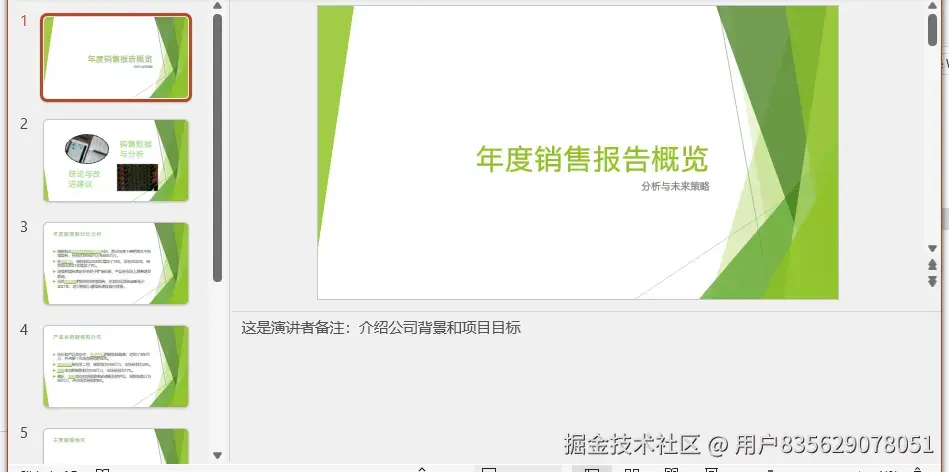
在这个示例中,NotesSlide 属性用于访问幻灯片的备注页。如果幻灯片还没有备注页,需要先调用 AddNotesSlide() 方法创建。然后通过 NotesTextFrame.Text 属性设置备注的文本内容。
为多张幻灯片批量添加备注
在实际应用中,我们经常需要为多张幻灯片分别添加不同的备注。可以通过遍历幻灯片集合来实现:
python
from spire.presentation import *

# 加载演示文稿
presentation = Presentation()
presentation.LoadFromFile("Training_Material.pptx")

# 定义每张幻灯片的备注内容
speaker_notes = [
    "开场白:欢迎大家参加本次培训",
    "重点讲解第一部分的核心概念",
    "此处需要展示实际案例",
    "互动环节:提问和讨论",
    "总结要点并预告下次培训内容"
]

# 遍历幻灯片并添加备注
for i, slide in enumerate(presentation.Slides):
    if i < len(speaker_notes):
        # 获取或创建备注页
        notes_slide = slide.NotesSlide
        if notes_slide is None:
            notes_slide = slide.AddNotesSlide()

        # 设置备注文本
        notes_slide.NotesTextFrame.Text = speaker_notes[i]

# 保存文档
presentation.SaveToFile("Training_With_Notes.pptx", FileFormat.Pptx2019)
presentation.Dispose()
这种方法特别适合处理标准化的演示文稿模板,可以快速为整套幻灯片添加结构化的备注内容。
提取和管理演讲者备注
除了添加备注,有时我们还需要从现有的演示文稿中提取备注信息,用于审核、备份或转换为其他格式。
提取单张幻灯片的备注
python
from spire.presentation import *

# 加载演示文稿
presentation = Presentation()
presentation.LoadFromFile("Presentation_With_Notes.pptx")

# 获取第一张幻灯片
slide = presentation.Slides[0]

# 获取备注页
notes_slide = slide.NotesSlide

if notes_slide is not None:
    # 提取备注视图文本
    note_text = notes_slide.NotesTextFrame.Text
    print(f"第一张幻灯片的备注:{note_text}")
else:
    print("该幻灯片没有备注")

presentation.Dispose()
批量提取所有幻灯片的备注
对于包含多张幻灯片的演示文稿,可以遍历所有幻灯片并提取备注,然后保存到文本文件中:
python
from spire.presentation import *

def save_notes_to_file(filename, notes_list):
    """将备注列表保存到文本文件"""
    with open(filename, "w", encoding="utf-8") as f:
        for note in notes_list:
            f.write(note + "\n")

# 加载演示文稿
presentation = Presentation()
presentation.LoadFromFile("Conference_Presentation.pptx")

# 存储所有备注
all_notes = []

# 遍历所有幻灯片
for i, slide in enumerate(presentation.Slides):
    notes_slide = slide.NotesSlide

    if notes_slide is not None:
        note_text = notes_slide.NotesTextFrame.Text
        note_info = f"幻灯片 {i + 1}: {note_text}"
        all_notes.append(note_info)
    else:
        all_notes.append(f"幻灯片 {i + 1}: 无备注")

# 保存到文本文件
save_notes_to_file("Extracted_Speaker_Notes.txt", all_notes)

print(f"共提取了 {len(all_notes)} 条备注信息")
presentation.Dispose()
这个示例展示了如何将演示文稿中的所有备注提取出来并保存到文本文件,方便后续审阅或作为演讲脚本使用。
删除和修改备注
在某些情况下,可能需要删除或修改现有的备注内容。
删除特定幻灯片的备注
python
from spire.presentation import *

# 加载演示文稿
presentation = Presentation()
presentation.LoadFromFile("Presentation.pptx")

# 获取第一张幻灯片
slide = presentation.Slides[0]

# 删除该幻灯片的备注
slide.RemoveNotesSlide()

# 保存文档
presentation.SaveToFile("Presentation_No_Notes.pptx", FileFormat.Pptx2019)
presentation.Dispose()
修改现有备注
如果需要修改已有的备注,可以直接重新设置 NotesTextFrame.Text 属性:
python
from spire.presentation import *

# 加载演示文稿
presentation = Presentation()
presentation.LoadFromFile("Presentation.pptx")

# 获取第一张幻灯片及其备注
slide = presentation.Slides[0]
notes_slide = slide.NotesSlide

if notes_slide is not None:
    # 追加或修改备注内容
    original_text = notes_slide.NotesTextFrame.Text
    notes_slide.NotesTextFrame.Text = original_text + "\n\n补充说明:请在此处添加最新数据"

# 保存文档
presentation.SaveToFile("Presentation_Updated.pptx", FileFormat.Pptx2019)
presentation.Dispose()
实用技巧
格式化备注文本
备注文本支持基本的格式设置,可以通过富文本方式添加换行、分段等:
python
# 使用换行符分隔不同段落
notes_slide.NotesTextFrame.Text = "第一部分:背景介绍\n\n第二部分:核心内容\n\n第三部分:总结"
检查幻灯片是否有备注
在处理大量幻灯片时,可以先检查哪些幻灯片已有备注,避免重复操作:
python
for i, slide in enumerate(presentation.Slides):
    if slide.NotesSlide is not None:
        print(f"幻灯片 {i + 1} 已有备注")
    else:
        print(f"幻灯片 {i + 1} 需要添加备注")
备注与导出的关系
需要注意的是,当将 PowerPoint 导出为 PDF 或图片格式时,演讲者备注默认不会被包含在输出文件中。这使得备注成为真正的"幕后"内容,只对演讲者可见。
总结
本文介绍了如何使用 Python 为 PowerPoint 幻灯片添加、提取、修改和删除演讲者备注。通过这些技术,可以高效地管理演示文稿中的备注信息,提高演示文稿制作的效率。
主要知识点包括:
- 使用
NotesSlide属性访问幻灯片备注页 - 通过
AddNotesSlide()方法创建新的备注页 - 使用
NotesTextFrame.Text设置和获取备注文本 - 批量处理多张幻灯片的备注
- 提取备注并保存到外部文件
这些技术可以应用于各种场景,如培训材料准备、会议演示文稿管理、演讲稿生成等。结合其他 PowerPoint 自动化功能,可以构建完整的演示文稿处理工作流。