从CMD到PowerShell:一个.NET开发者的命令行进化之路
阅读提示:这篇是"从零基础开始"的详细版本,如果你完全没接触过PowerShell,跟着我一步步走就行。如果你已经会用一些,可以跳到后面的速查表部分。
故事的开始:CMD陪我度过了五年,但我决定分手了
先介绍一下我自己:一个普通的.NET开发者,写C#写了五六年,日常跟dotnet build、git push、scp传文件这些命令打交道。CMD用了很多年,说不上多顺手,但也够用。
直到有一天,我需要写一个批处理脚本,功能是这样的:
- 遍历某个目录下的所有子文件夹
- 找到里面所有的
.log文件 - 如果文件修改时间超过7天,就删掉
- 删完之后,把剩下的日志文件按大小排个序,最大的5个列出来
我想了想,在CMD里要实现这个需求,得写多少行?for循环、dir输出解析、findstr过滤、日期比较、排序...光想想就头大。
然后我同事轻飘飘地说了一句:"哦,这个啊,PowerShell三行搞定。"
三行。
从那天起,我决定认真学PowerShell。
第一章:PowerShell到底是什么?(请用一句话说清楚)
如果只让我用一句话解释PowerShell,我会说:
PowerShell是一个以对象为中心的命令行工具和脚本语言,而CMD是一个以文本为中心的命令行工具。
什么意思?我举个例子你就明白了。
在CMD里,你敲tasklist,得到的是这样的:
arduino
映像名称                       PID 会话名              会话#       内存使用
========================= ======== ================ =========== ============
chrome.exe                   1234 Console                    1     98,764 K
notepad.exe                  5678 Console                    1     12,345 K
dotnet.exe                   9012 Console                    1     45,678 K
这是一堆文字。如果你想找出内存使用超过50MB的进程,你得像做阅读理解一样,从这段文字里把数字抠出来,再比较。
在PowerShell里,你敲Get-Process,得到的是对象 。对象有属性,比如ProcessName、Id、WorkingSet(内存占用)。你可以直接问它: 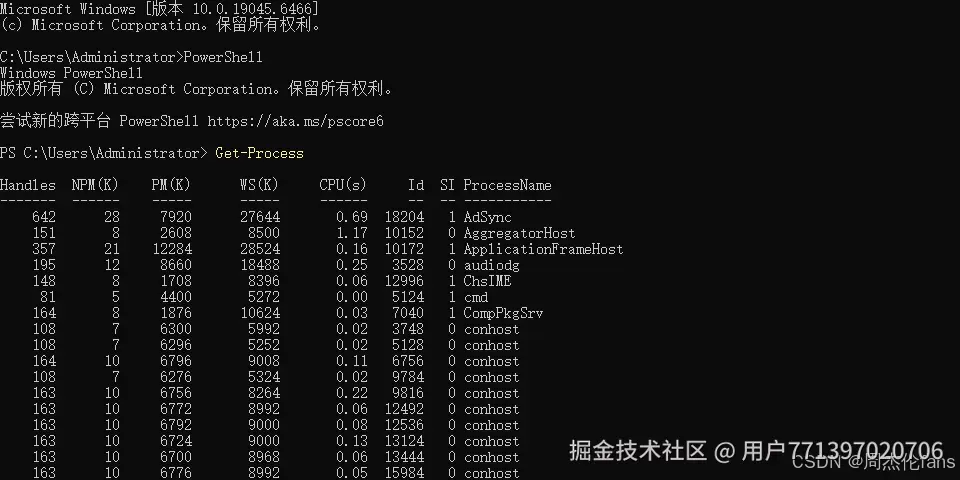
powershell
Get-Process | Where-Object { $_.WorkingSet -gt 50MB }翻译成人话就是:给我所有进程,挑出内存占用大于50MB的那些。
------你看,这跟写代码的思路是一样的,因为PowerShell本身就是基于.NET Framework构建的。
第二章:怎么开始?打开它!
第一步:找到PowerShell
PowerShell是Windows自带的,不需要额外安装。在Windows 10/11上,有这几个地方能找到它:
- 开始菜单 → 搜索"PowerShell" → 打开"Windows PowerShell"或"PowerShell 7"(如果你装了新版)
- Win + R → 输入
powershell→ 回车 - 任意文件夹 → 在地址栏输入
powershell→ 回车(这个技巧很好用!)
小贴士:你可以从CMD直接进入PowerShell,命令就是
powershell。进去之后提示符会变成PS C:\>,看到这个就说明你已经在PowerShell里了。
第二步:看一眼你的环境
进来之后,试试这几个命令,感受一下:
powershell
$PSVersionTable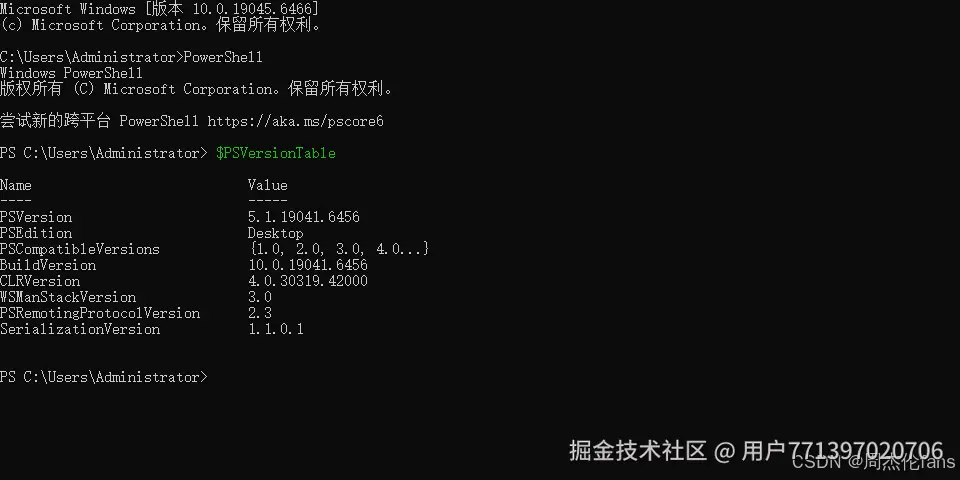
这会显示你的PowerShell版本。如果是5.1,那是Windows自带的版本;如果是7.x,那你装的是新版PowerShell Core,跨平台的那种。
powershell
Get-Command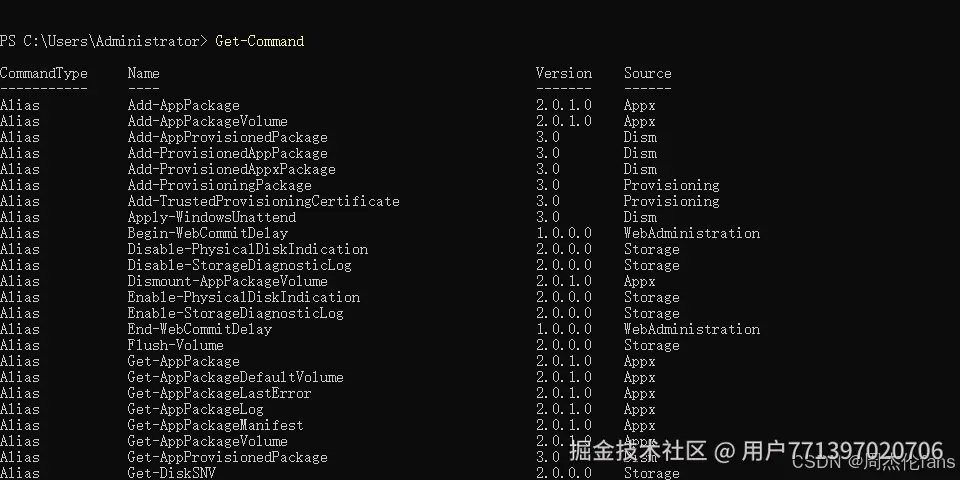
这会列出所有可用的命令------数量可能是上千个,别被吓到。Get-Command是你以后最常用的朋友之一,它能帮你找到你需要的命令。
第三章:核心概念(其实就是"动词-名词")
PowerShell的命令叫做Cmdlet(读作"command-let"),发音有点像"命令小工具"。
所有Cmdlet都遵循一个命名规则:动词-名词
就这么简单。
常见动词
| 动词 | 意思 | 例子 |
|---|---|---|
Get |
获取 | Get-Process(获取进程) |
Set |
设置 | Set-Location(设置位置,就是cd) |
New |
新建 | New-Item(新建文件/文件夹) |
Remove |
删除 | Remove-Item(删除文件/文件夹) |
Start |
启动 | Start-Service(启动服务) |
Stop |
停止 | Stop-Process(停止进程) |
Add |
添加 | Add-Content(添加内容到文件) |
Clear |
清除 | Clear-Host(清屏,就是cls) |
常见名词
| 名词 | 意思 | 例子 |
|---|---|---|
Process |
进程 | Get-Process |
Service |
服务 | Get-Service |
Item |
文件/目录 | New-Item |
Content |
文件内容 | Get-Content(读文件) |
ChildItem |
子项(文件列表) | Get-ChildItem(就是dir/ls) |
Location |
位置(目录) | Set-Location(cd) |
Command |
命令 | Get-Command |
所以,猜猜Get-Service是干什么的? ------ 对,获取服务列表。
再猜猜Stop-Process -Name notepad是干什么的? ------ 停止名叫notepad的进程。
这种命名方式意味着:就算你从没见过某个命令,你也能猜到它是干嘛的。
第四章:三大神器(必须记住!)
神器一:Get-Command ------ 找命令
想找跟进程有关的命令?
powershell
Get-Command *-Process输出:
arduino
CommandType     Name
-----------     ----
Cmdlet          Debug-Process
Cmdlet          Get-Process
Cmdlet          Start-Process
Cmdlet          Stop-Process
Cmdlet          Wait-Process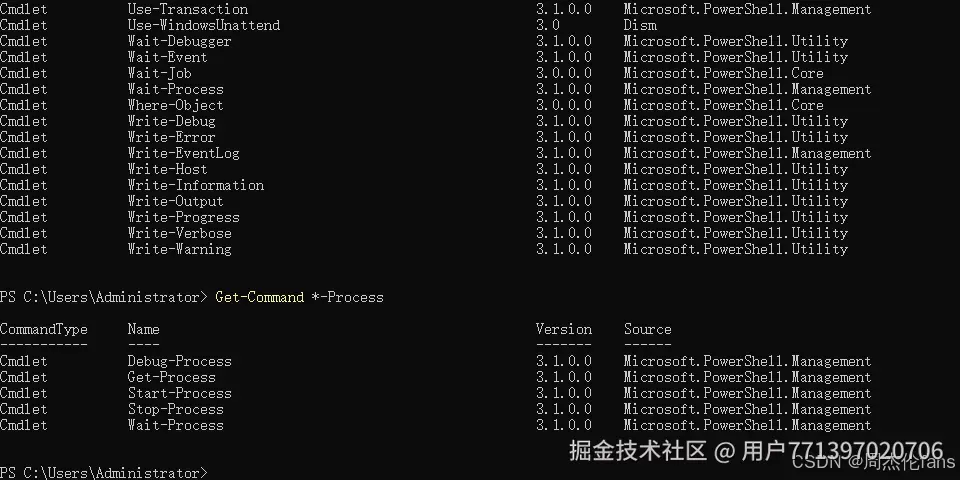
想看所有跟网络相关的命令?
powershell
Get-Command *-Net*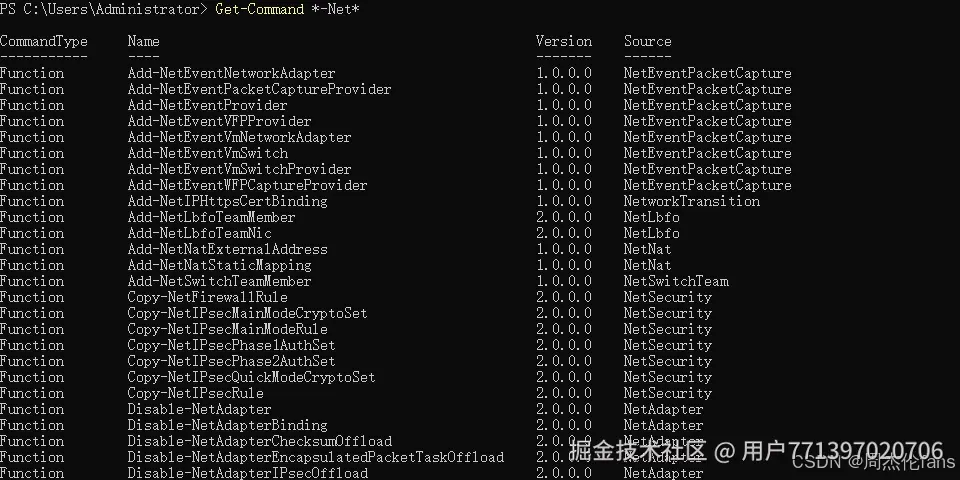
神器二:Get-Help ------ 查用法
知道一个命令的名字,不知道怎么用?问它:
powershell
Get-Help Get-Process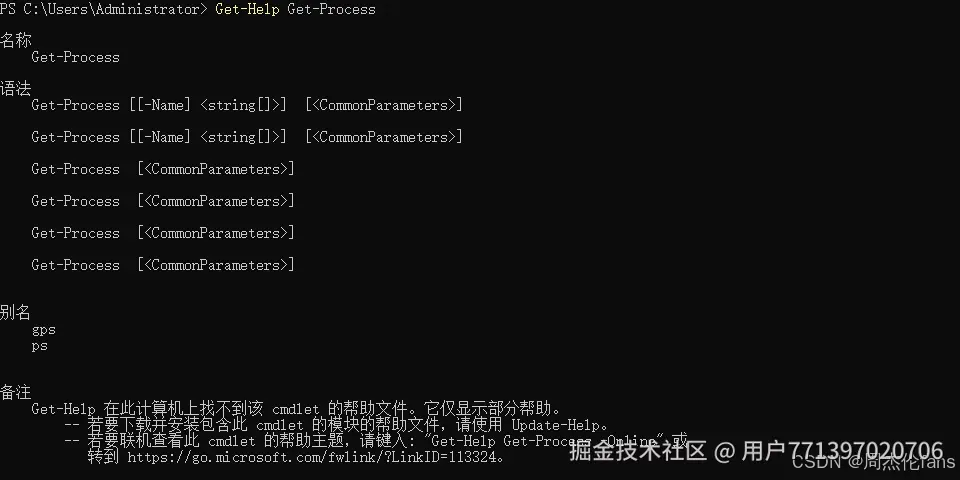
它会显示命令的语法、参数说明、甚至还带示例。
想看示例?
powershell
Get-Help Get-Process -Examples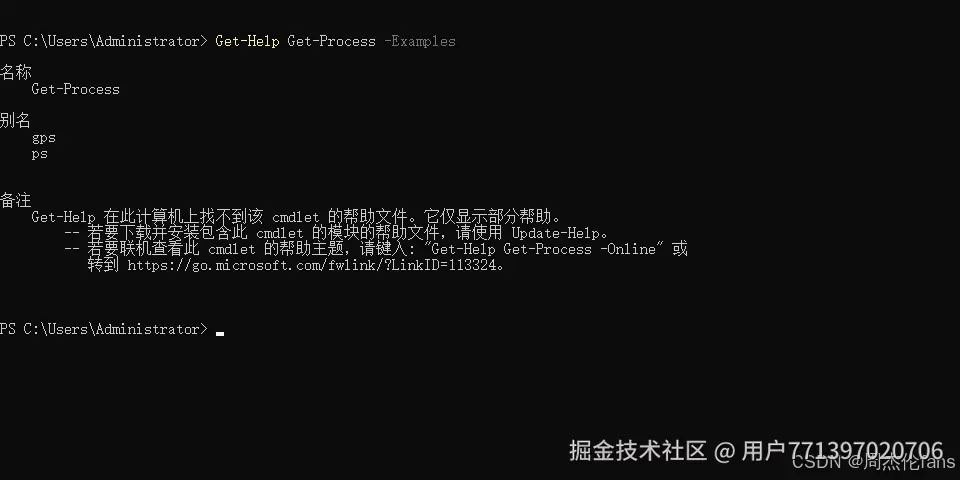
想看更详细的说明?
powershell
Get-Help Get-Process -Detailed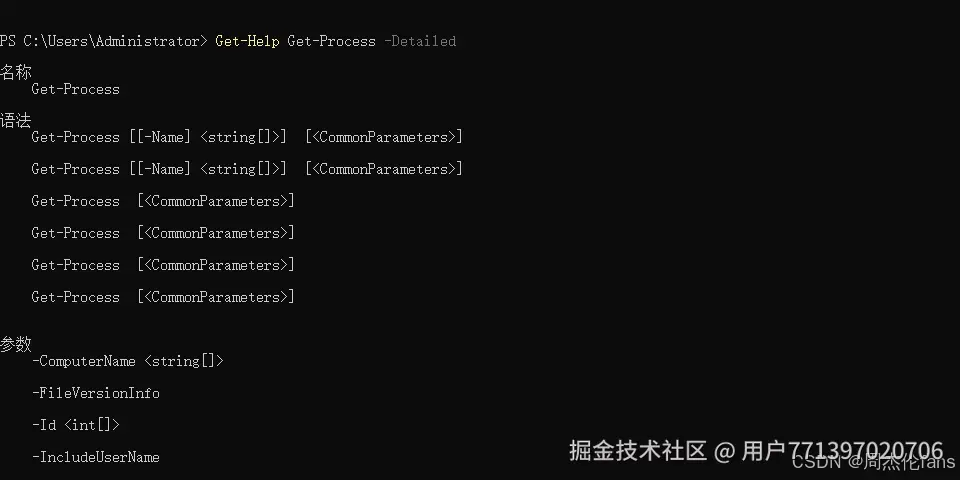
注意:有些版本的PowerShell需要先下载帮助文件才能显示完整内容。运行
Update-Help可以下载。
神器三:Get-Member ------ 看对象
这是PowerShell最神奇的地方。你可以把命令的输出"管道"传给Get-Member,看看这个命令返回的对象到底有哪些属性和方法。
powershell
Get-Process | Get-Member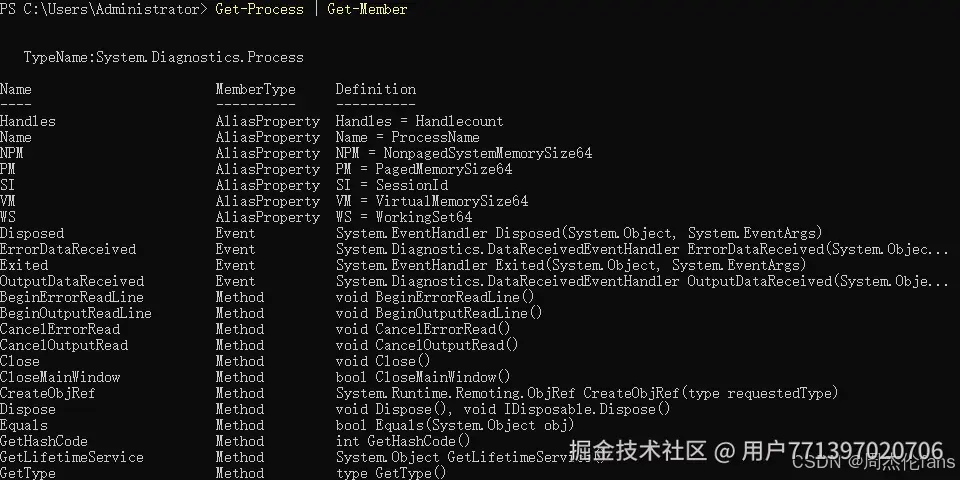
你会看到一堆属性和方法,比如:
Name(进程名)Id(进程ID)WorkingSet(内存占用)StartTime(启动时间)Kill()(杀死进程的方法)
知道了这些属性,你就能用Where-Object去筛选,用Select-Object去选择,用Sort-Object去排序。
第五章:管道(|)------把命令串起来
管道是PowerShell的灵魂。
在CMD里也有管道(|),但那是"文本的管道"------把前一个命令的文字输出传给后一个命令去处理。
在PowerShell里,管道是**"对象的管道"**------把前一个命令返回的对象原封不动地传给后一个命令。
来看看这个经典的例子:
powershell
Get-Process | Where-Object { $_.WorkingSet -gt 100MB } | Sort-Object WorkingSet -Descending | Select-Object -First 5这一行命令做了四件事:
Get-Process→ 获取所有进程(返回一堆进程对象)Where-Object { $_.WorkingSet -gt 100MB }→ 从这堆进程里挑出内存占用大于100MB的($_表示当前处理的那个对象)Sort-Object WorkingSet -Descending→ 按内存占用从大到小排序Select-Object -First 5→ 取前5个
看懂了吗?这就像是一个流水线:每个环节都在处理对象,而不是在切分文本。
第六章:速查表------从CMD迁移到PowerShell
好了,理论讲完了。来看看实际干活的时候怎么用。
我把你原文章里的CMD命令,对应地列了一份PowerShell版本。刚入门的时候可以照着用,慢慢就熟练了。
文件和目录操作
| 要干啥 | CMD | PowerShell |
|---|---|---|
| 列出文件和文件夹 | dir |
Get-ChildItem(或直接打dir/ls) |
| 只显示名称 | dir /b |
`Get-ChildItem |
| 递归列出所有 | dir /s |
Get-ChildItem -Recurse |
| 切换目录 | cd C:\Projects |
Set-Location C:\Projects(或cd) |
| 回到上级 | cd .. |
cd ..(通用) |
| 回到根目录 | cd \ |
cd \(通用) |
| 创建目录 | md MyFolder |
New-Item -ItemType Directory -Path MyFolder(或md) |
| 删除空目录 | rd MyFolder |
Remove-Item MyFolder(或rd) |
| 递归删除 | rmdir /s MyFolder |
Remove-Item -Recurse MyFolder |
| 安静删除 | rmdir /s /q MyFolder |
Remove-Item -Recurse -Force MyFolder |
| 删除文件 | del file.txt |
Remove-Item file.txt(或del) |
| 强制删除 | del /f file.txt |
Remove-Item -Force file.txt |
| 复制文件 | copy file.txt D:\backup\ |
Copy-Item file.txt D:\backup\(或cp) |
| 复制目录结构 | xcopy src dest /E |
Copy-Item -Recurse src dest |
| 移动/重命名 | move file.txt newname.txt |
Move-Item file.txt newname.txt(或mv) |
| 重命名 | ren file.txt newname.txt |
Rename-Item file.txt newname.txt(或ren) |
| 显示文件内容 | type file.txt |
Get-Content file.txt(或cat) |
| 搜索文件内容 | findstr "hello" *.txt |
Select-String "hello" *.txt |
进程和服务
| 要干啥 | CMD | PowerShell |
|---|---|---|
| 列出所有进程 | tasklist |
Get-Process(或ps) |
| 按条件过滤 | tasklist /fi "imagename eq dotnet.exe" |
Get-Process -Name dotnet |
| 按ID终止进程 | taskkill /pid 1234 |
Stop-Process -Id 1234 |
| 按名称终止 | taskkill /im dotnet.exe |
Stop-Process -Name dotnet |
| 强制终止 | taskkill /f /pid 1234 |
Stop-Process -Id 1234 -Force |
| 查询服务 | sc query MyService |
Get-Service -Name MyService |
| 启动服务 | sc start MyService |
Start-Service -Name MyService |
| 停止服务 | sc stop MyService |
Stop-Service -Name MyService |
| 修改服务配置 | sc config MyService start= auto |
Set-Service -Name MyService -StartupType Automatic |
网络
| 要干啥 | CMD | PowerShell |
|---|---|---|
| 测试连通性 | ping google.com |
Test-Connection google.com |
| 持续ping | ping -t 192.168.1.1 |
Test-Connection -Continuous 192.168.1.1 |
| 查看IP配置 | ipconfig |
Get-NetIPConfiguration |
| 详细信息 | ipconfig /all |
Get-NetIPConfiguration -Detailed |
| 刷新DNS | ipconfig /flushdns |
Clear-DnsClientCache |
| 域名解析 | nslookup example.com |
Resolve-DnsName example.com |
| 查看端口占用 | netstat -ano |
Get-NetTCPConnection |
| 查找特定端口 | `netstat -ano | findstr 8080` |
| 路由跟踪 | tracert google.com |
Test-NetConnection google.com -TraceRoute |
| 查看路由表 | route print |
Get-NetRoute |
| 查看ARP缓存 | arp -a |
Get-NetNeighbor |
系统信息
| 要干啥 | CMD | PowerShell |
|---|---|---|
| 系统详细信息 | systeminfo |
Get-ComputerInfo |
| 只看OS信息 | `systeminfo | findstr "OS"` |
| 主机名 | hostname |
$env:COMPUTERNAME 或 hostname |
| 当前用户 | whoami |
$env:USERNAME 或 whoami |
| Windows版本 | ver |
$PSVersionTable 或 [Environment]::OSVersion |
| 日期 | date |
Get-Date |
| 时间 | time |
Get-Date -Format "HH:mm:ss" |
| 关机 | shutdown /s /t 60 |
Stop-Computer -Force |
| 重启 | shutdown /r /t 0 |
Restart-Computer -Force |
| 取消关机 | shutdown /a |
---(PowerShell没有直接对应,用CMD的也行) |
环境变量
| 要干啥 | CMD | PowerShell |
|---|---|---|
| 显示所有环境变量 | set |
Get-ChildItem Env: |
| 查看PATH | set PATH |
$env:PATH |
| 查看当前目录 | echo %cd% |
Get-Location(或pwd) |
| 设置临时变量 | set MY_PATH=C:\MyApp |
$MY_PATH = "C:\MyApp" |
| 使用变量 | echo %MY_PATH% |
$MY_PATH |
| 永久设置变量 | setx MY_PATH "C:\MyApp" /M |
[Environment]::SetEnvironmentVariable("MY_PATH", "C:\MyApp", "Machine") |
管道与重定向
| 要干啥 | CMD | PowerShell |
|---|---|---|
| 管道 | `dir | findstr ".txt"` |
| 覆盖输出 | dir > files.txt |
Get-ChildItem > files.txt |
| 追加输出 | echo "new" >> files.txt |
"new" >> files.txt 或 Add-Content files.txt "new" |
| 错误重定向 | dotnet build 2> errors.txt |
dotnet build 2> errors.txt(通用) |
| 条件执行(成功) | dotnet build && dotnet run |
dotnet build; if ($?) { dotnet run } |
| 条件执行(失败) | `dotnet build |
.NET开发(这部分基本通用)
| 要干啥 | CMD | PowerShell |
|---|---|---|
| 编译 | dotnet build -c Release |
完全一样 |
| 运行 | dotnet run |
完全一样 |
| 测试 | dotnet test |
完全一样 |
| 发布 | dotnet publish -c Release -o ./publish |
完全一样 |
| 安装包 | dotnet add package Newtonsoft.Json |
完全一样 |
| 创建项目 | dotnet new webapi -n MyApi |
完全一样 |
| EF迁移 | dotnet ef migrations add InitialCreate |
完全一样 |
好消息是:
dotnet命令在PowerShell和CMD里完全通用,因为它是.NET SDK自带的命令行工具,跟Shell没关系。
第七章:有了这些"超能力",你能做什么?
场景一:清理7天前的日志文件
CMD要写十几行脚本的活,PowerShell一行:
powershell
Get-ChildItem -Path . -Recurse -Filter *.log | Where-Object { $_.LastWriteTime -lt (Get-Date).AddDays(-7) } | Remove-Item -Force场景二:找出内存占用最高的5个进程
powershell
Get-Process | Sort-Object WorkingSet -Descending | Select-Object -First 5场景三:批量重命名所有图片文件,加上日期前缀
powershell
$date = Get-Date -Format "yyyyMMdd"
Get-ChildItem *.jpg | ForEach-Object { Rename-Item $_ -NewName "$date-$($_.Name)" }
场景四:找到占用8080端口的进程并杀掉它
powershell
$process = Get-NetTCPConnection -LocalPort 8080 | Select-Object -ExpandProperty OwningProcess
Stop-Process -Id $process -Force
第八章:踩坑记录------我犯过的错,你不用再犯
坑1:执行策略(Execution Policy)阻止脚本运行
第一次运行.ps1脚本的时候,我收到了这个错误:
无法加载文件,因为在此系统上禁止运行脚本。
这是因为PowerShell默认的执行策略 是Restricted,不允许运行脚本。
解决方案:
powershell
Set-ExecutionPolicy -Scope CurrentUser -ExecutionPolicy RemoteSigned这个命令只对当前用户生效,允许运行本地脚本和来自可信源的远程脚本。
坑2:忘了$符号
在PowerShell里,变量名以$开头。我刚开始写的时候老是忘:
powershell
# 错误
myName = "张三"

# 正确
$myName = "张三"
坑3:属性访问用点号
CMD里看变量用%VAR%,PowerShell里用$env:VAR或$object.Property:
powershell
# CMD: echo %PATH%
# PowerShell:
$env:PATH
坑4:括号和花括号的位置
Where-Object后面要跟花括号{},里面用$_代表当前对象:
powershell
# 正确
Get-Process | Where-Object { $_.WorkingSet -gt 100MB }

# 错误
Get-Process | Where-Object $_.WorkingSet -gt 100MB
第九章:我可以不走吗?------CMD和PowerShell如何共存
很多人担心学了PowerShell之后CMD的肌肉记忆就废了。其实不用担心:
- PowerShell能直接运行CMD命令 :
ping、ipconfig、tasklist这些在PowerShell里照样能用 - 别名机制很友好 :
dir、cd、cls这些CMD常用命令在PowerShell里都是内置别名 - 两个可以随时切换 :在CMD里敲
powershell进入,在PowerShell里敲exit退出
所以,你不必"放弃"CMD,只是多了一个更强大的工具。
第十章:下一步去哪里?
如果你看完这篇文章想继续深入学习,这里有几个方向:
- 脚本编写 :把常用的命令组合保存成
.ps1文件,下次直接运行 - 模块管理 :用
Install-Module安装别人写好的PowerShell模块 - 远程管理 :用
Invoke-Command在多台机器上执行命令 - 与.NET交互:直接在PowerShell里调用C#类库
PowerShell 常用命令速查表
这篇是为初学者准备的PowerShell常用命令速查表,每个命令都配有示例,复制粘贴就能用。适合打印贴在显示器旁边,或者收藏起来随时查阅。
一、文件和目录操作
| 命令 | 说明 | 示例 |
|---|---|---|
Get-ChildItem |
列出当前目录下的文件和文件夹 | Get-ChildItem |
Get-ChildItem -Recurse |
递归列出所有子目录的文件 | Get-ChildItem -Recurse |
Get-ChildItem -Filter *.txt |
只列出指定类型的文件 | Get-ChildItem -Filter *.log |
Get-ChildItem -File |
只列出文件(不显示文件夹) | Get-ChildItem -File |
Get-ChildItem -Directory |
只列出文件夹 | Get-ChildItem -Directory |
Set-Location |
切换目录(别名:cd) |
Set-Location C:\Projects |
Set-Location .. |
回到上一级目录 | Set-Location .. |
Set-Location \ |
回到当前盘符根目录 | Set-Location \ |
New-Item -ItemType Directory |
创建新文件夹(别名:md) |
New-Item -ItemType Directory -Path MyFolder |
New-Item -ItemType File |
创建新文件 | New-Item -ItemType File -Path test.txt |
Remove-Item |
删除文件或文件夹(别名:del/rm) |
Remove-Item test.txt |
Remove-Item -Recurse |
递归删除文件夹及其所有内容 | Remove-Item -Recurse MyFolder |
Remove-Item -Force |
强制删除(不提示确认) | Remove-Item -Force -Recurse MyFolder |
Copy-Item |
复制文件或文件夹(别名:cp/copy) |
Copy-Item file.txt D:\backup\ |
Copy-Item -Recurse |
递归复制整个文件夹 | Copy-Item -Recurse src dest |
Move-Item |
移动或重命名(别名:mv/move) |
Move-Item file.txt newname.txt |
Rename-Item |
重命名(别名:ren) |
Rename-Item old.txt new.txt |
Get-Content |
读取并显示文件内容(别名:cat/type) |
Get-Content appsettings.json |
Get-Content -First 10 |
显示文件前10行 | Get-Content log.txt -First 10 |
Get-Content -Tail 20 |
显示文件最后20行(实时日志常用) | Get-Content log.txt -Tail 20 -Wait |
Add-Content |
向文件追加内容 | Add-Content log.txt "新日志行" |
Set-Content |
覆盖写入文件内容 | Set-Content config.json '{"key":"value"}' |
Clear-Content |
清空文件内容 | Clear-Content log.txt |
Measure-Object |
统计文件/对象数量 | `Get-ChildItem |
Get-Location |
显示当前工作目录(别名:pwd) |
Get-Location |
Join-Path |
拼接路径 | Join-Path "C:\Projects" "MyApp" |
二、进程与服务管理
| 命令 | 说明 | 示例 |
|---|---|---|
Get-Process |
列出所有运行中的进程(别名:ps) |
Get-Process |
Get-Process -Name |
按进程名查找 | Get-Process -Name dotnet |
Get-Process -Id |
按进程ID查找 | Get-Process -Id 1234 |
| `Get-Process | Sort-Object CPU` | 按CPU使用率排序 |
| `Get-Process | Where-Object` | 筛选进程(如内存>100MB) |
Start-Process |
启动进程或程序 | Start-Process notepad.exe |
Start-Process -FilePath |
启动程序并传入参数 | Start-Process -FilePath "dotnet" -ArgumentList "run" |
Stop-Process -Name |
按名称终止进程 | Stop-Process -Name notepad |
Stop-Process -Id |
按ID终止进程 | Stop-Process -Id 1234 |
Stop-Process -Force |
强制终止进程 | Stop-Process -Name dotnet -Force |
Wait-Process -Name |
等待进程结束 | Wait-Process -Name dotnet |
Get-Service |
列出所有服务 | Get-Service |
Get-Service -Name |
按名称查找服务 | Get-Service -Name *sql* |
Get-Service -Name |
查看服务状态 | Get-Service -Name Spooler |
Start-Service -Name |
启动服务 | Start-Service -Name Spooler |
Stop-Service -Name |
停止服务 | Stop-Service -Name Spooler |
Restart-Service -Name |
重启服务 | Restart-Service -Name Spooler |
Set-Service -Name -StartupType |
修改服务启动类型 | Set-Service -Name Spooler -StartupType Automatic |
Set-Service -Name -Status |
暂停/恢复服务 | Set-Service -Name Spooler -Status Paused |
三、网络相关命令
| 命令 | 说明 | 示例 |
|---|---|---|
Test-Connection |
测试网络连通性(加强版ping) | Test-Connection google.com |
Test-Connection -Count |
指定ping次数 | Test-Connection google.com -Count 4 |
Test-Connection -Continuous |
持续ping(类似ping -t) | Test-Connection -Continuous 192.168.1.1 |
Test-NetConnection |
综合网络测试(端口连通性) | Test-NetConnection google.com -Port 443 |
Test-NetConnection -TraceRoute |
路由跟踪 | Test-NetConnection google.com -TraceRoute |
Get-NetIPConfiguration |
查看IP配置(类似ipconfig) | Get-NetIPConfiguration |
Get-NetIPConfiguration -Detailed |
查看详细网络信息 | Get-NetIPConfiguration -Detailed |
Get-NetIPAddress |
查看所有IP地址 | Get-NetIPAddress |
Clear-DnsClientCache |
刷新DNS缓存 | Clear-DnsClientCache |
Resolve-DnsName |
域名解析查询(加强版nslookup) | Resolve-DnsName example.com |
Resolve-DnsName -Type MX |
查询MX邮件记录 | Resolve-DnsName example.com -Type MX |
Get-NetTCPConnection |
查看所有TCP连接(类似netstat) | Get-NetTCPConnection |
Get-NetTCPConnection -LocalPort |
查看指定端口的连接 | Get-NetTCPConnection -LocalPort 8080 |
Get-NetTCPConnection -State Listen |
查看监听中的端口 | Get-NetTCPConnection -State Listen |
Get-NetUDPEndpoint |
查看UDP监听端口 | Get-NetUDPEndpoint |
Get-NetRoute |
查看路由表 | Get-NetRoute |
Get-NetNeighbor |
查看ARP缓存 | Get-NetNeighbor |
Invoke-WebRequest |
HTTP请求(类似curl) | Invoke-WebRequest https://api.github.com |
Invoke-RestMethod |
REST API请求(自动解析JSON) | Invoke-RestMethod https://api.github.com/users/octocat |
四、系统信息与操作
| 命令 | 说明 | 示例 |
|---|---|---|
Get-ComputerInfo |
获取详细系统信息 | Get-ComputerInfo |
| `Get-ComputerInfo | Select-Object OS` | 查看操作系统信息 |
Get-CimInstance -ClassName |
查询硬件信息 | Get-CimInstance -ClassName Win32_Processor |
Get-CimInstance Win32_LogicalDisk |
查看磁盘分区信息 | `Get-CimInstance Win32_LogicalDisk |
Get-CimInstance Win32_ComputerSystem |
查看系统硬件信息 | Get-CimInstance Win32_ComputerSystem |
Get-CimInstance Win32_NetworkAdapter |
查看网卡信息 | `Get-CimInstance Win32_NetworkAdapter |
Get-Date |
获取当前日期时间 | Get-Date |
Get-Date -Format |
自定义日期格式 | Get-Date -Format "yyyy-MM-dd HH:mm:ss" |
Get-Date -Format "yyyyMMdd" |
获取日期(文件名常用) | Get-Date -Format "yyyyMMdd" |
Get-Uptime |
查看系统运行时间 | Get-Uptime |
Get-HotFix |
查看系统更新补丁 | `Get-HotFix |
Get-EventLog -LogName |
查看事件日志 | Get-EventLog -LogName Application -Newest 20 |
Get-WinEvent -MaxEvents |
查看高级事件日志 | Get-WinEvent -MaxEvents 20 -LogName Application |
Restart-Computer |
重启计算机 | Restart-Computer -Force |
Stop-Computer |
关闭计算机 | Stop-Computer -Force |
Clear-Host |
清屏(别名:cls) |
Clear-Host |
Get-Host |
查看当前主机信息(版本等) | Get-Host |
$PSVersionTable |
查看PowerShell版本 | $PSVersionTable |
$env:USERNAME |
查看当前用户名 | $env:USERNAME |
$env:COMPUTERNAME |
查看计算机名 | $env:COMPUTERNAME |
[Environment]::OSVersion |
查看操作系统版本 | [Environment]::OSVersion |
五、环境变量
| 命令 | 说明 | 示例 |
|---|---|---|
Get-ChildItem Env: |
查看所有环境变量 | Get-ChildItem Env: |
$env:PATH |
查看PATH环境变量 | $env:PATH |
$env:MY_VAR = "value" |
设置临时环境变量(仅当前会话) | $env:MY_PATH = "C:\MyApp" |
[Environment]::GetEnvironmentVariable() |
获取系统级/用户级变量 | [Environment]::GetEnvironmentVariable("PATH", "Machine") |
[Environment]::SetEnvironmentVariable() |
永久设置环境变量(用户级) | [Environment]::SetEnvironmentVariable("MY_PATH", "C:\MyApp", "User") |
[Environment]::SetEnvironmentVariable() |
永久设置环境变量(系统级,需管理员) | [Environment]::SetEnvironmentVariable("MY_PATH", "C:\MyApp", "Machine") |
Get-ChildItem Env:PATH |
查看PATH的详细值 | Get-ChildItem Env:PATH |
$env:TEMP |
查看临时文件夹路径 | $env:TEMP |
$env:HOME |
查看用户主目录 | $env:HOME |
六、筛选、排序与统计
| 命令 | 说明 | 示例 |
|---|---|---|
Where-Object |
按条件筛选(别名:where) |
`Get-Process |
Where-Object { $_.Name -like "*dotnet*" } |
模糊匹配筛选 | `Get-Service |
Where-Object { $_.Extension -eq ".txt" } |
按属性精确匹配 | `Get-ChildItem |
Sort-Object |
排序(别名:sort) |
`Get-Process |
Sort-Object -Property |
多属性排序 | `Get-ChildItem |
Select-Object |
选择指定属性(别名:select) |
`Get-Process |
Select-Object -First |
取前N个 | `Get-Process |
Select-Object -Last |
取后N个 | `Get-ChildItem |
Select-Object -Unique |
去重 | `Get-ChildItem |
Group-Object |
分组统计 | `Get-Process |
Measure-Object |
统计计数(别名:measure) |
`Get-ChildItem |
Measure-Object -Sum |
求和 | `Get-ChildItem |
Sort-Object -Unique |
去重并排序 | `Get-ChildItem |
Format-Table |
表格形式输出 | `Get-Process |
Format-List |
列表形式输出(显示全部属性) | `Get-Process |
Out-GridView |
弹出表格窗口查看 | `Get-Process |
七、文本处理
| 命令 | 说明 | 示例 |
|---|---|---|
Select-String |
在文件中搜索文本(类似grep/findstr) | Select-String "error" *.log |
Select-String -SimpleMatch |
简单文本搜索(不按正则) | Select-String -SimpleMatch "404" access.log |
Select-String -CaseSensitive |
区分大小写搜索 | Select-String -CaseSensitive "Error" *.txt |
Select-String -NotMatch |
查找不包含指定文本的行 | Select-String -NotMatch "INFO" app.log |
Select-String -Pattern |
使用正则表达式搜索 | Select-String -Pattern "\d{3}-\d{4}" *.txt |
-split |
按分隔符拆分字符串 | "a,b,c" -split "," |
-join |
用分隔符合并字符串 | ("a","b","c") -join "," |
-replace |
替换字符串 | "hello world" -replace "world", "powershell" |
-match |
正则匹配判断 | if ("abc123" -match "\d+") { "包含数字" } |
Compare-Object |
比较两个集合的差异 | Compare-Object (Get-Content file1.txt) (Get-Content file2.txt) |
-contains |
判断集合是否包含某元素 | ("a","b","c") -contains "b" |
-in |
判断元素是否在集合中 | "b" -in ("a","b","c") |
八、管道与重定向
| 命令 | 说明 | 示例 |
|---|---|---|
| ` | ` | 将前一个命令的输出传给后一个命令 |
> |
覆盖重定向到文件 | Get-Process > process.txt |
>> |
追加到文件末尾 | "新日志" >> log.txt |
2> |
重定向错误输出 | dotnet build 2> errors.txt |
2>&1 |
将错误输出合并到标准输出 | dotnet build 2>&1 > output.txt |
; |
顺序执行多条命令 | dotnet build; dotnet test |
&& |
前一条命令成功时才执行下一条 | dotnet build && dotnet run |
| ` | ` |
九、变量与脚本基础
| 命令 | 说明 | 示例 |
|---|---|---|
$变量名 = 值 |
定义变量 | $name = "张三" |
$变量名 |
使用变量 | $name |
$数字 = 1 + 2 |
数值运算 | $sum = 10 + 20 |
$数组 = @() |
定义数组 | $files = @("a.txt", "b.txt") |
$数组[0] |
访问数组元素(从0开始) | $files[0] |
$哈希表 = @{} |
定义哈希表(字典) | $config = @{ Name = "MyApp"; Port = 8080 } |
$哈希表.Name |
访问哈希表属性 | $config.Name |
$true / $false |
布尔值 | $isRunning = $true |
$null |
空值 | if ($result -eq $null) { "为空" } |
Get-Member |
查看对象的属性和方法 | `Get-Process |
Get-Help |
查看命令的帮助文档 | Get-Help Get-Process -Examples |
Get-Command |
查找可用命令 | Get-Command *-Process* |
Get-Alias |
查看命令别名 | Get-Alias -Name cd |
Test-Path |
判断路径是否存在 | Test-Path C:\Projects |
# 注释 |
脚本中添加注释 | # 这是一行注释 |
<# 多行注释 #> |
多行注释 | <# 注释内容 #> |
Write-Host |
输出到控制台(带颜色) | Write-Host "成功!" -ForegroundColor Green |
Write-Output |
输出到管道(别名:echo) |
Write-Output "Hello" |
Read-Host |
读取用户输入 | $name = Read-Host "请输入姓名" |
十、.NET开发常用
| 命令 | 说明 | 示例 |
|---|---|---|
dotnet build |
编译项目 | dotnet build -c Release |
dotnet run |
运行项目 | dotnet run |
dotnet test |
运行单元测试 | dotnet test |
dotnet publish |
发布项目 | dotnet publish -c Release -o ./publish |
dotnet pack |
打包NuGet包 | dotnet pack -c Release |
dotnet new |
创建新项目 | dotnet new webapi -n MyApi |
dotnet add package |
安装NuGet包 | dotnet add package Newtonsoft.Json |
dotnet remove package |
卸载NuGet包 | dotnet remove package Newtonsoft.Json |
dotnet list package |
列出项目中的NuGet包 | dotnet list package |
dotnet restore |
还原依赖 | dotnet restore |
dotnet clean |
清理构建输出 | dotnet clean |
dotnet ef migrations add |
添加EF迁移 | dotnet ef migrations add InitialCreate |
dotnet ef database update |
更新数据库 | dotnet ef database update |
dotnet watch run |
热重载运行 | dotnet watch run |
dotnet dev-certs https --trust |
信任HTTPS开发证书 | dotnet dev-certs https --trust |
dotnet nuget push |
推送NuGet包到源 | dotnet nuget push *.nupkg -k key -s source |
dotnet build-server shutdown |
停止构建服务器 | dotnet build-server shutdown |
十一、实用组合场景
| 场景 | PowerShell命令组合 |
|---|---|
| 查找占用端口的进程 | `Get-NetTCPConnection -LocalPort 8080 |
| 杀死占用端口的进程(一键版) | Stop-Process -Id (Get-NetTCPConnection -LocalPort 8080).OwningProcess -Force |
| 查找所有dotnet进程 | Get-Process -Name dotnet |
| 批量删除所有.log文件 | `Get-ChildItem -Recurse -Filter *.log |
| 递归搜索所有.cs文件中的"TODO" | Select-String -Path . -Recurse -Filter *.cs -Pattern "TODO" |
| 按修改时间排序文件(最新的在前) | `Get-ChildItem |
| 查看目录下所有文件的总大小 | `Get-ChildItem -File |
| 列出所有正在监听的服务端口 | `Get-NetTCPConnection -State Listen |
| 持续监控CPU占用最高的进程(每秒刷新) | `while ($true) { Get-Process |
| 查找超过7天未修改的文件并删除 | `Get-ChildItem -Recurse |
| 批量重命名(添加日期前缀) | `$date = Get-Date -Format "yyyyMMdd"; Get-ChildItem *.jpg |
| 导出所有安装的软件列表 | `Get-CimInstance Win32_Product |
| 查看今日系统日志中的错误 | Get-EventLog -LogName System -EntryType Error -After (Get-Date).Date |
| 等待某个进程启动后再执行命令 | Wait-Process -Name notepad -Timeout 30; Write-Host "记事本已启动" |
| 从JSON文件读取配置 | `$config = Get-Content config.json |
| 发送HTTP请求获取天气 | Invoke-RestMethod "https://api.weather.gov/points/39.7456,-97.0892" |
| 压缩文件夹为zip | Compress-Archive -Path src -DestinationPath archive.zip |
| 解压zip文件 | Expand-Archive -Path archive.zip -DestinationPath output |
十二、快捷键与技巧
| 快捷键 | 作用 |
|---|---|
Tab |
自动补全命令/路径 |
Ctrl+C |
中断当前正在运行的命令 |
Ctrl+Z |
暂停当前命令(然后输入fg恢复) |
↑ / ↓ |
浏览历史命令 |
F7 |
弹出历史命令列表 |
F8 |
在当前输入内容后搜索历史 |
Ctrl+R |
反向搜索历史命令 |
Ctrl+L |
清屏(同cls) |
Ctrl+Space |
显示参数提示(PowerShell ISE) |
Ctrl+D |
退出PowerShell会话 |
Ctrl+Shift+Enter |
在新窗口运行选择的内容(ISE) |
# |
在命令行中注释掉当前输入(暂不执行) |
速记小贴士
-
记住三大神器:
- 找命令:
Get-Command *-关键字* - 看帮助:
Get-Help 命令名 -Examples - 查属性:
Get-Process | Get-Member
- 找命令:
-
动词-名词规则 :所有Cmdlet都遵循
动词-名词格式Get-:获取Set-:设置New-:新建Remove-:删除Start-/Stop-:启动/停止
-
别名很友好:
ls/dir=Get-ChildItemcd=Set-Locationpwd=Get-Locationps=Get-Processcat/type=Get-Contentcp=Copy-Itemmv=Move-Itemrm/del=Remove-Itemecho=Write-Outputcls=Clear-Host
-
用好管道(
|):把一个命令的结果直接传给下一个命令继续处理,这是PowerShell最强大的地方。
这份速查表会持续更新,如果你有常用的命令没列进来,欢迎在评论区补充。大家一起学,进步更快!
写在最后:写给曾经和我一样犹豫的你
我刚开始学PowerShell的时候,心里是有抵触的:
"CMD用了这么多年,够用了。" "又要记一套新命令,太麻烦了。" "这不就是换个花里胡哨的壳吗?"
如果你现在也有类似的想法,我想说的是:
PowerShell不是换壳,是换脑子。
CMD让你像操作文本一样操作电脑,PowerShell让你像编程一样操作电脑。当你习惯了对象、管道、筛选、排序之后,你会发现以前那些"不可能实现"的需求,现在可能只是一行命令的事。
从今天起,每次你想打开CMD的时候,试试打开PowerShell。大部分命令还是那样敲,但你可以慢慢用上那些"更酷"的写法。
相信我,你不会后悔的。
如果你看到了这里,谢谢你。这篇文章是我从0开始学习PowerShell的笔记整理,如果有不对的地方,欢迎指正。咱们新手一起进步。