微信小程序蓝牙打印使用指南
文章目录
- 微信小程序蓝牙打印使用指南
-
- [1. 蓝牙打印概述](#1. 蓝牙打印概述)
-
- [BLE 通信角色](#BLE 通信角色)
- 典型蓝牙打印机参数
- [2. 支持的打印机类型](#2. 支持的打印机类型)
-
- [2.1 CPCL 指令标签打印机](#2.1 CPCL 指令标签打印机)
- [2.2 ESC/POS 指令热敏打印机](#2.2 ESC/POS 指令热敏打印机)
- [3. 完整项目结构](#3. 完整项目结构)
- [4. 蓝牙通信核心流程](#4. 蓝牙通信核心流程)
-
- [4.1 完整流程](#4.1 完整流程)
- [4.2 核心代码实现](#4.2 核心代码实现)
- [5. 打印机指令语言](#5. 打印机指令语言)
-
- [5.1 CPCL 指令(标签打印机)](#5.1 CPCL 指令(标签打印机))
- [5.2 ESC/POS 指令(热敏小票打印机)](#5.2 ESC/POS 指令(热敏小票打印机))
- [6. 中文字符编码](#6. 中文字符编码)
-
- [6.1 GBK 编码器](#6.1 GBK 编码器)
- [6.2 与蓝牙打印机集成](#6.2 与蓝牙打印机集成)
- [6.3 编码注意事项](#6.3 编码注意事项)
- [7. 页面集成](#7. 页面集成)
-
- [7.1 WXML 页面结构](#7.1 WXML 页面结构)
- [7.2 WXSS 样式](#7.2 WXSS 样式)
- [7.3 JS 业务逻辑](#7.3 JS 业务逻辑)
- [7.4 完整打印流程图](#7.4 完整打印流程图)
- [8. 常见问题](#8. 常见问题)
-
- [8.1 中文乱码](#8.1 中文乱码)
- [8.2 连接失败](#8.2 连接失败)
- [8.3 数据发送不完整](#8.3 数据发送不完整)
- [8.4 找不到设备](#8.4 找不到设备)
- [8.5 打印空白](#8.5 打印空白)
- [8.6 Android vs iOS 差异](#8.6 Android vs iOS 差异)
- [9. 完整示例:打印标签](#9. 完整示例:打印标签)
- [附录:蓝牙 API 参考](#附录:蓝牙 API 参考)
1. 蓝牙打印概述
微信小程序通过 BLE(Bluetooth Low Energy,蓝牙低功耗) 协议与蓝牙打印机通信。打印机作为 BLE 外设,小程序作为中心设备,通过读写特征值(Characteristic)来发送打印数据。
BLE 通信角色
| 角色 | 说明 |
|---|---|
| 中心设备(Central) | 微信小程序(手机),发起扫描和连接 |
| 外设(Peripheral) | 蓝牙打印机,广播服务 |
| 服务(Service) | 打印机提供的功能集合,用 UUID 标识 |
| 特征(Characteristic) | 具体的读写通道,用 UUID 标识 |
典型蓝牙打印机参数
| 参数 | 常见值 | 说明 |
|---|---|---|
| 服务 UUID | 0000FFF0-0000-1000-8000-00805F9B34FB |
打印机主服务 |
| 写入特征 UUID | 0000FFF1-0000-1000-8000-00805F9B34FB |
写入打印数据的通道 |
| 通知特征 UUID | 0000FFF2-0000-1000-8000-00805F9B34FB |
接收打印机状态 |
| 最大写入长度 | 20字节 | 每次 BLE 写入的数据包上限 |
注意:微信小程序 BLE 单次写入最大 20 字节,大文件需要分包发送,且包间需加延迟(通常 20-50ms)。
2. 支持的打印机类型
2.1 CPCL 指令标签打印机
- 典型机型:Zebra、Godex、TSC 等工业标签机
- 指令语言:CPCL(Comtec Printer Control Language)
- 应用场景:物流面单、商品标签、价格牌
- 特点:支持位图、条码、不同字体大小
2.2 ESC/POS 指令热敏打印机
- 典型机型:58mm/80mm 小票打印机(如佳博、芯烨)
- 指令语言:ESC/POS(Epson 标准)
- 应用场景:收银小票、排队号、订单小票
- 特点:支持切纸、走纸、不同对齐方式
3. 完整项目结构
utils/
├── bluetoothPrinter.js    # 蓝牙打印机核心模块
├── gbkEncoder.js          # GBK 中文编码器
└── gbk_table_data.js      # GBK 编码映射表(自动生成)

pages/
└── your-page/
    ├── your-page.js       # 页面逻辑(扫描、连接、打印)
    ├── your-page.wxml     # 页面结构
    └── your-page.wxss     # 页面样式
文件依赖关系
your-page.js
  ├── bluetoothPrinter.js
  │     └── gbkEncoder.js
  │           └── gbk_table_data.js
4. 蓝牙通信核心流程
4.1 完整流程
初始化
  │
  ├─ 打开蓝牙适配器 (openBluetoothAdapter)
  │
  ├─ 搜索蓝牙设备 (startBluetoothDevicesDiscovery)
  │     └─ 监听发现设备 (onBluetoothDeviceFound)
  │
  ├─ 连接设备 (createBLEConnection)
  │
  ├─ 获取服务列表 (getBLEDeviceServices)
  │
  ├─ 获取特征值 (getBLEDeviceCharacteristics)
  │
  ├─ 写入打印数据 (writeBLECharacteristicValue)
  │     └─ 分包发送,每包 20 字节,包间延迟 20ms
  │
  └─ 断开连接 (closeBLEConnection)
4.2 核心代码实现
javascript
// bluetoothPrinter.js - 蓝牙打印机模块

const SERVICE_UUID = '0000FFF0-0000-1000-8000-00805F9B34FB'
const WRITE_UUID = '0000FFF1-0000-1000-8000-00805F9B34FB'
const NOTIFY_UUID = '0000FFF2-0000-1000-8000-00805F9B34FB'

class BluetoothPrinter {
  constructor() {
    this.deviceId = null      // 已连接设备 ID
    this.serviceId = null     // 打印服务 UUID
    this.writeCharId = null   // 写入特征 UUID
    this.notifyCharId = null  // 通知特征 UUID
    this.isConnected = false
    this.isConnecting = false
    this.onDeviceFound = null // 发现设备的回调
  }

  // ========== 1. 打开蓝牙适配器 ==========

  async openBluetoothAdapter() {
    return new Promise((resolve, reject) => {
      wx.openBluetoothAdapter({
        success: () => {
          console.log('蓝牙适配器已打开')
          resolve(true)
        },
        fail: (err) => {
          if (err.errCode === 10001) {
            wx.showToast({ title: '请开启手机蓝牙', icon: 'none' })
          }
          reject(err)
        }
      })
    })
  }

  // ========== 2. 搜索设备 ==========

  async startDiscovery() {
    wx.offBluetoothDeviceFound() // 先移除旧监听

    wx.onBluetoothDeviceFound((result) => {
      const devices = result.devices || []
      devices.forEach(device => {
        if (device.name && device.name !== 'unknown') {
          if (this.onDeviceFound) {
            this.onDeviceFound(device) // 回调通知页面
          }
        }
      })
    })

    return new Promise((resolve, reject) => {
      wx.startBluetoothDevicesDiscovery({
        allowDuplicatesKey: true, // 允许重复上报
        success: resolve,
        fail: reject
      })
    })
  }

  async stopDiscovery() {
    wx.stopBluetoothDevicesDiscovery()
  }

  // ========== 3. 连接设备 ==========

  async connect(device) {
    if (this.isConnecting) return
    this.isConnecting = true

    try {
      // 3a. 建立 BLE 连接
      await new Promise((resolve, reject) => {
        wx.createBLEConnection({
          deviceId: device.deviceId,
          success: () => {
            this.deviceId = device.deviceId
            this.isConnected = true
            resolve()
          },
          fail: reject
        })
      })

      // 3b. 获取服务
      await this._getServices()

      // 3c. 获取特征值
      await this._getCharacteristics()

      return true
    } catch (err) {
      console.error('连接失败:', err)
      this.isConnected = false
      throw err
    } finally {
      this.isConnecting = false
    }
  }

  // 获取打印服务
  _getServices() {
    return new Promise((resolve, reject) => {
      wx.getBLEDeviceServices({
        deviceId: this.deviceId,
        success: (res) => {
          // 查找打印服务(匹配 FFF0 或 FFE0)
          const svc = res.services.find(s =>
            s.uuid.toUpperCase().includes('FFF0') ||
            s.uuid.toUpperCase().includes('FFE0')
          )
          // 未找到则用第一个可用服务
          this.serviceId = (svc || res.services[0]).uuid
          resolve()
        },
        fail: reject
      })
    })
  }

  // 获取读写特征值
  _getCharacteristics() {
    return new Promise((resolve, reject) => {
      wx.getBLEDeviceCharacteristics({
        deviceId: this.deviceId,
        serviceId: this.serviceId,
        success: (res) => {
          const writeChar = res.characteristics.find(c =>
            c.properties.write || c.properties.writeNoResponse
          )
          const notifyChar = res.characteristics.find(c =>
            c.properties.notify || c.properties.indicate
          )
          if (!writeChar) throw new Error('未找到可写入的特征')

          this.writeCharId = writeChar.uuid
          if (notifyChar) {
            this.notifyCharId = notifyChar.uuid
            this._enableNotification()
          }
          resolve()
        },
        fail: reject
      })
    })
  }

  // 开启通知(用于接收打印机状态)
  _enableNotification() {
    wx.notifyBLECharacteristicValueChange({
      deviceId: this.deviceId,
      serviceId: this.serviceId,
      characteristicId: this.notifyCharId,
      state: true
    })
  }

  // ========== 4. 发送打印数据 ==========

  async writeData(buffer) {
    if (!this.isConnected) throw new Error('未连接')

    const MAX_CHUNK = 20        // 单次最大 20 字节
    const INTERVAL = 20         // 包间延迟 20ms
    const delay = (ms) => new Promise(r => setTimeout(r, ms))

    let offset = 0
    let packetIndex = 0

    while (offset < buffer.byteLength) {
      const chunk = buffer.slice(offset, offset + MAX_CHUNK)
      packetIndex++

      await new Promise((resolve, reject) => {
        wx.writeBLECharacteristicValue({
          deviceId: this.deviceId,
          serviceId: this.serviceId,
          characteristicId: this.writeCharId,
          value: chunk,
          success: () => {
            offset += chunk.byteLength
            resolve()
          },
          fail: reject
        })
      })

      await delay(INTERVAL) // 重要!必须等待
    }

    console.log(`发送完成,共 ${packetIndex} 包`)
  }

  // ========== 5. 断开连接 ==========

  disconnect() {
    if (this.deviceId) {
      wx.closeBLEConnection({ deviceId: this.deviceId })
    }
    this.deviceId = null
    this.serviceId = null
    this.writeCharId = null
    this.notifyCharId = null
    this.isConnected = false
  }

  closeAdapter() {
    this.disconnect()
    wx.closeBluetoothAdapter()
  }
}
5. 打印机指令语言
5.1 CPCL 指令(标签打印机)
CPCL 是文本型指令,每行一个命令,用 \r\n 结束。
常用命令:
! 0 200 200 <pageHeight> 1   初始化 (200 DPI)
PW <width>                    页面宽度
CENTER                        居中对齐
LEFT                          左对齐
SETBOLD 1                     粗体开
SETBOLD 0                     粗体关
SETMAG <x> <y>                倍宽倍高
TEXT <font> <rotate> <x> <y> "<content>"  打印文字
BARCODE <type> <x> <y> "<data>"          打印条码
FORM                          结束页面
PRINT                         打印
CPCL 生成示例:
javascript
// CPCL 标签生成器
function generateCPCLLabel(data) {
  const { flightNo, statusText, orderList } = data

  let cpcl = ''
  cpcl += '! 0 200 200 400 1\r\n'       // 初始化: 200DPI, 400行高度
  cpcl += 'PW 400\r\n'                    // 页面宽度 400 点
  cpcl += 'CENTER\r\n'
  cpcl += 'TEXT 7 0 0 30 "飞愿祈福"\r\n'  // 居中标题
  cpcl += 'LEFT\r\n'
  cpcl += 'TEXT 7 0 20 70 "航班号: ' + flightNo + '"\r\n'
  cpcl += 'TEXT 7 0 20 110 "状态: ' + statusText + '"\r\n'
  cpcl += 'TEXT 7 0 20 150 "订单列表:"\r\n'
  // 订单项...
  cpcl += 'FORM\r\n'
  cpcl += 'PRINT\r\n'

  return cpcl
}
常用字体编号(CPCL TEXT 命令第一个参数):
| 字体编号 | 说明 |
|---|---|
| 0 | 6×12 等宽 |
| 1 | 8×14 等宽 |
| 4 | 12×24 等宽 |
| 5 | 12×24 倍宽 |
| 6 | 12×24 倍高 |
| 7 | 12×24 倍宽倍高 |
| 8 | 14×28 等宽 |
| 9 | 14×28 倍宽 |
注意 :CPCL TEXT 命令格式:
TEXT <font> <rotate> <x> <y> "<text>"
5.2 ESC/POS 指令(热敏小票打印机)
ESC/POS 使用控制字符组成的二进制指令序列。
常用指令:
javascript
const ESC = '\x1B'
const GS = '\x1D'

ESC + '@'                    // 初始化打印机
ESC + 'a' + '\x00'           // 左对齐
ESC + 'a' + '\x01'           // 居中
ESC + 'a' + '\x02'           // 右对齐
ESC + 'd' + N                // 走纸 N 行
GS + 'V' + '\x42'            // 切纸
ESC/POS 生成示例:
javascript
function generateESCPOS(data) {
  const ESC = '\x1B'
  const GS = '\x1D'
  const commands = []

  commands.push(ESC + '@')           // 初始化
  commands.push(ESC + 'a' + '\x01')  // 居中
  commands.push('飞愿祈福\n')
  commands.push(ESC + 'a' + '\x00')  // 左对齐
  commands.push('航班号: ' + flightNo + '\n')
  commands.push('状态: ' + statusText + '\n')
  commands.push('--------------------\n')
  commands.push('\n\n')
  commands.push(GS + 'V' + '\x42')   // 切纸

  return commands.join('')
}
6. 中文字符编码
蓝牙打印机通常需要 GBK/GB2312 编码的中文。微信小程序不支持原生 GBK 编码,需要使用编码转换表。
6.1 GBK 编码器
完整的 GBK 编码器见 utils/gbkEncoder.js,包含 GB2312-80 全部 7,614 个汉字/符号的映射。
javascript
const { GBKEncoder } = require('../../utils/gbkEncoder.js')

// 编码字符串为 GBK 字节
const text = '飞愿祈福'
const buffer = GBKEncoder.encodeToBuffer(text)
// buffer 是 ArrayBuffer,包含 GBK 编码的二进制数据

// 也可以用字节数组:
const bytes = GBKEncoder.encode(text)
// bytes 是 [0xB7, 0xC9, 0xD4, 0xB8, ...]
6.2 与蓝牙打印机集成
在 BluetoothPrinter 类中加入中文编码:
javascript
// 重写 stringToArrayBuffer 方法
stringToArrayBuffer(str) {
  // 使用 GBKEncoder 代替简单的 charCodeAt
  return GBKEncoder.encodeToBuffer(str)
}
然后将生成好的指令字符串通过 GBKEncoder 编码后再发送:
javascript
async printLabel(data) {
  const cpclCommand = this.generateCPCLLabel(data)
  const buffer = this.stringToArrayBuffer(cpclCommand)
  await this.writeData(buffer)
  wx.showToast({ title: '打印成功', icon: 'success' })
}
6.3 编码注意事项
- ASCII 字符(英文、数字、符号)在 GBK 中保持单字节,与 UTF-8 兼容
- 中文字符在 GBK 中为双字节,高位字节在 0x81-0xFE 范围
- 如果某个字符不在 GBK 映射表中,编码器会输出
0x3F(问号) - 对于 CPCL 指令中的控制字符(
\r\n、\x1B等),它们都是 ASCII(<0x80),不会被影响
7. 页面集成
7.1 WXML 页面结构
html
<!-- pages/print/print.wxml -->
<view class="page">
  <!-- 数据列表 -->
  <view wx:for="{{dataList}}" wx:key="id">
    <view class="item">
      <text>{{item.name}}</text>
      <button bindtap="onPrint" data-id="{{item.id}}">打印</button>
    </view>
  </view>

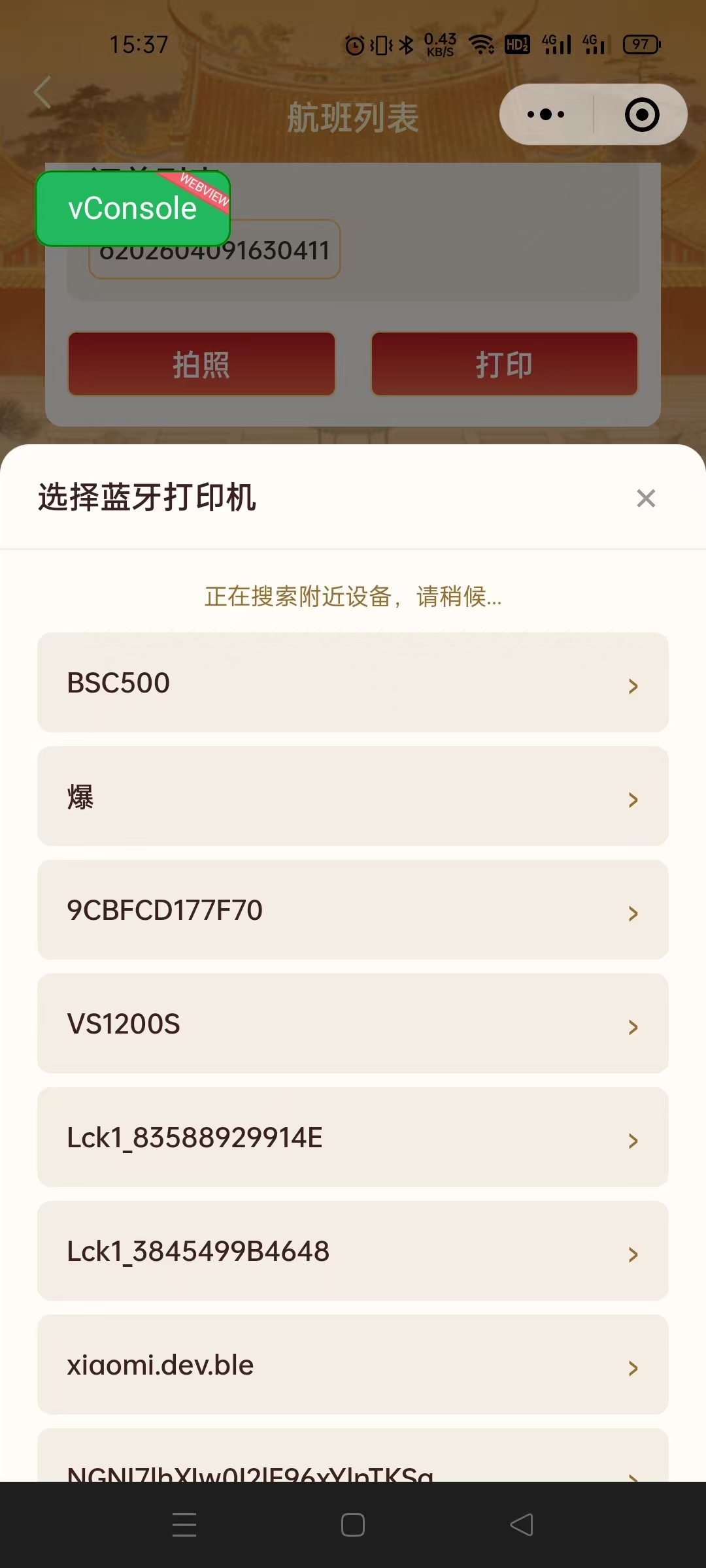
  <!-- 打印机选择弹窗 -->
  <view class="modal" wx:if="{{showPrintModal}}">
    <view class="modal-mask" bindtap="onCloseModal"></view>
    <view class="modal-content">
      <view class="modal-header">
        <text>选择蓝牙打印机</text>
        <text bindtap="onCloseModal">×</text>
      </view>

      <!-- 扫描状态 -->
      <text class="scan-status">{{scanStatus}}</text>

      <!-- 设备列表 -->
      <view wx:for="{{deviceList}}" wx:key="deviceId"
            bindtap="onSelectDevice" data-deviceid="{{item.deviceId}}">
        <text>{{item.name}}</text>
      </view>

      <!-- 空状态 -->
      <view wx:if="{{deviceList.length === 0}}" class="empty">
        <text>{{emptyText}}</text>
      </view>
    </view>
  </view>
</view>
7.2 WXSS 样式
css
/* pages/print/print.wxss */

/* 弹窗 */
.modal {
  position: fixed;
  top: 0; left: 0; right: 0; bottom: 0;
  z-index: 1000;
}

.modal-mask {
  position: absolute;
  top: 0; left: 0; right: 0; bottom: 0;
  background: rgba(0, 0, 0, 0.5);
}

.modal-content {
  position: absolute;
  bottom: 0; left: 0; right: 0;
  background: #fff;
  border-radius: 32rpx 32rpx 0 0;
  max-height: 70vh;
  overflow: hidden;
  padding: 32rpx 40rpx;
}

.modal-header {
  display: flex;
  justify-content: space-between;
  align-items: center;
  font-size: 34rpx;
  font-weight: bold;
  margin-bottom: 24rpx;
}

.scan-status {
  text-align: center;
  color: #666;
  font-size: 26rpx;
  margin-bottom: 20rpx;
}

/* 设备列表项 */
.device-item {
  display: flex;
  justify-content: space-between;
  align-items: center;
  padding: 28rpx 32rpx;
  background: #f5f5f5;
  border-radius: 16rpx;
  margin-bottom: 16rpx;
  font-size: 30rpx;
}

.empty {
  text-align: center;
  padding: 60rpx 0;
  color: #999;
  font-size: 28rpx;
}
7.3 JS 业务逻辑
javascript
// pages/print/print.js
import { BluetoothPrinter } from '../../utils/bluetoothPrinter.js'
import { GBKEncoder } from '../../utils/gbkEncoder.js'

Page({
  data: {
    dataList: [],         // 待打印的数据列表
    currentItem: null,    // 当前要打印的项
    showPrintModal: false,
    deviceList: [],       // 发现的设备
    scanStatus: '正在搜索...',
    emptyText: '未发现设备'
  },

  onLoad() {
    // 初始化打印机实例
    this.bluetoothPrinter = new BluetoothPrinter()
  },

  // 点击打印按钮
  async onPrint(e) {
    const id = e.currentTarget.dataset.id
    const item = this.data.dataList.find(d => d.id === id)
    if (!item) return

    this.setData({
      currentItem: item,
      showPrintModal: true,
      deviceList: [],
      scanStatus: '正在搜索蓝牙打印机...'
    })

    wx.showLoading({ title: '搜索中...' })

    try {
      // 1. 打开蓝牙
      await this.bluetoothPrinter.openBluetoothAdapter()

      // 2. 设置发现回调
      this.bluetoothPrinter.onDeviceFound = (device) => {
        const list = this.data.deviceList
        if (!list.some(d => d.deviceId === device.deviceId)) {
          this.setData({
            deviceList: [...list, {
              name: device.name,
              deviceId: device.deviceId
            }]
          })
        }
      }

      // 3. 开始搜索
      await this.bluetoothPrinter.startDiscovery()

      // 4. 5秒后停止搜索
      setTimeout(() => {
        this.bluetoothPrinter.stopDiscovery()
        this.setData({ scanStatus: '搜索完成' })
      }, 5000)

    } catch (err) {
      console.error('搜索失败:', err)
      this.setData({
        scanStatus: '搜索失败',
        emptyText: err.errMsg || '请检查蓝牙是否开启'
      })
    } finally {
      wx.hideLoading()
    }
  },

  // 选择设备并打印
  async onSelectDevice(e) {
    const deviceId = e.currentTarget.dataset.deviceid
    const device = this.data.deviceList.find(d => d.deviceId === deviceId)
    if (!device) return

    this.setData({ showPrintModal: false })
    wx.showLoading({ title: '连接中...' })

    try {
      // 1. 连接
      await this.bluetoothPrinter.connect(device)

      // 2. 生成并发送打印数据
      const cmd = this.generateLabel(this.data.currentItem)
      const buffer = GBKEncoder.encodeToBuffer(cmd)
      await this.bluetoothPrinter.writeData(buffer)

      wx.hideLoading()
      wx.showToast({ title: '打印成功', icon: 'success' })
    } catch (err) {
      wx.hideLoading()
      wx.showToast({ title: err.message || '打印失败', icon: 'none' })
    }
  },

  // 生成打印指令(可按需重写)
  generateLabel(data) {
    // CPCL 或 ESC/POS 指令
    let cmd = ''
    cmd += '! 0 200 200 400 1\r\n'
    cmd += 'CENTER\r\n'
    cmd += 'TEXT 7 0 0 30 "' + data.name + '"\r\n'
    cmd += 'LEFT\r\n'
    cmd += 'TEXT 4 0 20 80 "ID: ' + data.id + '"\r\n'
    cmd += 'FORM\r\n'
    cmd += 'PRINT\r\n'
    return cmd
  },

  // 关闭弹窗
  onCloseModal() {
    this.setData({ showPrintModal: false })
    this.bluetoothPrinter.stopDiscovery()
  },

  // 离开页面清理
  onUnload() {
    if (this.bluetoothPrinter) {
      this.bluetoothPrinter.closeAdapter()
      this.bluetoothPrinter = null
    }
  }
})
7.4 完整打印流程图
用户点击"打印"
    │
    ├─ openBluetoothAdapter()
    │
    ├─ startDiscovery()
    │     └─ 显示设备列表
    │
    ├─ 用户选择设备
    │
    ├─ createBLEConnection()
    │
    ├─ getBLEDeviceServices()
    │
    ├─ getBLEDeviceCharacteristics()
    │
    ├─ generateLabel(data)
    │     └─ 生成 CPCL/ESC/POS 指令
    │
    ├─ GBKEncoder.encodeToBuffer(cmd)
    │     └─ 中文 → GBK 编码
    │
    ├─ writeData(buffer)
    │     └─ 分包 20 字节,循环发送
    │
    └─ closeBLEConnection()
8. 常见问题
8.1 中文乱码
原因:中文字符没有正确编码为 GBK。
解决 :使用 GBKEncoder.encodeToBuffer() 将指令字符串编码后再发送。
javascript
// ❌ 错误:蓝牙打印机 writeData 里用简单 charCodeAt
stringToArrayBuffer(str) {
  const buffer = new ArrayBuffer(str.length)
  const view = new Uint8Array(buffer)
  for (let i = 0; i < str.length; i++) {
    view[i] = str.charCodeAt(i) // charCodeAt 返回的是 Unicode,不是 GBK
  }
  return buffer
}

// ✅ 正确:使用 GBKEncoder
stringToArrayBuffer(str) {
  return GBKEncoder.encodeToBuffer(str)
}
8.2 连接失败
- 确保手机蓝牙已开启
- 确保打印机处于可配对状态
- 部分打印机需要先通过系统蓝牙配对,再在小程序中使用
- iOS 和 Android 的 BLE 实现存在差异
8.3 数据发送不完整
- BLE 单次写入最大 20 字节
- 确保分包发送,每包之间延迟 20-50ms
- 不要在短时间内发送大量数据包
8.4 找不到设备
- 检查打印机是否支持 BLE(低功耗蓝牙)
- 部分老式蓝牙打印机只支持经典蓝牙(SPP),不支持 BLE
- 确认打印机已开机且在广播状态
- 微信小程序
allowDuplicatesKey: true可以获取更多设备
8.5 打印空白
- 检查 CPCL 指令中的页码高度是否正确(
! 0 200 200 <height> 1) - 确认是否调用了
FORM+PRINT命令 - 检查页面宽度
PW是否设置正确
8.6 Android vs iOS 差异
| 特性 | Android | iOS |
|---|---|---|
| BLE 扫描 | 支持,可获取更多设备信息 | 限制较多,设备名可能为空 |
| 连接速度 | 较快 | 较慢 |
| 写入限制 | 20 字节/包 | 20 字节/包 |
| 设备过滤 | 可根据信号强度过滤 | 自动过滤远距离设备 |
| 权限 | 需要位置权限 | 需要蓝牙权限 |
9. 完整示例:打印标签
以下是一个完整的 CPCL 标签打印机示例,包含中文、英文、条码和格式化布局:
javascript
function generateShippingLabel(data) {
  const { expressNo, sender, receiver, weight } = data

  let cpcl = ''
  cpcl += '! 0 200 200 600 1\r\n'     // 600行高度
  cpcl += 'PW 560\r\n'                  // 560点宽
  cpcl += 'CENTER\r\n'
  cpcl += 'TEXT 7 0 0 30 "快递面单"\r\n'
  cpcl += 'LEFT\r\n'
  cpcl += 'TEXT 4 0 20 80 "单号: ' + expressNo + '"\r\n'
  cpcl += 'TEXT 4 0 20 130 "寄件人: ' + sender + '"\r\n'
  cpcl += 'TEXT 4 0 20 180 "收件人: ' + receiver + '"\r\n'
  cpcl += 'TEXT 4 0 20 230 "重量: ' + weight + 'kg"\r\n'
  cpcl += 'TEXT 4 0 20 280 "──────────────"\r\n'
  cpcl += 'BARCODE 128 20 320 "' + expressNo + '"\r\n'
  cpcl += 'FORM\r\n'
  cpcl += 'PRINT\r\n'

  return cpcl
}

// 使用
const cmd = generateShippingLabel({
  expressNo: 'SF1234567890',
  sender: '张三',
  receiver: '李四',
  weight: '1.5'
})
const buffer = GBKEncoder.encodeToBuffer(cmd)
await bluetoothPrinter.writeData(buffer)
附录:蓝牙 API 参考
| API | 说明 | 基础库版本 |
|---|---|---|
wx.openBluetoothAdapter |
初始化蓝牙适配器 | 1.1.0 |
wx.closeBluetoothAdapter |
关闭蓝牙适配器 | 1.1.0 |
wx.getBluetoothAdapterState |
获取蓝牙适配器状态 | 1.1.0 |
wx.startBluetoothDevicesDiscovery |
开始搜索设备 | 1.1.0 |
wx.stopBluetoothDevicesDiscovery |
停止搜索设备 | 1.1.0 |
wx.onBluetoothDeviceFound |
监听发现设备 | 1.1.0 |
wx.createBLEConnection |
连接低功耗蓝牙设备 | 1.1.0 |
wx.closeBLEConnection |
断开低功耗蓝牙设备 | 1.1.0 |
wx.getBLEDeviceServices |
获取设备服务列表 | 1.1.0 |
wx.getBLEDeviceCharacteristics |
获取设备特征值 | 1.1.0 |
wx.writeBLECharacteristicValue |
写入数据 | 1.1.0 |
wx.notifyBLECharacteristicValueChange |
开启通知 | 1.1.0 |
注意 :以上 API 都需要 蓝牙权限,在微信小程序管理后台的「接口权限」中申请。