1. 前言
Windows Subsystem for Linux (WSL) 允许开发者在 Windows 上直接运行 Linux 环境,无需双系统或虚拟机。本文将详细介绍在 Windows 10/11 上安装和配置 WSL 2 及 Ubuntu 发行版的完整步骤。
2. 系统要求
- Windows 版本:Windows 10 版本 2004 及更高版本(内部版本 19041 及以上)或 Windows 11。
- 虚拟化支持:确保 BIOS/UEFI 中已启用虚拟化技术(Intel VT-x 或 AMD-V)。
- 存储空间:建议预留至少 10 GB 可用磁盘空间。
3. 启用 WSL 功能
首先,我们需要在 Windows 中启用 WSL 和虚拟机平台功能。
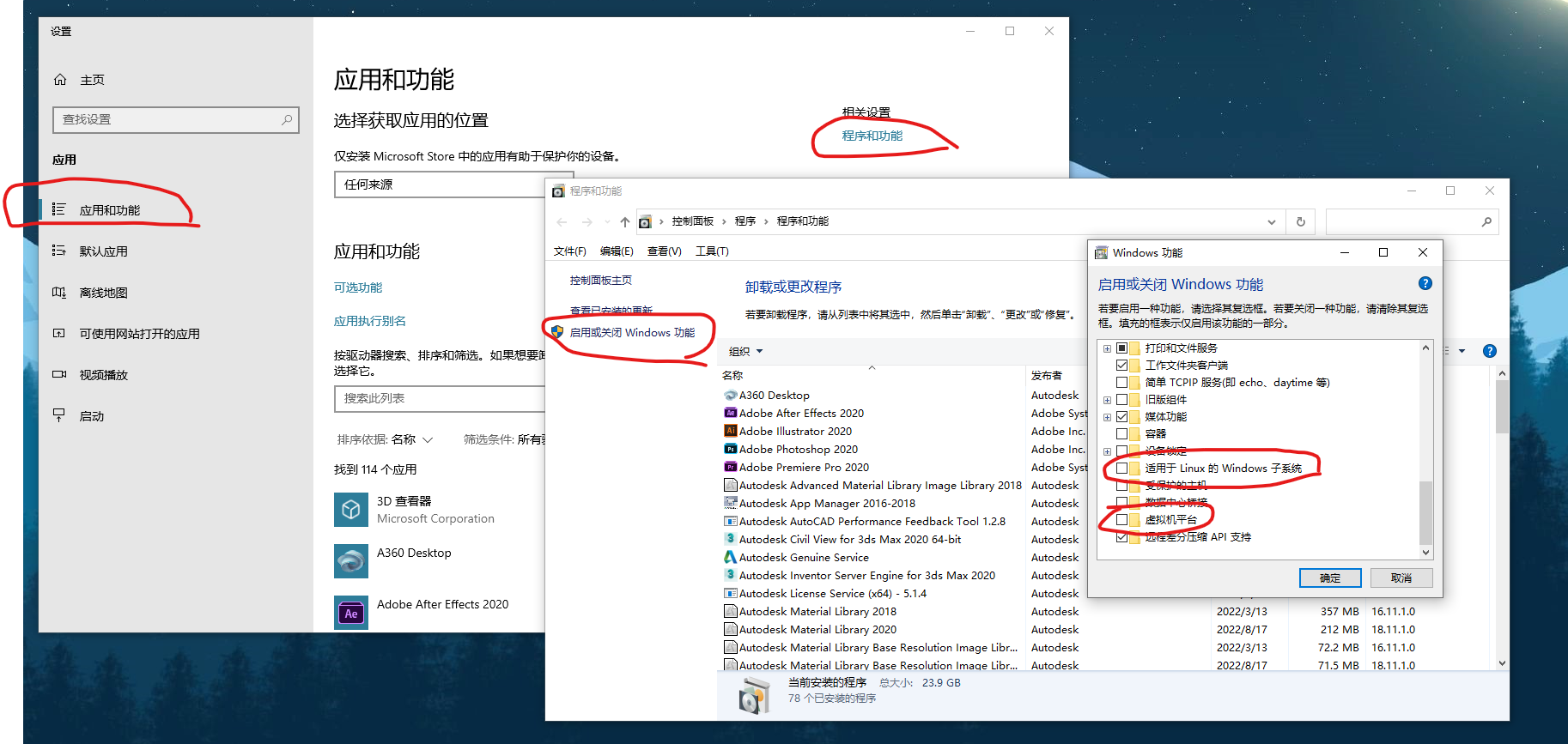
- Windows开始菜单右键点击"应用和功能" -> 右侧"程序和功能" -> "启用或关闭 Windows 功能"。
- 勾选"适用于 Linux 的 Windows 子系统"和"虚拟机平台"。
- 点击"确定"并重启计算机。
4. 安装 Ubuntu 发行版
4.1 通过 Microsoft Store 安装(推荐)
- 打开 Windows应用商店 Microsoft Store。
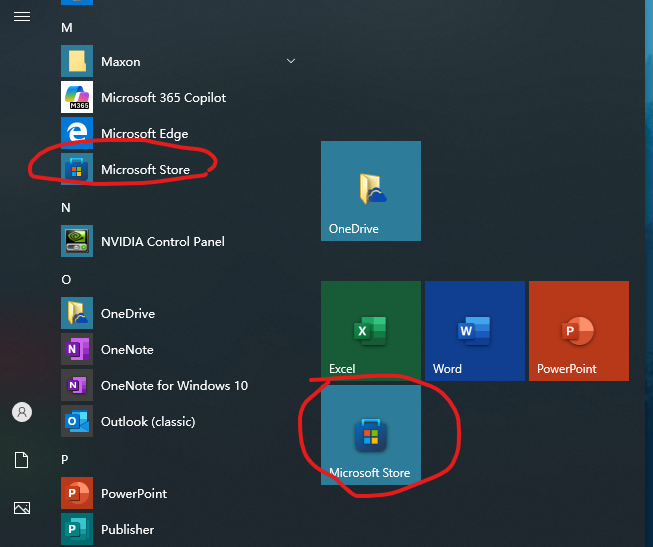
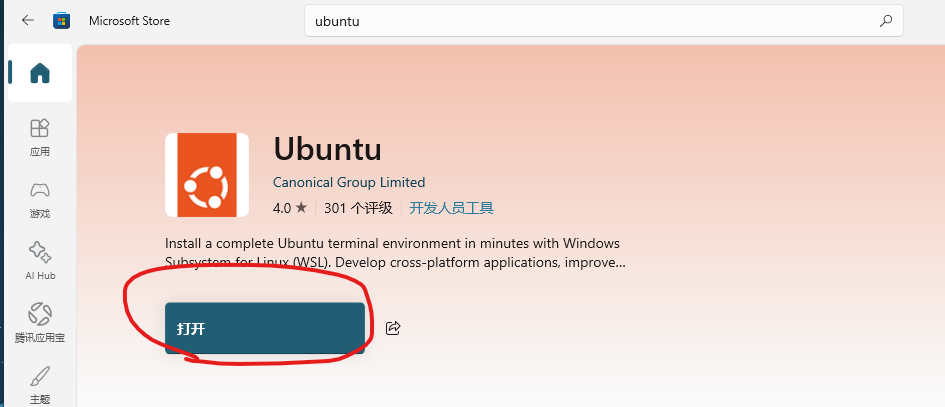
- 搜索"Ubuntu",点击获取并安装。
5. 首次启动与配置 Ubuntu
- 安装完成后,从开始菜单启动"Ubuntu"。
- 首次启动会进行解压,请耐心等待几分钟。
- 系统会提示你创建新的 UNIX 用户名和密码(此用户将拥有 sudo 权限)。
bash
# 示例:首次启动后的配置过程
Installing, this may take a few minutes...
Please create a default UNIX user account. The username does not need to match your Windows username.
For more information visit: https://aka.ms/wslusers
Enter new UNIX username: yourusername
New password:
Retype new password:
passwd: password updated successfully
Installation successful!