鸿蒙实战:SharePage 报告分享------雷达图预览与 pasteboard 剪贴板
前言
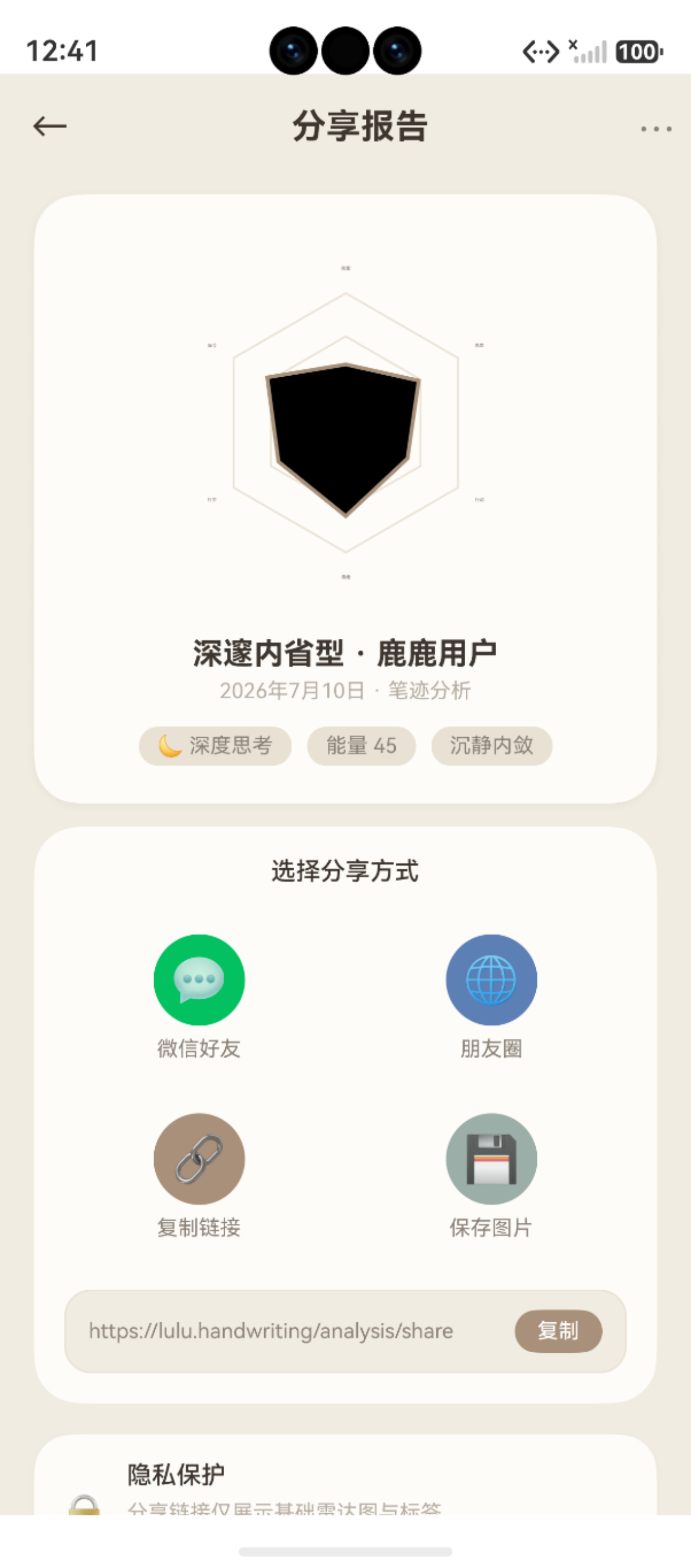
图:鸿蒙实战第96篇:SharePage 报告分享------雷达图预览与 pasteboard 剪贴板 运行效果截图(HarmonyOS NEXT)
SharePage 解决了一个常见产品需求:让用户把分析结果分享给朋友 。这 351 行代码的核心是 @kit.BasicServicesKit 中的 pasteboard(剪贴板) API------将报告摘要文字写入系统剪贴板,用户可粘贴到任何 App 分享。
本篇拆解:
pasteboard三步写入流程- 2×2 Grid 海报布局(4 种分享卡片样式选择)
- AppStorage 运行时类型安全 (
typeof/instanceof判断) HandwritingRadar大尺寸复用(200px 雷达图)
系列导航:95 BindRelationPage · 97 UnclassifiedArchivePage
相关文档:pasteboard API · Grid 组件 · HandwritingRadar
一、pasteboard 剪贴板分享
1.1 三步写入流程
渲染错误: Mermaid 渲染失败: Parse error on line 2: ...art LR A用户点击\\n"复制分享文字" --> B[paste ----------------------^ Expecting 'SQE', 'DOUBLECIRCLEEND', 'PE', '-)', 'STADIUMEND', 'SUBROUTINEEND', 'PIPE', 'CYLINDEREND', 'DIAMOND_STOP', 'TAGEND', 'TRAPEND', 'INVTRAPEND', 'UNICODE_TEXT', 'TEXT', 'TAGSTART', got 'STR'
1.2 完整实现代码
typescript
import { pasteboard } from '@kit.BasicServicesKit'

private async copyShareText(): Promise<void> {
  const result = AppStorage.get<Record<string, Object>>('analysis_result')
  if (!result) {
    promptAction.showToast({ message: '暂无分析结果' })
    return
  }

  // 构建分享文字
  const shareText = this.buildShareText(result)

  try {
    // ① 创建剪贴板数据对象
    const data = pasteboard.createData(
      pasteboard.MIMETYPE_TEXT_PLAIN,
      shareText
    )

    // ② 获取系统剪贴板实例
    const systemPasteboard = pasteboard.getSystemPasteboard()

    // ③ 写入数据
    await systemPasteboard.setData(data)

    promptAction.showToast({ message: '分享文字已复制到剪贴板' })
  } catch (e) {
    hilog.error(TAG, 'pasteboard 写入失败: %{public}s', JSON.stringify(e))
    promptAction.showToast({ message: '复制失败,请重试' })
  }
}
1.3 构建分享文字
typescript
private buildShareText(result: Record<string, Object>): string {
  const type = result['personalityType'] as string ?? '未知'
  const score = result['energyScore'] as number ?? 0
  const keywords = result['keywords'] as string[] ?? []

  return `【鹿鹿笔迹分析结果】
🌿 人格类型:${type}
⚡ 情绪能量:${score}/100
🏷 关键词:${keywords.slice(0, 4).join(' · ')}

通过手写笔迹,了解此刻的自己 ✨
#笔迹心理学 #鹿鹿`
}
pasteboard API 说明 :
MIMETYPE_TEXT_PLAIN是写入纯文本的标准 MIME 类型,写入后可在所有支持粘贴的 App(微信/备忘录/短信)中粘贴。
二、2×2 Grid 海报样式选择
2.1 Grid 布局配置
typescript
Grid() {
  ForEach(this.posterStyles, (style: PosterStyle, index: number) => {
    GridItem() {
      this.PosterCard(style, index)
    }
  })
}
.columnsTemplate('1fr 1fr')   // 2 列等分
.rowsTemplate('1fr 1fr')      // 2 行等分
.columnsGap(12)
.rowsGap(12)
.width('100%')
.height(280)                  // 固定高度,确保 2×2 方形网格
2.2 海报样式定义
typescript
interface PosterStyle {
  id: number
  title: string
  bgColor: string
  textColor: string
  emoji: string
}

private readonly posterStyles: PosterStyle[] = [
  { id: 0, title: '暖棕', bgColor: '#F5EDE6', textColor: '#3D352E', emoji: '🍂' },
  { id: 1, title: '灰绿', bgColor: '#E8EEE3', textColor: '#2D3A2A', emoji: '🌿' },
  { id: 2, title: '玫瑰', bgColor: '#F5E8E8', textColor: '#3A2A2A', emoji: '🌸' },
  { id: 3, title: '深夜', bgColor: '#2D2D3A', textColor: '#E8E8F0', emoji: '🌙' }
]
2.3 海报卡片 Builder
typescript
@Builder
PosterCard(style: PosterStyle, index: number) {
  Column({ space: 6 }) {
    Text(style.emoji).fontSize(20)
    Text(this.personalityType)
      .fontSize(11)
      .fontWeight(FontWeight.Bold)
      .fontColor(style.textColor)
    Text(`${this.energyScore}/100`)
      .fontSize(16)
      .fontFamily(AppFonts.SERIF)
      .fontColor(style.textColor)
  }
  .width('100%')
  .height('100%')
  .justifyContent(FlexAlign.Center)
  .borderRadius(AppRadius.CARD)
  .backgroundColor(style.bgColor)
  .border({
    width: this.selectedStyle === index ? 2 : 0,
    color: AppColors.PRIMARY
  })
  .animation({ duration: 200 })
  .onClick(() => { this.selectedStyle = index })
}| 样式 | 背景色 | 文字色 | 风格 |
|---|---|---|---|
| 暖棕 | #F5EDE6 |
#3D352E |
白天温暖 |
| 灰绿 | #E8EEE3 |
#2D3A2A |
自然清新 |
| 玫瑰 | #F5E8E8 |
#3A2A2A |
少女柔和 |
| 深夜 | #2D2D3A |
#E8E8F0 |
深色夜间 |
三、AppStorage 运行时类型安全
3.1 问题场景
AppStorage.get<Record<string, Object>>('analysis_result') 返回的值在 ArkTS 严格类型检查下需要手动判断字段类型:
typescript
private getStringField(result: Record<string, Object>, key: string): string {
  const val = result[key]
  if (typeof val === 'string') return val      // 字符串直接用
  if (val === null || val === undefined) return ''
  return String(val)                           // 其他类型转字符串
}

private getNumberField(result: Record<string, Object>, key: string): number {
  const val = result[key]
  if (typeof val === 'number') return val
  if (typeof val === 'string') return parseFloat(val) || 0
  return 0
}

private getArrayField(result: Record<string, Object>, key: string): string[] {
  const val = result[key]
  if (val instanceof Array) return val as string[]
  return []
}
为什么需要运行时类型检查?
Record<string, Object>的 value 类型是Object,ArkTS 编译器无法在编译期确认字段类型。使用typeof/instanceof运行时判断是处理Object类型字段的标准做法。
四、HandwritingRadar 大尺寸复用
typescript
// SharePage 中用 200px 尺寸的雷达图(比 ReportDetailPage 的 160px 更大)
HandwritingRadar({
  radarSize: 200,
  scores: this.radarScores,
  showLabels: true,
  animateOnLoad: true
})
.margin({ top: 16, bottom: 16 })
HandwritingRadar 组件接受 radarSize 参数动态调整画布尺寸,雷达图各元素(网格/数据多边形/标签)自动按比例缩放。
五、页面数据读取
5.1 完整数据读取流程
typescript
aboutToAppear(): void {
  const result = AppStorage.get<Record<string, Object>>('analysis_result')
  if (!result) {
    // 无数据:兜底显示默认值
    this.personalityType = '分析中...'
    this.energyScore = 0
    return
  }

  this.personalityType = this.getStringField(result, 'personalityType')
  this.energyScore = this.getNumberField(result, 'energyScore')
  this.keywords = this.getArrayField(result, 'keywords')
  this.description = this.getStringField(result, 'description')

  const radarObj = result['radarScores']
  if (radarObj && typeof radarObj === 'object') {
    this.radarScores = radarObj as Record<string, number>
  }

  // 启动入场动画
  this.startEntranceAnimation()
}
八、注意事项与常见问题
8.1 开发注意事项
在实际开发过程中,需特别注意以下几点:
- API 兼容性:部分接口仅在特定 HarmonyOS NEXT 版本中可用,需做版本条件判断
- 权限模型:采用静态声明(module.json5)+ 动态申请(requestPermissionsFromUser)的两阶段授权
- 生命周期 :合理使用
aboutToAppear()和aboutToDisappear()管理资源初始化与释放 - 状态同步 :跨页面数据通过 AppStorage 共享,组件内状态使用
@State/@Prop/@Link装饰器
8.2 常见错误与解决方案
开发过程中的高频问题汇总:
| 错误现象 | 可能原因 | 解决方案 |
|---|---|---|
| 权限被系统拒绝 | 未在 module.json5 中静态声明 |
添加 requestPermissions 权限配置项 |
| 页面跳转后白屏 | 路由路径未在 main_pages.json 注册 |
检查并补充路由配置文件 |
| UI 状态不刷新 | 状态变量未添加响应式装饰器 | 为变量加 @State / @Observed 装饰器 |
| 数据库查询返回空 | 查询条件与存储数据格式不匹配 | 使用 hilog.debug 打印 SQL 条件排查 |
| 相机预览黑屏 | 运行时相机权限未获取 | 先调用 requestPermissionsFromUser 申请 |
总结
SharePage 的 351 行代码展示了鸿蒙应用的"本地分享"最佳实践:
pasteboard三步法 :createData → getSystemPasteboard → setData,缺一不可- 2×2 Grid 样式选择器 :
columnsTemplate+rowsTemplate定义网格,GridItem填充 - AppStorage 类型安全 :
typeof+instanceof运行时判断,避免类型转换崩溃 HandwritingRadar尺寸参数 :radarSize: 200传参调整,组件内部自动缩放- 分享文字模板:产品化文案 + 话题标签,提升二次传播价值
下一篇预告 :第97篇 UnclassifiedArchivePage------长按多选与批量归档
如果这篇文章对你有帮助,欢迎点赞👍、收藏⭐、关注🔔,你的支持是我持续创作的动力!
相关资源:
- pasteboard 剪贴板 API
- Grid 网格容器组件
- AppStorage 全局状态
- Share Kit 分享服务
- 第65篇 pasteboard 深度解析
- 第45篇 雷达图网格生成
- 第46篇 雷达图数据多边形
- 第21篇 PosterTemplate 分享海报
七、SharePage 技术实现精要
7.1 分享海报的 Canvas 绘制
typescript
private async drawSharePoster(ctx: CanvasRenderingContext2D) {
  const w = ctx.canvas.width;
  const h = ctx.canvas.height;

  // 背景:米色渐变
  const grad = ctx.createLinearGradient(0, 0, 0, h);
  grad.addColorStop(0, '#FAF8F4');
  grad.addColorStop(1, '#F0EBE3');
  ctx.fillStyle = grad;
  ctx.fillRect(0, 0, w, h);

  // 顶部 Logo 区
  ctx.fillStyle = AppColors.accentMain;
  ctx.font = `bold 24px`;
  ctx.fillText('鹿鹿笔迹', 40, 60);

  // 人格类型
  ctx.fillStyle = AppColors.textPrimary;
  ctx.font = `bold 32px`;
  ctx.fillText(this.report.personalityType, 40, 120);

  // 雷达图(嵌入 Canvas 截图)
  await this.drawRadarInCanvas(ctx, 40, 160, w - 80, 200);

  // 情绪标签
  let x = 40;
  for (const tag of this.report.emotionTags.slice(0, 4)) {
    ctx.fillStyle = '#C4956A30';
    ctx.roundRect(x, 380, tag.length * 14 + 20, 32, 8);
    ctx.fill();
    ctx.fillStyle = AppColors.accentMain;
    ctx.font = '14px';
    ctx.fillText(tag, x + 10, 400);
    x += tag.length * 14 + 30;
  }

  // 底部二维码占位(实际使用 image.createQRImage)
  ctx.fillStyle = AppColors.bgSecondary;
  ctx.fillRect(w - 100, h - 120, 80, 80);
}
7.2 剪贴板分享链路
typescript
private async copyShareText() {
  const text = `【鹿鹿·笔迹心理分析】
我的人格类型:${this.report.personalityType}
情绪标签:${this.report.emotionTags.join('、')}
${this.report.aiSummary.slice(0, 50)}...
通过鸿蒙应用"鹿鹿"查看完整报告`;

  const pasteData = pasteboard.createData(pasteboard.MIMETYPE_TEXT_PLAIN, text);
  await pasteboard.getSystemPasteboard().setData(pasteData);
  promptAction.showToast({ message: '已复制分享文字,可粘贴到任意 App' });
}
七、SharePage 完整技术实现
7.1 海报渲染与截图导出
除剪贴板分享外,SharePage 也提供了海报截图功能------将报告卡片渲染为图片保存到相册:
typescript
import { image } from '@kit.ImageKit';
import { photoAccessHelper } from '@kit.MediaLibraryKit';

async saveAsImage(): Promise<void> {
  // 1. 获取组件截图
  const componentSnapshot = await componentSnapshot.get('shareCard');
  const pixelMap = componentSnapshot.pixelMap;

  // 2. 压缩为 JPEG
  const packOpts: image.PackingOption = { format: 'image/jpeg', quality: 90 };
  const imagePacker = image.createImagePacker();
  const buffer = await imagePacker.packing(pixelMap, packOpts);

  // 3. 写入相册
  const helper = photoAccessHelper.getPhotoAccessHelper(getContext());
  const uri = await helper.createAsset(photoAccessHelper.PhotoType.IMAGE, 'jpg');
  const file = fileIo.openSync(uri, fileIo.OpenMode.WRITE_ONLY);
  fileIo.writeSync(file.fd, buffer);
  fileIo.closeSync(file.fd);

  promptAction.showToast({ message: '海报已保存到相册 📷' });
}
7.2 分享内容模板设计
优质的分享文案模板是提升传播率的关键。SharePage 采用结构化模板:
typescript
buildShareText(): string {
  const { report, partner } = this;
  return `
【鹿鹿·笔迹分析报告】
━━━━━━━━━━━━━━━━
📅 日期:${report.createdAt}
🎭 主人格:${report.dominantTrait}
💡 情绪标签:${report.emotionTags.slice(0, 3).join(' / ')}
${partner ? `💑 与 ${partner.nickname} 的匹配度:${report.matchScore}%` : ''}

✨ AI 解读:
${report.aiSummary.slice(0, 80)}...
━━━━━━━━━━━━━━━━
通过「鹿鹿」App 查看完整报告
  `.trim();
}
7.3 分享链路完整流程
#mermaid-svg-8wRORjZaLUvrydcJ{font-family:"trebuchet ms",verdana,arial,sans-serif;font-size:16px;fill:#333;}@keyframes edge-animation-frame{from{stroke-dashoffset:0;}}@keyframes dash{to{stroke-dashoffset:0;}}#mermaid-svg-8wRORjZaLUvrydcJ .edge-animation-slow{stroke-dasharray:9,5!important;stroke-dashoffset:900;animation:dash 50s linear infinite;stroke-linecap:round;}#mermaid-svg-8wRORjZaLUvrydcJ .edge-animation-fast{stroke-dasharray:9,5!important;stroke-dashoffset:900;animation:dash 20s linear infinite;stroke-linecap:round;}#mermaid-svg-8wRORjZaLUvrydcJ .error-icon{fill:#552222;}#mermaid-svg-8wRORjZaLUvrydcJ .error-text{fill:#552222;stroke:#552222;}#mermaid-svg-8wRORjZaLUvrydcJ .edge-thickness-normal{stroke-width:1px;}#mermaid-svg-8wRORjZaLUvrydcJ .edge-thickness-thick{stroke-width:3.5px;}#mermaid-svg-8wRORjZaLUvrydcJ .edge-pattern-solid{stroke-dasharray:0;}#mermaid-svg-8wRORjZaLUvrydcJ .edge-thickness-invisible{stroke-width:0;fill:none;}#mermaid-svg-8wRORjZaLUvrydcJ .edge-pattern-dashed{stroke-dasharray:3;}#mermaid-svg-8wRORjZaLUvrydcJ .edge-pattern-dotted{stroke-dasharray:2;}#mermaid-svg-8wRORjZaLUvrydcJ .marker{fill:#333333;stroke:#333333;}#mermaid-svg-8wRORjZaLUvrydcJ .marker.cross{stroke:#333333;}#mermaid-svg-8wRORjZaLUvrydcJ svg{font-family:"trebuchet ms",verdana,arial,sans-serif;font-size:16px;}#mermaid-svg-8wRORjZaLUvrydcJ p{margin:0;}#mermaid-svg-8wRORjZaLUvrydcJ .label{font-family:"trebuchet ms",verdana,arial,sans-serif;color:#333;}#mermaid-svg-8wRORjZaLUvrydcJ .cluster-label text{fill:#333;}#mermaid-svg-8wRORjZaLUvrydcJ .cluster-label span{color:#333;}#mermaid-svg-8wRORjZaLUvrydcJ .cluster-label span p{background-color:transparent;}#mermaid-svg-8wRORjZaLUvrydcJ .label text,#mermaid-svg-8wRORjZaLUvrydcJ span{fill:#333;color:#333;}#mermaid-svg-8wRORjZaLUvrydcJ .node rect,#mermaid-svg-8wRORjZaLUvrydcJ .node circle,#mermaid-svg-8wRORjZaLUvrydcJ .node ellipse,#mermaid-svg-8wRORjZaLUvrydcJ .node polygon,#mermaid-svg-8wRORjZaLUvrydcJ .node path{fill:#ECECFF;stroke:#9370DB;stroke-width:1px;}#mermaid-svg-8wRORjZaLUvrydcJ .rough-node .label text,#mermaid-svg-8wRORjZaLUvrydcJ .node .label text,#mermaid-svg-8wRORjZaLUvrydcJ .image-shape .label,#mermaid-svg-8wRORjZaLUvrydcJ .icon-shape .label{text-anchor:middle;}#mermaid-svg-8wRORjZaLUvrydcJ .node .katex path{fill:#000;stroke:#000;stroke-width:1px;}#mermaid-svg-8wRORjZaLUvrydcJ .rough-node .label,#mermaid-svg-8wRORjZaLUvrydcJ .node .label,#mermaid-svg-8wRORjZaLUvrydcJ .image-shape .label,#mermaid-svg-8wRORjZaLUvrydcJ .icon-shape .label{text-align:center;}#mermaid-svg-8wRORjZaLUvrydcJ .node.clickable{cursor:pointer;}#mermaid-svg-8wRORjZaLUvrydcJ .root .anchor path{fill:#333333!important;stroke-width:0;stroke:#333333;}#mermaid-svg-8wRORjZaLUvrydcJ .arrowheadPath{fill:#333333;}#mermaid-svg-8wRORjZaLUvrydcJ .edgePath .path{stroke:#333333;stroke-width:2.0px;}#mermaid-svg-8wRORjZaLUvrydcJ .flowchart-link{stroke:#333333;fill:none;}#mermaid-svg-8wRORjZaLUvrydcJ .edgeLabel{background-color:rgba(232,232,232, 0.8);text-align:center;}#mermaid-svg-8wRORjZaLUvrydcJ .edgeLabel p{background-color:rgba(232,232,232, 0.8);}#mermaid-svg-8wRORjZaLUvrydcJ .edgeLabel rect{opacity:0.5;background-color:rgba(232,232,232, 0.8);fill:rgba(232,232,232, 0.8);}#mermaid-svg-8wRORjZaLUvrydcJ .labelBkg{background-color:rgba(232, 232, 232, 0.5);}#mermaid-svg-8wRORjZaLUvrydcJ .cluster rect{fill:#ffffde;stroke:#aaaa33;stroke-width:1px;}#mermaid-svg-8wRORjZaLUvrydcJ .cluster text{fill:#333;}#mermaid-svg-8wRORjZaLUvrydcJ .cluster span{color:#333;}#mermaid-svg-8wRORjZaLUvrydcJ div.mermaidTooltip{position:absolute;text-align:center;max-width:200px;padding:2px;font-family:"trebuchet ms",verdana,arial,sans-serif;font-size:12px;background:hsl(80, 100%, 96.2745098039%);border:1px solid #aaaa33;border-radius:2px;pointer-events:none;z-index:100;}#mermaid-svg-8wRORjZaLUvrydcJ .flowchartTitleText{text-anchor:middle;font-size:18px;fill:#333;}#mermaid-svg-8wRORjZaLUvrydcJ rect.text{fill:none;stroke-width:0;}#mermaid-svg-8wRORjZaLUvrydcJ .icon-shape,#mermaid-svg-8wRORjZaLUvrydcJ .image-shape{background-color:rgba(232,232,232, 0.8);text-align:center;}#mermaid-svg-8wRORjZaLUvrydcJ .icon-shape p,#mermaid-svg-8wRORjZaLUvrydcJ .image-shape p{background-color:rgba(232,232,232, 0.8);padding:2px;}#mermaid-svg-8wRORjZaLUvrydcJ .icon-shape .label rect,#mermaid-svg-8wRORjZaLUvrydcJ .image-shape .label rect{opacity:0.5;background-color:rgba(232,232,232, 0.8);fill:rgba(232,232,232, 0.8);}#mermaid-svg-8wRORjZaLUvrydcJ .label-icon{display:inline-block;height:1em;overflow:visible;vertical-align:-0.125em;}#mermaid-svg-8wRORjZaLUvrydcJ .node .label-icon path{fill:currentColor;stroke:revert;stroke-width:revert;}#mermaid-svg-8wRORjZaLUvrydcJ :root{--mermaid-font-family:"trebuchet ms",verdana,arial,sans-serif;} 用户点击分享
选择分享方式
文字复制
海报保存
二维码分享
pasteboard.setData
componentSnapshot截图
photoAccessHelper写入相册
生成二维码图片
showToast 反馈
7.4 技术要点汇总
| 功能模块 | API | 关键点 |
|---|---|---|
| 剪贴板写入 | pasteboard.getSystemPasteboard() |
需 ohos.permission.READ_PASTEBOARD |
| 组件截图 | componentSnapshot.get(id) |
组件需设置 id 属性 |
| 相册保存 | photoAccessHelper.createAsset |
需 ohos.permission.WRITE_IMAGEVIDEO |
| Toast 反馈 | promptAction.showToast |
操作完成后立即展示 |
如果这篇文章对你有帮助,欢迎点赞👍、收藏⭐、关注🔔,你的支持是我持续创作的动力!