文章目录
- RecyclerView、SwipeRefreshLayout、SmartRefreshLayout
-
- 1.RecyclerView
-
- [1.1 布局文件](#1.1 布局文件)
- [1.2 Adapter 代码](#1.2 Adapter 代码)
- [1.3 Activity 代码](#1.3 Activity 代码)
- 2.SwipeRefreshLayout
-
- [2.1 布局文件](#2.1 布局文件)
- [2.2 Adapter 代码](#2.2 Adapter 代码)
- [2.3 Activity 代码](#2.3 Activity 代码)
- 3.SmartRefreshLayout
-
- [3.1 布局文件](#3.1 布局文件)
- [3.2 数据实体类](#3.2 数据实体类)
- [3.3 Adapter 代码](#3.3 Adapter 代码)
- [3.4 Activity 代码](#3.4 Activity 代码)
RecyclerView、SwipeRefreshLayout、SmartRefreshLayout
1.RecyclerView
RecyclerView 是 Android 中一个功能强大的 UI 组件,用于高效展示大量数据的列表。其名称中的 "Recycler"(回收器)揭示了它最核心的特性:通过复用和回收列表项视图来显著提升性能。
- 高效展示大量数据
- 支持灵活的布局方式
- 提供流畅的滚动体验
- 内存使用经过深度优化
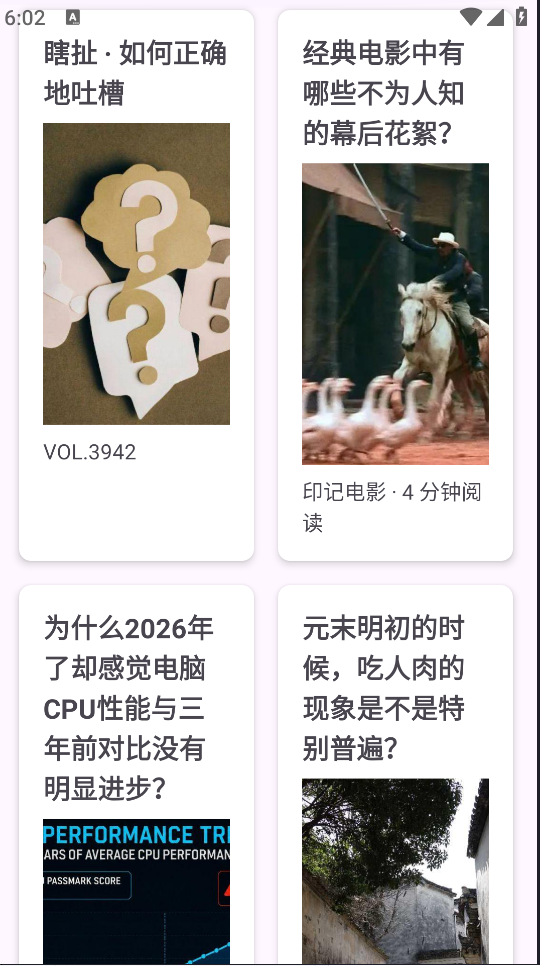
1.1 布局文件
activity_recycler_view_demo.xml - 主界面布局,包含一个占满屏幕的 RecyclerView:
xml
<?xml version="1.0" encoding="utf-8"?>
<LinearLayout xmlns:android="http://schemas.android.com/apk/res/android"
    xmlns:app="http://schemas.android.com/apk/res-auto"
    xmlns:tools="http://schemas.android.com/tools"
    android:id="@+id/main"
    android:layout_width="match_parent"
    android:layout_height="match_parent"
    android:orientation="vertical"
    tools:context=".demo.newslist.RecyclerViewDemoActivity">

    <androidx.recyclerview.widget.RecyclerView
        android:id="@+id/recyclerView"
        android:layout_width="match_parent"
        android:layout_height="match_parent"
        android:clipToPadding="false"
        android:padding="8dp" />

</LinearLayout>
item_news.xml - 新闻列表项布局,使用 CardView 作为容器,包含标题、图片和内容摘要:
xml
<androidx.cardview.widget.CardView xmlns:android="http://schemas.android.com/apk/res/android"
    xmlns:app="http://schemas.android.com/apk/res-auto"
    android:layout_width="match_parent"
    android:layout_height="wrap_content"
    android:layout_margin="8dp"
    app:cardCornerRadius="8dp"
    app:cardElevation="4dp">

    <LinearLayout
        android:layout_width="match_parent"
        android:layout_height="wrap_content"
        android:orientation="vertical"
        android:padding="16dp">

        <TextView
            android:id="@+id/titleTextView"
            android:layout_width="match_parent"
            android:layout_height="wrap_content"
            android:textSize="18sp"
            android:textStyle="bold" />

        <ImageView
            android:id="@+id/newsImageView"
            android:layout_width="match_parent"
            android:layout_height="200dp"
            android:layout_marginTop="8dp"
            android:scaleType="centerCrop" />

        <TextView
            android:id="@+id/contentTextView"
            android:layout_width="match_parent"
            android:layout_height="wrap_content"
            android:layout_marginTop="8dp"
            android:textSize="14sp" />
    </LinearLayout>
</androidx.cardview.widget.CardView>
1.2 Adapter 代码
Adapter 是 RecyclerView 的核心组件,负责创建列表项视图并将数据绑定到对应的视图上。
kotlin
class NewsAdapter(private val list: MutableList<New>) : RecyclerView.Adapter<NewsAdapter.NewsViewHolder>() {

    // 1. 创建 ViewHolder
    class NewsViewHolder(val binding : ItemNewsBinding) : RecyclerView.ViewHolder (binding.root)

    // 2. 重写 onCreateViewHolder、getItemCount、onBindViewHolder方法
    // 作用: 创建 ViewHolder 布局并返回
    override fun onCreateViewHolder(parent: ViewGroup, viewType: Int): NewsViewHolder {
        val binding = ItemNewsBinding.inflate(LayoutInflater.from(parent.context), parent, false)
        return NewsViewHolder(binding)
    }

    // 作用: 返回列表项数量
    override fun getItemCount(): Int {
        return list.size
    }

    // 作用: 绑定数据
    override fun onBindViewHolder(holder: NewsViewHolder, position: Int) {
        // 获取当前项数据
        val newItem = list[position]

        // 绑定数据
        holder.binding.titleTextView.text = newItem.title
        holder.binding.contentTextView.text = newItem.hint
        Glide.with(holder.itemView.context).load(newItem.image).into(holder.binding.newsImageView)
    }

    fun updateData(newList: List<New>) {
        list.clear()
        list.addAll(newList)
        notifyDataSetChanged()
    }
}
在 Android 开发中,notifyDataSetChanged() 是 RecyclerView 适配器的一个重要方法,用于通知 Adapter 数据集已发生变化,需要刷新整个列表的显示。
- 触发 UI 更新 :当
RecyclerView绑定的数据(List或Array)发生增删改时,调用该方法会强制刷新所有列表项(Item),确保 UI 与数据保持同步。 - 全量刷新 :该方法会重新执行
Adapter的onBindViewHolder(),对所有可见项进行数据绑定,因此性能开销较大。
在实际开发中,应优先使用具体的局部更新方法(如 notifyItemInserted()),将 notifyDataSetChanged() 作为最后手段。
-
为什么
notifyDataSetChanged()效率较低?- 全量刷新:该方法不会指明数据的具体变化类型(增/删/改/移动),而是简单地通知 Adapter 所有数据"可能已失效"。
- 连锁反应 :
LayoutManager必须对所有可见的 ItemView 执行重新绑定(rebind)和重新布局(relayout)。RecyclerView会对所有可见项重新执行onBindViewHolder(),即使某些项的数据并未发生变化。
-
建议优先使用以下细粒度更新方法,明确指定变化类型和位置,以获得更好的性能:
方法 适用场景 性能优势 notifyItemInserted(position) 在 position 处新增一项 仅新增项需要布局 notifyItemRemoved(position) 删除 position 处的项 仅移除项影响布局 notifyItemChanged(position) position 处的数据更新 仅重绑单项数据 notifyItemMoved(from, to) 项从 from 移动到 to 仅处理移动动画和布局微调 notifyItemRangeChanged() 批量更新连续范围内的项 比全量刷新更高效
1.3 Activity 代码
kotlin
class RecyclerViewDemoActivity : AppCompatActivity() {
    private lateinit var binding: ActivityRecyclerViewDemoBinding
    private lateinit var newsAdapter: NewsAdapter
    private var newsList = mutableListOf<New>()

    override fun onCreate(savedInstanceState: Bundle?) {
        super.onCreate(savedInstanceState)
        enableEdgeToEdge()
        binding = ActivityRecyclerViewDemoBinding.inflate(layoutInflater)
        setContentView(binding.root)

        // 初始化 RecyclerView
        newsAdapter = NewsAdapter(newsList)

        // 线性布局,垂直方向
        // binding.recyclerView.layoutManager = LinearLayoutManager(this)

        // 线性布局,垂直方向,不反转
        // binding.recyclerView.layoutManager = LinearLayoutManager(this, LinearLayoutManager.VERTICAL, false)

        // 网格布局,2列
        binding.recyclerView.layoutManager = GridLayoutManager(this, 2)

        // 瀑布流布局,2列,垂直方向,不反转
        // binding.recyclerView.layoutManager = StaggeredGridLayoutManager(2, StaggeredGridLayoutManager.VERTICAL)

        // 设置适配器
        binding.recyclerView.adapter = newsAdapter

        // 获取数据
        fetchNews()
    }

    private fun fetchNews() {
        RetrofitClient.newsApi.getNews().enqueue(object : Callback<NewsBean> {
            override fun onResponse(call: Call<NewsBean>, response: Response<NewsBean>) {
                if (response.isSuccessful) {
                    val newsBean = response.body()
                    newsBean?.let{
                        newsAdapter.updateData(it.news.shuffled())
                    }
                    Toasty.success(this@RecyclerViewDemoActivity, "Data fetched successfully", Toast.LENGTH_SHORT).show()
                }else{
                    Log.e("RecyclerViewDemoActivity", "Response not successful: ${response.code()}")
                }
            }

            override fun onFailure(call: Call<NewsBean>, t: Throwable) {
                Log.e("RecyclerViewDemoActivity", "Failure: ${t.message}")
            }
        })
    }
}- ViewHolder 模式
- ViewHolder 用于缓存视图引用,避免在滚动过程中重复调用
findViewById - 显著提升列表的滚动性能
- ViewHolder 用于缓存视图引用,避免在滚动过程中重复调用
- LayoutManager
- 负责控制列表项的排列方式,常用的有三种:
LinearLayoutManager:线性布局,支持垂直或水平方向滚动GridLayoutManager:网格布局,将列表项按行列排列StaggeredGridLayoutManager:瀑布流布局,呈现错落有致的网格效果
- 负责控制列表项的排列方式,常用的有三种:
- Adapter 的三个核心方法
onCreateViewHolder:创建 ViewHolder 实例,加载列表项布局onBindViewHolder:将指定位置的数据绑定到对应的 ViewHoldergetItemCount:返回数据集合的总数量
2.SwipeRefreshLayout
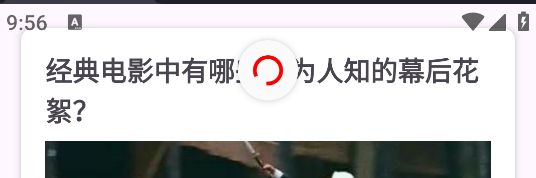
SwipeRefreshLayout是 Google 官方提供的下拉刷新控件,允许用户通过下拉手势触发数据刷新操作(类似微信朋友圈的下拉刷新效果)。其主要特点如下:
- 内置进度条动画(默认为圆形旋转样式)
- 支持自定义刷新指示器的颜色和样式
- 使用简单,非常适合搭配列表类控件(如 RecyclerView、ListView)实现下拉刷新
kotlin
// 添加依赖
implementation("androidx.swiperefreshlayout:swiperefreshlayout:1.1.0")
2.1 布局文件
activity_swipe_refresh.xml:
xml
<?xml version="1.0" encoding="utf-8"?>
<LinearLayout xmlns:android="http://schemas.android.com/apk/res/android"
    xmlns:app="http://schemas.android.com/apk/res-auto"
    xmlns:tools="http://schemas.android.com/tools"
    android:id="@+id/main"
    android:layout_width="match_parent"
    android:layout_height="match_parent"
    android:orientation="vertical"
    tools:context=".demo.newslist.SwipeRefreshActivity">

    <androidx.swiperefreshlayout.widget.SwipeRefreshLayout
        android:id="@+id/swipeRefreshLayout"
        android:layout_width="match_parent"
        android:layout_height="match_parent">

        <androidx.recyclerview.widget.RecyclerView
            app:layoutManager="androidx.recyclerview.widget.GridLayoutManager"
            android:id="@+id/recyclerView"
            android:layout_width="match_parent"
            android:layout_height="match_parent"
            android:padding="8dp"
            android:clipToPadding="false"/>
    </androidx.swiperefreshlayout.widget.SwipeRefreshLayout>

</LinearLayout>item_news.xml:
xml
<androidx.cardview.widget.CardView xmlns:android="http://schemas.android.com/apk/res/android"
    xmlns:app="http://schemas.android.com/apk/res-auto"
    android:layout_width="match_parent"
    android:layout_height="wrap_content"
    android:layout_margin="8dp"
    app:cardCornerRadius="8dp"
    app:cardElevation="4dp">

    <LinearLayout
        android:layout_width="match_parent"
        android:layout_height="wrap_content"
        android:orientation="vertical"
        android:padding="16dp">

        <TextView
            android:id="@+id/titleTextView"
            android:layout_width="match_parent"
            android:layout_height="wrap_content"
            android:textSize="18sp"
            android:textStyle="bold" />

        <ImageView
            android:id="@+id/newsImageView"
            android:layout_width="match_parent"
            android:layout_height="200dp"
            android:layout_marginTop="8dp"
            android:scaleType="centerCrop" />

        <TextView
            android:id="@+id/contentTextView"
            android:layout_width="match_parent"
            android:layout_height="wrap_content"
            android:layout_marginTop="8dp"
            android:textSize="14sp" />
    </LinearLayout>
</androidx.cardview.widget.CardView>
2.2 Adapter 代码
kotlin
package com.fhtt.todoapp.demo.newslist

import android.view.LayoutInflater
import android.view.ViewGroup
import androidx.recyclerview.widget.RecyclerView
import com.bumptech.glide.Glide
import com.fhtt.todoapp.databinding.ItemNewsBinding
import com.fhtt.todoapp.demo.net.New

class NewsAdapter(private val list: MutableList<New>) : RecyclerView.Adapter<NewsAdapter.NewsViewHolder>() {

    // 1. 创建 ViewHolder
    class NewsViewHolder(val binding : ItemNewsBinding) : RecyclerView.ViewHolder (binding.root)

    // 2. 重写 onCreateViewHolder、getItemCount、onBindViewHolder方法
    // 作用: 创建 ViewHolder 布局并返回
    override fun onCreateViewHolder(parent: ViewGroup, viewType: Int): NewsViewHolder {
        val binding = ItemNewsBinding.inflate(LayoutInflater.from(parent.context), parent, false)
        return NewsViewHolder(binding)
    }

    // 作用: 返回列表项数量
    override fun getItemCount(): Int {
        return list.size
    }

    // 作用: 绑定数据
    override fun onBindViewHolder(holder: NewsViewHolder, position: Int) {
        // 获取当前项数据
        val newItem = list[position]

        // 绑定数据
        holder.binding.titleTextView.text = newItem.title
        holder.binding.contentTextView.text = newItem.hint
        Glide.with(holder.itemView.context).load(newItem.image).into(holder.binding.newsImageView)
    }

    fun updateData(newList: List<New>) {
        list.clear()
        list.addAll(newList)
        notifyDataSetChanged()
    }
}
2.3 Activity 代码
kotlin
class SwipeRefreshActivity : AppCompatActivity() {
    private lateinit var binding: ActivitySwipeRefreshBinding

    private val adapter by lazy {
        NewsAdapter(mutableListOf())
    }

    override fun onCreate(savedInstanceState: Bundle?) {
        super.onCreate(savedInstanceState)
        enableEdgeToEdge()
        binding = ActivitySwipeRefreshBinding.inflate(layoutInflater)
        setContentView(binding.root)

        // 设置RecyclerView的适配器
        binding.recyclerView.adapter = adapter

        // 设置下拉刷新监听器
        binding.swipeRefreshLayout.setOnRefreshListener {
            // 获取数据
            fetchNews()
        }

        // 设置刷新时的颜色方案
        binding.swipeRefreshLayout.setColorSchemeResources(
            R.color.red,
            R.color.blue,
            R.color.green,
            R.color.yellow,
            R.color.purple
        )

        // 获取数据
        fetchNews()
        // 刷新数据
        binding.swipeRefreshLayout.isRefreshing = true
    }

    // 网络请求成功或者失败,需要结束刷新
    private fun fetchNews() {
        lifecycleScope.launch {
            delay(2000)

            RetrofitClient.newsApi.getNews().enqueue(object : Callback<NewsBean> {
                override fun onResponse(call: Call<NewsBean>, response: Response<NewsBean>) {
                    // 停止刷新
                    binding.swipeRefreshLayout.isRefreshing = false

                    if (response.isSuccessful) {
                        val newsBean = response.body()
                        newsBean?.let{
                            adapter.updateData(it.news.shuffled())
                        }
                        Toasty.success(this@SwipeRefreshActivity, "Data fetched successfully", Toast.LENGTH_SHORT).show()
                    }else{
                        Log.e("RecyclerViewDemoActivity", "Response not successful: ${response.code()}")
                    }
                }

                override fun onFailure(call: Call<NewsBean>, t: Throwable) {
                    // 停止刷新
                    binding.swipeRefreshLayout.isRefreshing = false

                    Log.e("RecyclerViewDemoActivity", "Failure: ${t.message}")
                }
            })
        }
    }
}
3.SmartRefreshLayout
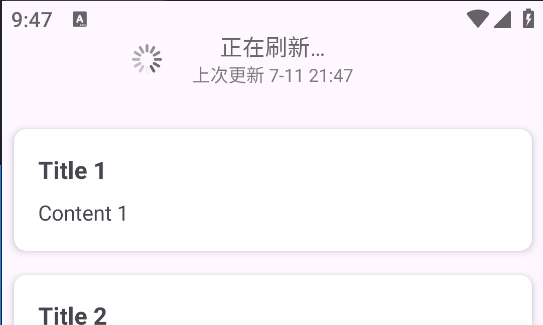
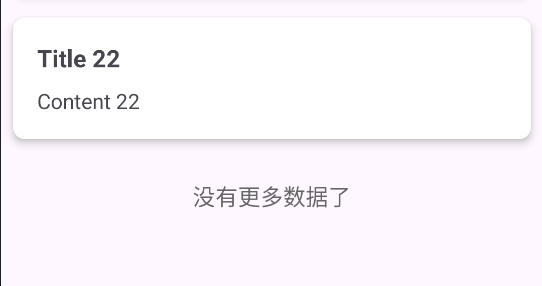
SmartRefreshLayout 是一个功能丰富的 Android 智能下拉刷新框架,不仅支持下拉刷新,还内置了上拉加载更多等高级功能,是目前社区中广泛使用的刷新控件。
kotlin
// 添加依赖
implementation("io.github.scwang90:refresh-layout-kernel:3.0.0-alpha")
implementation("io.github.scwang90:refresh-header-classics:3.0.0-alpha")
3.1 布局文件
activity_smart_refresh_demo.xml:
xml
<?xml version="1.0" encoding="utf-8"?>
<LinearLayout xmlns:android="http://schemas.android.com/apk/res/android"
    xmlns:app="http://schemas.android.com/apk/res-auto"
    xmlns:tools="http://schemas.android.com/tools"
    android:id="@+id/main"
    android:layout_width="match_parent"
    android:layout_height="match_parent"
    android:orientation="vertical"
    tools:context=".demo.newslist.SmartRefreshDemoActivity">

    <com.scwang.smart.refresh.layout.SmartRefreshLayout
        android:id="@+id/smartRefresh"
        android:layout_width="match_parent"
        android:layout_height="wrap_content">

        <com.scwang.smart.refresh.header.ClassicsHeader
            android:layout_width="match_parent"
            android:layout_height="wrap_content"/>

        <androidx.recyclerview.widget.RecyclerView
            app:layoutManager="androidx.recyclerview.widget.LinearLayoutManager"
            android:id="@+id/recyclerView"
            android:layout_width="match_parent"
            android:layout_height="wrap_content"/>

        <com.scwang.smart.refresh.footer.ClassicsFooter
            android:layout_width="match_parent"
            android:layout_height="wrap_content"/>

    </com.scwang.smart.refresh.layout.SmartRefreshLayout>

</LinearLayout>item_refresh_demo.xml:
xml
<?xml version="1.0" encoding="utf-8"?>
<androidx.cardview.widget.CardView xmlns:android="http://schemas.android.com/apk/res/android"
    xmlns:app="http://schemas.android.com/apk/res-auto"
    android:layout_width="match_parent"
    android:layout_height="wrap_content"
    android:layout_margin="8dp"
    app:cardCornerRadius="8dp"
    app:cardElevation="4dp">

    <LinearLayout
        android:layout_width="match_parent"
        android:layout_height="wrap_content"
        android:orientation="vertical"
        android:padding="16dp">

        <TextView
            android:id="@+id/titleText"
            android:layout_width="match_parent"
            android:layout_height="wrap_content"
            android:textSize="16sp"
            android:textStyle="bold" />

        <TextView
            android:id="@+id/contentText"
            android:layout_width="match_parent"
            android:layout_height="wrap_content"
            android:layout_marginTop="8dp"
            android:textSize="14sp" />

    </LinearLayout>

</androidx.cardview.widget.CardView>
3.2 数据实体类
kotlin
data class RefreshDemoItem(
    val title: String,
    val content: String
)
3.3 Adapter 代码
kotlin
package com.fhtt.todoapp.demo.newslist

import android.view.LayoutInflater
import android.view.ViewGroup
import androidx.recyclerview.widget.RecyclerView
import com.fhtt.todoapp.databinding.ItemRefreshDemoBinding

class RefreshDemoAdapter(private val list: MutableList<RefreshDemoItem>): RecyclerView.Adapter<RefreshDemoAdapter.NewsViewHolder>() {

    // 1. 创建ViewHolder
    class NewsViewHolder(val binding: ItemRefreshDemoBinding) :
        // 代码作用:将ItemRefreshDemoBinding绑定到NewsViewHolder,这是因为NewsViewHolder需要使用ItemRefreshDemoBinding来操作UI
        RecyclerView.ViewHolder(binding.root)

    // 2. 创建ViewHolder布局
    override fun onCreateViewHolder(parent: ViewGroup, viewType: Int): NewsViewHolder {
        val binding = ItemRefreshDemoBinding.inflate(LayoutInflater.from(parent.context), parent, false)
        return NewsViewHolder(binding)
    }

    // 3. 获取数据项数量
    override fun getItemCount(): Int {
        return list.size
    }

    // 4. 绑定数据
    override fun onBindViewHolder(holder: NewsViewHolder, position: Int) {
        val item = list[position]

        holder.binding.apply {
            titleText.text = item.title
            contentText.text = item.content
        }
    }

    // 5. 下拉刷新
    fun refreshData(newList: List<RefreshDemoItem>) {
        list.clear()
        list.addAll(newList)
        notifyDataSetChanged()
    }

    // 6. 上拉加载更多
    fun loadMoreData(newList: List<RefreshDemoItem>) {
        val olderSize = list.size
        list.addAll(newList)
        notifyItemRangeInserted(olderSize, newList.size)
    }

}
3.4 Activity 代码
kotlin
package com.fhtt.todoapp.demo.newslist

import android.os.Bundle
import androidx.activity.enableEdgeToEdge
import androidx.appcompat.app.AppCompatActivity
import androidx.core.view.ViewCompat
import androidx.core.view.WindowInsetsCompat
import com.fhtt.todoapp.R
import com.fhtt.todoapp.databinding.ActivitySmartRefreshDemoBinding
import com.scwang.smart.refresh.layout.api.RefreshLayout
import com.scwang.smart.refresh.layout.listener.OnRefreshLoadMoreListener

class SmartRefreshDemoActivity : AppCompatActivity() {

    private val binding by lazy { ActivitySmartRefreshDemoBinding.inflate(layoutInflater) }
    private val adapter by lazy { RefreshDemoAdapter(mutableListOf()) }
    private var page = 1

    override fun onCreate(savedInstanceState: Bundle?) {
        super.onCreate(savedInstanceState)
        enableEdgeToEdge()
        setContentView(binding.root)

        binding.recyclerView.adapter = adapter

        // 设置下拉刷新和上拉加载更多的监听
        binding.smartRefresh.setOnRefreshLoadMoreListener(object : OnRefreshLoadMoreListener {
            override fun onRefresh(refreshLayout: RefreshLayout) {
                // 下拉刷新
                page = 1
                loadData(true)
            }

            override fun onLoadMore(refreshLayout: RefreshLayout) {
                // 上拉加载更多
                page++
                loadData(false)
            }

        })

        // 自动刷新
        binding.smartRefresh.autoRefresh()
    }

    // 加载数据
    fun loadData(isRefresh: Boolean){

        if(page > 3 && !isRefresh){
            binding.smartRefresh.finishLoadMoreWithNoMoreData()
            return
        }

        val newItems = generateData()
        if (isRefresh) {
            adapter.refreshData(newItems)
            binding.smartRefresh.finishRefresh()
        } else {
            adapter.loadMoreData(newItems)
            binding.smartRefresh.finishLoadMore()
        }
    }

    // 生成数据
    fun generateData() : List<RefreshDemoItem> {
        val itemCount = if(page < 3) 10 else 2

        return List(itemCount) { index ->
            var itemIndex = (page - 1) * 10 + index + 1
            RefreshDemoItem("Title $itemIndex", "Content $itemIndex")
        }
    }
}结束下拉刷新:binding.refreshLayout.finishRefresh()
结束上拉加载更多:binding.refreshLayout.finishLoadMore()
标记没有更多数据:binding.refreshLayout.finishLoadMoreWithNoMoreData()
✨✨✨