HarmonyOS 图像超分:用端侧 AI 实现"小图传输,大图呈现"

一、前言
最近看到鸿蒙推出的非常有意思的功能,图像超分,今天给大家做一个深度梳理。
今年重心转向AI方向,最近对鸿蒙+AI的概念又深入的来了一波追踪学习,接下来这段时间会陆续出相关的技术文章介绍分享给大家,欢迎一起讨论进步。花了两个多小时整理,接下来进入正文。
二、图像超分,是什么?
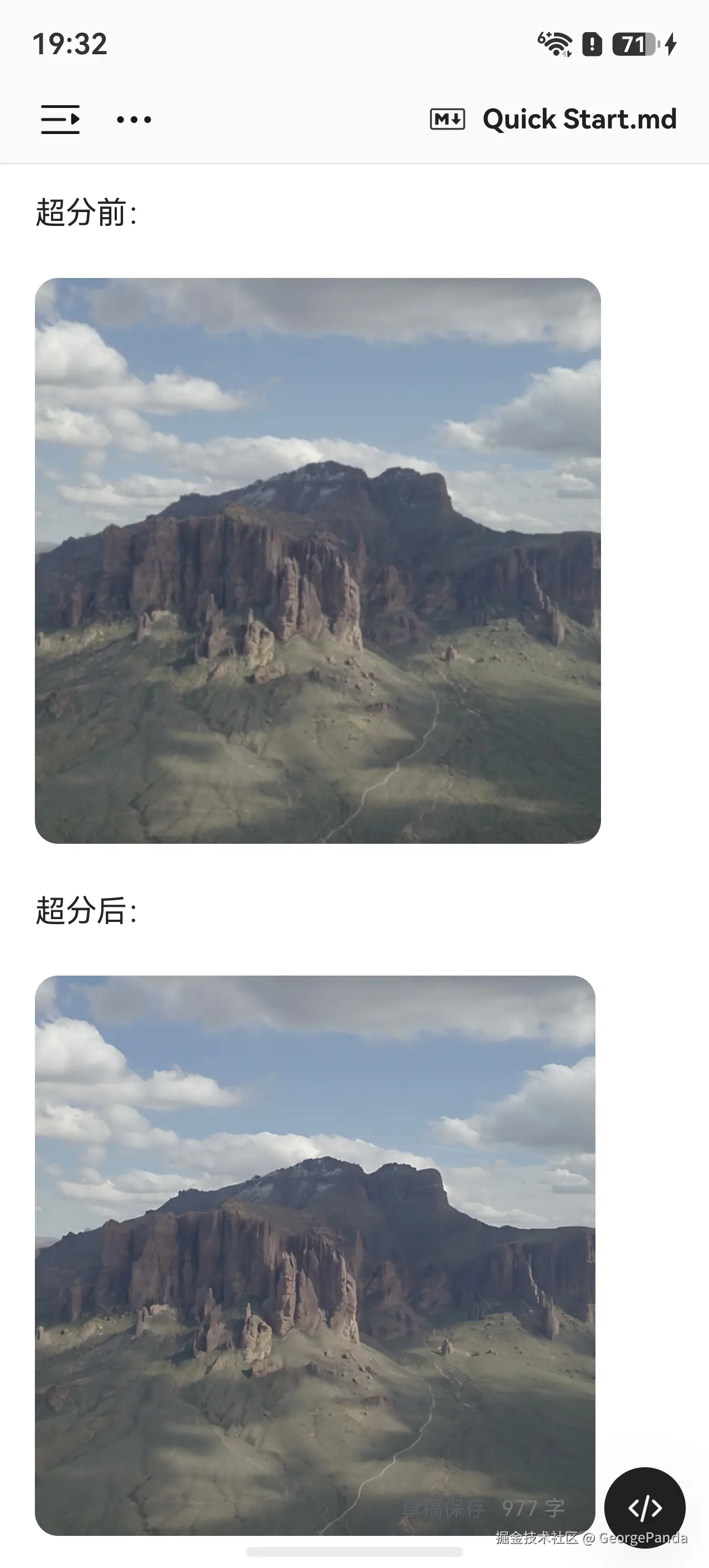
图像超分不是简单把图片拉大,而是用 AI 根据低清图中的纹理、边缘、颜色过渡和局部结构进行重建,让图片看起来更清晰、更自然。
说人话理解:云端只发小图,终端用 HarmonyOS 系统级 AI 能力做 4 倍高清重建。低质量图片用鸿蒙手机端侧AI能力渲染成高清。
普通放大只是把像素撑开,所以越放越糊;AI 超分会尝试补全细节、优化边缘、降低噪点,让低分辨率图像获得更接近高清图的视觉观感。
本质:不是"恢复原图",而是"生成一个视觉上更高清、更接近原图观感的版本"。
三、 为什么需要它:图片业务的三难问题
图片业务常见的矛盾可以总结成三类:
| 做法 | 好处 | 问题 |
|---|---|---|
| 传高清图 | 清楚,细节多 | 费带宽、费存储、加载慢,弱网体验差 |
| 传压缩图 | 省带宽、省存储、加载快 | 图片放大后模糊,影响用户体验和转化 |
| 自研 AI 超分 | 能做定制化能力 | 算法、性能、功耗、发热、多机型适配成本高 |
HarmonyOS 图像超分的价值就在于:让开发者少传大图,但仍然给用户更清晰的图片观感。
行业内针对图片这方面的处理,一般是先下载使用缩略图预览占位,然后动态加载高清图,再加上缓存机制,防止高清大图重复下载。
四、 核心思路:小图传输,大图呈现
HarmonyOS 7 从 API 26 开始开放图像超分能力。开发者可以通过 Core Vision Kit 调用系统级图像超分 API,对输入的低分辨率图像进行超分辨率重建。
典型链路如下:
text
小图 CDN
  -> App 下载低分辨率图片
  -> URI / 图片文件转换为 PixelMap
  -> Core Vision Kit 图像超分
  -> 获取 response.pixelMap
  -> 页面展示 / 结果缓存
规格要点:
- 起始版本:
26.0.0 - 系统能力:
SystemCapability.AI.Vision.VisionBase - 模型约束:仅可在 Stage 模型下使用
- 输入原图最大尺寸:
2048*2048 - 输出倍率:
4倍高清放大 - 相关模块:
imageSuperResolution - 当前文档标注:Beta
传输阶段:传低分辨率/小体积图片,降低带宽、流量、存储成本。 显示阶段:在端侧用系统级 AI 图像超分,把小图重建成更清晰的大图。
刚才也说了,这个技术的本质是使用鸿蒙手机端侧的AI能力,它不是把"原始高清图"真正找回来,而是根据低清图里的纹理、轮廓、语义信息, 推测并补全更像高清图的细节。
所以在使用场景上要注意,我个人认为适合:商品图、资讯图、相册预览、内容流缩略图。但是像社交图片,证件图片,特别依赖真实细节的场景并不推荐。
五、技术原理
AI 超分主要做三类事情:
- 增强边缘:让物体轮廓、文字边界、线条更清晰。
- 补全纹理:根据上下文重建商品表面、建筑线条、照片纹理等细节。
- 降低噪点:抑制压缩图常见的块状噪声和模糊噪点。
HarmonyOS 方案还提到 NPU 量化、XPU 异构、多线程流水等底层优化。简单理解,就是系统把合适的计算交给合适的硬件单元,让端侧处理更快、更省电。
六、HarmonyOS 方案优势
| 对比项 | 传统做法 | HarmonyOS 端侧图像超分 |
|---|---|---|
| 云侧超分 vs 端侧超分 | 依赖云端服务,可能增加调用成本、上传下载成本和链路延迟 | 基于系统级 AI 能力在端侧处理,减少对云侧服务的依赖 |
| 普通放大 vs AI 超分 | 只改变尺寸,缺少细节重建,越放越糊 | 通过 AI 重建纹理、边缘和细节,放大后观感更清晰 |
| App 自研模型 vs Core Vision Kit | 需要算法团队、模型优化、功耗控制和多设备适配 | 调用系统提供的 ImageSRAnalyzer,接入门槛更低 |
七、 代码实战:用 Core Vision Kit 调用图像超分
typescript
import { imageSuperResolution, visionBase } from '@kit.CoreVisionKit';
import { image } from '@kit.ImageKit';
import { hilog } from '@kit.PerformanceAnalysisKit';
import { BusinessError } from '@kit.BasicServicesKit';
import { fileIo } from '@kit.CoreFileKit';
import { photoAccessHelper } from '@kit.MediaLibraryKit';

@Entry
@Component
struct Index {
  @State inputImage: PixelMap | undefined = undefined;
  @State outputImage: PixelMap | undefined = undefined;
  @State statusText: string = '请选择一张低质量图片';
  @State isProcessing: boolean = false;

  private analyzer: imageSuperResolution.ImageSRAnalyzer | null = null;
  private inputImageSource: image.ImageSource | undefined = undefined;

  async aboutToAppear(): Promise<void> {
    try {
      this.analyzer = await imageSuperResolution.ImageSRAnalyzer.create();
      this.statusText = '图像超分服务已就绪';
      hilog.info(0x0000, 'ImageSRSample', 'ImageSRAnalyzer created');
    } catch (error) {
      this.analyzer = null;
      this.statusText = '当前环境暂不支持图像超分,选择图片后将仅展示原图';
      hilog.error(0x0000, 'ImageSRSample', 'Failed to create ImageSRAnalyzer: %{public}s', JSON.stringify(error));
    }
  }

  async aboutToDisappear(): Promise<void> {
    if (this.analyzer) {
      await this.analyzer.destroy();
      this.analyzer = null;
      hilog.info(0x0000, 'ImageSRSample', 'ImageSRAnalyzer released successfully');
    }

    this.releaseImages();
  }

  build() {
    Column() {
      Text('HarmonyOS 图像超分 Demo')
        .fontSize(24)
        .fontWeight(FontWeight.Bold)
        .fontColor('#172033')
        .margin({ top: 20, bottom: 6 })

      Text('上方为低质量原图,下方为 Core Vision Kit 图像超分结果')
        .fontSize(14)
        .fontColor('#667085')
        .margin({ bottom: 16 })

      Column({ space: 12 }) {
        this.InputImagePanel()
        this.OutputImagePanel()
      }
      .width('100%')
      .layoutWeight(1)
      .padding({ left: 16, right: 16 })

      Text(this.statusText)
        .fontSize(14)
        .fontColor('#475467')
        .textAlign(TextAlign.Center)
        .width('100%')
        .padding({ left: 16, right: 16 })
        .margin({ top: 16, bottom: 12 })

      Row({ space: 12 }) {
        Button('选择图片')
          .type(ButtonType.Capsule)
          .fontColor(Color.White)
          .backgroundColor('#2568C7')
          .layoutWeight(1)
          .height(48)
          .enabled(!this.isProcessing)
          .onClick(() => {
            void this.selectImage();
          })

        Button(this.isProcessing ? '处理中...' : '调用图像超分')
          .type(ButtonType.Capsule)
          .fontColor(Color.White)
          .backgroundColor('#16856A')
          .layoutWeight(1)
          .height(48)
          .enabled(!this.isProcessing && this.inputImage !== undefined)
          .onClick(() => {
            void this.processImageSuperResolution();
          })
      }
      .width('100%')
      .padding({ left: 16, right: 16, bottom: 24 })
    }
    .width('100%')
    .height('100%')
    .backgroundColor('#F5F7FB')
  }

  @Builder
  InputImagePanel() {
    Column() {
      Text('低质量原图')
        .fontSize(16)
        .fontWeight(FontWeight.Medium)
        .fontColor('#172033')
        .margin({ bottom: 10 })

      Stack() {
        if (this.inputImage !== undefined) {
          Image(this.inputImage)
            .objectFit(ImageFit.Contain)
            .width('100%')
            .height('100%')
        } else {
          Column() {
            Text('点击下方"选择图片"')
              .fontSize(14)
              .fontColor('#98A2B3')
              .textAlign(TextAlign.Center)
              .padding({ left: 12, right: 12 })
          }
          .width('100%')
          .height('100%')
          .justifyContent(FlexAlign.Center)
        }
      }
      .width('100%')
      .layoutWeight(1)
      .backgroundColor(Color.White)
      .borderWidth(1)
      .borderColor('#D8E1EA')
      .borderRadius(16)
      .clip(true)
    }
    .layoutWeight(1)
    .height('100%')
    .padding(12)
    .backgroundColor(Color.White)
    .borderRadius(18)
  }

  @Builder
  OutputImagePanel() {
    Column() {
      Text('超分后高清图')
        .fontSize(16)
        .fontWeight(FontWeight.Medium)
        .fontColor('#172033')
        .margin({ bottom: 10 })

      Stack() {
        if (this.outputImage !== undefined) {
          Image(this.outputImage)
            .objectFit(ImageFit.Contain)
            .width('100%')
            .height('100%')
        } else {
          Column() {
            Text('点击"调用图像超分"生成结果')
              .fontSize(14)
              .fontColor('#98A2B3')
              .textAlign(TextAlign.Center)
              .padding({ left: 12, right: 12 })
          }
          .width('100%')
          .height('100%')
          .justifyContent(FlexAlign.Center)
        }
      }
      .width('100%')
      .layoutWeight(1)
      .backgroundColor(Color.White)
      .borderWidth(1)
      .borderColor('#D8E1EA')
      .borderRadius(16)
      .clip(true)
    }
    .layoutWeight(1)
    .height('100%')
    .padding(12)
    .backgroundColor(Color.White)
    .borderRadius(18)
  }

  private async selectImage(): Promise<void> {
    if (this.isProcessing) {
      return;
    }

    const uri = await this.openPhoto();
    if (!uri) {
      this.statusText = '未选择图片';
      hilog.error(0x0000, 'ImageSRSample', 'Failed to get uri.');
      return;
    }

    await this.loadImage(uri);
  }

  private async openPhoto(): Promise<string> {
    return new Promise<string>((resolve) => {
      const photoPicker: photoAccessHelper.PhotoViewPicker = new photoAccessHelper.PhotoViewPicker();
      photoPicker.select({
        MIMEType: photoAccessHelper.PhotoViewMIMETypes.IMAGE_TYPE,
        maxSelectNumber: 1
      }).then((res) => {
        resolve(res.photoUris[0]);
      }).catch((err: BusinessError) => {
        hilog.error(0x0000, 'ImageSRSample', `Failed to get photo image uri. code: ${err.code}, message: ${err.message}`);
        resolve('');
      });
    });
  }

  private async loadImage(uri: string): Promise<void> {
    let imageSource: image.ImageSource | undefined = undefined;
    let fileSource: fileIo.File | undefined = undefined;
    const oldInput = this.inputImage;
    const oldOutput = this.outputImage;
    const oldImageSource = this.inputImageSource;

    this.inputImage = undefined;
    this.outputImage = undefined;
    this.statusText = '图片加载中...';

    try {
      await this.delay(100);
      fileSource = await fileIo.open(uri, fileIo.OpenMode.READ_ONLY);
      imageSource = image.createImageSource(fileSource.fd);
      this.inputImage = await imageSource.createPixelMap();
      this.inputImageSource = imageSource;
      imageSource = undefined;
      this.statusText = '图片已加载,请点击"调用图像超分"';

      this.releasePixelMap(oldInput);
      if (oldOutput !== oldInput) {
        this.releasePixelMap(oldOutput);
      }
      this.releaseImageSource(oldImageSource);
    } catch (error) {
      this.inputImage = oldInput;
      this.outputImage = oldOutput;
      this.inputImageSource = oldImageSource;
      this.statusText = '图片加载失败,请重新选择';
      hilog.error(0x0000, 'ImageSRSample', 'Failed to load image: %{public}s', JSON.stringify(error));
    } finally {
      if (fileSource) {
        await fileIo.close(fileSource);
      }
      if (imageSource) {
        void imageSource.release();
      }
    }
  }

  private async processImageSuperResolution(): Promise<void> {
    if (!this.inputImage) {
      this.statusText = '请先选择一张图片';
      return;
    }

    if (!this.analyzer) {
      this.outputImage = this.inputImage;
      this.statusText = '当前环境暂不支持图像超分,右侧已回退展示原图';
      return;
    }

    this.isProcessing = true;
    this.statusText = '图像超分处理中...';

    const oldOutput = this.outputImage;
    const imageData: visionBase.ImageData = {
      pixelMap: this.inputImage
    };
    const request: visionBase.Request = {
      inputData: imageData
    };

    try {
      const response: imageSuperResolution.ISPResponse = await this.analyzer.process(request);
      this.outputImage = response.pixelMap;
      this.statusText = '图像超分完成,右侧为高清重建结果';

      if (oldOutput !== this.inputImage) {
        this.releasePixelMap(oldOutput);
      }
      hilog.info(0x0000, 'ImageSRSample', 'Super resolution completed');
    } catch (error) {
      const businessError = error as BusinessError;
      this.outputImage = this.inputImage;
      this.statusText = `图像超分失败,右侧已回退展示原图。Error: ${businessError.message}`;
      hilog.error(0x0000, 'ImageSRSample', `Image super resolution failed. Code: ${businessError.code}, message: ${businessError.message}`);
    } finally {
      this.isProcessing = false;
    }
  }

  private releaseImages(): void {
    const oldInput = this.inputImage;
    const oldOutput = this.outputImage;
    const oldImageSource = this.inputImageSource;

    this.inputImage = undefined;
    this.outputImage = undefined;
    this.inputImageSource = undefined;

    this.releasePixelMap(oldInput);
    if (oldOutput !== oldInput) {
      this.releasePixelMap(oldOutput);
    }
    this.releaseImageSource(oldImageSource);
  }

  private releasePixelMap(pixelMap: PixelMap | undefined): void {
    if (pixelMap) {
      void pixelMap.release();
    }
  }

  private releaseImageSource(imageSource: image.ImageSource | undefined): void {
    if (imageSource) {
      void imageSource.release();
    }
  }

  private async delay(ms: number): Promise<void> {
    return new Promise<void>((resolve) => {
      setTimeout(() => {
        resolve();
      }, ms);
    });
  }
}
9. 这段代码实际做了什么
| 步骤 | 对应 API | 作用 |
|---|---|---|
| 创建分析器 | imageSuperResolution.ImageSRAnalyzer.create() |
创建系统级图像超分分析器实例 |
| 选择图片 | photoAccessHelper.PhotoViewPicker |
拉起图库选择一张图片,拿到图片 URI |
| 转 PixelMap | fileIo.open()、image.createImageSource()、createPixelMap() |
把图库 URI 解码成图像超分接口可处理的 PixelMap |
| 构造请求 | visionBase.ImageData、visionBase.Request |
把输入图片放入 request.inputData |
| 执行超分 | analyzer.process(request) |
返回 imageSuperResolution.ISPResponse,其中 pixelMap 是超分后的图片 |
| 释放资源 | analyzer.destroy()、imageSource.release()、fileIo.close() |
组件退出或图片解码完成后释放资源 |
10. 工程落地建议
-
不要在列表里批量超分
信息流、商品列表、相册宫格里图片数量多,全部立即处理会浪费算力。更好的做法是列表先展示小图,用户进入详情页或点击放大后再处理。
-
失败时静默回退
图像超分应该是体验增强能力,不应该阻塞主流程。创建分析器失败或
process()报错时,直接展示原图。 -
对结果做缓存
同一张图片不要重复超分。可以用图片 URI、文件 hash 或业务图片 ID 作为缓存键,把超分结果接入项目已有的图片缓存体系。
-
控制输入尺寸
输入原图最大尺寸为
2048*2048。超过规格的图片要先按业务需求裁剪、压缩或降采样,再进入超分流程。 -
弱网优先小图
弱网环境下先下发小图,页面快速可见;用户停留、点击查看或进入详情后,再触发端侧增强。
-
排除真实细节场景
涉及识别、证据、诊断、合规审查的图片,不要让 AI 超分结果替代原图判断。
参考资料
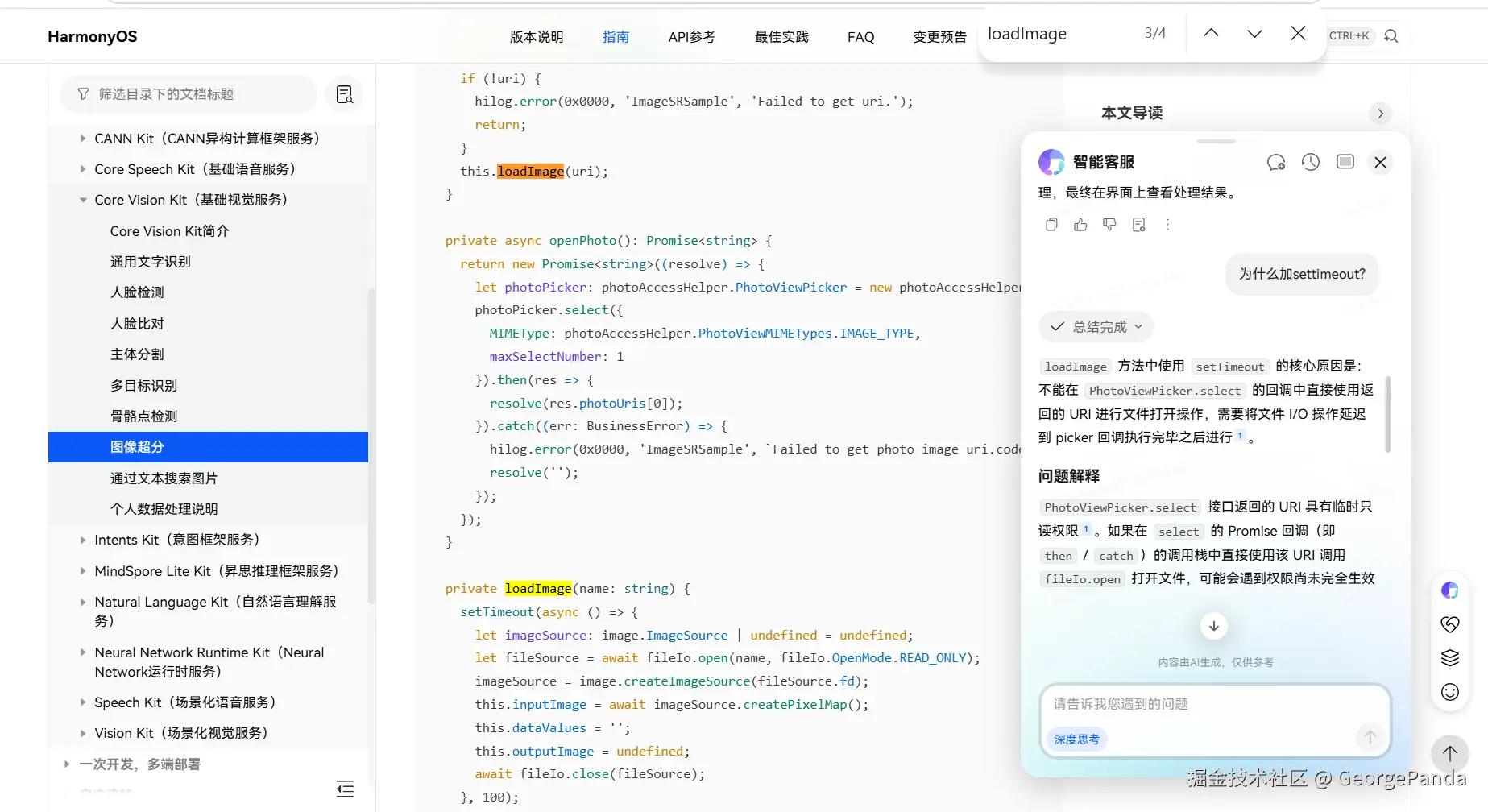
说句题外话, 吹爆鸿蒙开发者官网。开发这么多年,见过最好的技术官网。自带AI助手,哪里不会直接点哪里,学习起来太方便了。