【iOS】3G-Share仿写总结
文章目录
登录和注册页面
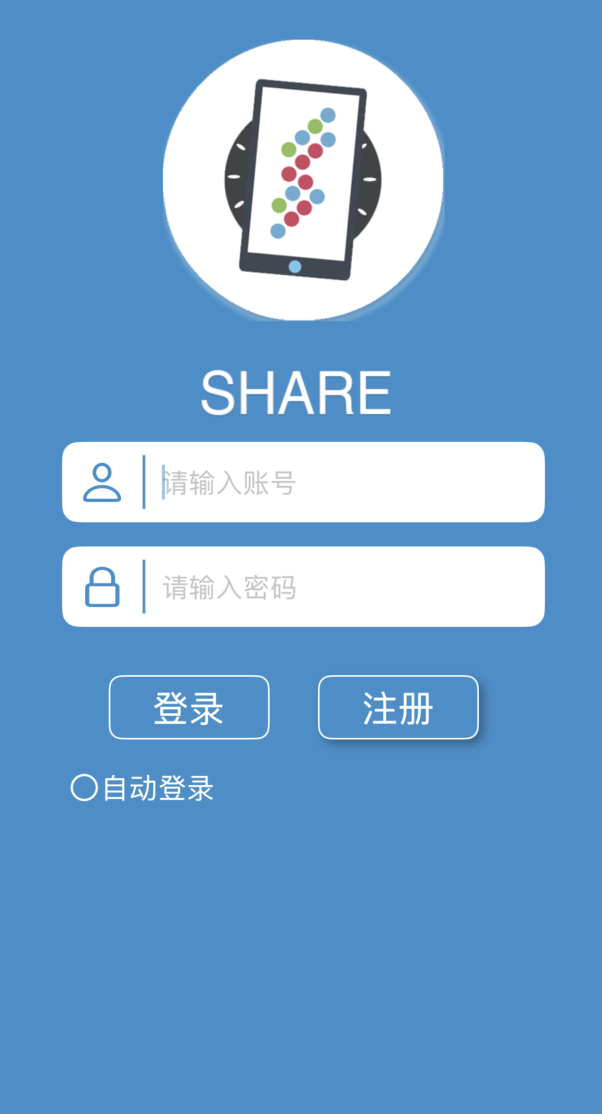
对于登录页面主要是用NSUserDefaults来存储注册信息,然后登录判断是否正确。在邮箱以及账号密码的输入中,我们需要用到谓词以及正则表达式来限制,具体可见我的博客:谓词与正则表达式
objc
- (void)registersuccess {
    NSString *account = self.accountView.textField.text;
    NSString *password = self.cipherView.textField.text;
    if ([account isEqualToString:@""] || [password isEqualToString:@""]) {
        UIAlertController* alert = [UIAlertController alertControllerWithTitle:@"注册失败" message:@"账号或密码为空" preferredStyle:UIAlertControllerStyleAlert];
        UIAlertAction* confirmAction = [UIAlertAction actionWithTitle:@"确认" style:UIAlertActionStyleDefault handler:nil];
        [alert addAction:confirmAction];
        [self presentViewController:alert animated:YES completion:nil];
        return;
    }
    NSString *email = self.emailView.textField.text;
    NSString *pattern = @"[A-Z0-9a-z]+@[A-Za-z0-9]+\\.[A-Za-z]{2,}";
    NSPredicate *predicate = [NSPredicate predicateWithFormat: @"SELF MATCHES %@", pattern];
    if (![predicate evaluateWithObject:email]) {
        UIAlertController *alert = [UIAlertController alertControllerWithTitle:@"注册失败" message:@"邮箱格式不正确" preferredStyle:UIAlertControllerStyleAlert];
        UIAlertAction *action = [UIAlertAction actionWithTitle:@"确定" style:UIAlertActionStyleDefault handler:nil];
        [alert addAction:action];
        [self presentViewController:alert animated:YES completion:nil];
        return;
    }
    NSDictionary *user = @{@"account" : account, @"password" : password};
    NSUserDefaults *defaults = [NSUserDefaults standardUserDefaults];
    // 先取出原来的所有用户
    NSMutableArray *users = [[defaults objectForKey:@"registeredUsers"] mutableCopy];
    // 第一次注册时数组不存在
    if (!users) {
        users = [NSMutableArray array];
    }
    for (NSDictionary *dict in users) {
        if ([dict[@"account"] isEqualToString:account]) {
            UIAlertController *alert = [UIAlertController alertControllerWithTitle:@"注册失败" message:@"账号已存在" preferredStyle:UIAlertControllerStyleAlert];
            [alert addAction:[UIAlertAction actionWithTitle:@"确定" style:UIAlertActionStyleDefault handler:nil]];
            [self presentViewController:alert animated:YES completion:nil];
            return;
        }
    }
    // 添加新用户
    [users addObject:user];
    // 再存回去
    [defaults setObject:users forKey:@"registeredUsers"];
    [self.navigationController popViewControllerAnimated:YES];
}
-(BOOL)textField:(UITextField *)textField shouldChangeCharactersInRange:(NSRange)range replacementString:(NSString *)string {
    NSCharacterSet* charSet = [[NSCharacterSet characterSetWithCharactersInString:
  @"ABCDEFGHIJKLMNOPQRSTUVWXYZabcdefghijklmnopqrstuvwxyz0123456789@."] invertedSet];//取不包含这些的字符集合,用于过滤
    NSString* filteredStr = [[string componentsSeparatedByCharactersInSet:charSet] componentsJoinedByString:@""];//遇到不合法的就切割,最后拼接
    if (range.length == 1 && string.length == 0) { //让到限定字数时也能删除字符
        return YES;
    } else if (textField.text.length >= 15) {
        textField.text = [textField.text substringToIndex:15];
        return NO;
    } else if ([string isEqualToString:filteredStr] && textField.text.length <= 15) {
        return YES;
    }
    return NO;
}
首页
对于首页的假日cell,主要用到了一个双向传值也就是love按钮是否被点击,对于正向采用的是属性传值,对于反向则是用了一个block传值代码如下
objc
    if (indexPath.row == 0 && indexPath.section == 0) {
        myhomeViewController* myhome = [[myhomeViewController alloc] init];
        myhome.loveSelected = self.firstCellLoveSelected;
        myhome.loveCount = self.firstCellLoveCount;
        __weak typeof(self) weakSelf = self;
        myhome.loveChangedBlock = ^(BOOL selected, NSInteger count) {
            weakSelf.firstCellLoveSelected = selected;
            weakSelf.firstCellLoveCount = count;
            NSIndexPath *firstIndexPath = [NSIndexPath indexPathForRow:0 inSection:0];
            [weakSelf.tableView reloadRowsAtIndexPaths:@[firstIndexPath] withRowAnimation:UITableViewRowAnimationNone];
        };
        [self.navigationController pushViewController:myhome animated:YES];
    }
}
-(void)touch {
    self.loveSelected = !self.loveSelected;
    if (self.loveSelected) {
        self.loveCount += 1;
    } else {
        self.loveCount -=1;
    }
    [self updateLoveButton];
    if (self.loveChangedBlock) {
        self.loveChangedBlock(self.loveSelected, self.loveCount);
    }
}
在这里插入图片描述
搜索页面
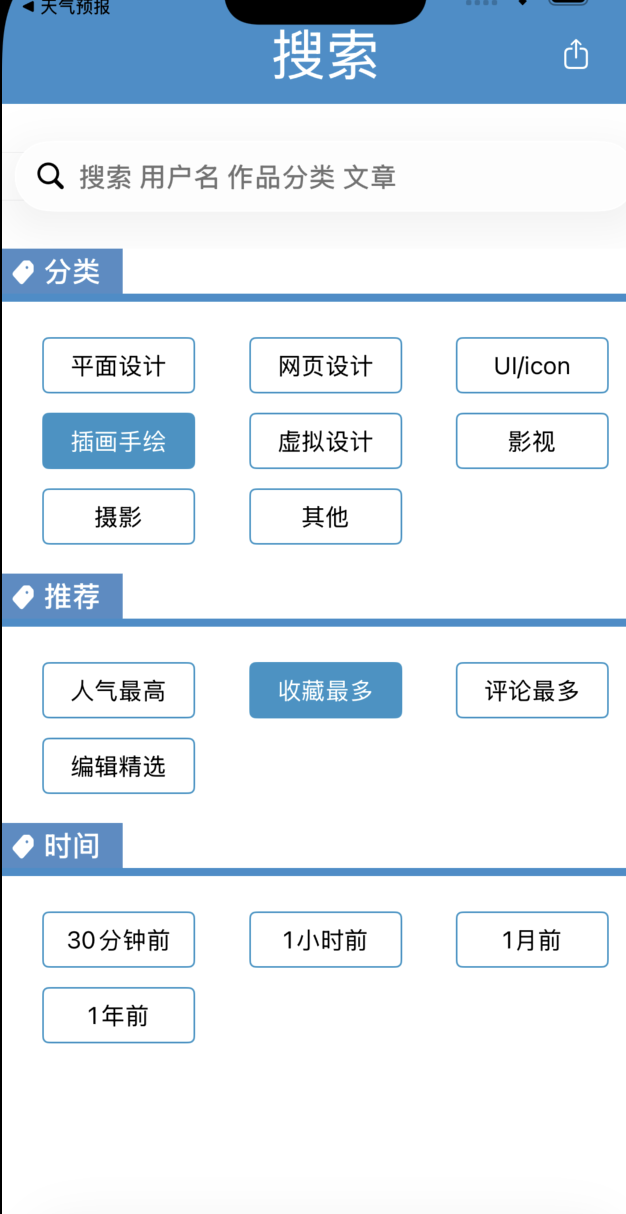
在这里主要用了一个searchBar搜索,下面是一个collection实现卡片布局,此处比较简单,不多赘述
上传页面
在这里有几个难点,首先就是这个选择图片,你有两种实现方法:第一是在这个view上加手势,然后跳转照片墙页面,然后选择几个照片将照片回调,第二个就是用苹果自带的PHpicker,在此处由于练习我选择了第一种方法
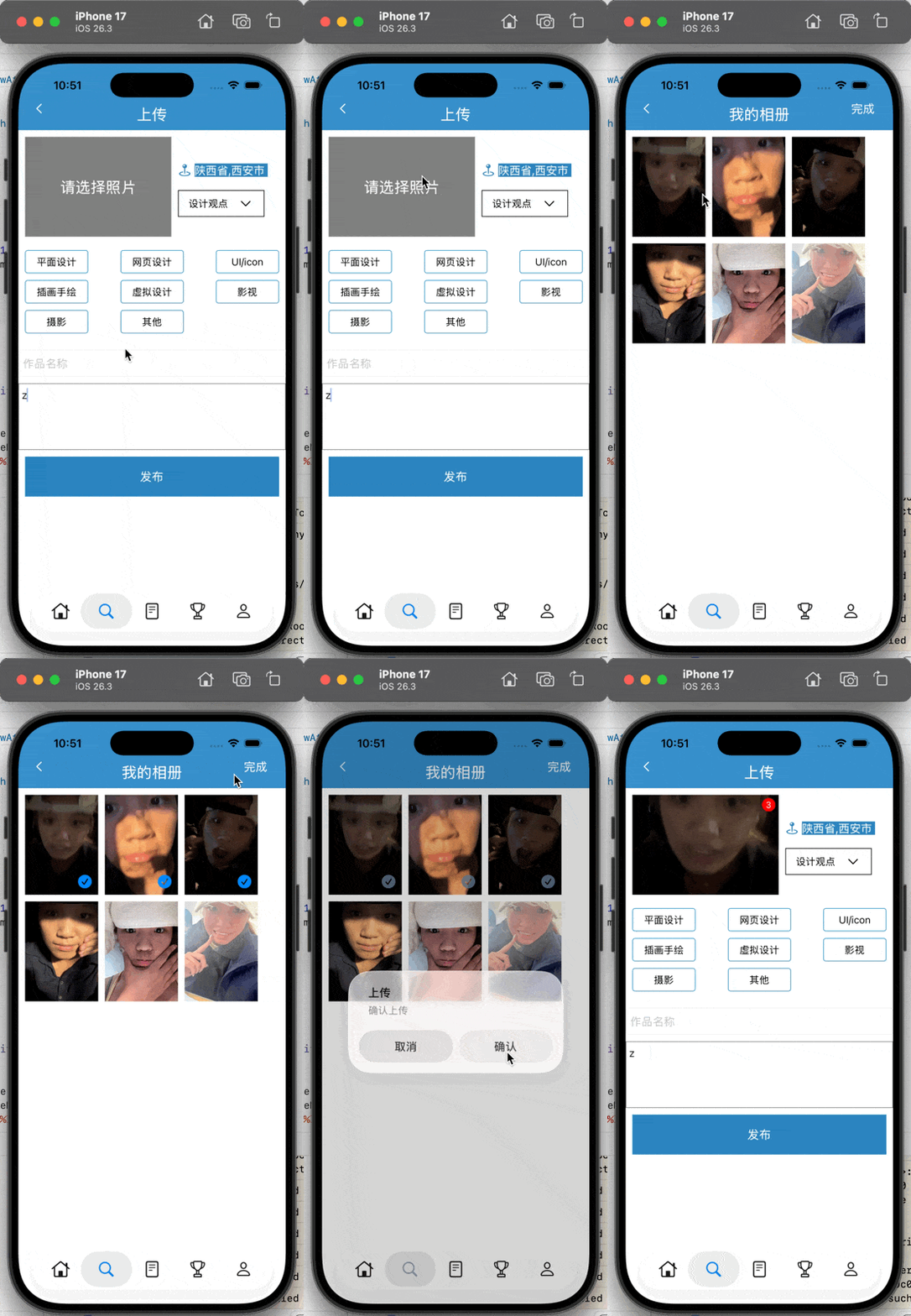
第二个难点则是这个折叠cell,在此处我是将选中的放在第一个cell,下面的四个cell是不动的,这样就只用控制展开还是折叠以及被选中的label
objc
-(NSInteger)tableView:(UITableView *)tableView numberOfRowsInSection:(NSInteger)section {
    return self.isExpand ? self.titles.count + 1 : 1;
}
-(UITableViewCell *)tableView:(UITableView *)tableView cellForRowAtIndexPath:(NSIndexPath *)indexPath {
    UITableViewCell* cell = [tableView dequeueReusableCellWithIdentifier:@"cell"];
    if(!cell) {
        cell = [[UITableViewCell alloc] initWithStyle:UITableViewCellStyleDefault reuseIdentifier:@"cell"];
    }
    cell.selectionStyle = UITableViewCellSelectionStyleNone;
    cell.textLabel.font = [UIFont systemFontOfSize:15];
    cell.textLabel.textColor = [UIColor blackColor];
    if (indexPath.row == 0) {
        cell.textLabel.text = self.titles[self.selectedIndex];
        UIImageView *arrowView = [[UIImageView alloc] initWithImage:[UIImage systemImageNamed:self.isExpand ? @"chevron.up": @"chevron.down"]];
        arrowView.tintColor = [UIColor blackColor];
        cell.accessoryView = arrowView;
    } else {
        cell.textLabel.text = self.titles[indexPath.row - 1];
        cell.accessoryView = nil;
    }
    return cell;
}
-(void)tableView:(UITableView *)tableView didSelectRowAtIndexPath:(NSIndexPath *)indexPath {
    [self.view bringSubviewToFront:self.tableView];
    if (indexPath.row == 0) {
        self.isExpand = !self.isExpand;
    } else {
        self.selectedIndex = indexPath.row - 1;
        self.isExpand = NO;
    }
    CGFloat rowHeight = 40;
    NSInteger rowCount = self.isExpand ? self.titles.count + 1: 1;
    [self.tableView mas_updateConstraints:^(MASConstraintMaker *make) {
        make.height.mas_equalTo(rowHeight * rowCount);
    }];
    [self.tableView reloadData];
}
在此处还有一个textView没有placeHolder的问题,此时我们需要用一个灰色的label添加在textView中,并用textView的代理方法监视text,一旦text不为空就将灰色label设为hidden
objc
- (void)textViewDidChange:(UITextView *)textView {
    self.placeholderLabel.hidden = textView.text.length > 0;
}
文章和活动页面
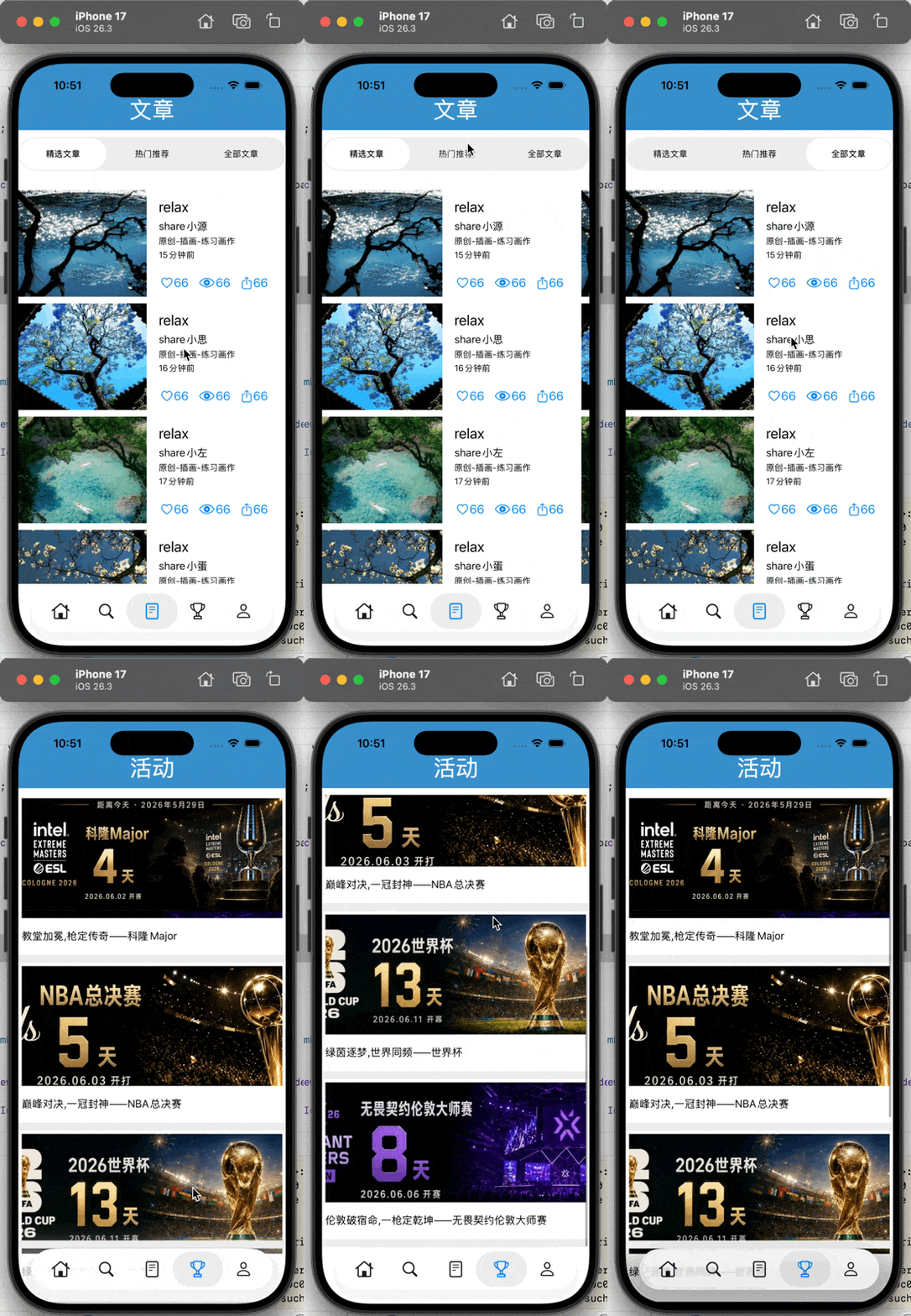
在这里就是一个简单的分栏控件以及scrollView搭配以及TableView的使用
个人页面
在此处的页面比较多,我就只说一些难点地方
首先就是新关注页面,由于不能每次打开页面都是一种关注状态,所以我们需要用NSUserDefaults存储关注信息
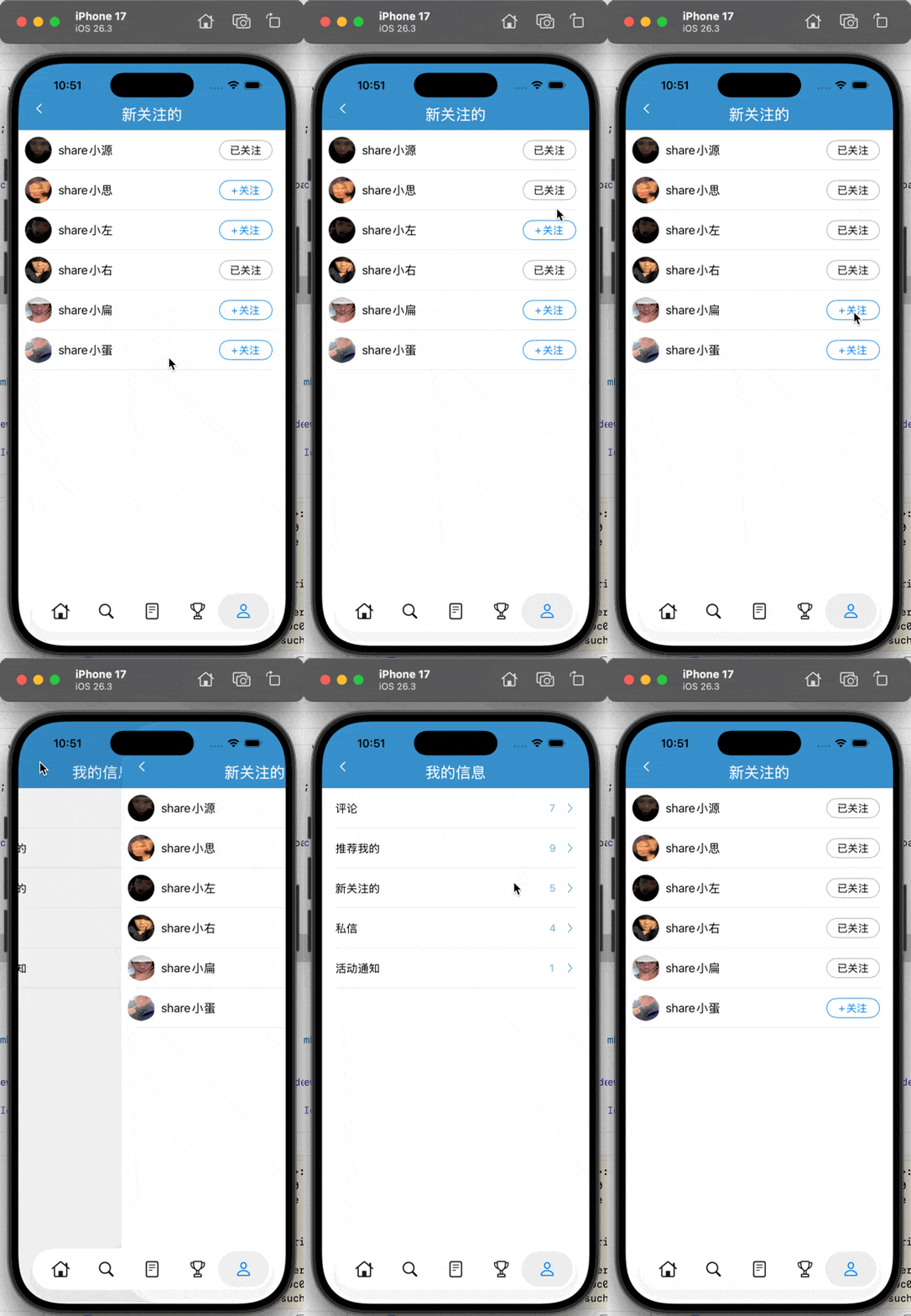
objc
-(UITableViewCell *)tableView:(UITableView *)tableView cellForRowAtIndexPath:(NSIndexPath *)indexPath {
    followTableViewCell* followcell = [tableView dequeueReusableCellWithIdentifier:@"cell" forIndexPath:indexPath];

    followcell.selectionStyle = UITableViewCellSelectionStyleNone;
    followcell.avatar.image = [UIImage imageNamed:self.imageArray[indexPath.row]];
    followcell.name.text = self.nameArray[indexPath.row];
    followcell.isFollow = [self.isFollowArray[indexPath.row] boolValue];
    __weak typeof(self) weakSelf = self;
    followcell.followStateChanged = ^(BOOL isFollow) {
        weakSelf.isFollowArray[indexPath.row] = @(isFollow);
        [[NSUserDefaults standardUserDefaults] setObject:weakSelf.isFollowArray forKey:@"followStateArray"];
        [weakSelf.tableview reloadRowsAtIndexPaths:@[indexPath] withRowAnimation:UITableViewRowAnimationNone];
    };
    return followcell;
}
-(void)touch{
    self.isFollow = !self.isFollow;
    if (self.followStateChanged) {
        self.followStateChanged(self.isFollow);
    }
}
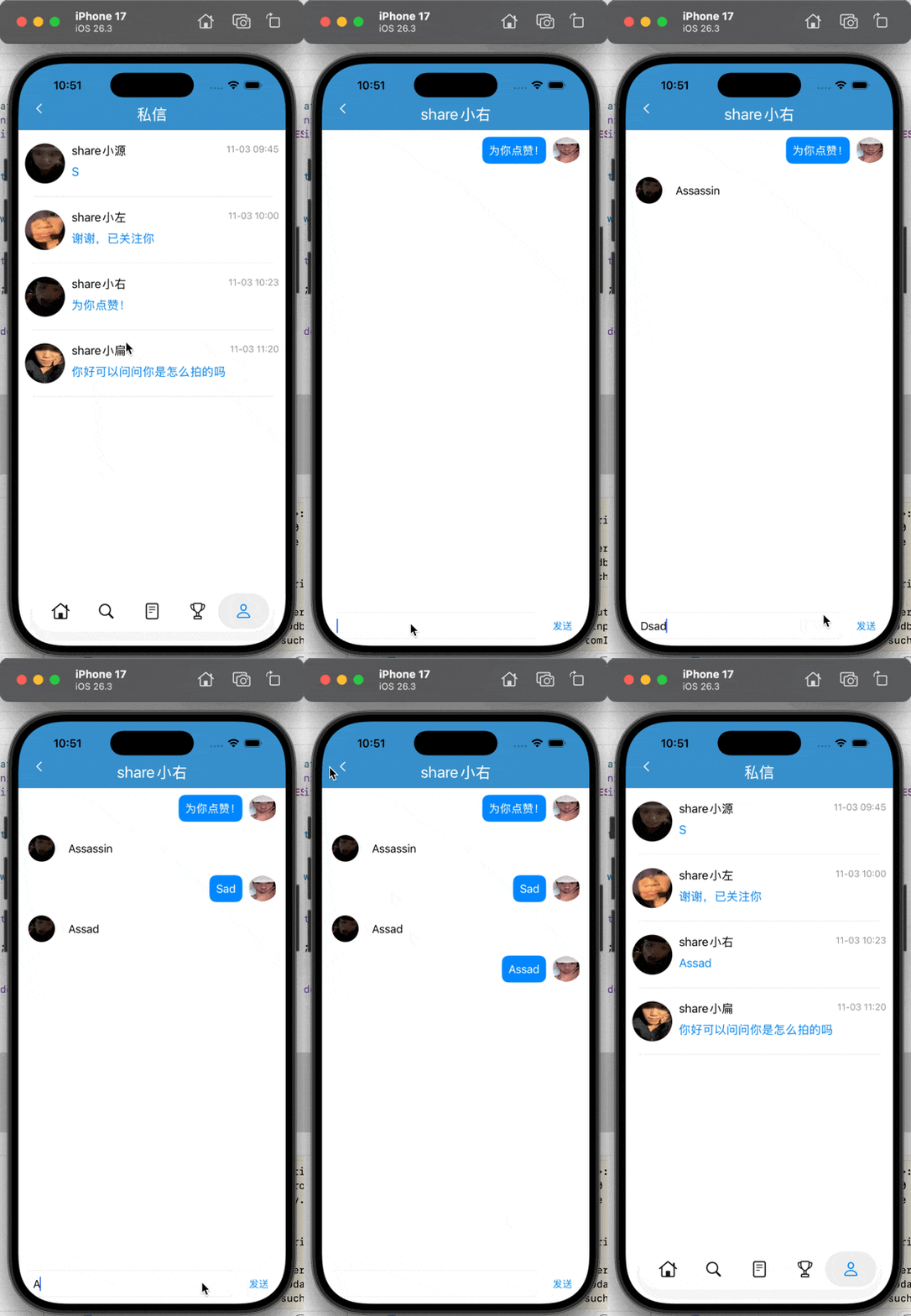
其次就是私信页面,私信页面需要隐藏TabBar
objc
// 隐藏tabBar
- (void)viewWillAppear:(BOOL)animated {
    [super viewWillAppear:animated];
    self.tabBarController.tabBar.hidden = YES;
}

// 恢复tabBar
- (void)viewWillDisappear:(BOOL)animated {
    [super viewWillDisappear:animated];
    self.tabBarController.tabBar.hidden = NO;
}
实现消息的交替发送
objc
-(void)sendClick {
    if (self.textField.text.length == 0) {
        return;
    }
    ChatModel* model = [[ChatModel alloc] init];
    model.content = self.textField.text;
    if (self.isSelf) {
        model.type = MessageTypeSelf;
    } else {
        model.type = MessageTypeOther;
    }
    [self.dataArray addObject:model];
    self.isSelf = !self.isSelf;
    NSIndexPath* indexPath = [NSIndexPath indexPathForRow:self.dataArray.count - 1 inSection:0];
    [self.tableView insertRowsAtIndexPaths:@[indexPath] withRowAnimation:UITableViewRowAnimationBottom];
    [self.tableView scrollToRowAtIndexPath:indexPath atScrollPosition:UITableViewScrollPositionBottom animated:YES];
    self.textField.text = @"";
}
将最后一句话回传给消息列表界面,保证列表显示的是聊天的最后一句话
objc
-(void)backClick {
    if (self.messageBlock && self.dataArray.count) {
        ChatModel *last = self.dataArray.lastObject;
        self.messageBlock(last.content);
    }
    [self.navigationController popViewControllerAnimated:YES];
}
在基本资料页面,由于一开始我没有设置可编辑状态,后面我用的是UIAlertController来修改资料,以及用PHPicker来选择头像
objc
-(void)tableView:(UITableView *)tableView didSelectRowAtIndexPath:(NSIndexPath *)indexPath {
    if (indexPath.row == 0) {
        PHPickerConfiguration* config = [[PHPickerConfiguration alloc] init];
        config.selectionLimit = 1;//只支持单选
        config.filter = [PHPickerFilter imagesFilter];// 只显示图片
        PHPickerViewController *picker = [[PHPickerViewController alloc] initWithConfiguration:config];
        picker.delegate = self;
        [self presentViewController:picker animated:YES completion:nil];
    }
    if (indexPath.row == 1) {
        UIAlertController *alert =[UIAlertController alertControllerWithTitle:@"修改昵称" message:nil preferredStyle:UIAlertControllerStyleAlert];
        [alert addTextFieldWithConfigurationHandler:^(UITextField * _Nonnull textField) {
        textField.text = self.nameText;
        }];

        UIAlertAction *confirm = [UIAlertAction actionWithTitle:@"确定" style:UIAlertActionStyleDefault
        handler:^(UIAlertAction * _Nonnull action) {
            self.nameText = alert.textFields.firstObject.text;
            [self saveUserInfo];
            [self.tableview reloadData];
        }];
        [alert addAction:confirm];
        [alert addAction:[UIAlertAction actionWithTitle:@"取消" style:UIAlertActionStyleCancel handler:nil]];
        [self presentViewController:alert animated:YES completion:nil];
    }
    if (indexPath.row == 2) {
        UIAlertController *alert =[UIAlertController alertControllerWithTitle:@"修改签名" message:nil preferredStyle:UIAlertControllerStyleAlert];
        [alert addTextFieldWithConfigurationHandler:^(UITextField * _Nonnull textField) {
        textField.text = self.sentenceText;
        }];

        UIAlertAction *confirm = [UIAlertAction actionWithTitle:@"确定" style:UIAlertActionStyleDefault
        handler:^(UIAlertAction * _Nonnull action) {
            self.sentenceText = alert.textFields.firstObject.text;
            [self saveUserInfo];
            [self.tableview reloadData];
        }];
        [alert addAction:confirm];
        [alert addAction:[UIAlertAction actionWithTitle:@"取消" style:UIAlertActionStyleCancel handler:nil]];
        [self presentViewController:alert animated:YES completion:nil];
    }
    if (indexPath.row == 4) {
        UIAlertController *alert =[UIAlertController alertControllerWithTitle:@"修改邮箱" message:nil preferredStyle:UIAlertControllerStyleAlert];
        [alert addTextFieldWithConfigurationHandler:^(UITextField * _Nonnull textField) {
        textField.text = self.emailText;
        }];

        UIAlertAction *confirm = [UIAlertAction actionWithTitle:@"确定" style:UIAlertActionStyleDefault
        handler:^(UIAlertAction * _Nonnull action) {
            self.emailText = alert.textFields.firstObject.text;
            [self saveUserInfo];
            [self.tableview reloadData];
        }];
        [alert addAction:confirm];
        [alert addAction:[UIAlertAction actionWithTitle:@"取消" style:UIAlertActionStyleCancel handler:nil]];
        [self presentViewController:alert animated:YES completion:nil];
    }
    if (indexPath.row == 3) {
        UIAlertController *alert = [UIAlertController alertControllerWithTitle:@"选择性别" message:nil preferredStyle:UIAlertControllerStyleActionSheet];
        UIAlertAction *male =[UIAlertAction actionWithTitle:@"男" style:UIAlertActionStyleDefault handler:^(UIAlertAction * _Nonnull action) {
            self.isMale = YES;
            [self saveUserInfo];
            [self.tableview reloadData];
        }];
        UIAlertAction *female = [UIAlertAction actionWithTitle:@"女" style:UIAlertActionStyleDefault handler:^(UIAlertAction * _Nonnull action) {
            self.isMale = NO;
            [self saveUserInfo];
            [self.tableview reloadData];
        }];
        [alert addAction:male];
        [alert addAction:female];
        [alert addAction:[UIAlertAction actionWithTitle:@"取消"style:UIAlertActionStyleCancel handler:nil]];

        [self presentViewController:alert animated:YES completion:nil];
    }
}
在这里插入图片描述