前言
在 RPG、开放世界、模拟经营或者任务驱动类项目里,任务面板通常不是简单显示几行文字。
一个可用的任务面板至少要回答四个问题:
- 当前是什么任务?
- 任务目标有哪些?
- 这个任务发生在什么背景和地点?
- 当前任务推进到了什么状态?
这篇文章结合一个 Unity UGUI 示例,完成一个动态任务面板。它不是在场景里手动摆一堆 Text,而是通过 C# 在运行时生成 ScrollView 内容,并用 LayoutGroup 和 LayoutElement 控制排版。
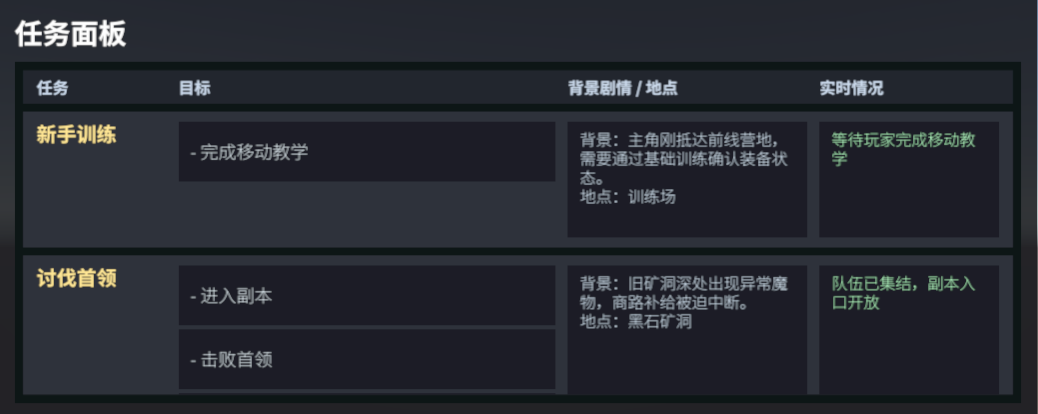
最终效果是一个四列表格式任务面板:
【Unity 界面截图 1】
效果目标
任务面板最终包含这些信息:
text
任务:新手训练
目标:完成移动教学
背景:主角刚抵达前线营地,需要通过基础训练确认装备状态。
地点:训练场
实时情况:等待玩家完成移动教学
除了单目标任务,也支持多目标任务:
text
任务:讨伐首领
目标:
- 进入副本
- 击败首领
- 领取奖励
背景:旧矿洞深处出现异常魔物,商路补给被迫中断。
地点:黑石矿洞
实时情况:队伍已集结,副本入口开放
这样做的好处是,任务面板不只是一个目标清单,而是同时具备叙事信息和状态反馈。
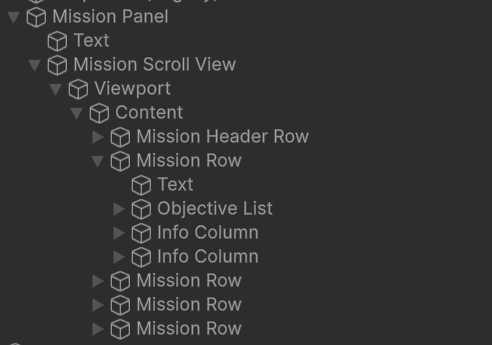
UI 结构设计
这个任务面板的核心结构如下:
text
Canvas
└── Mission Panel
    ├── Header Text
    └── Mission Scroll View
        └── Viewport
            └── Content
                ├── Mission Header Row
                ├── Mission Row
                ├── Mission Row
                └── Mission Row
每一条任务行内部再分成四列:
text
Mission Row
├── Title
├── Objective List
├── Story / Location
└── Live Status
【Unity 界面截图 2】
数据结构设计
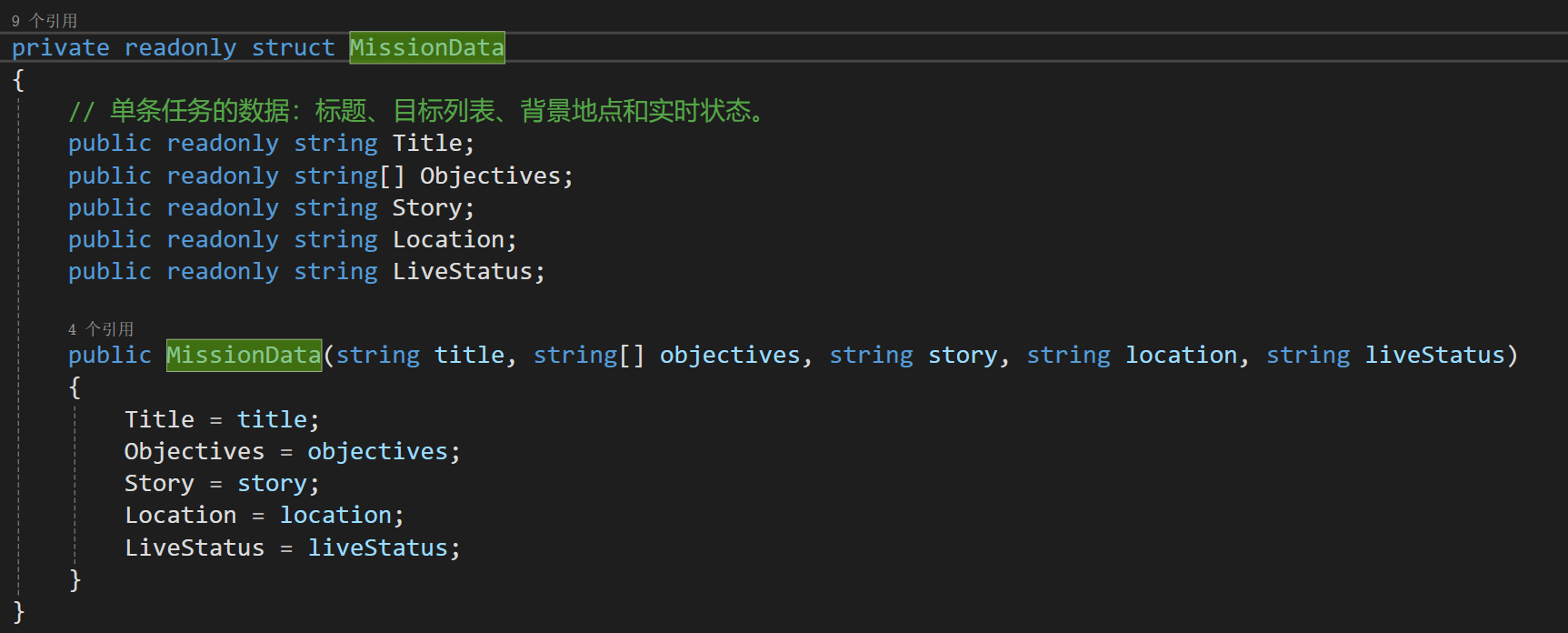
任务数据用一个简单的结构体保存。
csharp
private readonly struct MissionData
{
    public readonly string Title;
    public readonly string[] Objectives;
    public readonly string Story;
    public readonly string Location;
    public readonly string LiveStatus;

    public MissionData(string title, string[] objectives, string story, string location, string liveStatus)
    {
        Title = title;
        Objectives = objectives;
        Story = story;
        Location = location;
        LiveStatus = liveStatus;
    }
}
这里不要只把任务做成一个字符串。任务名、目标、剧情、地点、实时状态应该分开存储,因为它们在 UI 上对应不同列,将来接服务器数据或者本地配置表时也更容易维护。
【代码截图 1】
示例任务数据
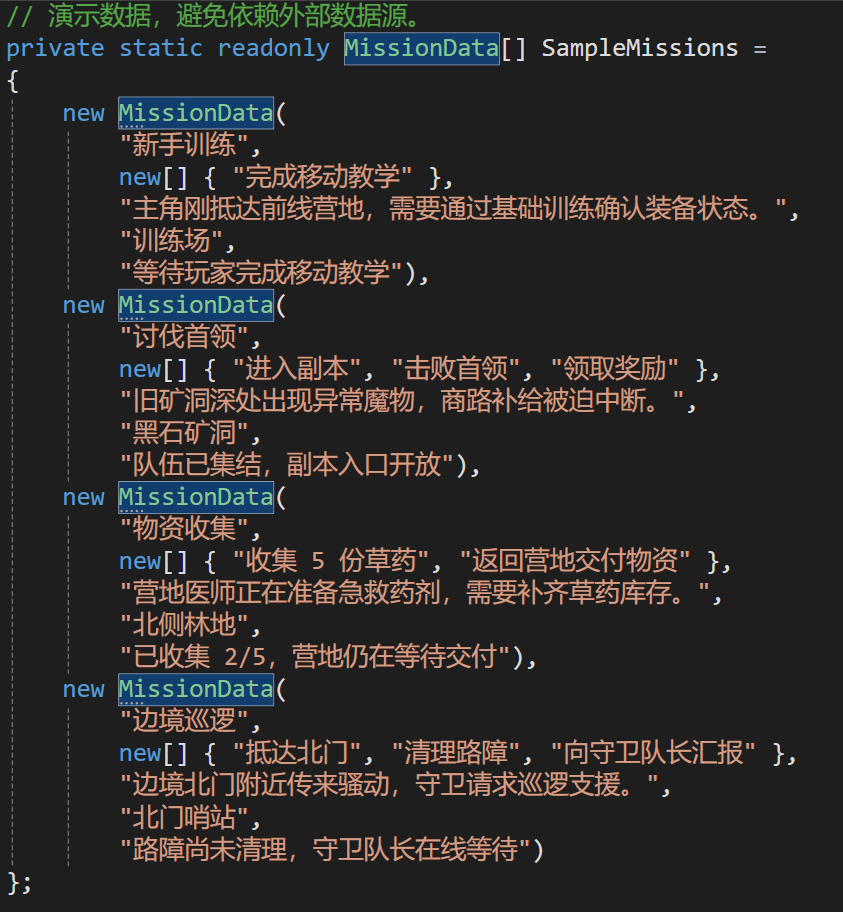
示例中直接在代码里写了一组演示数据:
csharp
private static readonly MissionData[] SampleMissions =
{
    new MissionData(
        "新手训练",
        new[] { "完成移动教学" },
        "主角刚抵达前线营地,需要通过基础训练确认装备状态。",
        "训练场",
        "等待玩家完成移动教学"),

    new MissionData(
        "讨伐首领",
        new[] { "进入副本", "击败首领", "领取奖励" },
        "旧矿洞深处出现异常魔物,商路补给被迫中断。",
        "黑石矿洞",
        "队伍已集结,副本入口开放")
};
真实项目里,这部分可以替换成:
- ScriptableObject 配置
- JSON 配置
- Excel 导表
- 服务端任务数据
但 UI 层最好仍然拿到结构化字段,而不是靠拆字符串来判断哪段是地点、哪段是状态。
【代码截图 2】
面板尺寸和列宽
面板宽度数据:
csharp
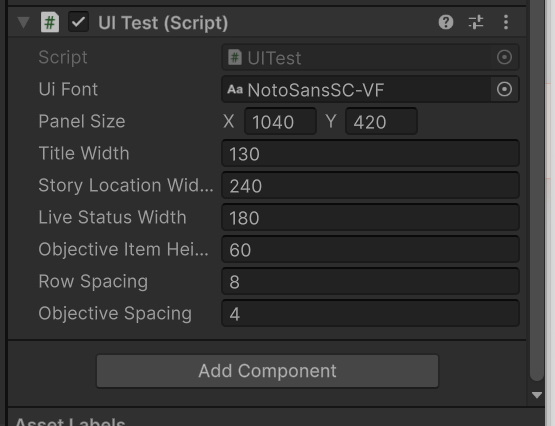
[SerializeField] private Vector2 panelSize = new Vector2(1040f, 420f);
[SerializeField] private float titleWidth = 130f;
[SerializeField] private float storyLocationWidth = 240f;
[SerializeField] private float liveStatusWidth = 180f;
【Unity 界面截图 3】
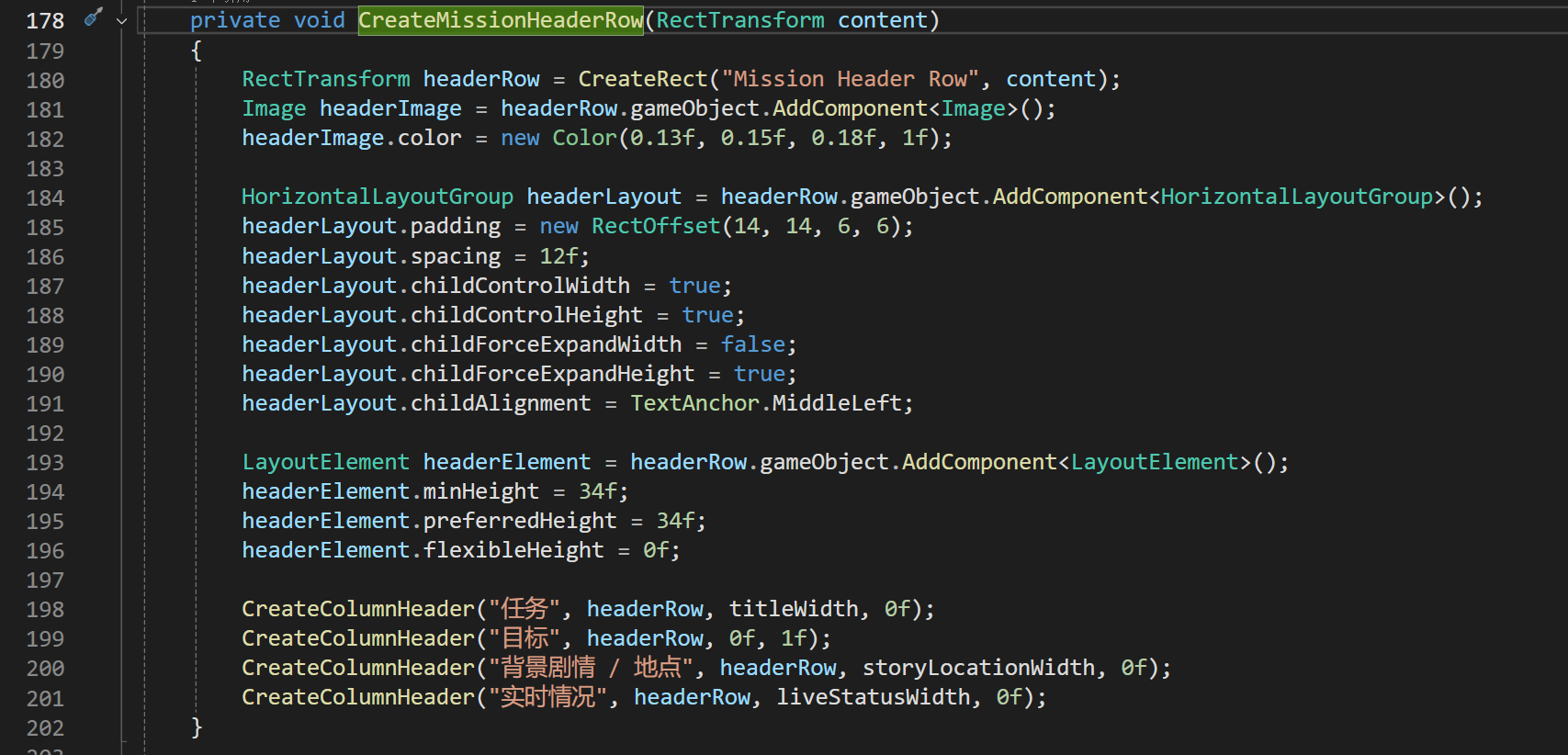
生成表头行
任务面板生成表头行,告诉玩家每列代表什么。
csharp
private void CreateMissionHeaderRow(RectTransform content)
{
    RectTransform headerRow = CreateRect("Mission Header Row", content);
    Image headerImage = headerRow.gameObject.AddComponent<Image>();
    headerImage.color = new Color(0.13f, 0.15f, 0.18f, 1f);

    HorizontalLayoutGroup headerLayout = headerRow.gameObject.AddComponent<HorizontalLayoutGroup>();
    headerLayout.padding = new RectOffset(14, 14, 6, 6);
    headerLayout.spacing = 12f;
    headerLayout.childControlWidth = true;
    headerLayout.childControlHeight = true;
    headerLayout.childForceExpandWidth = false;
    headerLayout.childForceExpandHeight = true;

    CreateColumnHeader("任务", headerRow, titleWidth, 0f);
    CreateColumnHeader("目标", headerRow, 0f, 1f);
    CreateColumnHeader("背景剧情 / 地点", headerRow, storyLocationWidth, 0f);
    CreateColumnHeader("实时情况", headerRow, liveStatusWidth, 0f);
}
这里有一个细节:目标列没有固定宽度,而是 flexibleWidth = 1f,这样它会吃掉剩余空间。
【代码截图 3】
生成任务行
每条任务行使用 HorizontalLayoutGroup 横向排列四列。
csharp
private void CreateMissionRow(RectTransform content, MissionData mission)
{
    RectTransform row = CreateRect("Mission Row", content);
    Image rowImage = row.gameObject.AddComponent<Image>();
    rowImage.color = new Color(0.18f, 0.2f, 0.23f, 1f);

    HorizontalLayoutGroup rowLayout = row.gameObject.AddComponent<HorizontalLayoutGroup>();
    rowLayout.padding = new RectOffset(14, 14, 10, 10);
    rowLayout.spacing = 12f;
    rowLayout.childControlWidth = true;
    rowLayout.childControlHeight = true;
    rowLayout.childForceExpandWidth = false;
    rowLayout.childForceExpandHeight = true;

    int objectiveCount = Mathf.Max(1, mission.Objectives.Length);
    float objectivesHeight = objectiveCount * objectiveItemHeight + Mathf.Max(0, objectiveCount - 1) * objectiveSpacing;
    float rowHeight = Mathf.Max(objectivesHeight, 116f) + rowLayout.padding.top + rowLayout.padding.bottom;
}
任务行高度不能写死成一个值。因为有些任务只有一个目标,有些任务有三个目标。
这里的计算逻辑是:
text
任务行高度 = max(目标列表高度, 背景地点列最低可读高度) + 上下 padding这样可以避免多目标任务显示不全,也能避免背景剧情列太矮导致文字被截断得过多。
目标列表列
目标列内部继续使用 VerticalLayoutGroup,让多个目标纵向排列:
csharp
RectTransform objectiveList = CreateRect("Objective List", row);
VerticalLayoutGroup objectiveLayout = objectiveList.gameObject.AddComponent<VerticalLayoutGroup>();
objectiveLayout.spacing = objectiveSpacing;
objectiveLayout.childControlWidth = true;
objectiveLayout.childControlHeight = true;
objectiveLayout.childForceExpandWidth = true;
objectiveLayout.childForceExpandHeight = false;

foreach (string objective in mission.Objectives)
{
    CreateObjectiveItem(objectiveList, objective);
}
每个目标项自己声明固定高度:
csharp
LayoutElement itemLayout = item.gameObject.AddComponent<LayoutElement>();
itemLayout.minHeight = objectiveItemHeight;
itemLayout.preferredHeight = objectiveItemHeight;
itemLayout.flexibleHeight = 0f;
这也是 UGUI 动态布局里很重要的一点:父级负责排列,子级通过 LayoutElement 告诉父级自己需要多大。
背景地点列和实时情况列
两列通过同一个方法创建:
csharp
private void CreateInfoColumn(RectTransform parent, string value, float width, Color color)
{
    RectTransform column = CreateRect("Info Column", parent);
    Image columnImage = column.gameObject.AddComponent<Image>();
    columnImage.color = new Color(0.1f, 0.12f, 0.15f, 1f);

    LayoutElement columnLayout = column.gameObject.AddComponent<LayoutElement>();
    columnLayout.minWidth = width;
    columnLayout.preferredWidth = width;
    columnLayout.flexibleWidth = 0f;
    columnLayout.flexibleHeight = 0f;

    Text text = CreateText(value, column, 16, FontStyle.Normal, TextAnchor.UpperLeft, color);
    Stretch(text.rectTransform);
    text.rectTransform.offsetMin = new Vector2(12f, 8f);
    text.rectTransform.offsetMax = new Vector2(-12f, -8f);
}
调用时分别传入不同内容:
csharp
CreateInfoColumn(
    row,
    "背景:" + mission.Story + "\n地点:" + mission.Location,
    storyLocationWidth,
    new Color(0.84f, 0.9f, 0.96f, 1f));

CreateInfoColumn(
    row,
    mission.LiveStatus,
    liveStatusWidth,
    new Color(0.72f, 1f, 0.78f, 1f));
背景和地点放在同一列,是因为它们都属于任务上下文信息。实时情况单独一列,是因为它会频繁变化,例如:
- 等待玩家接取
- 已进入副本
- 已收集 2/5
- 队伍成员未到齐
- 奖励待领取
为什么不用手动摆 UI
这个例子没有在场景里提前摆好所有任务行,而是运行时动态生成。
原因很简单:任务数量和任务目标数量通常都是动态的。
如果手动摆 UI,后续会遇到这些问题:
- 任务数量变化时,需要手动增删节点。
- 多目标任务和单目标任务高度不同,维护麻烦。
- 接入配置表或服务器数据时,还要再写一套绑定逻辑。
- UI 复用性差,换一个场景就要重新摆。
用代码生成后,只要数据结构稳定,UI 就可以根据数据自动刷新。
LayoutGroup 使用经验
这个任务面板里有几个比较关键的布局原则。
第一,父级用 LayoutGroup 负责排列。
例如 Content 使用 VerticalLayoutGroup 排列任务行,Mission Row 使用 HorizontalLayoutGroup 排列四列。
第二,子级用 LayoutElement 声明尺寸。
例如任务标题列、背景地点列、实时情况列都通过 LayoutElement 设置宽度。
第三,不要让多个组件同时抢同一个 RectTransform 的尺寸控制权。
比如父级 LayoutGroup 正在控制子物体高度时,子物体又挂 ContentSizeFitter 主动改高度,就很容易出现布局抖动、尺寸异常或 Inspector 警告。
这个例子里的处理方式是:
Content可以用ContentSizeFitter根据任务行总高度撑开滚动内容。Mission Row自己用LayoutElement明确高度。Objective Item自己用LayoutElement明确高度。- 不在任务行和目标项上乱挂
ContentSizeFitter。
最终运行效果检查
完成后建议检查这些点:
- Game 视图中任务面板是否居中显示。
- 四列表头是否清晰。
- 多目标任务是否能完整显示。
- 背景剧情和地点是否在同一列中显示。
- 实时情况是否单独显示在最右列。
- ScrollView 是否可以滚动。
- Console 是否没有 LayoutGroup 和 ContentSizeFitter 冲突警告。
小结
这篇文章完成了一个动态任务面板,并在原本"任务 + 目标"的基础上扩展了两列:
- 背景剧情 / 地点
- 任务实时情况
实现重点不只是把文字显示出来,而是把任务 UI 拆成稳定的数据结构和清晰的布局结构。
在 Unity UGUI 中做动态列表时,推荐记住这个思路:
text
数据结构先分清字段
父级 LayoutGroup 负责排列
子级 LayoutElement 声明尺寸
ScrollView Content 负责整体高度
这样任务数量、目标数量、剧情描述和实时状态都可以持续扩展,而不会让 UI 层变成一堆难维护的手动节点。