从零打造工业级全向摇杆控件(OmniJoystickView)
摘要:本文详细讲解如何从零实现一个支持八方向识别、中心圆跟随、长按连续回调的全向摇杆自定义 View。适用于工程机械遥控、无人机操控、游戏手柄等场景。完整代码已开源,可直接集成到项目中。
功能
| 功能点 | 说明 |
|---|---|
| 八方向 + 中心 | 支持 UP / DOWN / LEFT / RIGHT / LEFT_UP / RIGHT_UP / LEFT_DOWN / RIGHT_DOWN / CENTER 共 9 个方向 |
| 中心圆跟随 | 手指滑动时,中心圆会跟随手指偏移,松手回弹到中心 |
| 方向标签 | 四个方向显示自定义文字 + 箭头图标(如"上提↑"、"下钻↓") |
| 中心文字 | 中心圆内显示动态文字(如"动力头") |
| 三种回调 | onDirectionChanged(方向变化)、onSlide(单次滑动)、onSlideRepeat(长按连续回调) |
| 全属性可配 | 颜色、尺寸、文字、间距等均支持 XML 属性 + 代码动态设置 |
| 内存安全 | onDetachedFromWindow 自动清理 Handler,避免内存泄漏 |
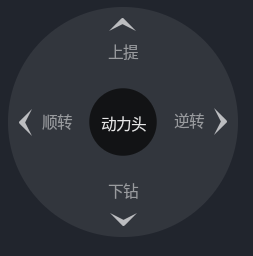
方向判定算法
核心思路:将触摸点相对于中心的偏移转换为角度,然后按 45° 等分到 8 个方向。
                    -90° (UP)
              /              \
        -135° (LEFT_UP)    -45° (RIGHT_UP)
            /                    \
  180° (LEFT) ────── CENTER ────── 0° (RIGHT)
            \                    /
        135° (LEFT_DOWN)    45° (RIGHT_DOWN)
              \              /
                    90° (DOWN)
使用 atan2(dy, dx) 计算角度,返回范围 [-180°, 180°],然后按每 45° 一个区间划分。
长按连续回调机制
手指按住摇杆不放时,需要持续发送控制指令(比如持续上提)。实现方式:
ACTION_DOWN / ACTION_MOVE时判断方向非 CENTER → 启动Handler.post(repeatRunnable)repeatRunnable内部回调onSlideRepeat,然后postDelayed(this, interval)实现循环ACTION_UP / ACTION_CANCEL时removeCallbacks停止循环
默认间隔 50ms(约 20 次/秒),可通过 setRepeatIntervalMs() 调整。
核心代码实现
方向枚举定义
kotlin
enum class Direction {
    CENTER, UP, DOWN, LEFT, RIGHT,
    LEFT_UP, RIGHT_UP, LEFT_DOWN, RIGHT_DOWN
}
9 个方向覆盖了所有可能的手势区域。CENTER 表示手指在中心圆范围内(未触发方向)。
方向判定核心逻辑
kotlin
private fun resolveDirection(dx: Float, dy: Float): Direction {
    val dist = kotlin.math.sqrt(dx * dx + dy * dy)
    // 距离太短(在中心圆范围内)→ CENTER
    if (dist < centerRadius * 0.6f) return Direction.CENTER

    // atan2 计算角度,范围 [-180, 180]
    val angle = Math.toDegrees(atan2(dy.toDouble(), dx.toDouble())).toFloat()

    return when {
        angle in -22.5f..22.5f          -> Direction.RIGHT
        angle in 22.5f..67.5f           -> Direction.RIGHT_DOWN
        angle in 67.5f..112.5f          -> Direction.DOWN
        angle in 112.5f..157.5f         -> Direction.LEFT_DOWN
        angle >= 157.5f || angle <= -157.5f -> Direction.LEFT
        angle in -157.5f..-112.5f       -> Direction.LEFT_UP
        angle in -112.5f..-67.5f        -> Direction.UP
        angle in -67.5f..-22.5f         -> Direction.RIGHT_UP
        else                            -> Direction.CENTER
    }
}关键点:
- 距离阈值 :
dist < centerRadius * 0.6f时返回 CENTER,避免手指轻微抖动误触发方向。 - 角度分区:每个方向占 45° 区间,以正右方(0°)为起点顺时针划分。
- 注意 Y 轴方向 :Android 屏幕坐标系 Y 轴向下,所以
dy < 0(向上滑)对应负角度(-90° = UP)。
中心圆跟随手指
手指滑动时,中心圆不是固定不动的,而是跟随手指偏移,但限制在外圆范围内:
kotlin
private fun handleMove(event: MotionEvent) {
    val dx = event.x - center.x
    val dy = event.y - center.y

    // 最大偏移距离 = 外圆半径 - 中心圆半径 - 边距
    val maxOffset = (radiusOuter - centerRadius - dp(4f)).coerceAtLeast(0f)
    val dist = kotlin.math.sqrt(dx * dx + dy * dy)

    // 如果超出最大偏移,按比例缩放(限制在外圆内)
    val scale = if (dist > maxOffset && dist > 0f) maxOffset / dist else 1f
    knobOffsetX = dx * scale
    knobOffsetY = dy * scale
    invalidate()
}
效果 :手指拖到边缘时,中心圆"贴"在外圆内壁上,不会跑出去。松手后 knobOffsetX/Y 归零,中心圆弹回正中。
偏移百分比计算
除了方向,还需要知道手指偏移的"力度"(0~100%),用于控制速度:
kotlin
val maxOffset = (radiusOuter - centerRadius - dp(4f)).coerceAtLeast(0f)
val dist = kotlin.math.sqrt(dx * dx + dy * dy)
var offsetPercent = if (maxOffset > 0f) dist / maxOffset else 0f
offsetPercent = kotlin.math.min(1f, offsetPercent)  // 上限钳制到 1.0
偏移百分比归一化到 [0, 1],0 表示在中心,1 表示滑到最远。业务层可以根据这个值控制速度大小(比如 50% 偏移 = 半速运转)。
长按连续回调
kotlin
private val repeatHandler = Handler(Looper.getMainLooper())
private var repeatIntervalMs: Long = 50L  // 默认 50ms
private var lastRepeatOffset: Float = 0f

// 启动连续回调
private fun startRepeat(offsetPercent: Float) {
    stopRepeat()
    if (!isPressedState || currentDirection == Direction.CENTER) return
    lastRepeatOffset = offsetPercent
    repeatHandler.post(repeatRunnable)
}

// 停止连续回调
private fun stopRepeat() {
    repeatHandler.removeCallbacks(repeatRunnable)
}

// 循环 Runnable
private val repeatRunnable = object : Runnable {
    override fun run() {
        if (!isPressedState || currentDirection == Direction.CENTER) return
        val now = SystemClock.uptimeMillis()
        onSlideRepeat?.invoke(currentDirection, lastRepeatOffset, now)
        repeatHandler.postDelayed(this, repeatIntervalMs)
    }
}设计要点:
| 要点 | 说明 |
|---|---|
使用 SystemClock.uptimeMillis() |
不受系统时间修改影响,适合做时间戳 |
| 每次 start 前先 stop | 避免多个 Runnable 同时运行 |
| 方向变化时更新 lastRepeatOffset | MOVE 事件中实时更新偏移量,repeat 回调使用最新值 |
| onDetachedFromWindow 清理 | View 销毁时移除所有回调,防止内存泄漏 |
绘制四方向标签与箭头
每个方向的标签由"箭头 + 文字"组成,箭头通过旋转实现不同方向:
kotlin
private fun drawLabel(canvas: Canvas, text: String, x: Float, y: Float, dir: Direction) {
    // 箭头旋转角度
    val angle = when (dir) {
        Direction.UP    -> 0f
        Direction.DOWN  -> 180f
        Direction.LEFT  -> -90f
        Direction.RIGHT -> 90f
        // ... 对角方向
    }

    canvas.save()
    canvas.rotate(angle, x, y)
    arrowDrawable?.draw(canvas)
    canvas.restore()

    // 文字位置:在箭头和中心圆之间(朝向中心方向)
    // 不同方向有不同的偏移计算逻辑
    when (dir) {
        Direction.UP -> {
            textX = x
            textY = y + halfH + textMargin - textBounds.top  // 文字在箭头下方(朝中心)
        }
        Direction.DOWN -> {
            textX = x
            textY = y - halfH - textMargin - textBounds.bottom  // 文字在箭头上方(朝中心)
        }
        // ... LEFT / RIGHT 类似
    }

    canvas.drawText(text, textX, textY, textPaint)
}
文字位置设计思路 :文字始终在"箭头和中心圆之间",这样视觉上更紧凑,也不会超出大圆边界。每个方向的间距可单独配置(ojv_arrowTextSpacingUp/Down/Left/Right)。
自定义属性
在 res/values/attrs.xml 中定义:
xml
<declare-styleable name="OmniJoystickView">
    <!-- 背景 -->
    <attr name="ojv_bgColor" format="color" />
    <attr name="ojv_bgDrawable" format="reference" />

    <!-- 方向标签 -->
    <attr name="ojv_labelTextColor" format="color" />
    <attr name="ojv_labelTextSize" format="dimension" />
    <attr name="ojv_labelUp" format="string" />
    <attr name="ojv_labelDown" format="string" />
    <attr name="ojv_labelLeft" format="string" />
    <attr name="ojv_labelRight" format="string" />
    <attr name="ojv_labelLeftUp" format="string" />
    <attr name="ojv_labelRightUp" format="string" />
    <attr name="ojv_labelLeftDown" format="string" />
    <attr name="ojv_labelRightDown" format="string" />

    <!-- 箭头 -->
    <attr name="ojv_arrowDrawable" format="reference" />
    <attr name="ojv_arrowWidth" format="dimension" />
    <attr name="ojv_arrowHeight" format="dimension" />
    <attr name="ojv_arrowTextSpacingUp" format="dimension" />
    <attr name="ojv_arrowTextSpacingDown" format="dimension" />
    <attr name="ojv_arrowTextSpacingLeft" format="dimension" />
    <attr name="ojv_arrowTextSpacingRight" format="dimension" />
    <attr name="ojv_labelCircleSpacing" format="dimension" />

    <!-- 中心圆 -->
    <attr name="ojv_centerRadius" format="dimension" />
    <attr name="ojv_centerColor" format="color" />
    <attr name="ojv_centerText" format="string" />
    <attr name="ojv_centerTextSize" format="dimension" />
    <attr name="ojv_centerTextColor" format="color" />
</declare-styleable>
使用方法
XML 布局
xml
<com.sunward.rigremote.widgets.OmniJoystickView
    android:id="@+id/joystick"
    android:layout_width="200dp"
    android:layout_height="200dp"
    app:ojv_bgColor="#F5F6FA"
    app:ojv_centerText="动力头"
    app:ojv_centerTextSize="16sp"
    app:ojv_centerRadius="34dp"
    app:ojv_labelUp="上提"
    app:ojv_labelDown="下钻"
    app:ojv_labelLeft="顺转"
    app:ojv_labelRight="逆转"
    app:ojv_labelTextSize="14sp"
    app:ojv_labelTextColor="#888B91"
    app:ojv_arrowDrawable="@drawable/ic_up"
    app:ojv_arrowWidth="24dp"
    app:ojv_arrowHeight="12dp" />
代码中设置回调
kotlin
val joystick = findViewById<OmniJoystickView>(R.id.joystick)

// 方向变化回调
joystick.onDirectionChanged = { direction, message ->
    Log.d("Joystick", "方向: $message")
}

// 单次滑动回调(每次 MOVE 触发)
joystick.onSlide = { direction, offsetPercent, eventTime ->
    Log.d("Joystick", "方向: $direction, 偏移: ${(offsetPercent * 100).toInt()}%")
    // 根据偏移量控制速度
    val speed = (offsetPercent * MAX_SPEED).toInt()
    sendControlCommand(direction, speed)
}

// 长按连续回调(按住不放时每 50ms 触发一次)
joystick.onSlideRepeat = { direction, offsetPercent, timestamp ->
    Log.d("Joystick", "持续: $direction, 偏移: ${(offsetPercent * 100).toInt()}%")
    sendControlCommand(direction, (offsetPercent * MAX_SPEED).toInt())
}

// 设置长按回调间隔(可选,默认 50ms)
joystick.setRepeatIntervalMs(100L)  // 改为 100ms 一次
运行时动态配置
kotlin
// 动态修改中心文字
joystick.setCenterText("回转器")

// 动态修改方向标签
joystick.setLabelText(
    up = "上升",
    down = "下降",
    left = "左转",
    right = "右转"
)

// 动态修改中心圆样式
joystick.setCenterCircle(
    radiusDp = 40f,
    color = Color.WHITE,
    text = "卷扬机",
    textSizeSp = 14f,
    textColor = Color.parseColor("#252931")
)

// 动态修改箭头图标
joystick.setArrowDrawable(ContextCompat.getDrawable(this, R.drawable.ic_arrow_blue))

// 动态修改标签文字颜色
joystick.setLabelTextColor(Color.parseColor("#FF6B00"))
整体代码
kotlin
package com.sunward.rigremote.widgets
import android.content.Context
import android.graphics.Canvas
import android.graphics.Color
import android.graphics.Paint
import android.graphics.PointF
import android.graphics.Rect
import android.graphics.drawable.Drawable
import android.util.AttributeSet
import android.util.TypedValue
import android.os.Handler
import android.os.Looper
import android.os.SystemClock
import android.view.MotionEvent
import android.view.View
import androidx.annotation.ColorInt
import androidx.core.content.ContextCompat
import androidx.core.content.res.use
import com.sunward.rigremote.R
import kotlin.math.abs
import kotlin.math.atan2
import kotlin.math.min
/***
* 全向摇杆
*
* 需求实现:
* - 默认背景图:ic_omni_joystick_default(放在 mipmap)
* - 上/下/左/右按压时分别切换为 icon_omni_joystick_up/down/left/right
* - 松开恢复默认背景
* - 中间文字可动态设置(如"动力头")
*/
class OmniJoystickView @JvmOverloads constructor(
context: Context,
attrs: AttributeSet? = null,
defStyleAttr: Int = 0
) : View(context, attrs, defStyleAttr) {
enum class Direction {
CENTER, UP, DOWN, LEFT, RIGHT, LEFT_UP, RIGHT_UP, LEFT_DOWN, RIGHT_DOWN
}
// 可配置属性
@ColorInt
private var bgColor: Int = Color.parseColor("#F5F6FA")
private var bgDrawable: Drawable? = null
@ColorInt
private var centerColor: Int = Color.WHITE
@ColorInt
private var centerTextColor: Int = Color.parseColor("#252931")
private var centerText: String = "动力头"
private var centerTextSizeSp: Float = 16f
private var centerRadiusDp: Float = 34f
private var labelTextSizeSp: Float = 14f
@ColorInt
private var labelTextColor: Int = Color.parseColor("#888B91")
private var arrowDrawable: Drawable? = null // 默认使用 ic_arrow_gray,如未提供则不画
private var arrowWidthDp: Float = 24f
private var arrowHeightDp: Float = 12f
private var arrowTextSpacingUpDp: Float = 16f // 上方向文字与箭头间距
private var arrowTextSpacingDownDp: Float = 16f // 下方向文字与箭头间距
private var arrowTextSpacingLeftDp: Float = 16f // 左方向文字与箭头间距
private var arrowTextSpacingRightDp: Float = 16f // 右方向文字与箭头间距
private var labelCircleSpacingDp: Float = 16f
// 方向文字(可自定义)
private var labelUp = "上提"
private var labelDown = "下钻"
private var labelLeft = "顺转"
private var labelRight = "逆转"
private var labelLeftUp = ""
private var labelRightUp = ""
private var labelLeftDown = ""
private var labelRightDown = ""
// 触摸相关
private val center = PointF()
private var radiusOuter = 0f
private var centerRadius = 0f
private val textPaint = Paint(Paint.ANTI_ALIAS_FLAG).apply {
textAlign = Paint.Align.CENTER
color = labelTextColor
textSize = sp(labelTextSizeSp)
}
private val centerPaint = Paint(Paint.ANTI_ALIAS_FLAG).apply {
style = Paint.Style.FILL
color = centerColor
}
private val bgPaint = Paint(Paint.ANTI_ALIAS_FLAG).apply {
style = Paint.Style.FILL
color = bgColor
}
private val textBounds = Rect()
// 中心圆可随触点小幅移动
private var knobOffsetX = 0f
private var knobOffsetY = 0f
var onDirectionChanged: ((Direction, String) -> Unit)? = null
// 滑动监听
// 每次滑动时立即回调:方向、偏移百分比(归一化到 [-1, 1])、事件时间
var onSlide: ((Direction, Float, Long) -> Unit)? = null
// 长按滑动持续反馈:方向、最后保存的偏移百分比、当前时间
var onSlideRepeat: ((Direction, Float, Long) -> Unit)? = null
// 长按持续回调相关
private val repeatHandler = Handler(Looper.getMainLooper())
private var repeatIntervalMs: Long = 50L // 默认 120ms,可配置
private var currentDirection: Direction = Direction.CENTER
private var isPressedState: Boolean = false
private var lastRepeatOffset: Float = 0f
init {
arrowDrawable = ContextCompat.getDrawable(context, R.drawable.ic_up)
initAttrs(context, attrs, defStyleAttr)
}
private fun initAttrs(context: Context, attrs: AttributeSet?, defStyleAttr: Int) {
if (attrs == null) return
context.obtainStyledAttributes(attrs, R.styleable.OmniJoystickView, defStyleAttr, 0)
.use { ta ->
bgColor = ta.getColor(R.styleable.OmniJoystickView_ojv_bgColor, bgColor)
bgDrawable =
ta.getDrawable(R.styleable.OmniJoystickView_ojv_bgDrawable) ?: bgDrawable
bgPaint.color = bgColor
labelTextColor =
ta.getColor(R.styleable.OmniJoystickView_ojv_labelTextColor, labelTextColor)
labelTextSizeSp = pxToSp(
ta.getDimension(
R.styleable.OmniJoystickView_ojv_labelTextSize,
sp(labelTextSizeSp)
)
)
arrowDrawable = ta.getDrawable(R.styleable.OmniJoystickView_ojv_arrowDrawable)
?: arrowDrawable
arrowWidthDp = pxToDp(
ta.getDimension(
R.styleable.OmniJoystickView_ojv_arrowWidth,
dp(arrowWidthDp)
)
)
arrowHeightDp = pxToDp(
ta.getDimension(
R.styleable.OmniJoystickView_ojv_arrowHeight,
dp(arrowHeightDp)
)
)
// 分别设置各个方向的间距,如果未设置则使用默认值 16dp
val defaultSpacing = dp(16f)
arrowTextSpacingUpDp = pxToDp(
ta.getDimension(
R.styleable.OmniJoystickView_ojv_arrowTextSpacingUp,
defaultSpacing
)
)
arrowTextSpacingDownDp = pxToDp(
ta.getDimension(
R.styleable.OmniJoystickView_ojv_arrowTextSpacingDown,
defaultSpacing
)
)
arrowTextSpacingLeftDp = pxToDp(
ta.getDimension(
R.styleable.OmniJoystickView_ojv_arrowTextSpacingLeft,
defaultSpacing
)
)
arrowTextSpacingRightDp = pxToDp(
ta.getDimension(
R.styleable.OmniJoystickView_ojv_arrowTextSpacingRight,
defaultSpacing
)
)
labelCircleSpacingDp = pxToDp(
ta.getDimension(
R.styleable.OmniJoystickView_ojv_labelCircleSpacing,
dp(labelCircleSpacingDp)
)
)
labelUp = ta.getString(R.styleable.OmniJoystickView_ojv_labelUp) ?: labelUp
labelDown = ta.getString(R.styleable.OmniJoystickView_ojv_labelDown) ?: labelDown
labelLeft = ta.getString(R.styleable.OmniJoystickView_ojv_labelLeft) ?: labelLeft
labelRight = ta.getString(R.styleable.OmniJoystickView_ojv_labelRight) ?: labelRight
labelLeftUp =
ta.getString(R.styleable.OmniJoystickView_ojv_labelLeftUp) ?: labelLeftUp
labelRightUp =
ta.getString(R.styleable.OmniJoystickView_ojv_labelRightUp) ?: labelRightUp
labelLeftDown =
ta.getString(R.styleable.OmniJoystickView_ojv_labelLeftDown) ?: labelLeftDown
labelRightDown =
ta.getString(R.styleable.OmniJoystickView_ojv_labelRightDown) ?: labelRightDown
centerRadiusDp = pxToDp(
ta.getDimension(
R.styleable.OmniJoystickView_ojv_centerRadius,
dp(centerRadiusDp)
)
)
centerColor = ta.getColor(R.styleable.OmniJoystickView_ojv_centerColor, centerColor)
centerPaint.color = centerColor
centerText = ta.getString(R.styleable.OmniJoystickView_ojv_centerText) ?: centerText
centerTextSizeSp = pxToSp(
ta.getDimension(
R.styleable.OmniJoystickView_ojv_centerTextSize,
sp(centerTextSizeSp)
)
)
centerTextColor =
ta.getColor(R.styleable.OmniJoystickView_ojv_centerTextColor, centerTextColor)
}
}
override fun onSizeChanged(w: Int, h: Int, oldw: Int, oldh: Int) {
val size = min(w, h).toFloat()
radiusOuter = size / 2f
center.set(w / 2f, h / 2f)
centerRadius = dp(centerRadiusDp)
}
override fun onDraw(canvas: Canvas) {
super.onDraw(canvas)
// 背景
if (bgDrawable != null) {
bgDrawable?.setBounds(0, 0, width, height)
bgDrawable?.draw(canvas)
} else {
canvas.drawCircle(center.x, center.y, radiusOuter - dp(2f), bgPaint)
}
// 方向文字 + 箭头(只显示上下左右四个方向)
// 箭头中心位置:大圆内部,距离大圆边界16dp(实际大圆半径是 radiusOuter - dp(2f))
val spacing = dp(labelCircleSpacingDp)
val actualCircleRadius = radiusOuter - dp(2f) // 实际大圆半径
val arrowCenterOffset = actualCircleRadius - spacing // 在大圆内部,距离边界16dp
drawLabel(
canvas,
labelUp,
center.x,
center.y - arrowCenterOffset,
Direction.UP
)
drawLabel(
canvas,
labelDown,
center.x,
center.y + arrowCenterOffset,
Direction.DOWN
)
drawLabel(
canvas,
labelLeft,
center.x - arrowCenterOffset,
center.y,
Direction.LEFT
)
drawLabel(
canvas,
labelRight,
center.x + arrowCenterOffset ,
center.y,
Direction.RIGHT
)
// 中心圆(随触点小幅移动)
val knobX = center.x + knobOffsetX
val knobY = center.y + knobOffsetY
canvas.drawCircle(knobX, knobY, centerRadius, centerPaint)
textPaint.color = centerTextColor
textPaint.textSize = sp(centerTextSizeSp)
textPaint.getTextBounds(centerText, 0, centerText.length, textBounds)
canvas.drawText(centerText, knobX, knobY + textBounds.height() / 2f, textPaint)
}
private fun drawLabel(
canvas: Canvas,
text: String,
x: Float,
y: Float,
dir: Direction
) {
// 如果既没有文本也没有箭头,则直接返回
if (text.isEmpty() && arrowDrawable == null) return
val arrowW = dp(arrowWidthDp).toInt().coerceAtLeast(1)
val arrowH = dp(arrowHeightDp).toInt().coerceAtLeast(1)
val halfW = arrowW / 2f
val halfH = arrowH / 2f
// 根据方向使用不同的间距
val textMargin = dp(when (dir) {
Direction.UP -> arrowTextSpacingUpDp
Direction.DOWN -> arrowTextSpacingDownDp
Direction.LEFT -> arrowTextSpacingLeftDp
Direction.RIGHT -> arrowTextSpacingRightDp
else -> 16f // 默认间距
})
var textX = x
var textY = y
// 箭头(如果有)
if (arrowDrawable != null) {
val d = arrowDrawable!!
val cx = x.toInt()
val cy = y.toInt()
d.setBounds(
(cx - halfW).toInt(),
(cy - halfH).toInt(),
(cx + halfW).toInt(),
(cy + halfH).toInt()
)
canvas.save()
val angle = when (dir) {
Direction.UP -> 0f
Direction.DOWN -> 180f
Direction.LEFT -> -90f
Direction.RIGHT -> 90f
Direction.LEFT_UP -> -45f
Direction.RIGHT_UP -> 45f
Direction.LEFT_DOWN -> -135f
Direction.RIGHT_DOWN -> 135f
Direction.CENTER -> 0f
}
canvas.rotate(angle, cx.toFloat(), cy.toFloat())
d.draw(canvas)
canvas.restore()
// 如果有文字,根据方向调整文字位置相对箭头(确保文字也在大圆内部)
if (text.isNotEmpty()) {
textPaint.color = labelTextColor
textPaint.textSize = sp(labelTextSizeSp)
textPaint.getTextBounds(text, 0, text.length, textBounds)
val textH = textBounds.height().toFloat()
val textW = textBounds.width().toFloat()
when (dir) {
Direction.UP -> {
// 文字在箭头上方,但要在圈内,所以文字应该在箭头和中心之间(靠近中心方向)
textX = x
// y 是箭头中心,文字应该在箭头和中心之间,距离箭头 textMargin
// 文字的baseline位置 = 箭头中心 - 箭头高度的一半 - 间距 - 文字底部偏移
// 但方向是朝向中心的,所以应该是 y + halfH + textMargin(朝向中心)
textY = y + halfH + textMargin - textBounds.top
}
Direction.DOWN -> {
// 文字在箭头下方,但要在圈内,所以文字应该在箭头和中心之间(靠近中心方向)
textX = x
// 文字的baseline位置 = 箭头中心 - 箭头高度的一半 - 间距 - 文字底部偏移(朝向中心)
textY = y - halfH - textMargin - textBounds.bottom
}
Direction.LEFT -> {
// 文字在箭头左侧,但要在圈内,所以文字应该在箭头和中心之间(靠近中心方向)
// 文字的右边缘应该在箭头右侧 textMargin 距离(朝向中心)
textX = x + halfW + textMargin + textW / 2f
textY = y - textBounds.top - textH / 2f
}
Direction.RIGHT -> {
// 文字在箭头右侧,但要在圈内,所以文字应该在箭头和中心之间(靠近中心方向)
// 文字的左边缘应该在箭头左侧 textMargin 距离(朝向中心)
textX = x - halfW - textMargin - textW / 2f
textY = y - textBounds.top - textH / 2f
}
Direction.CENTER -> {
textX = x
textY = y - textBounds.top - textH / 2f
}
else -> {
// 其他方向不处理
textX = x
textY = y
}
}
}
} else if (text.isNotEmpty()) {
// 如果没有箭头但有文字,直接显示文字(居中对齐)
textPaint.color = labelTextColor
textPaint.textSize = sp(labelTextSizeSp)
textPaint.getTextBounds(text, 0, text.length, textBounds)
textX = x
// 垂直居中:y - textBounds.top - textBounds.height() / 2f
textY = y - textBounds.top - textBounds.height() / 2f
}
// 绘制文字
if (text.isNotEmpty()) {
canvas.drawText(text, textX, textY, textPaint)
}
}
override fun onTouchEvent(event: MotionEvent): Boolean {
when (event.actionMasked) {
MotionEvent.ACTION_DOWN, MotionEvent.ACTION_MOVE -> {
parent?.requestDisallowInterceptTouchEvent(true)
handleMove(event)
}
MotionEvent.ACTION_UP, MotionEvent.ACTION_CANCEL -> {
parent?.requestDisallowInterceptTouchEvent(false)
resetToCenter(event)
}
}
return true
}
/**
* 处理移动事件
*/
private fun handleMove(event: MotionEvent) {
if (width == 0 || height == 0) return
val dx = event.x - center.x
val dy = event.y - center.y
// 计算距离和偏移百分比(归一化到 [-1, 1])
val maxOffset = (radiusOuter - centerRadius - dp(4f)).coerceAtLeast(0f)
val dist = kotlin.math.sqrt(dx * dx + dy * dy)
var offsetPercent = if (maxOffset > 0f) dist / maxOffset else 0f
offsetPercent = kotlin.math.min(1f, offsetPercent)
// 判断方向
val dir = resolveDirection(dx, dy)
val msg = directionMessage(dir)
// 更新中心圆位置(限制在外圈内)
val scale = if (dist > maxOffset && dist > 0f) maxOffset / dist else 1f
knobOffsetX = dx * scale
knobOffsetY = dy * scale
invalidate()
// 更新方向状态
if (dir != currentDirection) {
currentDirection = dir
}
// 标记按压状态
isPressedState = dir != Direction.CENTER
// 立即回调滑动事件(每次 MOVE 都回调)
val eventTime = event.eventTime
onDirectionChanged?.invoke(dir, msg)
onSlide?.invoke(dir, offsetPercent, eventTime)
// 长按滑动持续反馈(仿照 AdjustJoystickView)
if (isPressedState && dir != Direction.CENTER) {
startRepeat(offsetPercent)
} else {
stopRepeat()
}
}
/**
* 重置到中心
*/
private fun resetToCenter(event: MotionEvent) {
currentDirection = Direction.CENTER
isPressedState = false
knobOffsetX = 0f
knobOffsetY = 0f
invalidate()
val eventTime = event.eventTime
val msg = directionMessage(Direction.CENTER)
onDirectionChanged?.invoke(Direction.CENTER, msg)
onSlide?.invoke(Direction.CENTER, 0f, eventTime)
stopRepeat()
}
/**
* 开始持续回调(仿照 AdjustJoystickView 的逻辑)
*/
private fun startRepeat(offsetPercent: Float) {
stopRepeat()
if (!isPressedState || currentDirection == Direction.CENTER) return
lastRepeatOffset = offsetPercent
repeatHandler.post(repeatRunnable)
}
/**
* 停止持续回调
*/
private fun stopRepeat() {
repeatHandler.removeCallbacks(repeatRunnable)
}
/**
* 持续回调的 Runnable
*/
private val repeatRunnable = object : Runnable {
override fun run() {
if (!isPressedState || currentDirection == Direction.CENTER) return
val now = SystemClock.uptimeMillis()
onSlideRepeat?.invoke(currentDirection, lastRepeatOffset, now)
repeatHandler.postDelayed(this, repeatIntervalMs)
}
}
private fun resolveDirection(dx: Float, dy: Float): Direction {
val dist = kotlin.math.sqrt(dx * dx + dy * dy)
if (dist < centerRadius * 0.6f) return Direction.CENTER
val angle = Math.toDegrees(atan2(dy.toDouble(), dx.toDouble())).toFloat() // -180..180
return when {
angle in -22.5f..22.5f -> Direction.RIGHT
angle in 22.5f..67.5f -> Direction.RIGHT_DOWN
angle in 67.5f..112.5f -> Direction.DOWN
angle in 112.5f..157.5f -> Direction.LEFT_DOWN
angle >= 157.5f || angle <= -157.5f -> Direction.LEFT
angle in -157.5f..-112.5f -> Direction.LEFT_UP
angle in -112.5f..-67.5f -> Direction.UP
angle in -67.5f..-22.5f -> Direction.RIGHT_UP
else -> Direction.CENTER
}
}
private fun directionMessage(dir: Direction): String = when (dir) {
Direction.UP -> "上"
Direction.RIGHT_UP -> "逆转上提"
Direction.LEFT_UP -> "顺转上提"
Direction.DOWN -> "下"
Direction.LEFT_DOWN -> "顺转下转"
Direction.RIGHT_DOWN -> "逆转下转"
Direction.RIGHT -> "逆转"
Direction.LEFT -> "顺转"
Direction.CENTER -> "中心"
}
// ========= 对外自定义方法 =========
fun setBackgroundColorInt(@ColorInt color: Int) {
bgColor = color
bgDrawable = null
bgPaint.color = color
invalidate()
}
override fun setBackgroundDrawable(drawable: Drawable?) {
bgDrawable = drawable
invalidate()
}
fun setLabelText(
up: String = labelUp,
down: String = labelDown,
left: String = labelLeft,
right: String = labelRight,
leftUp: String = labelLeftUp,
rightUp: String = labelRightUp,
leftDown: String = labelLeftDown,
rightDown: String = labelRightDown
) {
labelUp = up
labelDown = down
labelLeft = left
labelRight = right
labelLeftUp = leftUp
labelRightUp = rightUp
labelLeftDown = leftDown
labelRightDown = rightDown
invalidate()
}
fun setLabelTextColor(@ColorInt color: Int) {
labelTextColor = color
invalidate()
}
fun setLabelTextSizeSp(sizeSp: Float) {
labelTextSizeSp = sizeSp
invalidate()
}
fun setArrowDrawable(drawable: Drawable?) {
arrowDrawable = drawable
invalidate()
}
fun setCenterCircle(
radiusDp: Float = centerRadiusDp,
@ColorInt color: Int = centerColor,
text: String = centerText,
textSizeSp: Float = centerTextSizeSp,
@ColorInt textColor: Int = centerTextColor
) {
centerRadiusDp = radiusDp
centerColor = color
centerText = text
centerTextSizeSp = textSizeSp
centerTextColor = textColor
centerPaint.color = color
invalidate()
requestLayout()
}
fun setCenterText(text: String) {
centerText = text
invalidate()
}
fun setCenterTextColor(@ColorInt color: Int) {
centerTextColor = color
invalidate()
}
fun setCenterTextSizeSp(sizeSp: Float) {
centerTextSizeSp = sizeSp
invalidate()
}
fun setCenterRadiusDp(radiusDp: Float) {
centerRadiusDp = radiusDp
requestLayout()
}
/**
* 设置长按重复回调的时间间隔(毫秒),默认 120ms,最小 40ms
* 仿照 AdjustJoystickView 的方法
*/
fun setRepeatIntervalMs(intervalMs: Long) {
repeatIntervalMs = kotlin.math.max(10L, intervalMs)
}
/**
* 清理资源,避免内存泄漏
*/
fun cleanup() {
stopRepeat()
}
override fun onDetachedFromWindow() {
super.onDetachedFromWindow()
cleanup()
}
// 工具
private fun dp(v: Float): Float =
TypedValue.applyDimension(TypedValue.COMPLEX_UNIT_DIP, v, resources.displayMetrics)
private fun sp(v: Float): Float =
TypedValue.applyDimension(TypedValue.COMPLEX_UNIT_SP, v, resources.displayMetrics)
private fun pxToDp(px: Float): Float = px / resources.displayMetrics.density
private fun pxToSp(px: Float): Float = px / resources.displayMetrics.scaledDensity
}踩坑记录
箭头旋转后文字位置偏移
问题 :箭头通过 canvas.rotate() 旋转后,文字的位置计算需要考虑旋转前后的坐标系差异。
解决:文字不参与旋转,独立计算位置。根据方向,文字始终放在"箭头和中心圆之间":
- UP 方向:文字在箭头下方(y + halfH + margin)
- DOWN 方向:文字在箭头上方(y - halfH - margin)
- LEFT 方向:文字在箭头右侧(x + halfW + margin)
- RIGHT 方向:文字在箭头左侧(x - halfW - margin)
文字垂直居中的计算
问题 :canvas.drawText() 的 y 坐标是文字 baseline,不是中心。直接用 y 会导致文字偏下。
解决 :利用 Paint.getTextBounds() 获取文字边界,计算偏移:
kotlin
textPaint.getTextBounds(text, 0, text.length, textBounds)
// 垂直居中:baseline = centerY - textBounds.top - textBounds.height() / 2f
textY = y - textBounds.top - textBounds.height() / 2f
Handler 内存泄漏
问题 :View 销毁后,如果 repeatRunnable 还在 Handler 队列中,会导致 View 无法被 GC 回收。
解决:
kotlin
override fun onDetachedFromWindow() {
    super.onDetachedFromWindow()
    cleanup()  // 内部调用 stopRepeat(),移除所有 Handler 回调
}
父容器拦截触摸事件
问题:摇杆放在 ScrollView 或 ViewPager 中时,滑动可能被父容器拦截。
解决 :在 ACTION_DOWN 时请求父容器不拦截:
kotlin
MotionEvent.ACTION_DOWN, MotionEvent.ACTION_MOVE -> {
    parent?.requestDisallowInterceptTouchEvent(true)
    handleMove(event)
}

MotionEvent.ACTION_UP, MotionEvent.ACTION_CANCEL -> {
    parent?.requestDisallowInterceptTouchEvent(false)
    resetToCenter(event)
}