1 微信开发者工具
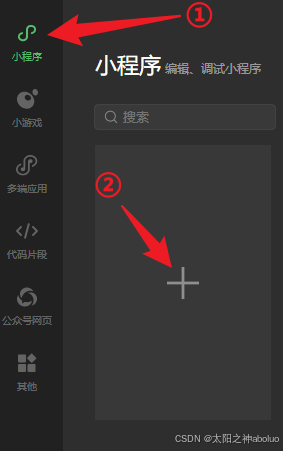
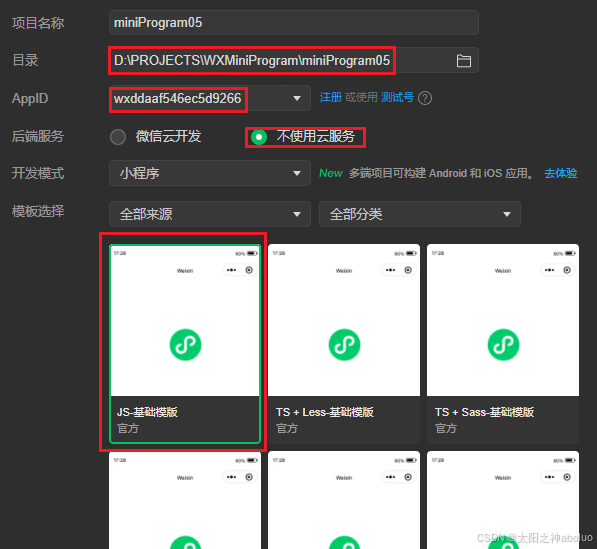
1.1 创建小程序项目
1.2 手机预览(开发版)
预览开发版
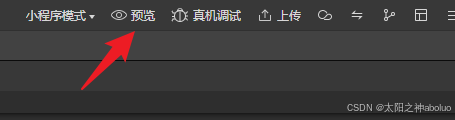
预览体验版
1.3 常用设置
★ 新标签页打开文件: 设置 >> 编辑器设置 >> ✅总是在新标签页打开文件
1.4 快捷键设置
1.4.1 自定义快捷键
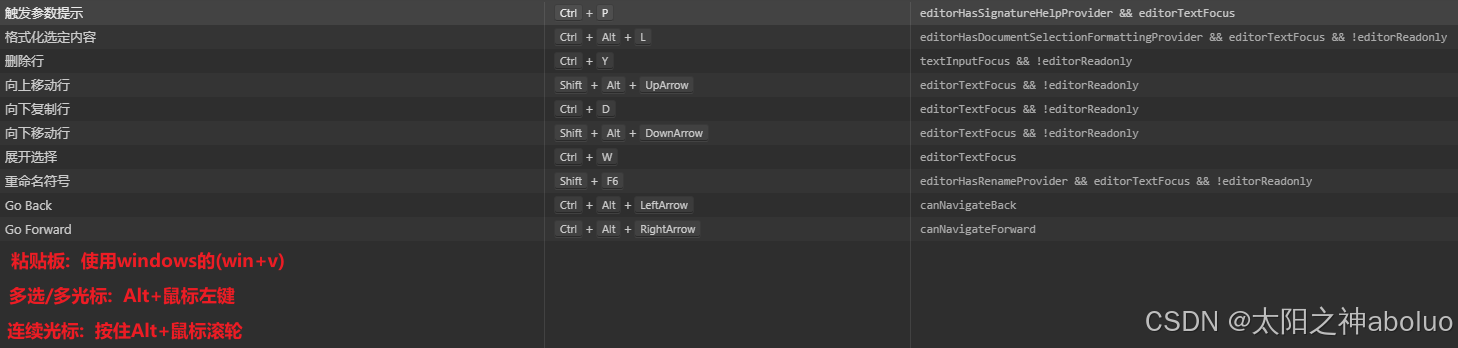
1.4.2 快捷键跨电脑复用
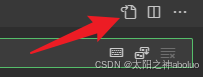
点击如图按钮,会显示自定义快捷键的JSON文档,将这个JSON复制
在另外一台主机同样点击此按钮,将JSON覆盖,就能实现快捷键设置的复用
bash
// 将键绑定放在此文件中以覆盖默认值auto[]
[
  {
    "key": "ctrl+w",
    "command": "editor.action.smartSelect.expand",
    "when": "editorTextFocus"
  },
  {
    "key": "shift+alt+right",
    "command": "-editor.action.smartSelect.expand",
    "when": "editorTextFocus"
  },
  {
    "key": "ctrl+alt+left",
    "command": "workbench.action.navigateBack",
    "when": "canNavigateBack"
  },
  {
    "key": "alt+left",
    "command": "-workbench.action.navigateBack",
    "when": "canNavigateBack"
  },
  {
    "key": "ctrl+alt+right",
    "command": "workbench.action.navigateForward",
    "when": "canNavigateForward"
  },
  {
    "key": "alt+right",
    "command": "-workbench.action.navigateForward",
    "when": "canNavigateForward"
  },
  {
    "key": "ctrl+y",
    "command": "editor.action.deleteLines",
    "when": "textInputFocus && !editorReadonly"
  },
  {
    "key": "ctrl+shift+k",
    "command": "-editor.action.deleteLines",
    "when": "textInputFocus && !editorReadonly"
  },
  {
    "key": "ctrl+alt+l",
    "command": "editor.action.formatSelection",
    "when": "editorHasDocumentSelectionFormattingProvider && editorTextFocus && !editorReadonly"
  },
  {
    "key": "ctrl+k ctrl+f",
    "command": "-editor.action.formatSelection",
    "when": "editorHasDocumentSelectionFormattingProvider && editorTextFocus && !editorReadonly"
  },
  {
    "key": "ctrl+d",
    "command": "editor.action.copyLinesDownAction",
    "when": "editorTextFocus && !editorReadonly"
  },
  {
    "key": "shift+alt+down",
    "command": "-editor.action.copyLinesDownAction",
    "when": "editorTextFocus && !editorReadonly"
  },
  {
    "key": "shift+alt+up",
    "command": "editor.action.moveLinesUpAction",
    "when": "editorTextFocus && !editorReadonly"
  },
  {
    "key": "alt+up",
    "command": "-editor.action.moveLinesUpAction",
    "when": "editorTextFocus && !editorReadonly"
  },
  {
    "key": "shift+alt+down",
    "command": "editor.action.moveLinesDownAction",
    "when": "editorTextFocus && !editorReadonly"
  },
  {
    "key": "alt+down",
    "command": "-editor.action.moveLinesDownAction",
    "when": "editorTextFocus && !editorReadonly"
  },
  {
    "key": "ctrl+p",
    "command": "editor.action.triggerParameterHints",
    "when": "editorHasSignatureHelpProvider && editorTextFocus"
  },
  {
    "key": "ctrl+shift+space",
    "command": "-editor.action.triggerParameterHints",
    "when": "editorHasSignatureHelpProvider && editorTextFocus"
  },
  {
    "key": "shift+f6",
    "command": "editor.action.rename",
    "when": "editorHasRenameProvider && editorTextFocus && !editorReadonly"
  },
  {
    "key": "f2",
    "command": "-editor.action.rename",
    "when": "editorHasRenameProvider && editorTextFocus && !editorReadonly"
  }
]
2 版本控制
2.1 新建小程序项目和Gitee仓库
用微信开发者工具新建一个小程序项目
在Gitee新建一个空白仓库
在新建的小程序目录(与"pages目录","app.json文件"处在同一级目录),初始化Git仓库
右键选择"Git Bash Here",执行完后,会生成一个.git的隐藏文件夹
bash
git init2.2 项目与仓库关联(HTTPS地址)
方式一:
小程序目录,右键选择"Git Bash Here"
bash
git remote add origin https://gitee.com/eastsuntechnology/aaa-bbb-ccc.git验证是否关联成功,输入下面代码,出现"origin 的 fetch/push 地址",表示关联成功
bash
git remote -v方式二:

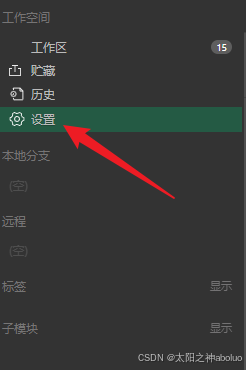
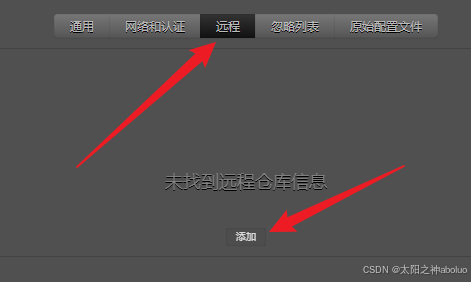
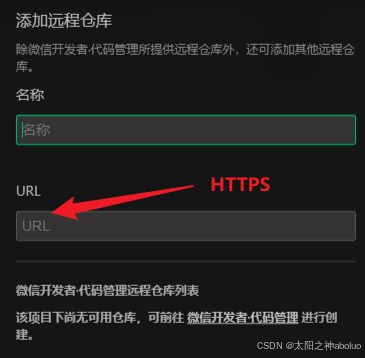
2.3 提交代码
配置好Gitee的帐号密码后,提交并推送
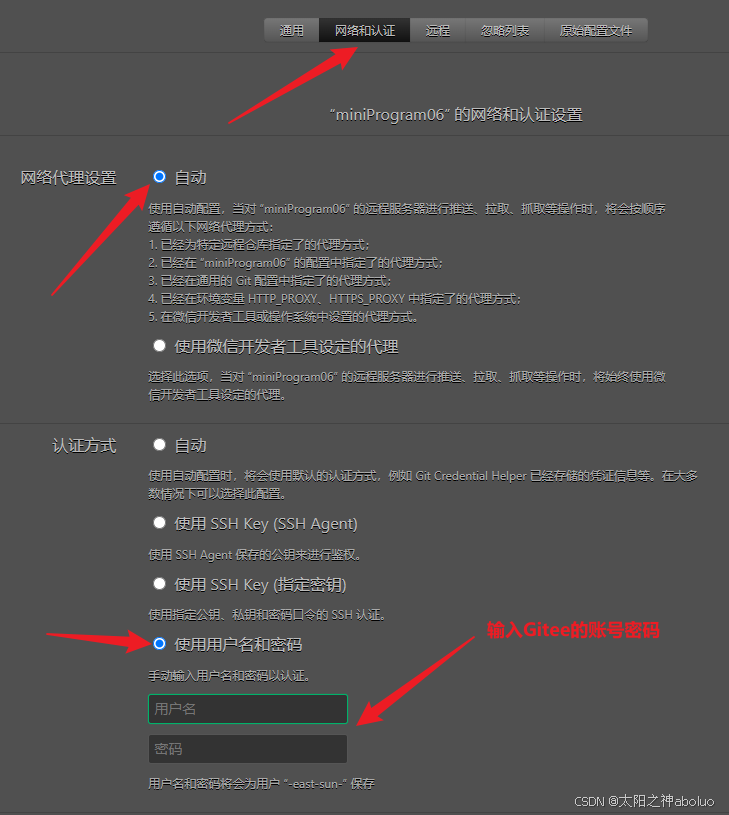
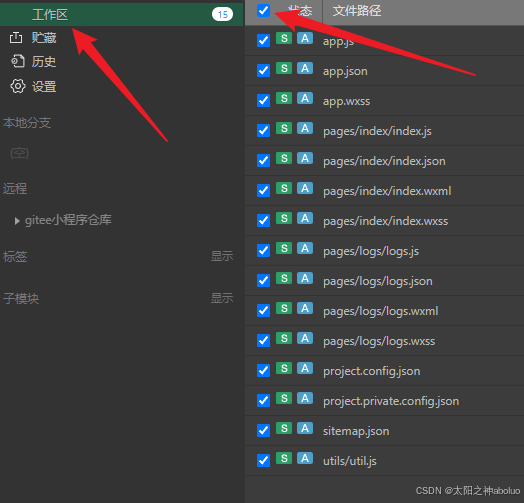
2.3 拉取代码
在本地文件夹,右键选择"Git Bash Here",克隆对应仓库
bash
git clone https://gitee.com/eastsuntechnology/aaa-bbb-ccc.git用"微信开发者工具"导入克隆的项目
3 重要文件
3.1 全局配置
app.json
pages: 用于记录当前小程序所有页面的路径
pages中新增页面存放路径,小程序开发者工具会自动创建对应页面文件
小程序会把排在第一位的页面当做首页
window: 全局定义小程序所有页面背景色,文字颜色等
style: 全局定义小程序组件所使用的样式版本(最新的是v2版本)
app.wxss
app.js
3.2 局部配置
3.2.1 wxml(区别于html)
标签名称: view(div) text(span) image(img) navigator(a)
属性节点: <navigator url="/pages/home/home"></navigator> //<a href=""/>
提供类类似vue的模板语法: 数据绑定 / 列表渲染 / 条件渲染
3.2.2 wxss(区别于css)
新增了rpx尺寸单位(微信规定屏幕宽度时750rpx) //微信会根据手机像素自动调节1rpx=?px
wxss只支持部分css选择器
类选择器(.class),id选择器(#id)
元素选择器(element)
并集选择器,后代选择器
伪类选择器(::after, **::**before)
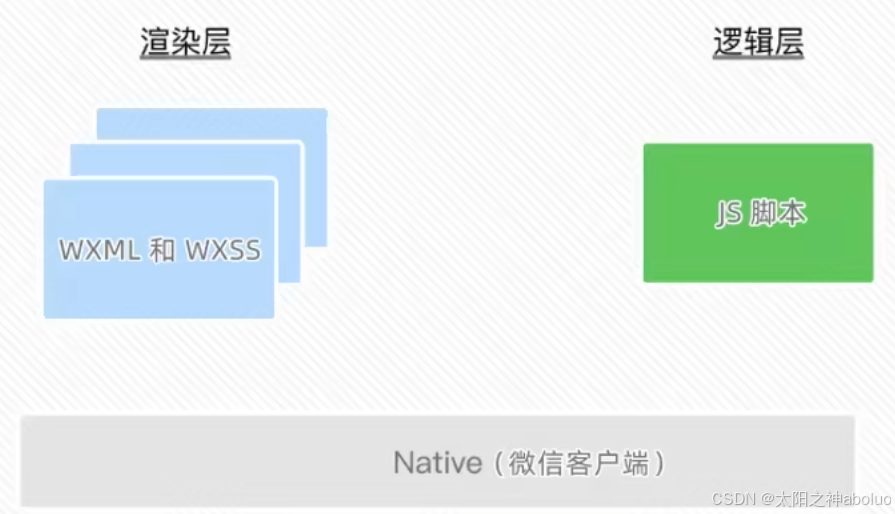
3.3 渲染层和逻辑层
2层之间内存完全隔离,只能通过序列化后的JSON数据(字符串,数字,普通对象)通信(setData)
因此在html中可以直接通过"element.src = imgUrl"给img标签赋值图片
但是微信小程序的js和wxml是隔离的,在js中无法通过DOM获取image的组件对象,它们之间只能通过setData通信,即逻辑层 >> 通过setData发送JSON数据 >> 渲染层