llama-server编译部署+opencode验证记录(Ubuntu, GPU)
背景
之前也用了 vllm 部署 qwen3.8-9b-gptq-int4 版本,其他的没什么,就是感觉 显存占用太高了,常驻显存约 16g,基本上没法干其它的事儿了。
ollama 倒是方便,但是对我来讲,感觉模型的管理机制又束缚了我,毕竟我只是想找一个好一点的模型让我用起来,它想加自定义的模型相对不是那么方便。
个人倾向 llama-server 这种一行命令起服务的方式,既没有 vllm的高显存占用,也没有多余的功能,所以倒腾了一下这个方式。需要的小伙伴可以参考。
操作环境
CPU:i9 13900
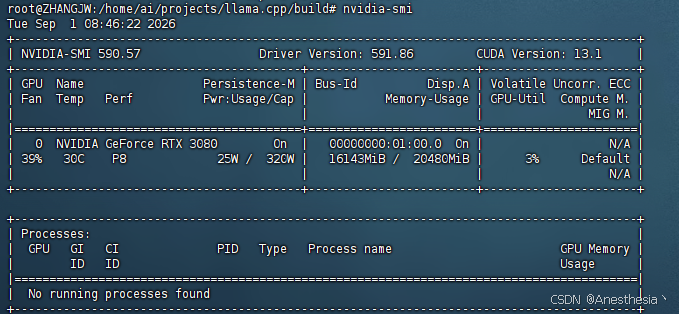
GPU: RTX 3080 20g
OS:Ubuntu 24.04 (WSL2)
Driver:591.86
Model: qwen3.8-9b、mmproj-qwen3.5-9b
Tool: Opencode
1、拉取llama-cpp最新的源码
bash
git clone https://github.com/ggml-org/llama.cpp.git或者国内用 gitcode
bash
git clone https://gitcode.com/GitHub_Trending/ll/llama.cpp.git2、安装必要依赖
bash
apt install -y git build-essential cmake libssl-dev ninja-build3、编译源码
bash
cd llama.cpp
mkdir build && cd build
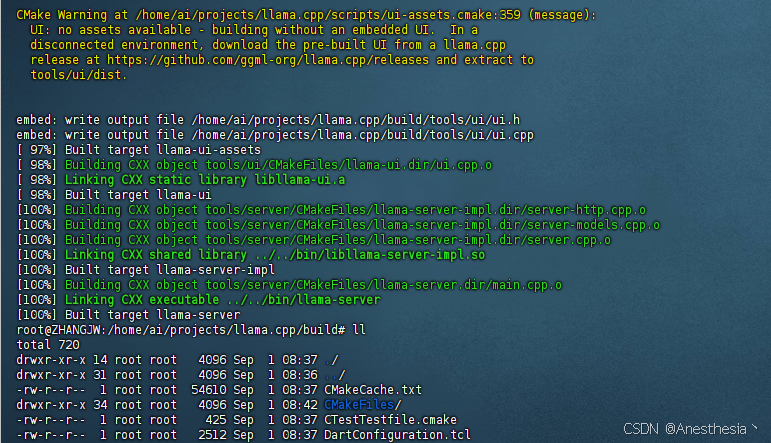
cmake .. -DCMAKE_BUILD_TYPE=Release -DLLAMA_BUILD_SERVER=ON -DGGML_CUDA=ON
正常结果参考下图
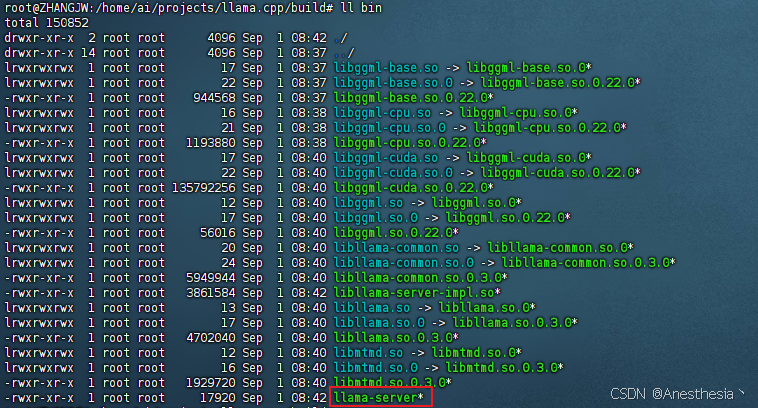
bin目录下会生成 llama-server 文件
4、将 llama-server加入环境变量
bash
echo 'export PATH="<编译生成的bin目录>:$PATH"' >> ~/.bashrc && source ~/.bashrc比如,我这儿:
bash
echo 'export PATH="/home/ai/projects/llama.cpp/build/bin:$PATH"' >> ~/.bashrc && source ~/.bashrc验证输入 which llama-server, 输出正确的路径,即配置成功。
5、guff模型下载
两个地址, hf 会比 modelscope 模型全一些,下载速度也会快一点:
https://hf-mirror.com/models?search=Qwen3.8-9B
https://www.modelscope.cn/models?name=qwen3.8-9b\&page=1\&tabKey=task
当然你可以python安装 huggingface 或 modelscope ,然后使用 cli下载,但是不适应于单文件的下载。
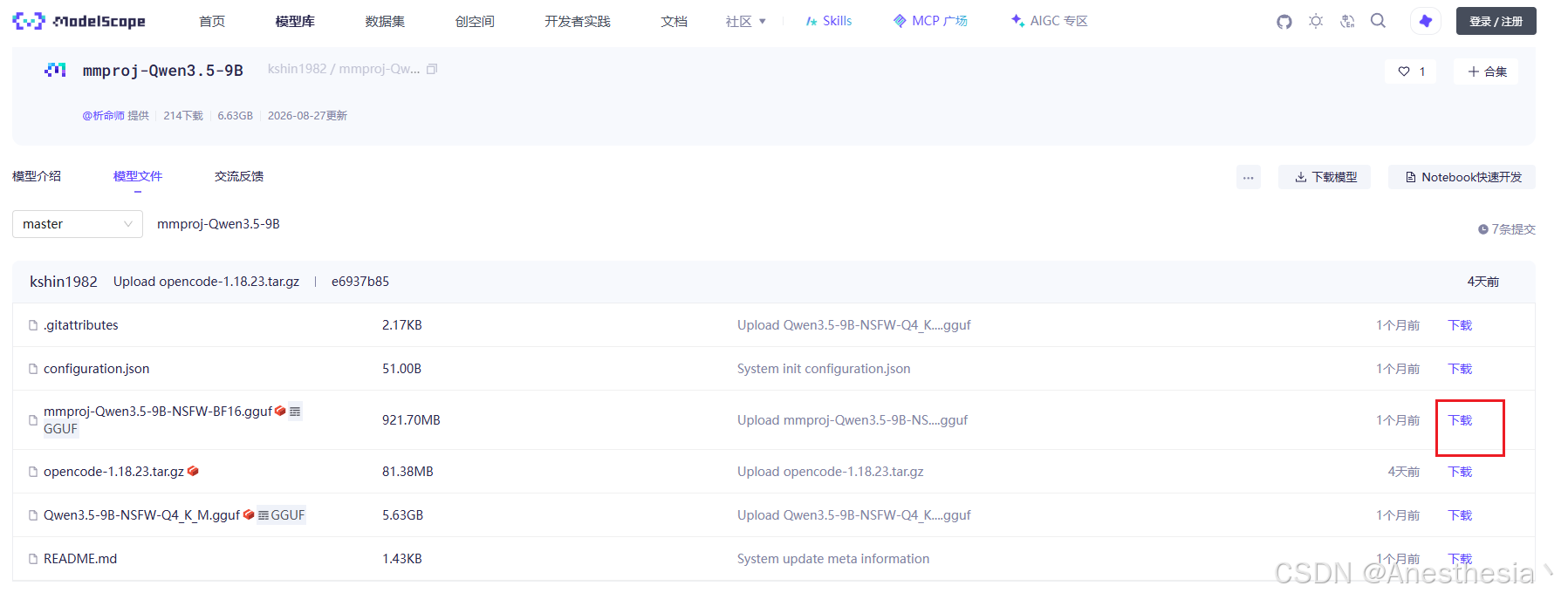
这里以 qwen3.8-9b-Q5_0.guff 模型举例,点击对应的下载按钮,浏览器会开始下载。
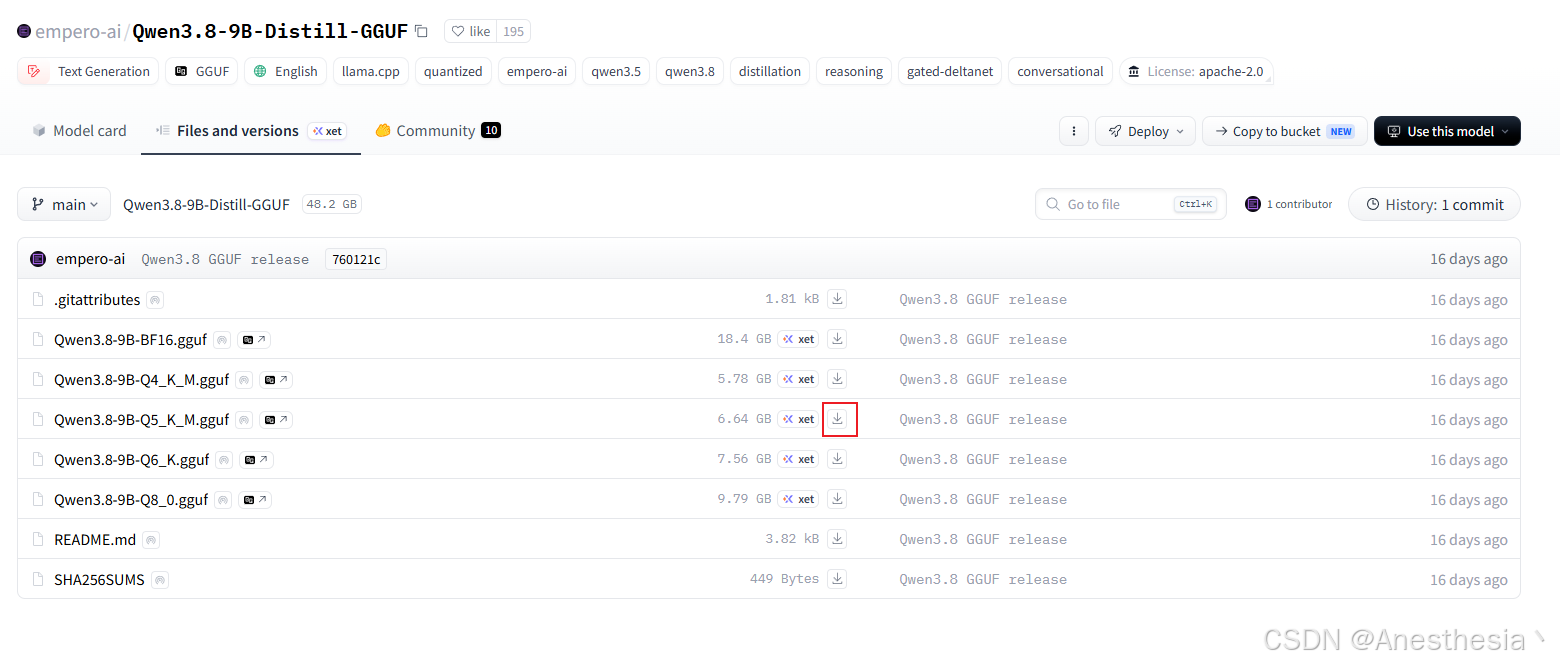
同时为了让 qwen3.8-9b 模型拥有多模态的能力,需要搭配配套的 mmproj 模型。
qwen3.8-9b 目前找不到原生的,暂时使用 mmproject-qwen3.5-9b.guff 模型代替。
亲测可用~
6、测试
bash
cd <guff模型所在的目录>
llama-server -m <模型名> --mmproj <mmproj模型名> -c 131072-ngl 999 --host 0.0.0.0 --port 8088
比如,我这:
bash
cd /home/ai/models/guff
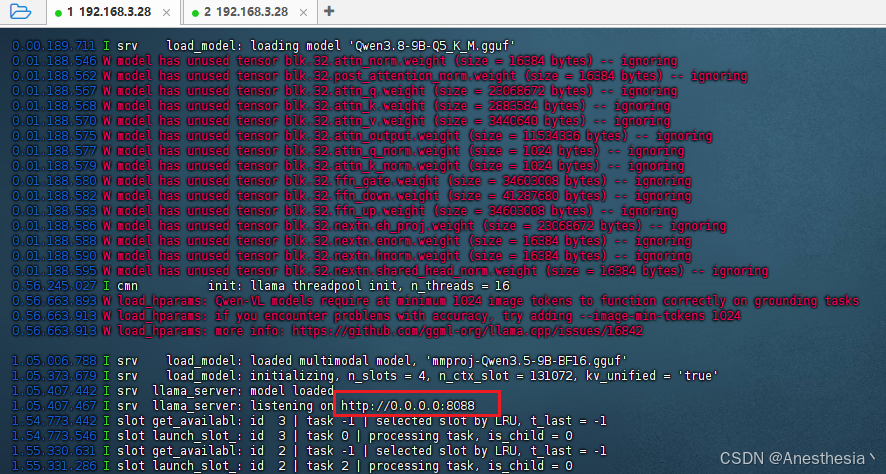
llama-server -m Qwen3.8-9B-Q5_K_M.gguf --mmproj mmproj-Qwen3.5-9B-BF16.gguf -c 131072 -ngl 999 --host 0.0.0.0 --port 8088
启动成功后,大概长这样:
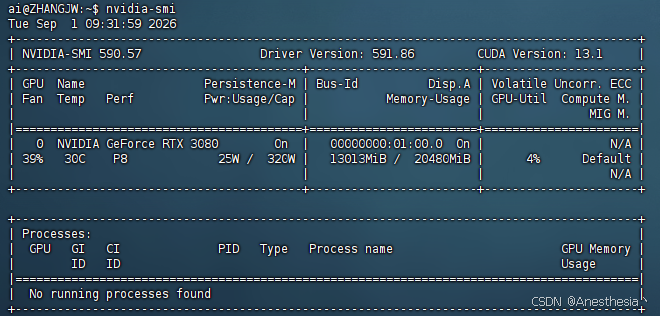
显存占用情况,大约在12g左右:
到这里,基本上已经成功了大半,只差简单的测试即可。
我这里使用 opencode ,给了一张简单的证件照让它识别,基本没问题。
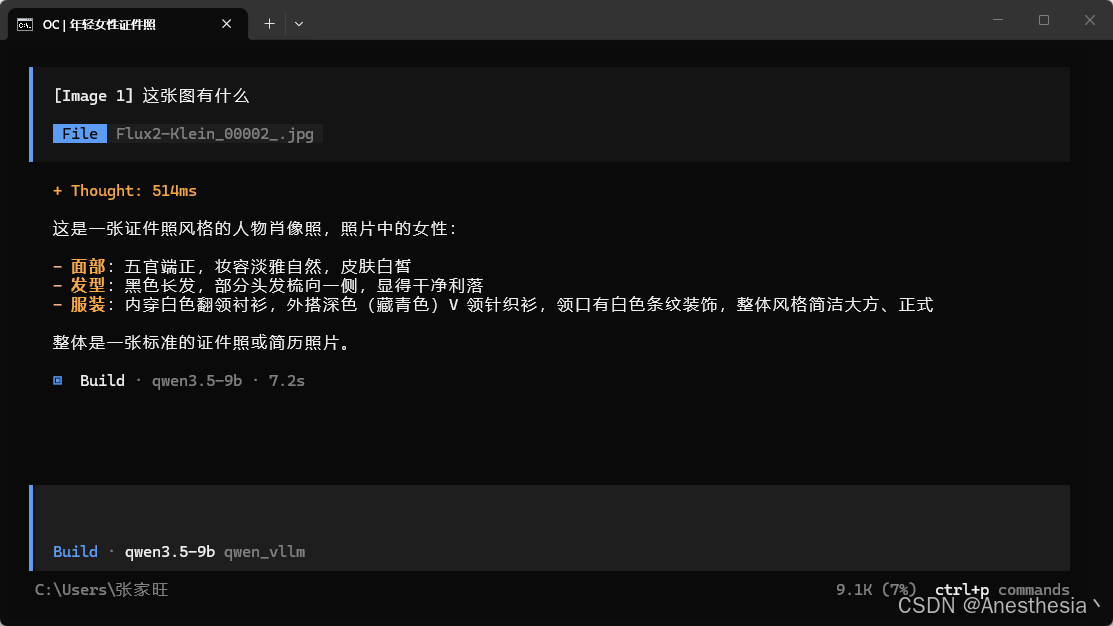
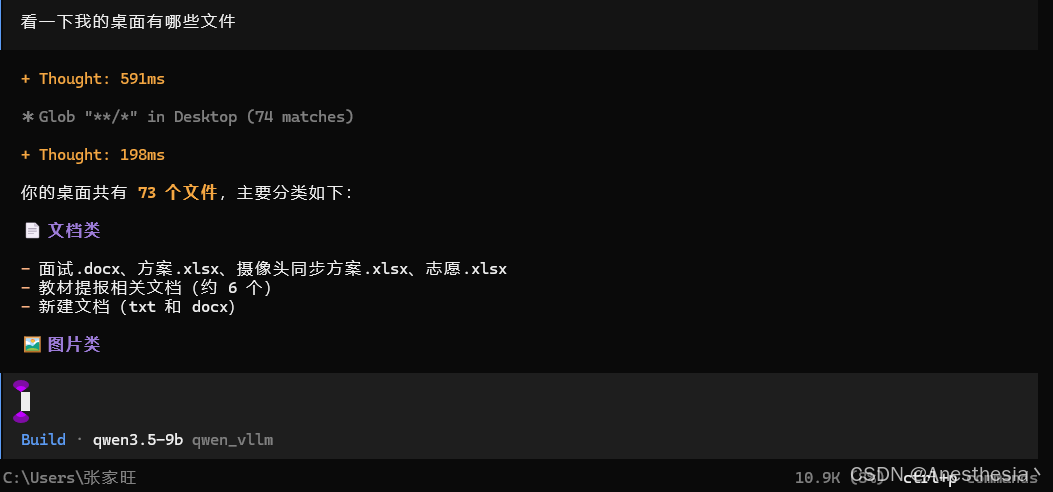
让它输出我的桌面文件,也正常,说明function calling 正常。
什么?opecode怎么配置?参考以下内容:
文件路径: C:\Users<用户名>.config\opencode\opencode.json
json
{
  "$schema": "https://opencode.ai/config.json",
  "provider": {
    "your_provider_id": {
      "npm": "@ai-sdk/openai-compatible",
      "name": "qwen_vllm",
      "options": {
        "baseURL": "http://192.168.3.28:8088/v1",
        "apiKey": "-"
      },
      "models": {
        "qwen3.8-9b": {
          "name": "qwen3.8-9b",
          "modalities": {
            "input": [
              "text",
              "image"
            ]
          },
          "limit": {
            "context": 131072,
            "output": 20480
          }
        }
      }
    }
  }
}
完成之后,打开opencode终端,输入 /model 切换至 qwen3.8-9b 模型即可。
opencode 的安装我就不多说了,网上一大片~
至此,你拥有了一个 128k上下文的本地多模态 qwen3.8 的办公助手,毕竟是免费的,还要什么自行车。
需要的小伙伴们可以参考,愿看到的小伙伴不迷路。
以下为参考博客,感谢每一位博主的用心记录: