
Rust+Slint 实现抽屉式侧边栏源码分享
- 一、效果展示
- 二、源码分享
- 三、实现原理
-
- [1、 数据驱动与组件化设计](#1、 数据驱动与组件化设计)
-
- [1.1、 数据结构定义](#1.1、 数据结构定义)
- [1.2 、全局辅助函数](#1.2 、全局辅助函数)
- 2、动画与交互实现
-
- [2.1、 侧边栏展开/收起动画](#2.1、 侧边栏展开/收起动画)
- [2.2、 菜单项悬停反馈](#2.2、 菜单项悬停反馈)
- 3、精确的点击区域计算
-
- [3.1、 布局计算](#3.1、 布局计算)
- [3.2、 点击坐标映射](#3.2、 点击坐标映射)
- [3.3、 悬停项计算](#3.3、 悬停项计算)
- 4、响应式布局设计
-
- [4.1、 主窗口自适应](#4.1、 主窗口自适应)
- [4.2、 侧边栏与内容区域布局](#4.2、 侧边栏与内容区域布局)
- [5、 状态管理与数据流](#5、 状态管理与数据流)
-
- [5.1 、数据绑定](#5.1 、数据绑定)
- [5.2 、条件渲染](#5.2 、条件渲染)
- 6、构建与集成
- 7、关键技术点总结
一、效果展示
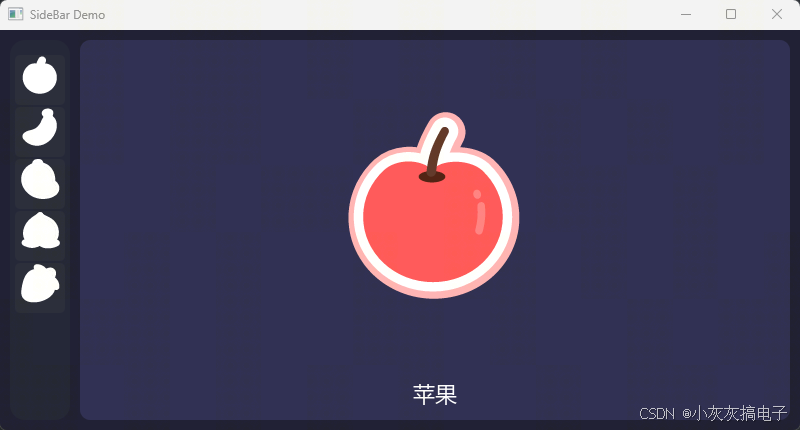
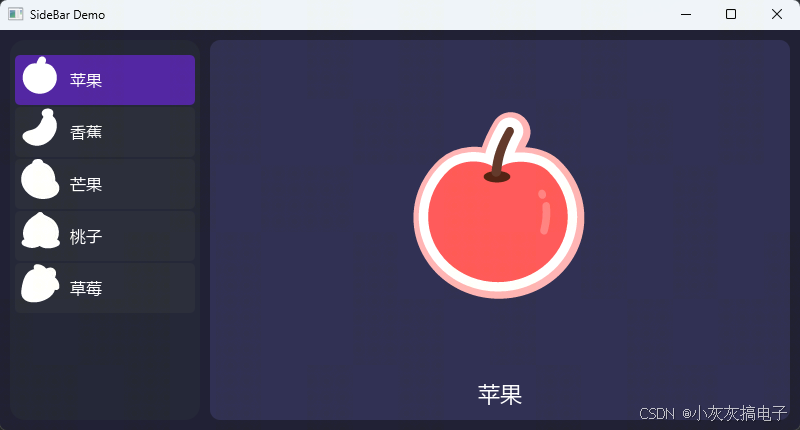
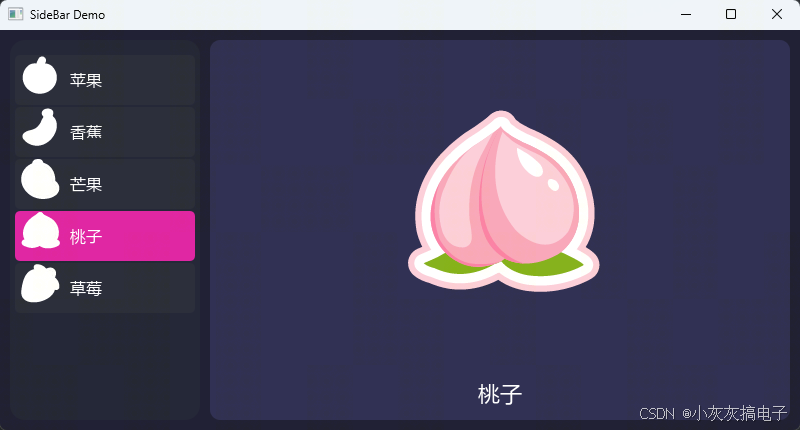
二、源码分享
1、工程结构
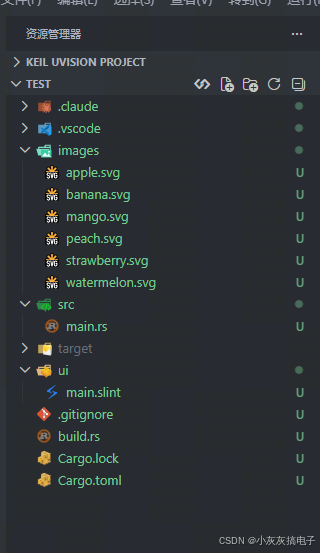
2、main.rs
rust
slint::include_modules!();

fn main() -> Result<(), slint::PlatformError> {
    let main_window = MainWindow::new()?;

    // 通过 Slint Window API 设置初始大小,确保垂直方向可缩放
    let window = main_window.window();
    window.set_size(slint::LogicalSize::new(800.0, 400.0));

    main_window.run()
}3、build.rs
rust
fn main(){
    slint_build::compile("ui/main.slint")
        .unwrap()
}
4、main.slint
rust
// ============================================================
// 数据结构
// ============================================================
export struct MenuItem {
    label: string,
    icon-index: int,
}

// ============================================================
// 水果数据全局映射(编译时解析 SVG 路径)
// ============================================================
export global FruitHelper {
    public pure function get-icon(index: int) -> image {
        index == 0 ? @image-url("../images/apple.svg") :
        index == 1 ? @image-url("../images/banana.svg") :
        index == 2 ? @image-url("../images/mango.svg") :
        index == 3 ? @image-url("../images/peach.svg") :
        index == 4 ? @image-url("../images/strawberry.svg") :
                     @image-url("../images/watermelon.svg")
    }

    public pure function get-label(index: int) -> string {
        index == 0 ? "苹果" :
        index == 1 ? "香蕉" :
        index == 2 ? "芒果" :
        index == 3 ? "桃子" :
        index == 4 ? "草莓" :
        ""
    }
}

// ============================================================
// 单个菜单项(纯视觉,无 TouchArea)
// ============================================================
component SidebarItem inherits Rectangle {
    in property <string> item-label;
    in property <image> item-icon;
    in property <bool> is-expanded;
    in property <bool> item-hovered;
    in property <bool> item-pressed;

    background: item-pressed ? #ff20B2DB :
                item-hovered ? #5520B2DB :
                               #ffFBAE08;

    height: 50px;
    border-radius: 5px;
    animate background { duration: 100ms; }

    HorizontalLayout {
        padding-left: 5px;
        spacing: 10px;
        alignment: start;

        Image {
            source: root.item-icon;
            colorize: #ffffff;
            width: 40px;
            height: 40px;
            vertical-alignment: center;
        }

        if root.is-expanded : Text {
            text: root.item-label;
            color: #ffffff;
            font-size: 16px;
            vertical-alignment: center;
            horizontal-alignment: left;
        }
    }
}

// ============================================================
// 侧边栏容器
// ============================================================
component SideBarView inherits Rectangle {
    in property <[MenuItem]> menu-model;
    callback item-clicked(int);

    background: #aaFBAE08;
    border-radius: 15px;
    // 高度不固定,由外层 HorizontalLayout 撑满
    width: sidebar-touch.has-hover ? 190px : 60px;
    clip: true;

    animate width { duration: 200ms; }

    VerticalLayout {
        padding-top: 15px;
        padding-bottom: 15px;
        padding-left: 5px;
        padding-right: 5px;
        spacing: 2px;

        for item[index] in root.menu-model : SidebarItem {
            item-label: item.label;
            item-icon: FruitHelper.get-icon(item.icon-index);
            is-expanded: sidebar-touch.has-hover;
            item-hovered: root.hovered-item == index;
            item-pressed: root.hovered-item == index && sidebar-touch.pressed;
            width: root.width - 10px;
        }

        // 底部 spacer:让 VerticalLayout 撑满父容器高度
        Rectangle { vertical-stretch: 1; }
    }

    // 顶层 TouchArea(声明在最后 = 最高 z-order)
    sidebar-touch := TouchArea {
        x: 0;
        y: 0;
        width: root.width;
        height: root.height;

        clicked => {
            root.item-clicked(
                sidebar-touch.mouse-y < 15px ? -1 :
                sidebar-touch.mouse-y < 65px ? 0 :
                sidebar-touch.mouse-y < 67px ? -1 :
                sidebar-touch.mouse-y < 117px ? 1 :
                sidebar-touch.mouse-y < 119px ? -1 :
                sidebar-touch.mouse-y < 169px ? 2 :
                sidebar-touch.mouse-y < 171px ? -1 :
                sidebar-touch.mouse-y < 221px ? 3 :
                sidebar-touch.mouse-y < 223px ? -1 :
                sidebar-touch.mouse-y < 273px ? 4 :
                -1
            );
        }
    }

    // 通过鼠标 Y 坐标计算悬停项索引
    // 布局:padding-top=15, item height=50, spacing=2 → 步长=52
    property <int> hovered-item:
        !sidebar-touch.has-hover ? -1 :
        sidebar-touch.mouse-y < 15px ? -1 :
        sidebar-touch.mouse-y < 65px ? 0 :
        sidebar-touch.mouse-y < 67px ? -1 :
        sidebar-touch.mouse-y < 117px ? 1 :
        sidebar-touch.mouse-y < 119px ? -1 :
        sidebar-touch.mouse-y < 169px ? 2 :
        sidebar-touch.mouse-y < 171px ? -1 :
        sidebar-touch.mouse-y < 221px ? 3 :
        sidebar-touch.mouse-y < 223px ? -1 :
        sidebar-touch.mouse-y < 273px ? 4 :
        -1;
}

// ============================================================
// 主窗口(所有逻辑内置,窗口可自由调整大小)
// ============================================================
export component MainWindow inherits Window {
    // 菜单数据(内嵌在 Slint 中,无需 Rust 传入)
    property <[MenuItem]> menu-data: [
        { label: "苹果", icon-index: 0 },
        { label: "香蕉", icon-index: 1 },
        { label: "芒果", icon-index: 2 },
        { label: "桃子", icon-index: 3 },
        { label: "草莓", icon-index: 4 },
    ];

    // 当前选中项索引(-1 表示未选中)
    property <int> selected-index: -1;

    preferred-width: 800px;
    preferred-height: 600px;
    min-width: 400px;
    min-height: 300px;
    title: "SideBar Demo";
    background: #1a1a2e;

    HorizontalLayout {
        padding: 10px;
        spacing: 10px;

        // 侧边栏
        SideBarView {
            menu-model: root.menu-data;
            item-clicked(index) => { root.selected-index = index; }
        }

        // 右侧内容区域
        Rectangle {
            horizontal-stretch: 1;
            background: #2a2a4e;
            border-radius: 10px;

            // 未选中时显示提示文字
            if root.selected-index < 0 : Text {
                text: "请选择一个水果";
                color: #66ffffff;
                font-size: 24px;
                horizontal-alignment: center;
                vertical-alignment: center;
            }

            // 选中后显示水果图片 + 名称
            if root.selected-index >= 0 : VerticalLayout {
                spacing: 10px;

                // 图片区域(自适应缩放)
                Rectangle {
                    vertical-stretch: 1;

                    Image {
                        source: FruitHelper.get-icon(root.selected-index);
                        image-fit: contain;
                    }
                }

                // 水果名称
                Text {
                    text: FruitHelper.get-label(root.selected-index);
                    color: #ffffff;
                    font-size: 22px;
                    horizontal-alignment: center;
                    height: 40px;
                }
            }
        }
    }
}
5、Cargo.toml
rust
[package]
name = "chart"
version = "0.1.0"
edition = "2024"

[dependencies]
slint = { version = "1.16.1", features = ["renderer-winit-femtovg"] }

[build-dependencies]
slint-build = "1.16.1"
三、实现原理
本项目的核心是通过 Slint UI 框架 实现一个具有动画效果的抽屉式侧边栏。下面从几个关键方面解析其实现原理:
1、 数据驱动与组件化设计
1.1、 数据结构定义
rust
export struct MenuItem {
    label: string,
    icon-index: int,
}- 使用
MenuItem结构体统一管理菜单项数据 label存储显示文本,icon-index对应图标索引- 这种数据与UI分离的设计便于后续扩展
1.2 、全局辅助函数
rust
export global FruitHelper {
    public pure function get-icon(index: int) -> image { ... }
    public pure function get-label(index: int) -> string { ... }
}- 编译时解析 SVG 图标路径,运行时直接使用
- 纯函数设计,无副作用,便于测试和维护
2、动画与交互实现
2.1、 侧边栏展开/收起动画
rust
width: sidebar-touch.has-hover ? 190px : 60px;
animate width { duration: 200ms; }- 条件宽度:鼠标悬停时 190px,否则 60px
- 平滑过渡:200ms 的宽度动画,实现流畅的抽屉效果
- clip: true 确保内容在动画过程中不会溢出
2.2、 菜单项悬停反馈
rust
background: item-pressed ? #ff20B2DB :
            item-hovered ? #5520B2DB :
                           #ffFBAE08;
animate background { duration: 100ms; }- 三级状态:默认 → 悬停 → 按下
- 颜色和透明度变化提供清晰的视觉反馈
- 100ms 的背景色动画增强交互感
3、精确的点击区域计算
3.1、 布局计算
padding-top: 15px
item height: 50px
spacing: 2px
→ 每个菜单项占据的垂直空间:52px
3.2、 点击坐标映射
rust
clicked => {
    root.item-clicked(
        sidebar-touch.mouse_y < 15px ? -1 :
        sidebar-touch.mouse_y < 65px ? 0 :  // 第一个项:15-65px
        sidebar-touch.mouse_y < 67px ? -1 : // 间距:65-67px
        sidebar-touch.mouse_y < 117px ? 1 : // 第二个项:67-117px
        // ... 以此类推
    );
}- 通过鼠标 Y 坐标精确计算点击了哪个菜单项
- 考虑 padding 和 spacing,确保点击区域与视觉对齐
- 返回 -1 表示点击了空白区域
3.3、 悬停项计算
rust
property <int> hovered-item:
    !sidebar-touch.has-hover ? -1 :
    sidebar-touch.mouse_y < 15px ? -1 :
// ... 与点击计算相同的逻辑- 实时计算当前悬停的菜单项索引
- 为
SidebarItem提供item-hovered状态
4、响应式布局设计
4.1、 主窗口自适应
rust
preferred-width: 800px;
preferred-height: 600px;
min-width: 400px;
min-height: 300px;- 设置首选尺寸和最小尺寸
- 确保在不同屏幕尺寸下都能正常显示
4.2、 侧边栏与内容区域布局
rust
HorizontalLayout {
    padding: 10px;
    spacing: 10px;

    // 侧边栏(固定宽度或动画宽度)
    SideBarView { ... }

    // 内容区域(自适应填充)
    Rectangle {
        horizontal-stretch: 1;  // 关键:拉伸填充剩余空间
        // ...
    }
}- 使用
horizontal-stretch: 1让内容区域自适应 - 侧边栏宽度变化时,内容区域自动调整
5、 状态管理与数据流
5.1 、数据绑定
rust
// 数据源
property <[MenuItem]> menu-data: [ ... ];

// 传递给子组件
SideBarView {
    menu-model: root.menu-data;  // 数据绑定
    item-clicked(index) => { root.selected-index = index; } // 事件回调
}
5.2 、条件渲染
rust
// 未选中时显示提示
if root.selected-index < 0 : Text { text: "请选择一个水果"; }

// 选中后显示对应内容
if root.selected-index >= 0 : VerticalLayout { ... }- 基于
selected-index状态条件渲染不同UI - 实现状态驱动的界面更新
6、构建与集成
6.1、 Rust 主程序(main.rs)
rust
fn main() -> Result<(), slint::PlatformError> {
    let main_window = MainWindow::new()?;
    let window = main_window.window();
    window.set_size(slint::LogicalSize::new(800.0, 400.0));
    main_window.run()
}- 创建窗口并设置初始尺寸
- 启动事件循环
6.2 、构建脚本(build.rs)
rust
fn main(){
    slint_build::compile("ui/main.slint").unwrap()
}- 编译时处理
.slint文件 - 生成 Rust 绑定代码
7、关键技术点总结
- 声明式UI:Slint 的声明式语法让UI逻辑更清晰
- 数据绑定:自动同步数据与UI状态
- 动画系统 :内置的
animate关键字简化动画实现 - 精确交互:通过坐标计算实现像素级精度的交互
- 响应式设计:自适应不同屏幕尺寸和交互状态
- 组件复用 :
SidebarItem和SideBarView组件化设计
这种实现方式结合了 Rust 的性能优势与 Slint 的现代UI开发体验,创建出既美观又高效的桌面应用界面。
