在很多自动化场景中,我们并不只是打开一份现成的 PPT 去微调,而是希望由程序直接产出一套全新的幻灯片------比如根据数据库中的销售数据自动生成周报、把产品参数整理成宣讲材料,或是为批量客户各定制一份专属提案。
与其在界面里逐页拖拽,不如用几行 Python 把"建文档、加页面、填内容、存文件"这几步交给代码,既稳定又便于复用。本文将以 Spire.Presentation for Python 为例,从创建空白演示文稿开始,逐步演示如何添加幻灯片、写入文本、绘制带填充的形状、插入图片,并最终保存为 .pptx 文件。
环境准备
我们需要借助 Spire.Presentation for Python 来完成演示文稿的创建与写入。该库将幻灯片、形状、文本、表格等概念都封装成了清晰的 Python 对象。
请先通过以下命令完成安装:
bash
pip install spire.presentation安装完成后,在脚本顶部引入对应的模块,即可开始编写代码。
创建演示文稿并添加标题文本
我们先从最基础的流程入手:创建一个演示文稿,在默认的第一页上放置一个文本框并写入标题,最后保存为 .pptx 文件。
Spire.Presentation 通过 Shapes.AppendShape() 在幻灯片上添加图形,文字内容则借助 AppendTextFrame() 写入其中。以下示例生成了一张只含标题的幻灯片:
python
from spire.presentation.common import *
import math
from spire.presentation import *

outputFile = "HelloWorld.pptx"

# 创建演示文稿对象
presentation = Presentation()

# 在第一页上添加一个矩形作为文本框
left = math.trunc(presentation.SlideSize.Size.Width / 2) - 250
rect = RectangleF.FromLTRB(left, 80, left + 500, 230)
shape = presentation.Slides[0].Shapes.AppendShape(ShapeType.Rectangle, rect)

# 去掉默认边框与填充,让文本框透明
shape.ShapeStyle.LineColor.Color = Color.get_White()
shape.Fill.FillType = FillFormatType.none

# 写入文本并设置字体样式
shape.AppendTextFrame("Hello World!")
textRange = shape.TextFrame.TextRange
textRange.Fill.FillType = FillFormatType.Solid
textRange.Fill.SolidColor.Color = Color.get_CadetBlue()
textRange.FontHeight = 66
textRange.LatinFont = TextFont("Lucida Sans Unicode")

# 保存文件并释放资源
presentation.SaveToFile(outputFile, FileFormat.Pptx2010)
presentation.Dispose()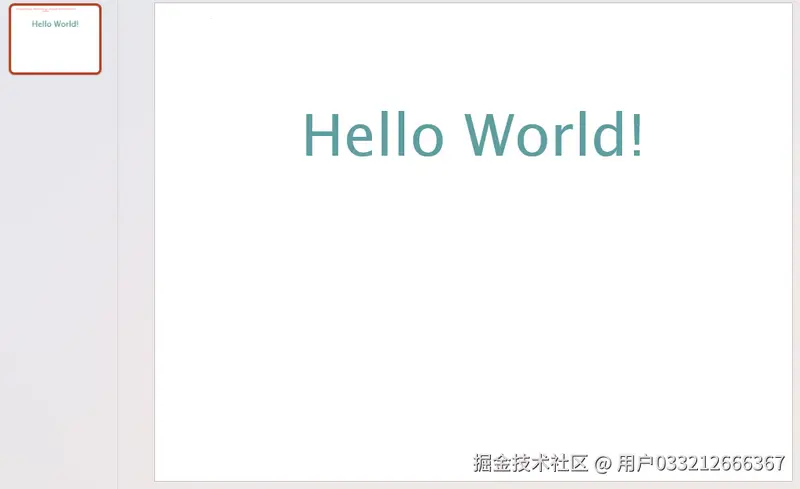
代码中的几个关键点说明:
Presentation()会新建一个空白演示文稿,默认自带一张幻灯片,因此可以通过Slides[0]直接获取第一页。AppendShape(ShapeType.Rectangle, rect)用于在指定矩形区域放置图形(通常用作文本框),RectangleF.FromLTRB通过左、上、右、下四个坐标来定义该区域。AppendTextFrame()写入文字后,TextFrame.TextRange就成了整段文字的样式入口:Fill.SolidColor.Color设置颜色,FontHeight设置字号(单位为磅),LatinFont设置字体。SaveToFile()的第二个参数指定输出格式(FileFormat.Pptx2010对应.pptx),最后通过Dispose()释放底层资源。
添加多段格式化文本
真实的幻灯片往往不止一行字,标题下方通常还伴随详细的说明。Spire.Presentation 使用 TextParagraph 对象来表示"段落",你可以为每个段落单独设置对齐方式、字号、颜色和字体,再依次挂载到文本框的 Paragraphs 集合中。
以下示例在同一页上创建了一个居中的大标题,并追加了一段左对齐的正文:
python
from spire.presentation.common import *
import math
from spire.presentation import *

outputFile = "FormattedSlide.pptx"
presentation = Presentation()
slide = presentation.Slides[0]

# 标题文本框
title_shape = slide.Shapes.AppendShape(ShapeType.Rectangle, RectangleF.FromLTRB(50, 70, 670, 160))
title_shape.Fill.FillType = FillFormatType.none
title_shape.ShapeStyle.LineColor.Color = Color.get_White()

title_para = TextParagraph()
title_para.Text = "季度销售汇报"
title_para.Alignment = TextAlignmentType.Center
title_para.TextRanges[0].LatinFont = TextFont("Arial")
title_para.TextRanges[0].FontHeight = 40
title_para.TextRanges[0].Fill.FillType = FillFormatType.Solid
title_para.TextRanges[0].Fill.SolidColor.Color = Color.get_Black()
title_shape.TextFrame.Paragraphs.Append(title_para)

# 正文文本框
body_shape = slide.Shapes.AppendShape(ShapeType.Rectangle, RectangleF.FromLTRB(50, 180, 670, 380))
body_shape.Fill.FillType = FillFormatType.none
body_shape.ShapeStyle.LineColor.Color = Color.get_White()

body_para = TextParagraph()
body_para.Text = "本季度整体营收同比增长 12%,其中华东区贡献最大。以下是各区域的关键指标明细。"
body_para.Alignment = TextAlignmentType.Left
body_para.LineSpacing = 150
body_para.TextRanges[0].LatinFont = TextFont("Arial")
body_para.TextRanges[0].FontHeight = 24
body_para.TextRanges[0].Fill.FillType = FillFormatType.Solid
body_para.TextRanges[0].Fill.SolidColor.Color = Color.get_Black()
body_shape.TextFrame.Paragraphs.Append(body_para)

presentation.SaveToFile(outputFile, FileFormat.Pptx2013)
presentation.Dispose()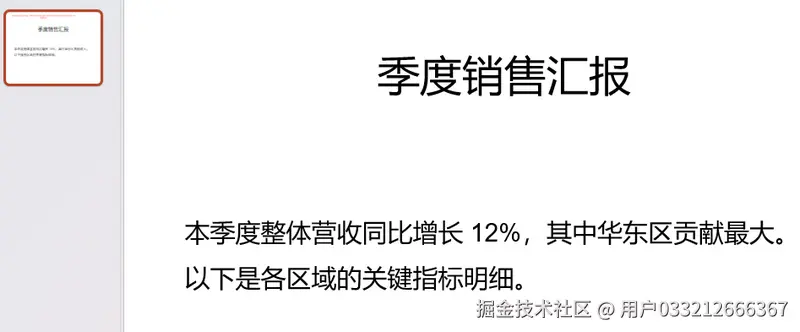
每一段文字对应一个 TextParagraph,其首个文本区间由 TextRanges[0] 控制。Alignment 属性支持 Center、Left、Right 等对齐方式;LineSpacing = 150 代表 1.5 倍行距(以百分比计算)。在实际排版中,多个文本框可以分层叠加、互不干扰。
添加带填充色的形状
除了文字之外,形状也是 PPT 中不可或缺的元素------例如强调色块、分隔条或图标底衬。
通过 AppendShape() 同样可以添加形状,不过这次我们将 Fill 设为实色填充,并配置相应的边框颜色。以下示例在页面绘制了一个黄色实心矩形并配上灰色边框:
python
from spire.presentation.common import *
import math
from spire.presentation import *

outputFile = "FilledShape.pptx"
presentation = Presentation()
slide = presentation.Slides[0]

left = math.trunc(presentation.SlideSize.Size.Width / 2) - 50
rect = RectangleF.FromLTRB(left, 100, 100 + left, 200)
shape = slide.Shapes.AppendShape(ShapeType.Rectangle, rect)

# 设置形状内部为黄色实色填充
shape.Fill.FillType = FillFormatType.Solid
shape.Fill.SolidColor.Color = Color.get_Yellow()

# 设置边框为灰色实线
shape.Line.FillType = FillFormatType.Solid
shape.Line.SolidFillColor.Color = Color.get_Gray()

presentation.SaveToFile(outputFile, FileFormat.Pptx2013)
presentation.Dispose()
Fill.FillType = FillFormatType.Solid 开启实色填充模式,配合 Fill.SolidColor.Color 指定颜色;Line 属性则用于控制边框线条。ShapeType 还支持圆角矩形、椭圆、星形等多种预设图形,颜色统一使用 Color.get_XXX() 静态方法获取。
插入图片
产品 Logo、配图或截图通常能为幻灯片增色不少。Spire.Presentation 通过 AppendEmbedImageByPath() 方法,可以将本地图片以"嵌入"方式放置到指定的矩形区域中,图片会随文档一起保存,不依赖外部路径。
以下示例演示了如何在页面中央插入一张 Logo 图片:
python
from spire.presentation.common import *
import math
from spire.presentation import *

outputFile = "WithImage.pptx"
presentation = Presentation()
slide = presentation.Slides[0]

left = math.trunc(presentation.SlideSize.Size.Width / 2) - 280
rect = RectangleF.FromLTRB(left, 150, 300 + left, 230)
image = slide.Shapes.AppendEmbedImageByPath(ShapeType.Rectangle, "Logo1.png", rect)
# 图片外框设为无,避免多出矩形边线
image.Line.FillType = FillFormatType.none

presentation.SaveToFile(outputFile, FileFormat.Pptx2010)
presentation.Dispose()
这里的"嵌入"意味着图片二进制数据会直接写入 .pptx 文件内部,分享文件时不会丢失图片。将 Line.FillType 设为 none 可以去掉默认包围框,使图片边缘保持干净。
综合示例:构建产品介绍演示文稿
将前面介绍的各项能力组合起来,就能产出一份具备实际业务价值的幻灯片。下面的代码演示了如何从零开始,在一页中组合居中标题、强调分隔条、Logo 以及参数表格:
python
from spire.presentation.common import *
import math
from spire.presentation import *

outputFile = "ProductIntro.pptx"
presentation = Presentation()
slide = presentation.Slides[0]

# 1) 居中标题
title_shape = slide.Shapes.AppendShape(ShapeType.Rectangle, RectangleF.FromLTRB(50, 60, 670, 150))
title_shape.Fill.FillType = FillFormatType.none
title_shape.ShapeStyle.LineColor.Color = Color.get_White()
title_para = TextParagraph()
title_para.Text = "智能音箱 X1 产品介绍"
title_para.Alignment = TextAlignmentType.Center
title_para.TextRanges[0].LatinFont = TextFont("Arial")
title_para.TextRanges[0].FontHeight = 40
title_para.TextRanges[0].Fill.FillType = FillFormatType.Solid
title_para.TextRanges[0].Fill.SolidColor.Color = Color.get_Black()
title_shape.TextFrame.Paragraphs.Append(title_para)

# 2) 强调色块(用作标题下方的分隔条)
accent = slide.Shapes.AppendShape(ShapeType.Rectangle, RectangleF.FromLTRB(50, 165, 670, 185))
accent.Fill.FillType = FillFormatType.Solid
accent.Fill.SolidColor.Color = Color.get_CadetBlue()
accent.Line.FillType = FillFormatType.none

# 3) 插入 Logo
left = math.trunc(presentation.SlideSize.Size.Width / 2) - 280
logo = slide.Shapes.AppendEmbedImageByPath(ShapeType.Rectangle, "Logo1.png", RectangleF.FromLTRB(left, 170, 260 + left, 230))
logo.Line.FillType = FillFormatType.none

# 4) 规格表格
widths = [200, 400]
heights = [30, 30, 30]
table = slide.Shapes.AppendTable(math.trunc(presentation.SlideSize.Size.Width / 2) - 300, 320, widths, heights)
specs = [["项目", "参数"], ["续航", "约 12 小时"], ["连接方式", "Wi-Fi / 蓝牙 5.0"]]
for i in range(0, 3):
    for j in range(0, 2):
        table[j, i].TextFrame.Text = specs[i][j]
        table[j, i].TextFrame.Paragraphs[0].TextRanges[0].LatinFont = TextFont("Arial")
table.StylePreset = TableStylePreset.LightStyle3Accent1

presentation.SaveToFile(outputFile, FileFormat.Pptx2013)
presentation.Dispose()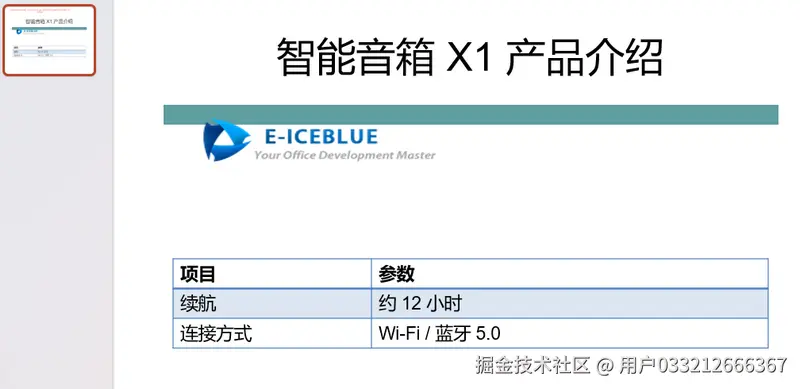
在这个综合示例中,文本框、形状、图片和表格被合理地层叠在同一页上。AppendTable() 通过列宽与行高数组定义表格尺寸,随后利用 table[列, 行] 索引快速填充单元格,并通过 StylePreset 直接应用内置样式。页面元素的渲染遵循"后添加者在上层"的原则。只要将数据源替换为接口返回的数据或配置文件,这套逻辑就能批量产出规范统一的产品宣讲页。
开发建议与技巧
- 版本选择
SaveToFile的第二个参数决定了文件的输出格式。通常推荐使用Pptx2010或Pptx2013,根据目标读者的 Office 版本合理选择,可有效避免兼容性提示。 - 多页幻灯片扩展 默认创建的演示文稿只包含
Slides[0]。如果需要生成多页文档,调用presentation.Slides.Append()即可在末尾追加一张空白页,随后通过索引继续操作。 - 精准定位坐标 幻灯片以左上角为原点。通过
math.trunc(宽度 / 2) - 偏移量的方式计算水平居中位置,比硬编码坐标更加稳健,也能更好地适配不同的画布尺寸。
结语
借助 Spire.Presentation for Python,我们可以非常直观地实现从演示文稿初始化、页面追加到文本渲染、图形绘制和表格嵌入的全流程控制。这种基于对象模型的文档生成方式能够无缝融入各类自动化脚本和数据处理流水线中。只需将静态数据替换为数据库查询或 API 结果,就能轻松搭建一套高效稳定的自动化幻灯片导出系统。