QT布局详解 QT5大布局详解
1. Qt 布局基础
在 Qt 中,布局管理器用于自动调整窗口中控件的位置和大小。它们根据控件的尺寸策略、父窗口的大小以及控件的彼此关系,动态地调整控件。
常用的布局类包括:
- QHBoxLayout:水平布局管理器。
- QVBoxLayout:垂直布局管理器。
- QGridLayout:网格布局管理器。
- QFormLayout:表单布局管理器。
- QSplitter: 分裂器布局管理器
布局管理器通常与 QWidget 结合使用,以确保应用程序在不同大小的窗口中自适应调整。
2. 常用布局类
2.1. QHBoxLayout(水平布局)
QHBoxLayout 将控件从左到右水平排列。它会根据窗口大小和控件的大小策略,自动调整控件的大小。
cpp
QWidget *window = new QWidget;
QPushButton *button1 = new QPushButton("Button 1");
QPushButton *button2 = new QPushButton("Button 2");
QPushButton *button3 = new QPushButton("Button 3");

QHBoxLayout *layout = new QHBoxLayout;
layout->addWidget(button1);
layout->addWidget(button2);
layout->addWidget(button3);

window->setLayout(layout);
window->show();
在此示例中,三个按钮会被水平排列。如果窗口大小发生变化,按钮的大小将自动调整。

2.2. QVBoxLayout(垂直布局)
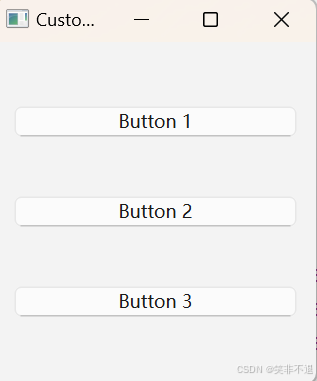
QVBoxLayout 将控件从上到下垂直排列,类似于 QHBoxLayout,但方向不同。
cpp
QWidget *window = new QWidget;
QPushButton *button1 = new QPushButton("Button 1");
QPushButton *button2 = new QPushButton("Button 2");
QPushButton *button3 = new QPushButton("Button 3");

QVBoxLayout *layout = new QVBoxLayout;
layout->addWidget(button1);
layout->addWidget(button2);
layout->addWidget(button3);

window->setLayout(layout);
window->show();
在此示例中,按钮会被垂直排列。
2.3. QGridLayout(网格布局)
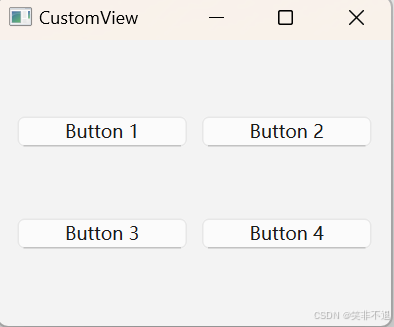
QGridLayout 提供了类似于表格的布局,可以将控件放置在网格的指定行和列中。它允许更灵活的布局结构,适合用于需要更复杂控件排列的窗口。
cpp
QWidget *window = new QWidget;
QPushButton *button1 = new QPushButton("Button 1");
QPushButton *button2 = new QPushButton("Button 2");
QPushButton *button3 = new QPushButton("Button 3");
QPushButton *button4 = new QPushButton("Button 4");

QGridLayout *layout = new QGridLayout;
layout->addWidget(button1, 0, 0); // 放在第0行第0列
layout->addWidget(button2, 0, 1); // 放在第0行第1列
layout->addWidget(button3, 1, 0); // 放在第1行第0列
layout->addWidget(button4, 1, 1); // 放在第1行第1列

window->setLayout(layout);
window->show();
在此示例中,四个按钮会被排列成一个 2x2 的网格。
2.4. QFormLayout(表单布局)
QFormLayout 是专门用于表单布局的,它将标签和值控件成对排列。每一行通常有两个控件:标签和输入控件(如 QLineEdit)。
cpp
QWidget *window = new QWidget;
QLabel *nameLabel = new QLabel("Name:");
QLineEdit *nameEdit = new QLineEdit;

QLabel *ageLabel = new QLabel("Age:");
QLineEdit *ageEdit = new QLineEdit;

QFormLayout *layout = new QFormLayout;
layout->addRow(nameLabel, nameEdit);
layout->addRow(ageLabel, ageEdit);

window->setLayout(layout);
window->show();
在此示例中,表单会将"Name"和"Age"标签与对应的输入框垂直排列。

2.5. QSplitter (分裂器布局)
QSplitter 可以动态更改页面尺寸,方便页面显示不全,拖动查看页面。
cpp
this->setFixedWidth(600);
this->setFixedHeight(400);

QHBoxLayout *layout = new QHBoxLayout();

QSplitter * pHSplitter = new QSplitter(Qt::Horizontal);
//===========水平分裂器左边元素============
QWidget  *lWidget = new QWidget();
lWidget->setMinimumWidth(100);
lWidget->setStyleSheet("QWidget{background:red}");

//===========加入水平分裂器===============
pHSplitter->addWidget(lWidget);


//===========水平分裂器右边元素===============

//===========垂直分裂器==========
QSplitter * pVSplitter = new QSplitter(Qt::Vertical);
pVSplitter->setMinimumWidth(200);
QWidget  *tWidget = new QWidget();
QWidget  *bWidget = new QWidget();
tWidget->setStyleSheet("QWidget{background:blue}");
bWidget->setStyleSheet("QWidget{background:pink}");
pVSplitter->addWidget(tWidget);
pVSplitter->addWidget(bWidget);

//===========加入水平分裂器===============
pHSplitter->addWidget(pVSplitter);
//水平分裂器加入外部布局
layout->addWidget(pHSplitter);
//布局加入主界面
setLayout(layout);
3. 布局嵌套
你可以嵌套布局来创建更复杂的布局。例如,可以在一个 QVBoxLayout 中嵌入多个 QHBoxLayout:
cpp
QWidget *window = new QWidget;

QHBoxLayout *topLayout = new QHBoxLayout;
topLayout->addWidget(new QPushButton("Button 1"));
topLayout->addWidget(new QPushButton("Button 2"));

QHBoxLayout *bottomLayout = new QHBoxLayout;
bottomLayout->addWidget(new QPushButton("Button 3"));
bottomLayout->addWidget(new QPushButton("Button 4"));

QVBoxLayout *mainLayout = new QVBoxLayout;
mainLayout->addLayout(topLayout);  // 上面的水平布局
mainLayout->addLayout(bottomLayout);  // 下面的水平布局

window->setLayout(mainLayout);
window->show();
在此示例中,按钮将分为两行,每行有两个按钮。
4. 控制控件的大小与伸缩性
在 Qt 中,可以通过 setSizePolicy() 函数来控制控件的大小策略,定义它们如何在布局中缩放和调整大小。
- 常用的 QSizePolicy 枚举值:
cpp
QSizePolicy::Fixed:控件保持其初始大小。
QSizePolicy::Expanding:控件尽可能扩展来填充可用空间。
QSizePolicy::Minimum:控件保持其最小大小。- 示例:
cpp
QPushButton *button = new QPushButton("Button");
button->setSizePolicy(QSizePolicy::Expanding, QSizePolicy::Fixed);  // 水平扩展,垂直固定
5. 使用布局间距和边距
可以通过 setSpacing() 和 setContentsMargins() 来调整控件之间的间距和布局边缘。
cpp
setSpacing(int spacing):设置布局中控件之间的间距。
setContentsMargins(int left, int top, int right, int bottom):设置布局周围的边距。- 示例:
cpp
QVBoxLayout *layout = new QVBoxLayout;
layout->setSpacing(10);  // 控件之间的间距
layout->setContentsMargins(5, 5, 5, 5);  // 布局与窗口之间的边距
6. 动态调整布局
在运行时,布局可以根据窗口大小的变化动态调整控件的大小和位置。例如,使用 resizeEvent() 可以处理窗口调整大小事件,并相应地调整控件的布局。
7. 使用布局设计器
Qt 的 Qt Designer 是一个图形化工具,允许你以可视化方式设计布局。它支持拖放控件并自动生成布局代码。在 Qt Designer 中创建的 .ui 文件可以在 C++ 代码中通过 uic 工具或 QWidget 加载。
8. 自定义布局
在某些情况下,默认的布局类可能无法满足需求。可以通过继承 QLayout 来创建自定义布局,重写其中的 setGeometry() 和 sizeHint() 函数,来实现特殊的布局逻辑。
9. 布局管理器的优点
自动调整大小:布局管理器会根据窗口的大小自动调整控件的大小和位置。
跨平台一致性:布局管理器确保应用程序在不同平台上具有一致的外观。
简化代码:通过使用布局管理器,避免手动调整控件的位置和大小。