目录
[0 环境准备](#0 环境准备)
[1 百度OCR API申请](#1 百度OCR API申请)
[1.1 登录百度智能云](#1.1 登录百度智能云)
[1.2 创建应用](#1.2 创建应用)
[1.3 获取API key和secret key](#1.3 获取API key和secret key)
[2 创建项目python环境](#2 创建项目python环境)
[2.1 conda创建python环境](#2.1 conda创建python环境)
[2.2 在pycharm中创建项目](#2.2 在pycharm中创建项目)
[2.3 激活python环境](#2.3 激活python环境)
[2.4 安装项目依赖包](#2.4 安装项目依赖包)
[3 程序逻辑实现](#3 程序逻辑实现)
[3.1 导入依赖包](#3.1 导入依赖包)
[3.2 定义百度key](#3.2 定义百度key)
[3.3 读取图片](#3.3 读取图片)
[3.4 百度ocr API鉴权](#3.4 百度ocr API鉴权)
[3.5 定义请求通用文字识别方法](#3.5 定义请求通用文字识别方法)
[3.6 调用识别方法](#3.6 调用识别方法)
[4 完整代码](#4 完整代码)
0 环境准备
- 已安装miniconda环境
- 已申请百度智能云账号,且已完成实名认证
1 百度OCR API申请
1.1 登录百度智能云
百度智能云控制台,访问该地址ocr创建应用。

作为学习使用,已完成个人认证。
1.2 创建应用
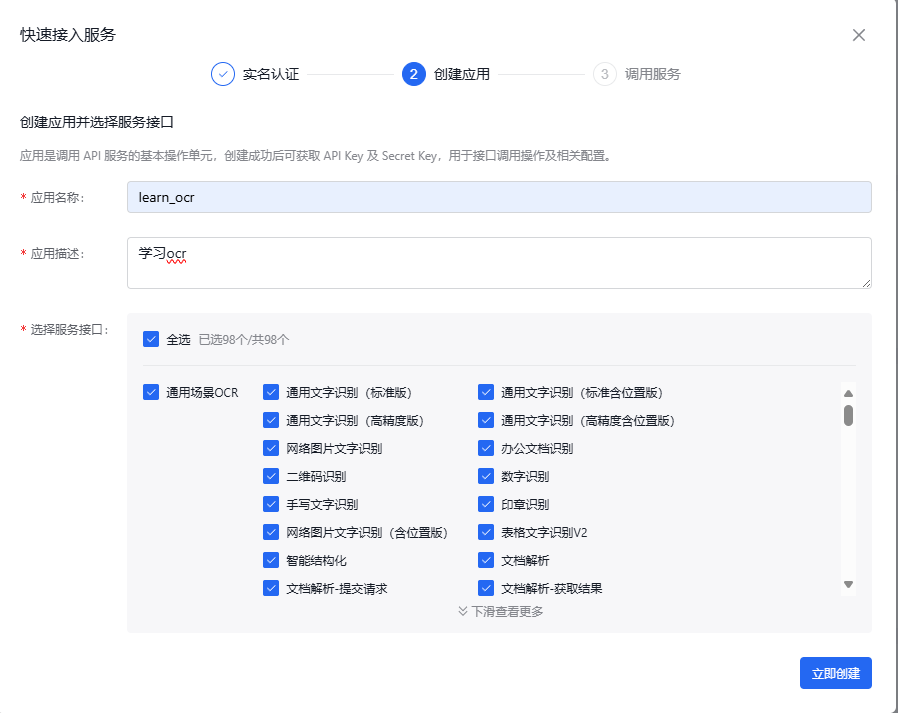
按下图方式创建ocr应用,完成此博客内容仅需勾选通用文字识别(标准版),此版本每月有1000次免费调用额度,qps为2,如需其他用途可自行勾选。
1.3 获取API key和secret key
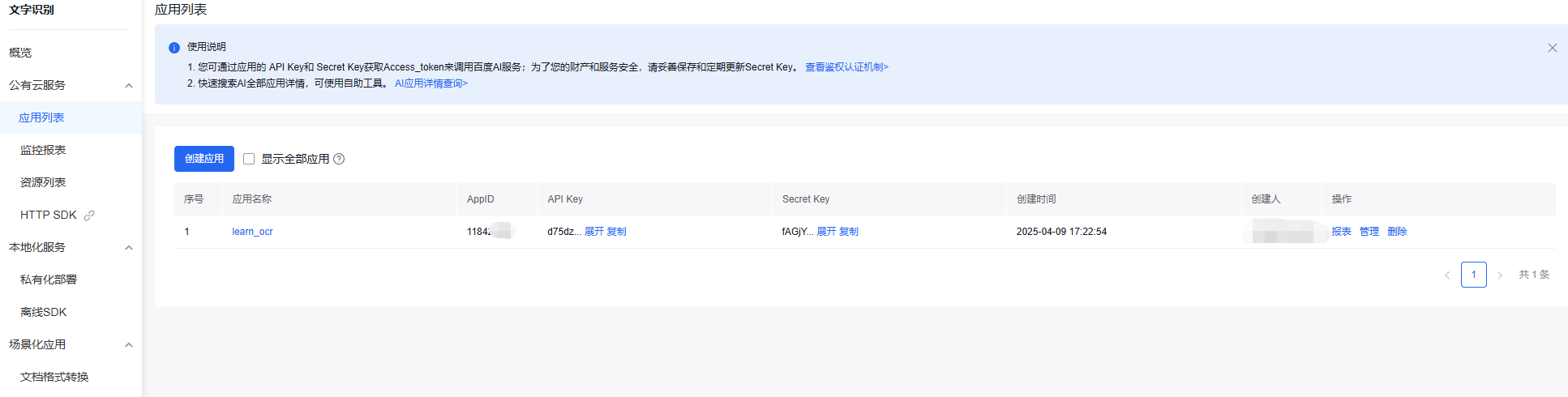
在应用创建完成后可以看到key的弹框,也可以在应用列表查看应用的key,如下图。
2 创建项目python环境
2.1 conda创建python环境
bash
conda create -n pdf_ocr_demo python=3.102.2 在pycharm中创建项目
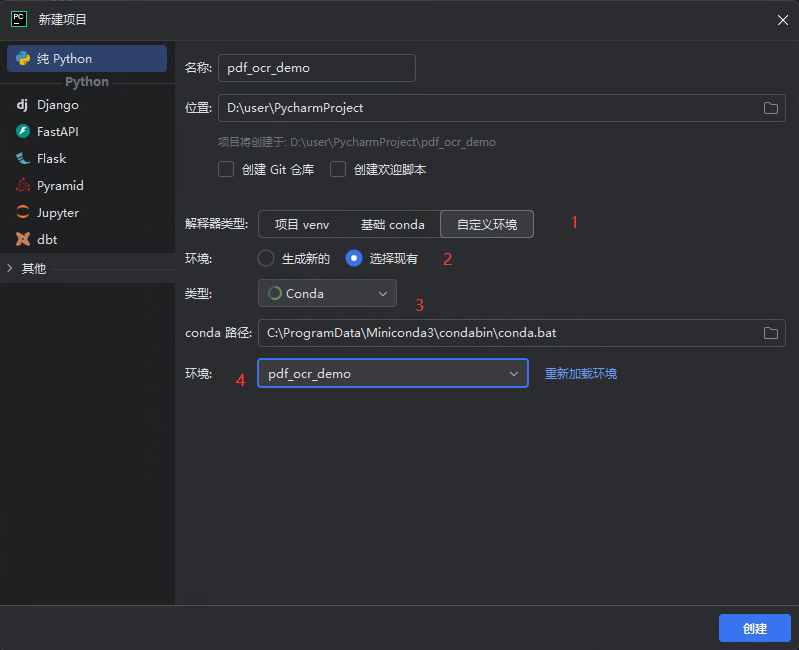
- 解释器类型:选择自定义环境
- 环境:选择现有
- 类型:选择conda
- 环境:选择上一步创建的pdf_ocr_demo环境
2.3 激活python环境
bash
conda activate pdf_ocr_demo2.4 安装项目依赖包
bash
pip install pillow
pip install paddlepaddle
pip install paddleocr
pip install opencv-python
pip install common dual tight data prox
3 程序逻辑实现
3.1 导入依赖包
python
import base64
import json

import cv2
import requests
3.2 定义百度key
请替换成自己申请的key。案例代码的key是无效的。
python
API_KEY="d75dzXXXXXUzM98"
SECRET_KEY = "fAGjY8DXXXXXtGfP39fO1TW"
3.3 读取图片
python
img_path = './temp_imgs/page_00008.png'
img = cv2.imread(img_path)
3.4 百度ocr API鉴权
python
def get_access_token():
    """
    使用 AK,SK 生成鉴权签名(Access Token)
    :return: access_token,或是None(如果错误)
    """
    url = "https://aip.baidubce.com/oauth/2.0/token"
    params = {"grant_type": "client_credentials", "client_id": API_KEY, "client_secret": SECRET_KEY}
    return str(requests.post(url, params=params).json().get("access_token"
3.5 定义请求通用文字识别方法
python
def baidu_ocr(image_path):
    url = "https://aip.baidubce.com/rest/2.0/ocr/v1/general_basic?access_token=" + get_access_token()

    # 先验证图片是否能正常读取
    try:
        # 读取图片并检查尺寸
        img = cv2.imread(image_path)
        if img is None:
            raise ValueError("无法读取图片文件")

        height, width = img.shape[:2]
        if max(height, width) > 4096 or min(height, width) < 15:
            # 图片尺寸不符合要求,进行压缩
            scale = min(4096 / max(height, width), 1.0)
            img = cv2.resize(img, (int(width * scale), int(height * scale)))
            _, img_encoded = cv2.imencode('.jpg', img)
            image_data = img_encoded.tobytes()
        else:
            with open(image_path, "rb") as image_file:
                image_data = image_file.read()

    except Exception as e:
        print(f"图片处理失败: {e}")
        return

    headers = {
        'Content-Type': 'application/x-www-form-urlencoded',
        'Accept': 'application/json'
    }

    # 检查base64编码后大小
    image_base64 = base64.b64encode(image_data).decode('utf-8')
    if len(image_base64) > 10 * 1024 * 1024:
        # 图片太大,进行压缩,百度ocr只能接受base64值10M以下的图片
        quality = 90
        while len(image_base64) > 4 * 1024 * 1024 and quality > 10:
            _, img_encoded = cv2.imencode('.jpg', img, [int(cv2.IMWRITE_JPEG_QUALITY), quality])
            image_data = img_encoded.tobytes()
            image_base64 = base64.b64encode(image_data).decode('utf-8')
            quality -= 10
    payload = {
        'detect_direction': 'false',
        'detect_language': 'false',
        'paragraph': 'false',
        'probability': 'false',
        'image': image_base64  # 确保图片数据包含在payload中
    }

    response = requests.post(url, headers=headers, data=payload)

    try:
        result = response.json()
        if 'error_code' in result:
            print(f"OCR识别错误: {result['error_msg']} (代码: {result['error_code']})")
        else:
            for word_result in result['words_result']:
                print(word_result['words'])
    except ValueError:

        print("响应解析失败:", response.text)
3.6 调用识别方法
python
baidu_ocr(img_path)4 完整代码
python
import base64
import json

import cv2
import requests

# 步骤1:PDF转高清图片
img_path = './temp_imgs/page_00008.png'
img = cv2.imread(img_path)

API_KEY="d75dXXXXXUzM98"
SECRET_KEY = "fAGjY8DIXXXXXtGfP39fO1TW"

def get_access_token():
    """
    使用 AK,SK 生成鉴权签名(Access Token)
    :return: access_token,或是None(如果错误)
    """
    url = "https://aip.baidubce.com/oauth/2.0/token"
    params = {"grant_type": "client_credentials", "client_id": API_KEY, "client_secret": SECRET_KEY}
    return str(requests.post(url, params=params).json().get("access_token"))

# 步骤2:调用百度OCR(需申请API Key)
def baidu_ocr(image_path):
    url = "https://aip.baidubce.com/rest/2.0/ocr/v1/general_basic?access_token=" + get_access_token()

    # 先验证图片是否能正常读取
    try:
        # 读取图片并检查尺寸
        img = cv2.imread(image_path)
        if img is None:
            raise ValueError("无法读取图片文件")

        height, width = img.shape[:2]
        if max(height, width) > 4096 or min(height, width) < 15:
            # 图片尺寸不符合要求,进行压缩
            scale = min(4096 / max(height, width), 1.0)
            img = cv2.resize(img, (int(width * scale), int(height * scale)))
            _, img_encoded = cv2.imencode('.jpg', img)
            image_data = img_encoded.tobytes()
        else:
            with open(image_path, "rb") as image_file:
                image_data = image_file.read()

    except Exception as e:
        print(f"图片处理失败: {e}")
        return

    headers = {
        'Content-Type': 'application/x-www-form-urlencoded',
        'Accept': 'application/json'
    }

    # 检查base64编码后大小
    image_base64 = base64.b64encode(image_data).decode('utf-8')
    if len(image_base64) > 10 * 1024 * 1024:
        # 图片太大,进行压缩,百度ocr只能接受base64值10M以下的图片
        quality = 90
        while len(image_base64) > 4 * 1024 * 1024 and quality > 10:
            _, img_encoded = cv2.imencode('.jpg', img, [int(cv2.IMWRITE_JPEG_QUALITY), quality])
            image_data = img_encoded.tobytes()
            image_base64 = base64.b64encode(image_data).decode('utf-8')
            quality -= 10
    payload = {
        'detect_direction': 'false',
        'detect_language': 'false',
        'paragraph': 'false',
        'probability': 'false',
        'image': image_base64  # 确保图片数据包含在payload中
    }

    response = requests.post(url, headers=headers, data=payload)

    try:
        result = response.json()
        if 'error_code' in result:
            print(f"OCR识别错误: {result['error_msg']} (代码: {result['error_code']})")
        else:
            for word_result in result['words_result']:
                print(word_result['words'])
    except ValueError:

        print("响应解析失败:", response.text)


# 步骤3:合并识别结果
baidu_ocr(img_path)