文章目录
- 前言
- 一、学习Linux权限的铺垫知识
-
- 1.Linux的文件分类
- 2.Linux的用户
-
- [2.1 Linux下用户分类](#2.1 Linux下用户分类)
- [2.2 创建普通用户](#2.2 创建普通用户)
- [2.3 切换用户](#2.3 切换用户)
- [2.4 sudo(提升权限的指令)](#2.4 sudo(提升权限的指令))
- 二、Linux权限的概念以及修改方法
-
- 1.权限的概念
- [2.文件访问权限 和 访问者身份的相关修改(设置)方法](#2.文件访问权限 和 访问者身份的相关修改(设置)方法)
-
- [2.1 文件权限属性的8进制数值表示方法](#2.1 文件权限属性的8进制数值表示方法)
- [2.2 文件的初始权限 和 umask 指令](#2.2 文件的初始权限 和 umask 指令)
- [2.3 chmod 指令](#2.3 chmod 指令)
- [2.4 chown 指令](#2.4 chown 指令)
- [2.5 chgrp 指令](#2.5 chgrp 指令)
- 三、Linux权限的效果实践
- 四、粘滞位(常用于合作开发)
前言
一、学习Linux权限的铺垫知识(Linux的文件分类 和 Linux的用户相关知识)
二、Linux权限的概念以及修改方法(文件访问权限 和 访问者身份的相关修改方法)
三、Linux权限的效果实践(普通文件的权限效果 和 目录文件的权限效果)
四、粘滞位(常用于合作开发)
一、学习Linux权限的铺垫知识
1.Linux的文件分类
windows操作系统区分文件类型,是用文件后缀区分的;
而Linux操作系统区分文件类型,是以文件的属性列区分的。

文件类型:
◦ d:目录文件(文件夹)
◦ -:普通文件 (例如:源代码、文本文件、可执行程序、音视频、各种文档 和 库文件等)
◦ l:软链接(类似Windows的快捷方式)
◦ b:块设备文件(例如硬盘、光驱等)
◦ p:管道文件
◦ c:字符设备文件(例如屏幕等串口设备)
◦ s:套接口文件
注: 前两种文件类型是常见类型,后面几种文件类型一般都是在特定场景下才会用到(不常用)。故后面只对前两种类型的文件进行权限讨论。
- Linux操作系统区分文件类型,是以文件的属性列区分的,更改文件的后缀不会影响文件类型:
bash
[zh@iZbp1dr1jtgcuih41mw88oZ ~]$ ls -l
total 4
drwxrwxr-x 2 zh zh 4096 Apr 24 15:01 ppt
-rw-rw-r-- 1 zh zh    0 Apr 24 15:00 test.c
[zh@iZbp1dr1jtgcuih41mw88oZ ~]$ mv ppt ppt.txt
[zh@iZbp1dr1jtgcuih41mw88oZ ~]$ ls -l
total 4
drwxrwxr-x 2 zh zh 4096 Apr 24 15:01 ppt.txt
-rw-rw-r-- 1 zh zh    0 Apr 24 15:00 test.c
[zh@iZbp1dr1jtgcuih41mw88oZ ~]$ mv test.c test
[zh@iZbp1dr1jtgcuih41mw88oZ ~]$ ls -l
total 4
drwxrwxr-x 2 zh zh 4096 Apr 24 15:01 ppt.txt
-rw-rw-r-- 1 zh zh 0 Apr 24 15:00 test- 虽然Linux操作系统不以文件后缀区分文件类型,但这并不代表Linux下的工具不使用文件后缀(比如gcc):
两个普通文件 test.c 和 test.txt 中的内容一模一样,只有文件后缀不同。gcc成功编译 test.c 文件,但编译 test.txt 文件直接报错。可以看出gcc工具使用了文件后缀,它只会编译特定后缀的普通文件。
bash
[zh@iZbp1dr1jtgcuih41mw88oZ ~]$ ls -l
total 4
-rw-rw-r-- 1 zh zh 73 Apr 24 15:12 test.c
[zh@iZbp1dr1jtgcuih41mw88oZ ~]$ cat test.c
#include <stdio.h>

int main()
{
	printf("hello world!\n");
	return 0;
}
[zh@iZbp1dr1jtgcuih41mw88oZ ~]$ gcc test.c
[zh@iZbp1dr1jtgcuih41mw88oZ ~]$ ls -l
total 16
-rwxrwxr-x 1 zh zh 8360 Apr 24 15:13 a.out
-rw-rw-r-- 1 zh zh   73 Apr 24 15:12 test.c
[zh@iZbp1dr1jtgcuih41mw88oZ ~]$ ./a.out
hello world!
bash
[zh@iZbp1dr1jtgcuih41mw88oZ ~]$ ls -l
total 4
-rw-rw-r-- 1 zh zh 73 Apr 24 15:12 test.txt
[zh@iZbp1dr1jtgcuih41mw88oZ ~]$ cat test.txt
#include <stdio.h>

int main()
{
	printf("hello world!\n");
	return 0;
}
[zh@iZbp1dr1jtgcuih41mw88oZ ~]$ gcc test.txt
test.txt: file not recognized: File format not recognized
collect2: error: ld returned 1 exit status
2.Linux的用户
2.1 Linux下用户分类
Linux是一个多用户操作系统。
Linux下的用户分为两类:超级用户(root)和 普通用户。
• 超级用户:可以在linux系统下做任何事情,不受权限限制
• 普通用户:在linux下做有限的事情,受权限限制
( 超级用户的命令行提示符是"#",普通用户的命令行提示符是"$" )
root用户在安装Linux操作系统时就创建好了,root用户只有一个,而普通用户可以有多个。
(root用户可以创建 和 删除普通用户)
2.2 创建普通用户
每个用户都有对应的家目录,当启动机器时,登录指定用户,他们都会默认从自己的家目录开始。
root用户在安装操作系统的时候,就已经内置了工作目录: /root,这就是root用户的家目录,登录root用户时会默认从这个路径开始。
root用户可以创建普通用户,每次新建⼀个普通用户都会在/home目录下为新用户创建新的工作目录,目录以新用户名称命名。
bash
[zh@iZbp1dr1jtgcuih41mw88oZ d3]$ cd /home
[zh@iZbp1dr1jtgcuih41mw88oZ home]$ ls
ccy  zh
比如我的Linux机器下创建了两个普通用户,ccy 和 zh,那么他们的家目录分别是/home/ccy 和 /home/zh
- 铺垫完毕,接下来展示root用户是如何创建普通用户:
• 第一步(添加新用户) :adduser 用户名(自己取)
• 第二步(为新用户设置密码):passwd 用户名
(注: Linux下输密码是默认不回显的,为了保护用户隐私)
bash
[root@iZbp1dr1jtgcuih41mw88oZ zh]# adduser lisi
[root@iZbp1dr1jtgcuih41mw88oZ zh]# passwd lisi
Changing password for user lisi.
New password:
Retype new password:
passwd: all authentication tokens updated successfully.
[root@iZbp1dr1jtgcuih41mw88oZ zh]# ls /home
ccy lisi zh- root用户删除普通用户(userdel -r 用户名):
bash
[root@iZbp1dr1jtgcuih41mw88oZ zh]# ls /home
ccy  lisi  zh
[root@iZbp1dr1jtgcuih41mw88oZ zh]# userdel -r lisi
[root@iZbp1dr1jtgcuih41mw88oZ zh]# ls /home
ccy  zh
2.3 切换用户
切换用户的两种方法:
语法:su 用户名
功能:切换到指定用户(切换到root用户时,root可省略),不会更改当前工作目录
语法:su - 用户名
功能:切换到指定用户(切换到root用户时,root可省略),将工作目录切换到指定用户的家目录
注: root用户切换到普通用户不用输密码;普通用户切换到root用户 或 其他普通用户都要输对应密码。
- su 用户名:切换到指定用户(切换到root用户时,root可省略),不会更改当前工作目录
bash
[zh@iZbp1dr1jtgcuih41mw88oZ ppt]$ whoami
zh
[zh@iZbp1dr1jtgcuih41mw88oZ ppt]$ pwd
/home/zh/ppt
[zh@iZbp1dr1jtgcuih41mw88oZ ppt]$ su
Password:
[root@iZbp1dr1jtgcuih41mw88oZ ppt]# whoami
root
[root@iZbp1dr1jtgcuih41mw88oZ ppt]# pwd
/home/zh/ppt
[root@iZbp1dr1jtgcuih41mw88oZ ppt]# su zh
[zh@iZbp1dr1jtgcuih41mw88oZ ppt]$ whoami
zh
[zh@iZbp1dr1jtgcuih41mw88oZ ppt]$ pwd
/home/zh/ppt- su - 用户名:切换到指定用户(切换到root用户时,root可省略),将工作目录切换到指定用户的家目录
bash
[zh@iZbp1dr1jtgcuih41mw88oZ ppt]$ whoami
zh
[zh@iZbp1dr1jtgcuih41mw88oZ ppt]$ pwd
/home/zh/ppt
[zh@iZbp1dr1jtgcuih41mw88oZ ppt]$ su -
Password:
Last login: Thu Apr 24 16:39:36 CST 2025 on pts/0
[root@iZbp1dr1jtgcuih41mw88oZ ~]# whoami
root
[root@iZbp1dr1jtgcuih41mw88oZ ~]# pwd
/root
[root@iZbp1dr1jtgcuih41mw88oZ ~]# su - zh
Last login: Thu Apr 24 16:42:54 CST 2025 on pts/0
[zh@iZbp1dr1jtgcuih41mw88oZ ~]$ whoami
zh
[zh@iZbp1dr1jtgcuih41mw88oZ ~]$ pwd
/home/zh
2.4 sudo(提升权限的指令)
sudo(superuser do)是Linux系统中用于普通用户临时提升权限的指令,允许普通用户以root权限执行单条命令。(该机制需通过修改/etc/sudoers配置文件实现)
- 普通用户 zh 想将 test.txt文件 复制到 /usr路径下,但是这个操作没有被允许,因为权限不够:
bash
[zh@iZbp1dr1jtgcuih41mw88oZ ~]$ cp test.txt /usr
cp: cannot create regular file '/usr/test.txt': Permission denied
权限不够,那我们就尝试使用 sudo 指令来提升普通用户的权限,但是 sudo 执行这条命令依然没有成功,原因是:zh is not in the sudoers file(该用户没有在sudoers file文件中,这个文件实际就是/etc/sudoers配置文件)
bash
[zh@iZbp1dr1jtgcuih41mw88oZ ~]$ sudo cp test.txt /usr

We trust you have received the usual lecture from the local System
Administrator. It usually boils down to these three things:

    #1) Respect the privacy of others.
    #2) Think before you type.
    #3) With great power comes great responsibility.

[sudo] password for zh:
zh is not in the sudoers file. This incident will be reported.- 普通用户要想使用sudo指令提升权限,需要使用root用户修改/etc/sudoers配置文件,root用户是管理员,修改该配置文件将普通用户加入,就相当于将该普通用户放进白名单。 修改该配置文件的过程如下:
第一步:在root用户下,打开/etc/sudoers配置文件(通过nano编辑器)。跳转到100行左右位置找到下图圈出的内容
bash
[root@iZbp1dr1jtgcuih41mw88oZ zh]# nano /etc/sudoers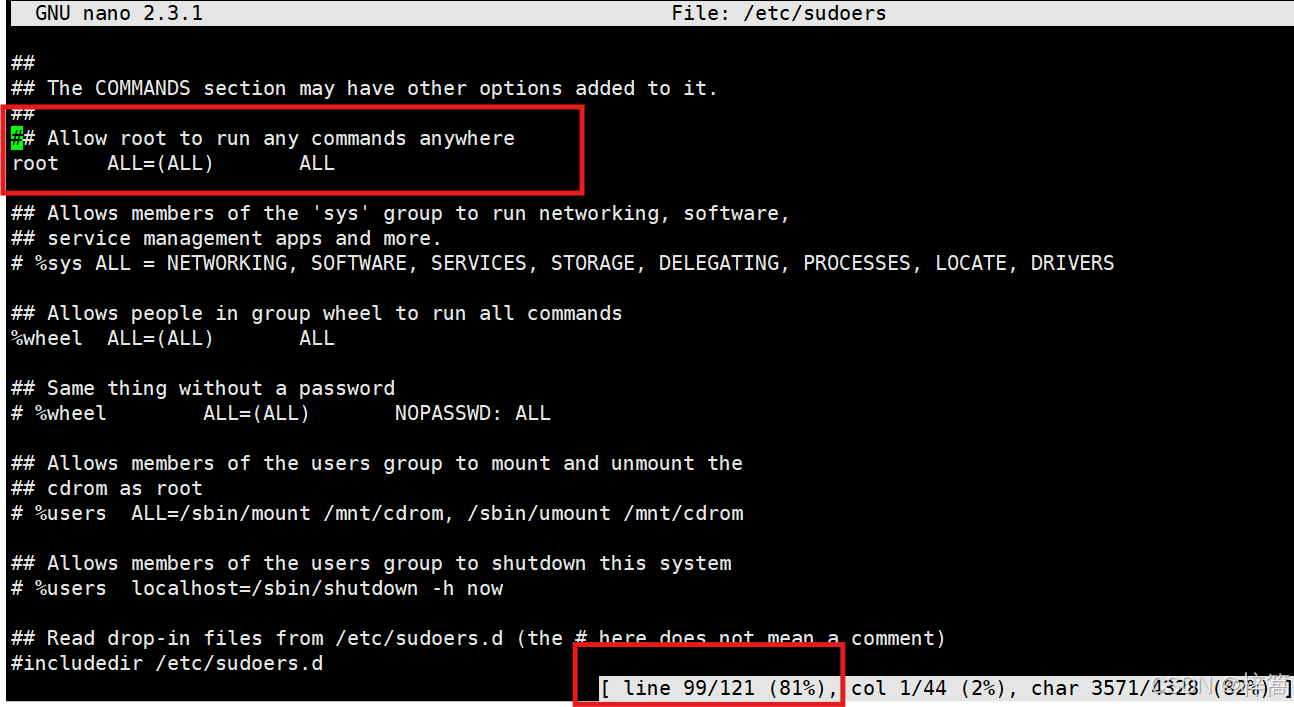
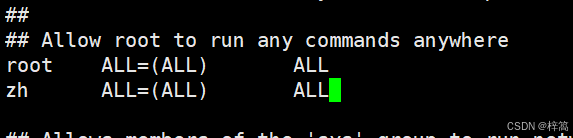
第二步:将普通用户zh加入该配置文件。模仿第一行root用户的写法,另起一行,输入zh后按tab键,再输入ALL=(ALL),再按tab键,最后输入ALL。配置完毕,保存退出。
- 将普通用户zh加入到/etc/sudoers配置文件后。再使用 sudo 提权执行这条命令就成功了。
bash
[zh@iZbp1dr1jtgcuih41mw88oZ ~]$ sudo cp test.txt /usr
[sudo] password for zh:
[zh@iZbp1dr1jtgcuih41mw88oZ ~]$ ls -l /usr/test.txt
-rw-r--r-- 1 root root 0 Apr 24 19:05 /usr/test.txt
二、Linux权限的概念以及修改方法
1.权限的概念
权限 = 用户身份 + 文件的权限属性
- 文件访问者身份的分类:
• 文件的所有者:u---User
• 文件的所属组(组中用户大于等于1人):g---Group
• 其它用户(除所有者 和 所属组中用户外的用户):o---Others
(注:用户初创建文件时,文件的所属组默认只有你自己)
其它用户在文件信息中不会显示,因为它也无需显示,只要知道文件的所有者 和 所属组的信息也就知道了其它用户的信息(其它用户是除所有者 和 所属组中用户外的所有用户)
- 权限属性的分类:
• 读(r/4):Read对普通文件而言,具有读取文件内容的权限;对目录来说,具有浏览该目录下文件信息的权限
• 写(w/2):Write对普通文件而言,具有修改文件内容的权限;对目录来说具有删除、新增 和 移动目录内文件的权限
• 执行(x/1):execute对普通文件而言,具有执行文件的权限;对目录来说,具有进入目录的权限
• "---":表示不具有该项权限
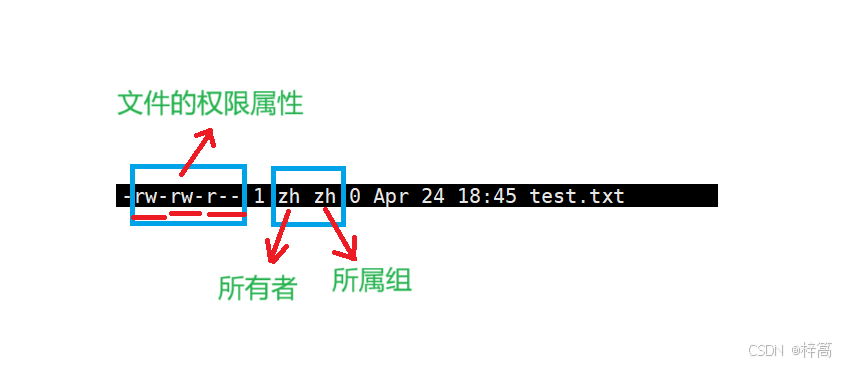
文件的权限属性有9列,文件访问者身份有3种,正好每种身份对应3列权限属性。(文件的所有者对应前3列,文件的所属组对应中间3列,其它用户对应最后3列)
2.文件访问权限 和 访问者身份的相关修改(设置)方法
2.1 文件权限属性的8进制数值表示方法
bash
-rw-r--r-- 1 root root 0 Apr 24 19:05 /usr/test.txtrw-r- -r- -对应110100100 转换成8进制:644
bash
-rw-rw-r-- 1 zh zh 0 Apr 24 18:45 test.txtrw-rw-r- -对应110110100 转换成8进制:664
bash
-rwxr-xr-x 1 root root 62688 Nov 1 2021 arrwxr-xr-x对应111101101 转换成8进制:755
bash
drwxrwxr-x 2 zh zh 4096 Apr 24 16:39 pptrwxrwxr-x对应111111101 转换成8进制:775
2.2 文件的初始权限 和 umask 指令
umask 指令的介绍:
使用格式:
(1)查看文件掩码:umask
(2)修改文件掩码:umask 新的文件掩码值
功能:
• 查看或修改文件掩码
• 新建普通文件的默认权限=666
• 新建目录的默认权限=777
• 但实际上你所创建的文件和目录,看到的权限往往不是上面这个值。原因就是创建文件或目录的时候还要受到umask的影响。假设默认权限是mask,则实际创建的出来的文件权限是: mask&(~umask)
说明: 超级用户默认掩码值为0022,普通用户默认为0002。(计算文件权限时忽略文件掩码的第一位)
- 得到新建文件起始权限的计算过程
新建普通文件的默认权限=666 ,新建目录的默认权限=777
但实际上你所创建的文件和目录,看到的权限往往不是上面这个值。原因就是创建文件或目录的时候还要受到umask的影响。假设默认权限是mask,则实际创建的出来的文件权限是: mask&(~umask)
普通用户的权限掩码默认为0002 (计算文件权限时忽略文件掩码的第一位,也就是把0002当成002)
要转换为2进制计算:权限掩码002的2进制为000 000 010,对权限掩码取反~得 111 111 101
新建普通文件的默认权限 = 666 转换为2进制为 110 110 110
新建普通文件的起始权限 = 110 110 110 & 111 111 101 = 110 110 100,也就是 rw-rw-r- -
新建目录的默认权限 = 777 转换为2进制为 111 111 111
新建目录的起始权限 = 111 111 111 & 111 111 101 = 111 111 101,也就是 rwxrwxr-x
bash
[zh@iZbp1dr1jtgcuih41mw88oZ ~]$ umask
0002
[zh@iZbp1dr1jtgcuih41mw88oZ ~]$ touch test.txt
[zh@iZbp1dr1jtgcuih41mw88oZ ~]$ mkdir ppt
[zh@iZbp1dr1jtgcuih41mw88oZ ~]$ ls -l
total 4
drwxrwxr-x 2 zh zh 4096 Apr 24 21:14 ppt
-rw-rw-r-- 1 zh zh 0 Apr 24 21:13 test.txt- 修改文件掩码会影响文件的起始权限
bash
[zh@iZbp1dr1jtgcuih41mw88oZ ~]$ umask 0000
[zh@iZbp1dr1jtgcuih41mw88oZ ~]$ umask
0000
[zh@iZbp1dr1jtgcuih41mw88oZ ~]$ touch test.txt
[zh@iZbp1dr1jtgcuih41mw88oZ ~]$ mkdir ppt
[zh@iZbp1dr1jtgcuih41mw88oZ ~]$ ls -l
total 4
drwxrwxrwx 2 zh zh 4096 Apr 24 21:37 ppt
-rw-rw-rw- 1 zh zh    0 Apr 24 21:36 test.txt
2.3 chmod 指令
使用格式:
(1)chmod u/g/o+/-/=rwx 文件名
(同时修改多个身份对应的权限要用" , "隔开)
(2)chmod a+/-/=rwx 文件名
(3)chmod 8进制权限写法 文件名
功能: 设置文件的访问权限
说明: 只有文件的拥有者和root才可以改变文件的权限
用户符号:
◦ u:所有者
◦ g:所属组
◦ o:其它用户
◦ a:所有用户
- chmod u/g/o+/-/=rwx 文件名
(1)chmod u/g/o+rwx 文件名
bash
[zh@iZbp1dr1jtgcuih41mw88oZ ~]$ ls -l
total 0
-r--r--r-- 1 zh zh 0 Apr 24 21:36 test.txt
[zh@iZbp1dr1jtgcuih41mw88oZ ~]$ chmod u+w test.txt
[zh@iZbp1dr1jtgcuih41mw88oZ ~]$ ls -l
total 0
-rw-r--r-- 1 zh zh 0 Apr 24 21:36 test.txt
[zh@iZbp1dr1jtgcuih41mw88oZ ~]$ chmod g+w test.txt
[zh@iZbp1dr1jtgcuih41mw88oZ ~]$ ls -l
total 0
-rw-rw-r-- 1 zh zh 0 Apr 24 21:36 test.txt
[zh@iZbp1dr1jtgcuih41mw88oZ ~]$ chmod o+w test.txt
[zh@iZbp1dr1jtgcuih41mw88oZ ~]$ ls -l
total 0
-rw-rw-rw- 1 zh zh 0 Apr 24 21:36 test.txt
[zh@iZbp1dr1jtgcuih41mw88oZ ~]$ chmod u+x,g+x,o+x test.txt
[zh@iZbp1dr1jtgcuih41mw88oZ ~]$ ls -l
total 0
-rwxrwxrwx 1 zh zh 0 Apr 24 21:36 test.txt
(2)chmod u/g/o-rwx 文件名
bash
[zh@iZbp1dr1jtgcuih41mw88oZ ~]$ ls -l
total 0
-rwxrwxrwx 1 zh zh 0 Apr 24 21:36 test.txt
[zh@iZbp1dr1jtgcuih41mw88oZ ~]$ chmod u-rx,g-wx,o-x test.txt
[zh@iZbp1dr1jtgcuih41mw88oZ ~]$ ls -l
total 0
--w-r--rw- 1 zh zh 0 Apr 24 21:36 test.txt
(3)chmod u/g/o=rwx 文件名
bash
[zh@iZbp1dr1jtgcuih41mw88oZ ~]$ ls -l
total 0
--w-r--rw- 1 zh zh 0 Apr 24 21:36 test.txt
[zh@iZbp1dr1jtgcuih41mw88oZ ~]$ chmod u=rwx,g=rwx,o=rwx test.txt
[zh@iZbp1dr1jtgcuih41mw88oZ ~]$ ls -l
total 0
-rwxrwxrwx 1 zh zh 0 Apr 24 21:36 test.txt
[zh@iZbp1dr1jtgcuih41mw88oZ ~]$ chmod u=r,g=w,o=x test.txt
[zh@iZbp1dr1jtgcuih41mw88oZ ~]$ ls -l
total 0
-r---w---x 1 zh zh 0 Apr 24 21:36 test.txt- chmod a+/-/=rwx 文件名
bash
[zh@iZbp1dr1jtgcuih41mw88oZ ~]$ ls -l
total 0
-rwxrwxrwx 1 zh zh 0 Apr 24 21:36 test.txt
[zh@iZbp1dr1jtgcuih41mw88oZ ~]$ chmod a-wx test.txt
[zh@iZbp1dr1jtgcuih41mw88oZ ~]$ ls -l
total 0
-r--r--r-- 1 zh zh 0 Apr 24 21:36 test.txt
[zh@iZbp1dr1jtgcuih41mw88oZ ~]$ chmod a+x test.txt
[zh@iZbp1dr1jtgcuih41mw88oZ ~]$ ls -l
total 0
-r-xr-xr-x 1 zh zh 0 Apr 24 21:36 test.txt
[zh@iZbp1dr1jtgcuih41mw88oZ ~]$ chmod a=w test.txt
[zh@iZbp1dr1jtgcuih41mw88oZ ~]$ ls -l
total 0
--w--w--w- 1 zh zh 0 Apr 24 21:36 test.txt- chmod 8进制权限写法 文件名
bash
[zh@iZbp1dr1jtgcuih41mw88oZ ~]$ ls -l
total 0
--w--w--w- 1 zh zh 0 Apr 24 21:36 test.txt
[zh@iZbp1dr1jtgcuih41mw88oZ ~]$ chmod 777 test.txt
[zh@iZbp1dr1jtgcuih41mw88oZ ~]$ ls -l
total 0
-rwxrwxrwx 1 zh zh 0 Apr 24 21:36 test.txt
[zh@iZbp1dr1jtgcuih41mw88oZ ~]$ chmod 111 test.txt
[zh@iZbp1dr1jtgcuih41mw88oZ ~]$ ls -l
total 0
---x--x--x 1 zh zh 0 Apr 24 21:36 test.txt
[zh@iZbp1dr1jtgcuih41mw88oZ ~]$ chmod 614 test.txt
[zh@iZbp1dr1jtgcuih41mw88oZ ~]$ ls -l
total 0
-rw---xr-- 1 zh zh 0 Apr 24 21:36 test.txt
2.4 chown 指令
格式:
(1)chown 新所有者名 文件名
(2)chown 新所有者名:新所属组名 文件名
功能: 可以修改文件的所有者,也可以同时修改文件的所有者和所属组(需要root权限)
说明: 新所有者名和新所属组名必须是已存在的
- chown 新所有者名 文件名(修改文件的所有者)
bash
[zh@iZbp1dr1jtgcuih41mw88oZ ~]$ ls -l
total 0
-rw---xr-- 1 zh zh 0 Apr 24 21:36 test.txt
[zh@iZbp1dr1jtgcuih41mw88oZ ~]$ sudo chown ccy test.txt
[sudo] password for zh:
[zh@iZbp1dr1jtgcuih41mw88oZ ~]$ ls -l
total 0
-rw---xr-- 1 ccy zh 0 Apr 24 21:36 test.txt- chown 新所有者名:新所属组名 文件名(同时修改文件的所有者和所属组)
bash
[zh@iZbp1dr1jtgcuih41mw88oZ ~]$ ls -l
total 0
-rw---xr-- 1 ccy ccy 0 Apr 24 21:36 test.txt
[zh@iZbp1dr1jtgcuih41mw88oZ ~]$ sudo chown zh:zh test.txt
[zh@iZbp1dr1jtgcuih41mw88oZ ~]$ ls -l
total 0
-rw---xr-- 1 zh zh 0 Apr 24 21:36 test.txt
2.5 chgrp 指令
格式: chgrp 新所属组名 文件名
功能: 修改文件的所属组(需要root权限)
说明: 新所属组名必须是已存在的
bash
[zh@iZbp1dr1jtgcuih41mw88oZ ~]$ ls -l
total 0
-rw---xr-- 1 ccy zh 0 Apr 24 21:36 test.txt
[zh@iZbp1dr1jtgcuih41mw88oZ ~]$ sudo chgrp ccy test.txt
[zh@iZbp1dr1jtgcuih41mw88oZ ~]$ ls -l
total 0
-rw---xr-- 1 ccy ccy 0 Apr 24 21:36 test.txt
三、Linux权限的效果实践
1.普通文件的权限效果
• 读(r/4):read对普通文件而言,具有读取文件内容的权限
• 写(w/2):write对普通文件而言,具有修改文件内容的权限
• 执行(x/1):execute对普通文件而言,具有执行文件的权限
• "---":表示不具有该项权限
- w 对普通文件而言,具有修改文件内容的权限;r 对普通文件而言,具有读取文件内容的权限
test.txt 文件 的所有者具有rw权限,所属组具有r权限,其它用户没有任何权限。
zh用户属于该文件的所有者,所以他具有读取文件内容和修改文件内容的权限;
ccy用户属于该文件的所属组,所以他具有读取文件内容的权限;
lihua用户属于该文件的其它用户,所以他不具备任何操作该文件的权限
bash
[zh@iZbp1dr1jtgcuih41mw88oZ ppt]$ ls -l
total 4
-rw-r----- 1 zh ccy 12 Apr 25 19:03 test.txt
[zh@iZbp1dr1jtgcuih41mw88oZ ppt]$ echo "hello world" > test.txt
[zh@iZbp1dr1jtgcuih41mw88oZ ppt]$ cat test.txt
hello world
[zh@iZbp1dr1jtgcuih41mw88oZ ppt]$ su ccy
Password:
[ccy@iZbp1dr1jtgcuih41mw88oZ ppt]$ echo "one piece" > test.txt
bash: test.txt: Permission denied
[ccy@iZbp1dr1jtgcuih41mw88oZ ppt]$ cat test.txt
hello world
[ccy@iZbp1dr1jtgcuih41mw88oZ ppt]$ su lihua
Password:
[lihua@iZbp1dr1jtgcuih41mw88oZ ppt]$ echo "one piece" > test.txt
bash: test.txt: Permission denied
[lihua@iZbp1dr1jtgcuih41mw88oZ ppt]$ cat test.txt
cat: test.txt: Permission denied
// Permission denied 代表权限不够,操作不被允许
- 一个可执行文件 = 可执行权限 + 可执行能力
(一个文件具备可执行权限并不代表这个文件能执行)
(1)gcc 编译 test.c 文件生成了可执行文件 a.out,紧接着执行 a.out,执行成功;
我们删去了 a.out文件的x权限,然后再次执行 a.out,执行失败(a.out文件具备可执行能力,但不具备可执行权限)
bash
[zh@iZbp1dr1jtgcuih41mw88oZ ppt]$ ls -l
total 4
-rw-rw-r-- 1 zh zh 69 Apr 25 20:14 test.c
[zh@iZbp1dr1jtgcuih41mw88oZ ppt]$ cat test.c
#include <stdio.h>
int main()
{
	printf("one piece\n");
	return 0;
}
[zh@iZbp1dr1jtgcuih41mw88oZ ppt]$ gcc test.c
[zh@iZbp1dr1jtgcuih41mw88oZ ppt]$ ls -l
total 16
-rwxrwxr-x 1 zh zh 8360 Apr 25 20:14 a.out
-rw-rw-r-- 1 zh zh   69 Apr 25 20:14 test.c
[zh@iZbp1dr1jtgcuih41mw88oZ ppt]$ ./a.out
one piece
[zh@iZbp1dr1jtgcuih41mw88oZ ppt]$ chmod u-x a.out
[zh@iZbp1dr1jtgcuih41mw88oZ ppt]$ ls -l
total 16
-rw-rwxr-x 1 zh zh 8360 Apr 25 20:14 a.out
-rw-rw-r-- 1 zh zh   69 Apr 25 20:14 test.c
[zh@iZbp1dr1jtgcuih41mw88oZ ppt]$ ./a.out
bash: ./a.out: Permission denied
(2)test.c 文件是一个未经过编译的普通c文件,它不具备可执行能力,即使我们赋予它可执行权限,它也依旧不能被执行(test.c 文件具备可执行权限,但不具备可执行能力)
bash
[zh@iZbp1dr1jtgcuih41mw88oZ ppt]$ ls -l
total 4
-rw-rw-r-- 1 zh zh 69 Apr 25 20:14 test.c
[zh@iZbp1dr1jtgcuih41mw88oZ ppt]$ chmod u+x test.c
[zh@iZbp1dr1jtgcuih41mw88oZ ppt]$ ls -l
total 4
-rwxrw-r-- 1 zh zh 69 Apr 25 20:14 test.c
[zh@iZbp1dr1jtgcuih41mw88oZ ppt]$ ./test.c
./test.c: line 2: syntax error near unexpected token `('
./test.c: line 2: `int main()'
2.目录文件的权限效果
• 读(r/4):read对目录来说,具有浏览该目录下文件信息的权限
• 写(w/2):write对目录来说,具有删除、新增 和 移动目录下文件 以及 修改目录下文件的文件名的权限
• 执行(x/1):execute对目录来说,具有进入目录的权限
• "---":表示不具有该项权限
注: 对目录来说,x 权限是 r 和 w 权限的前提,不具备 x 权限,即使有 rw 权限也没有任何效果。
- r 对目录来说,具有浏览该目录下文件信息的权限;w 对目录来说,具有删除、新增 和 移动目录下文件 以及 修改目录下文件的文件名的权限
ppt目录 的所有者具有rwx权限,所属组具有rx权限,其它用户具有x权限。
zh用户属于该目录的所有者,所以他具有进入目录、浏览该目录下文件信息 以及 具有删除、新增 和 移动目录下文件 的权限;
ccy用户属于该目录的所属组,所以他具有进入目录、浏览该目录下文件信息 的权限;
lihua用户属于该目录的其它用户,所以他只具有进入目录的权限
bash
[zh@iZbp1dr1jtgcuih41mw88oZ ufc]$ ls -l
total 4
drwxr-x--x 3 zh ccy 4096 Apr 25 21:23 ppt
[zh@iZbp1dr1jtgcuih41mw88oZ ufc]$ ls -l ppt
total 8
drwxrwxr-x 2 zh zh 4096 Apr 25 20:55 ggb
-rw-rw-r-- 1 zh zh    0 Apr 25 20:55 hello.txt
-rw-rw-r-- 1 zh zh   69 Apr 25 20:14 test.c
[zh@iZbp1dr1jtgcuih41mw88oZ ufc]$ rm ppt/hello.txt
[zh@iZbp1dr1jtgcuih41mw88oZ ufc]$ ls -l ppt
total 8
drwxrwxr-x 2 zh zh 4096 Apr 25 20:55 ggb
-rw-rw-r-- 1 zh zh   69 Apr 25 20:14 test.c
[zh@iZbp1dr1jtgcuih41mw88oZ ufc]$ touch ppt/dwg
[zh@iZbp1dr1jtgcuih41mw88oZ ufc]$ ls -l ppt
total 8
-rw-rw-r-- 1 zh zh    0 Apr 25 21:30 dwg
drwxrwxr-x 2 zh zh 4096 Apr 25 20:55 ggb
-rw-rw-r-- 1 zh zh   69 Apr 25 20:14 test.c
[zh@iZbp1dr1jtgcuih41mw88oZ ufc]$ mv ppt/dwg ppt/abc.txt
[zh@iZbp1dr1jtgcuih41mw88oZ ufc]$ ls -l ppt
total 8
-rw-rw-r-- 1 zh zh    0 Apr 25 21:32 abc.txt
drwxrwxr-x 2 zh zh 4096 Apr 25 20:55 ggb
-rw-rw-r-- 1 zh zh   69 Apr 25 20:14 test.c
bash
[zh@iZbp1dr1jtgcuih41mw88oZ ufc]$ su ccy
Password:
[ccy@iZbp1dr1jtgcuih41mw88oZ ufc]$ ls -l
total 4
drwxr-x--x 3 zh ccy 4096 Apr 25 21:32 ppt
[ccy@iZbp1dr1jtgcuih41mw88oZ ufc]$ ls -l ppt
total 8
-rw-rw-r-- 1 zh zh    0 Apr 25 21:32 abc.txt
drwxrwxr-x 2 zh zh 4096 Apr 25 20:55 ggb
-rw-rw-r-- 1 zh zh   69 Apr 25 20:14 test.c
[ccy@iZbp1dr1jtgcuih41mw88oZ ufc]$ rm ppt/abc.txt
rm: remove write-protected regular empty file 'ppt/abc.txt'? y
rm: cannot remove 'ppt/abc.txt': Permission denied
[ccy@iZbp1dr1jtgcuih41mw88oZ ufc]$ touch ppt/one.txt
touch: cannot touch 'ppt/one.txt': Permission denied
bash
[ccy@iZbp1dr1jtgcuih41mw88oZ ufc]$ su lihua
Password:
[lihua@iZbp1dr1jtgcuih41mw88oZ ufc]$ ls -l
total 4
drwxr-x--x 3 zh ccy 4096 Apr 25 21:32 ppt
[lihua@iZbp1dr1jtgcuih41mw88oZ ufc]$ ls -l ppt
ls: cannot open directory ppt: Permission denied
[lihua@iZbp1dr1jtgcuih41mw88oZ ufc]$ touch ppt/one.txt
touch: cannot touch 'ppt/one.txt': Permission denied
[lihua@iZbp1dr1jtgcuih41mw88oZ ufc]$ cd ppt
[lihua@iZbp1dr1jtgcuih41mw88oZ ppt]$ pwd
/home/zh/ufc/ppt- 对目录来说,x 权限是 r 和 w 权限的前提,不具备 x 权限,即使有 rw 权限也没有任何效果
bash
[zh@iZbp1dr1jtgcuih41mw88oZ ufc]$ ls -l
total 4
drw-rw-rw- 3 zh ccy 4096 Apr 25 21:32 ppt
[zh@iZbp1dr1jtgcuih41mw88oZ ufc]$ ls -l ppt
ls: cannot access ppt/ggb: Permission denied
ls: cannot access ppt/abc.txt: Permission denied
ls: cannot access ppt/test.c: Permission denied
total 0
-????????? ? ? ? ?            ? abc.txt
d????????? ? ? ? ?            ? ggb
-????????? ? ? ? ?            ? test.c
[zh@iZbp1dr1jtgcuih41mw88oZ ufc]$ rm ppt/abc.txt
rm: cannot remove 'ppt/abc.txt': Permission denied
[zh@iZbp1dr1jtgcuih41mw88oZ ufc]$ touch ppt/one.txt
touch: cannot touch 'ppt/one.txt': Permission denied
3.文件的权限效果受其所在目录权限的影响
- ccy用户没有进入ppt目录的权限(我们是使用zh用户进入ppt目录,再切成ccy用户),
所以即使ppt目录中的 ggb目录 和 test.c文件 给了ccy用户所有权限,但是ccy用户仍然不能对这两个文件进行任何操作。因为ccy用户连进入ppt目录的权限都没有,所以不具备操作其下文件的资格。
bash
[zh@iZbp1dr1jtgcuih41mw88oZ ufc]$ ls -l
total 4
drwx------ 3 zh zh 4096 Apr 25 22:21 ppt
[zh@iZbp1dr1jtgcuih41mw88oZ ufc]$ cd ppt
[zh@iZbp1dr1jtgcuih41mw88oZ ppt]$ ls -l
total 8
drwxrwxrwx 3 ccy ccy 4096 Apr 25 22:03 ggb
-rwxrwxrwx 1 ccy ccy   12 Apr 25 22:24 test.c
[zh@iZbp1dr1jtgcuih41mw88oZ ppt]$ su ccy
Password:
[ccy@iZbp1dr1jtgcuih41mw88oZ ppt]$ echo "hello world" > test.c
bash: test.c: Permission denied
[ccy@iZbp1dr1jtgcuih41mw88oZ ppt]$ cat test.c
cat: test.c: Permission denied
[ccy@iZbp1dr1jtgcuih41mw88oZ ppt]$ ls -l ggb
ls: cannot access ggb: Permission denied
[ccy@iZbp1dr1jtgcuih41mw88oZ ppt]$ touch ggd/kfc.txt
touch: cannot touch 'ggd/kfc.txt': Permission denied
[ccy@iZbp1dr1jtgcuih41mw88oZ ppt]$ cd ggb
bash: cd: ggb: Permission denied- ccy用户具有进入ppt的权限,就可以正常操作其下文件
bash
[zh@iZbp1dr1jtgcuih41mw88oZ ufc]$ ls -l
total 4
drwx--x--x 3 zh zh 4096 Apr 25 22:21 ppt
[zh@iZbp1dr1jtgcuih41mw88oZ ufc]$ ls -l ppt
total 8
drwxrwxrwx 3 ccy ccy 4096 Apr 25 22:03 ggb
-rwxrwxrwx 1 ccy ccy   12 Apr 25 22:24 test.c
[zh@iZbp1dr1jtgcuih41mw88oZ ufc]$ su ccy
Password:
[ccy@iZbp1dr1jtgcuih41mw88oZ ufc]$ cd ppt
[ccy@iZbp1dr1jtgcuih41mw88oZ ppt]$ echo "hello world" > test.c
[ccy@iZbp1dr1jtgcuih41mw88oZ ppt]$ cat test.c
hello world
[ccy@iZbp1dr1jtgcuih41mw88oZ ppt]$ ls -l ggb
total 4
drwxrwxr-x 2 zh zh 4096 Apr 25 22:03 lgd
[ccy@iZbp1dr1jtgcuih41mw88oZ ppt]$ touch ggb/kfc.txt
[ccy@iZbp1dr1jtgcuih41mw88oZ ppt]$ cd ggb
[ccy@iZbp1dr1jtgcuih41mw88oZ ggb]$ pwd
/home/zh/ufc/ppt/ggb
四、粘滞位(常用于合作开发)
普通用户的家目录只允许自己和root用户进入;root用户的家目录只允许root用户进入。所以多名普通用户要进行合作开发的话,一般不会在家目录下进行。
bash
[root@iZbp1dr1jtgcuih41mw88oZ home]# pwd
/home
[root@iZbp1dr1jtgcuih41mw88oZ home]# ls -l
total 12
drwx------ 2 ccy   ccy   4096 Apr 10 21:03 ccy
drwx------ 2 lihua lihua 4096 Apr 25 23:14 lihua
drwx------ 3 zh    zh    4096 Apr 25 21:03 zh
[root@iZbp1dr1jtgcuih41mw88oZ /]# ls -ld root
dr-xr-x---. 6 root root 4096 Apr 14 11:02 root
想要实现多名用户合作开发(数据共享),一般会用root用户在家目录外创建一个公共的目录,给其他用户身份放开权限(rwx),让多名普通用户以其他用户身份在公共的目录下实现合作开发:
bash
[root@iZbp1dr1jtgcuih41mw88oZ /]# mkdir teamwork
[root@iZbp1dr1jtgcuih41mw88oZ /]# ls -ld teamwork
drwxr-xr-x 2 root root 4096 Apr 27 17:10 teamwork
[root@iZbp1dr1jtgcuih41mw88oZ /]# chmod 757 teamwork
[root@iZbp1dr1jtgcuih41mw88oZ /]# ls -ld teamwork
drwxr-xrwx 2 root root 4096 Apr 27 17:10 teamwork
多名普通用户以其他用户身份在公共的目录 /teamwork 进行数据共享:
bash
[zh@iZbp1dr1jtgcuih41mw88oZ /]$ cd teamwork
[zh@iZbp1dr1jtgcuih41mw88oZ teamwork]$ touch test.txt
[zh@iZbp1dr1jtgcuih41mw88oZ teamwork]$ mkdir ppt
[zh@iZbp1dr1jtgcuih41mw88oZ teamwork]$ ls -l
total 4
drwxrwxr-x 2 zh zh 4096 Apr 27 17:15 ppt
-rw-rw-r-- 1 zh zh    0 Apr 27 17:15 test.txt
[zh@iZbp1dr1jtgcuih41mw88oZ teamwork]$ echo "hello world" > test.txt
[zh@iZbp1dr1jtgcuih41mw88oZ teamwork]$ cat test.txt
hello world
bash
[ccy@iZbp1dr1jtgcuih41mw88oZ /]$ cd teamwork
[ccy@iZbp1dr1jtgcuih41mw88oZ teamwork]$ ls -l
total 8
drwxrwxr-x 2 zh zh 4096 Apr 27 17:15 ppt
-rw-rw-r-- 1 zh zh   12 Apr 27 17:17 test.txt
[ccy@iZbp1dr1jtgcuih41mw88oZ teamwork]$ touch d1.txt
[ccy@iZbp1dr1jtgcuih41mw88oZ teamwork]$ ls -l
total 8
-rw-rw-r-- 1 ccy ccy    0 Apr 27 17:19 d1.txt
drwxrwxr-x 2 zh  zh  4096 Apr 27 17:15 ppt
-rw-rw-r-- 1 zh  zh    12 Apr 27 17:17 test.txt
[ccy@iZbp1dr1jtgcuih41mw88oZ teamwork]$ echo "one piece" > d1.txt
[ccy@iZbp1dr1jtgcuih41mw88oZ teamwork]$ cat d1.txt
one piece
[ccy@iZbp1dr1jtgcuih41mw88oZ teamwork]$ cat test.txt
hello world
bash
[lihua@iZbp1dr1jtgcuih41mw88oZ /]$ cd teamwork
[lihua@iZbp1dr1jtgcuih41mw88oZ teamwork]$ ls -l
total 12
-rw-rw-r-- 1 ccy ccy   10 Apr 27 17:20 d1.txt
drwxrwxr-x 2 zh  zh  4096 Apr 27 17:15 ppt
-rw-rw-r-- 1 zh  zh    12 Apr 27 17:17 test.txt
[lihua@iZbp1dr1jtgcuih41mw88oZ teamwork]$ cat d1.txt
one piece
[lihua@iZbp1dr1jtgcuih41mw88oZ teamwork]$ cat test.txt
hello world
以上可以看出多名普通用户确实在root用户创建的公共目录/teamwork下实现了数据共享。但其实还存在一些问题,那就是在这个目录下普通用户权限过大,他们可以直接删除其他人创建的文件,如下:
bash
[lihua@iZbp1dr1jtgcuih41mw88oZ /]$ cd teamwork
[lihua@iZbp1dr1jtgcuih41mw88oZ teamwork]$ ls -l
total 12
-rw-rw-r-- 1 ccy ccy   10 Apr 27 17:20 d1.txt
drwxrwxr-x 2 zh  zh  4096 Apr 27 17:15 ppt
-rw-rw-r-- 1 zh  zh    12 Apr 27 17:17 test.txt
[lihua@iZbp1dr1jtgcuih41mw88oZ teamwork]$ rm d1.txt
rm: remove write-protected regular file 'd1.txt'? y
[lihua@iZbp1dr1jtgcuih41mw88oZ teamwork]$ rm -r ppt
rm: remove write-protected directory 'ppt'? y
[lihua@iZbp1dr1jtgcuih41mw88oZ teamwork]$ ls -l
total 4
-rw-rw-r-- 1 zh zh 12 Apr 27 17:17 test.txt
合作开发是为了多名普通用户之间实现数据共享,但是却不希望自己创建的文件被其他人直接删除,为了限制合作开发下普通用户的权限,引入了 "粘滞位" 的用法。当一个目录被设置为 "粘滞位" (用chmod +t),则该目录下的文件只能由:
(1)root用户删除
(2)该目录的所有者(合作开发中一般就是root用户)删除
(3)该文件的所有者删除
给 /teamwork 目录设置为"粘滞位"(用chmod +t):
bash
[root@iZbp1dr1jtgcuih41mw88oZ /]# chmod +t teamwork
[root@iZbp1dr1jtgcuih41mw88oZ /]# ls -ld teamwork
drwxr-xrwt 2 root root 4096 Apr 27 19:24 teamwork
效果展示(普通用户zh不能删除其他普通用户创建的文件,只能删除自己创建的文件):
bash
[zh@iZbp1dr1jtgcuih41mw88oZ /]$ cd teamwork
[zh@iZbp1dr1jtgcuih41mw88oZ teamwork]$ ls -l
total 4
-rw-rw-r-- 1 lihua lihua  0 Apr 27 19:24 hello.txt
-rw-rw-r-- 1 zh    zh    12 Apr 27 17:17 test.txt
[zh@iZbp1dr1jtgcuih41mw88oZ teamwork]$ rm hello.txt
rm: remove write-protected regular empty file 'hello.txt'? y
rm: cannot remove 'hello.txt': Operation not permitted
[zh@iZbp1dr1jtgcuih41mw88oZ teamwork]$ rm test.txt
[zh@iZbp1dr1jtgcuih41mw88oZ teamwork]$ ls -l
total 0
-rw-rw-r-- 1 lihua lihua 0 Apr 27 19:24 hello.txt