在新闻资讯 APP 底部切换不同类型界面,部分界面可以通过 ViewPager 实现滑动切换
因为这个项目的编写顺序有问题,先写了顶部后写底部导致了今天浪费很多时间在改代码,看来安卓开发的顺序还是很重要的,活动和碎片,碎片和碎片都可以有很多嵌套关系。
总结一下目前的开发进度:
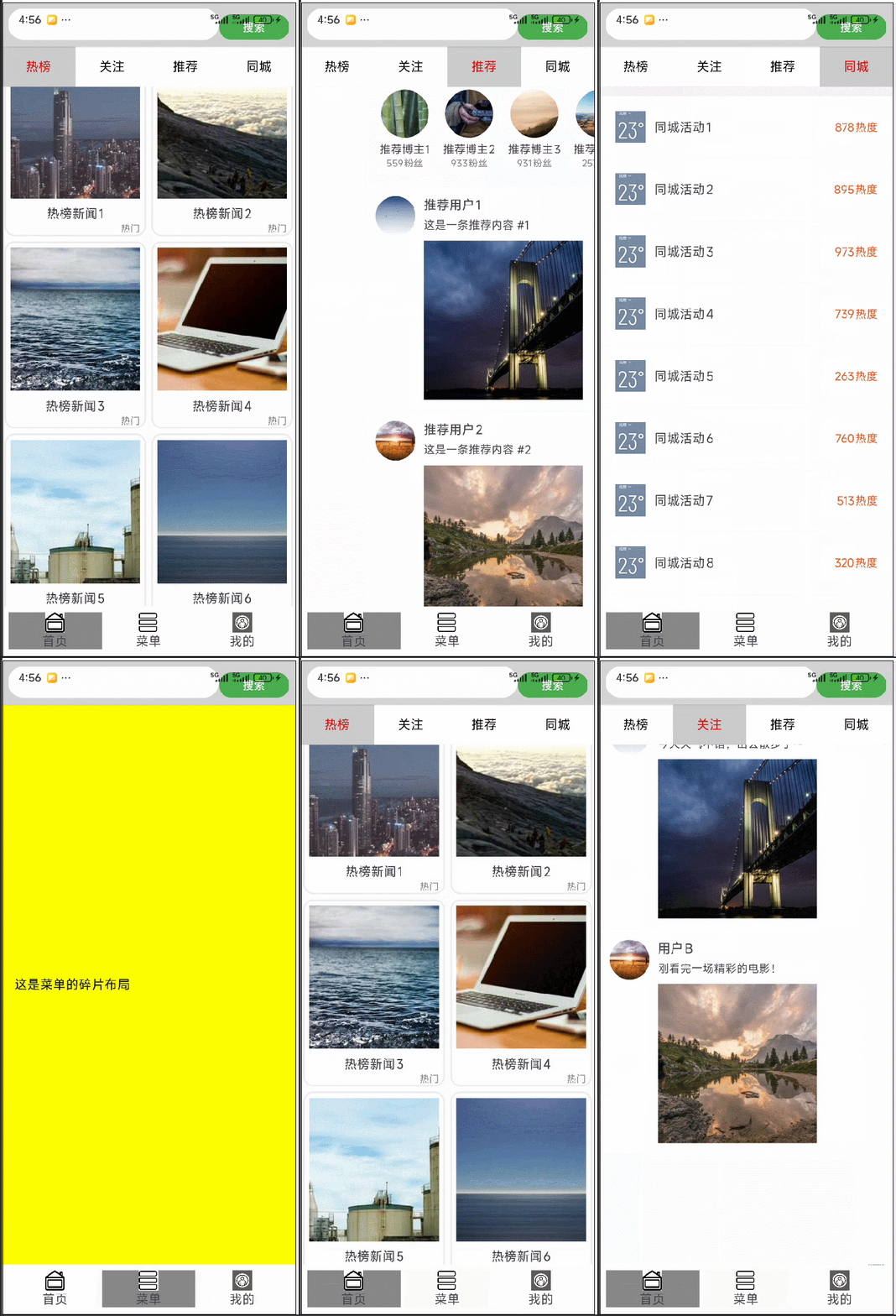
介绍一下我的开发流程把:
首先新建一个项目,在mainactivity中我们知道,搜索框不论在哪一个碎片都是在的,所以我们直接在activity_main.xml写进去,同时bottom的菜单栏也是不变的,所以我们把他也设置一下,以下是完整代码
activity_main.xml
xml
<?xml version="1.0" encoding="utf-8"?>
<LinearLayout xmlns:android="http://schemas.android.com/apk/res/android"
    xmlns:app="http://schemas.android.com/apk/res-auto"
    xmlns:tools="http://schemas.android.com/tools"
    android:id="@+id/main"
    android:layout_width="match_parent"
    android:layout_height="match_parent"
    tools:context=".activity.MainActivity"
    android:orientation="vertical">
    <LinearLayout
        android:layout_width="match_parent"
        android:layout_height="wrap_content"
        android:orientation="horizontal"
        android:background="#D3D3D3"
        android:padding="8dp"
        android:elevation="2dp">

        <EditText
            android:id="@+id/search_edit_frame"
            android:layout_width="0dp"
            android:layout_height="40dp"
            android:layout_weight="3"
            android:background="@drawable/search_bg"
            android:paddingHorizontal="12dp"
            android:singleLine="true" />

        <Button
            android:id="@+id/button"
            android:layout_width="0dp"
            android:layout_height="40dp"
            android:layout_weight="1"
            android:text="搜索"
            android:backgroundTint="#4CAF50"
            android:textColor="@android:color/white" />
    </LinearLayout>


    <FrameLayout
        android:id="@+id/fragment_container"
        android:layout_width="match_parent"
        android:layout_height="0dp"

        android:layout_weight="1" />

    <LinearLayout
        android:layout_width="match_parent"
        android:layout_height="wrap_content"
        android:orientation="horizontal"
        android:padding="8dp"
        android:background="#FFFFFF"
        android:layout_gravity="bottom" >

        <!-- 首页 -->
        <LinearLayout
            android:id="@+id/home_tab"
            android:layout_width="0dp"
            android:layout_height="match_parent"
            android:layout_weight="1"
            android:orientation="vertical"
            android:gravity="center">

            <ImageView
                android:layout_width="25dp"
                android:layout_height="25dp"
                android:layout_gravity="center_horizontal"
                android:src="@drawable/main"
                android:contentDescription="首页图标"/>

            <TextView
                android:id="@+id/home_text"
                android:layout_width="match_parent"
                android:layout_height="wrap_content"
                android:textSize="16dp"
                android:text="首页"
                android:gravity="center_horizontal"/>
        </LinearLayout>

        <!-- 菜单 -->
        <LinearLayout
            android:id="@+id/menu_tab"
            android:layout_width="0dp"
            android:layout_height="match_parent"
            android:layout_weight="1"
            android:orientation="vertical"
            android:gravity="center">

            <ImageView
                android:layout_width="25dp"
                android:layout_height="25dp"
                android:layout_gravity="center_horizontal"
                android:src="@drawable/menu"
                android:contentDescription="菜单图标"/>

            <TextView
                android:id="@+id/menu_text"
                android:layout_width="match_parent"
                android:layout_height="wrap_content"
                android:textSize="16dp"
                android:text="菜单"
                android:gravity="center_horizontal"/>
        </LinearLayout>

        <!-- 我的 -->
        <LinearLayout
            android:id="@+id/mine_tab"
            android:layout_width="0dp"
            android:layout_height="match_parent"
            android:layout_weight="1"
            android:orientation="vertical"
            android:gravity="center">

            <ImageView
                android:layout_width="25dp"
                android:layout_height="25dp"
                android:layout_gravity="center_horizontal"
                android:src="@drawable/mine"
                android:contentDescription="我的图标"/>

            <TextView
                android:id="@+id/mine_text"
                android:layout_width="match_parent"
                android:layout_height="wrap_content"
                android:textSize="16dp"
                android:text="我的"
                android:gravity="center_horizontal"/>
        </LinearLayout>
    </LinearLayout>

</LinearLayout>
mainActivity
java
package com.example.eznews.activity;

import android.graphics.Color;
import android.os.Bundle;
import android.view.View;
import android.view.animation.Animation;
import android.view.animation.AnimationUtils;
import android.widget.LinearLayout;
import android.widget.TextView;

import androidx.activity.EdgeToEdge;
import androidx.appcompat.app.AppCompatActivity;

import com.example.eznews.R;
import com.example.eznews.fragment.HomeFragment;
import com.example.eznews.fragment.MenuFragment;
import com.example.eznews.fragment.MineFragment;

public class MainActivity extends AppCompatActivity {
    private LinearLayout homeTab, menuTab, mineTab;
    private int currentTab = R.id.home_tab;

    @Override
    protected void onCreate(Bundle savedInstanceState) {
        super.onCreate(savedInstanceState);
        EdgeToEdge.enable(this);
        setContentView(R.layout.activity_main);
        getSupportFragmentManager().beginTransaction().replace(R.id.fragment_container, new HomeFragment()).commit();
        initTab();
        // 初始化时设置首页背景色
        homeTab.setBackgroundColor(Color.GRAY);
    }

    private void initTab() {
        homeTab = findViewById(R.id.home_tab);
        menuTab = findViewById(R.id.menu_tab);
        mineTab = findViewById(R.id.mine_tab);

        homeTab.setOnClickListener(v -> switchFragment(R.id.home_tab));
        menuTab.setOnClickListener(v -> switchFragment(R.id.menu_tab));
        mineTab.setOnClickListener(v -> switchFragment(R.id.mine_tab));
    }

    private void animateTabSelection(View view) {
        // 加载动画资源
        Animation scaleDown = AnimationUtils.loadAnimation(this, R.anim.scale_down);
        Animation scaleUp = AnimationUtils.loadAnimation(this, R.anim.scale_up);
        Animation bounceBack = AnimationUtils.loadAnimation(this, R.anim.bounce_back);

        // 设置动画监听器,实现连续播放
        scaleDown.setAnimationListener(new Animation.AnimationListener() {
            @Override
            public void onAnimationStart(Animation animation) {
            }

            @Override
            public void onAnimationEnd(Animation animation) {
                view.startAnimation(scaleUp);
            }

            @Override
            public void onAnimationRepeat(Animation animation) {
            }
        });

        scaleUp.setAnimationListener(new Animation.AnimationListener() {
            @Override
            public void onAnimationStart(Animation animation) {
            }

            @Override
            public void onAnimationEnd(Animation animation) {
                view.startAnimation(bounceBack);
            }

            @Override
            public void onAnimationRepeat(Animation animation) {
            }
        });

        bounceBack.setAnimationListener(new Animation.AnimationListener() {
            @Override
            public void onAnimationStart(Animation animation) {
                clearAllTabBackground();
                view.setBackgroundColor(Color.GRAY);
            }

            @Override
            public void onAnimationEnd(Animation animation) {
                // 动画结束后设置背景色

            }

            @Override
            public void onAnimationRepeat(Animation animation) {
            }
        });

        // 开始执行动画
        view.startAnimation(scaleDown);
    }

    private void clearAllTabBackground() {
        homeTab.setBackgroundColor(Color.TRANSPARENT);
        menuTab.setBackgroundColor(Color.TRANSPARENT);
        mineTab.setBackgroundColor(Color.TRANSPARENT);
    }

    private void switchFragment(int tabId) {
        if (currentTab == tabId) {
            return;
        }
        currentTab = tabId;
        animateTabSelection(findViewById(tabId));

        // 使用 if-else 替代 switch 语句
        if (tabId == R.id.home_tab) {
            getSupportFragmentManager().beginTransaction().replace(R.id.fragment_container, new HomeFragment()).commit();
        } else if (tabId == R.id.menu_tab) {
            getSupportFragmentManager().beginTransaction().replace(R.id.fragment_container, new MenuFragment()).commit();
        } else if (tabId == R.id.mine_tab) {
            getSupportFragmentManager().beginTransaction().replace(R.id.fragment_container, new MineFragment()).commit();
        }
    }
}
这里的mainActivity的代码只有很小一段
getSupportFragmentManager().beginTransaction().replace(R.id.fragment_container, new HomeFragment()).commit();是需要了解一下的,其他的动画什么的就不多说了
动态显示Fragment要使用FrameLayout
这里简单看下菜单和我的碎片
java
package com.example.eznews.fragment;//我的Fragment

import android.graphics.Color;
import android.os.Bundle;
import android.view.LayoutInflater;
import android.view.View;
import android.view.ViewGroup;
import android.widget.TextView;

import androidx.annotation.Nullable;
import androidx.fragment.app.Fragment;

public class MineFragment extends Fragment {
    @Override
    public View onCreateView(LayoutInflater inflater, @Nullable ViewGroup container, @Nullable Bundle savedInstanceState) {

        TextView view = (TextView) View.inflate(getActivity(), android.R.layout.simple_list_item_1, null);
        view.setText("这是个人中心页面的碎片布局");
        view.setBackgroundColor(Color.YELLOW);
        return view;
    }
}
java
package com.example.eznews.fragment;//菜单Fragment

import android.graphics.Color;
import android.os.Bundle;
import android.view.LayoutInflater;
import android.view.View;
import android.view.ViewGroup;
import android.widget.TextView;

import androidx.annotation.Nullable;
import androidx.fragment.app.Fragment;

public class MenuFragment extends Fragment {
    @Override
     public View onCreateView(LayoutInflater inflater, @Nullable ViewGroup container, @Nullable Bundle savedInstanceState) {

        TextView view = (TextView) View.inflate(getActivity(), android.R.layout.simple_list_item_1, null);
        view.setText("这是菜单的碎片布局");
        view.setBackgroundColor(Color.YELLOW);
        return view;
    }
}
没什么好说的动态设置了一下背景和文字没有UI(后续会补上)因为目前再学习ViewPage和Fragment的页面切换
主要看主页的代码和布局
fragment_home.xml
xml
<?xml version="1.0" encoding="utf-8"?>
<androidx.coordinatorlayout.widget.CoordinatorLayout xmlns:android="http://schemas.android.com/apk/res/android"
    android:layout_width="match_parent"
    android:layout_height="match_parent"
    xmlns:app="http://schemas.android.com/apk/res-auto">
    <LinearLayout
        android:id="@+id/category_bar"
        android:layout_width="match_parent"
        android:layout_height="50dp"
        android:orientation="horizontal"
        android:background="@android:color/white"
        android:elevation="1dp"
        app:layout_behavior=".util.ScrollAwareFABBehavior">

        <TextView
            android:id="@+id/tab_hot"
            android:layout_width="0dp"
            android:layout_height="match_parent"
            android:layout_weight="1"
            android:text="热榜"
            android:textSize="16sp"
            android:textColor="#333333"
            android:gravity="center"
            android:clickable="true"
            android:background="?attr/selectableItemBackground" />

        <TextView
            android:id="@+id/tab_follow"
            android:layout_width="0dp"
            android:layout_height="match_parent"
            android:layout_weight="1"
            android:text="关注"
            android:textSize="16sp"
            android:textColor="#333333"
            android:gravity="center"
            android:clickable="true"
            android:background="?attr/selectableItemBackground" />

        <TextView
            android:id="@+id/tab_recommend"
            android:layout_width="0dp"
            android:layout_height="match_parent"
            android:layout_weight="1"
            android:text="推荐"
            android:textSize="16sp"
            android:textColor="#333333"
            android:gravity="center"
            android:clickable="true"
            android:background="?attr/selectableItemBackground" />

        <TextView
            android:id="@+id/tab_city"
            android:layout_width="0dp"
            android:layout_height="match_parent"
            android:layout_weight="1"
            android:text="同城"
            android:textSize="16sp"
            android:textColor="#333333"
            android:gravity="center"
            android:clickable="true"
            android:background="?attr/selectableItemBackground" />
    </LinearLayout>
    <!-- ViewPager2容器 -->
    <androidx.viewpager2.widget.ViewPager2
        android:id="@+id/view_pager"
        android:layout_width="match_parent"
        android:layout_height="match_parent"
        />

</androidx.coordinatorlayout.widget.CoordinatorLayout>
先看下xml,因为要实现下滑拉出上滑收起的分类栏,所以这个fragment要使用coordinator布局,并且设置一个behavior,同时要实现左右滑切换分类栏,所以我加入一个ViewPage2
再来看一下代码
HomeFragment
java
package com.example.eznews.fragment;

import android.graphics.Color;
import android.os.Bundle;
import android.view.LayoutInflater;
import android.view.View;
import android.view.ViewGroup;
import android.widget.TextView;

import androidx.annotation.NonNull;
import androidx.annotation.Nullable;
import androidx.fragment.app.Fragment;
import androidx.viewpager2.widget.ViewPager2;

import com.example.eznews.R;
import com.example.eznews.adapter.CategoryPagerAdapter;

public class HomeFragment extends Fragment {
    private ViewPager2 viewPager;
    private TextView tabHot, tabFollow, tabRecommend, tabCity;
    private int selectedTab = 0;

    @Override
    public View onCreateView(@NonNull LayoutInflater inflater, @Nullable ViewGroup container, @Nullable Bundle savedInstanceState) {
        super.onCreateView(inflater, container, savedInstanceState);
        // 加载布局文件
        View view = inflater.inflate(R.layout.fragment_home, container, false);
        // 初始化ViewPager2
        viewPager = view.findViewById(R.id.view_pager);
        CategoryPagerAdapter adapter = new CategoryPagerAdapter(requireActivity());
        viewPager.setAdapter(adapter);
        viewPager.setOffscreenPageLimit(4); // 预加载4个页面
        viewPager.registerOnPageChangeCallback(new ViewPager2.OnPageChangeCallback() {
            @Override
            public void onPageSelected(int position) {
                super.onPageSelected(position);
                updateTabSelection(position);
            }
        });
        // 传入 view 对象初始化标签
        initCategoryTabs(view);
        return view;
    }

    private void initCategoryTabs(View view) {
        // 从 view 对象中查找 TextView
        tabHot = view.findViewById(R.id.tab_hot);
        tabFollow = view.findViewById(R.id.tab_follow);
        tabRecommend = view.findViewById(R.id.tab_recommend);
        tabCity = view.findViewById(R.id.tab_city);

        // 设置标签点击事件
        if (tabHot != null) {
            tabHot.setOnClickListener(v -> viewPager.setCurrentItem(0));
        }
        if (tabFollow != null) {
            tabFollow.setOnClickListener(v -> viewPager.setCurrentItem(1));
        }
        if (tabRecommend != null) {
            tabRecommend.setOnClickListener(v -> viewPager.setCurrentItem(2));
        }
        if (tabCity != null) {
            tabCity.setOnClickListener(v -> viewPager.setCurrentItem(3));
        }

        // 默认选中第一个标签
        updateTabSelection(0);
    }

    private void updateTabSelection(int position) {
        // 重置所有标签样式
        resetAllTabs();

        // 根据选中位置设置标签样式
        TextView[] tabs = {tabHot, tabFollow, tabRecommend, tabCity};
        if (position >= 0 && position < tabs.length && tabs[position] != null) {
            tabs[position].setTextColor(Color.RED);
            tabs[position].setBackgroundColor(Color.LTGRAY);
        }
    }

    private void resetAllTabs() {
        TextView[] tabs = {tabHot, tabFollow, tabRecommend, tabCity};
        for (TextView tab : tabs) {
            if (tab != null) {
                tab.setTextColor(Color.BLACK);
                tab.setBackgroundColor(Color.TRANSPARENT);
            }
        }
    }
}
```
可以细节了解一下viewPage是怎么玩的,首先他跟ListView有点像,需要一个adapter来关联ViewPage和各个碎片,所以代码里面先创建一个viewPage实例,然后重写ViewPageAdapter的代码重点就是onCreate返回你自己想要的页面
  @NonNull
    @Override
    public Fragment createFragment(int position) {
        switch (position) {
            case 0:
                return new HotFragment();
            case 1:
                return new FollowFragment();
            case 2:
                return new RecommendFragment();
            case 3:
                return new CityFragment();
            default:
                throw new IllegalArgumentException("Invalid position: " + position);
        }
    }
这是完整代码
java
package com.example.eznews.adapter;

import androidx.annotation.NonNull;
import androidx.fragment.app.Fragment;
import androidx.fragment.app.FragmentActivity;
import androidx.viewpager2.adapter.FragmentStateAdapter;

import com.example.eznews.fragment.fragment2.CityFragment;
import com.example.eznews.fragment.fragment2.FollowFragment;
import com.example.eznews.fragment.fragment2.HotFragment;
import com.example.eznews.fragment.fragment2.RecommendFragment;

public class CategoryPagerAdapter extends FragmentStateAdapter {

    public CategoryPagerAdapter(@NonNull FragmentActivity fragmentActivity) {
        super(fragmentActivity);
    }

    @NonNull
    @Override
    public Fragment createFragment(int position) {
        switch (position) {
            case 0:
                return new HotFragment();
            case 1:
                return new FollowFragment();
            case 2:
                return new RecommendFragment();
            case 3:
                return new CityFragment();
            default:
                throw new IllegalArgumentException("Invalid position: " + position);
        }
    }

    @Override
    public int getItemCount() {
        return 4; // 四个分类页面
    }
}
主要是homeFragment的代码需要好好理解一下
下面就不多说了,各个fragment里面的小布局recyclerView,包括很多的控件都已经玩过了稍微搞一下时间就可以写出来,我就不贴代码了这里。