起步项目
资料说明
视频学习
www.bilibili.com/video/BV1Bp...
接口文档
在线笔记
megasu.atomgit.net/uni-app-sho...
项目源码
项目架构
项目架构图

拉取模版代码
项目模板包含:目录结构,项目素材,代码风格。
模板地址
git clone -b template https://gitee.com/heima-fe/uniapp-shop-vue3-ts.git heima-shop
注意事项
小程序真机预览需在
manifest.json中添加微信小程序的appid
引入uni-ui组件库
操作步骤
1. 安装uni-ui组件库
npm i @dcloudio/uni-ui 或 yarn add @dcloudio/uni-ui 或 pnpm i @dcloudio/uni-ui
2. 配置自动导入组件
json
// pages.json
{
  // 组件自动导入
  "easycom": {
    "autoscan": true,
    "custom": {
      // uni-ui 规则如下配置
      "^uni-(.*)": "@dcloudio/uni-ui/lib/uni-$1/uni-$1.vue"
    }
  },
  "pages": [
    // ...省略
  ]
}
3. 安装类型声明文件
pnpm i -D @uni-helper/uni-app-types@latest @uni-helper/uni-ui-types@latest
4. 配置类型声明文件
json
// tsconfig.json
{
  "compilerOptions": {
    // ...
    "types": [
      "@dcloudio/types", // uni-app API 类型
      "miniprogram-api-typings", // 原生微信小程序类型
      "@uni-helper/uni-app-types", // uni-app 组件类型
      "@uni-helper/uni-ui-types" // uni-ui 组件类型
    ]
  },
  // vue 编译器类型,校验标签类型
  "vueCompilerOptions": {
    // 原配置 experimentalRuntimeMode 已废弃,请升级 Vue - Official 插件至最新版本
    "plugins": ["@uni-helper/uni-app-types/volar-plugin"]
  }
}
小程序端 Pinia 持久化
说明:Pinia 用法与 Vue3 项目完全一致,uni-app 项目仅需解决持久化插件兼容性问题。
持久化存储插件
安装持久化存储插件: pinia-plugin-persistedstate
css
pnpm i pinia-plugin-persistedstate插件默认使用 localStorage 实现持久化,小程序端不兼容,需要替换持久化 API。
基本用法
ts
// stores/modules/member.ts

import { defineStore } from 'pinia'
import { ref } from 'vue'

// 定义 Store
export const useMemberStore = defineStore(
  'member',
  () => {
    // 会员信息
    const profile = ref<any>()

    // 保存会员信息,登录时使用
    const setProfile = (val: any) => {
      profile.value = val
    }

    // 清理会员信息,退出时使用
    const clearProfile = () => {
      profile.value = undefined
    }

    // 记得 return
    return {
      profile,
      setProfile,
      clearProfile,
    }
  },
  // TODO: 持久化
  {
    persist: true,
  },
)
ts
// store/index.ts

import { createPinia } from 'pinia'
import persist from 'pinia-plugin-persistedstate'

// 创建 pinia 实例
const pinia = createPinia()
// 使用持久化存储插件
pinia.use(persist)

// 默认导出,给 main.ts 使用
export default pinia

// 模块统一导出
export * from './modules/member'
ts
// main.ts

import { createSSRApp } from 'vue'
import pinia from './stores'

import App from './App.vue'
export function createApp() {
  const app = createSSRApp(App)

  app.use(pinia)
  return {
    app,
  }
}
多端兼容
网页端持久化 API
ts
// 网页端API
localStorage.setItem()
localStorage.getItem()
多端持久化 API
ts
// 兼容多端API
uni.setStorageSync()
uni.getStorageSync()
参考代码
ts
// stores/modules/member.ts
export const useMemberStore = defineStore(
  'member',
  () => {
    //...省略
  },
  {
    // 配置持久化
    persist: {
      // 调整为兼容多端的API
      storage: {
        setItem(key, value) {
          uni.setStorageSync(key, value)
        },
        getItem(key) {
          return uni.getStorageSync(key)
        },
      },
    },
  },
)
uni.request 请求封装
请求和上传文件拦截器
uniapp 拦截器 : uni.addInterceptor
接口说明 :接口文档
实现需求
- 拼接基础地址
- 设置超时时间
- 添加请求头标识
- 添加 token
参考代码
ts
// src/utils/http.ts

// 请求基地址
const baseURL = 'https://pcapi-xiaotuxian-front-devtest.itheima.net'

// 拦截器配置
const httpInterceptor = {
  // 拦截前触发
  invoke(options: UniApp.RequestOptions) {
    // 1. 非 http 开头需拼接地址
    if (!options.url.startsWith('http')) {
      options.url = baseURL + options.url
    }
    // 2. 请求超时
    options.timeout = 10000
    // 3. 添加小程序端请求头标识
    options.header = {
      'source-client': 'miniapp',
      ...options.header,
    }
    // 4. 添加 token 请求头标识
    const memberStore = useMemberStore()
    const token = memberStore.profile?.token
    if (token) {
      options.header.Authorization = token
    }
  },
}

// 拦截 request 请求
uni.addInterceptor('request', httpInterceptor)
// 拦截 uploadFile 文件上传
uni.addInterceptor('uploadFile', httpInterceptor)
常见问题
问: 为什么用手机预览没有数据?
答: 微信小程序端,需登录 微信公众平台 配置以下地址为合法域名 👇
https://pcapi-xiaotuxian-front-devtest.itheima.net
封装 Promise 请求函数
实现需求
- 返回 Promise 对象,用于处理返回值类型
- 成功 resolve
- 提取数据
- 添加泛型
- 失败 reject
- 401 错误
- 其他错误
- 网络错误
参考代码
ts
// src/utils/http.ts

/**
 * 请求函数
 * @param  UniApp.RequestOptions
 * @returns Promise
 *  1. 返回 Promise 对象,用于处理返回值类型
 *  2. 获取数据成功
 *    2.1 提取核心数据 res.data
 *    2.2 添加类型,支持泛型
 *  3. 获取数据失败
 *    3.1 401错误  -> 清理用户信息,跳转到登录页
 *    3.2 其他错误 -> 根据后端错误信息轻提示
 *    3.3 网络错误 -> 提示用户换网络
 */
type Data<T> = {
  code: string
  msg: string
  result: T
}
// 2.2 添加类型,支持泛型
export const http = <T>(options: UniApp.RequestOptions) => {
  // 1. 返回 Promise 对象
  return new Promise<Data<T>>((resolve, reject) => {
    uni.request({
      ...options,
      // 响应成功
      success(res) {
        // 状态码 2xx,参考 axios 的设计
        if (res.statusCode >= 200 && res.statusCode < 300) {
          // 2.1 提取核心数据 res.data
          resolve(res.data as Data<T>)
        } else if (res.statusCode === 401) {
          // 401错误  -> 清理用户信息,跳转到登录页
          const memberStore = useMemberStore()
          memberStore.clearProfile()
          uni.navigateTo({ url: '/pages/login/login' })
          reject(res)
        } else {
          // 其他错误 -> 根据后端错误信息轻提示
          uni.showToast({
            icon: 'none',
            title: (res.data as Data<T>).msg || '请求错误',
          })
          reject(res)
        }
      },
      // 响应失败
      fail(err) {
        uni.showToast({
          icon: 'none',
          title: '网络错误,换个网络试试',
        })
        reject(err)
      },
    })
  })
}
【拓展】代码规范
为什么需要代码规范
如果没有统一代码风格,团队协作不便于查看代码提交时所做的修改。

统一代码风格
- 安装
eslint+prettier
sh
pnpm i -D eslint prettier eslint-plugin-vue @vue/eslint-config-prettier @vue/eslint-config-typescript @rushstack/eslint-patch @vue/tsconfig- 新建
.eslintrc.cjs文件,添加以下eslint配置
js
/* eslint-env node */
require('@rushstack/eslint-patch/modern-module-resolution')

module.exports = {
  root: true,
  extends: [
    'plugin:vue/vue3-essential',
    'eslint:recommended',
    '@vue/eslint-config-typescript',
    '@vue/eslint-config-prettier',
  ],
  // 小程序全局变量
  globals: {
    uni: true,
    wx: true,
    WechatMiniprogram: true,
    getCurrentPages: true,
    getApp: true,
    UniApp: true,
    UniHelper: true,
    App: true,
    Page: true,
    Component: true,
    AnyObject: true,
  },
  parserOptions: {
    ecmaVersion: 'latest',
  },
  rules: {
    'prettier/prettier': [
      'warn',
      {
        singleQuote: true,
        semi: false,
        printWidth: 100,
        trailingComma: 'all',
        endOfLine: 'auto',
      },
    ],
    'vue/multi-word-component-names': ['off'],
    'vue/no-setup-props-destructure': ['off'],
    'vue/no-deprecated-html-element-is': ['off'],
    '@typescript-eslint/no-unused-vars': ['off'],
  },
}- 配置
package.json
json
{
  "script": {
    // ... 省略 ...
    "lint": "eslint . --ext .vue,.js,.ts --fix --ignore-path .gitignore"
  }
}- 运行
sh
pnpm lint温馨提示
到此,你已完成
eslint+prettier的配置。
Git 工作流规范
- 安装并初始化
husky
sh
pnpm dlx husky-init或
sh
npx husky-init- 安装
lint-staged
sh
pnpm i -D lint-staged- 配置
package.json
json
{
  "script": {
    // ... 省略 ...
    "lint-staged": "lint-staged"
  },
  "lint-staged": {
    "*.{vue,ts,js}": ["eslint --fix"]
  }
}- 修改
.husky/pre-commit文件
diff
-npm test
+npm run lint-staged
温馨提示
到此,你已完成
husky+lint-staged的配置。
首页模块
涉及知识点:组件通信、组件自动导入、数据渲染、触底分页加载、下拉刷新等。
自定义导航栏
参考效果:自定义导航栏的样式需要适配不同的机型。
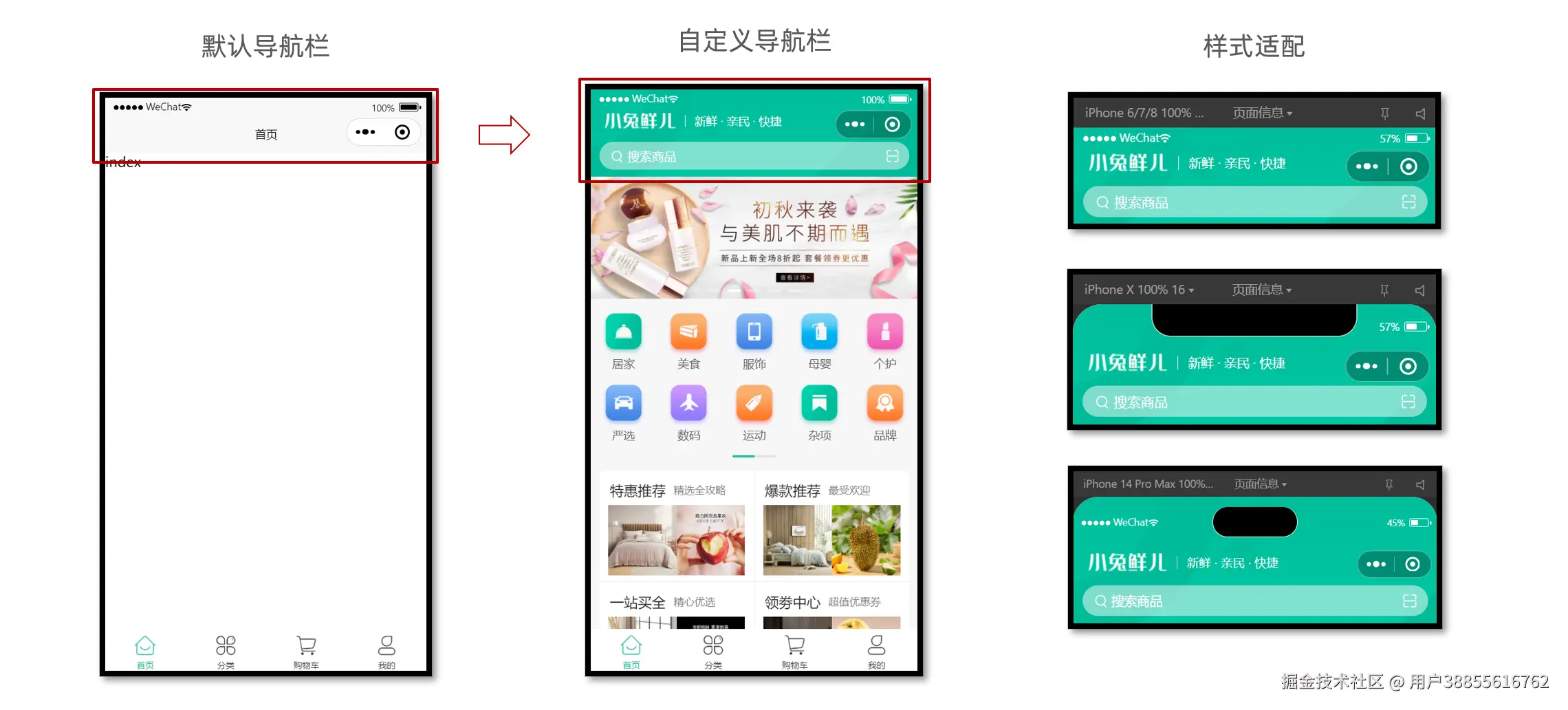
操作步骤
- 准备组件静态结构
- 修改页面配置,隐藏默认导航栏,修改文字颜色
- 样式适配 -> 安全区域
静态结构
新建业务组件:src/pages/index/components/CustomNavbar.vue
html
<script setup lang="ts">
//
</script>

<template>
  <view class="navbar">
    <!-- logo文字 -->
    <view class="logo">
      <image class="logo-image" src="@/static/images/logo.png"></image>
      <text class="logo-text">新鲜 · 亲民 · 快捷</text>
    </view>
    <!-- 搜索条 -->
    <view class="search">
      <text class="icon-search">搜索商品</text>
      <text class="icon-scan"></text>
    </view>
  </view>
</template>

<style lang="scss">
/* 自定义导航条 */
.navbar {
  background-image: url(@/static/images/navigator_bg.png);
  background-size: cover;
  position: relative;
  display: flex;
  flex-direction: column;
  padding-top: 20px;
  .logo {
    display: flex;
    align-items: center;
    height: 64rpx;
    padding-left: 30rpx;
    padding-top: 20rpx;
    .logo-image {
      width: 166rpx;
      height: 39rpx;
    }
    .logo-text {
      flex: 1;
      line-height: 28rpx;
      color: #fff;
      margin: 2rpx 0 0 20rpx;
      padding-left: 20rpx;
      border-left: 1rpx solid #fff;
      font-size: 26rpx;
    }
  }
  .search {
    display: flex;
    align-items: center;
    justify-content: space-between;
    padding: 0 10rpx 0 26rpx;
    height: 64rpx;
    margin: 16rpx 20rpx;
    color: #fff;
    font-size: 28rpx;
    border-radius: 32rpx;
    background-color: rgba(255, 255, 255, 0.5);
  }
  .icon-search {
    &::before {
      margin-right: 10rpx;
    }
  }
  .icon-scan {
    font-size: 30rpx;
    padding: 15rpx;
  }
}
</style>
安全区域
不同手机的安全区域不同,适配安全区域能防止页面重要内容被遮挡。
可通过 uni.getSystemInfoSync() 获取屏幕边界到安全区的距离。

核心代码参考
自定义导航配置
json
// src/pages.json
{
  "path": "pages/index/index",
  "style": {
    "navigationStyle": "custom", // 隐藏默认导航
    "navigationBarTextStyle": "white",
    "navigationBarTitleText": "首页"
  }
}
组件安全区适配
html
<!-- src/pages/index/componets/CustomNavbar.vue -->
<script>
// 获取屏幕边界到安全区域距离
const { safeAreaInsets } = uni.getSystemInfoSync()
</script>

<template>
  <!-- 顶部占位 -->
  <view class="navbar" :style="{ paddingTop: safeAreaInsets?.top + 'px' }">
    <!-- ...省略 -->
  </view>
</template>
使用组件
html
<script setup lang="ts">
import CustomNavbar from './components/CustomNavbar.vue'
</script>

<template>
  <!-- 自定义导航栏 -->
  <CustomNavBar />
</template>
通用轮播组件
参考效果
小兔鲜儿项目中总共有两处广告位,分别位于【首页】和【商品分类页】。
轮播图组件需要在首页和分类页使用,需要封装成通用组件。

静态结构
首页广告布局为独立的组件 XtxSwiper ,位于的 src/components 目录中。
该组件定义了 list 属性接收外部传入的数据,内部通过小程序内置组件 swiper 展示首页广告的数据。
轮播图组件
静态结构:src/components/XtxSwiper.vue
html
<script setup lang="ts">
import { ref } from 'vue'

const activeIndex = ref(0)
</script>

<template>
  <view class="carousel">
    <swiper :circular="true" :autoplay="false" :interval="3000">
      <swiper-item>
        <navigator url="/pages/index/index" hover-class="none" class="navigator">
          <image
            mode="aspectFill"
            class="image"
            src="https://pcapi-xiaotuxian-front-devtest.itheima.net/miniapp/uploads/slider_1.jpg"
          ></image>
        </navigator>
      </swiper-item>
      <swiper-item>
        <navigator url="/pages/index/index" hover-class="none" class="navigator">
          <image
            mode="aspectFill"
            class="image"
            src="https://pcapi-xiaotuxian-front-devtest.itheima.net/miniapp/uploads/slider_2.jpg"
          ></image>
        </navigator>
      </swiper-item>
      <swiper-item>
        <navigator url="/pages/index/index" hover-class="none" class="navigator">
          <image
            mode="aspectFill"
            class="image"
            src="https://pcapi-xiaotuxian-front-devtest.itheima.net/miniapp/uploads/slider_3.jpg"
          ></image>
        </navigator>
      </swiper-item>
    </swiper>
    <!-- 指示点 -->
    <view class="indicator">
      <text
        v-for="(item, index) in 3"
        :key="item"
        class="dot"
        :class="{ active: index === activeIndex }"
      ></text>
    </view>
  </view>
</template>

<style lang="scss">
/* 轮播图 */
.carousel {
  height: 280rpx;
  position: relative;
  overflow: hidden;
  transform: translateY(0);
  background-color: #efefef;
  .indicator {
    position: absolute;
    left: 0;
    right: 0;
    bottom: 16rpx;
    display: flex;
    justify-content: center;
    .dot {
      width: 30rpx;
      height: 6rpx;
      margin: 0 8rpx;
      border-radius: 6rpx;
      background-color: rgba(255, 255, 255, 0.4);
    }
    .active {
      background-color: #fff;
    }
  }
  .navigator,
  .image {
    width: 100%;
    height: 100%;
  }
}
</style>
自动导入全局组件
参考配置
json
// page.json

{
  // 组件自动引入规则
  "easycom": {
    // 是否开启自动扫描 @/components/$1/$1.vue 组件
    "autoscan": true,
    // 以正则方式自定义组件匹配规则
    "custom": {
      // uni-ui 规则如下配置
      "^uni-(.*)": "@dcloudio/uni-ui/lib/uni-$1/uni-$1.vue",
      // 以 Xtx 开头的组件,在 components 目录中查找引入(需要重启服务器)
      "^Xtx(.*)": "@/components/Xtx$1.vue"
    }
  }
}
全局组件类型声明
Volar 插件说明:Vue Language Tools
ts
// src/types/components.d.ts
import XtxSwiper from './XtxSwiper.vue'
declare module 'vue' {
  export interface GlobalComponents {
    XtxSwiper: typeof XtxSwiper
  }
}
版本升级
新版 Volar 把
declare module '@vue/runtime-core'调整为declare module 'vue'
使用组件
html
<template>
  <!-- z自定义轮播图 -->
  <Xtxswiper />
</template>
获取数据
接口调用
该业务功能对于前端来说比较简单,只需调用后端提供的接口将获得的数据展现,结合运营人员的营销策略跳转到对应的链接地址即可。
接口地址:/home/banner
请求方式:GET
请求参数:
Query:
| 字段名 | 必须 | 默认值 | 备注 |
|---|---|---|---|
| distributionSite | 否 | 1 | 活动 banner 位置,1 代表首页,2 代表商品分类页,默认为 1 |
请求封装
ts
// 存放路径: src/services/home.ts
import type { BannerItem } from '@/types/home'

/**
 * 首页-广告区域-小程序
 * @param distributionSite 广告区域展示位置(投放位置 投放位置,1为首页,2为分类商品页) 默认是1
 */
export const getHomeBannerAPI = (distributionSite = 1) => {
  return http<BannerItem[]>({
    method: 'GET',
    url: '/home/banner',
    data: {
      distributionSite,
    },
  })
}
类型声明
存放路径:src/types/home.d.ts
ts
/** 首页-广告区域数据类型 */
export type BannerItem = {
  /** 跳转链接 */
  hrefUrl: string
  /** id */
  id: string
  /** 图片链接 */
  imgUrl: string
  /** 跳转类型 */
  type: number
}
最后,将获得的数据结合模板语法渲染到页面中。
参考代码
轮播图组件:src\components\XtxSwiper.vue
html
<script setup lang="ts">
import type { BannerItem } from '@/types/home'
import { ref } from 'vue'

const activeIndex = ref(0)

// 当 swiper 下标发生变化时触发
const onChange: UniHelper.SwiperOnChange = (ev) => {
  // ! 非空断言,主观上排除掉空值情况
  activeIndex.value = ev.detail!.current
}
// 定义 props 接收
defineProps<{
  list: BannerItem[]
}>()
</script>

<template>
  <view class="carousel">
    <swiper :circular="true" :autoplay="false" :interval="3000" @change="onChange">
      <swiper-item v-for="item in list" :key="item.id">
        <navigator url="/pages/index/index" hover-class="none" class="navigator">
          <image mode="aspectFill" class="image" :src="item.imgUrl"></image>
        </navigator>
      </swiper-item>
    </swiper>
    <!-- 指示点 -->
    <view class="indicator">
      <text
        v-for="(item, index) in list"
        :key="item.id"
        class="dot"
        :class="{ active: index === activeIndex }"
      ></text>
    </view>
  </view>
</template>
首页分类
参考效果
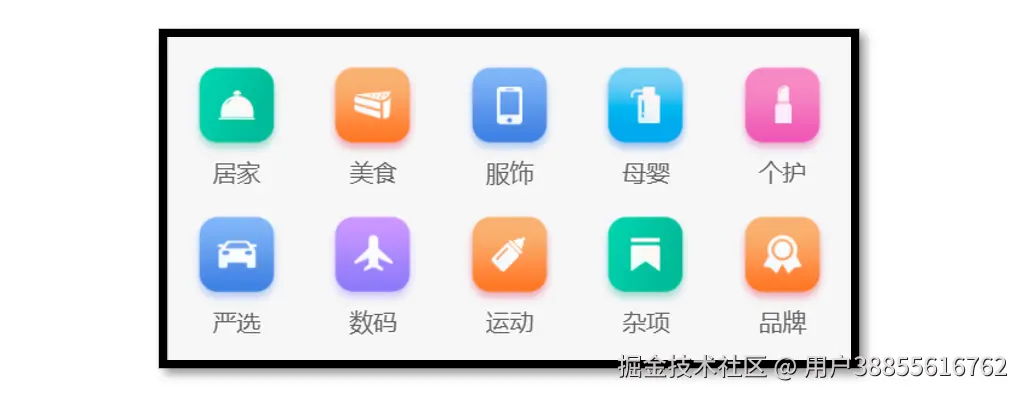
准备工作
- 准备组件,只有首页使用
- 导入并使用组件
- 设置首页底色为
#F7F7F7
静态结构
前台类目布局为独立的组件 CategoryPanel属于首页的业务组件,存放到首页的 components 目录中。
html
<script setup lang="ts">
//
</script>

<template>
  <view class="category">
    <navigator
      class="category-item"
      hover-class="none"
      url="/pages/index/index"
      v-for="item in 10"
      :key="item"
    >
      <image
        class="icon"
        src="https://pcapi-xiaotuxian-front-devtest.itheima.net/miniapp/images/nav_icon_1.png"
      ></image>
      <text class="text">居家</text>
    </navigator>
  </view>
</template>

<style lang="scss">
/* 前台类目 */
.category {
  margin: 20rpx 0 0;
  padding: 10rpx 0;
  display: flex;
  flex-wrap: wrap;
  min-height: 328rpx;

  .category-item {
    width: 150rpx;
    display: flex;
    justify-content: center;
    flex-direction: column;
    align-items: center;
    box-sizing: border-box;

    .icon {
      width: 100rpx;
      height: 100rpx;
    }
    .text {
      font-size: 26rpx;
      color: #666;
    }
  }
}
</style>
获取数据
接口调用
该业务功能对于前端来说比较简单,只需调用后端提供的接口将获得的数据展现。
接口地址:/home/category/mutli
请求方式:GET
请求参数:无
请求封装
ts
// services/home.ts
/**
 * 首页-前台分类-小程序
 */
export const getHomeCategoryAPI = () => {
  return http<CategoryItem[]>({
    method: 'GET',
    url: '/home/category/mutli',
  })
}
数据类型
ts
/** 首页-前台类目数据类型 */
export type CategoryItem = {
  /** 图标路径 */
  icon: string
  /** id */
  id: string
  /** 分类名称 */
  name: string
}
最后,将获得的数据结合模板语法渲染到页面中。
参考代码
src\pages\index\components\CategoryPanel.vue
html
<script setup lang="ts">
import type { CategoryItem } from '@/types/home'

// 定义 props 接收数据
defineProps<{
  list: CategoryItem[]
}>()
</script>

<template>
  <view class="category">
    <navigator
      class="category-item"
      hover-class="none"
      url="/pages/index/index"
      v-for="item in list"
      :key="item.id"
    >
      <image class="icon" :src="item.icon"></image>
      <text class="text">{{ item.name }}</text>
    </navigator>
  </view>
</template>
热门推荐
热门推荐功能,后端根据用户的消费习惯等信息向用户推荐的一系列商品,前端负责展示这些商品展示给用户。
参考效果

静态结构
热门推荐布局为独立的组件 HotPanel,属于首页的业务组件,存放到首页的 components 目录中。
html
<script setup lang="ts">
//
</script>

<template>
  <!-- 推荐专区 -->
  <view class="panel hot">
    <view class="item" v-for="item in 4" :key="item">
      <view class="title">
        <text class="title-text">特惠推荐</text>
        <text class="title-desc">精选全攻略</text>
      </view>
      <navigator hover-class="none" url="/pages/hot/hot" class="cards">
        <image
          class="image"
          mode="aspectFit"
          src="https://pcapi-xiaotuxian-front-devtest.itheima.net/miniapp/uploads/goods_small_1.jpg"
        ></image>
        <image
          class="image"
          mode="aspectFit"
          src="https://pcapi-xiaotuxian-front-devtest.itheima.net/miniapp/uploads/goods_small_2.jpg"
        ></image>
      </navigator>
    </view>
  </view>
</template>

<style lang="scss">
/* 热门推荐 */
.hot {
  display: flex;
  flex-wrap: wrap;
  min-height: 508rpx;
  margin: 20rpx 20rpx 0;
  border-radius: 10rpx;
  background-color: #fff;

  .title {
    display: flex;
    align-items: center;
    padding: 24rpx 24rpx 0;
    font-size: 32rpx;
    color: #262626;
    position: relative;
    .title-desc {
      font-size: 24rpx;
      color: #7f7f7f;
      margin-left: 18rpx;
    }
  }

  .item {
    display: flex;
    flex-direction: column;
    width: 50%;
    height: 254rpx;
    border-right: 1rpx solid #eee;
    border-top: 1rpx solid #eee;
    .title {
      justify-content: start;
    }
    &:nth-child(2n) {
      border-right: 0 none;
    }
    &:nth-child(-n + 2) {
      border-top: 0 none;
    }
    .image {
      width: 150rpx;
      height: 150rpx;
    }
  }
  .cards {
    flex: 1;
    padding: 15rpx 20rpx;
    display: flex;
    justify-content: space-between;
    align-items: center;
  }
}
</style>
获取数据
接口调用
该业务功能对于前端来说比较简单,只需调用后端提供的接口将获得的数据展现。
接口地址:/home/hot/mutli
请求方式:GET
请求参数:
Headers:
| 字段名称 | 是否必须 | 默认值 | 备注 |
|---|---|---|---|
| source-client | 是 | 无 | 后端程序区分接口调用者,miniapp 代表小程序端 |
成功响应结果:
| 字段名称 | 数据类型 | 备注 |
|---|---|---|
| id | string | ID |
| title | string | 推荐标题 |
| type | number | 推荐类型 |
| alt | string | 推荐说明 |
| pictures | arraystring | 图片集合 图片路径 |
类型声明
ts
/** 首页-热门推荐数据类型 */
export type HotItem = {
  /** 说明 */
  alt: string
  /** id */
  id: string
  /** 图片集合[ 图片路径 ] */
  pictures: string[]
  /** 跳转地址 */
  target: string
  /** 标题 */
  title: string
  /** 推荐类型 */
  type: string
}
接口封装
services/home.ts
ts
/**
 * 首页-热门推荐-小程序
 */
export const getHomeHotAPI = () => {
  return http<HotItem[]>({
    method: 'GET',
    url: '/home/hot/mutli',
  })
}
最后将获得的数据结合模板语法渲染到页面中。
参考代码
src\pages\index\components\HotPanel.vue
html
<script setup lang="ts">
import type { HotItem } from '@/types/home'

// 定义 props 接收数据
defineProps<{
  list: HotItem[]
}>()
</script>

<template>
  <!-- 推荐专区 -->
  <view class="panel hot">
    <view class="item" v-for="item in list" :key="item.id">
      <view class="title">
        <text class="title-text">{{ item.title }}</text>
        <text class="title-desc">{{ item.alt }}</text>
      </view>
      <navigator hover-class="none" :url="`/pages/hot/hot?type=${item.type}`" class="cards">
        <image
          v-for="src in item.pictures"
          :key="src"
          class="image"
          mode="aspectFit"
          :src="src"
        ></image>
      </navigator>
    </view>
  </view>
</template>
猜你喜欢(重点难点)
参考效果
猜你喜欢功能,后端根据用户的浏览记录等信息向用户随机推荐的一系列商品,前端负责把商品在多个页面中展示。

准备工作
- 准备组件 (通用组件,多页面使用)
- 定义组件类型
- 准备
scroll-view滚动容器 - 设置
page和scroll-view样式
静态结构
猜你喜欢是一个通用组件 XtxGuess,多个页面会用到该组件,存放到 src/components 目录中。
vue
xml
<script setup lang="ts">
//
</script>

<template>
  <!-- 猜你喜欢 -->
  <view class="caption">
    <text class="text">猜你喜欢</text>
  </view>
  <view class="guess">
    <navigator
      class="guess-item"
      v-for="item in 10"
      :key="item"
      :url="`/pages/goods/goods?id=4007498`"
    >
      <image
        class="image"
        mode="aspectFill"
        src="https://pcapi-xiaotuxian-front-devtest.itheima.net/miniapp/uploads/goods_big_1.jpg"
      ></image>
      <view class="name"> 德国THORE男表 超薄手表男士休闲简约夜光石英防水直径40毫米 </view>
      <view class="price">
        <text class="small">¥</text>
        <text>899.00</text>
      </view>
    </navigator>
  </view>
  <view class="loading-text"> 正在加载... </view>
</template>

<style lang="scss">
:host {
  display: block;
}
/* 分类标题 */
.caption {
  display: flex;
  justify-content: center;
  line-height: 1;
  padding: 36rpx 0 40rpx;
  font-size: 32rpx;
  color: #262626;
  .text {
    display: flex;
    justify-content: center;
    align-items: center;
    padding: 0 28rpx 0 30rpx;

    &::before,
    &::after {
      content: '';
      width: 20rpx;
      height: 20rpx;
      background-image: url(@/static/images/bubble.png);
      background-size: contain;
      margin: 0 10rpx;
    }
  }
}

/* 猜你喜欢 */
.guess {
  display: flex;
  flex-wrap: wrap;
  justify-content: space-between;
  padding: 0 20rpx;
  .guess-item {
    width: 345rpx;
    padding: 24rpx 20rpx 20rpx;
    margin-bottom: 20rpx;
    border-radius: 10rpx;
    overflow: hidden;
    background-color: #fff;
  }
  .image {
    width: 304rpx;
    height: 304rpx;
  }
  .name {
    height: 75rpx;
    margin: 10rpx 0;
    font-size: 26rpx;
    color: #262626;
    overflow: hidden;
    text-overflow: ellipsis;
    display: -webkit-box;
    -webkit-line-clamp: 2;
    -webkit-box-orient: vertical;
  }
  .price {
    line-height: 1;
    padding-top: 4rpx;
    color: #cf4444;
    font-size: 26rpx;
  }
  .small {
    font-size: 80%;
  }
}
// 加载提示文字
.loading-text {
  text-align: center;
  font-size: 28rpx;
  color: #666;
  padding: 20rpx 0;
}
</style>
1
2
3
4
5
6
7
8
9
10
11
12
13
14
15
16
17
18
19
20
21
22
23
24
25
26
27
28
29
30
31
32
33
34
35
36
37
38
39
40
41
42
43
44
45
46
47
48
49
50
51
52
53
54
55
56
57
58
59
60
61
62
63
64
65
66
67
68
69
70
71
72
73
74
75
76
77
78
79
80
81
82
83
84
85
86
87
88
89
90
91
92
93
94
95
96
97
98
99
100
101
102
103
104
105
106
107
108
全局组件类型
ts
typescript
// types/components.d.ts
import XtxSwiper from '@/components/XtxSwiper.vue'
import XtxGuess from '@/components/XtxGuess.vue'

declare module 'vue' {
  export interface GlobalComponents {
    XtxSwiper: typeof XtxSwiper
    XtxGuess: typeof XtxGuess
  }
}

// 组件实例类型
export type XtxGuessInstance = InstanceType<typeof XtxGuess>
1
2
3
4
5
6
7
8
9
10
11
12
13
获取数据
接口调用
该业务功能对于前端来说比较简单,只需调用后端提供的接口将获得的数据展现。
接口地址:/home/goods/guessLike
请求方式:GET
请求参数:
Query:
| 字段名称 | 是否必须 | 默认值 | 备注 |
|---|---|---|---|
| page | 否 | 1 | 分页的页码 |
| pageSize | 否 | 10 | 每页数据的条数 |
请求封装
ts
kotlin
// src/services/home.ts
/**
 * 猜你喜欢-小程序
 */
export const getHomeGoodsGuessLikeAPI = (data?: PageParams) => {
  return http<PageResult<GuessItem>>({
    method: 'GET',
    url: '/home/goods/guessLike',
    data,
  })
}
1
2
3
4
5
6
7
8
9
10
11
类型声明
通用分页结果类型如下,新建 src/types/global.d.ts 文件:
ts
scala
/** 通用分页结果类型 */
export type PageResult<T> = {
  /** 列表数据 */
  items: T[]
  /** 总条数 */
  counts: number
  /** 当前页数 */
  page: number
  /** 总页数 */
  pages: number
  /** 每页条数 */
  pageSize: number
}
1
2
3
4
5
6
7
8
9
10
11
12
13
猜你喜欢-商品类型如下,存放到 src/types/home.d.ts 文件:
typescript
go
/** 猜你喜欢-商品类型 */
export type GuessItem = {
  /** 商品描述 */
  desc: string
  /** 商品折扣 */
  discount: number
  /** id */
  id: string
  /** 商品名称 */
  name: string
  /** 商品已下单数量 */
  orderNum: number
  /** 商品图片 */
  picture: string
  /** 商品价格 */
  price: number
}
1
2
3
4
5
6
7
8
9
10
11
12
13
14
15
16
17
通用分页参数类型如下,存放到 src/types/global.d.ts 文件:
ts
scala
/** 通用分页参数类型 */
export type PageParams = {
  /** 页码:默认值为 1 */
  page?: number
  /** 页大小:默认值为 10 */
  pageSize?: number
}
1
2
3
4
5
6
7
核心业务
- 子组件内部获取数据
- 父滚动触底需加载分页
- 组件通讯,子调父
参考代码
项目首页
vue
xml
// pages/index/index.vue
<script setup lang="ts">
import type { XtxGuessInstance } from '@/types/components'
import { ref } from 'vue'
// 获取猜你喜欢组件实例
const guessRef = ref<XtxGuessInstance>()

// 滚动触底事件
const onScrolltolower = () => {
  guessRef.value?.getMore()
}
</script>

<template>
  <!-- 滚动容器 -->
  <scroll-view scroll-y @scrolltolower="onScrolltolower">
    <!-- 猜你喜欢 -->
    <XtxGuess ref="guessRef" />
  </scroll-view>
</template>
1
2
3
4
5
6
7
8
9
10
11
12
13
14
15
16
17
18
19
20
猜你喜欢组件
vue
typescript
// src/components/XtxGuess.vue
<script setup lang="ts">
import { getHomeGoodsGuessLikeAPI } from '@/services/home'
import type { PageParams } from '@/types/global'
import type { GuessItem } from '@/types/home'
import { onMounted, ref } from 'vue'

// 分页参数
const pageParams: Required<PageParams> = {
  page: 1,
  pageSize: 10,
}
// 猜你喜欢的列表
const guessList = ref<GuessItem[]>([])
// 已结束标记
const finish = ref(false)
// 获取猜你喜欢数据
const getHomeGoodsGuessLikeData = async () => {
  // 退出分页判断
  if (finish.value === true) {
    return uni.showToast({ icon: 'none', title: '没有更多数据~' })
  }
  const res = await getHomeGoodsGuessLikeAPI(pageParams)
  // 数组追加
  guessList.value.push(...res.result.items)
  // 分页条件
  if (pageParams.page < res.result.pages) {
    // 页码累加
    pageParams.page++
  } else {
    finish.value = true
  }
}
// 重置数据
const resetData = () => {
  pageParams.page = 1
  guessList.value = []
  finish.value = false
}
// 组件挂载完毕
onMounted(() => {
  getHomeGoodsGuessLikeData()
})
// 暴露方法
defineExpose({
  resetData,
  getMore: getHomeGoodsGuessLikeData,
})
</script>

<template>
  <!-- 猜你喜欢 -->
  <view class="caption">
    <text class="text">猜你喜欢</text>
  </view>
  <view class="guess">
    <navigator
      class="guess-item"
      v-for="item in guessList"
      :key="item.id"
      :url="`/pages/goods/goods`"
    >
      <image class="image" mode="aspectFill" :src="item.picture"></image>
      <view class="name"> {{ item.name }} </view>
      <view class="price">
        <text class="small">¥</text>
        <text>{{ item.price }}</text>
      </view>
    </navigator>
  </view>
  <view class="loading-text">
    {{ finish ? '没有更多数据~' : '正在加载...' }}
  </view>
</template>
1
2
3
4
5
6
7
8
9
10
11
12
13
14
15
16
17
18
19
20
21
22
23
24
25
26
27
28
29
30
31
32
33
34
35
36
37
38
39
40
41
42
43
44
45
46
47
48
49
50
51
52
53
54
55
56
57
58
59
60
61
62
63
64
65
66
67
68
69
70
71
72
73
74
下拉刷新
下拉刷新实际上是在用户操作下拉交互时重新调用接口,然后将新获取的数据再次渲染到页面中。
操作步骤
基于 scroll-view 组件实现下拉刷新,需要通过以下方式来实现下拉刷新的功能。
- 配置
refresher-enabled属性,开启下拉刷新交互 - 监听
@refresherrefresh事件,判断用户是否执行了下拉操作 - 配置
refresher-triggered属性,关闭下拉状态
参考代码
猜你喜欢组件定义重置数据的方法
ts
ini
// src/components/XtxGuess.vue
// 重置数据
const resetData = () => {
  pageParams.page = 1
  guessList.value = []
  finish.value = false
}
// 暴露方法
defineExpose({
  resetData,
})
1
2
3
4
5
6
7
8
9
10
11
首页触发下拉刷新
vue
xml
// src/pages/index/index.vue
<script setup lang="ts">
// 下拉刷新状态
const isTriggered = ref(false)
// 自定义下拉刷新被触发
const onRefresherrefresh = async () => {
  // 开启动画
  isTriggered.value = true
  // 重置猜你喜欢组件数据
  guessRef.value?.resetData() // 加载数据
  await Promise.all([getHomeBannerData(), getHomeCategoryData(), getHomeHotData()]) // 关闭动画
  isTriggered.value = false
}
</script>

<!-- 滚动容器 -->
<scroll-view
  refresher-enabled
  @refresherrefresh="onRefresherrefresh"
  :refresher-triggered="isTriggered"
  class="scroll-view"
  scroll-y
>
  ...省略
</scroll-view>
1
2
3
4
5
6
7
8
9
10
11
12
13
14
15
16
17
18
19
20
21
22
23
24
25
骨架屏
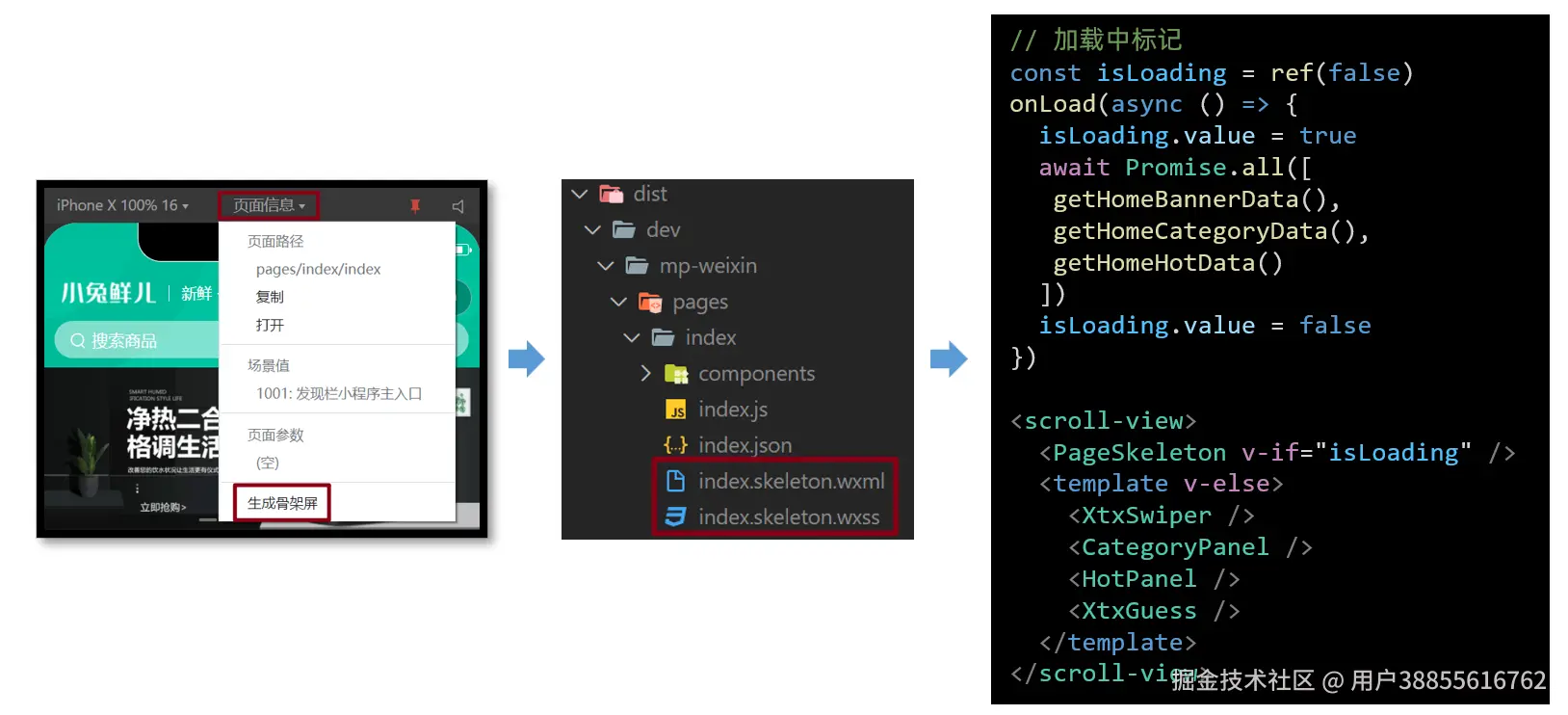
骨架屏是页面的一个空白版本,通常会在页面完全渲染之前,通过一些灰色的区块大致勾勒出轮廓,待数据加载完成后,再替换成真实的内容。
参考效果
骨架屏作用是缓解用户等待时的焦虑情绪,属于用户体验优化方案。

生成骨架屏
微信开发者工具提供了自动生成骨架屏代码的能力。
使用时需要把自动生成的 xxx.skeleton.wxml 和 xxx.skeleton.wxss 封装成 vue 组件。
小兔鲜儿 - 项目打包
微信小程序端
把当前 uni-app 项目打包成微信小程序端,并发布上线。
核心步骤
- 运行打包命令
pnpm build:mp-weixin - 预览和测试,微信开发者工具导入生成的
/dist/build/mp-weixin目录 - 上传小程序代码
- 提交审核和发布
步骤图示
项目打包上线需要使用到多个工具,注意工具之间的职责。
sh
VSCode ----> 微信开发者工具 ----> 微信公众平台了解:开发者也可独立使用 miniprogram-ci 进行小程序代码的上传等操作。
举一反三
打包成其他小程序端的步骤类似,只是更换了 打包命令 和 开发者工具 。
条件编译
常见问题
Q:按照 uni-app 规范开发可保证多平台兼容,但每个平台有自己的一些特性,该如何处理?
A:通过 条件编译,让代码按条件编译到指定平台。

网页端不支持微信平台授权登录等功能 ,可通过 条件编译,实现不同端渲染不同的登录界面。
条件编译语法
通过特殊注释,以 #ifdef 或 #ifndef 加 平台名称 开头,以 #endif 结尾。
多平台编译: #ifdef H5 || MP-WEIXIN 表示在 H5 端 或 微信小程序端 代码。
条件编译支持: 支持 .vue, .ts, .js, .scss, .css, pages.json 等文件。
html
<script setup lang="ts">
// 微信平台特有API,需要条件编译
// #ifdef MP-WEIXIN
wx.login()
wx.requestPayment()
// #endif
</script>

<template>
  <!-- 微信开发能力按钮,需要条件编译 -->
  <!-- #ifdef MP-WEIXIN -->
  <button open-type="openSetting">授权管理</button>
  <button open-type="feedback">问题反馈</button>
  <button open-type="contact">联系我们</button>
  <!-- #endif -->
</template>

<style>
/* 如果出现样式兼容,也可添加条件编译 */
page {
  /* #ifdef H5 */
  background-color: pink;
  /* #endif */
}
</style>
开发技巧
可通过搜索
wx.和open-type等平台关键词,快速查找需要小程序端需添加编译模式的代码。
打包为 H5 端
把当前 uni-app 项目打包成网页(H5)端,并配置路由基础路径。
核心步骤
- 运行打包命令
pnpm build:h5 - 预览和测试,使用浏览器打开
/dist/build/h5目录下的index.html文件 - 由运维部署到服务器
路由基础路径
默认的路由基础路径为 / 根路径,部分网站并不是部署到根路径,需要按运维要求调整。
json
// manifest.json
{
  /* 网页端特有配置 */
  "h5": {
    "router": {
      // 基础路径:./ 为相对路径
      "base": "./"
    }
  } /* 小程序特有相关 */,
  "mp-weixin": {
    // ...省略
  },
  "vueVersion": "3"
}
打包为 APP 端
App 端 的打包,预览、测试、发行,使用 HBuilderX 工具。