列表视图(ListView)
ListView是QML中最常用的视图组件之一,用于显示垂直或水平列表数据,特别适合展示线性排列的大量数据项。
核心概念与特性
ListView基于模型-视图-委托(Model-View-Delegate)模式构建,具有以下特点:
- 高效渲染:只渲染当前可见的项目,适合大数据量场景
- 灵活布局:支持水平和垂直方向排列
- 交互丰富:内置滚动、选择和高亮功能
- 分组支持:可按属性对项目进行分组显示
常用属性与方法
核心属性
| 属性 |
类型 |
默认值 |
说明 |
model |
variant |
- |
数据模型(数字/数组/ListModel/QAbstractItemModel) |
delegate |
Component |
- |
定义每个项目的可视化组件 |
currentIndex |
int |
-1 |
当前选中项的索引 |
count |
int |
- |
只读,模型中的项目总数 |
spacing |
real |
0 |
项目之间的间距 |
布局属性
| 属性 |
类型 |
默认值 |
说明 |
orientation |
enum |
Vertical |
列表方向(Vertical/Horizontal) |
layoutDirection |
enum |
LeftToRight |
布局方向(LeftToRight/RightToLeft) |
header |
Component |
- |
列表头部组件 |
footer |
Component |
- |
列表尾部组件 |
交互属性
| 属性 |
类型 |
默认值 |
说明 |
highlight |
Component |
- |
当前选中项的高亮组件 |
highlightMoveDuration |
int |
150 |
高亮移动动画时长(ms) |
highlightResizeDuration |
int |
0 |
高亮大小调整动画时长(ms) |
interactive |
bool |
true |
是否允许用户交互 |
常用方法
| 方法 |
参数 |
返回值 |
说明 |
示例 |
positionViewAtIndex |
index, mode |
void |
滚动到指定索引位置 |
listView.positionViewAtIndex(5, ListView.Center) |
incrementCurrentIndex |
- |
void |
增加当前索引 |
listView.incrementCurrentIndex() |
decrementCurrentIndex |
- |
void |
减少当前索引 |
listView.decrementCurrentIndex() |
itemAt |
x, y |
Item |
返回指定位置的项 |
let item = listView.itemAt(10, 20) |
使用示例
基础列表示例
ListView {
        width: parent.width
        height: 300
        model: ListModel {
            ListElement { name: "Apple"; price: "$2.5" }
            ListElement { name: "Banana"; price: "$1.2" }
            ListElement { name: "Orange"; price: "$1.8" }
            ListElement { name: "Apple"; price: "$2.5" }
            ListElement { name: "Banana"; price: "$1.2" }
            ListElement { name: "Orange"; price: "$1.8" }
        }
        delegate: ItemDelegate {
            width: ListView.view.width
            text: model.name + " - " + model.price
            highlighted: ListView.isCurrentItem
        }
        highlight: Rectangle {
            color: "lightblue"
            radius: 3
        }
    }
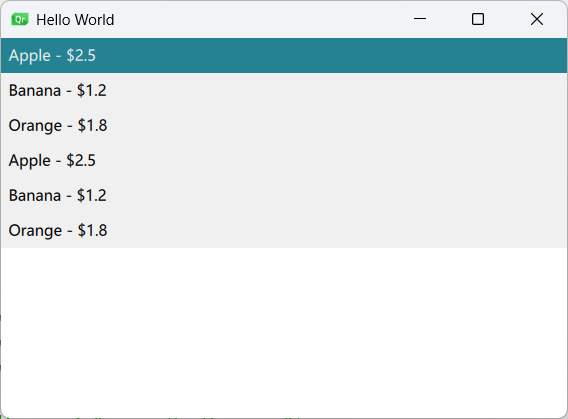
自定义列表项示例
import QtQuick
import QtQuick.Controls

Window {
    width: 500
    height: 680
    visible: true
    title: qsTr("Hello World")

    ListModel {
        id: contactModel
        ListElement {name: "周星星"; number: "138 9527 9527"; image: "images/Chow.png"}
        ListElement {name: "张三"; number: "138 1234 5678"; image: ""}
        ListElement {name: "李四"; number: "150 9999 9999"; image: ""}
        ListElement {name: "王五"; number: "178 2323 1111"; image: ""}
        ListElement {name: "李老板"; number: "152 6666 6666"; image: ""}
        ListElement {name: "老王"; number: "189 4567 8910"; image: "images/LaoWang.png"}
        ListElement {name: "腾讯客服"; number: "0755 1234 657"; image: "images/QQ.png"}
        ListElement {name: "交警"; number: "122"; image: ""}
        ListElement {name: "中国移动"; number: "10086"; image: ""}
        ListElement {name: "小明"; number: "136 8888 8666"; image: ""}
        ListElement {name: "华天安"; number: "139 9999 9999"; image: ""}
        ListElement {name: "小卖部"; number: "020 5693 1236"; image: ""}
        ListElement {name: "Qt Group"; number: "020 9527 9102"; image: "images/qt_logo.png"}
        ListElement {name: "陈小艳"; number: "010 6666 1523"; image: ""}
        ListElement {name: "李中达"; number: "136 7777 5555"; image: ""}
        ListElement {name: "大荣"; number: "0755 6666 2222"; image: ""}
        ListElement {name: "王子文"; number: "155 5555 5555"; image: ""}
        ListElement {name: "李二柱"; number: "136 9999 0000"; image: ""}
    }

    ListView {
        id: listView
        width: parent.width
        height: 620
        model: contactModel
        spacing: 3
        snapMode: ListView.SnapOneItem
        currentIndex: 4

        function firstVisibleItemIndex() {
            var firstVisibleY = contentY;
            var index = Math.floor(firstVisibleY / 50);
            // 如果index是负数或者超过了模型大小,需要进行调整
            index = Math.max(0, Math.min(index, model.count - 1));
            return index;
        }

        MouseArea {
            anchors.fill: parent
            onClicked: {
                var delegateHeight = 50
                var spacing = 3
                var offsetY = mouse.y +
                              listView.firstVisibleItemIndex() * delegateHeight +
                              listView.firstVisibleItemIndex() * spacing
                listView.currentIndex = listView.indexAt(mouse.x, offsetY)
                console.log("visibleFistIndex: " + listView.firstVisibleItemIndex())
            }
        }

        delegate: Item {
            id: itemDelegate
            width: parent.width
            height: 50

            Rectangle {
                id: contactRect
                anchors.fill: parent
                color: itemDelegate.ListView.isCurrentItem ? "#A0FFA0" : "#F0F0F0"
                radius: 16

                Row {
                    width: parent.width
                    height: parent.height

                    Image {
                        id: contactImage
                        width: 40
                        height: 40
                        anchors.verticalCenter: parent.verticalCenter
                        source: (image == "") ? "./images/contact.png" : image
                        fillMode: Image.PreserveAspectFit
                    }

                    Label {
                        id: nameLabel
                        anchors.left: contactImage.right
                        anchors.leftMargin: 10
                        anchors.verticalCenter: parent.verticalCenter
                        width: 200
                        height: 40
                        font.pixelSize: 32
                        verticalAlignment: Text.AlignVCenter
                        color: "black"
                        text: name
                    }

                    Label {
                        id: numberLabel
                        anchors.left: nameLabel.right
                        anchors.verticalCenter: parent.verticalCenter
                        width: 400
                        height: 40
                        verticalAlignment: Text.AlignVCenter
                        font.pixelSize: 32
                        color: "black"
                        text: number
                    }
                }
            }
        }
    }

    Button {
        id: decAllContact
        width: parent.width / 2
        height: 40
        anchors.left: parent.left
        anchors.bottom: parent.bottom
        text: "▼"
        font.pixelSize: 32
        font.bold: true

        onClicked: {
            var index = listView.currentIndex
            index++
            if(index >= listView.count)
            {
                listView.currentIndex = listView.count - 1
                listView.positionViewAtIndex(listView.count - 1, ListView.Visible)
            }
            else
            {
                listView.currentIndex = index
                listView.positionViewAtIndex(index, ListView.Visible)
            }
        }
    }

    Button {
        id: incContact
        width: parent.width / 2
        height: 40
        anchors.right: parent.right
        anchors.bottom: parent.bottom
        text: "▲"
        font.pixelSize: 32
        font.bold: true

        onClicked: {
            var index = listView.currentIndex
            index--
            if(index <= 0)
            {
                listView.currentIndex = 0
                listView.positionViewAtIndex(0, ListView.Visible)
            }
            else
            {
                listView.currentIndex = index
                listView.positionViewAtIndex(index, ListView.Visible)
            }
        }
    }
}
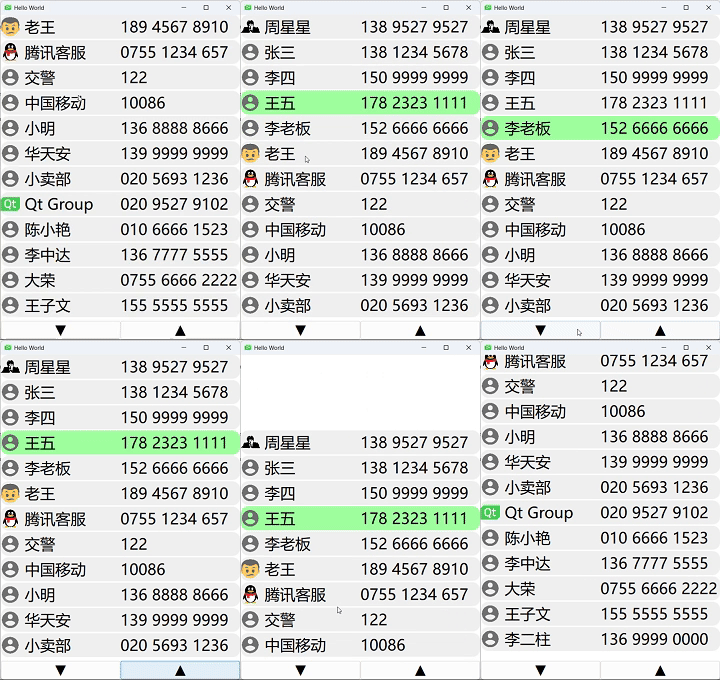
栅格视图(GridView)
GridView以二维网格形式排列项目,是构建图库、图标视图等场景的理想选择。
核心概念与特性
GridView具有以下特点:
- 网格布局:项目按行和列排列,形成整齐的网格
- 动态加载:只渲染可见区域的项目,性能高效
- 灵活尺寸:可自定义单元格大小和间距
- 动画支持:内置添加/删除项目的动画效果
常用属性与方法
核心属性
| 属性 |
类型 |
默认值 |
说明 |
model |
variant |
- |
数据模型(数字/数组/ListModel等) |
delegate |
Component |
- |
定义每个单元格的显示组件 |
cellWidth |
real |
- |
每个单元格的宽度 |
cellHeight |
real |
- |
每个单元格的高度 |
flow |
enum |
LeftToRight |
项目排列方向(LeftToRight/TopToBottom) |
布局属性
| 属性 |
类型 |
默认值 |
说明 |
rows |
int |
- |
显式设置行数(优先于cellHeight) |
columns |
int |
- |
显式设置列数(优先于cellWidth) |
layoutDirection |
enum |
LeftToRight |
布局方向(LeftToRight/RightToLeft) |
verticalLayoutDirection |
enum |
TopToBottom |
垂直布局方向(TopToBottom/BottomToTop) |
交互属性
| 属性 |
类型 |
默认值 |
说明 |
highlight |
Component |
- |
当前选中项的高亮组件 |
highlightFollowsCurrentItem |
bool |
true |
高亮是否跟随当前项 |
highlightMoveDuration |
int |
150 |
高亮移动动画时长(ms) |
interactive |
bool |
true |
是否允许用户交互 |
常用方法
| 方法 |
参数 |
返回值 |
说明 |
示例 |
positionViewAtIndex |
index, mode |
void |
滚动到指定索引位置 |
gridView.positionViewAtIndex(5, GridView.Beginning) |
forceLayout |
- |
void |
强制重新布局网格 |
gridView.forceLayout() |
moveCurrentIndexUp |
- |
void |
向上移动当前索引 |
gridView.moveCurrentIndexUp() |
moveCurrentIndexDown |
- |
void |
向下移动当前索引 |
gridView.moveCurrentIndexDown() |
使用示例
基础网格示例
import QtQuick 2.15
import QtQuick.Controls 2.15

 GridView {
        id :gridView
        width: 300; height: 300
        cellWidth: 100; cellHeight: 100

        model: ListModel {
            ListElement { color: "red" }
            ListElement { color: "green" }
            ListElement { color: "blue" }
            ListElement { color: "yellow" }
        }

        delegate: Rectangle {
            width: GridView.view.cellWidth - 5
            height: GridView.view.cellHeight - 5
            color: model.color
            border.width: GridView.isCurrentItem ? 2 : 0
            border.color: "black"

            MouseArea {
                anchors.fill: parent
                onClicked: gridView.currentIndex = index // 点击时更新当前选中索引
            }
        }
    }
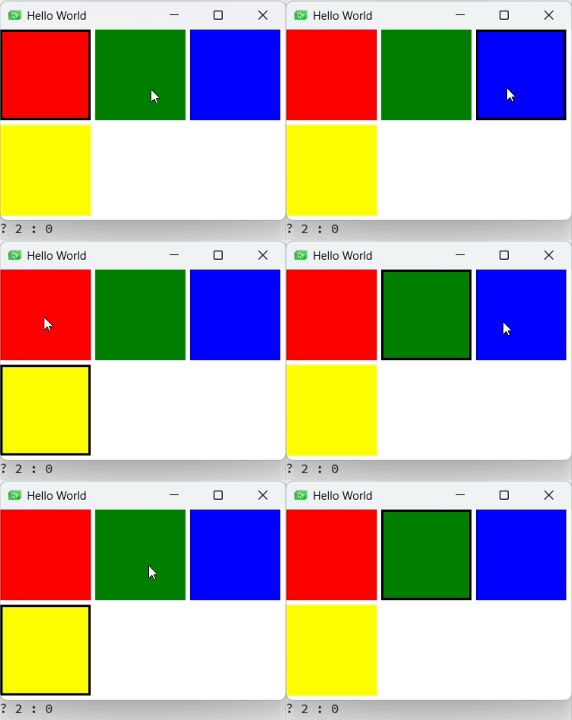
动态增删带动画示例
GridView {
        id: gridView
        anchors.fill: parent
        cellWidth: 80; cellHeight: 80

        model: ListModel {
            id: gridModel
            ListElement { index: 0 }
            ListElement { index: 1 }
        }

        delegate: Rectangle {
            id: wrapper
            width: GridView.view.cellWidth - 10
            height: GridView.view.cellHeight - 10
            color: "lightblue"

            Text {
                text: index
                anchors.centerIn: parent
            }

            // 添加动画
            GridView.onAdd: SequentialAnimation {
                PropertyAction { target: wrapper; property: "scale"; value: 0 }
                NumberAnimation { target: wrapper; property: "scale"; to: 1; duration: 200 }
            }

            // 删除动画
            GridView.onRemove: SequentialAnimation {
                PropertyAction { target: wrapper; property: "GridView.delayRemove"; value: true }
                NumberAnimation { target: wrapper; property: "scale"; to: 0; duration: 200 }
                PropertyAction { target: wrapper; property: "GridView.delayRemove"; value: false }
            }

            MouseArea {
                anchors.fill: parent
                onClicked: gridModel.remove(index)
            }
        }
    }

    Button {
        anchors.bottom: parent.bottom
        text: "Add Item"
        onClicked: gridModel.append({"index": gridModel.count})
    }
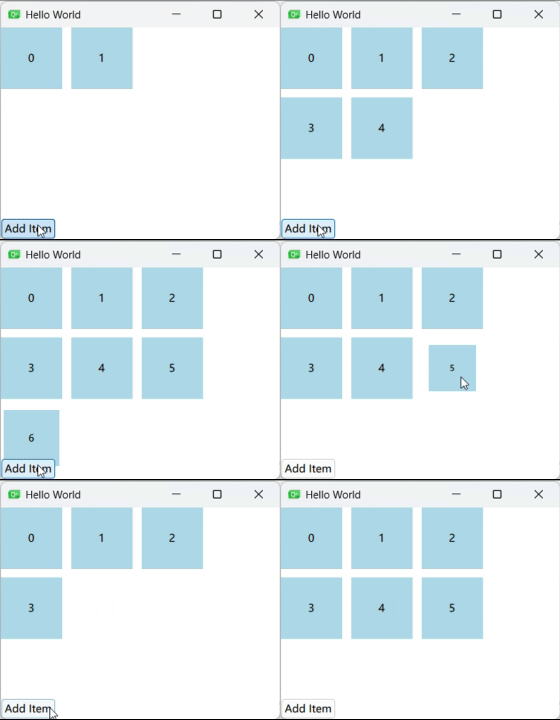
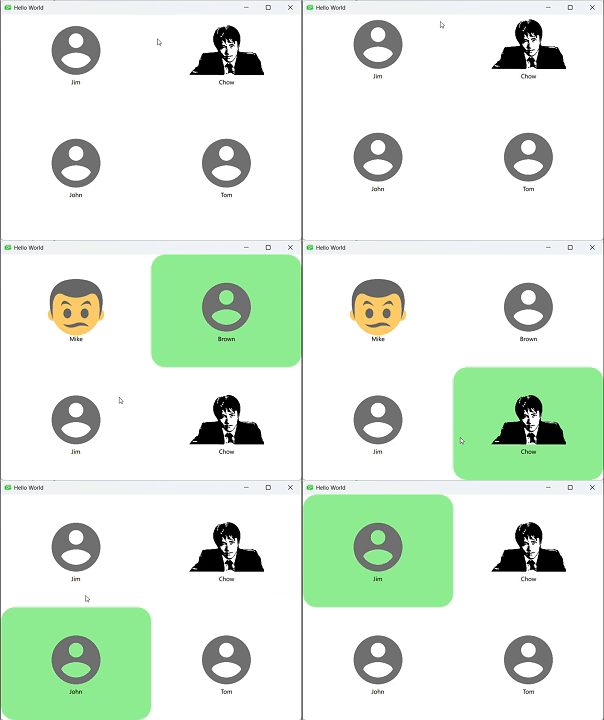
图片网格示例
ListModel {
        id: listModel
        ListElement {name: "Mike"; portrait: "Mike.png"}
        ListElement {name: "Brown"; portrait: "portrait.png"}
        ListElement {name: "Jim"; portrait: "portrait.png"}
        ListElement {name: "Chow"; portrait: "Chow.png"}
        ListElement {name: "John"; portrait: "portrait.png"}
        ListElement {name: "Tom"; portrait: "portrait.png"}
    }

    Component {
        id: gridDelegate
        Item {
            width: gridView.cellWidth
            height: gridView.cellHeight

            Column {
                anchors.centerIn: parent

                Image {
                    source: portrait
                    width: gridView.cellWidth / 2
                    height: gridView.cellHeight / 2
                    anchors.horizontalCenter: parent.horizontalCenter
                    fillMode: Image.PreserveAspectFit
                }

                Label {
                    text: name
                    anchors.horizontalCenter: parent.horizontalCenter
                }
            }
            MouseArea {
                anchors.fill: parent
                onClicked: gridView.currentIndex = index // 点击时更新当前选中索引
            }
        }
    }

    GridView {
        id: gridView
        anchors.fill: parent
        cellWidth: width / 2
        cellHeight: height / 2
        model: listModel
        delegate: gridDelegate
        focus: true
        highlight: Rectangle {
            color: "lightgreen"
            radius: gridView.cellHeight / 8
        }
    }
表格视图(TableView)
TableView专门用于显示表格数据,支持多列、表头、排序等功能,适合展示结构化数据。
核心概念与特性
TableView的主要特点包括:
- 多列支持:每列可独立定义宽度、标题和显示方式
- 表头支持:内置可自定义的表头显示
- 灵活模型:支持ListModel、TableModel等多种数据模型
- 性能优化:只渲染可见单元格,适合大数据量
常用属性与方法
核心属性
| 属性 |
类型 |
默认值 |
说明 |
model |
variant |
- |
数据模型(ListModel/TableModel等) |
TableViewColumn |
Component |
- |
定义表格列(role/title/width等) |
rowDelegate |
Component |
- |
定义行的外观 |
itemDelegate |
Component |
- |
定义单元格的外观 |
headerDelegate |
Component |
- |
定义表头的外观 |
布局属性
| 属性 |
类型 |
默认值 |
说明 |
columnWidthProvider |
function |
- |
动态计算列宽的函数 |
rowHeightProvider |
function |
- |
动态计算行高的函数 |
resizableColumns |
bool |
false |
是否允许调整列宽 |
resizableRows |
bool |
false |
是否允许调整行高 |
交互属性
| 属性 |
类型 |
默认值 |
说明 |
selectionMode |
enum |
NoSelection |
选择模式(NoSelection/SingleSelection/ExtendedSelection等) |
currentRow |
int |
-1 |
当前选中行 |
currentColumn |
int |
-1 |
当前选中列 |
sortIndicatorVisible |
bool |
false |
是否显示排序指示器 |
使用示例
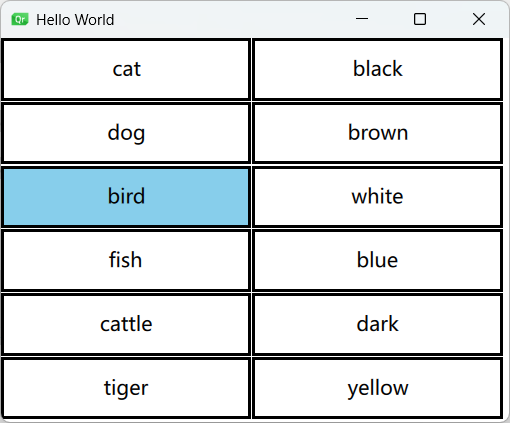
完整表格示例
import QtQuick
import QtQuick.Controls
import Qt.labs.qmlmodels

Window {
    width: 640
    height: 480
    visible: true
    title: qsTr("Hello World")

    // 定义一个表格视图组件
    TableView {
        id: tableView  // 组件ID
        anchors.fill: parent  // 填充父组件
        columnSpacing: 1  // 列间距为1像素
        rowSpacing: 1  // 行间距为1像素
        clip: true  // 启用裁剪,超出部分不显示
        selectionModel: ItemSelectionModel {}  // 选择模型
        delegate: tableDelegate  // 设置单元格的委托组件

        // 表格的数据模型
        model: TableModel {
            // 定义两列
            TableModelColumn { display: "name" }  // 第一列名为"name"
            TableModelColumn { display: "color" }  // 第二列名为"color"

            // 表格数据行
            rows: [
                {"name": "cat", "color": "black"},
                {"name": "dog", "color": "brown"},
                {"name": "bird", "color": "white"},
                {"name": "fish", "color": "blue"},
                {"name": "cattle", "color": "dark"},
                {"name": "tiger", "color": "yellow"}
            ]
        }

        // 定义单元格的委托组件
        Component {
            id: tableDelegate

            // 每个单元格是一个矩形
            Rectangle {
                implicitWidth: 100  // 默认宽度
                implicitHeight: 50  // 默认高度
                border.width: 2  // 边框宽度

                // 当前单元格是否被选中
                required property bool current
                // 根据选中状态改变背景色
                color: current ? "skyblue" : "white"

                // 当单元格被回收时暂停动画
                TableView.onPooled: rotationAnimation.pause()
                // 当单元格被重用时恢复动画
                TableView.onReused: rotationAnimation.resume()

                // 单元格中的文本标签
                Label {
                    id: label
                    text: display  // 显示单元格内容
                    anchors.centerIn: parent  // 居中显示
                    font.pixelSize: 16  // 字体大小
                }

                // 旋转动画效果
                RotationAnimation {
                    id: rotationAnimation
                    target: label  // 动画目标为标签
                    from: 0  // 起始角度
                    to: 360  // 结束角度
                    duration: (Math.random() * 5000) + 2000  // 随机持续时间(2-7秒)
                    loops: Animation.Infinite  // 无限循环
                    // running: true  // 运行状态
                }
            }
        }

        // 自定义列宽数组 宽度和高度200*100
        property var columnWidths: [200, 100]
        // 列宽提供函数
        columnWidthProvider: function(column) {
            return columnWidths[column]
        }

        // 定时器,2秒后触发
        Timer {
            running: true  // 自动运行
            interval: 2000  // 间隔2秒

            onTriggered: {
                // 修改第二列的宽度为200
                tableView.columnWidths[1] = 200
                // 强制重新布局
                tableView.forceLayout()
            }
        }
    }
}
路径视图(PathView)
PathView允许项目沿自定义路径排列和移动,用于创建轮播图、弧形菜单等非线性布局。
核心概念与特性
PathView的主要特点包括:
- 自定义路径:支持直线、曲线、闭合路径等多种路径类型
- 动态效果:项目可沿路径平滑移动,支持3D变换效果
- 视觉控制:可控制项目在路径不同位置的视觉属性(大小、透明度等)
- 交互灵活:支持拖动、自动轮播等交互方式
常用属性与方法
核心属性
| 属性 |
类型 |
默认值 |
说明 |
model |
variant |
- |
数据模型(数字/ListModel/JS数组) |
delegate |
Component |
- |
定义每个项目的显示组件 |
path |
Path |
- |
定义项目移动路径(必需) |
currentIndex |
int |
0 |
当前选中项的索引 |
offset |
real |
0 |
路径上的偏移量(0.0-1.0) |
pathItemCount |
int |
- |
同时可见的项目数量 |
路径属性
| 属性 |
类型 |
默认值 |
说明 |
startX |
real |
- |
路径起始点X坐标 |
startY |
real |
- |
路径起始点Y坐标 |
PathLine |
- |
- |
直线路径段 |
PathQuad |
- |
- |
二次贝塞尔曲线 |
PathCubic |
- |
- |
三次贝塞尔曲线 |
PathAttribute |
- |
- |
路径属性(如缩放/透明度) |
交互属性
| 属性 |
类型 |
默认值 |
说明 |
interactive |
bool |
true |
是否允许用户拖动 |
snapMode |
enum |
NoSnap |
吸附模式(NoSnap/SnapToItem) |
flickDeceleration |
real |
100 |
拖动减速系数(越大减速越快) |
preferredHighlightBegin |
real |
0 |
高亮起始位置(0.0-1.0) |
preferredHighlightEnd |
real |
0 |
高亮结束位置(0.0-1.0) |
常用方法
| 方法 |
参数 |
返回值 |
说明 |
示例 |
positionViewAtIndex |
index, mode |
void |
定位视图到指定索引 |
pathView.positionViewAtIndex(3, PathView.Center) |
incrementCurrentIndex |
- |
void |
增加当前索引 |
pathView.incrementCurrentIndex() |
decrementCurrentIndex |
- |
void |
减少当前索引 |
pathView.decrementCurrentIndex() |
使用示例
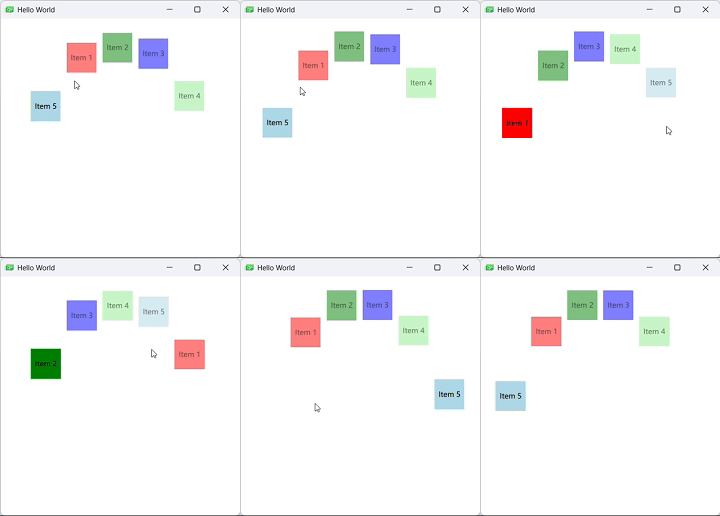
基础路径视图示例
PathView {
        width: 400; height: 400

        model: ListModel {
            ListElement { name: "Item 1"; color: "red" }
            ListElement { name: "Item 2"; color: "green" }
            ListElement { name: "Item 3"; color: "blue" }
            ListElement { name: "Item 4"; color: "lightgreen"}
            ListElement { name: "Item 5"; color: "lightblue"}
        }

        path: Path {
            startX: 50; startY: 200
            PathQuad { x: 200; y: 50; controlX: 125; controlY: 25 }
            PathQuad { x: 350; y: 200; controlX: 275; controlY: 25 }
        }

        delegate: Rectangle {
            width: 50; height: 50
            color: model.color
            opacity: PathView.isCurrentItem ? 1 : 0.5

            Text {
                text: model.name
                anchors.centerIn: parent
            }
        }
    }
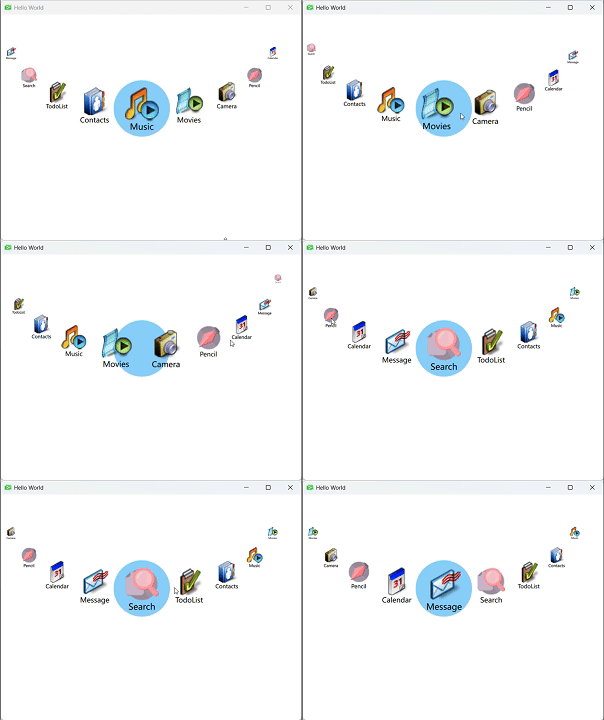
图片按钮轮转示例
import QtQuick
import QtQuick.Controls

Window {
    width: 640
    height: 480
    visible: true
    title: qsTr("Hello World")

    // 1. 数据模型:定义9个应用项,每个包含名称(name)和图标路径(icon)属性
    ListModel {
        id: appModel
        ListElement { name: "Music"; icon: "images/AudioPlayer_48.png" }
        ListElement { name: "Movies"; icon: "images/VideoPlayer_48.png" }
        ListElement { name: "Camera"; icon: "images/Camera_48.png" }
        ListElement { name: "Pencil"; icon: "images/Pencil_48.png" }
        ListElement { name: "Calendar"; icon: "images/DateBook_48.png" }
        ListElement { name: "Message"; icon: "images/EMail_48.png" }
        ListElement { name: "Search"; icon: "images/Search_48.png" }
        ListElement { name: "TodoList"; icon: "images/TodoList_48.png" }
        ListElement { name: "Contacts"; icon: "images/AddressBook_48.png" }
    }

    // 2. 委托组件:定义每个应用项的视觉和行为
    Component {
        id: appDelegate
        Item {
            width: 100
            height: 100
            scale: PathView.iconScale  // 绑定路径属性中的动态缩放值

            // 图标显示(居中,距顶部20像素,开启抗锯齿)
            Image {
                id: myIcon
                source: icon  // 绑定模型中的图标路径
                y: 20
                smooth: true
                anchors.horizontalCenter: parent.horizontalCenter
            }

            // 名称标签(位于图标下方,居中显示)
            Label {
                text: name
                smooth: true
                anchors.top: myIcon.bottom
                anchors.horizontalCenter: parent.horizontalCenter
            }

            // 点击交互:切换当前选中项
            MouseArea {
                anchors.fill: parent
                onClicked: pathView.currentIndex = index  // 通过修改currentIndex实现选中
            }
        }
    }

    // 3. 高亮组件:定义当前选中项的样式(圆形蓝色背景,尺寸略大于普通项)
    Component {
        id: appHighlight
        Rectangle {
            width: 120
            height: 120
            radius: height / 2  // 圆形效果
            color: "lightskyblue"
        }
    }

    // 4. 路径视图核心组件:沿自定义路径布局项目
    PathView {
        id: pathView
        anchors.fill: parent  // 填充父容器
        highlight: appHighlight  // 绑定高亮组件
        preferredHighlightBegin: 0.5  // 高亮区域居中
        preferredHighlightEnd: 0.5
        focus: true  // 允许键盘交互
        model: appModel  // 绑定数据模型
        delegate: appDelegate  // 绑定委托组件

        // 5. 路径定义:通过二次贝塞尔曲线(PathQuad)和动态属性(PathAttribute)实现弧形布局
        path: Path {
            startX: 10
            startY: 50

            // 路径起点设置图标缩放比例为0.3(最小化)
            PathAttribute { name: "iconScale"; value: 0.3 }

            // 第一段二次贝塞尔曲线:从左上到中间,控制点决定曲线弧度
            PathQuad { x: 300; y: 200; controlX: 50; controlY: 200 }

            // 路径中点设置图标缩放比例为1.5(最大化)
            PathAttribute { name: "iconScale"; value: 1.5 }
            // 第二段二次贝塞尔曲线:从中间到右下
            PathQuad { x: 590; y: 50; controlX: 550; controlY: 200 }

            // 路径终点恢复图标缩放比例为0.3
            PathAttribute { name: "iconScale"; value: 0.3 }
        }

        // 6. 信号处理:拖动结束时打印当前选中项索引
        onMovementEnded: {
            console.log("currentIndex: " + currentIndex)
        }
    }
}
总结
QML提供了丰富多样的视图组件,每种组件都有其独特的优势和适用场景:
- ListView:适合线性列表数据展示,支持分组、页眉页脚等高级功能
- GridView:适合二维网格布局,常用于图库、图标视图等场景
- TableView:专为表格数据设计,支持多列、表头和复杂单元格
- PathView:允许项目沿自定义路径排列,适合轮播图、弧形菜单等
掌握这些视图组件的特性和使用方法,能够帮助开发者构建出更加丰富、动态和用户友好的QML界面。在实际开发中,可以根据具体需求选择合适的组件,甚至组合使用多种组件来实现复杂的界面效果。